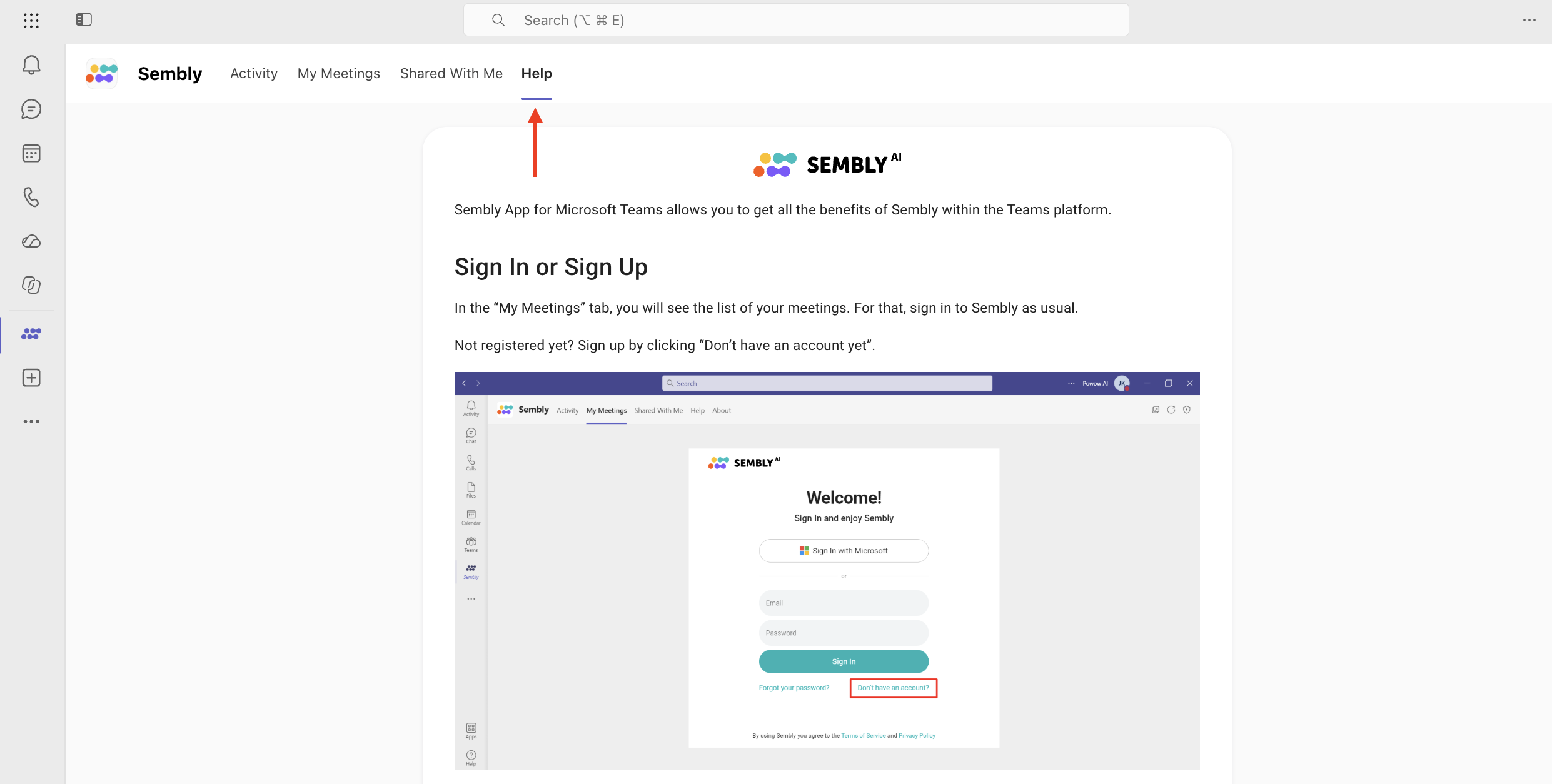
Sembly is available in the Teams app! From now on, you can conduct calls in Microsoft Teams and have them analyzed by Sembly in the same app. This combo optimizes your work so you stay focused and organized.
The Sembly app in Teams is mostly designed for reviewing and managing meetings. Before using it, visit the Settings section to adjust your account in Sembly according to your needs.
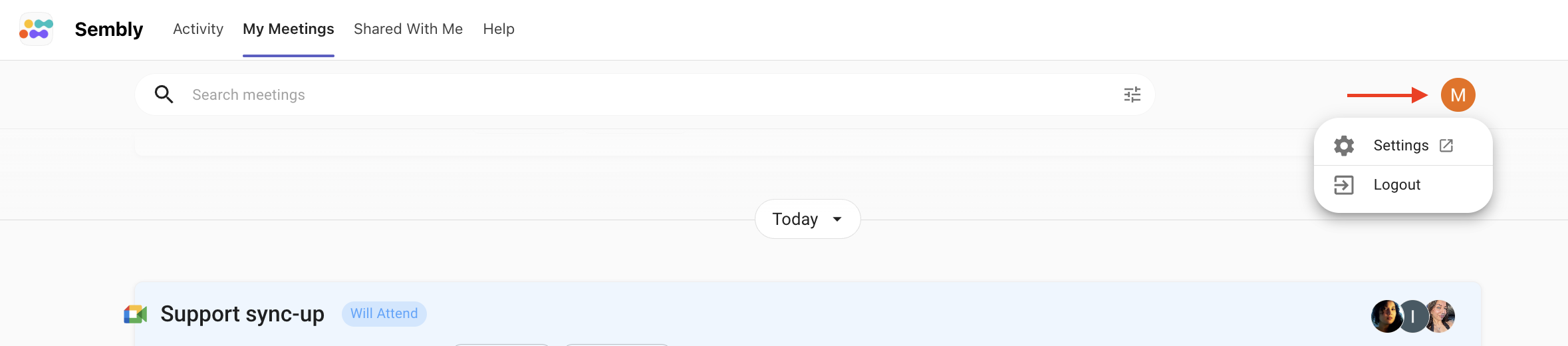
1. Plans and Billing. You will automatically be subscribed to a Basic free trial plan with limited features after registration. Upgrade your plan in Workspace settings; each package has a list of features that will help you define the right plan for you.
2. Define a way of recording your calls with Sembly. If you sign up with Outlook Calendar, all the meetings from it will be available in the Sembly app. If you register with an email or Microsoft account, we suggest connecting your Outlook Calendar with Sembly. In this case, the Sembly agent automatically joins your meetings. If you don't want to connect your calendar, Sembly can be invited by email.
3. Personalize your workspace experience. You can change workspace and agent names, add additional languages, invite team members, and more. Visit this section to get more details.
4. Set up a Voice ID. Speakers who have enrolled their Voice ID will be recognized and assigned to their voice in meetings.
Sembly application includes a lot of functional benefits, some of which are listed below:
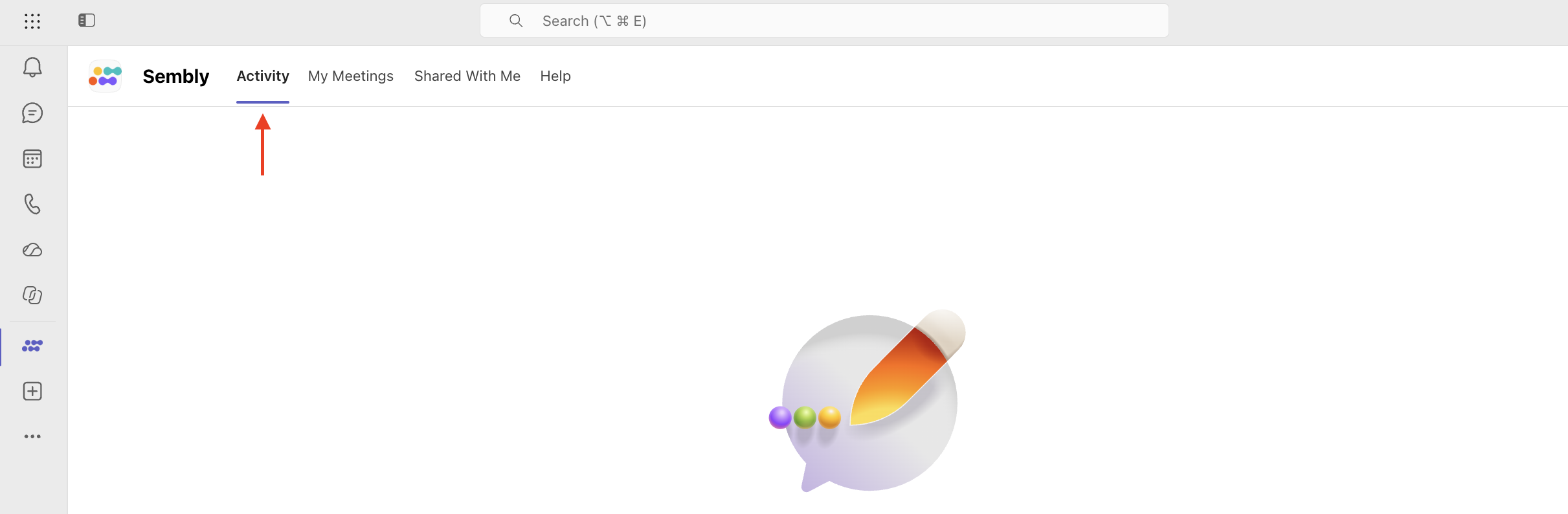
All notifications about recorded and shared meetings are available on the “Activity” page.

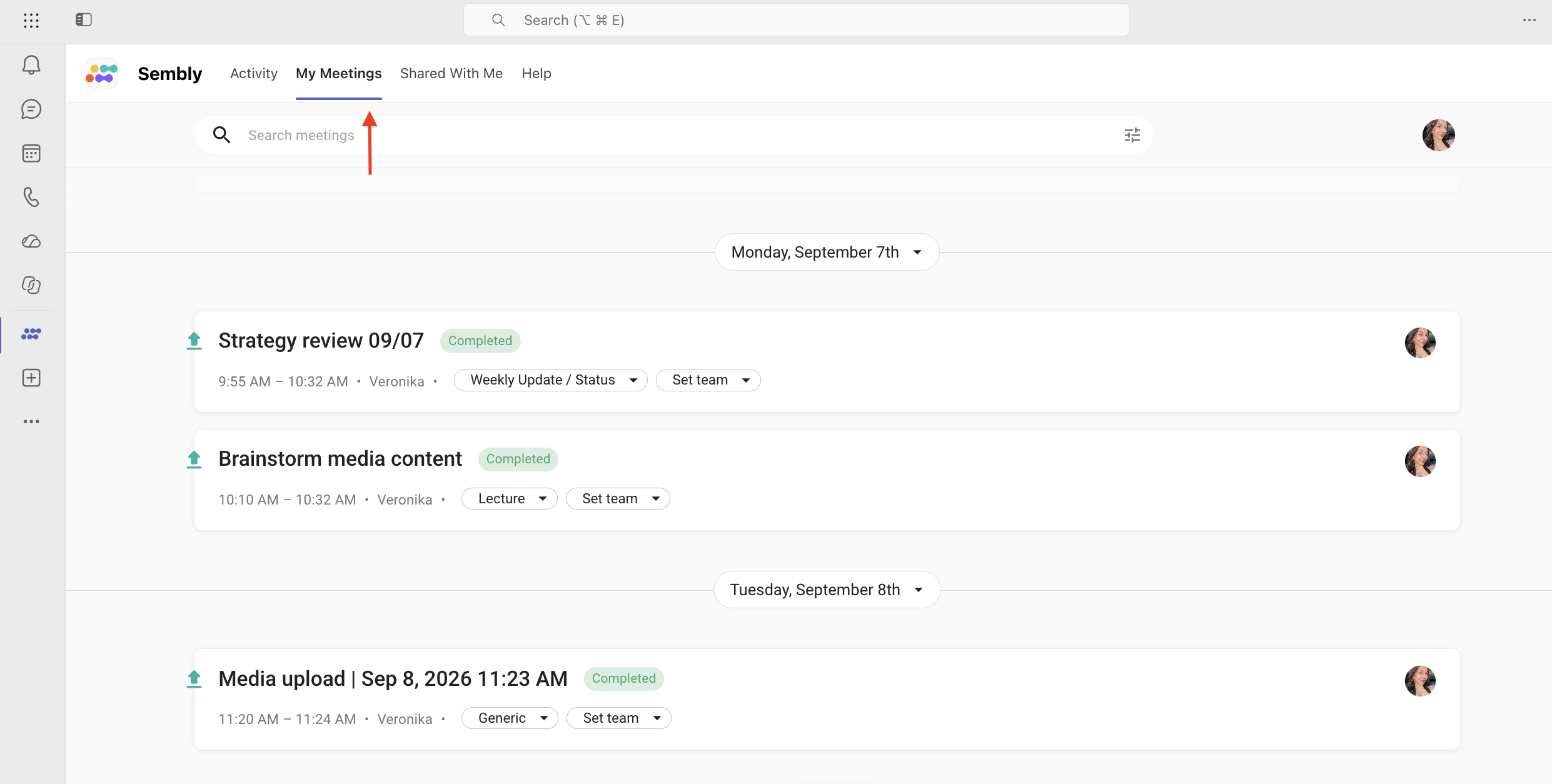
On the “My Meetings” page, you can see all your meetings and their real-time statuses. More about the meetings’ list you can read here. Additionally, you can see the automatically detected meeting type and the team to which the meeting belongs. Also, here you can perform a cross-meeting search whenever you need to find a meeting based on its context.

When on a live meeting, you’ll be able to control Sembly on a call and validate an attendee as a Sembly Agent.
After the call and meeting are complete, you can review the transcription and analytics, manually send data using Automations, and ask questions in the AI Meeting Chat.
Meeting Notes - our AI algorithm summarizes the meeting context and outlines it in one editable document;
Tasks - here, you can manage the tasks that were discussed during the meetings;
Key Items - the next important thing in the meeting analytics. Our AI algorithms recognize Issues, Requirements, and other important items and list them down in a meeting once it is processed;
Transcription - you can view and edit meeting transcripts, change and filter speakers, leave notes and bookmarks, and view meeting details. Another benefit you can find here is multi-language transcription.
Automations - you can easily track the Meeting Notes, Transcriptions, and Tasks for your personal usage by connecting different popular apps (inside the web app) and manually pushing the needed information to the preferred tool.
AI Meeting Chat - our intelligent virtual assistant that will help you quickly find answers inside your meeting, generate an agenda, or draft an email based on the information from a meeting.
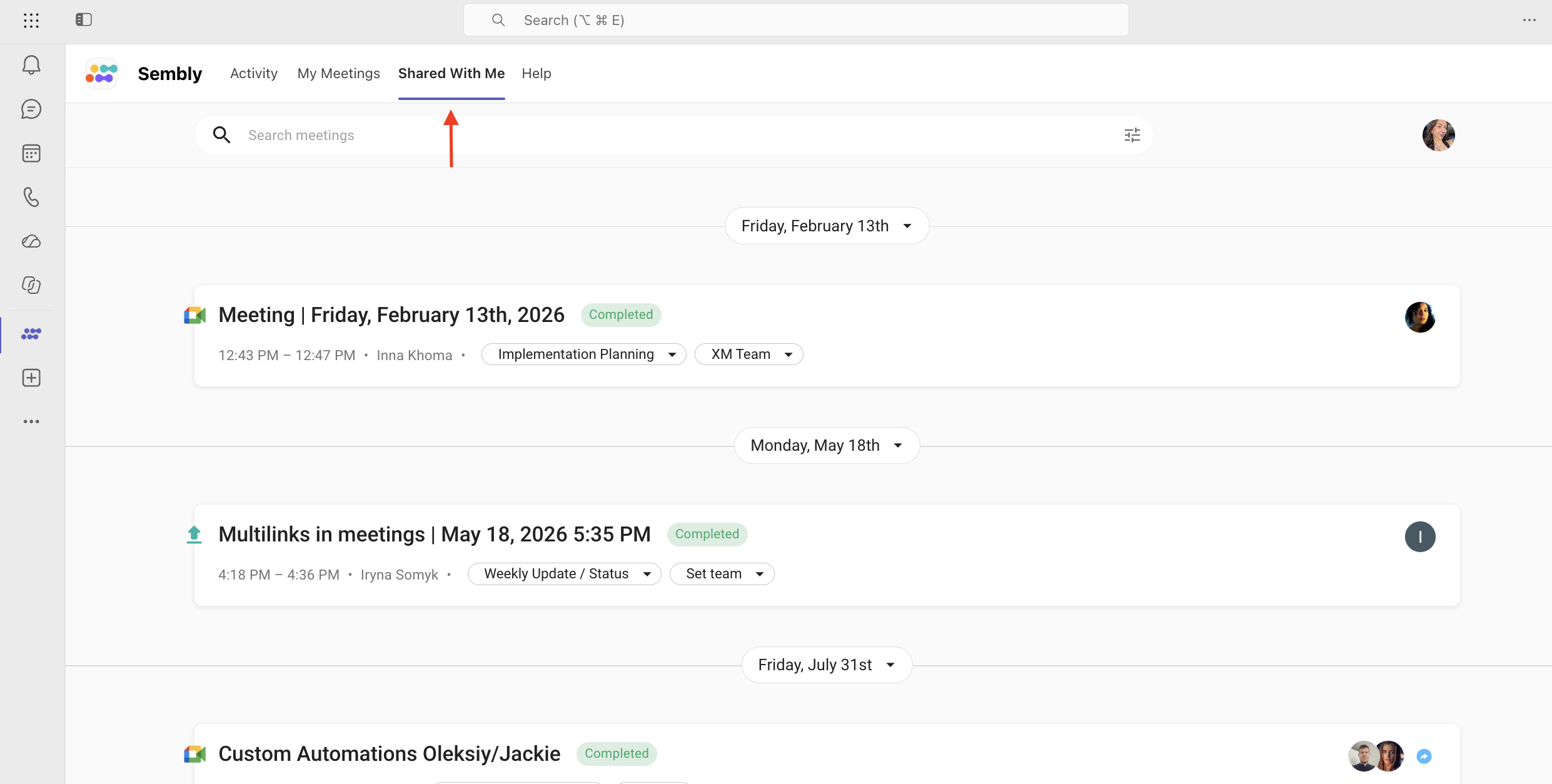
On the Shared with me page, you will see the meetings that someone shared with you. You can read in this article how to share a meeting.
You can visit the Help page to find useful information.