With Automations, you can export Meeting Notes, Transcriptions, and Tasks to other tools. You can set up an automatic export or send your data manually to the destination app by clicking the Zap button inside the meeting.

To complete the connection, you need to set up an Automation Rule. Later, if you wish to export data manually, you can switch the automation toggle off, which disables the automation but leaves the integration behind the Zap icon inside every meeting.

LEGACY PLAN: PROFESSIONAL | TEAM | TEAM PLUS
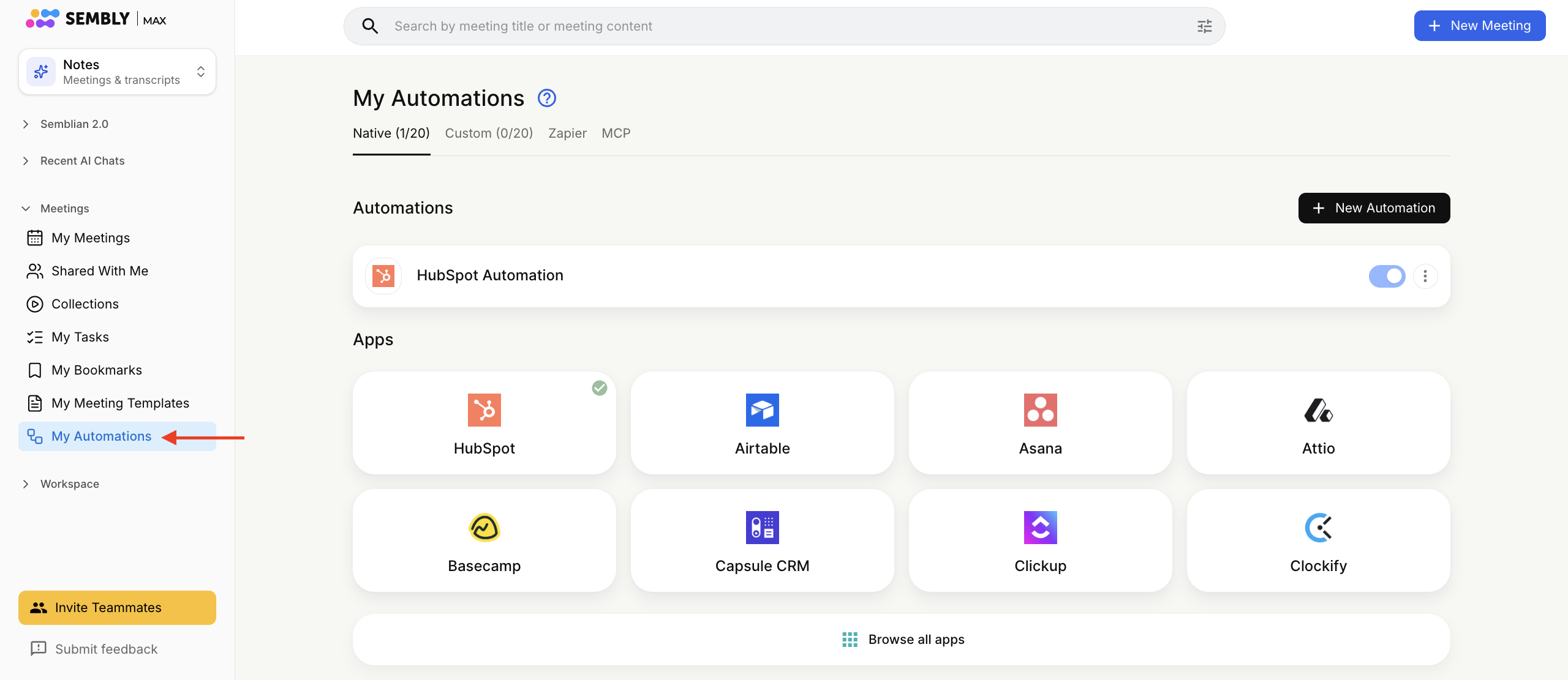
My Automations is designed to send Meeting Notes, Transcriptions, and Tasks to other tools for your personal use. You can find your personal Automations in the left-side menu of the Sembly webapp. There are Native, Custom, and Zapier Automations. In this article, we discuss only Native Automations. Check out our articles about Custom automations or Zapier templates for webhook-based automations.
MCP is also available in My Automations. An agent can retrieve a list of meetings, Key Items, Tasks, and Meeting Notes.
LEGACY PLAN: TEAM | TEAM PLUS
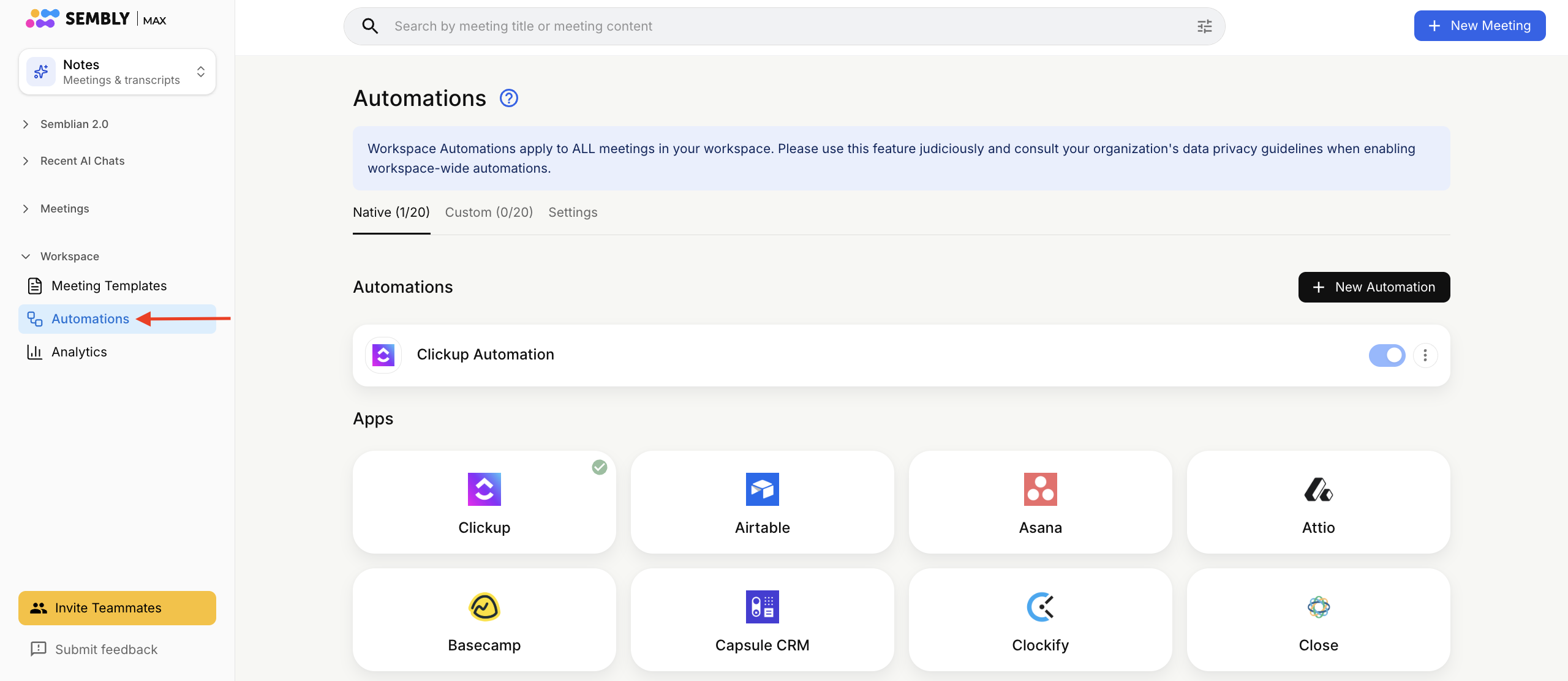
Unlike Personal Automations, Workspace Automations allow you to send Tasks, Transcripts and Meeting Notes from each meeting of your workspace to other tools. You can find your Workspace Automations in the left-side menu of the Sembly webapp. There are Native and Custom Automations. In this article, we cover only Native Automations. You can read about Custom Automations in our article.
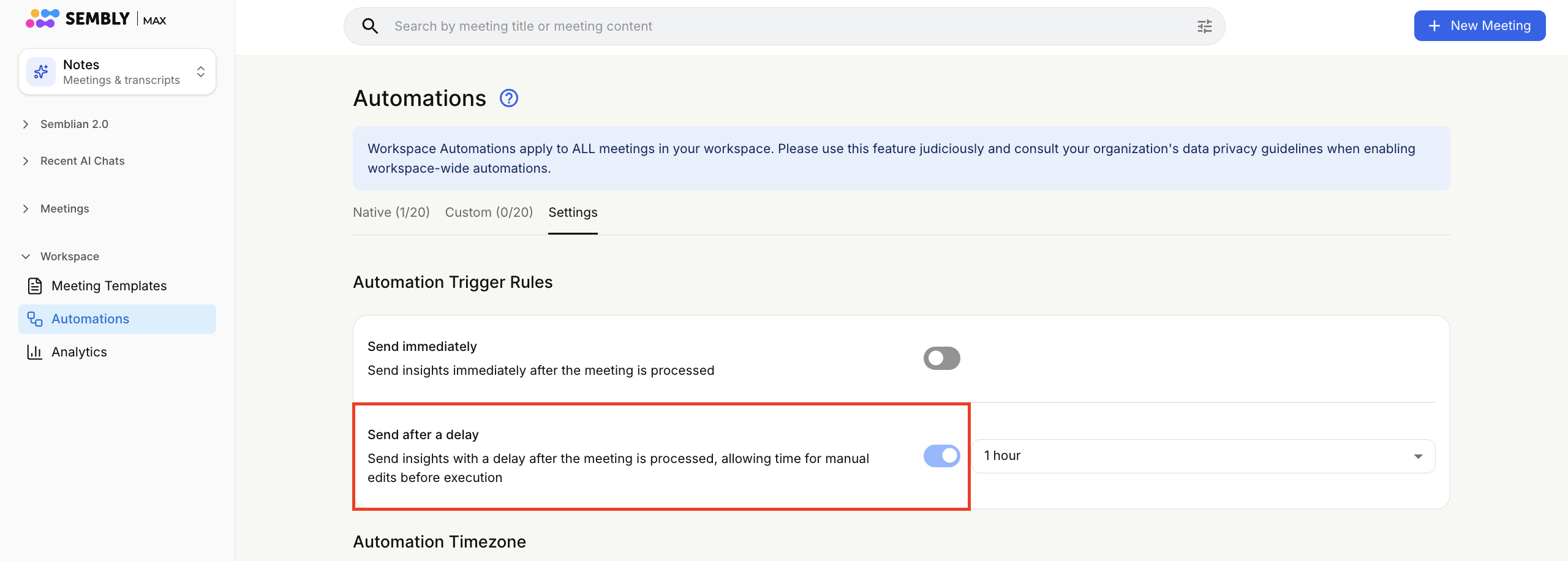
If you need time to edit meetings before automatically pushing any data, set a delay for the export. The settings apply to all automations you set up in the Automations section, including those in the Custom tab.
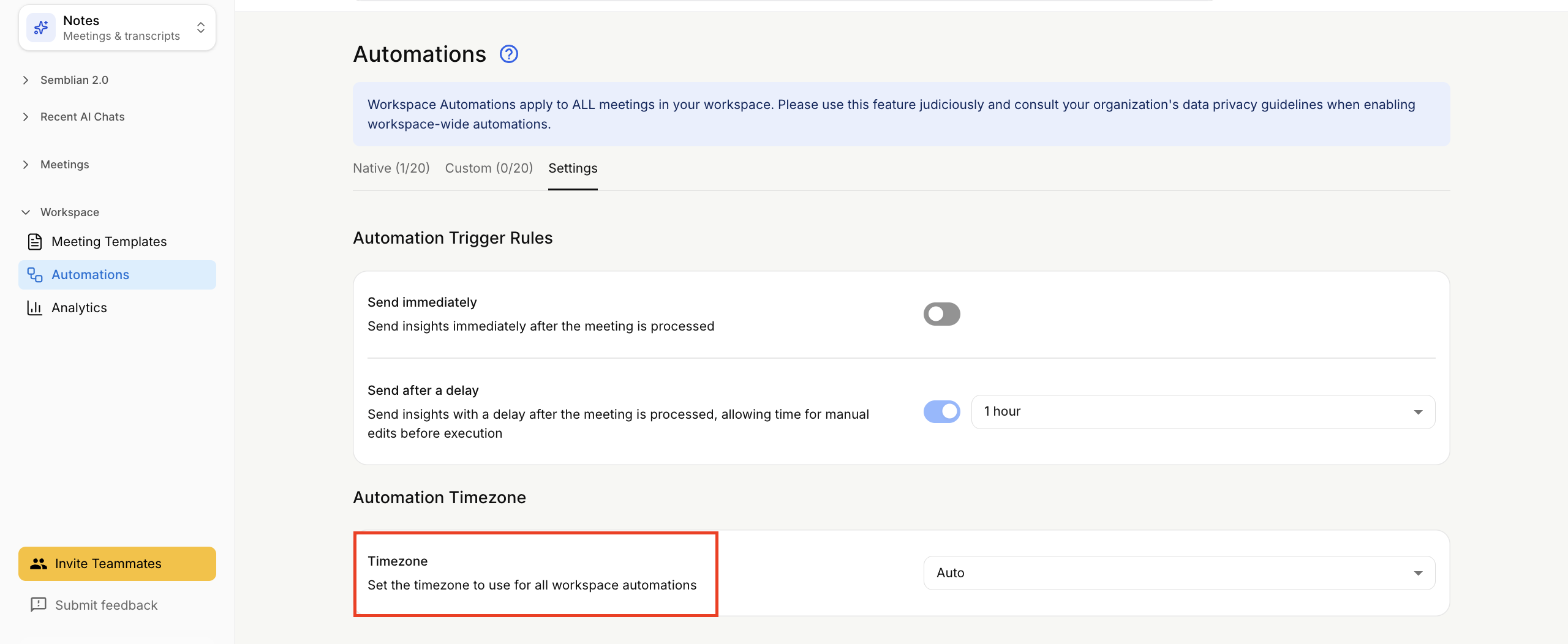
You can choose the time zone to ensure the correct time in Automations sent to your preferred app. By default, this setting is set to Auto, which means a time zone will be picked from your browser.
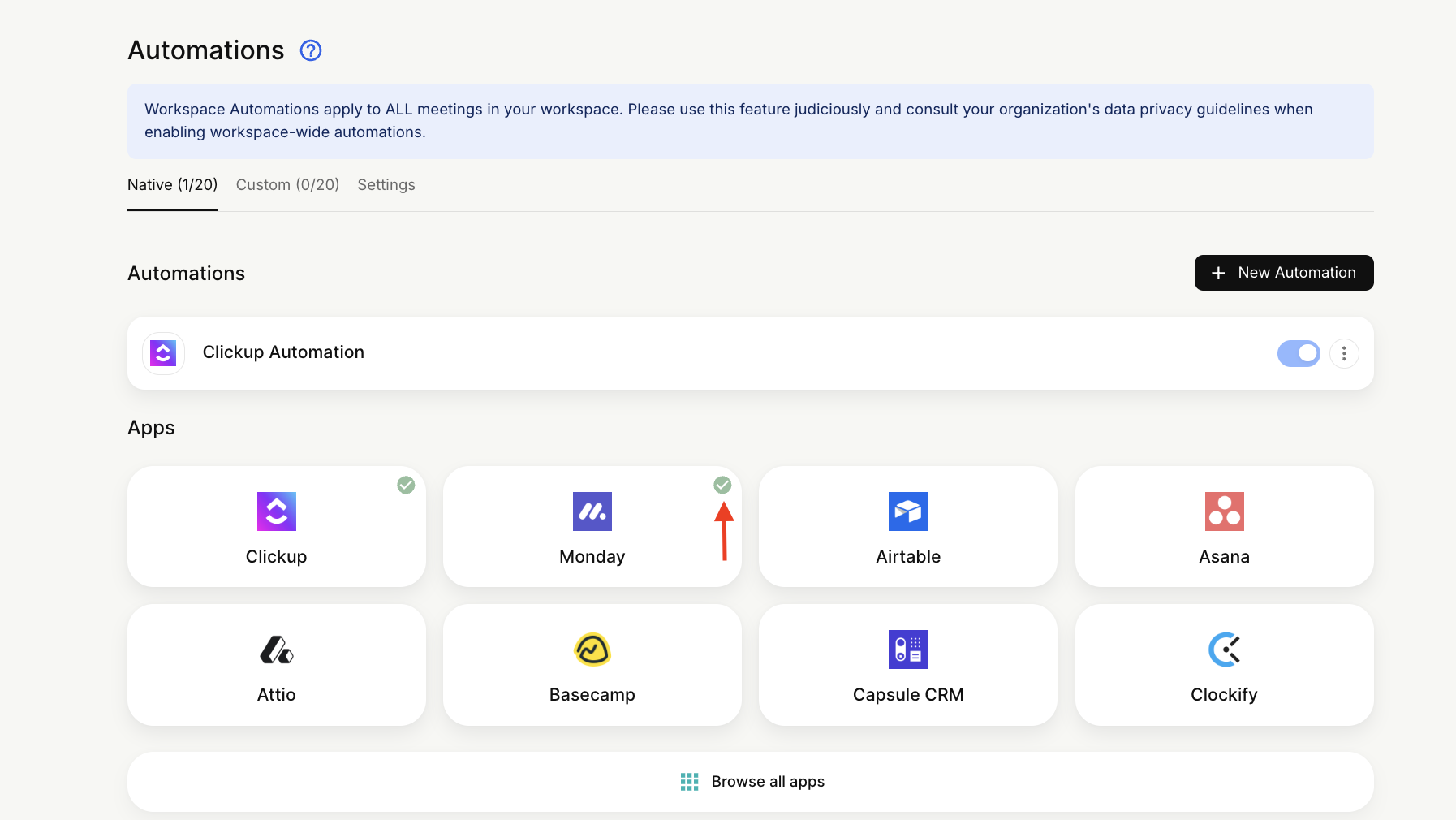
Open your Sembly account, choose Personal or Workspace Automations in the left-hand menu, then the Native tab, as shown in the screenshots above.
Select Browse all apps.
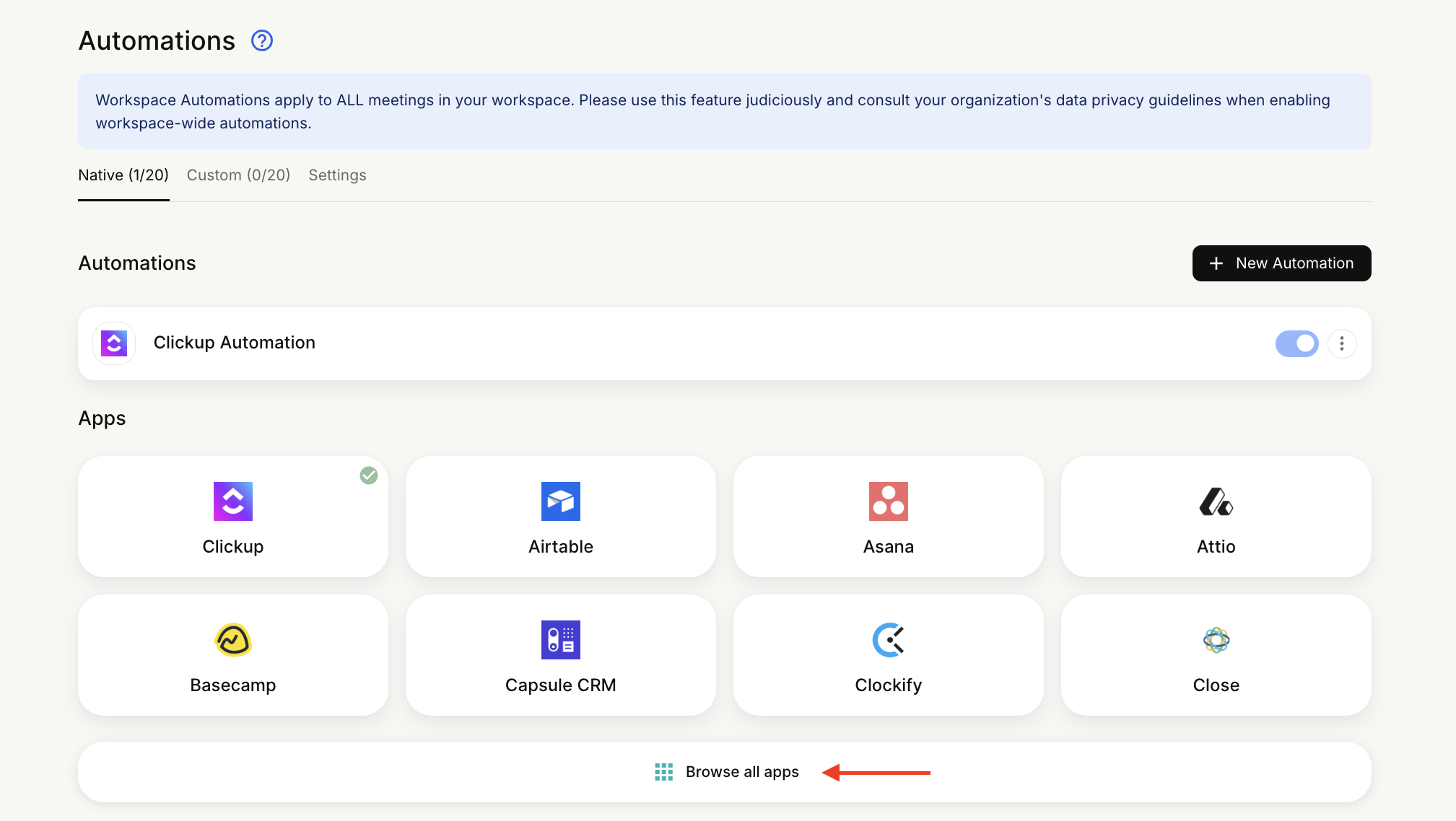
Then, you can find the tool by category or simply find it using the Search field.
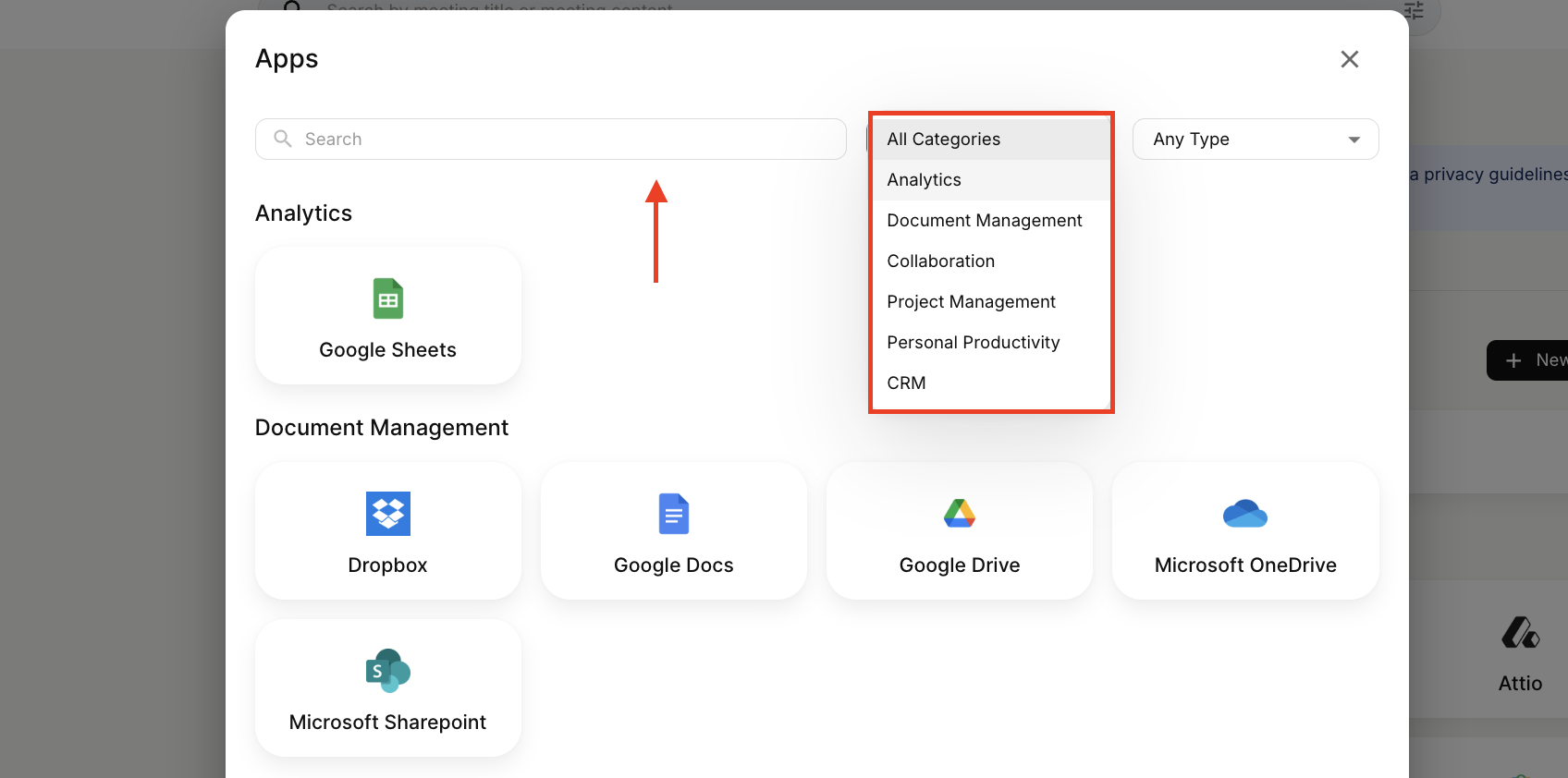
All apps can be connected in the same way. To establish a connection, please follow the steps described below:
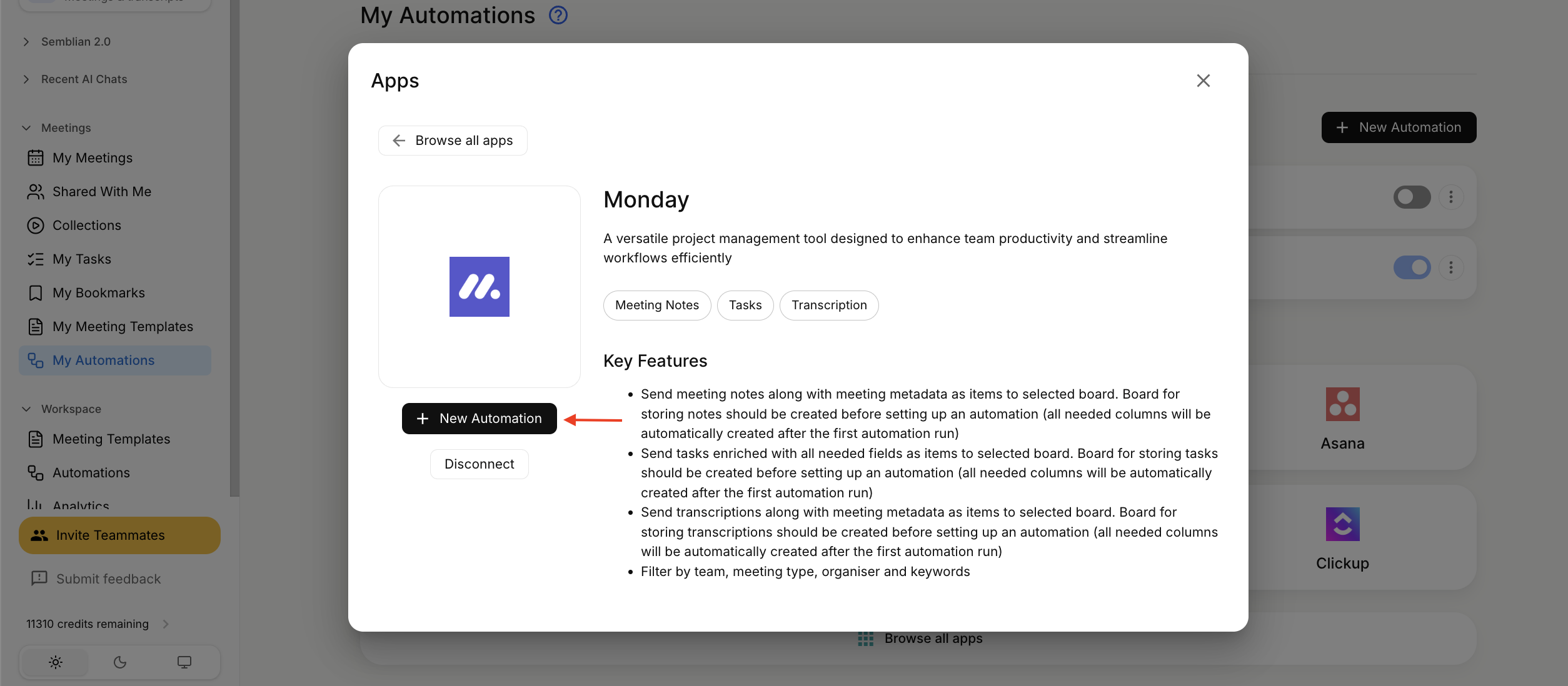
Open My or Workspace Automations, find your app, and click on it.
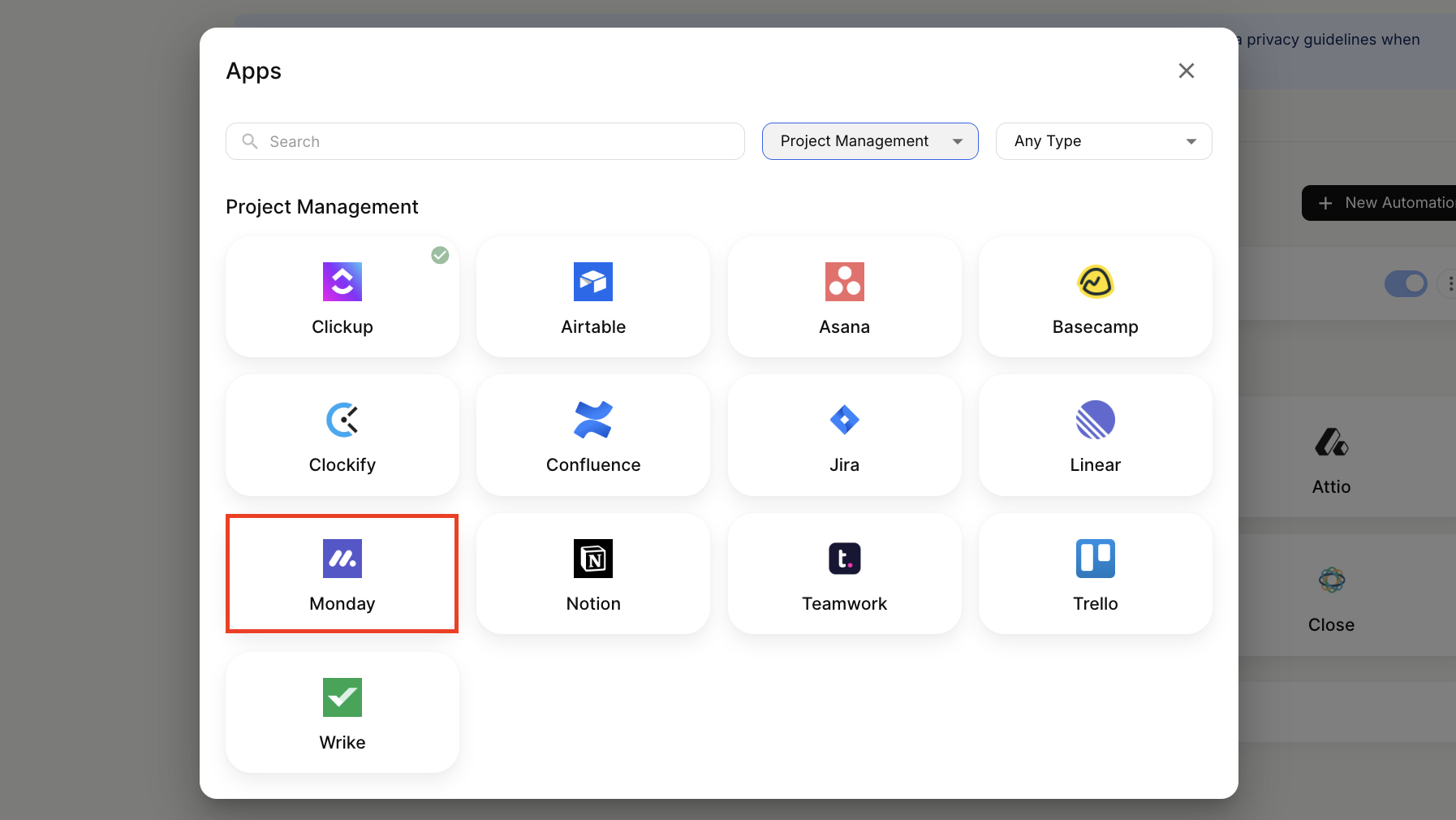
In the next window, you will be able to connect to an app, read its description, see which types of data can be pushed (in bubbles), and return to the menu with other apps.
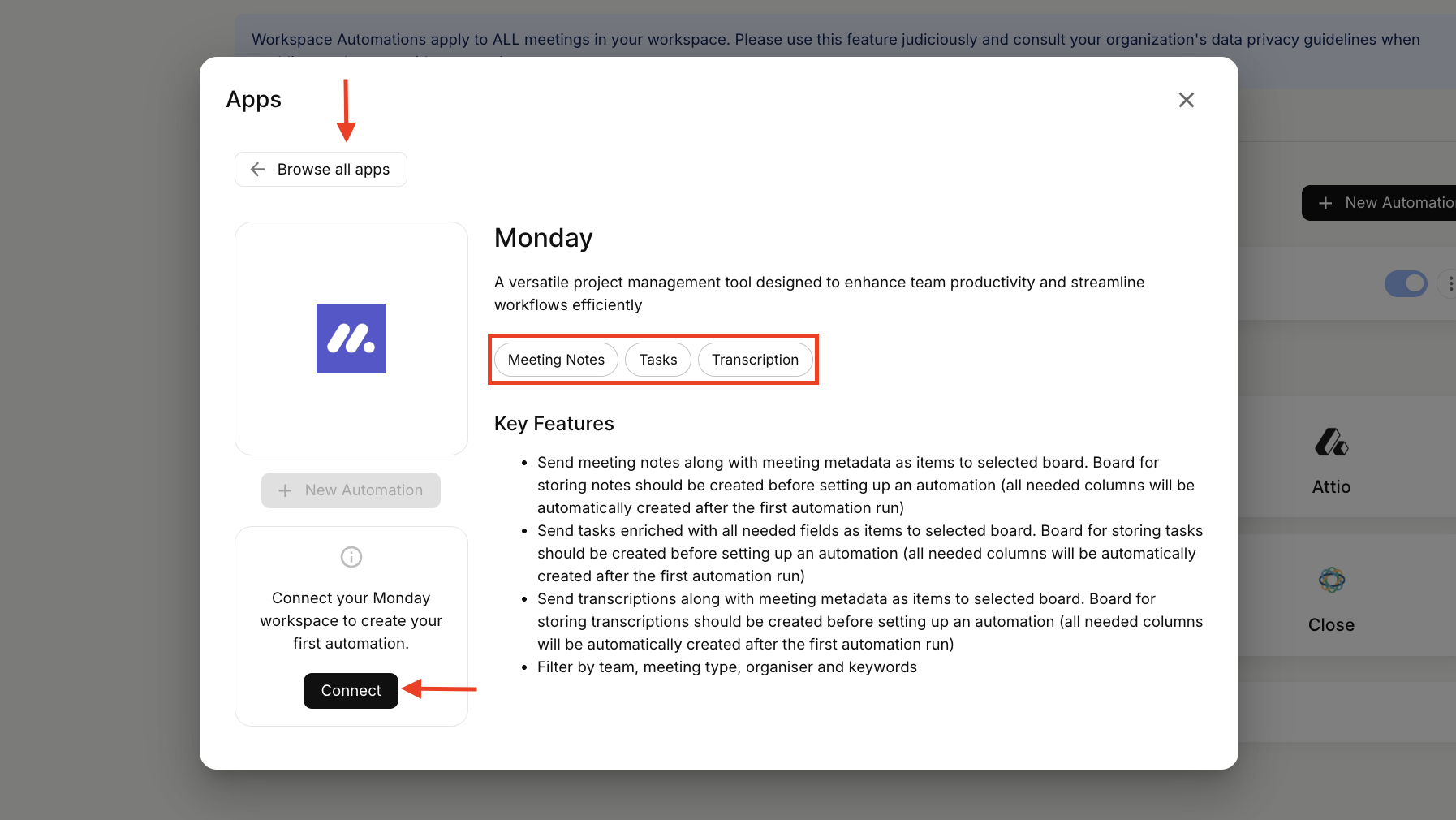
Once you connect an app, you will see the green checkmark confirming a successful connection.
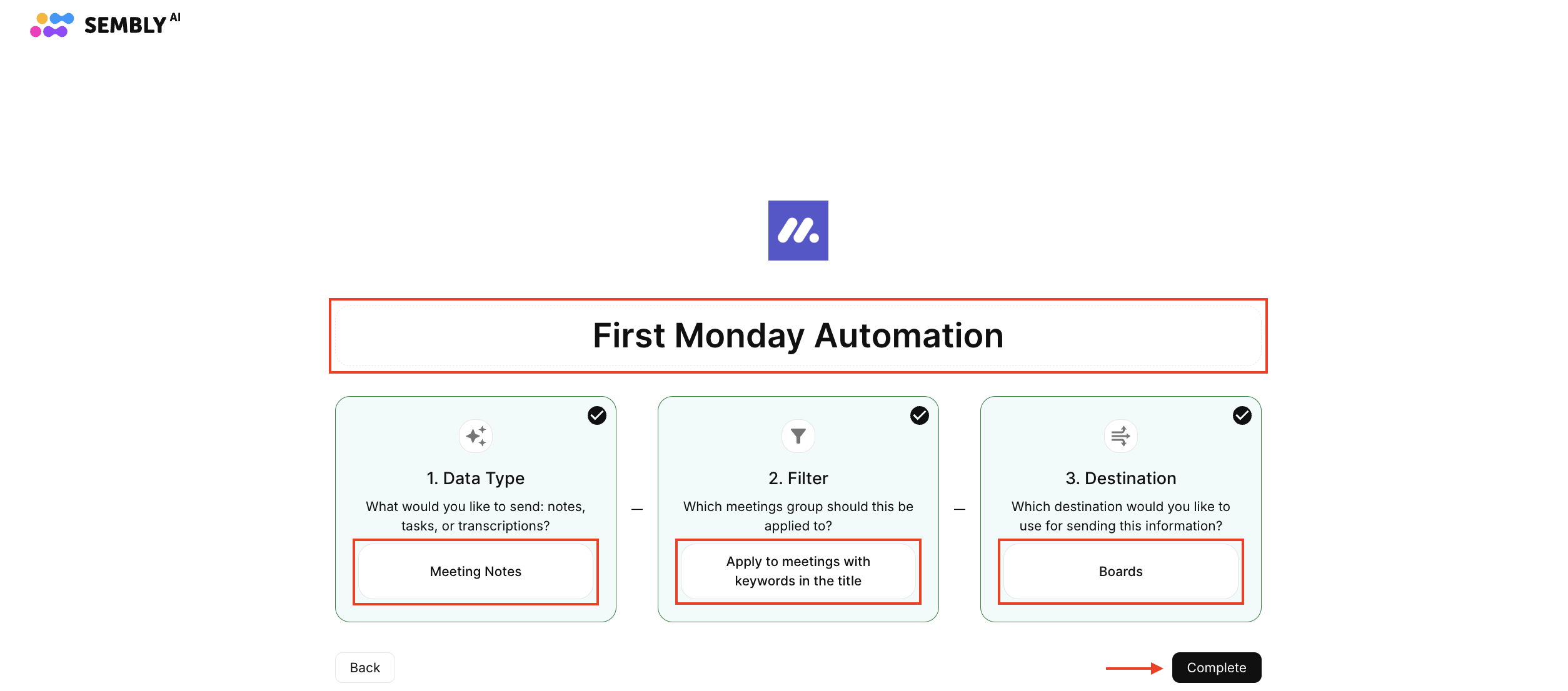
To enable Automations, you’ll need to create a rule that defines how meeting data should be transferred to your connected app.
Each automation rule consists of three key components:
Data Type — specify what type of meeting content to send.
Filters — narrow down which meetings to include based on parameters like title, meeting owner, or participants.
Destination — choose where in the connected app the data should be sent. For most CRMs, this is automatically mapped to the appropriate section, such as the Contacts area.
You can create multiple automation rules for a single app based on your needs. For example, if you want to send Notes and Tasks from Sembly to two different boards in Monday.com, you'll need to set up two separate automations — one for each content type.
To add a new rule, click +New Automation and select the connected app from a dropdown. You can also access this button by clicking a connected app.
Enter the Automation name and customize the following fields:
Data Type - select what you want to push: Meeting Notes, Transcripts, or Tasks
Filter - select whether you want to apply the Automation rule:
Apply to all meetings that I have access to - works for meetings where you received access before the meeting status is Completed;
Apply to meetings with keywords in the title - requires pasting those keywords into the specific field;
Apply to meetings of a specific team - requires selecting the team;
Apply to meetings with a specific type - requires selecting the meeting type (it's the same type you choose in the meeting as a specific template for Meeting Notes);
Apply to meetings of a specific Sembly owner - requires selecting the meeting owner - a person who is inside your workspace;
Disabled (manual only) - available only for Personal Automations.
Destination - select where Meeting Notes, Transcriptions, or Tasks will land. Here, you can either choose a destination from the dropdown immediately or you need to prepare a place to store data beforehand. We list apps and their specifics in the table below.
Click Complete after setting up the automation. After your meeting is complete, Notes or Tasks will be automatically sent to the final destination.
App | Destination Specifics |
Monday | Add API token; create a board where insights will be stored |
Notion | Create a database where insights will be stored |
Jira | Enter your Jira Cloud Site |
All CRMs | Destination is defined automatically. Meeting data will be sent to Contacts, Deals, Companies, or similar sections in your CRM |
Google Sheets (Workspace Automations) | Choose one person from your workspace to create and manage this Automation, as meeting data will be sent to the Automation creator's Google Sheets |
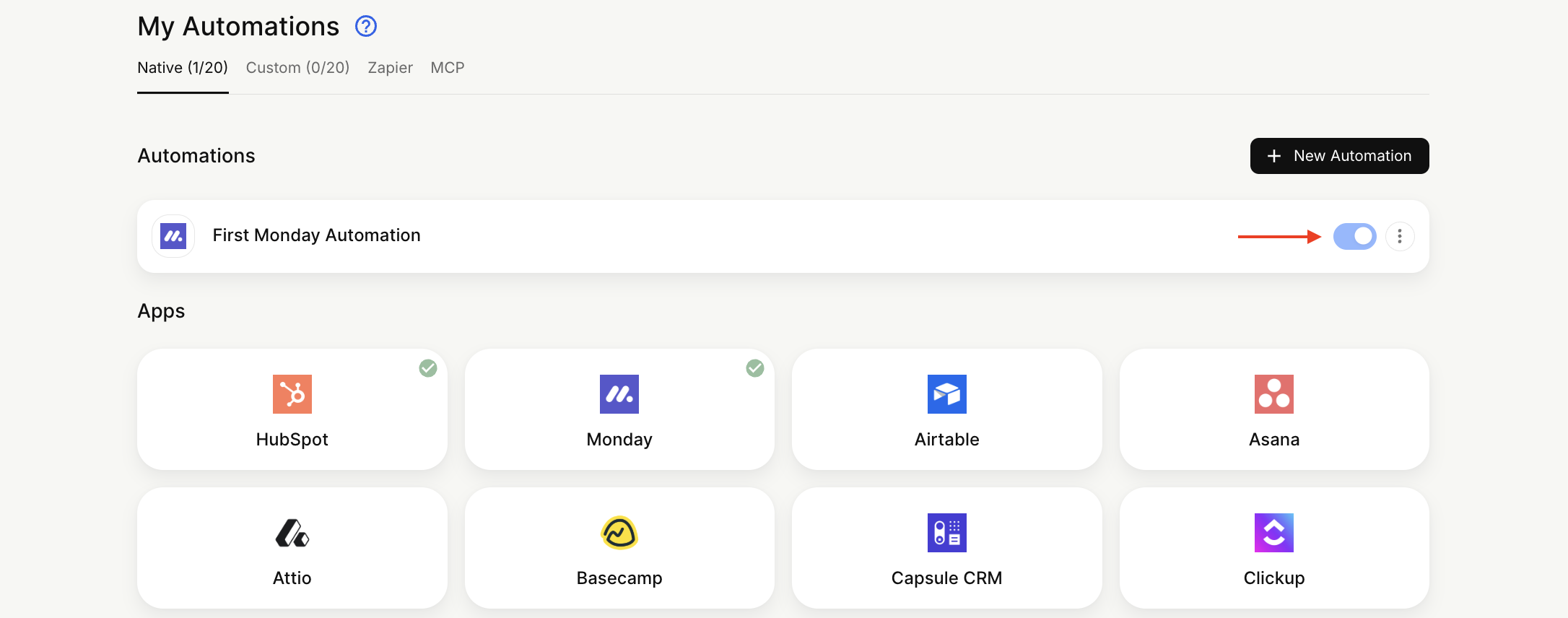
If you wish to disable Automation, just click the toggle off on the appropriate Automation, and it will be disabled. Also, you can Edit or Delete the Automation: near the toggle, click three dots and choose the option you need to use.
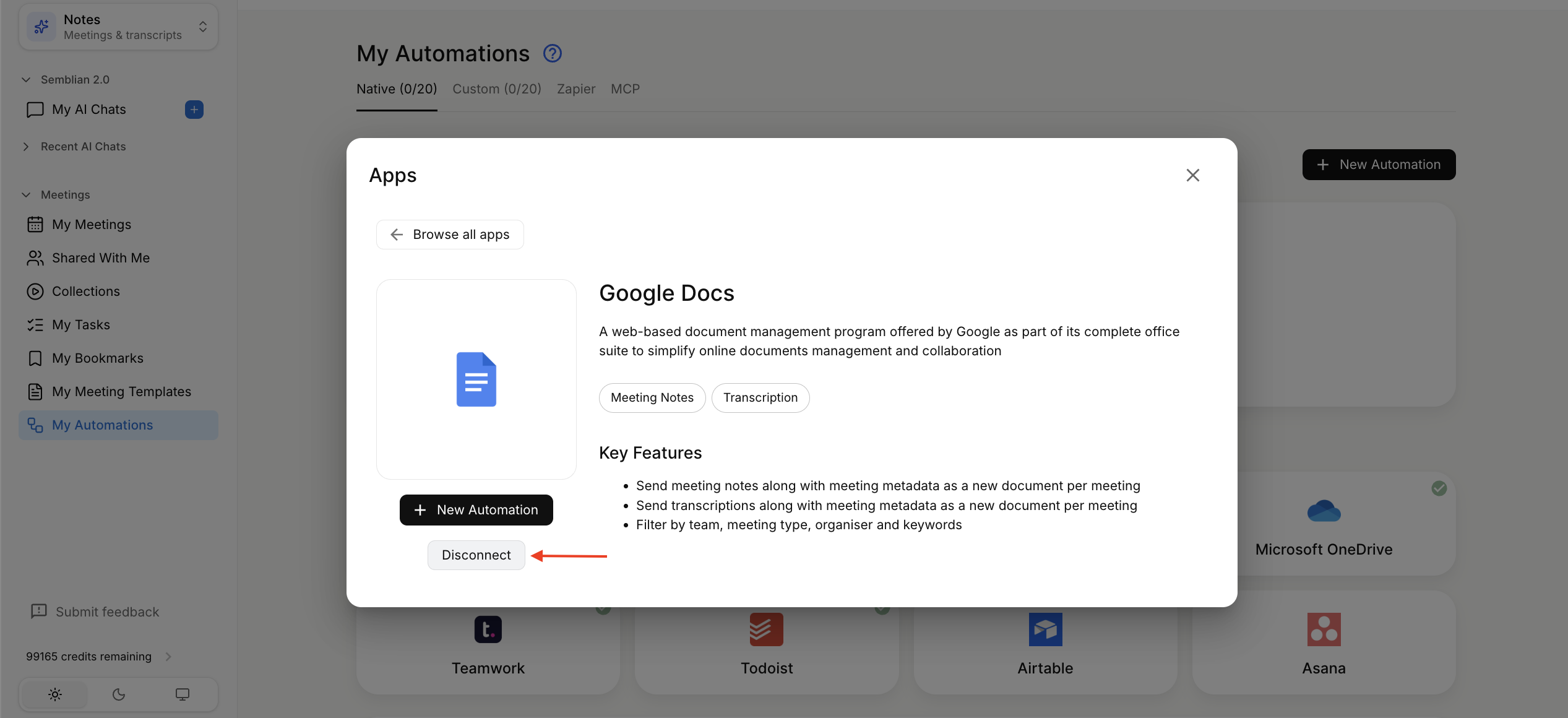
To disconnect your app, you just need to click on the appropriate app and in the next window, click Disconnect.
Manual sending is available only for Personal Automations. Only apps connected in My Automations will appear under the Zap icon in meetings for manual export.
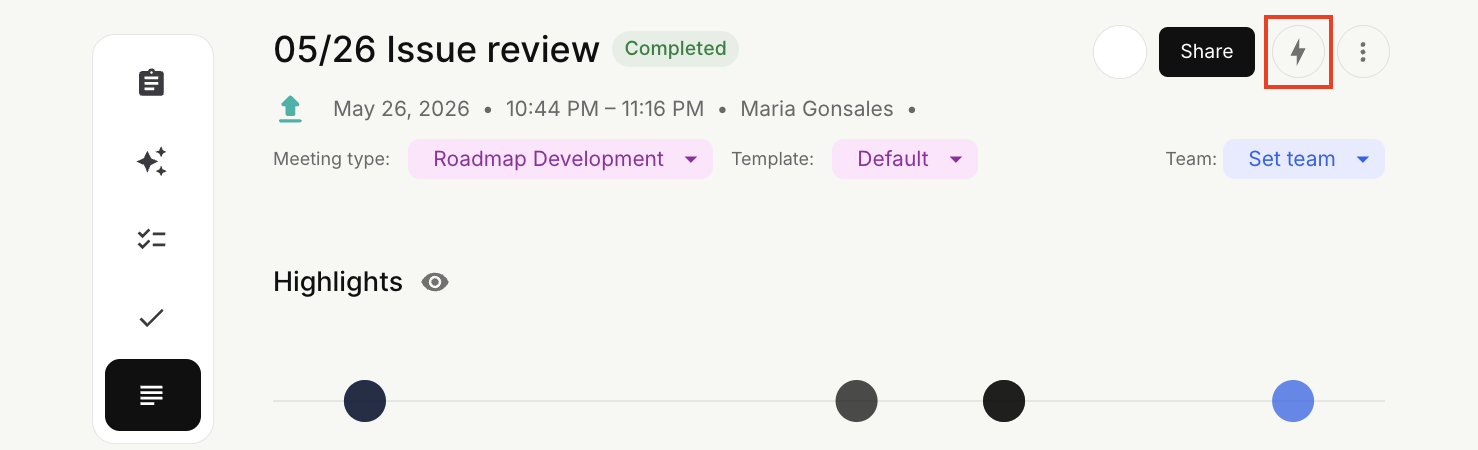
Open your meeting and click the Zap icon in the upper-right corner.
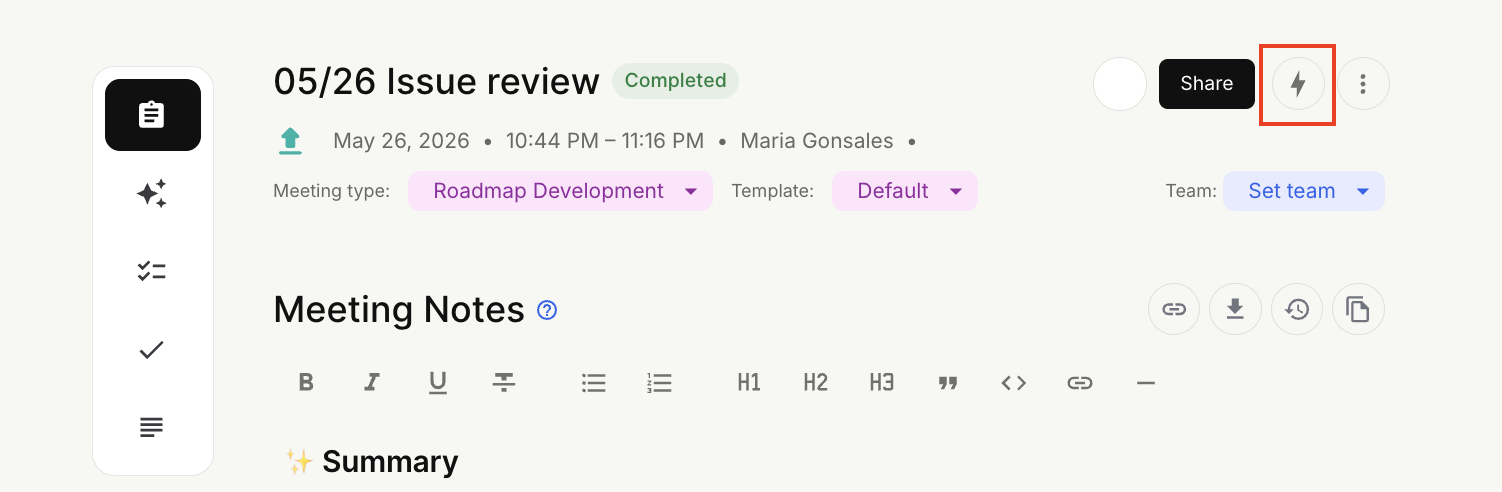
Select the destination where Notes will be sent by clicking Post Meeting Notes to …
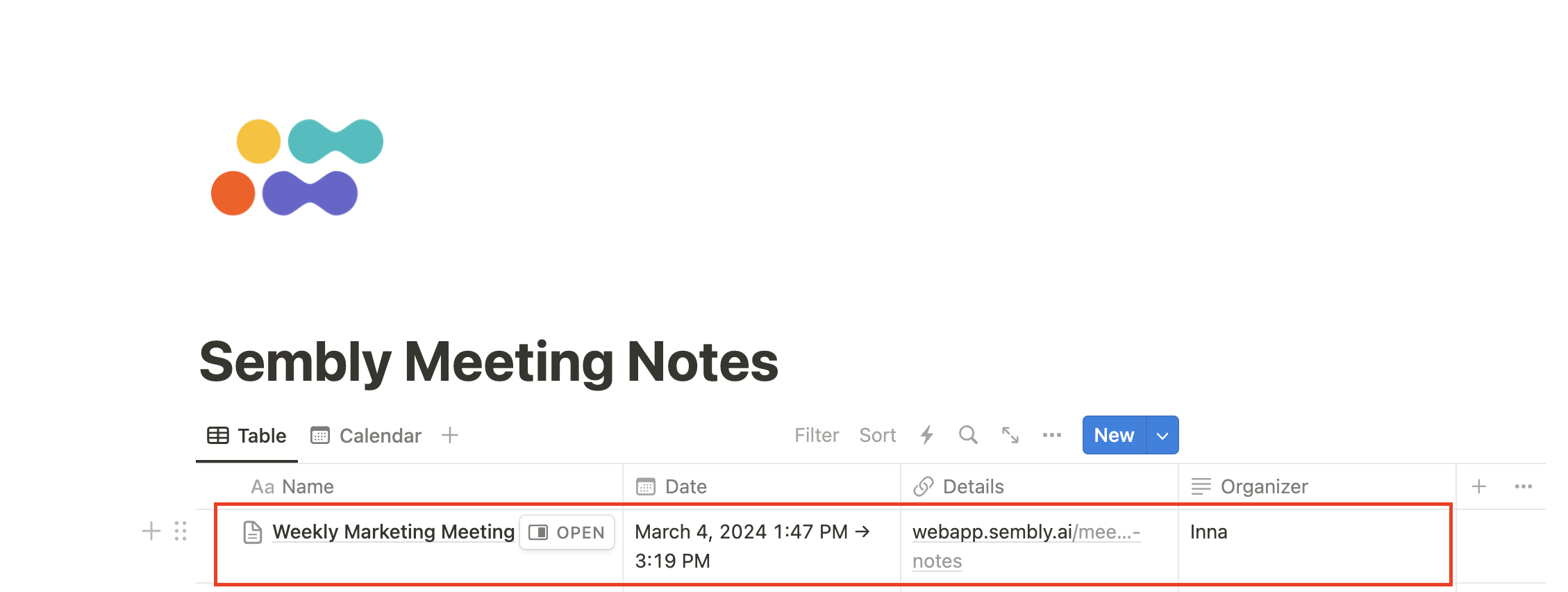
That’s it! Go to the app and check the results.
You can quickly send the task from the Tasks tab in the meeting or from the My Tasks menu on the left by clicking the Zap icon, then choosing the app.
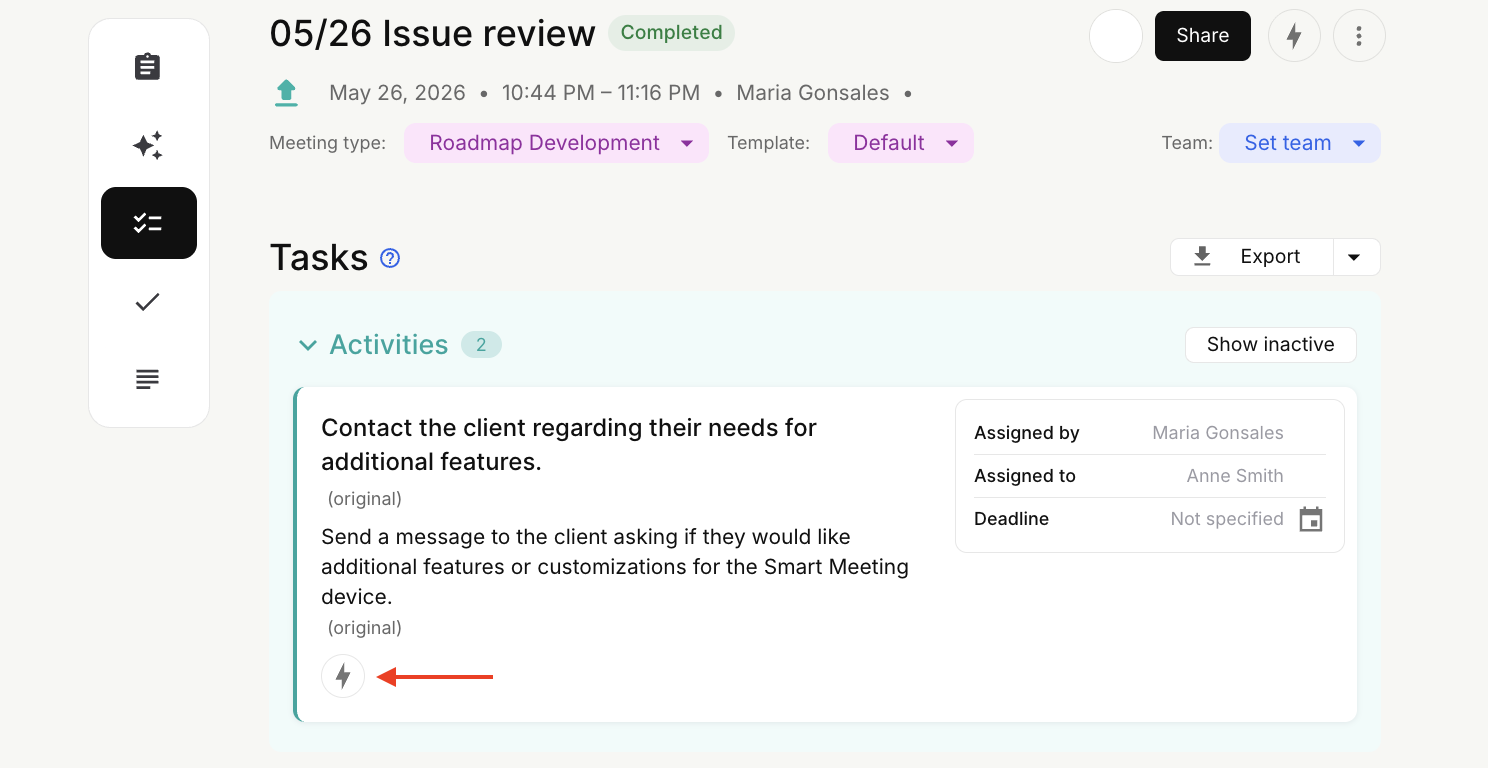
Select the destination where Tasks will be sent by clicking Post Tasks to …
The task will appear in the app immediately, with all additional info, such as a deadline and the assignee.
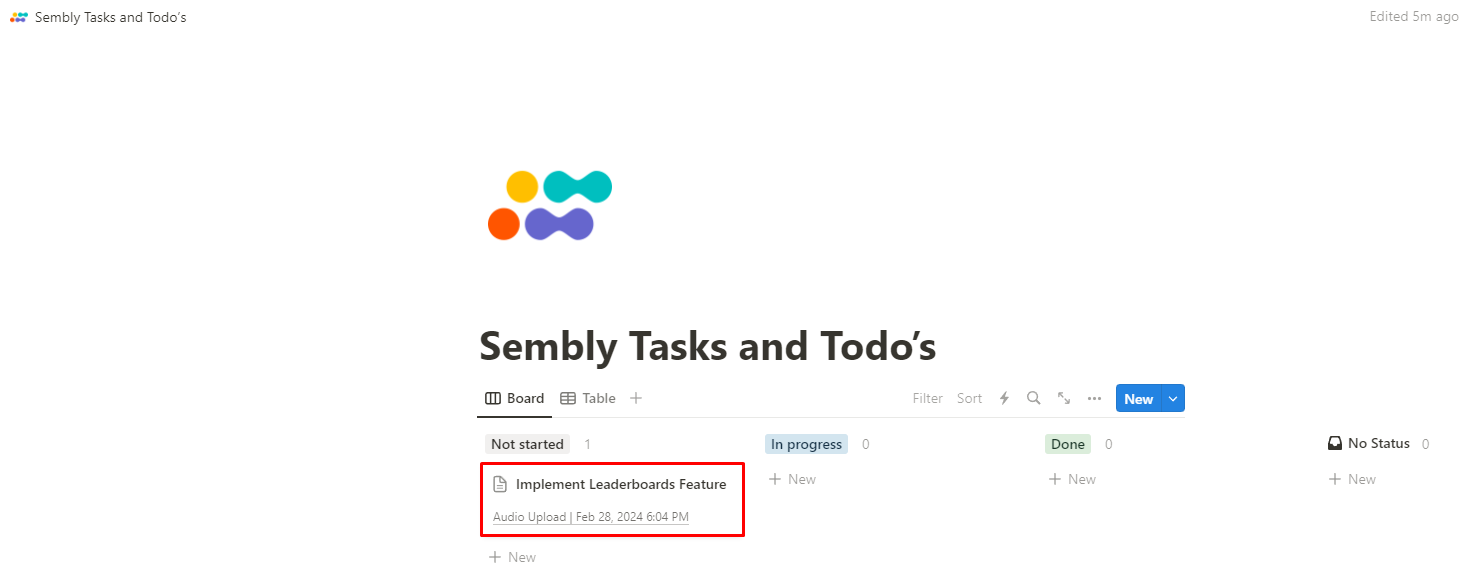
Open your meeting and click the Zap icon in the upper-right corner.
Select the destination by clicking Post Transcription to …
Go to the app and find a file.

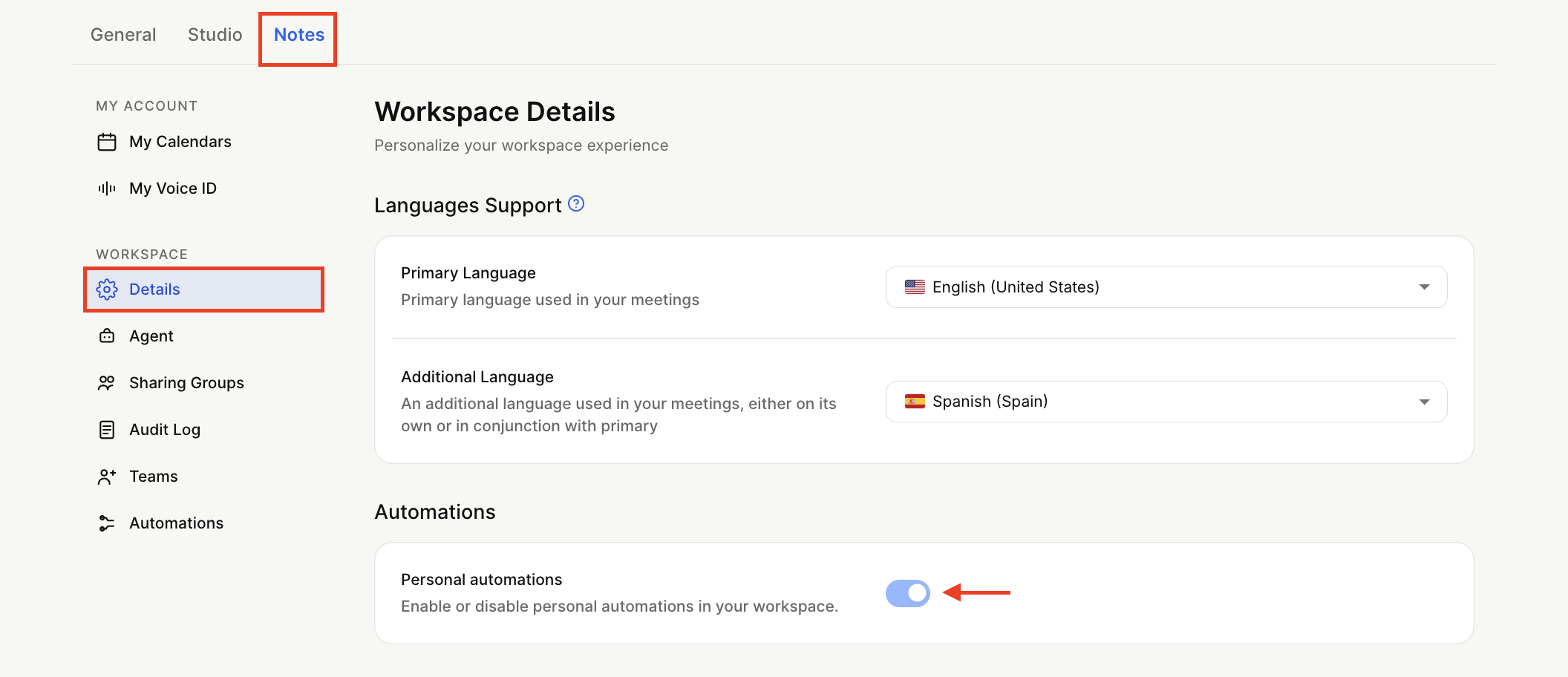
You can disable Personal Automations in the Workspace settings if you do not want your colleagues creating individual automations beyond the one you created for the whole workspace.
Log in to your account and click Settings under the gear icon at the bottom left.
Click Details in the context menu on the left.
In the Automations section, enable or disable personal automations in your workspace.
If the app you wish to connect to isn't on the list, or you would like to set up a different configuration, you can use Custom Automations to connect via webhooks.
If you experience trouble connecting one of our native automations, please refer to our Troubleshooting for Automations guide.
For setting up Custom Automations, use the Set up Custom Automations guide.
App Name | What Sembly Sends |