LEGACY PLAN: TEAM | TEAM PLUS
Identifying the key points in a conversation is a complex task that takes time and effort. Sembly allows users to get the essentials straight away after the conversation. This article explains the purpose of Key Items and their importance in meeting analytics requirements.
Our AI algorithms recognize:
Issues,
Risks,
Requirements,
Events,
Decisions,
Notable
and list them in the Key Items section once the meeting is processed. You can also add Key Items during the meeting by spelling commands as you would do with Siri or Alexa. If you hold meetings in additional languages, Key Items will be displayed in that language.

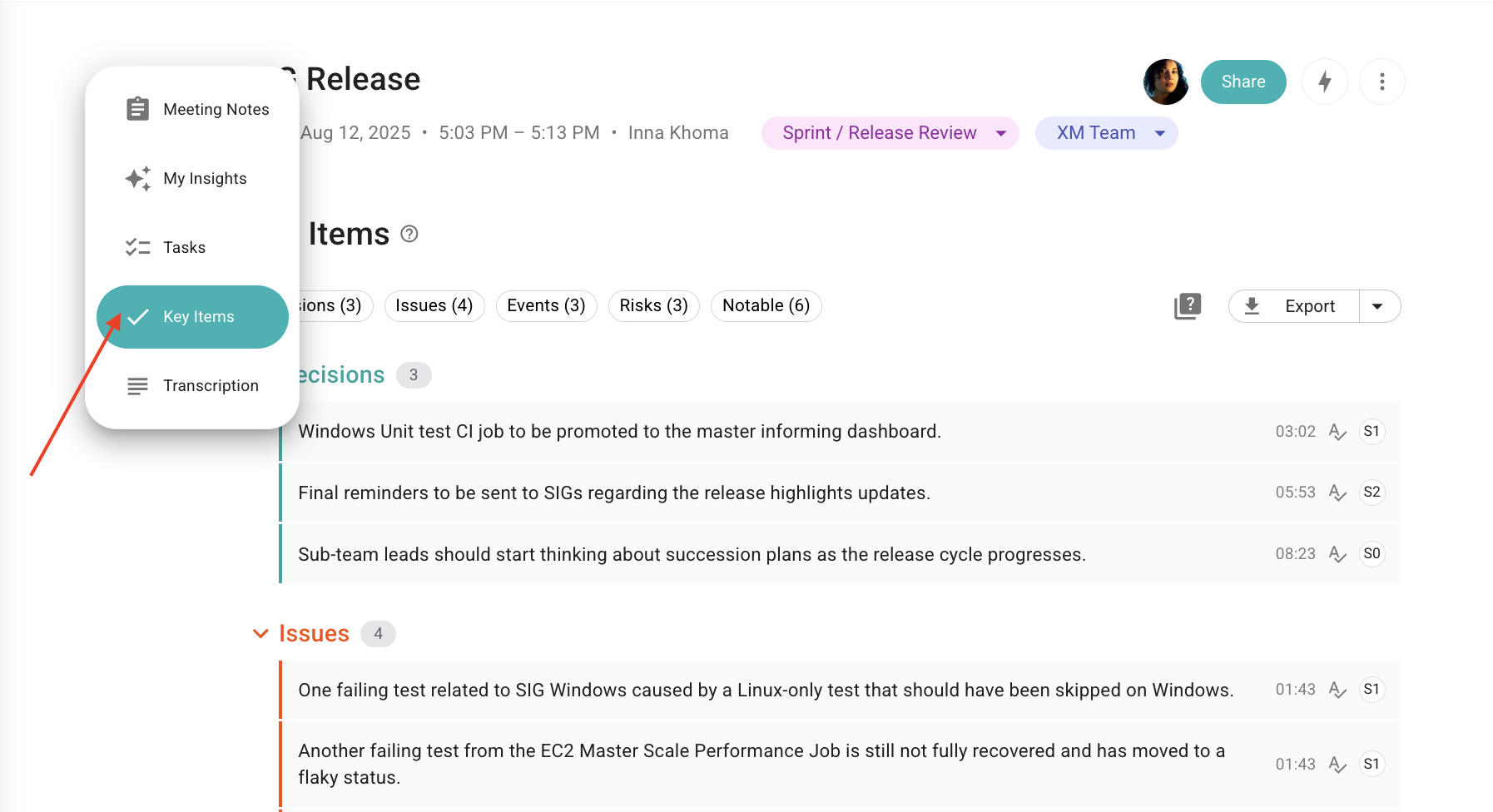
Key Items are located in the context menu on the left side of the meeting window:
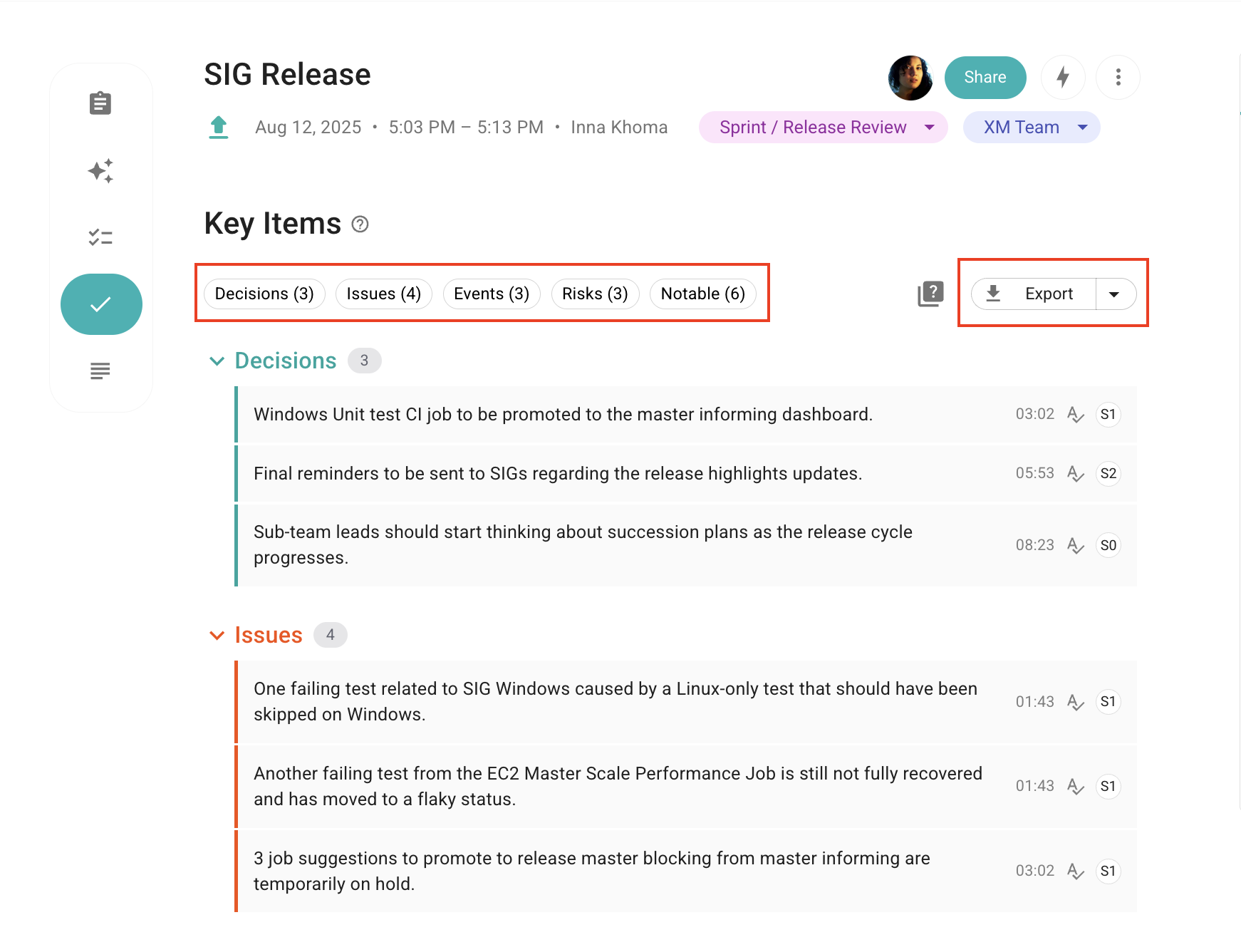
On top, you’ll see shortcuts that highlight the items on click and the Export button to download Key Items in PDF, DOCX, HTML and Markdown file formats.
Types of Key Items
If one of the key items is related to the topics discussed during the meeting, Sembly will recognize it and add it to the list. All the users you shared access with can see the list of Key Items.
Issues - critical key points that describe a problem that may or may not be solved
Risks - uncertain events or conditions that, if they occur, harm an objective. Risk can affect anything: people, processes, technology, and resources. Risks and Issues are not equal
Requirements - the desired function, attribute, capability, characteristic, or quality of an instance for it to have value to a customer, organization, internal user, or other stakeholders
Events - the critical item that will detect future events, discussed in the meeting
Notable - a key item that marks all % related items or money (USD) related items
Decisions - items that indicate a conclusion of actions that were discussed and agreed upon, and should be done in the near future
You can share the item with anyone with access to this meeting. The copied link will take the receiver to the meeting’s transcript and will scroll it to the exact part where the item is. You can also copy the item text.
Log in to Sembly and dive into the meeting
Select the Key Items in the context menu on the left side of the meeting window
Find the item you wish to share, hover over it, and choose one of the options:
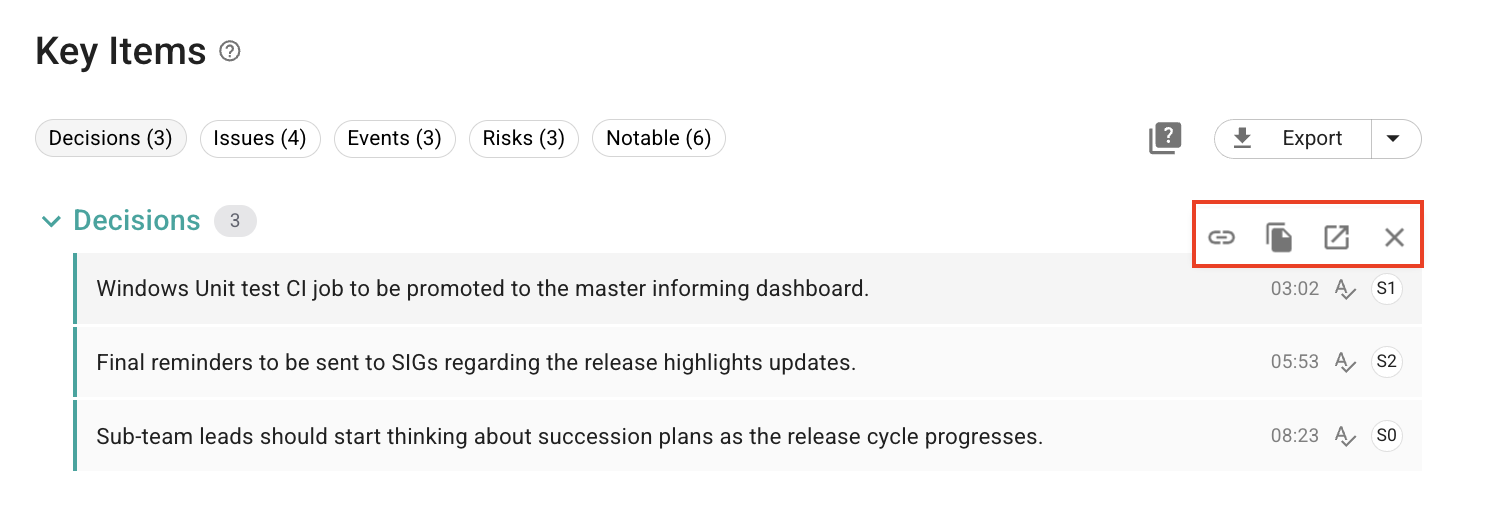
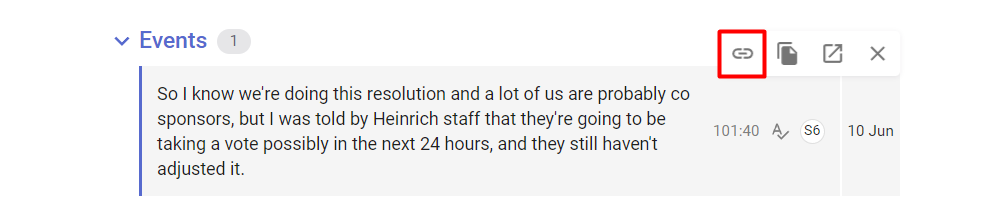
Copy link: the link will be copied to the clipboard. Pass the link to the receiver. Make sure the receiver has an account on Sembly and can access the meeting via the link.
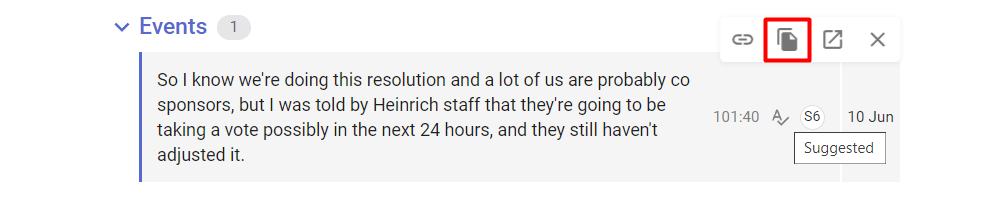
Copy content: the text will be copied to the clipboard.
Go to the transcript:
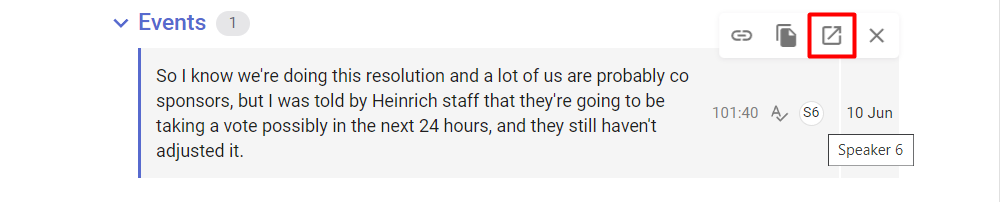
After clicking "Go to the transcript," you'll be redirected to the transcript section.
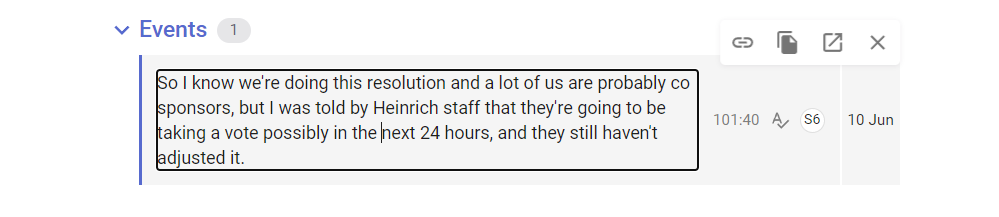
If the item needs editing, you can do it simply by pointing the cursor over it. The edits will be saved automatically.
All Key Items can be removed from the list.
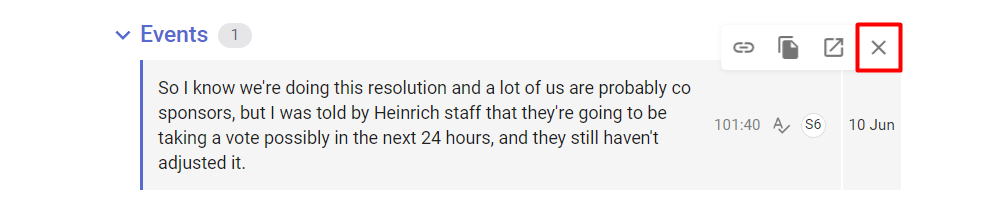
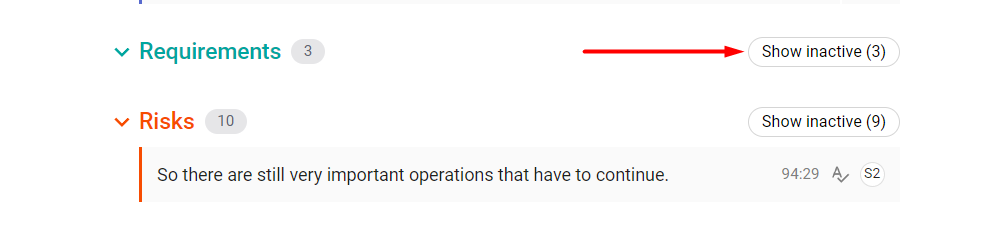
Inactive items will be kept in the inactive items folder and can be redeemed.