
LEGACY PLAN: TEAM | TEAM PLUS
Teams are intended to support routing meeting data to the apps connected via Automations.
As soon as you create a Team in Settings, you can add it as a filter to any Workspace Automations and as a Team badge to any scheduled meeting. Each Team has dependencies among the people added to it, the meetings it arranges, and the filters added to automations.
Only Workspace Admins can create and manage Teams. All Workspace members can join or leave any Team they have created on their own.
To create a Team, go to Settings -> Workspace Teams. Click the Create Team button.
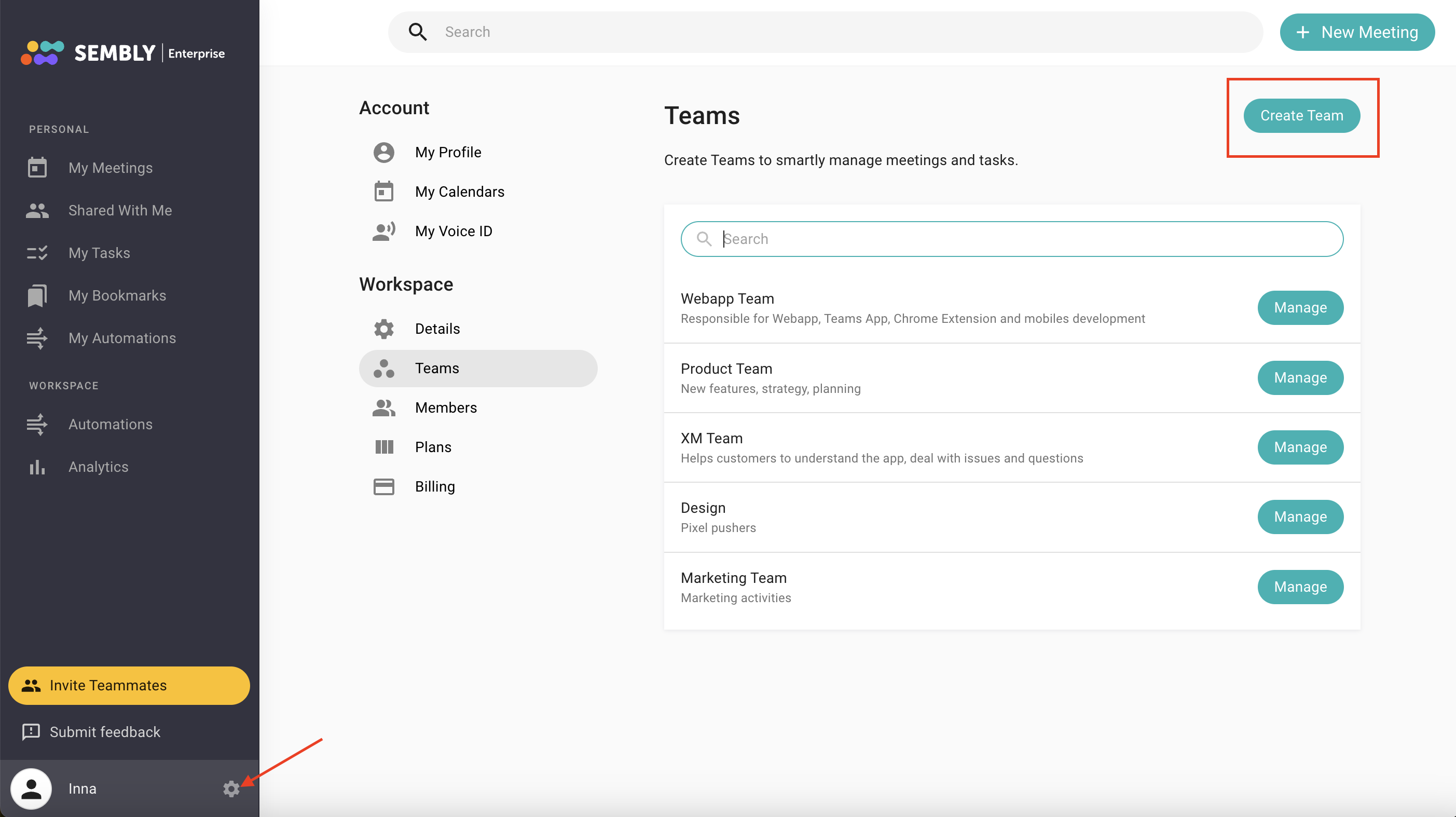
In the pop-up, specify the Team Name and Description. Click Create.
In the Teams list, click Manage.
In the Members tab, click Add Members and pick people from your workspace who belong to this particular team. Use search to find them quickly. Next to each team member in the list, you will see three dots. Click them to remove a person from the Team if you add someone by mistake.
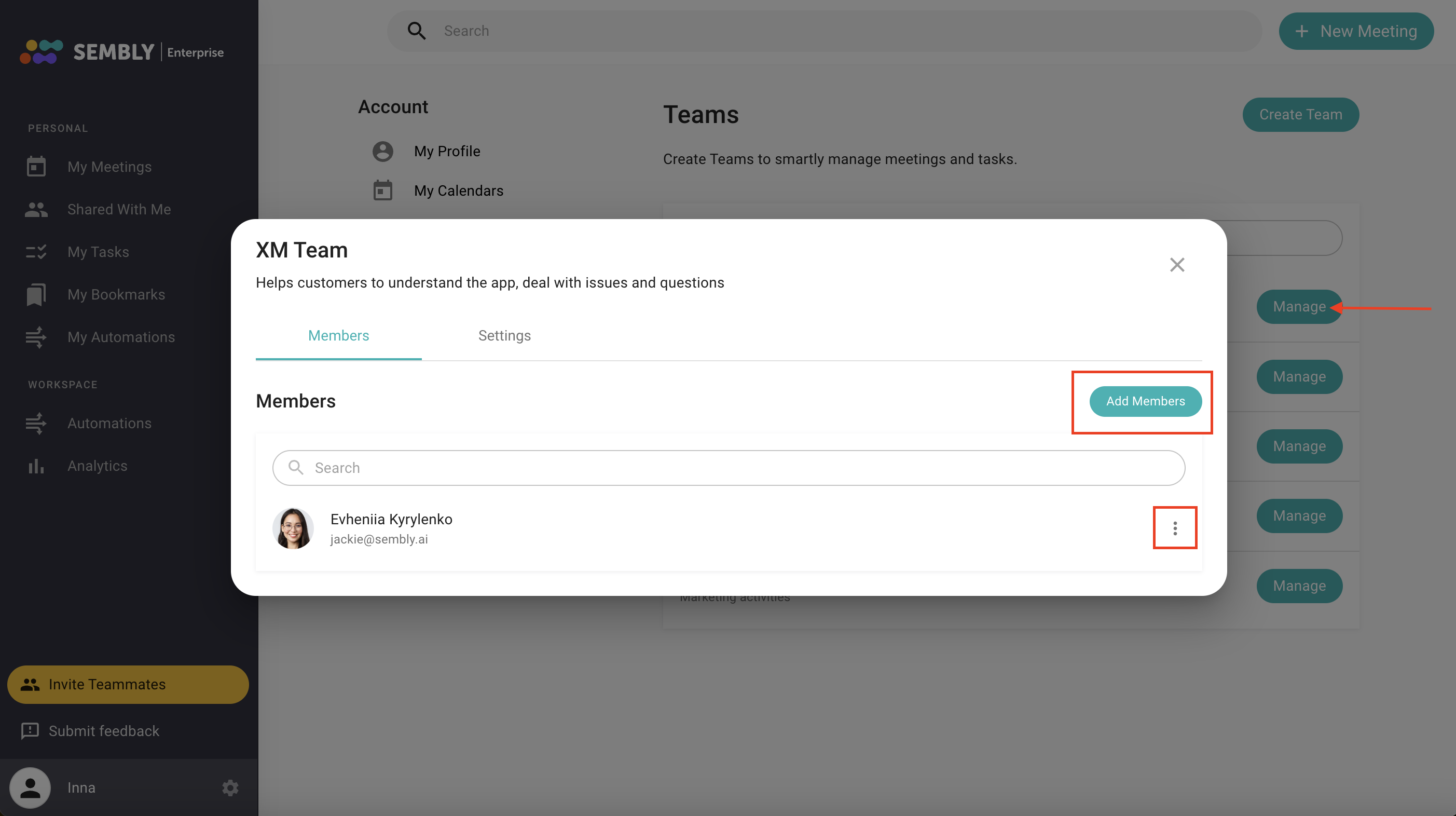
In the Settings tab, you can edit Name and Description, and delete a Team completely.

To check the Team you belong to, go to My Profile, and scroll down to the Team section.
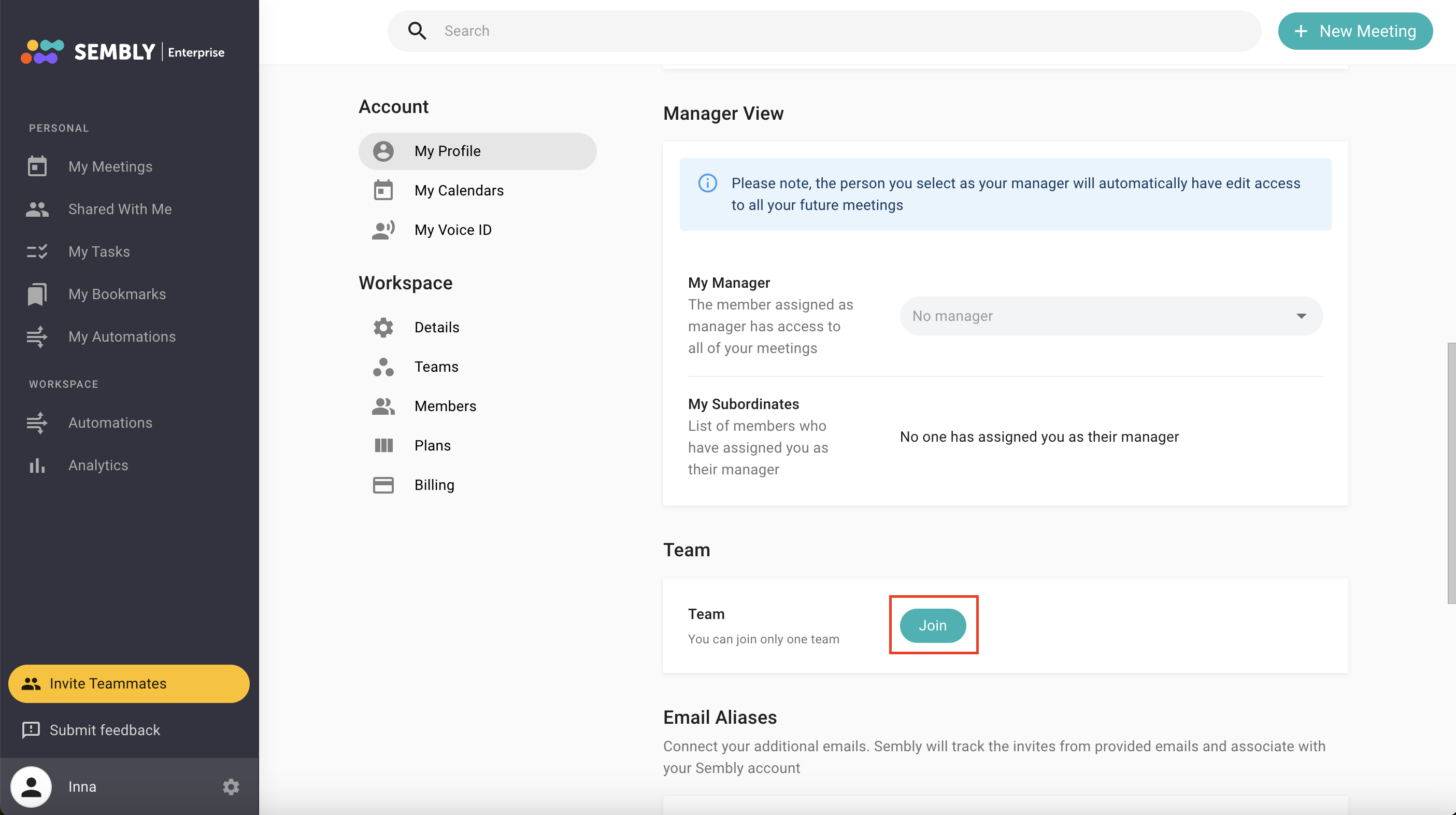
If you are not yet a part of any team, click Join, then pick a group from the list and click Join one more time.
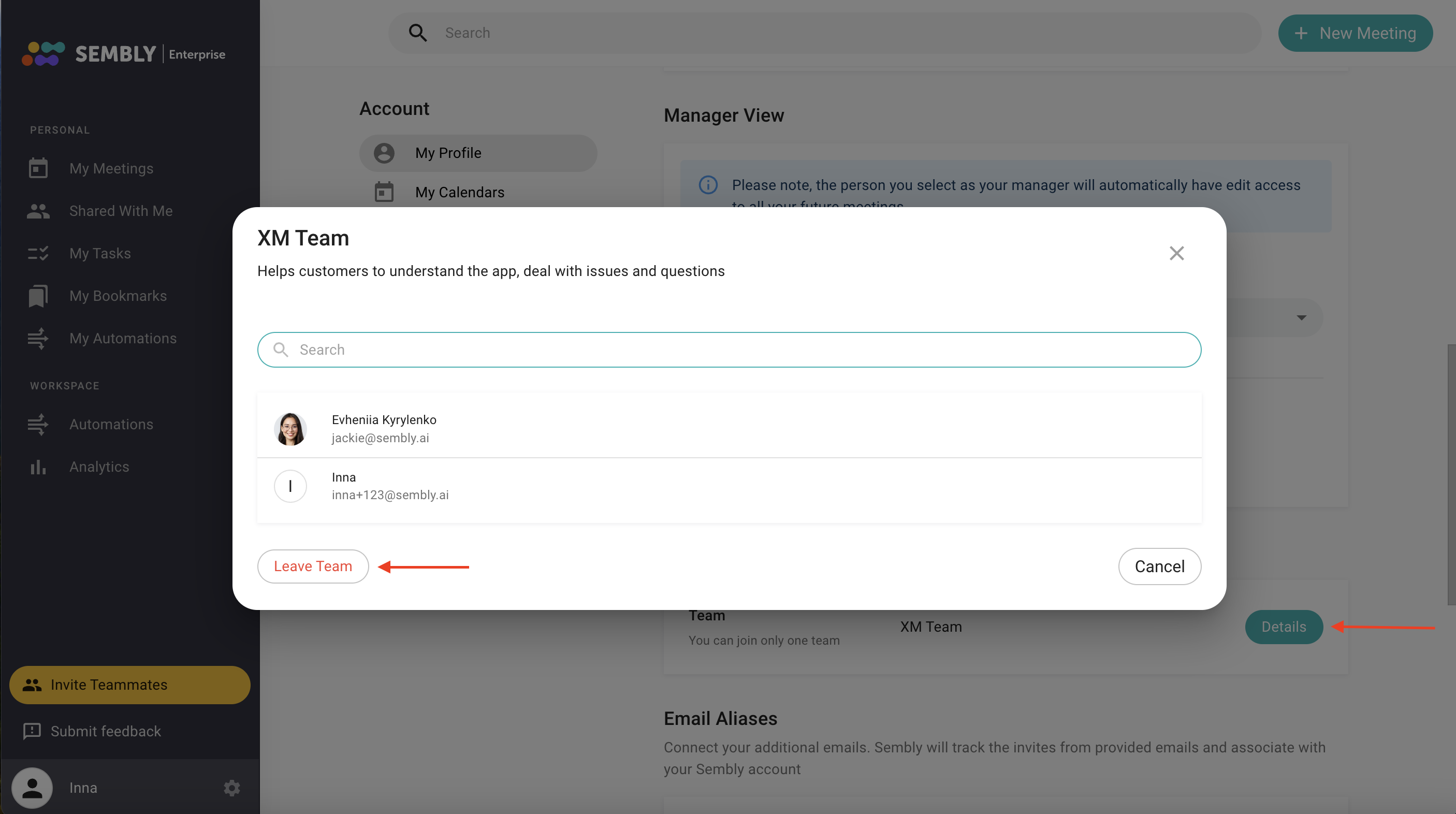
To review the Team you belong to, click Details. You can see who else joined it. Click the Leave Team button if you don’t want to be a part of this team. If you want to join another team, leave this first and then join another one.
As Teams are created in your workspace, you can now add them as filters in Workspace Automations to optimize automatic export.
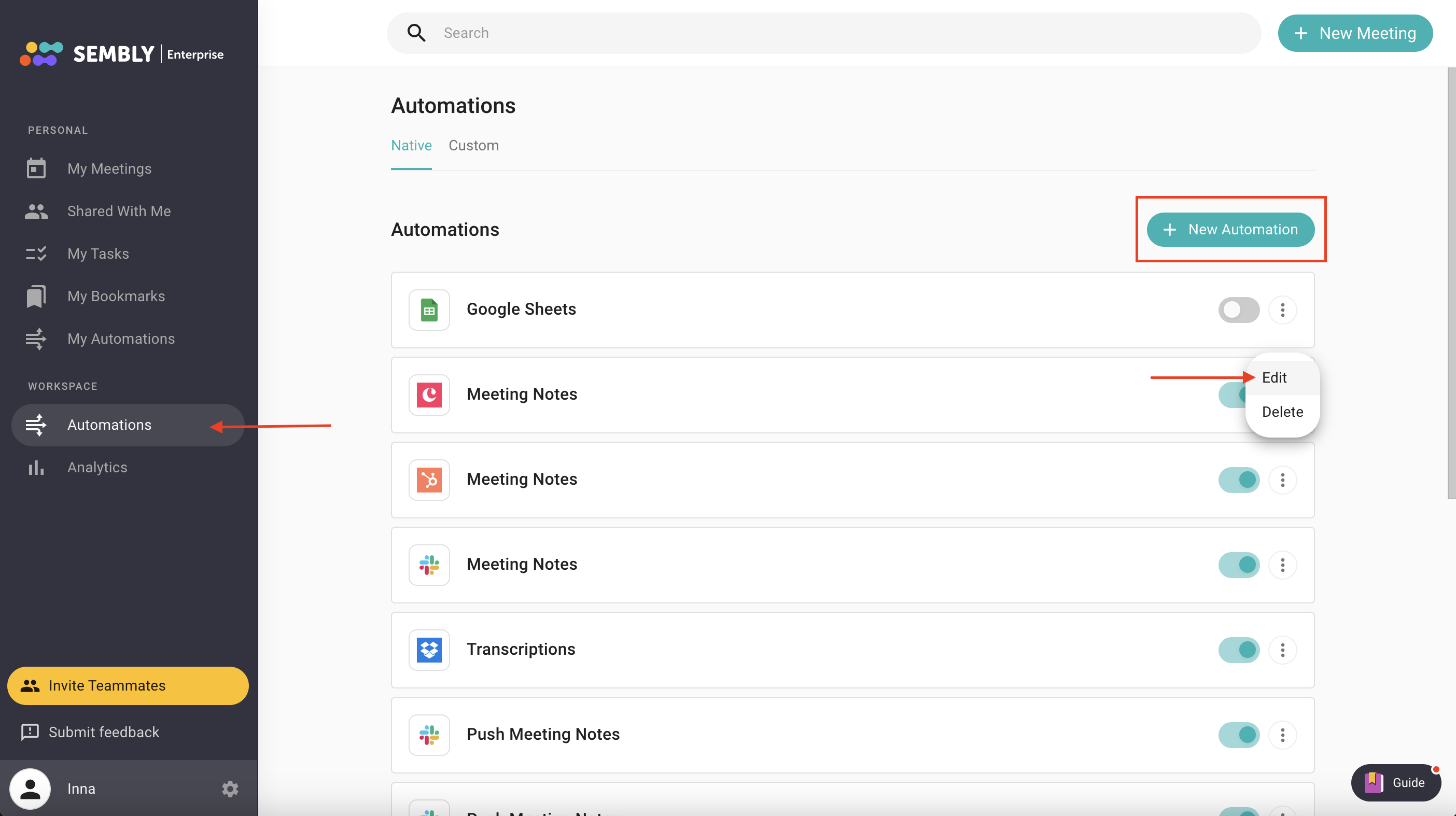
Open Workspace Automations, click Edit next to an existing automation or add a new one by clicking + New Automation.
On the next page in the second step, select Apply to meetings owned by a specific team, then pick a team below, click Done.
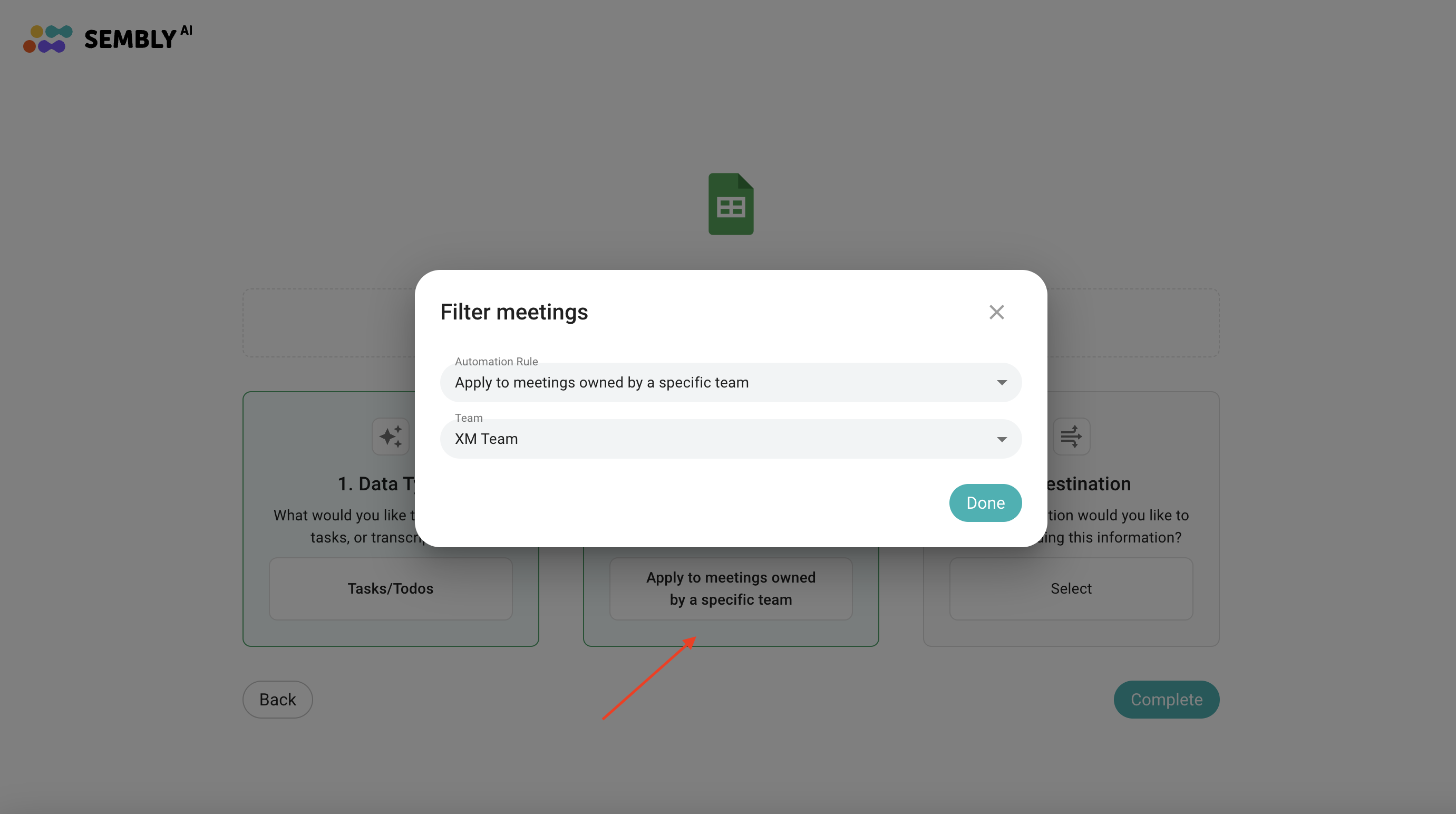
Finish editing by clicking Complete or add other steps and then save.
After you save this automation, data from future meetings recorded by anyone on this team, or from future meetings with a particular Team badge, will be pushed to the chosen destination.
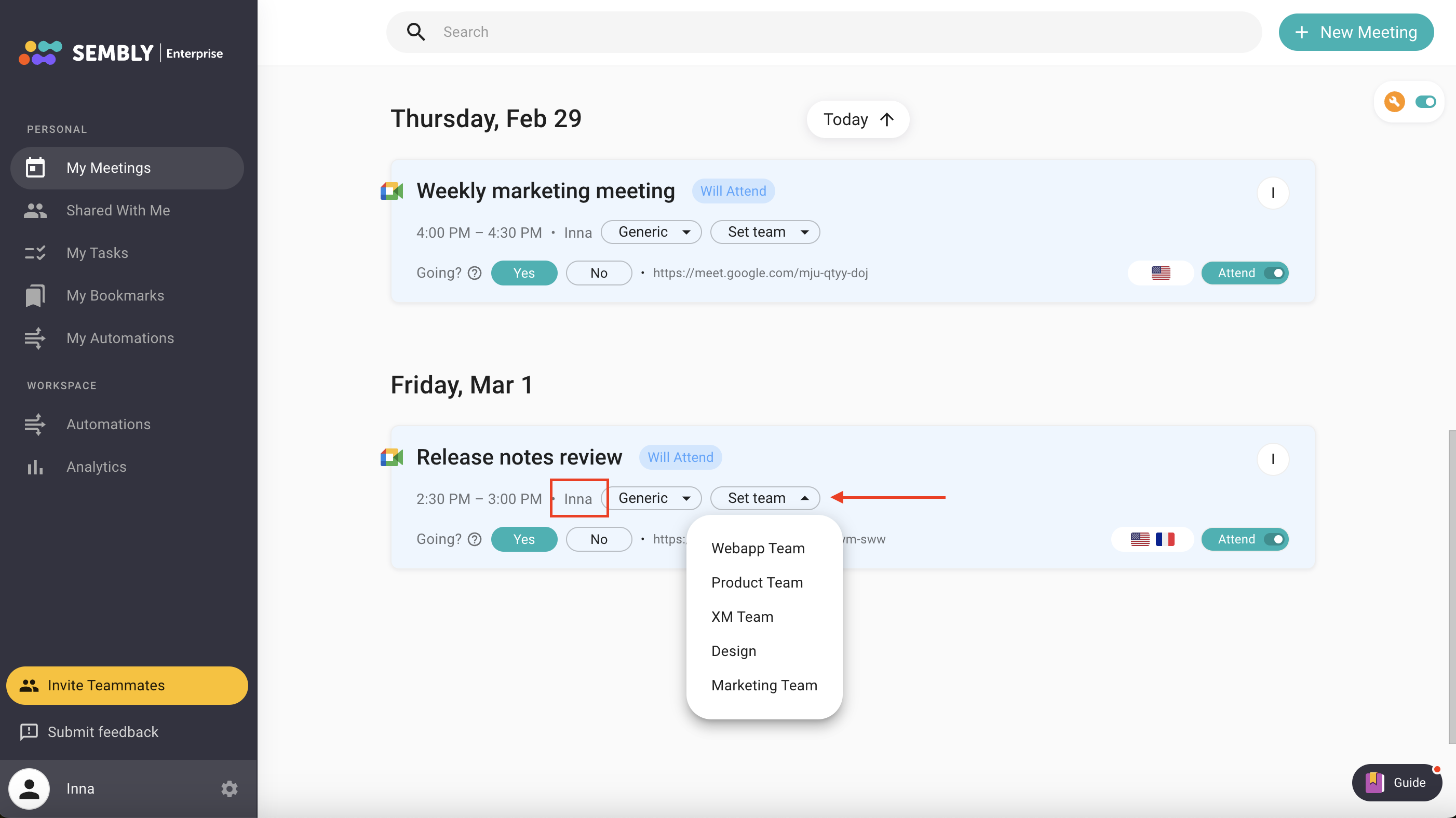
The final step in routing Sembly post-meeting results is to add a Team badge to scheduled meetings. Based on your use case, you either need to choose a badge or leave it without changes.
Everyone with edit access to the meeting can add a Team badge to it. By adding a badge to a SCHEDULED meeting, you trigger the Automation rule, which sends Notes or Tasks to the final destination.
If you are the meeting organizer and part of the Team that was added as a filter to any Workspace Automations, you don’t need to choose a Team badge in a meeting. Set badges only if the meeting organizer doesn’t belong to your Team in Sembly, but you want Notes or Tasks from this call to be sent through Automations to any preferred tool.
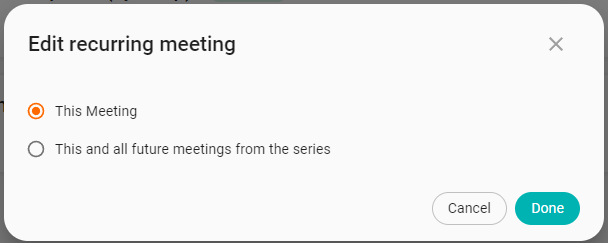
While changing the team assigned for a recurring meeting, you can automatically apply the new corresponding team to:
This Meeting;
This and all future meetings from the series.

To better understand how Teams work, let’s check a particular case. Company X created a “Y” Team with 5 members in their account in Sembly. They want to send Notes from this “Y” Team's calls to the Monday app. Usually, anyone from this Team schedules calls, but sometimes the company’s customers can also schedule calls that relate to this “Y” Team, and Notes from these calls should also be sent to the Monday app. How Sembly works in this case:
TEAM | AUTOMATION | TEAM BADGE IN MEETINGS | FINAL DESTINATION |
“Y” Team (5 members) | Data type: Notes Filter: apply to meetings owned by “Y” Team Destination: Monday board | If a meeting organizer is any person from “Y” Team, no actions are required | Notes from this meeting will be pushed to the Monday board |
If a meeting organizer is not included in “Y” Team (e.g. client), add a badge “Y” Team to this meeting while it’s scheduled in Sembly | Notes from this meeting will be pushed to the Monday board | ||
If a meeting organizer is not included in “Y” Team (e.g. client), and a badge “Y” Team was not added to this meeting while it’s scheduled in Sembly | Notes from this meeting will not be pushed to the Monday board |

