Welcome to Sembly! This article guides you through creating your Sembly account—from choosing your data region and verifying your email to building your very first presentation in guided mode. You’ll also learn how to invite members, create admin accounts for your workspace, and join an existing workspace if you’ve been invited.
Whether you are setting up a brand-new workspace or joining your team's, the steps below will get you up and running.
On the Create Your Account screen, first choose where your data will reside using the region dropdown. You can select for your data to reside in the US 🇺🇸 or EU 🇪🇺 server.
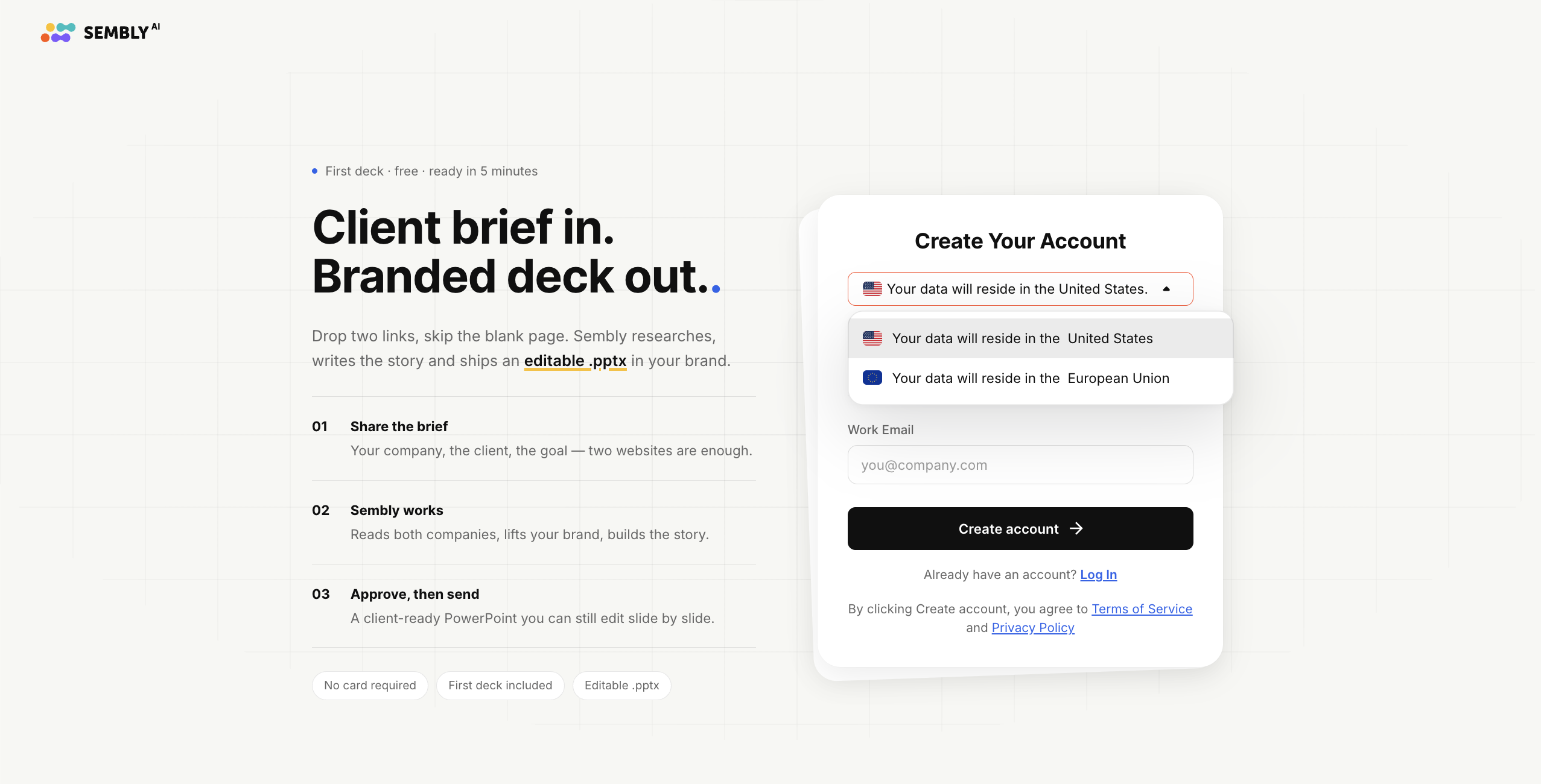
Enter your work email address in the "Work Email" field (for example, [email protected]), then click Create account
By creating an account, you agree to the Terms of Service and Privacy Policy, linked below the button. If you already have an account, you can use the Log In link instead.
On the Set your password screen, enter:
Your Full name
A Password (at least 8 characters, with upper and lower case letters and digits)
Confirm password
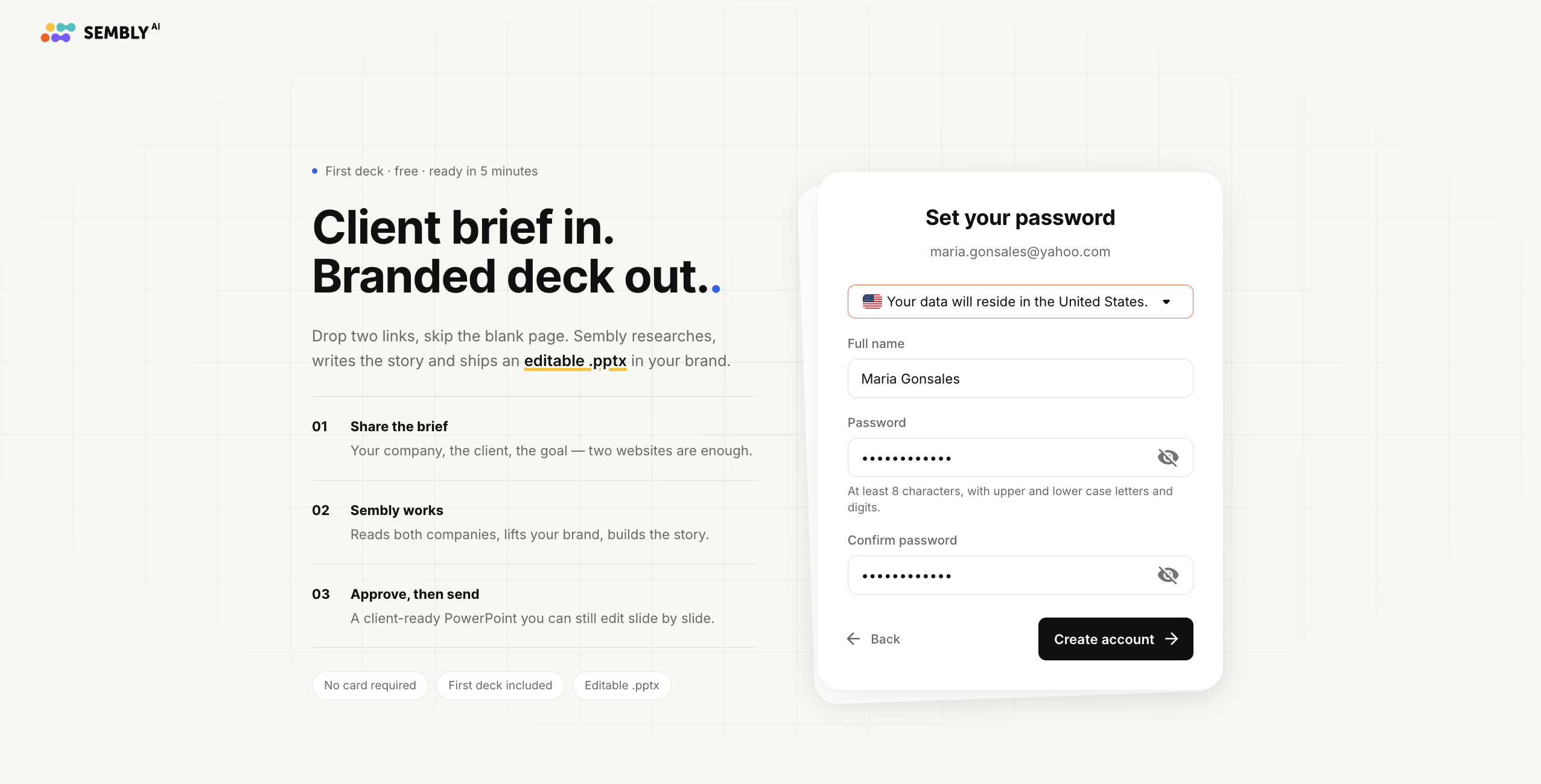
Then click Create account. You can use the eye icon to show or hide your password, and Back to return to the previous step.
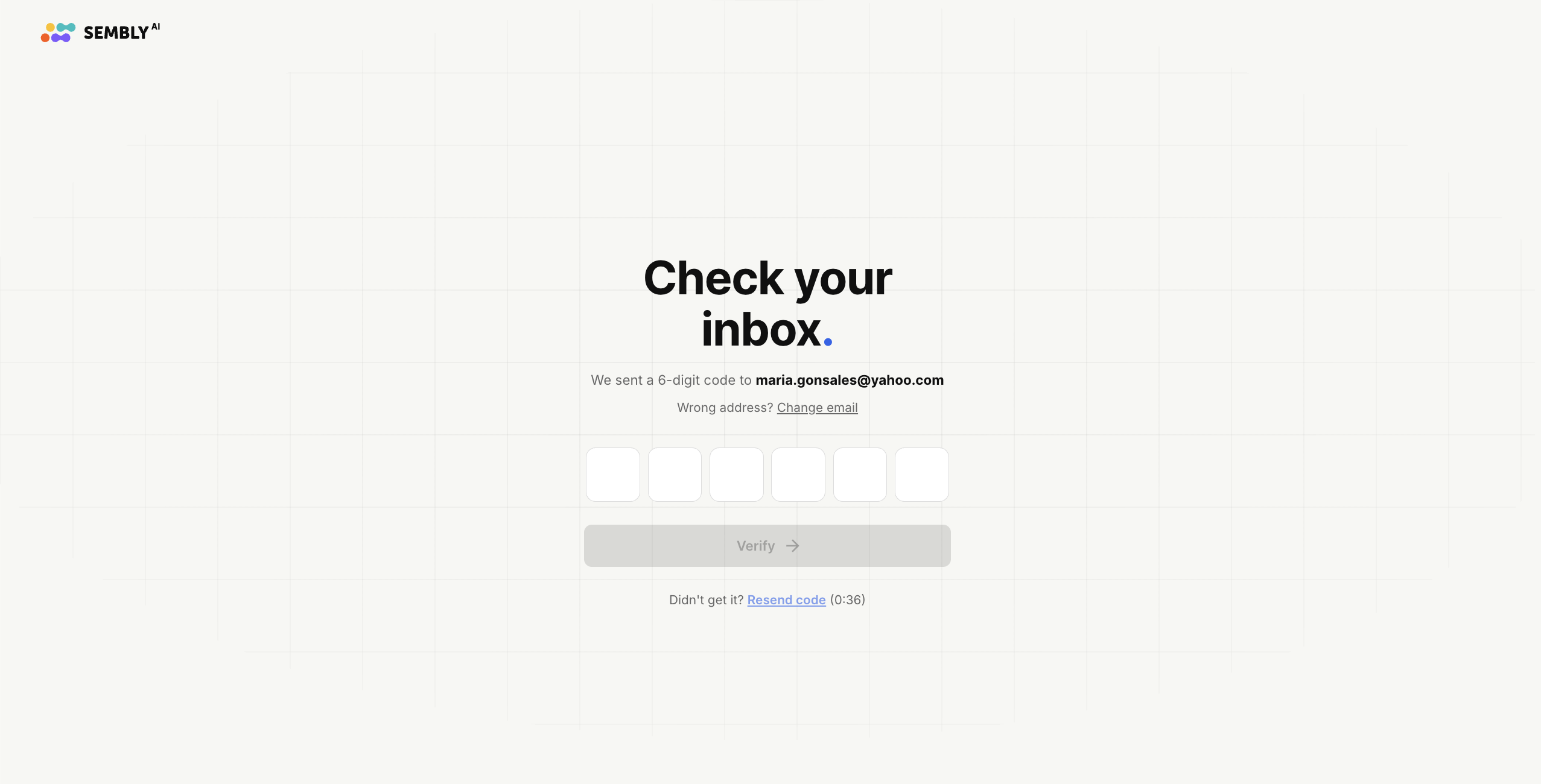
Sembly will send a 6-digit code to your email address. Verify your email by entering the code into the six boxes and click Verify.
If you do not receive it, you can use Resend code (available after a short countdown), and if the address is wrong, use Change email.
Instead of creating an account with an email and password, you can also sign up using Single Sign-On (SSO), which lets you register and log in with an existing account (such as Google or Microsoft). To do so:
Choose where your data will reside using the region dropdown US 🇺🇸 or EU 🇪🇺.
Select the SSO option you would like to use, for example, Continue with Google or Continue with Microsoft.
You will be redirected to the provider's sign-in page. Log in with your existing account and grant the requested permissions.
Once authorized, you will be returned to Sembly and signed in, with your account created automatically using that provider.
After this, you can use the same SSO option to log in each time.
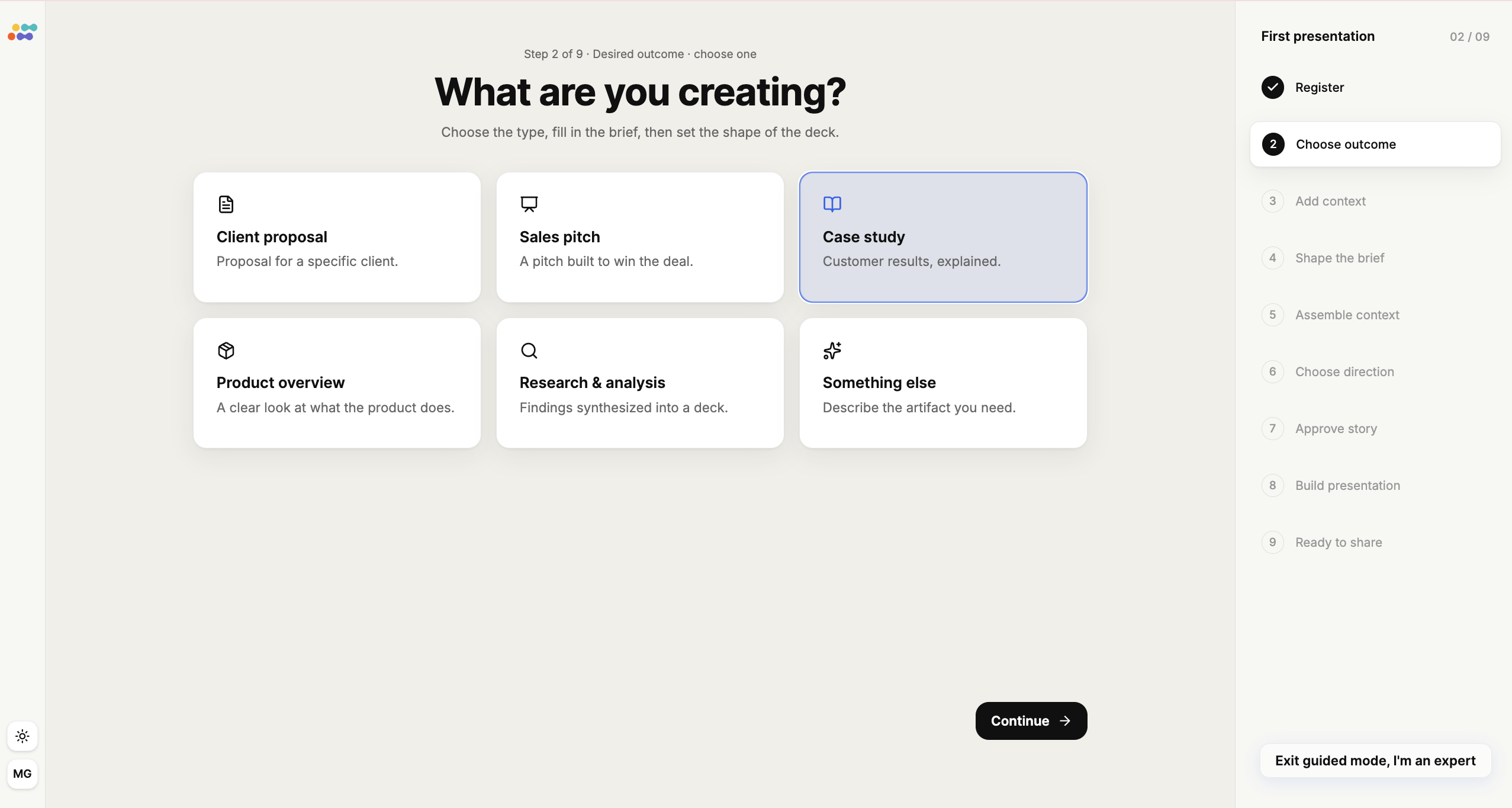
Once you’re on onboarding page where you can create your first presentation, you have two options: either to create you first deck, or to click Exit guided mode, I'm an expert to leave the guided flow and enter to your account immediately. Below are the steps for creating a presentation.

Choose the type of deck you want to build. You can pick from the provided options or something else, describe the artifact you need yourself.
Select one and click Continue.
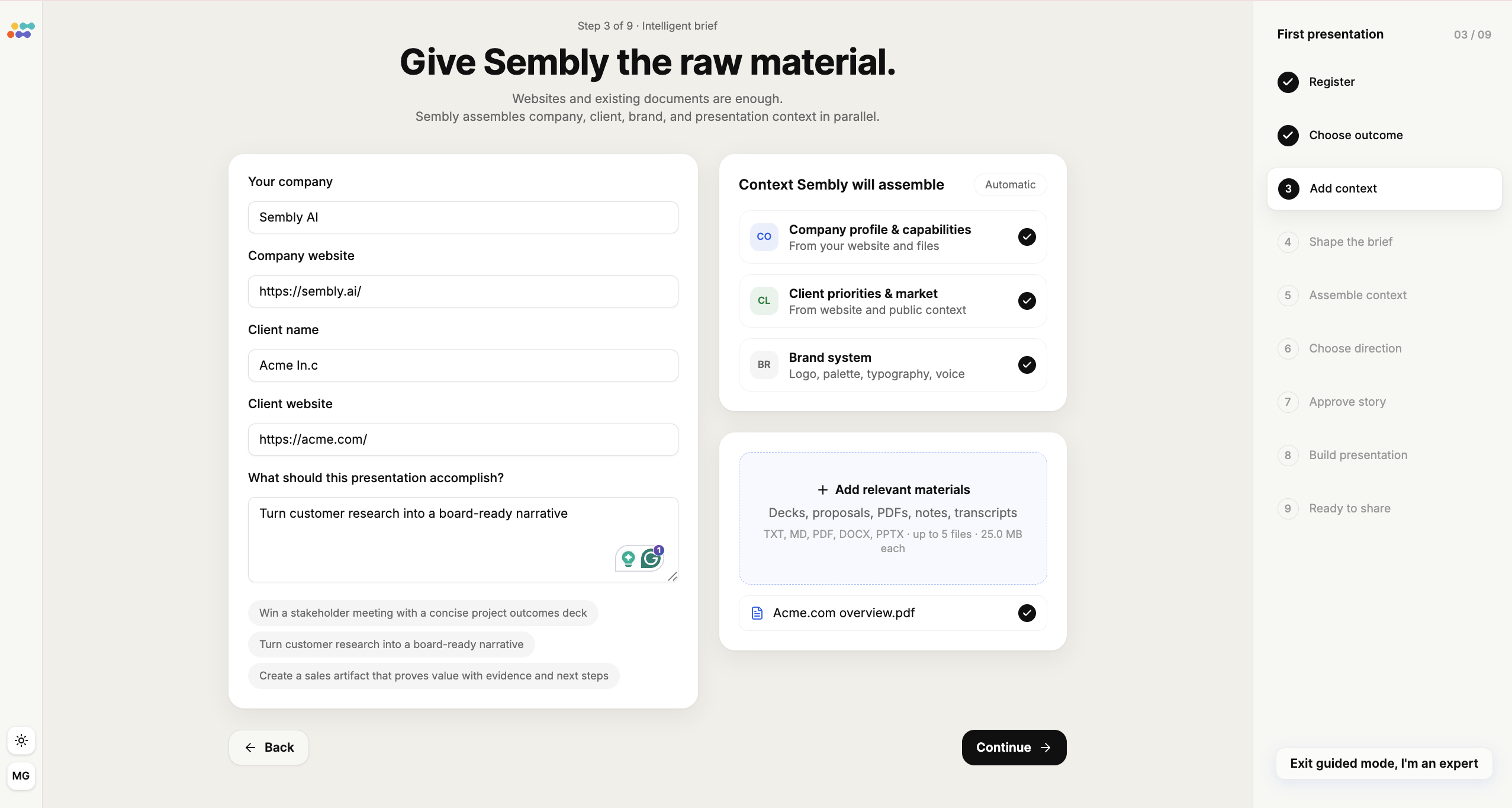
Provide the details Sembly will use to research and build your deck. Websites and existing documents are enough; Sembly assembles company, client, brand, and presentation context in parallel.
Fill in:
Your company and Company website
Client name and Client website
What should this presentation accomplish? (you can type your own goal or pick one of the suggested prompts)
On the right, you will see the context Sembly will assemble automatically (Company profile & capabilities, Client priorities & market, and Brand system). You can also use Add relevant materials to upload your own files.
When ready, click Continue.
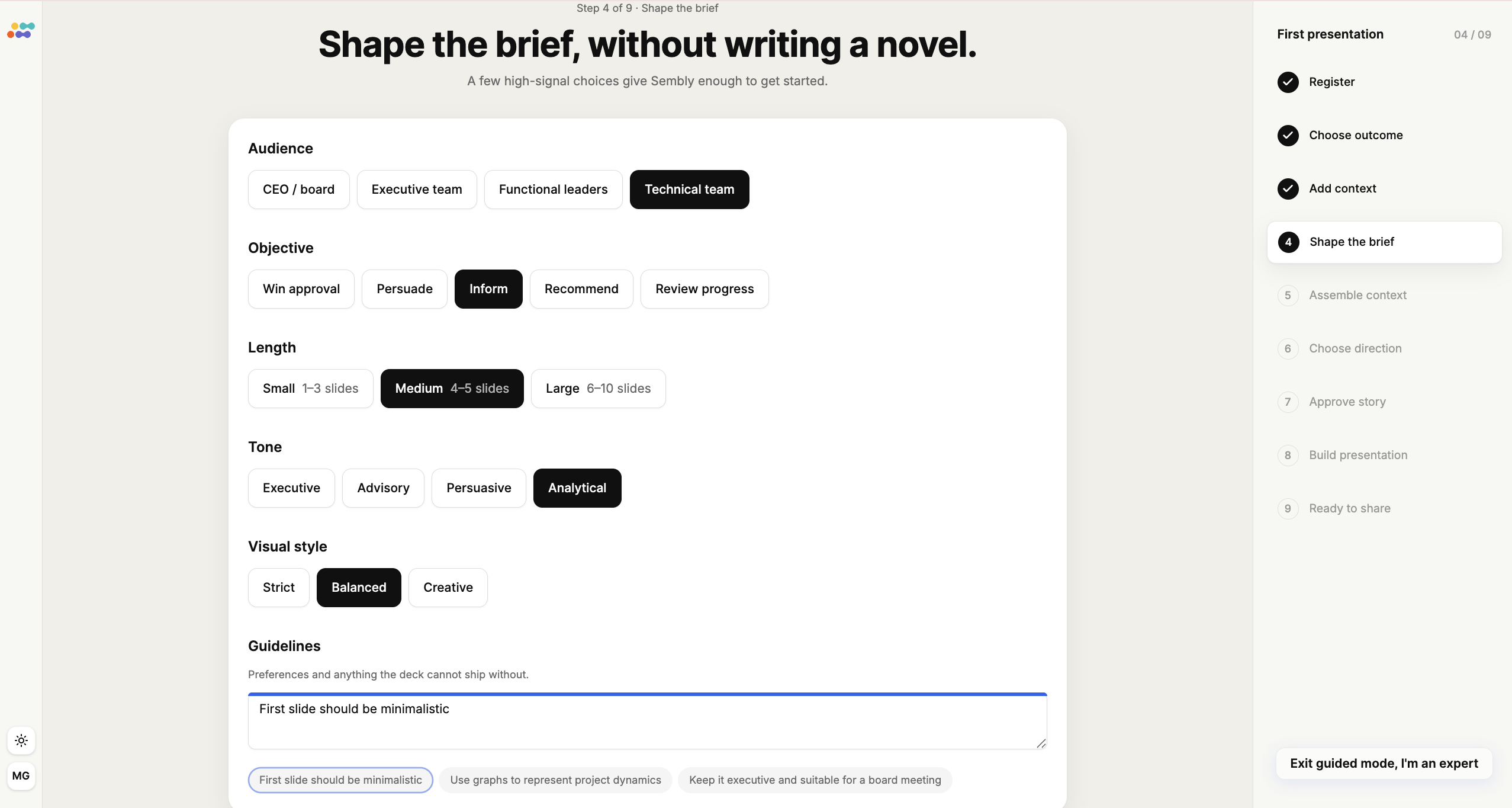
Make a few high-signal choices so Sembly knows how to build the deck, then click Continue.
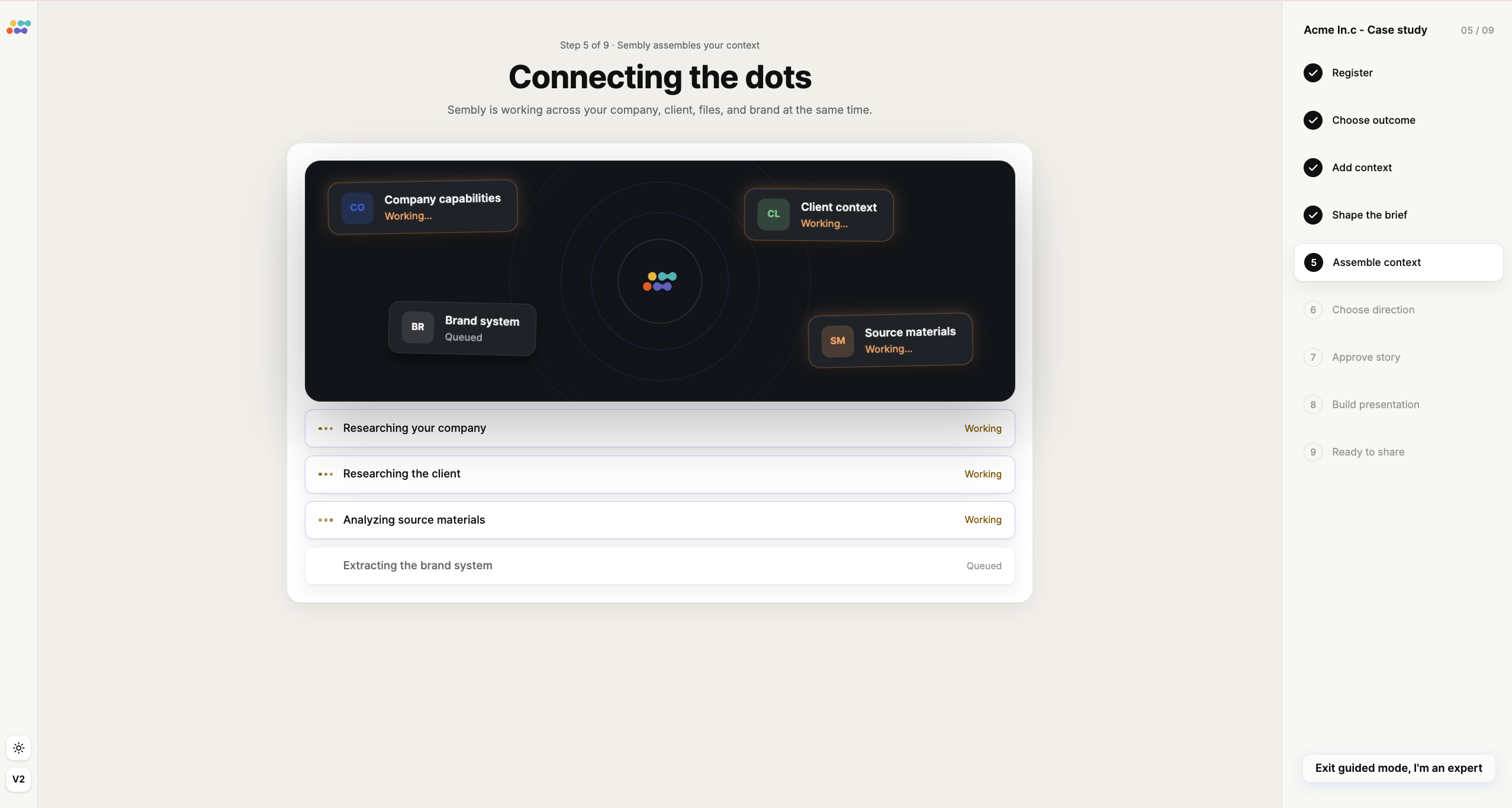
Sembly then works across your company, client, files, and brand at the same time. This step is automatic; just wait for it to complete.
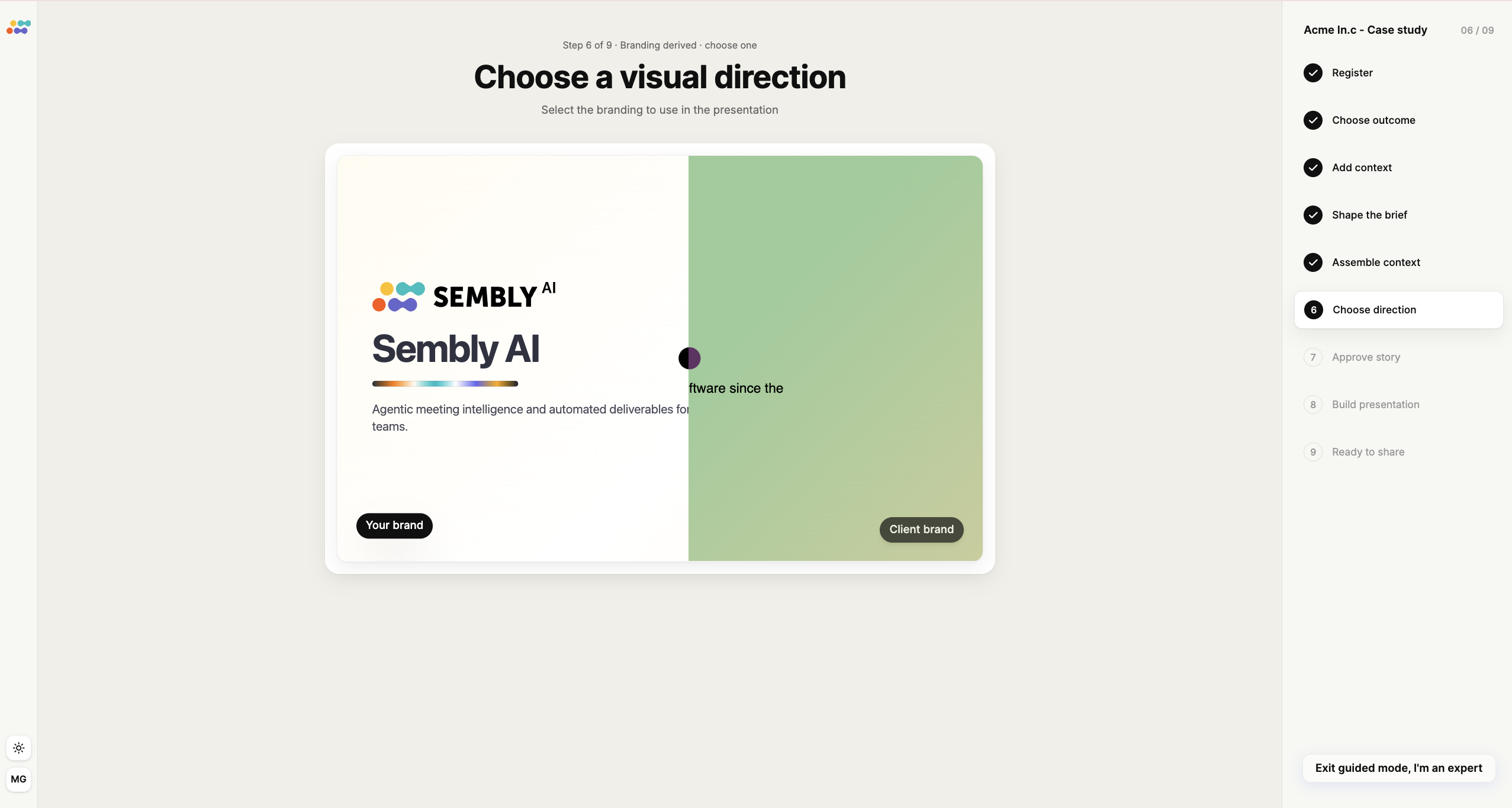
Select the branding to use in the presentation. You can choose between your brand and the Client's brand.
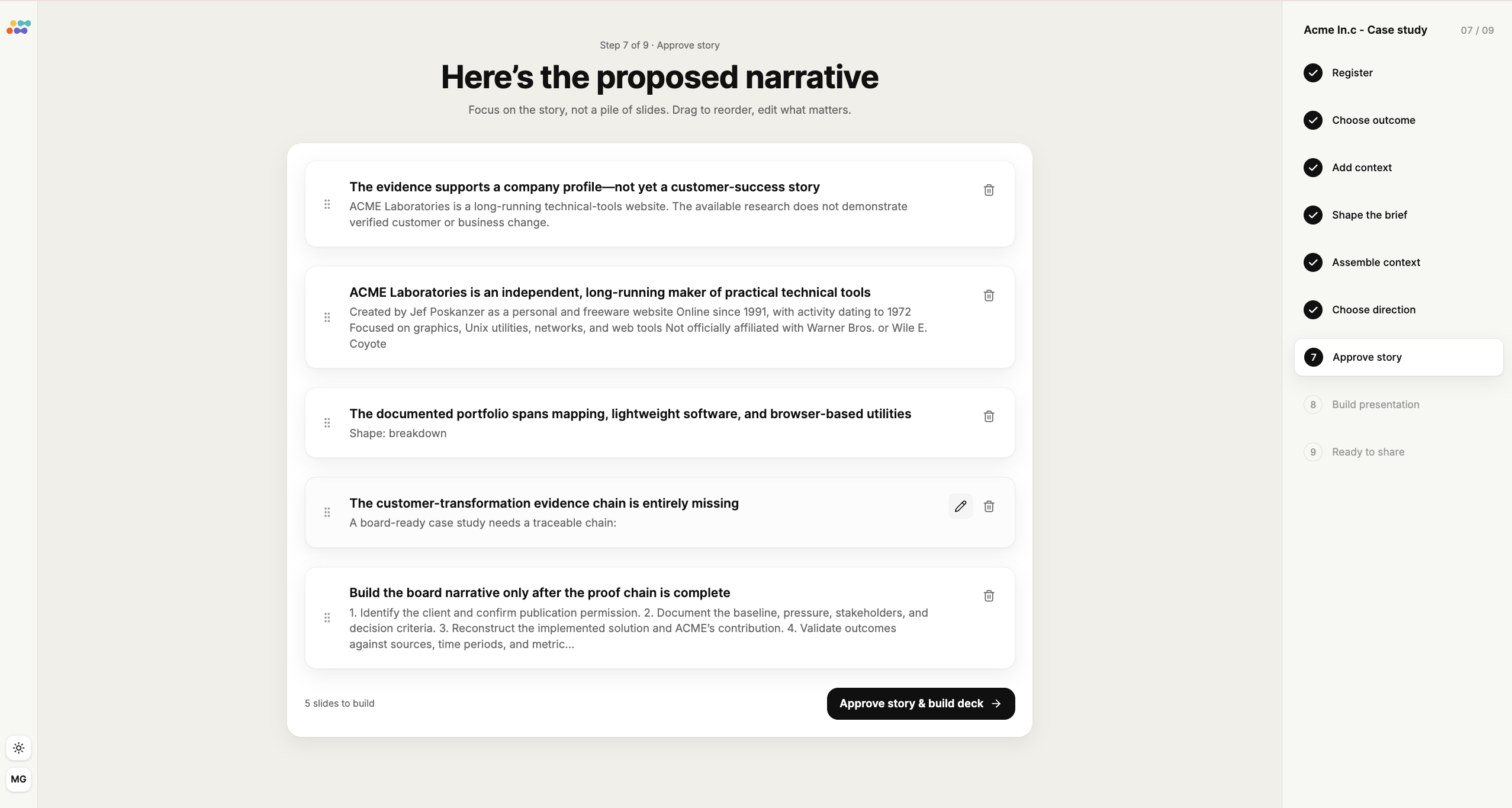
Sembly presents the proposed structure of your deck as a series of story blocks. Here you can:
Drag the blocks (using the handle on the left of each) to reorder them.
Edit a block using the pencil icon next to it, to adjust the parts that matter.
Delete a block using the trash icon.
At the bottom, you will see how many slides will be built (for example, "5 slides to build"). When you are happy with the narrative, click Approve story & build deck
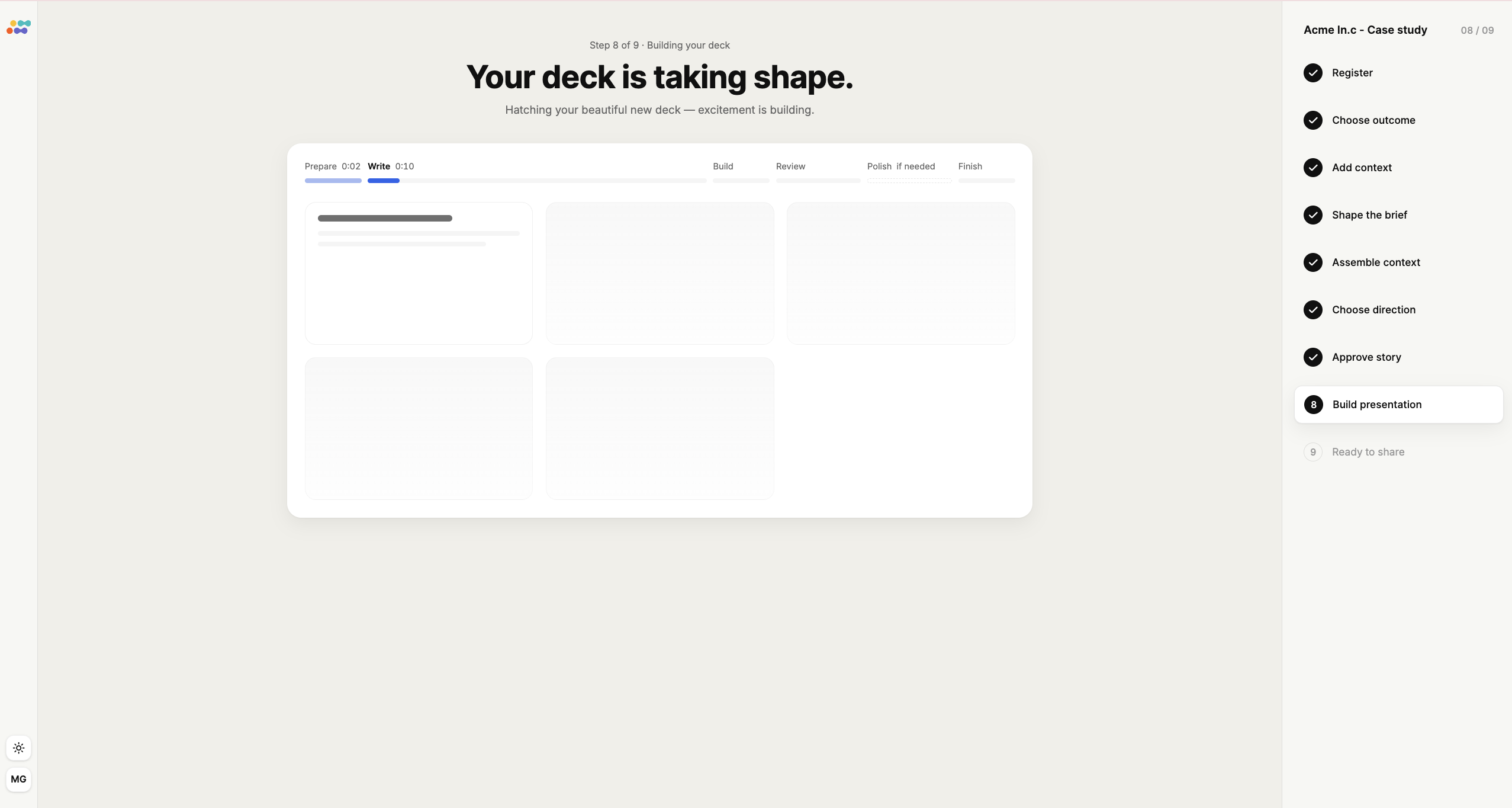
Sembly then builds your deck. You can watch the progress as it moves through its stages. This step is automatic; just wait while your deck is generated.
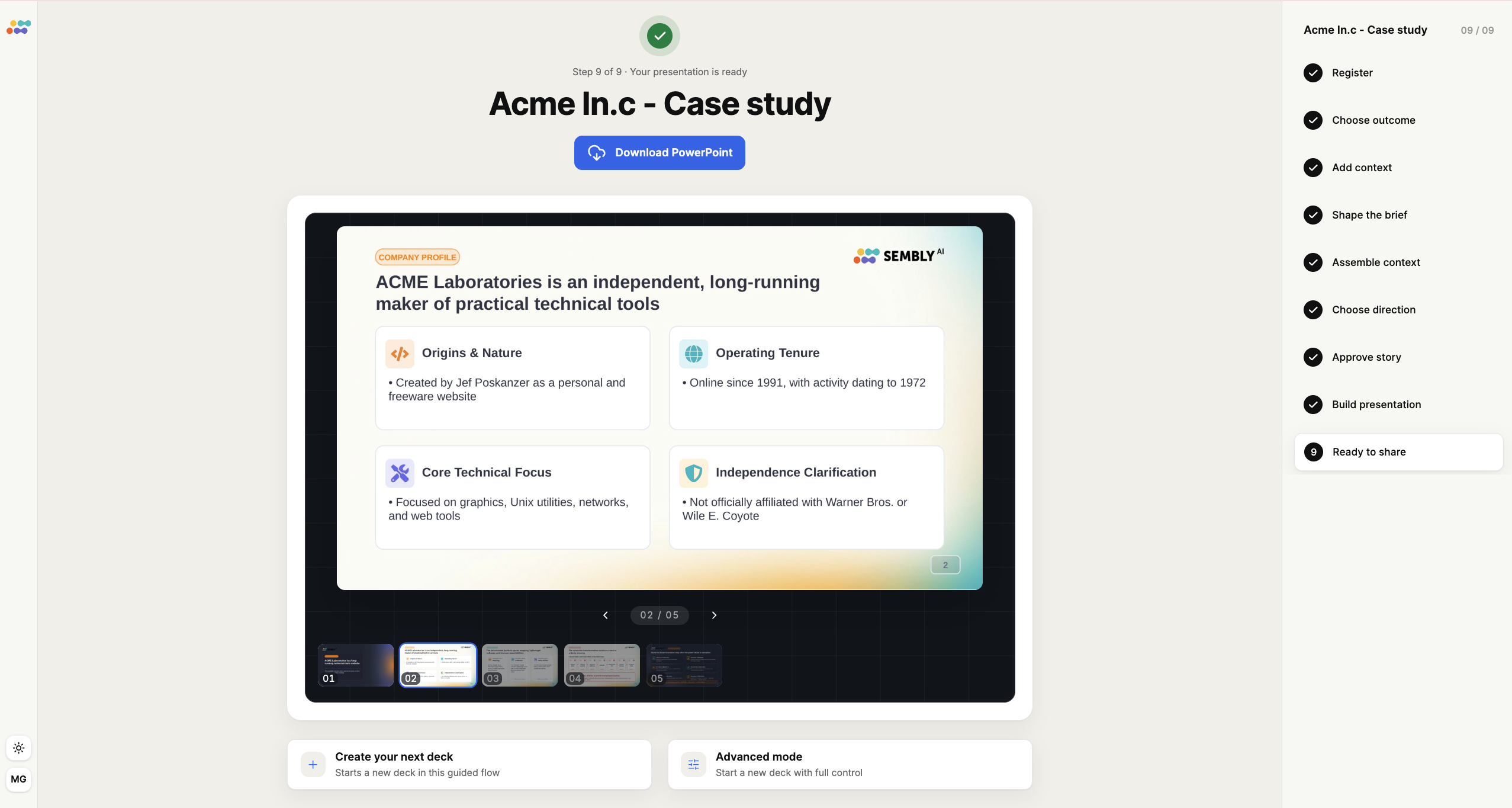
When the deck is finished, the Your presentation is ready screen appears. From here you can:
Download PowerPoint to save your finished, editable .pptx deck.
Preview the slides, using the arrows and the slide thumbnails at the bottom to page through the deck.
Create your next deck, to start a new deck in this same guided flow.
Advanced mode, to start a new deck with full control.
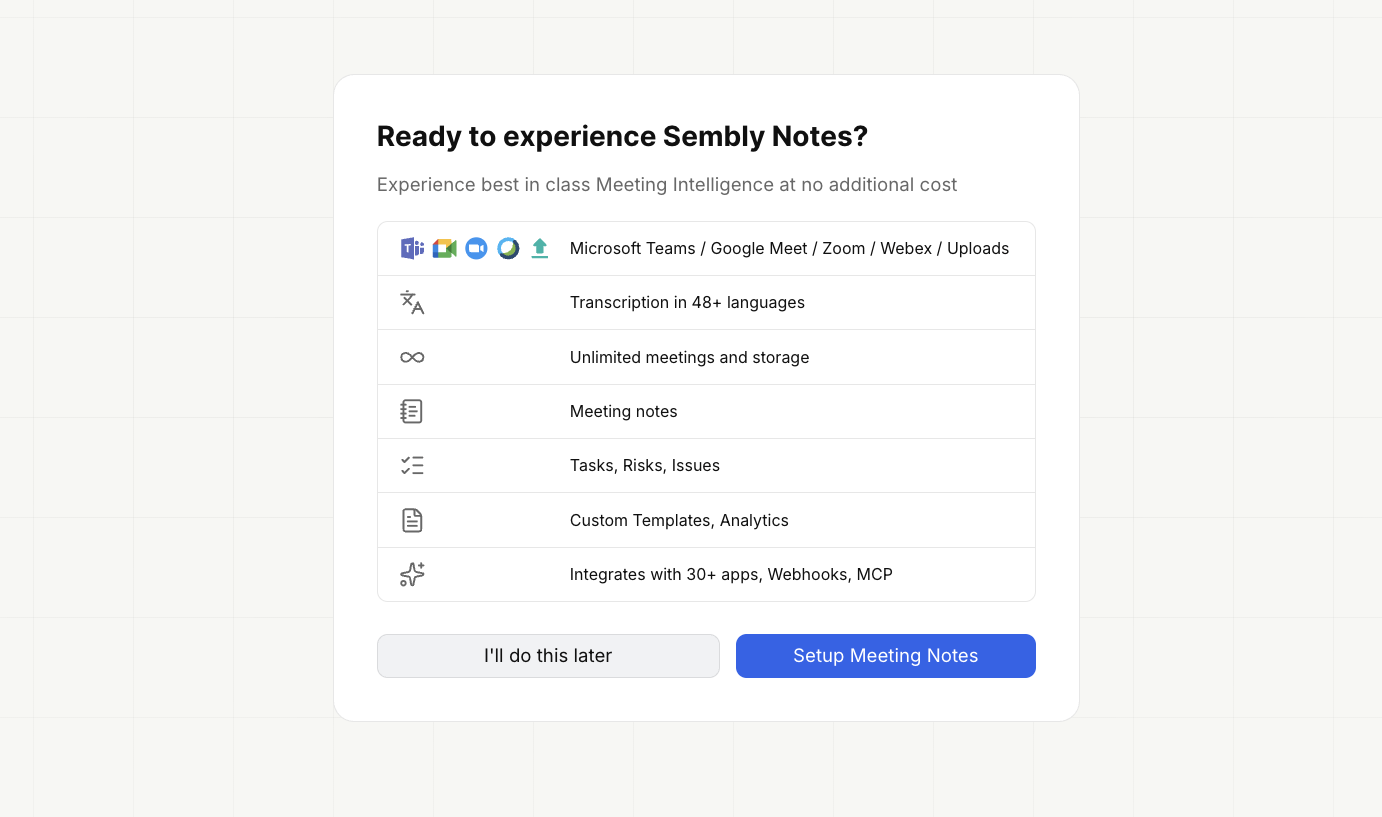
After creating a presentation, you may be asked whether you would like to set up Sembly Notes, Sembly's meeting-intelligence features, such as meeting notes, transcription, and tasks.
You can choose to set it up now, or skip this step and do it later. This is entirely optional, and you can always set it up at another time.
As a Workspace Admin, you can invite other people to your workspace and assign each of them a role, including making them an admin.
You can find the full guide on how to proceed here.
In the Invite by Email field, enter one or more email addresses.
Choose a Role from the dropdown, either Member or Workspace Admin. Select Workspace Admin if you want that person to have admin permissions.
Click Send invite.
The invited person will then receive an invitation to join the workspace (see the next section).
If you have been invited to join an existing workspace, you can find the full steps on how to accept and join here.