Looking for more features in Sembly? In this article, you'll find a step-by-step guide to upgrading your subscription plan.
When you create a Sembly account, you’ll usually start with a free trial. You can upgrade to a paid plan whenever you’re ready. In the Plans section, you can view each plan's features and the monthly/yearly price. You can change your plan at any time during the billing month or year.
Sembly offers one paid plan for a single user: Sembly Basic. You can also choose from three paid plans that let you add more users or have more features: Sembly Pro, Sembly MAX, and Sembly Enterprise.
Click the gear icon and select Settings.
Choose General → Plans. Decide whether you want a monthly or an annual subscription.
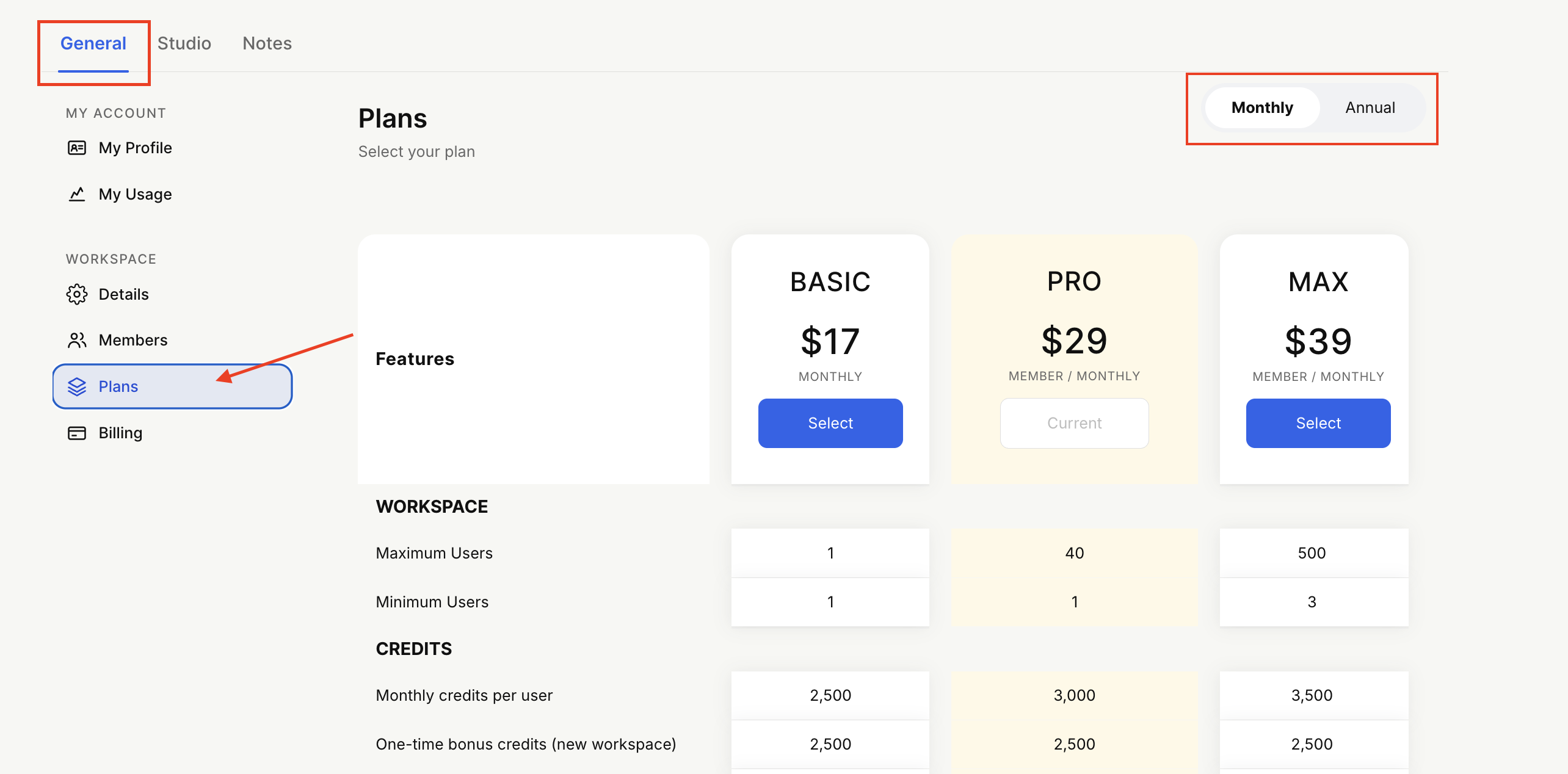
Select your plan and confirm your choice. If you have not already filled out your card details, you will be prompted to do so. You may cancel the subscription at any point.
If you choose monthly billing, you’ll be charged monthly; annual billing charges you once a year. We’ll email you a reminder 2 days before each payment is due, then send an invoice and receipt after it’s processed. Invoices are stored in your account in General → Billing.
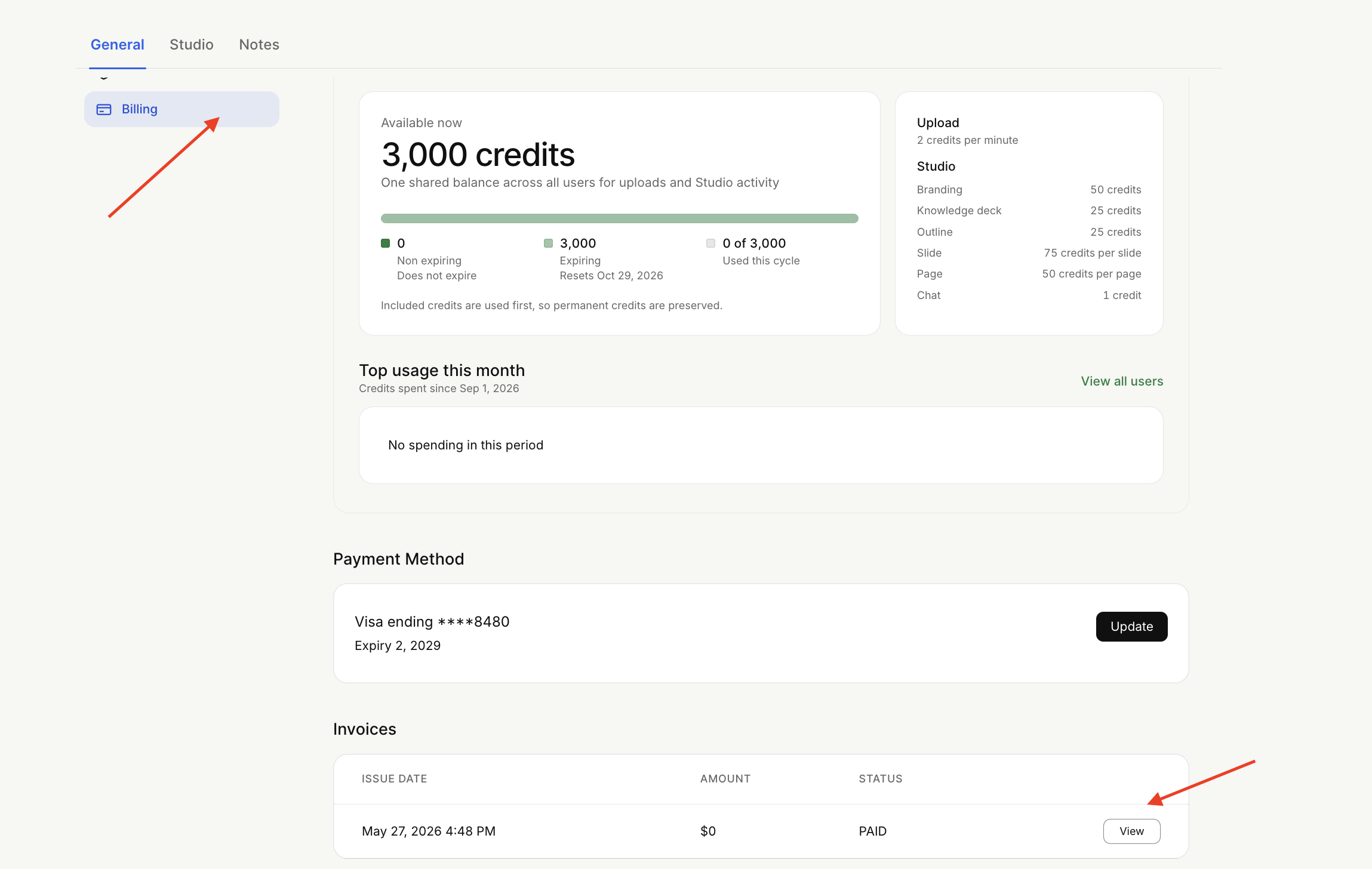
Professional and Basic subscriptions are charged for one user. With monthly or annual billing for Team, Team Plus, Pro, MAX, or Enterprise, your invoice is based on the number of members added to a workspace. Members added after the billing cycle starts are prorated and billed immediately.

Any changes you make to your subscription during the billing cycle take effect right away. For example, if you’d like to upgrade your paid plan, you’ll be charged the recalculated amount for the new plan for the rest of the current month when you switch plans.
If you downgrade your plan or reduce the number of workspace users, we’ll credit the funds to your Sembly balance and distribute them over the following months.
New customers can choose a currency during registration.
If you've already subscribed to one of the Sembly plans and wish to switch your payment currency, follow these steps:
Cancel your current subscription and wait for the current billing cycle to end.
Resubscribe to the paid plan the same day, and choose your preferred currency during the process.
If your benefits have already ended and you want to resubscribe, click Renew Subscription in the pop-up message inside your account.
Can I downgrade my Pro Plan to a Basic plan?
Yes, you can downgrade your Pro Plan to a Basic plan. Downgrading to Sembly Basic will require you to delete all existing workspace users if you have more than one user on your Pro Plan subscription. Note that the Basic Plan doesn't allow you to add users to a Workspace.

