LEGACY PLAN: PROFESSIONAL | TEAM | TEAM PLUS
Knowing who is speaking and when is critical to understanding a meeting. With Sembly, you can assign a speaker to a voice manually or let Sembly do it for you with automatic voice identification! When your meeting is submitted to Sembly, speakers who have enrolled their Voice ID will be recognized and assigned to their voice. To recognize your voice, Sembly leverages a speech sample.
Follow the steps listed below to create a Voice ID:
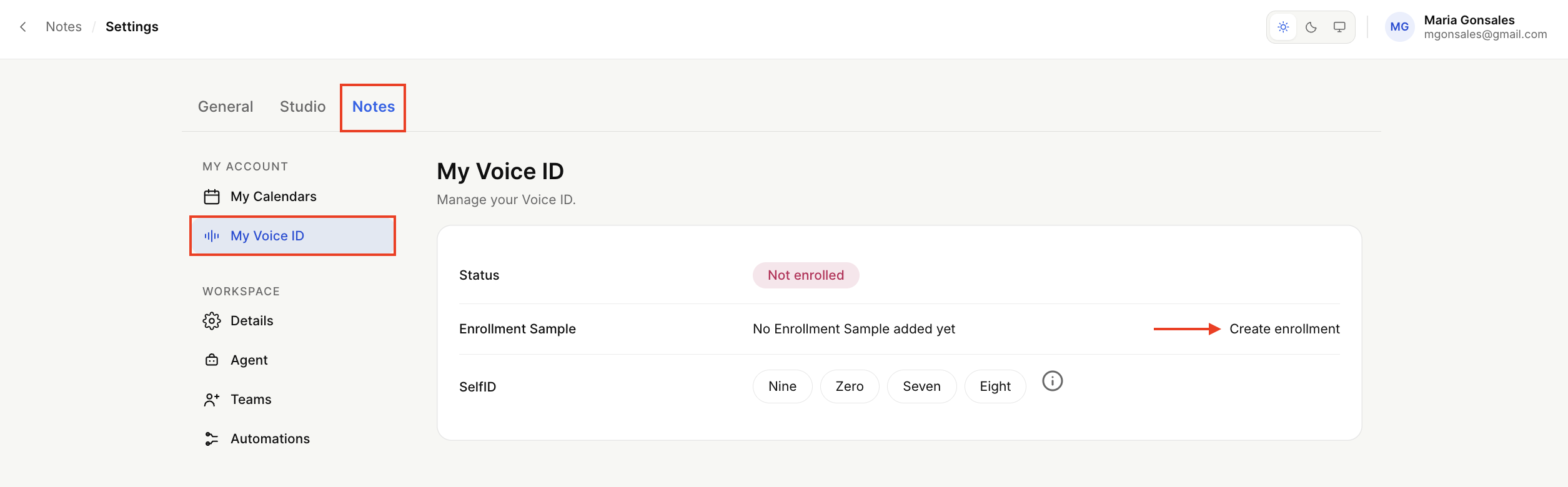
Open the dropdown by clicking your avatar at the bottom of the sidebar menu to open Settings → Notes → My Voice ID.
Press Create enrollment.
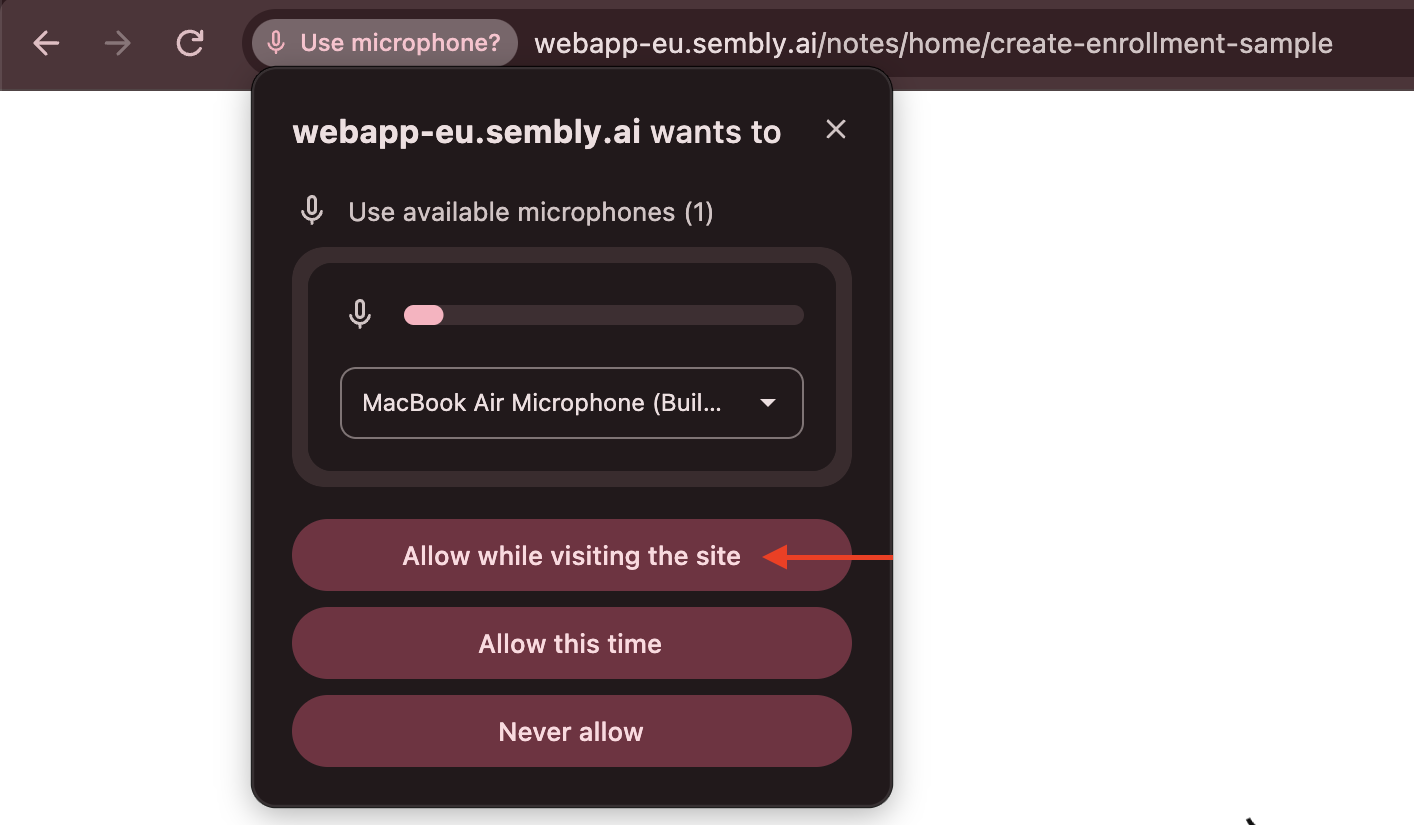
Make sure to allow microphone access in your browser.
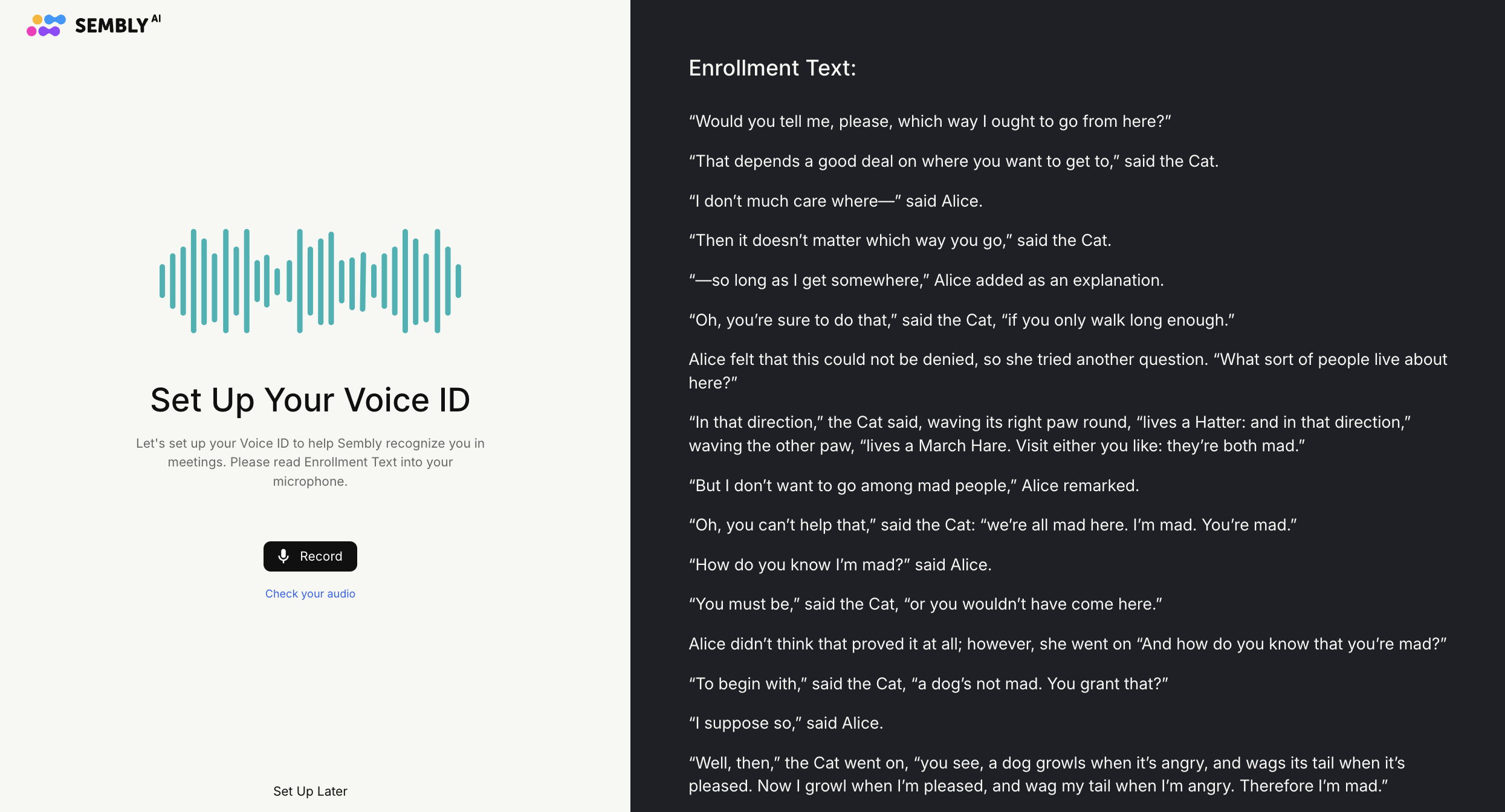
Click the Record button and start reading the text offered on the right side of the window. Although you can say anything you wish, just make sure to leave a sufficient voice sample that sounds as you usually sound on your calls.
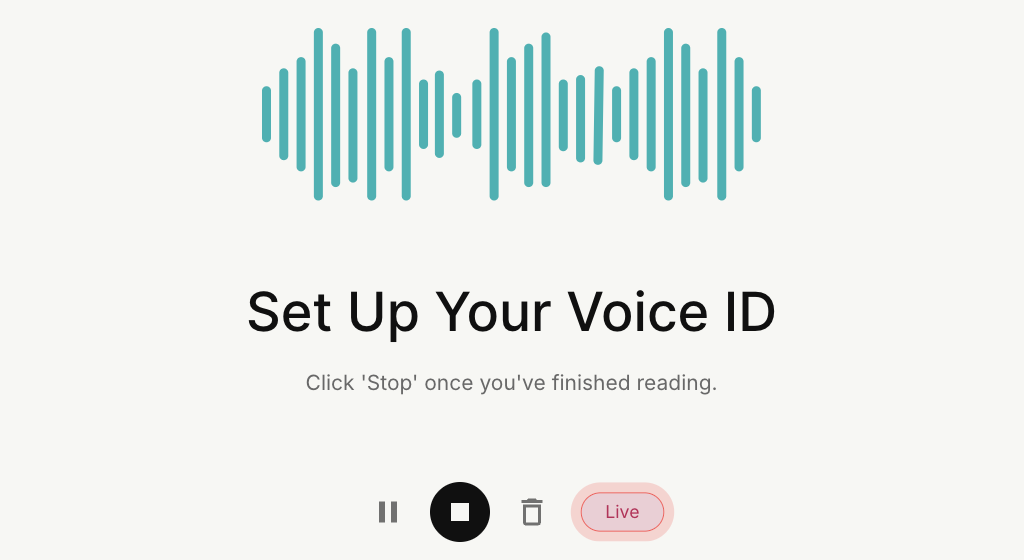
You can pause the recording or remove it to restart if you wish. Once you finish, click Stop (square sign).
Your voice recording will be saved in Sembly under the Voice ID tab. The status will be changed to Enrolled. You can now play the recording to check the results. The player also allows you to change the sound volume and delete the recording.
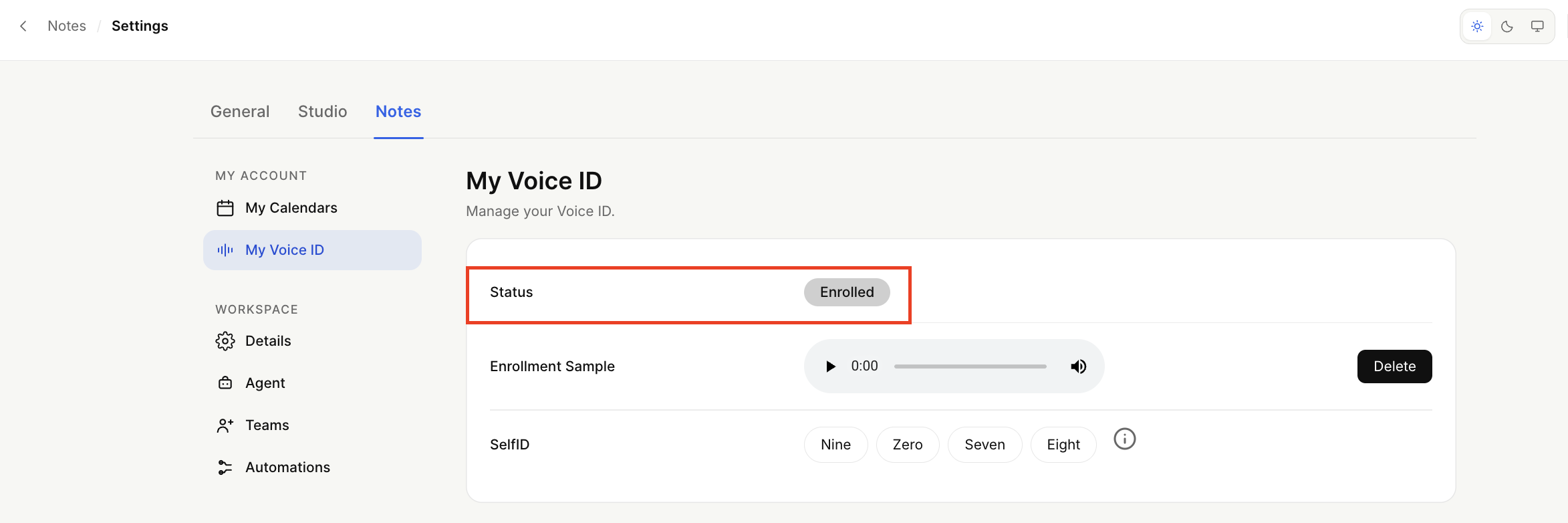
Now that you and other meeting participants have your voices recorded, Sembly will look to recognize you in the meetings.
Troubleshooting (if the user is not identified)
Check if the enrollment audio is successfully recorded;
Check if a member has participated in the meeting by listening to an utterance;
Try to record another voice sample, ensuring you speak as you do during your meetings.
If you meet all the requirements above and your voice still isn't recognized, don’t worry. The technology is still learning and may not recognize all voices 100% of the time. Please contact our support team, and we will help you to complete your enrollment.
Workspace Admins can disable Voice ID for the entire workspace. This may be useful where your organization’s policies restrict the processing of voice data.
When Voice ID is disabled for a workspace:
No Voice ID processing takes place for any meeting in the workspace.
The Voice ID management options in Settings are disabled, so you can't edit or re-record existing Voice IDs.
Members see a prompt advising that Voice ID has been disabled by their admin,
If you see this prompt and would like to use Voice ID, please contact your Workspace Admin, as this setting can only be changed at workspace level.
By leveraging a simple in-meeting command, all speakers will be assigned to their speech in a meeting automatically. This is an additional option for assigning speakers; you still have the ability to assign speakers manually.
Each registered user gets a personalized four-digit number to use with the voice recognition command. It is available in Settings, in the Voice ID menu.
Besides the Self ID command, the Voice ID tab also contains a Voice ID record. With Voice ID, saying Self ID command is not necessary; Voice ID will be looking to recognize your voice across all the meetings. Self ID, on the other hand, can be used for one-time voice recognition.
Self ID becomes a command in a meeting to assign speakers. Say the following during your meeting:
Identified by: your voice id number
Example: Identified by one nine eight nine
This command works for the meeting where it was pronounced. If you would like to assign yourself to a transcribed speech during other meetings, leverage this command in each meeting, or use Voice ID instead.
A command for Self ID applies to the whole meeting. If the command is set more than once during a meeting, only the last command will be recognized. You can leverage the Self ID command at any point during the meeting.