LEGACY PLAN: PROFESSIONAL | TEAM | TEAM PLUS
Sembly joins Zoom, Microsoft Teams, Google Meet, and Webex meetings via URL. All you need to do is connect a calendar to sync your calls, sit back, and welcome Sembly as your meeting assistant.
Sembly allows each user to connect calendars during registration. If you've already connected the calendar, follow the steps below, depending on the calendar you chose, starting from step 4.

Follow the steps below to record and transcribe every meeting, including those where you are the organizer or meetings you are invited to:
Connect a calendar you want to use. Read this article to learn more about calendar connection steps.
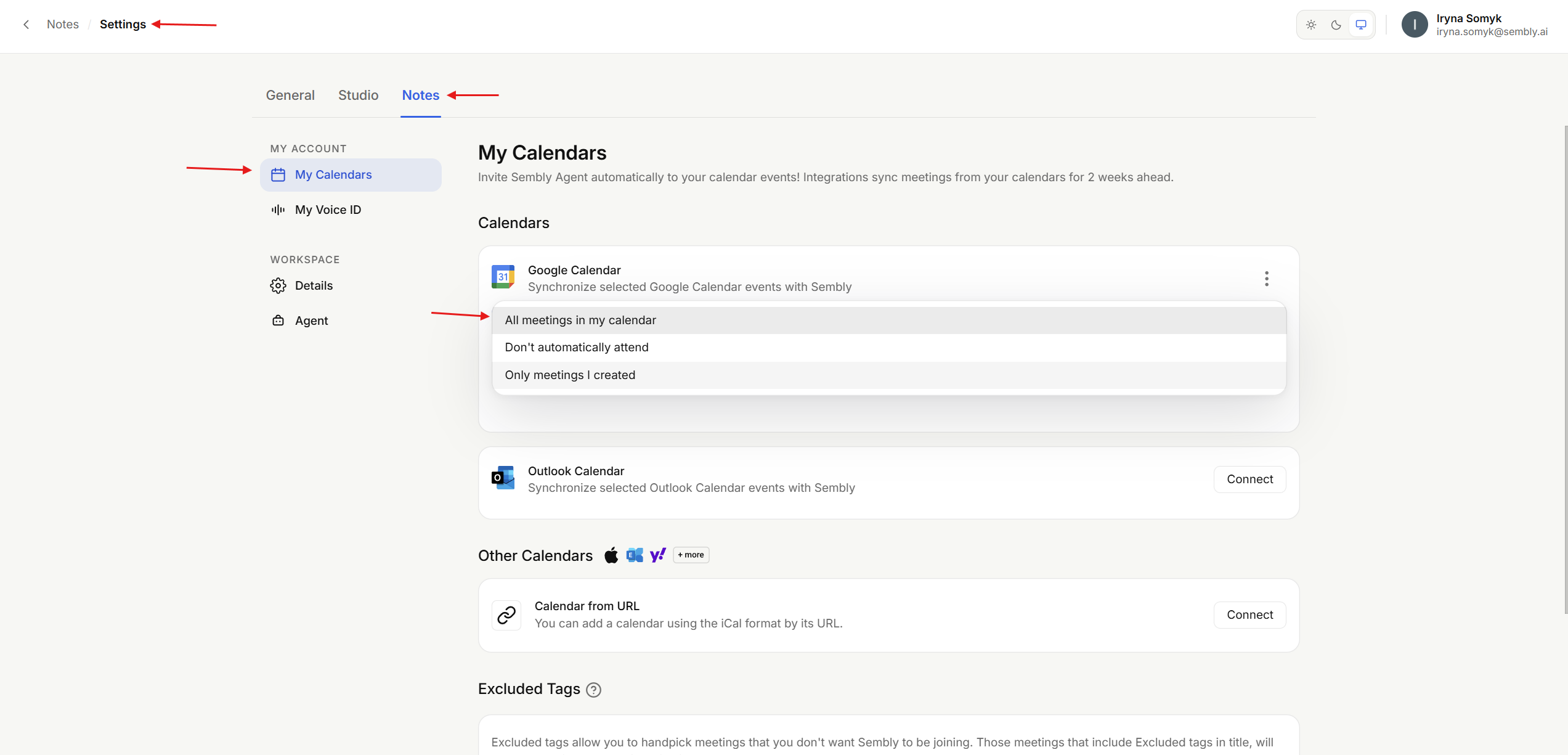
Go to Settings→Notes→My Calendars and select All meetings in my calendar.
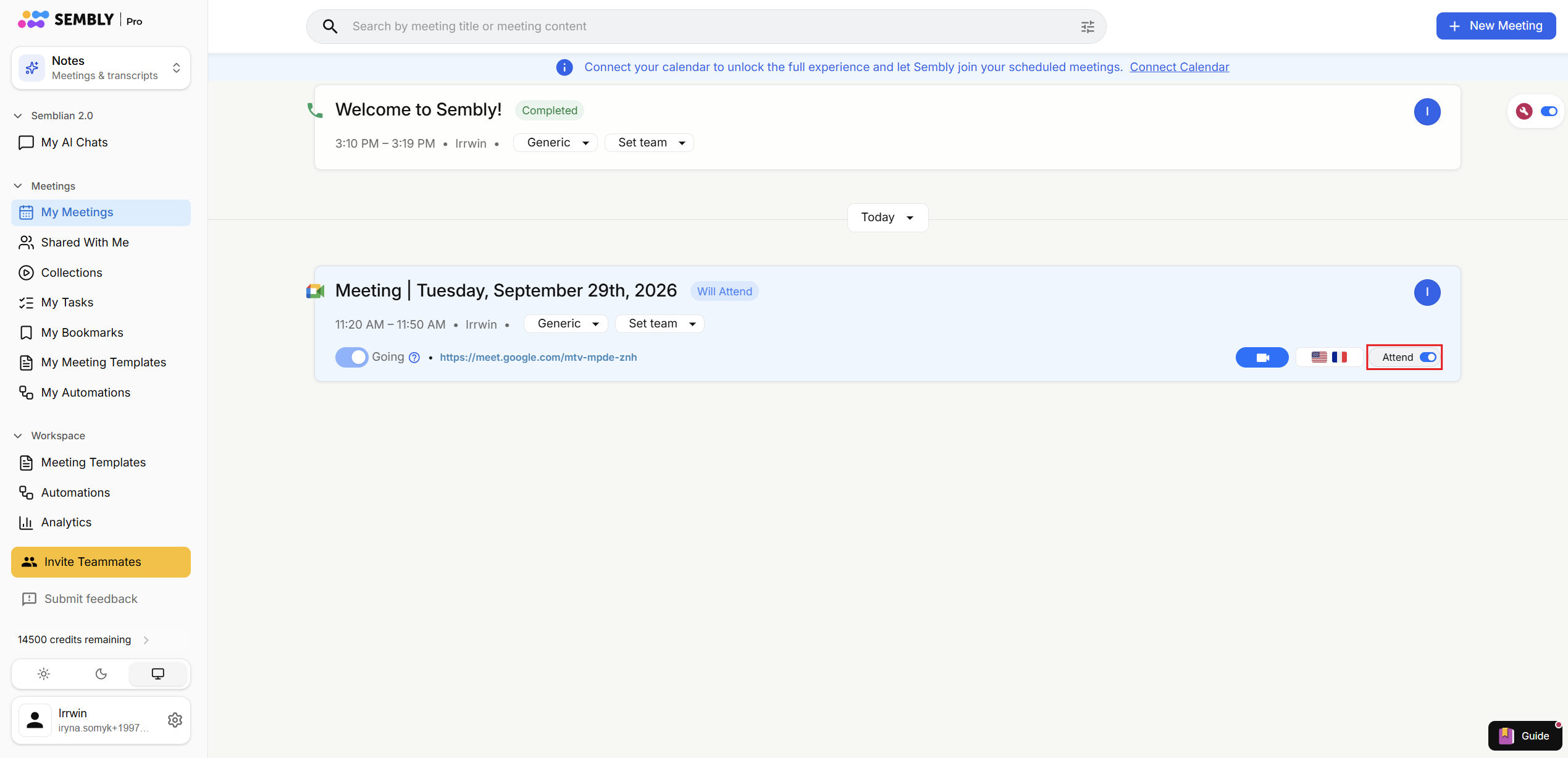
All future meetings with conference details from the calendar you just connected will appear in the Sembly Meeting List. Every meeting slot will display a “Will Attend “ status. Read more about meeting statuses here. Note: If you use plugins or your calendar is already connected to a conference platform, the meeting URL will be attached to the invite automatically.
Join the meeting on time as you usually do, or use the conference link in a meeting slot in Sembly. Sembly will announce itself upon joining.
Sembly will record meetings you were invited to and store them in your Sembly account. It is important to verify the recording with the original meeting organizer in advance. If you are not a meeting organizer in a Calendar and you invited Sembly to a call, in Sembly you will be set as a meeting owner by default.

Follow the steps below to record and transcribe meetings you create in your calendar and leave a meeting you were invited to: your decision to record or not:
Connect a calendar you want to use. Read this article to learn more about calendar connection steps.
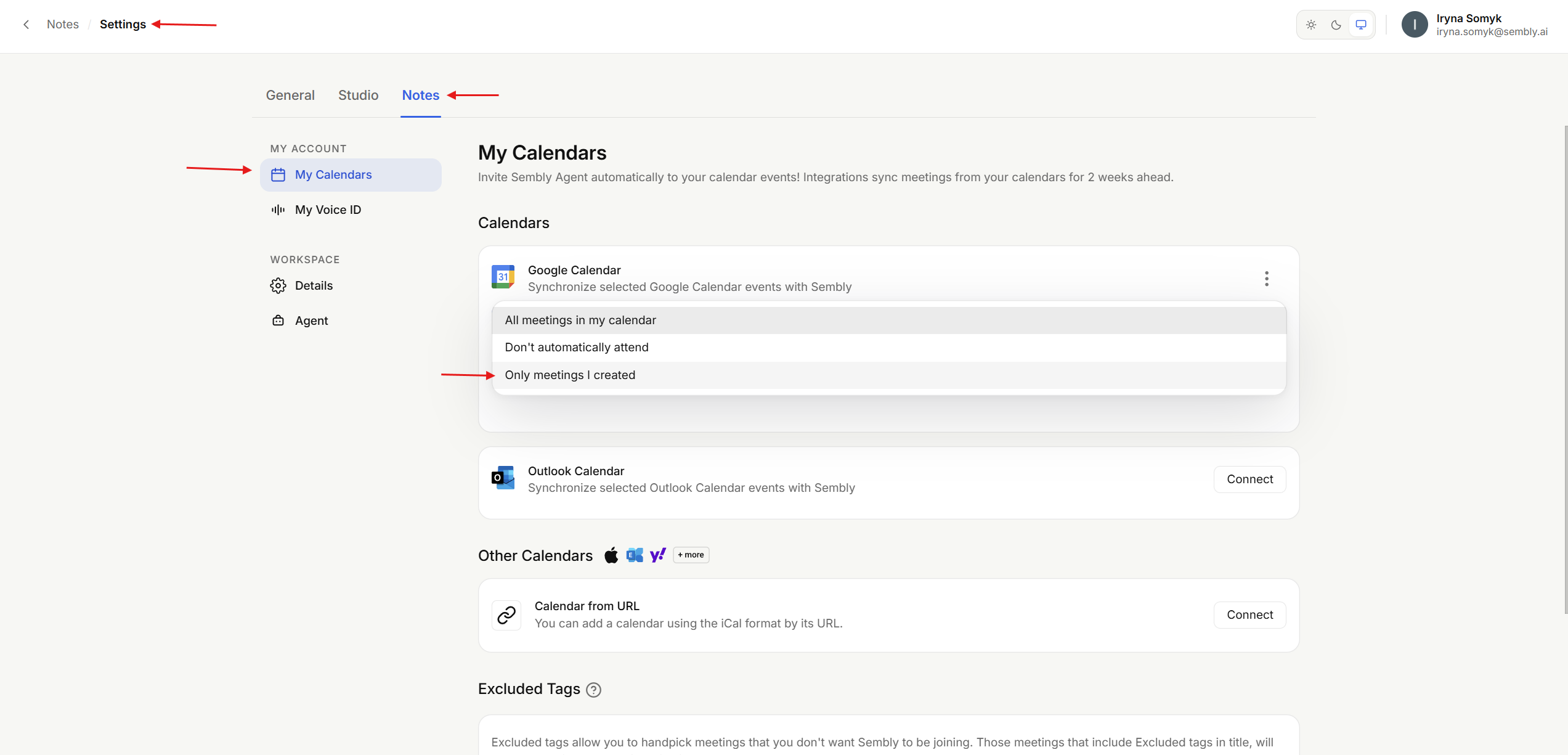
Go to Settings→Notes→My Calendars and select Only meetings I created.
All future meetings with conference details from the calendar you have just connected will pop up on the Sembly Meeting List. Meetings you've created will show up with Will Attend status—meetings you were invited to will appear as Not Attending. Read more about meeting statuses here. Note: If you use plugins or your calendar is already connected to a conference platform, the meeting URL will be attached to the invite automatically.
Join the meeting on time as you usually do, or use the conference link in a meeting slot in Sembly. Sembly will announce itself upon joining.
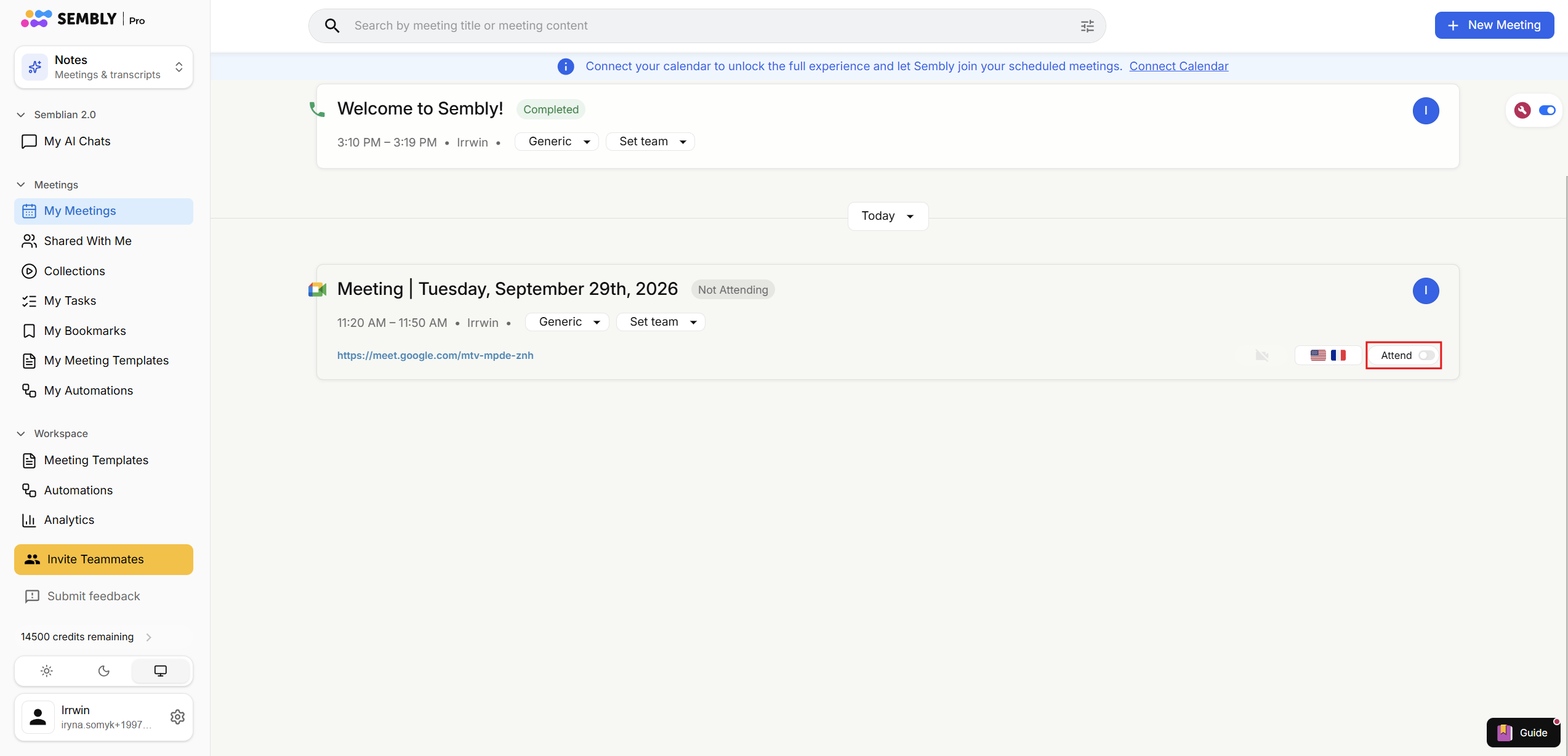
To record the meeting you were invited to, activate the Attend toggle, ensuring the original meeting organizer is aware of the recording.
Follow the steps below to sync all meetings in your calendar with the Sembly meeting list, and choose whether to record them.
Connect a calendar you want to use. Read this article to learn more about calendar connection steps.
Go to Settings→Notes→My Calendars and select Don't automatically attend.
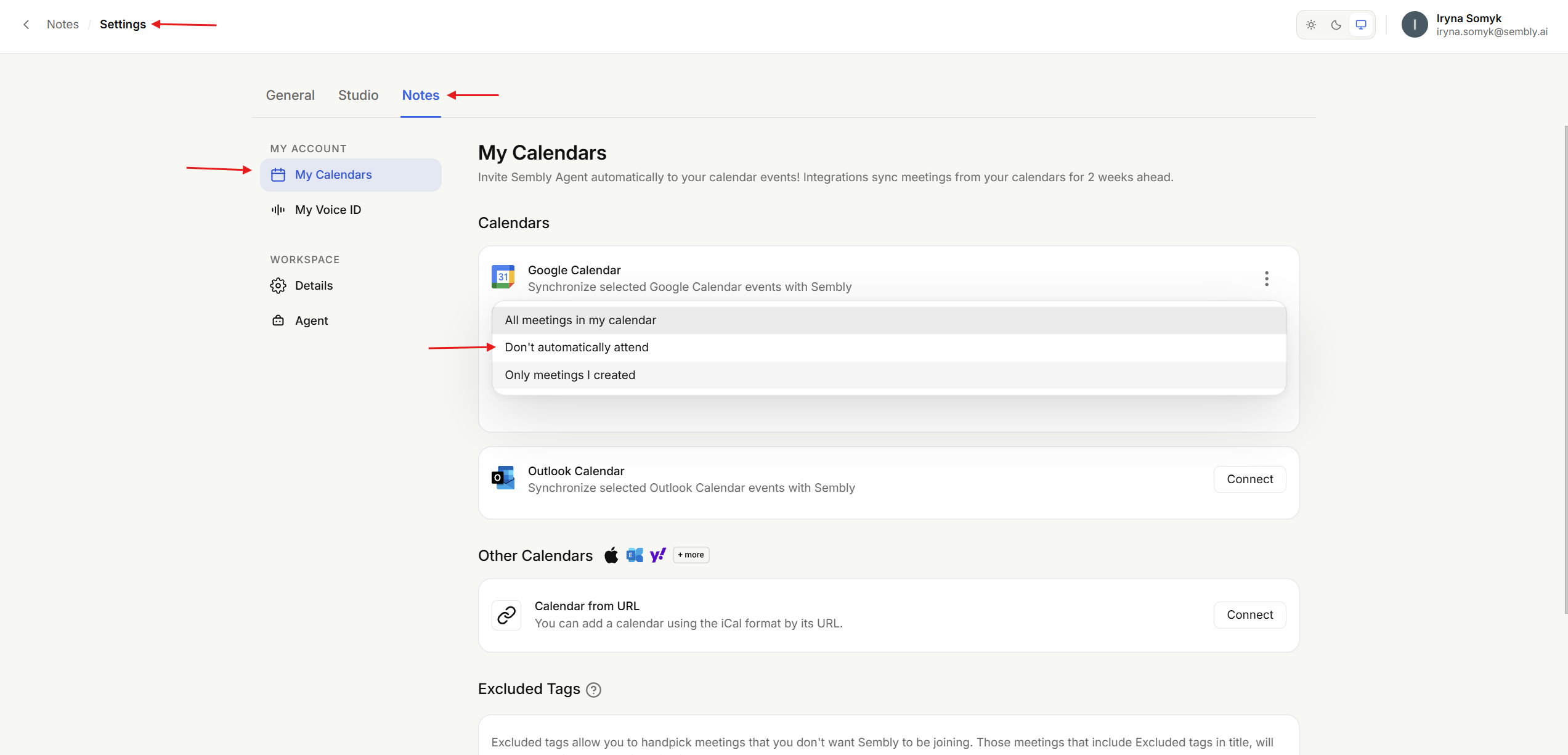
All scheduled meetings with conference details from the calendar you have just connected will pop up on the Sembly Meeting List. Each meeting slot will display Not Attending status, where you can toggle Attend to invite Sembly. Read more about meeting statuses here.
To record the meeting, activate the Attend toggle, ensuring the original meeting organizer is aware of the recording unless it's your meeting.
Join a meeting in time as you usually do, or use a link to the conference in a meeting slot in Sembly. Sembly will announce itself upon joining.