LEGACY PLAN: PROFESSIONAL | TEAM | TEAM PLUS
Enable collaboration with others, especially when they aren’t in the meeting. A "Share" feature opens up the meeting to the appropriate people to foster discussion and post-meeting dialogue.
There are two types of meeting access for Sembly users: edit and view.
After the meeting is complete, you can share access with others. Access for each user can be added, edited, or removed at any time.
Sembly receives the list of meeting attendees with the invite email you send during scheduling. Or copies it from your calendar once you connect it.
By default, you and all the meeting invitees using Sembly will get to Edit the meeting once it is processed.
You can find a list of users with access within any meeting on the right side of the meeting title. Click Share to open a pop-up. In the Participants section, you can see all the users who participated in the meeting, whether they have a Sembly account or not. If you leverage the Edit access yourself here, you can change the user's access level or remove them.
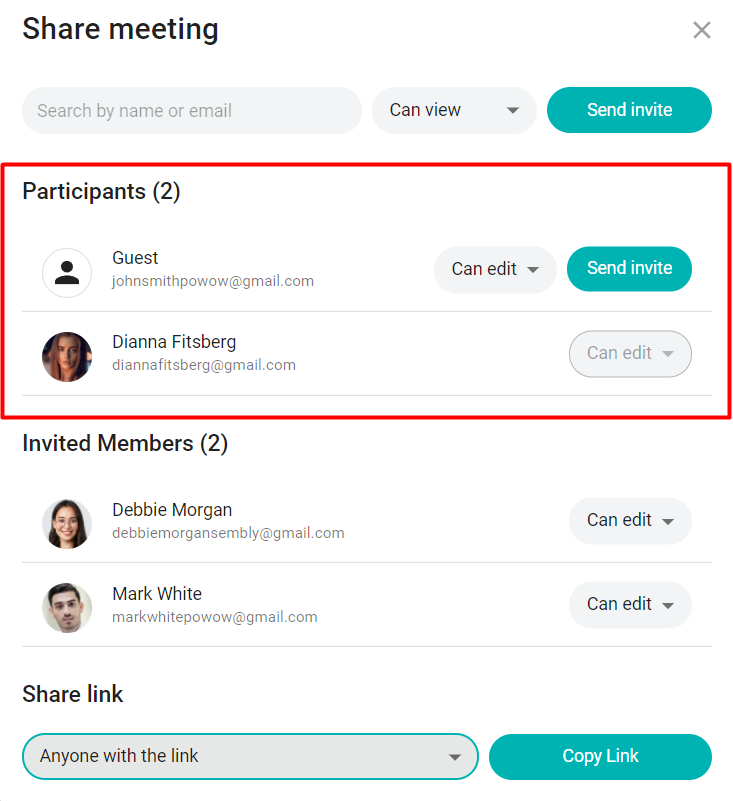
To change the access level, complete the following:
Log in to Sembly
Go to the meeting
On the right side of the meeting title, click the "Share" button
In Participants, select a user
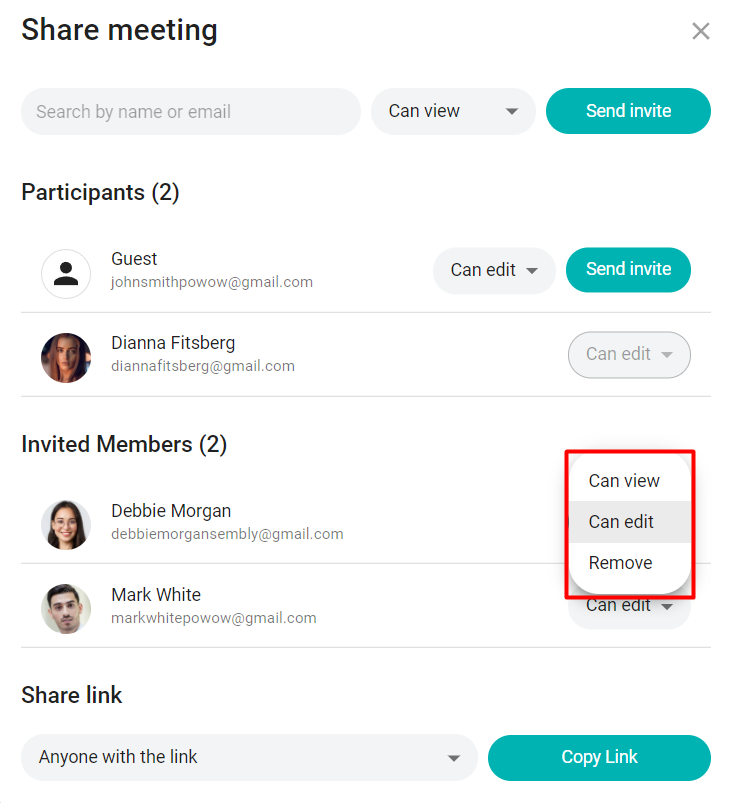
Click the access dropdown and choose your option
You can also send e-mail invites to unregistered meeting participants who are mentioned as Guests to join the Sembly family. Next to every Guest, click the "Send Invite" button to invite new users - invited guests will move to the Invited Members section.

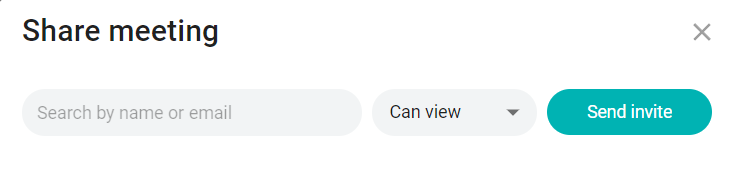
Apart from the meeting participants, you can invite other members to view or edit your meeting. This can be existing Sembly accounts or people outside Sembly who need to register first. You can invite users and change access levels inside the Share window.
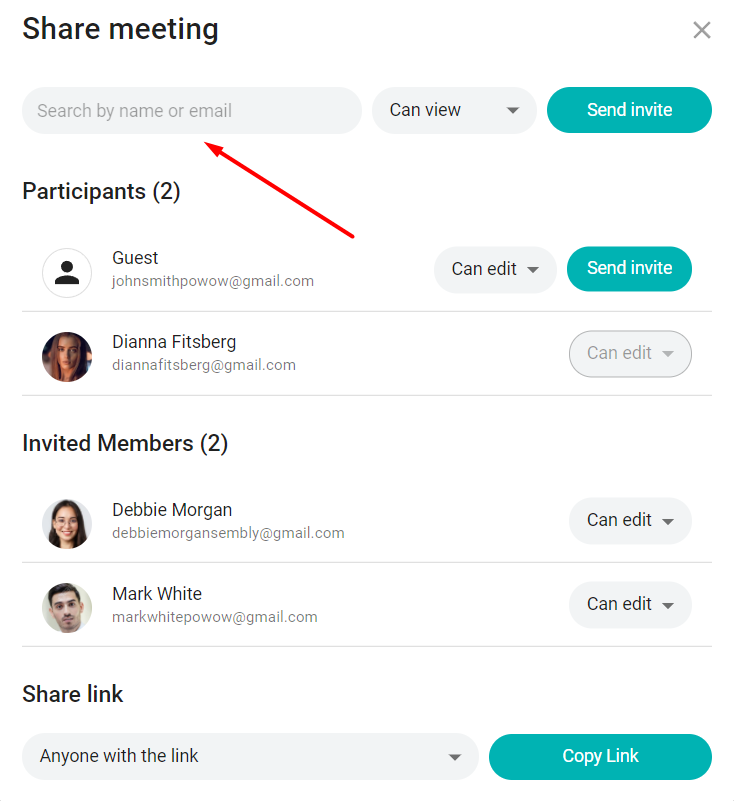
- In the field at the top of the window: you can send an email invite to view or edit the meeting to the Sembly user or to a yet unregistered user to view or edit the meeting after registration.
While sharing, you can add an optional “Note” that will be emailed to a viewer/editor.
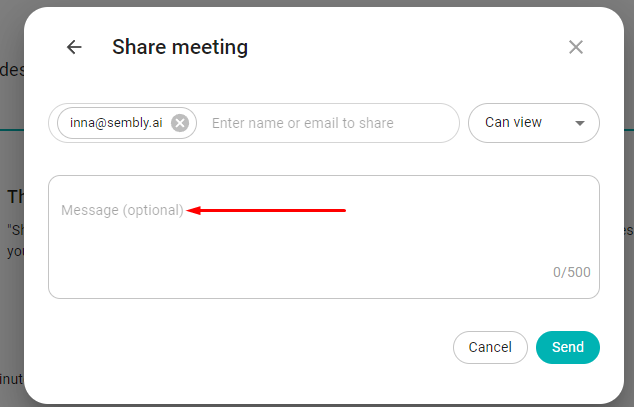
- In the Invited Member(s) section: see the list of previously added members (in the field at the top of the Share window) and change the level of access to the invited member. Note that invited users in the list who didn’t register can be reinvited.
To add a new member to the meeting access, follow these steps:
Log in to Sembly
Open a meeting you need
On the right side of the meeting title, click the "Share" button
On the upper left of the popup, type the email you want to send an invite to
Set the access to "can view" or "can edit"
Click "Send invite"
Unregistered users will get an e-mail with instructions to sign up for Sembly. Once they sign up, they can access the meeting. Registered users can proceed directly to the meeting at the URL provided in the e-mail.
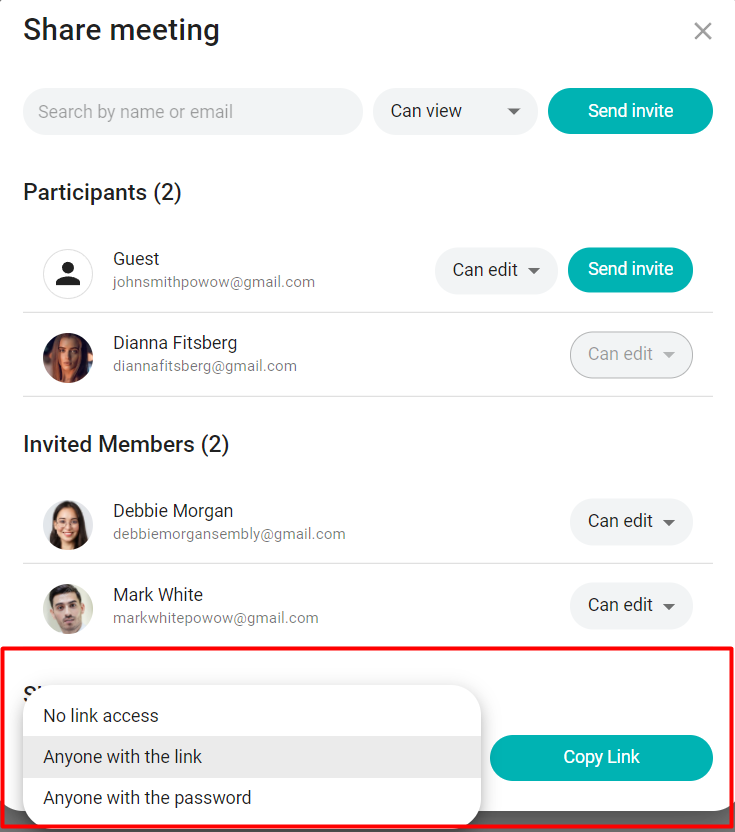
Sembly allows sharing your meeting results with anyone inside or outside of the Sembly platform using links. Viewing the meeting does not always require registration in the Sembly app. Guests can access limited functionality while still being able to hear the recording and see the transcript. Depending on your privacy preferences, you can give out links with or without a password.
To share a Guest Link without a password:
Log in to Sembly and open the meeting you wish to share
In the meeting, click Share
In the Share Link section at the bottom, select “Anyone with the link”
Click Copy Link
Provide a link to anyone you wish
To share a Guest Link with a password:
Log in to Sembly and open the meeting you wish to share
In the meeting, click Share
In the Share Link section at the bottom, select “Anyone with the password”
Click Copy Link
Provide the link and a password to anyone you wish
For additional privacy, Users with access to edit can also limit the link sharing to users with view access. To restrict guest link sharing, follow the instructions in this article.