
LEGACY PLAN : PROFESSIONAL | TEAM | TEAM PLUS
Creating Meeting Notes after a call is a time-consuming task. Sembly collects all the important topics, structures them into a single document, and helps you deliver them to the team quickly.
Meeting Notes are created using the selected template for a specific meeting type. Sembly automatically identifies a matching template by analyzing the topics discussed in the meeting. You can also manually change the meeting type if needed.

Log in to Sembly
Open your completed meeting. Meeting Notes is the first page you will land on
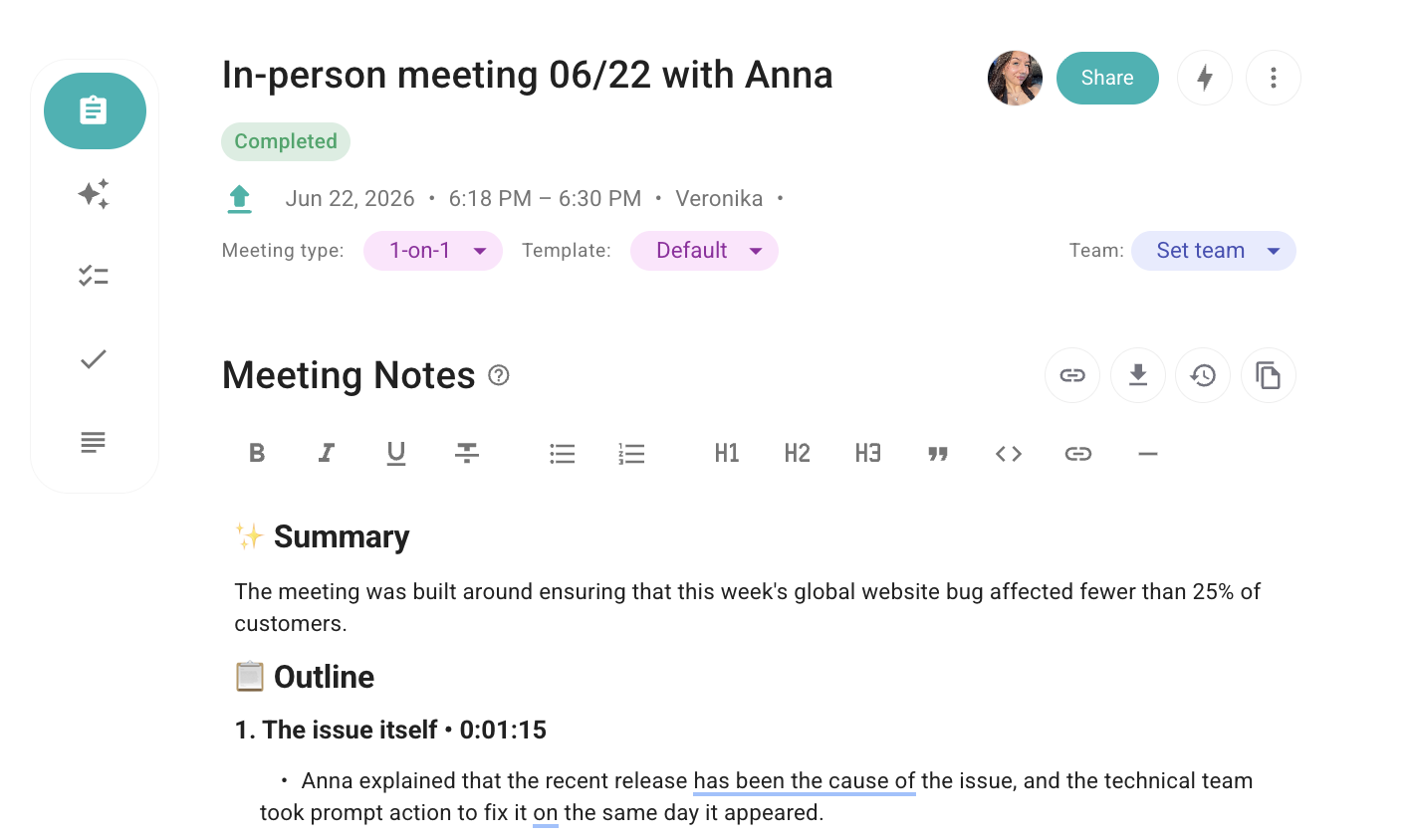
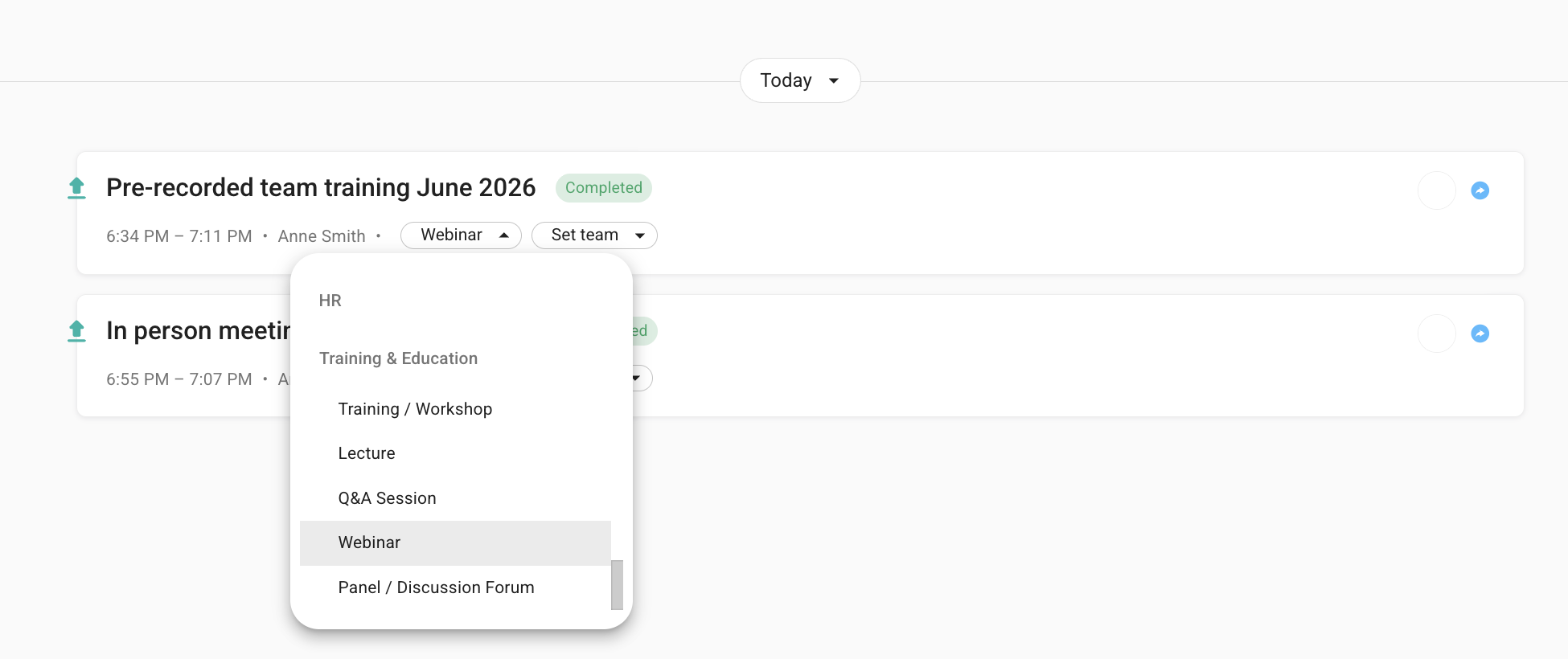
At the top, you see an automatically detected meeting type. By clicking it, all the available meeting types appear. Each meeting type with a star icon indicates a unique Meeting Notes template with a specific format generated by Sembly. Meeting types without icons display a generic template.
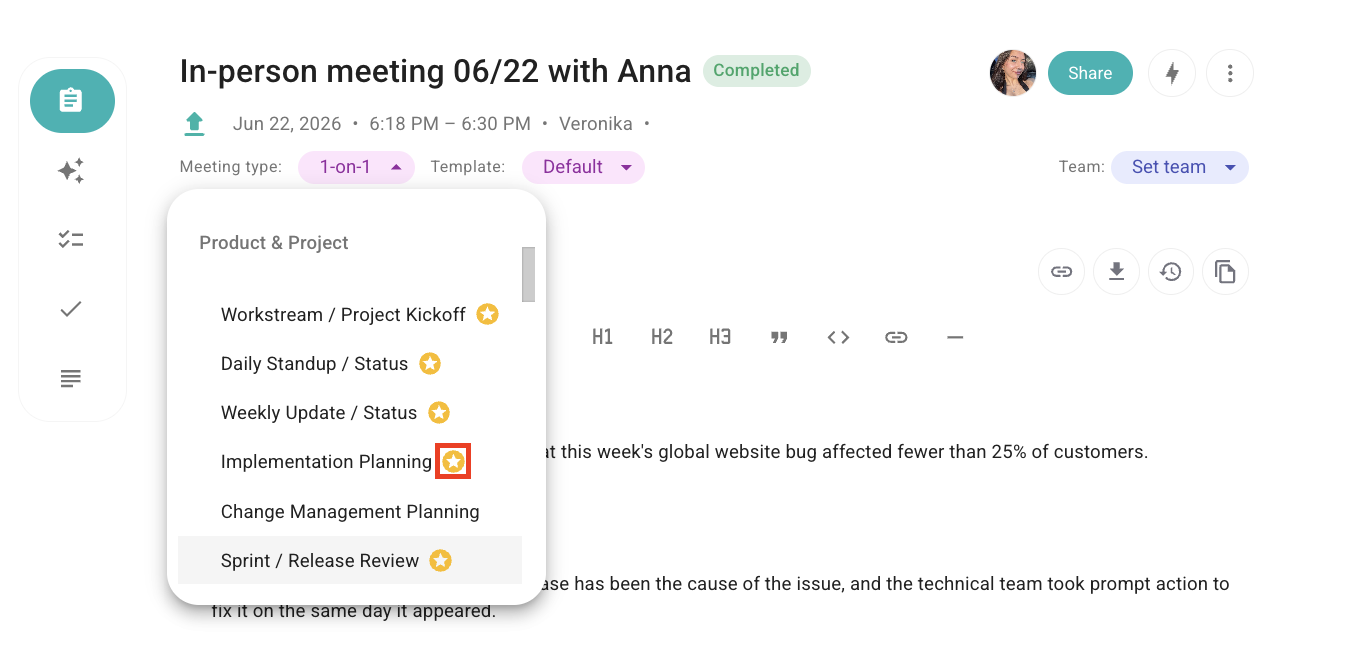
Opting for a different template prompts Sembly to regenerate Notes using the newly selected template. Once a template is generated, it gets backed up, allowing you to revisit it at any time by selecting its title from the list. Templates can be changed as soon as Notes are generated.
If none of the templates meet your requirements, you can select a Generic meeting type. This template includes a meeting summary and outlined topics. You can also create your own Notes using meeting chat or Semblian 2.0, or create your own meeting notes template to define a custom format that Sembly will use.

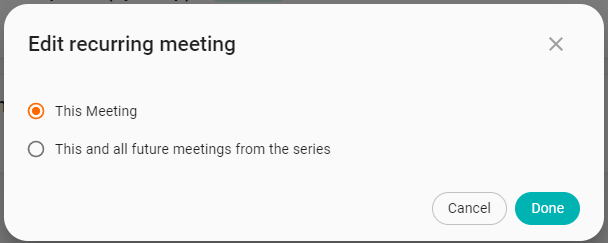
While changing the meeting type for a recurring meeting, you can automatically apply the new type to: This meeting or This and all future meetings from the series
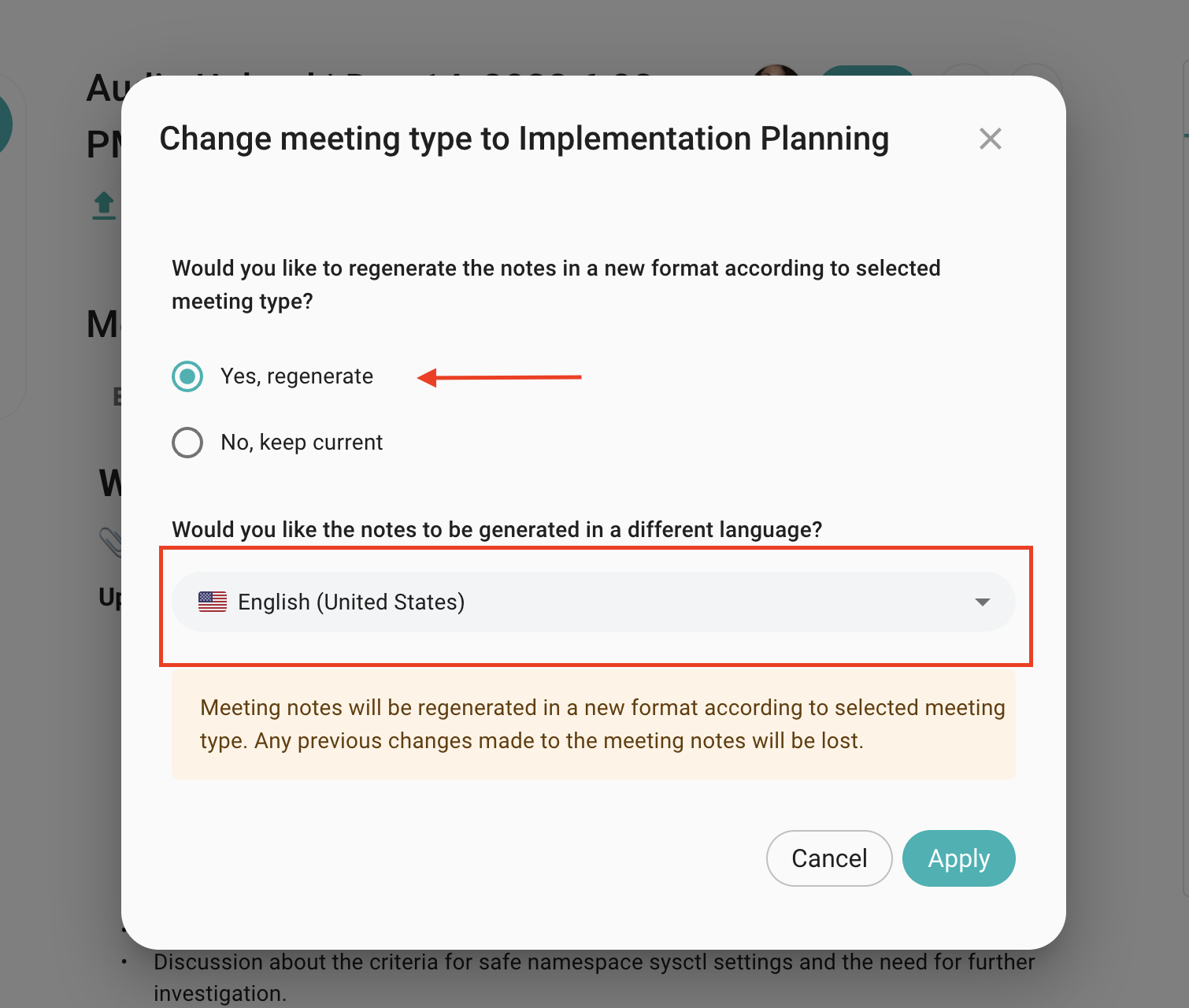
When modifying a meeting type, you have the flexibility to adjust the Notes language. Simply select the Yes, regenerate option, and pick your preferred language from the dropdown menu
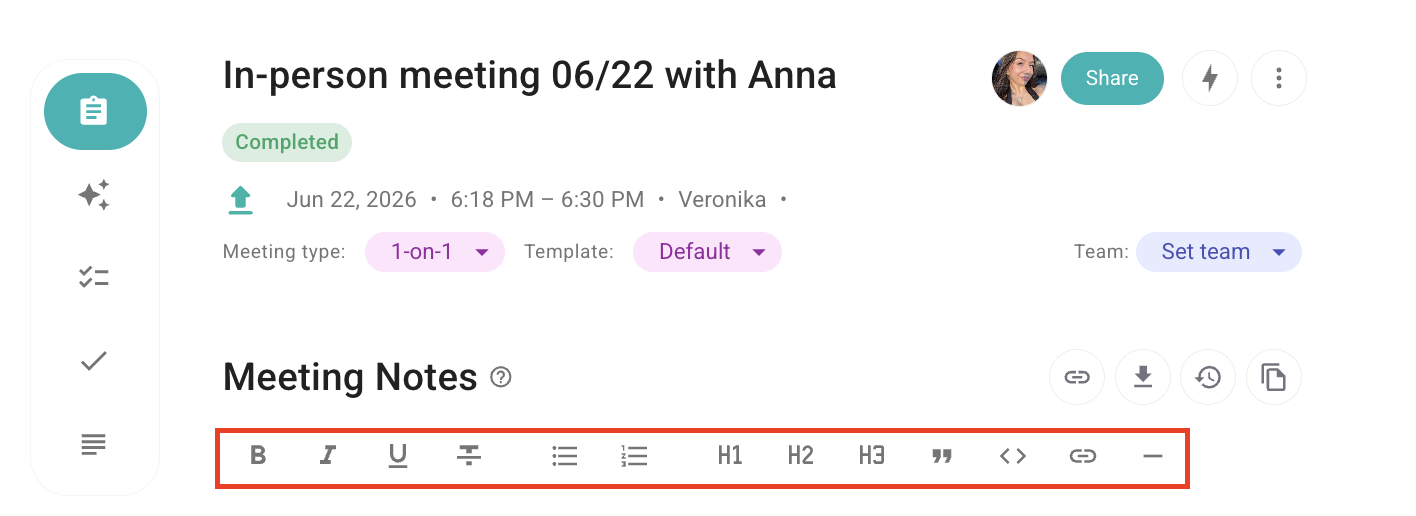
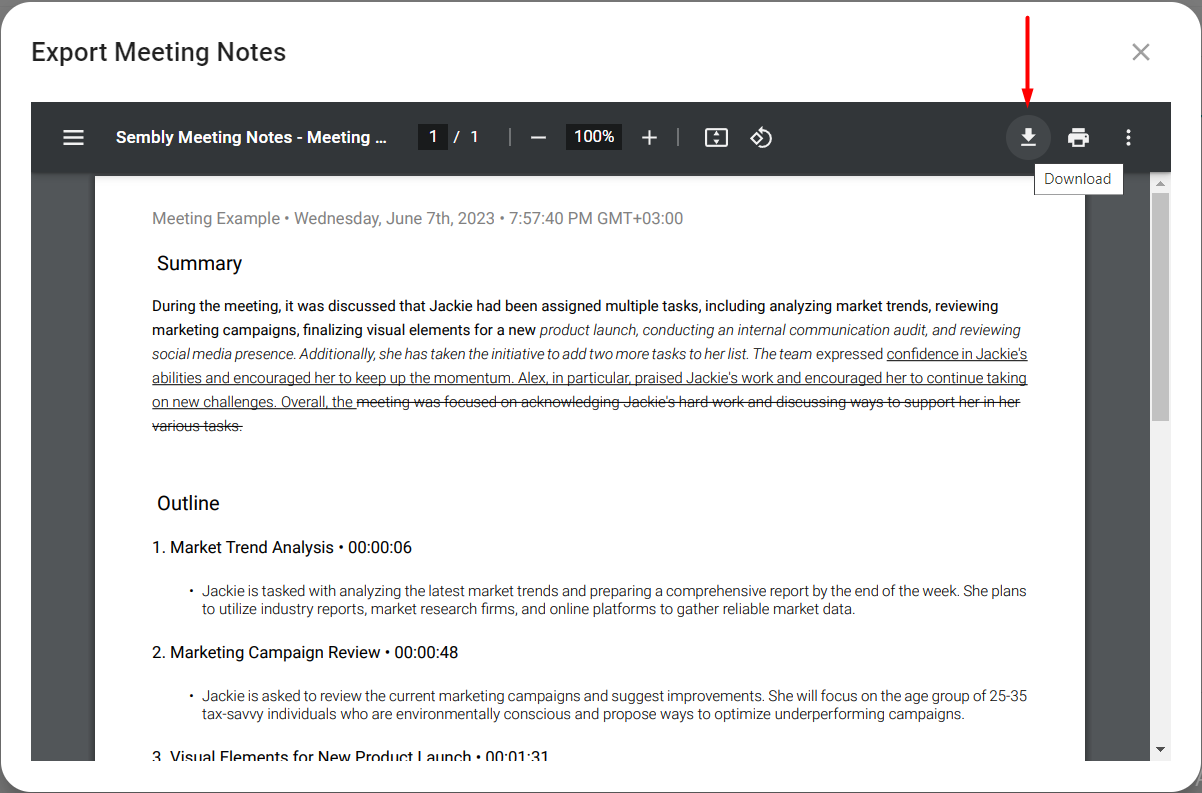
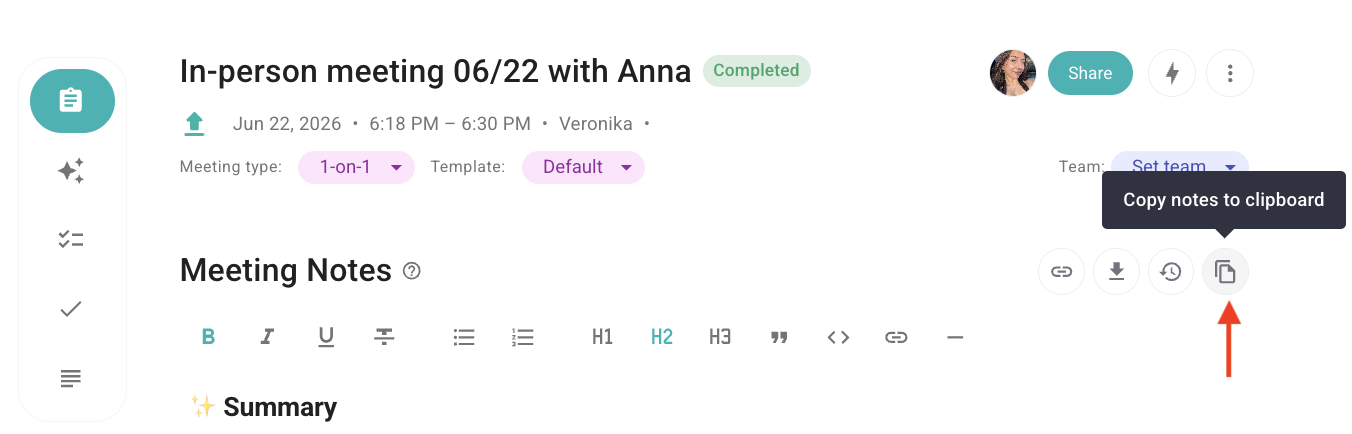
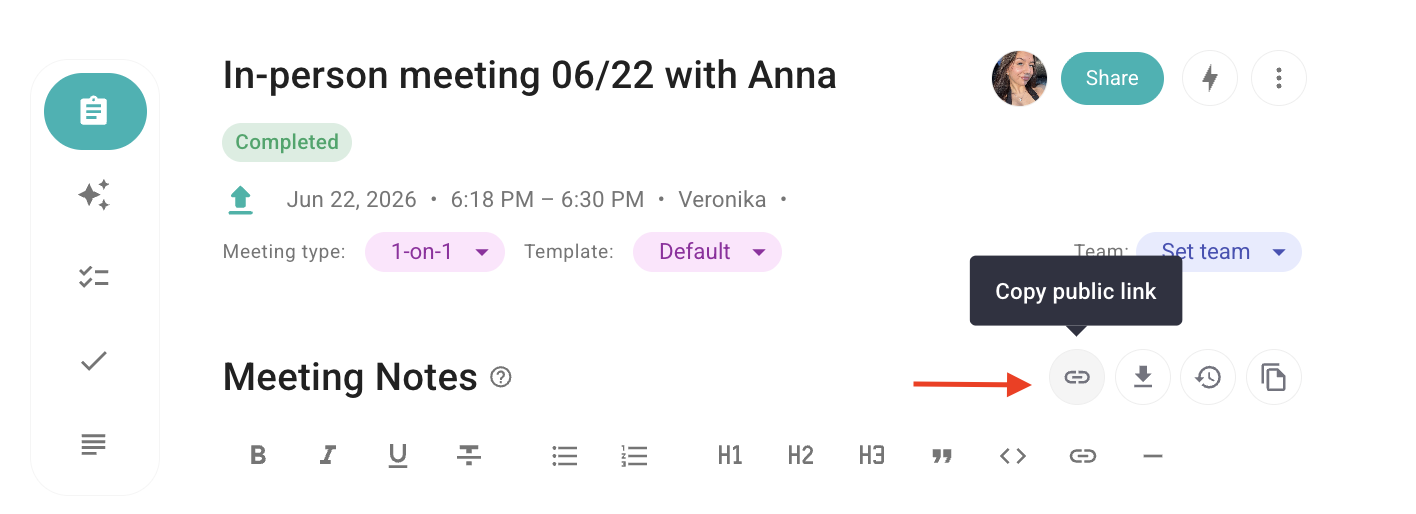
At the top, you can see the toolbar, where you can style the text, revert editing changes, copy the public link to share the notes with guests, export the files in different formats, and copy notes to clipboard. The available formats for export are PDF, DOCX, HTML, and Markdown.
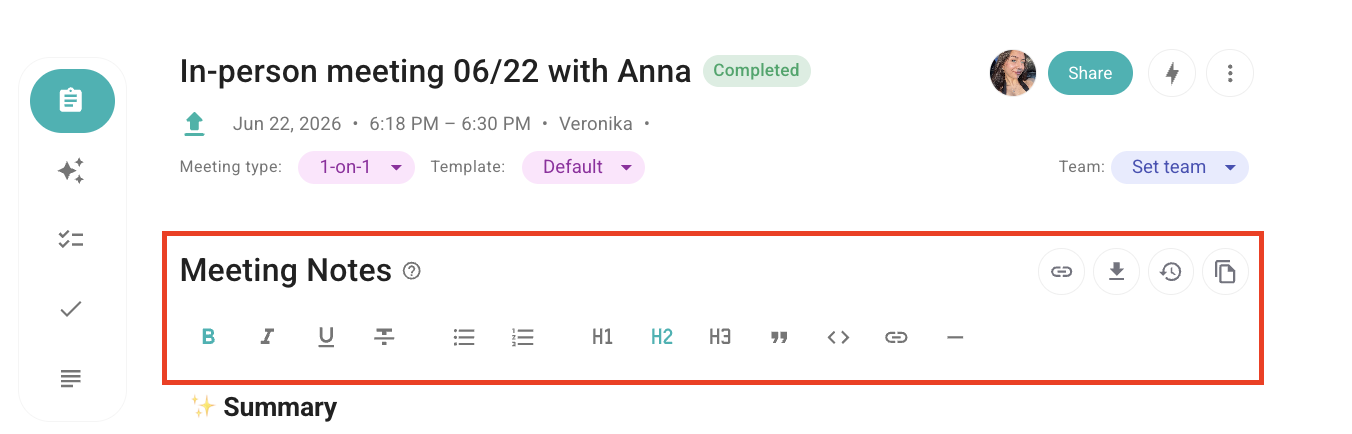
You can click the cursor anywhere on the text to start editing it
Dive into your meeting and click anywhere in the text to start editing it. Use the toolbar at the top to apply text styles
When you are done, click the Export button at the top to save the PDF file on your device or print the document
You can now quickly reuse or share your meeting notes without downloading them by using the Copy to clipboard feature. To do this, open your meeting page in Sembly, click the three-dots menu, and select Copy to clipboard. Your meeting notes will be instantly copied, ready to paste into an email, document, or any other app.
You can share a Meeting Notes link with users outside Sembly who don't have meeting access and let them see the changes you make in real time. To see the changes, users will need to refresh the browser page.
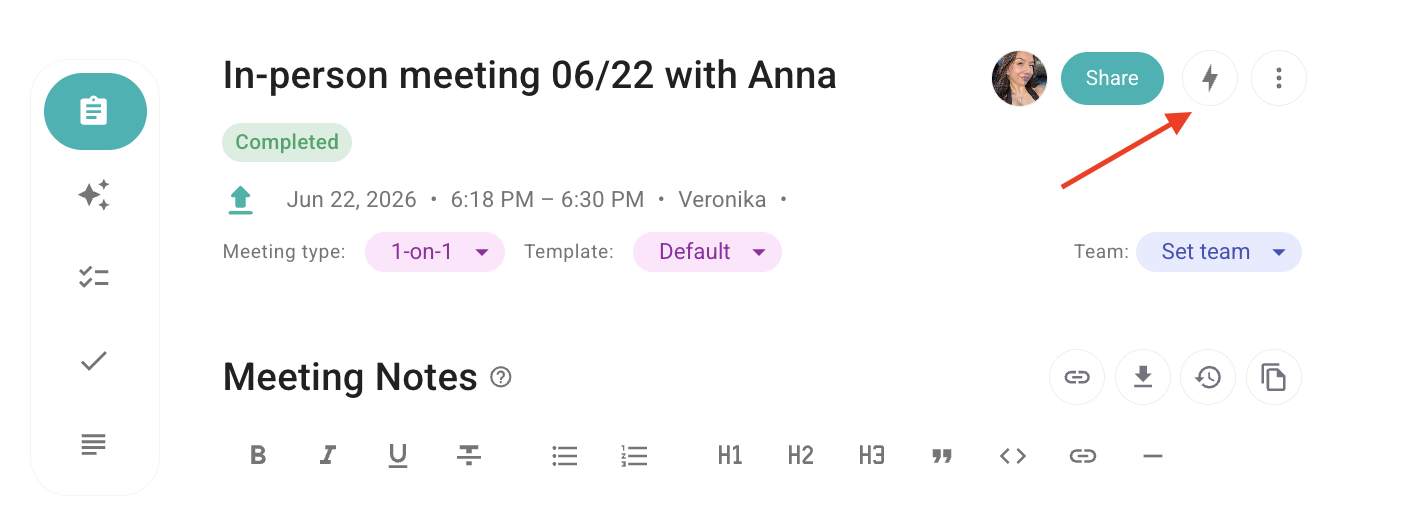
If you wish to send your Meeting Notes to other tools, check our Native or Custom Automations. After you set up automation in the My Automations section, they will show up in the "Zap" icon inside your meeting. Now, to export Meeting Notes, you can simply click this icon and select the app you need.
Workspace admins can change the way Notes display information for all meetings in a particular workspace.
These settings determine how Notes from your workspace are pushed to any established integration in Automations. Once Sembly assigns a meeting type and generates Notes accordingly, they are automatically sent to your preferred tools linked to Sembly. Changing a meeting type manually does not trigger a resend of the Notes.
To manage options, follow the steps below:
Go to Settings by clicking the gear icon next to your profile picture
Under Workspace, select Details or follow this link
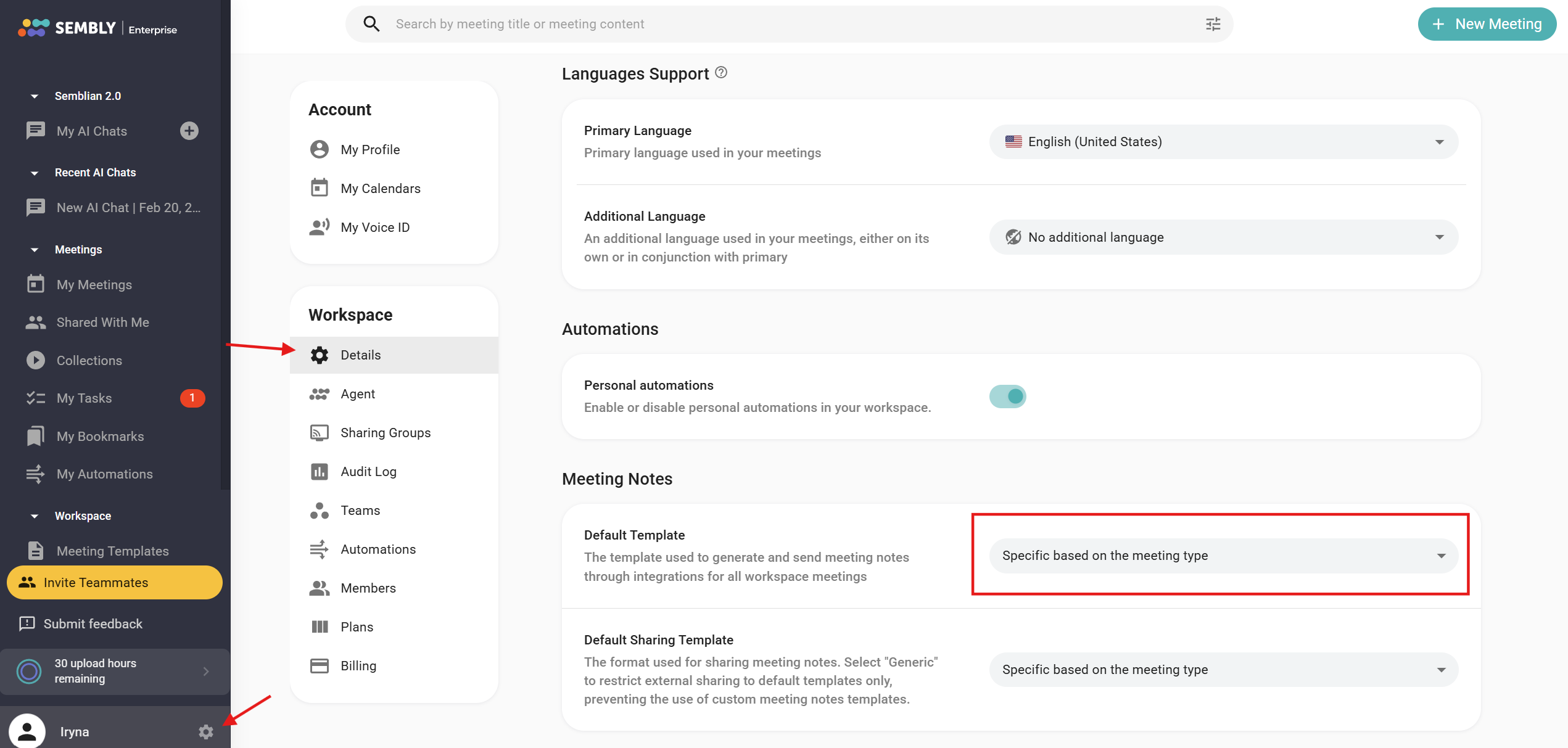
Scroll down to the Meeting Notes section and choose one of the two options:
Specific based on the meeting type - Sembly identifies and assigns a meeting type by analyzing the conversation during the meeting processing. This ensures a tailor-made Notes Template that aligns precisely with the nature of the discussion. Regardless of the settings at the workspace level, every team member retains the ability to manually alter the meeting template for Notes upon the completion of a meeting, either in the Meeting list or inside a meeting in Notes.
Generic - Sembly creates generic Notes with a summary and outlined topics. If you choose this option, you won't be able to apply other meeting templates by changing the meeting type.
If your meeting has a recording (lasts longer than 10 minutes) and transcription, but Notes were not generated, try the following steps to recreate them:
Switch the Notes template. If your meeting used a starred template, select the Generic one instead (and vice versa).
Re-upload the recording. Download an audio file from the recorded meeting without Notes. Use the Upload option to re-import your meeting recording. Don’t worry, any credits used will be fully reimbursed.
Use "Ask Sembly" (AI Meeting Chat). You can generate Notes manually by asking Sembly (the button at the bottom right corner inside the meeting) to create them. Simply request Notes with the details you need (e.g., tasks, next steps, decisions).
Contact support if needed. If the above steps don’t work, please email us at [email protected]. Please include your session ID or meeting title, along with the start date and time, so that we can assist you quickly.

