LEGACY PLAN: PROFESSIONAL
Philips VoiceTracer devices allow you to record your interviews, lectures, or general conversations for subsequent transcription. To generate meeting results, you will only need to upload a pre-recorded audio file to your account.
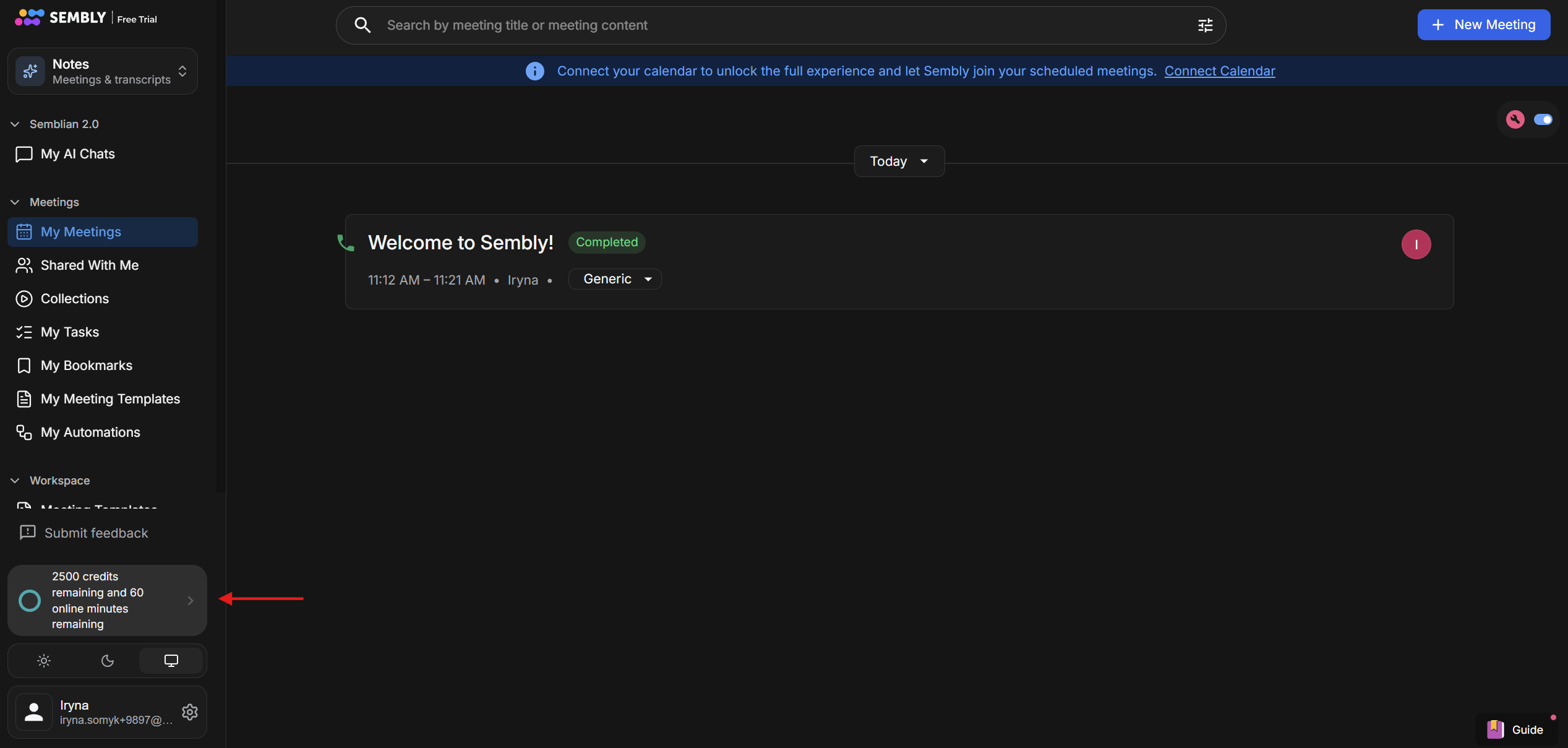
After creating the account, click on the gear icon near your Profile name in the bottom-left corner. Then go to Settings→General→Plans and choose the Basic Monthly plan.
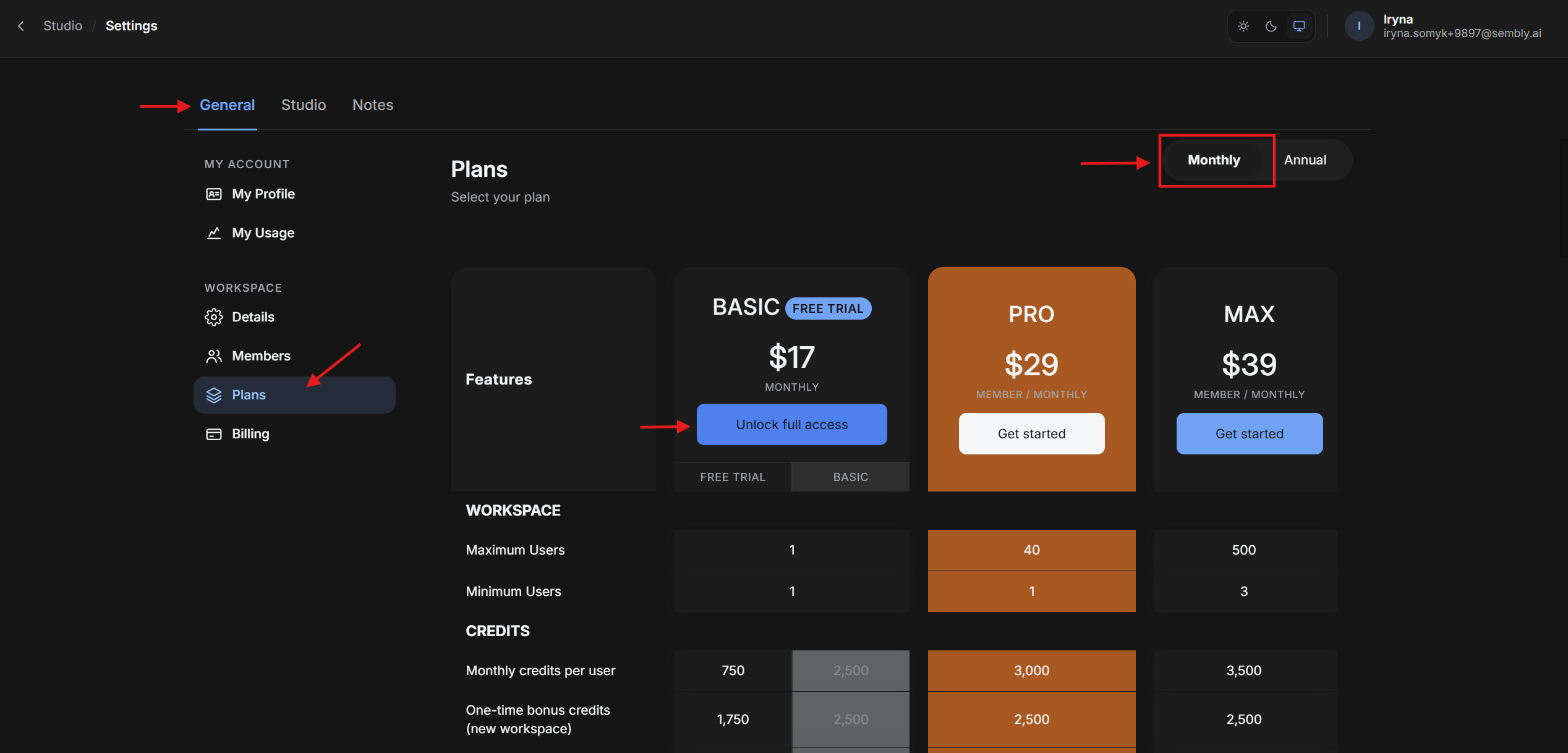
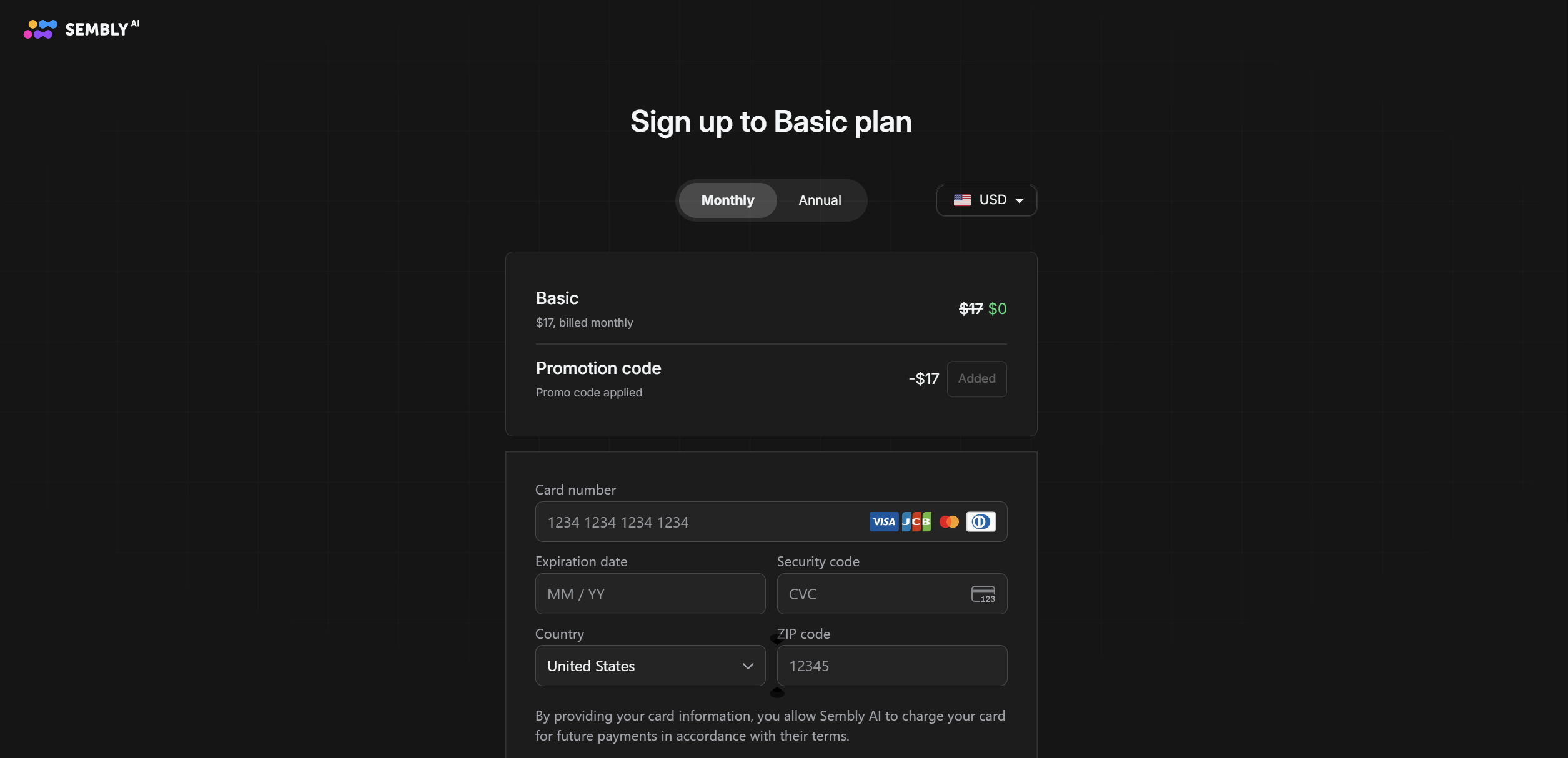
Find a promo code for 1000 credits and 30-free subscription days on the box of your device and enter it on the plans page, click Add to unhide the field, and click Purchase below.


Upload your recording to Sembly. Download audio recordings from Philips VoiceTracer to your computer and upload them to Sembly.
Try recording online meetings. If you want additional recording options, like recording offline meetings through Sembly or inviting Sembly Agent for online meetings, you can check our guides here.
Enroll your Voice ID to enjoy voice recognition benefits during meetings.
After the audio is processed, you can open the meeting on the home page and check the analytics:
Meeting Notes - our AI algorithm summarizes the meeting context and outlines it in one editable document
Tasks - here, you can manage your tasks that were discussed during the meetings
Transcription - you can view and edit meeting transcripts, change and filter speakers, leave notes and bookmarks, and view meeting details
Personalize your workspace experience. You can customize your Sembly Agent, add supported languages, set up post-meeting emails, and more in your Workspace settings.
Set up automatic meeting export. With Automations, you can set up a connection between Sembly and other tools to export Meeting Notes, Tasks, or Transcription. If you are looking for custom automation, check out this guide.
Check Billing if you need to review your current plan or download the invoice. Here, you can add new payment methods or cancel a subscription.
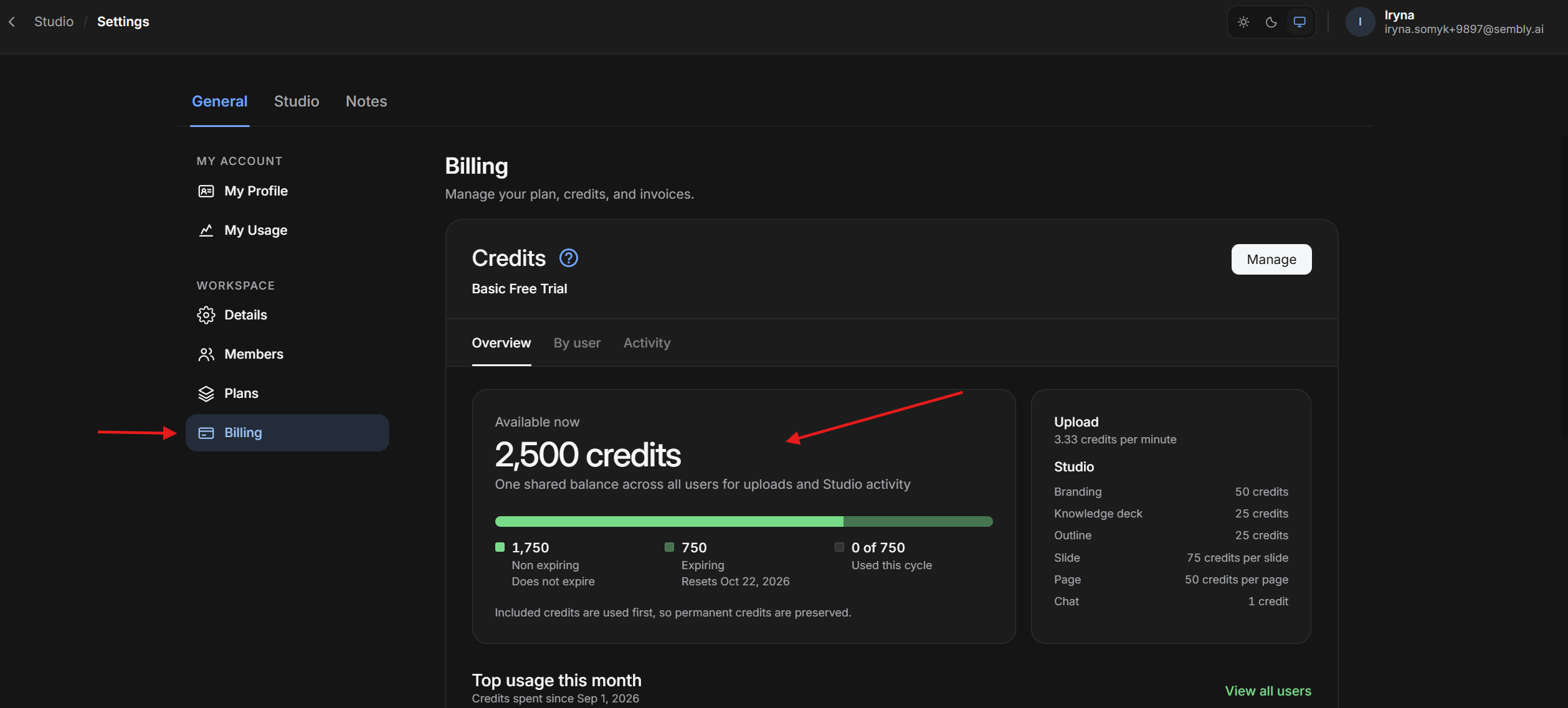
Check your credits. The ~16 upload hours you gained with a promo code can be found in the Settings→General→Billing, displayed as 1000 credits (1 minute = 1 credit). You can purchase more credits by pressing Manage. Read more on credit usage here.