Starting with Sembly 3.0, everything you create in Studio and every hour of audio you upload for transcription in Notes is paid for using a single, unified currency: credits. This article explains how credits are earned, spent, and tracked in Studio.
Credits are shared across your whole workspace, not siloed per feature or per user — the same pool covers Studio artifact creation and Notes audio uploads, as well as all users in the workspace. Learn more about credits for Notes here.
One-time signup bonus: every new workspace gets a one-time credit bonus when it's created: Free Trial - 1,750 credits, Basic/Pro/MAX - 2,500 credits, Enterprise - custom.
Monthly allotment: every user on a free or paid plan is credited a set number of credits each month: Free Trial - 750 credits, Basic - 2,500 credits, Pro - 3,000 credits, MAX and Enterprise - 3,500 credits.
Purchased credits: on any paid plan, admins can buy additional credits at any time. Free Trial workspaces can't purchase extra credits — only upgrade to a paid plan.

Action | Cost |
Creating a new branding | 50 credits |
Building (or regenerating) a Knowledge Deck | 25 credits |
Building (or regenerating) an Outline | 25 credits |
Generating (or regenerating) each slide | 75 credits |
Generating (or regenerating) each document page | 50 credits |
Sending a chat message in Advanced Mode (e.g., asking Sembly a question about your presentation or doc) | 1 credit |

When moving to another workspace, credits will not migrate with you. If you have anything on your account, use it up and then accept an invitation to another workspace.
As a rough guide, 2500 credits let you create 5 slide decks with 26 slides total and add 5 brandings. Actual usage varies by how many brandings, knowledge decks, and outline revisions you make.
Sembly allows a small negative balance so an in-progress action can finish even if you run out of credits mid-generation — you won't be cut off mid-slide.
Charging is granular and scoped to what actually changed. For example, if you ask to revise specific slides only, you're charged only for the slide regeneration — even if the interface briefly shows the Knowledge Deck/Outline "reprocessing," you won't be charged for those unless they were actually rebuilt.
In Guided Mode, the Knowledge Deck and Outline steps are included and use credits. Although they aren’t visible in the UI as they are in Advanced Mode, they still run in the background to create all the items needed for the final presentation.
An upgrade from a free trial to a paid plan only tops up the gap. If a free trial used 200 of 750 monthly credits and then moved to Basic (2,500), those 200 still count; the workspace gets 2,300 remaining, not a fresh 2,500.
If your workspace is already active today (on a legacy minutes-based plan or an existing Basic/Pro/Max plan), here's what happens when Sembly 3.0 goes live:
Any remaining upload minutes are removed, not converted. If you currently have, say, 100 unused minutes on your account, those simply go away — they are not translated into an equivalent number of credits.
In their place, you're given a full month's credit allotment for your plan (e.g., 2,500 credits if you're on Basic), immediately, effective for your current billing cycle — not a prorated or partial amount.
Any credits you had already separately purchased are kept. Purchased credits are permanent credits and are not affected by the transition.
You do not receive the one-time new-workspace signup bonus. That bonus is only for new workspaces. Existing workspaces move straight to their plan's regular monthly allotment.
You can find credit usage in Settings. Each workspace member can view their own usage, while workspace admins can easily track credit usage for all workspace members.
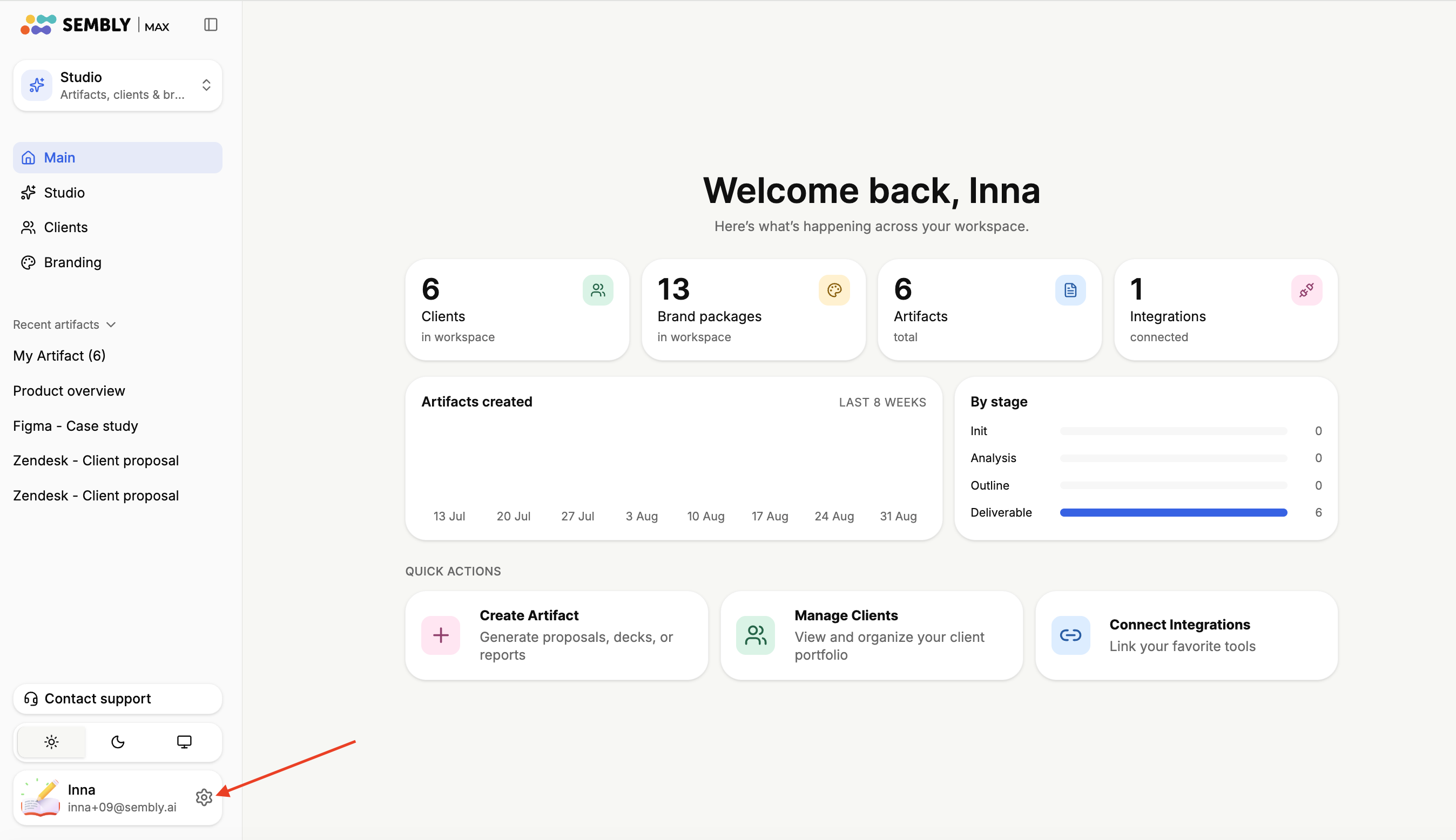
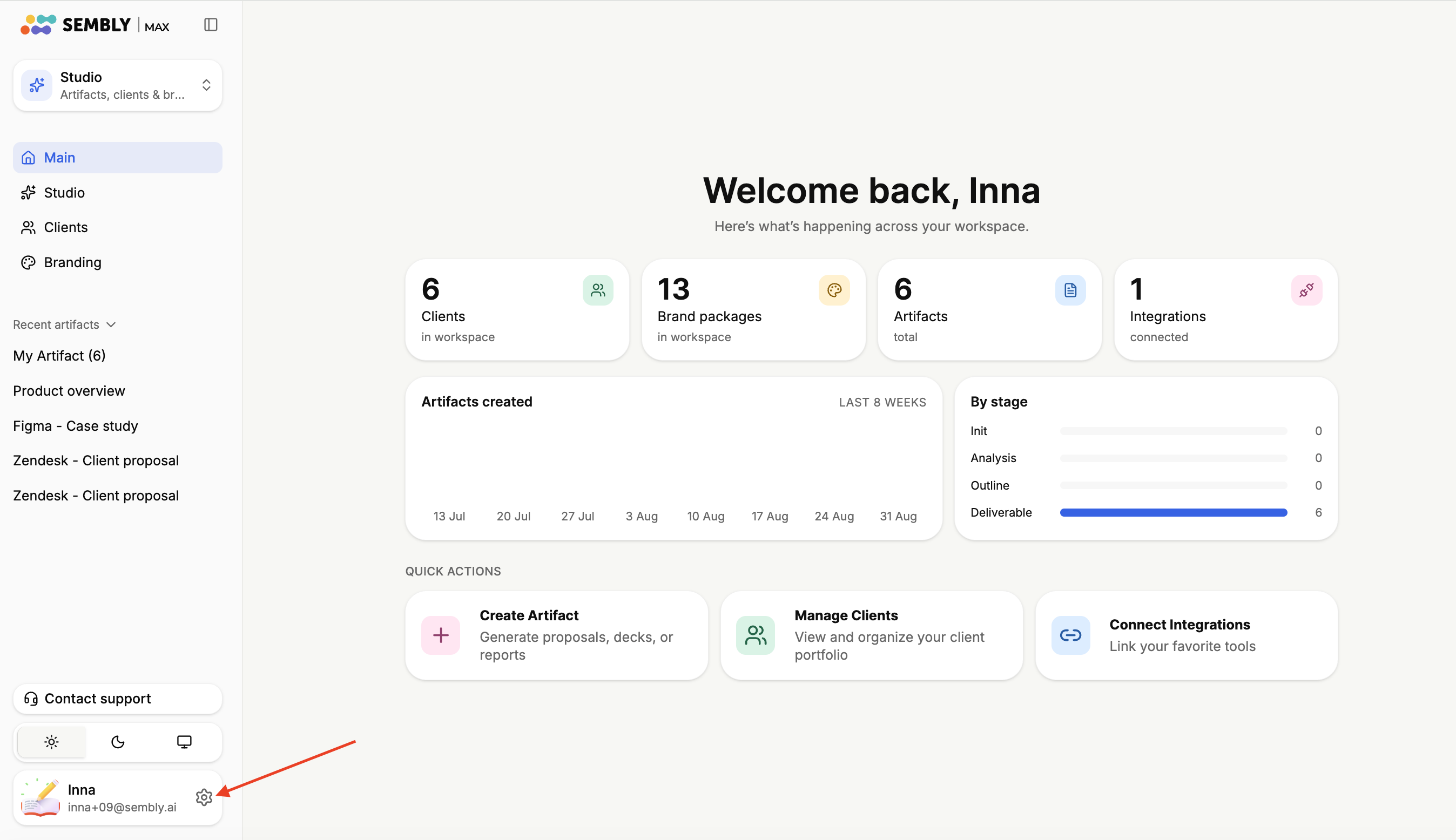
Open your account and go to Settings by clicking the gear icon.
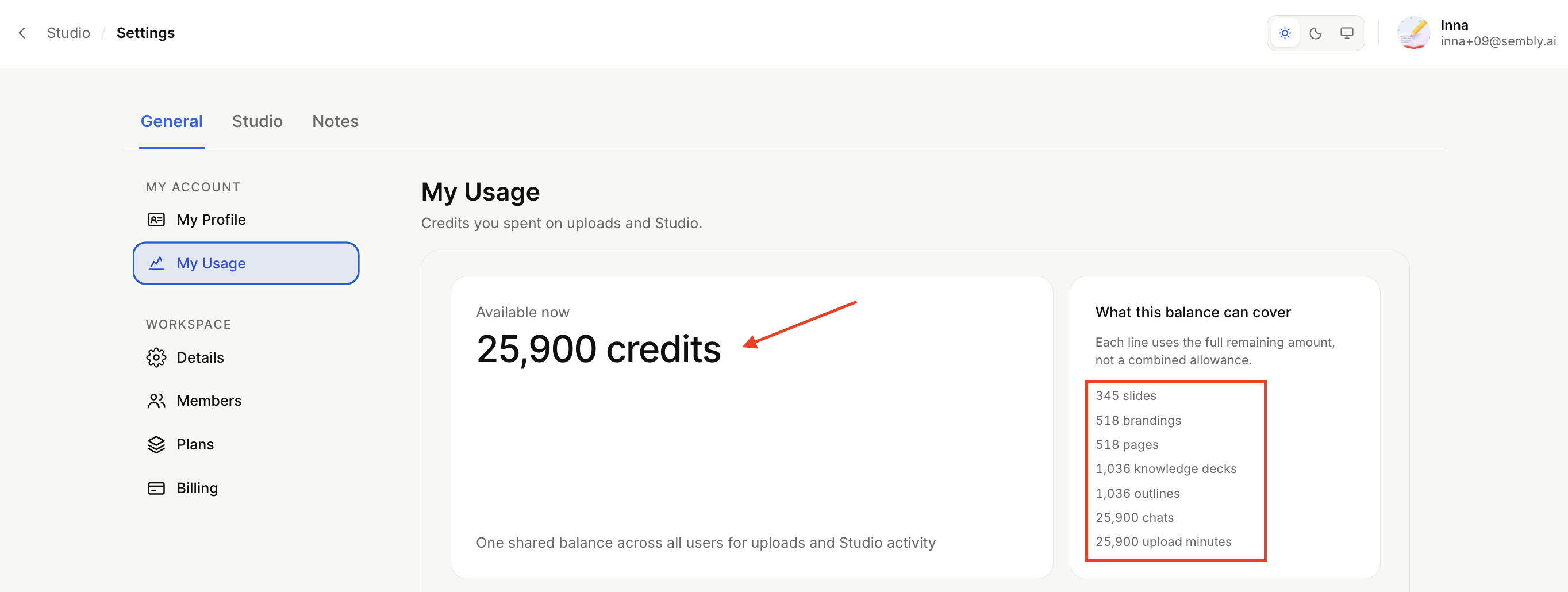
Open General → My Usage. The first block shows how many credits are available in your workspace and what they can cover.
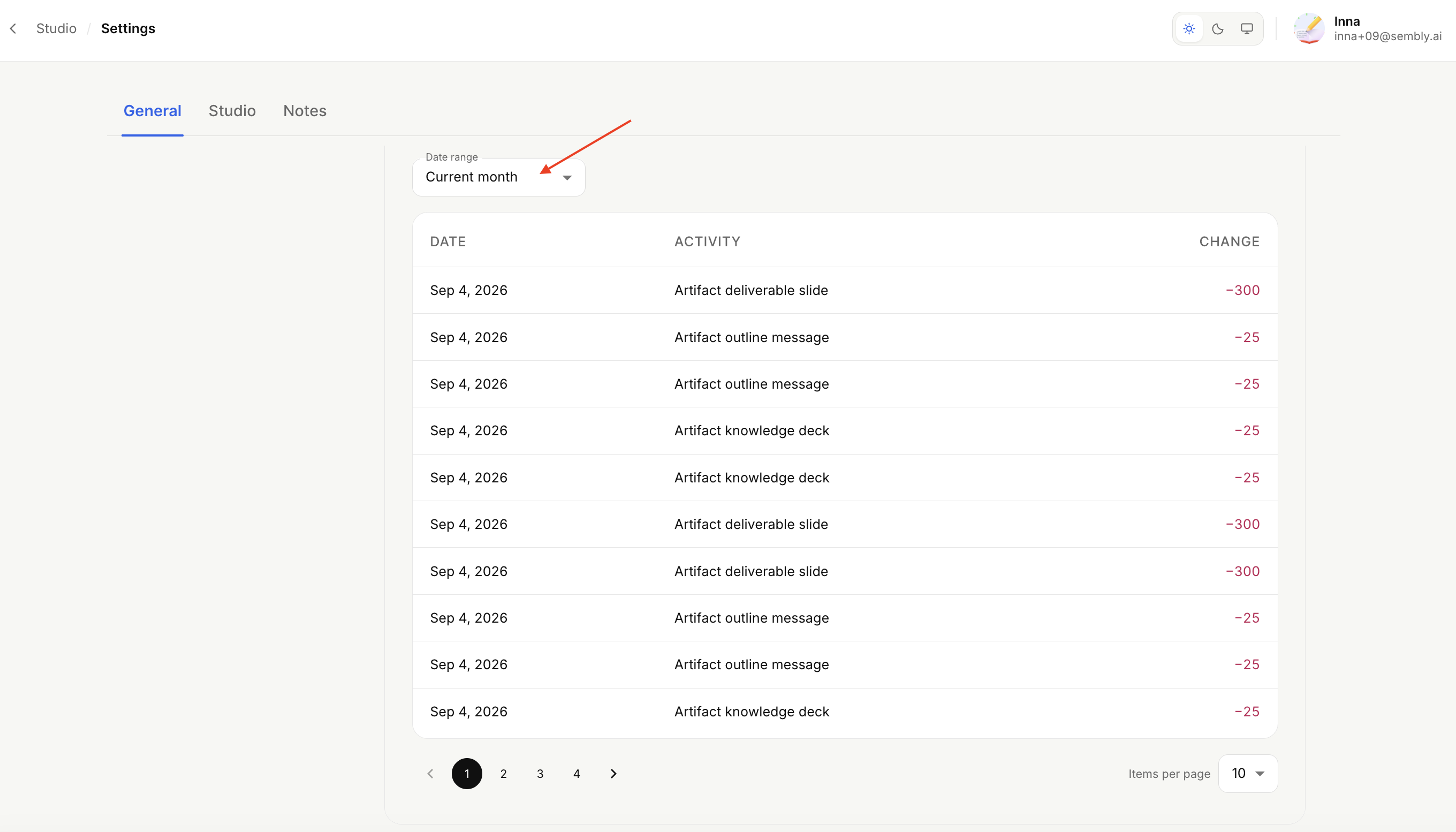
Below, you can see the credits deducted from your balance, as well as the credits added to your account. You can also filter the results by date.
Open your account and go to Settings by clicking the gear icon.
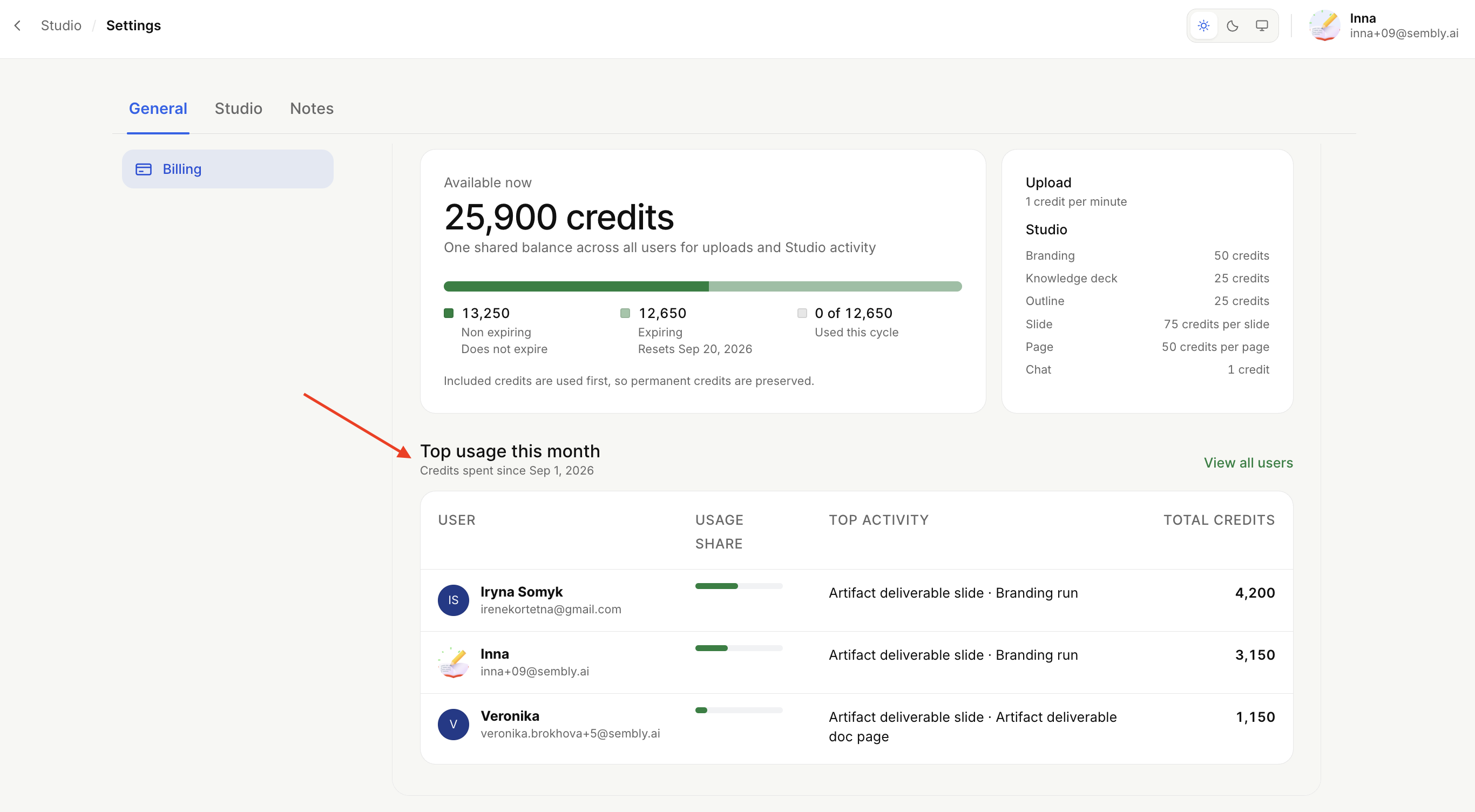
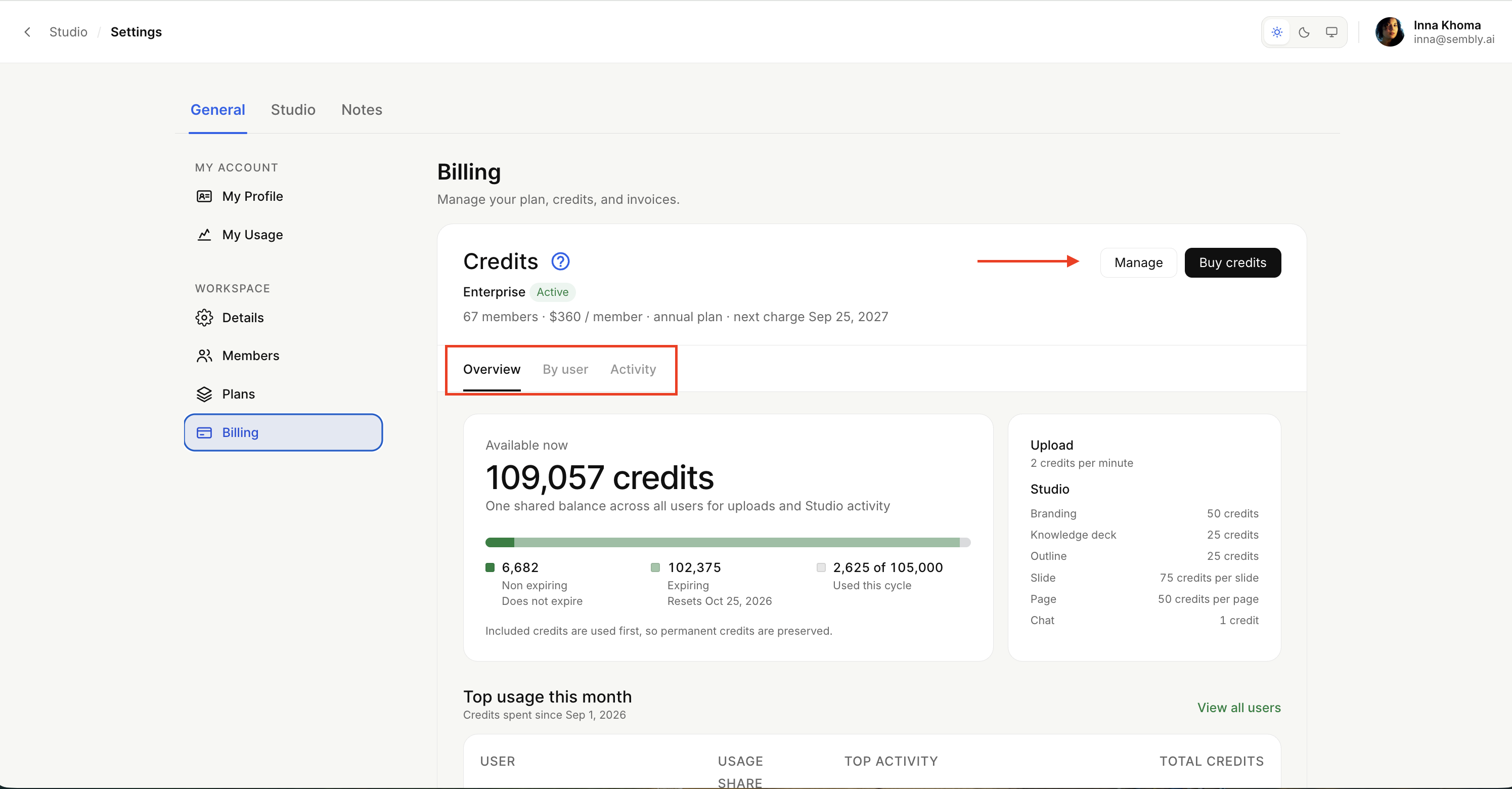
Go to General → Billing. Here, you can Manage subscription (Update Plan or Cancel Subscription), Buy credits and see a detailed breakdown.
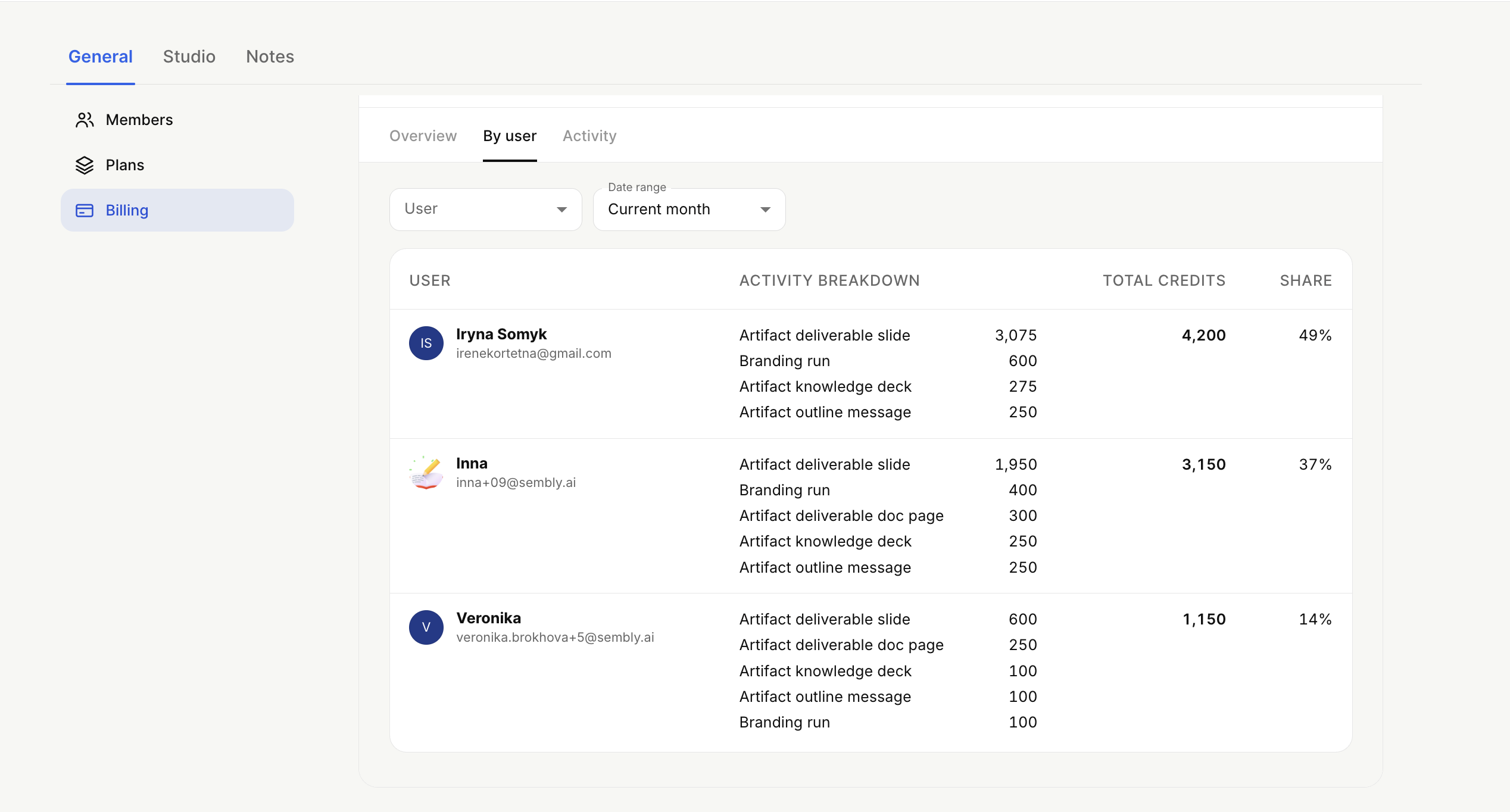
By user:
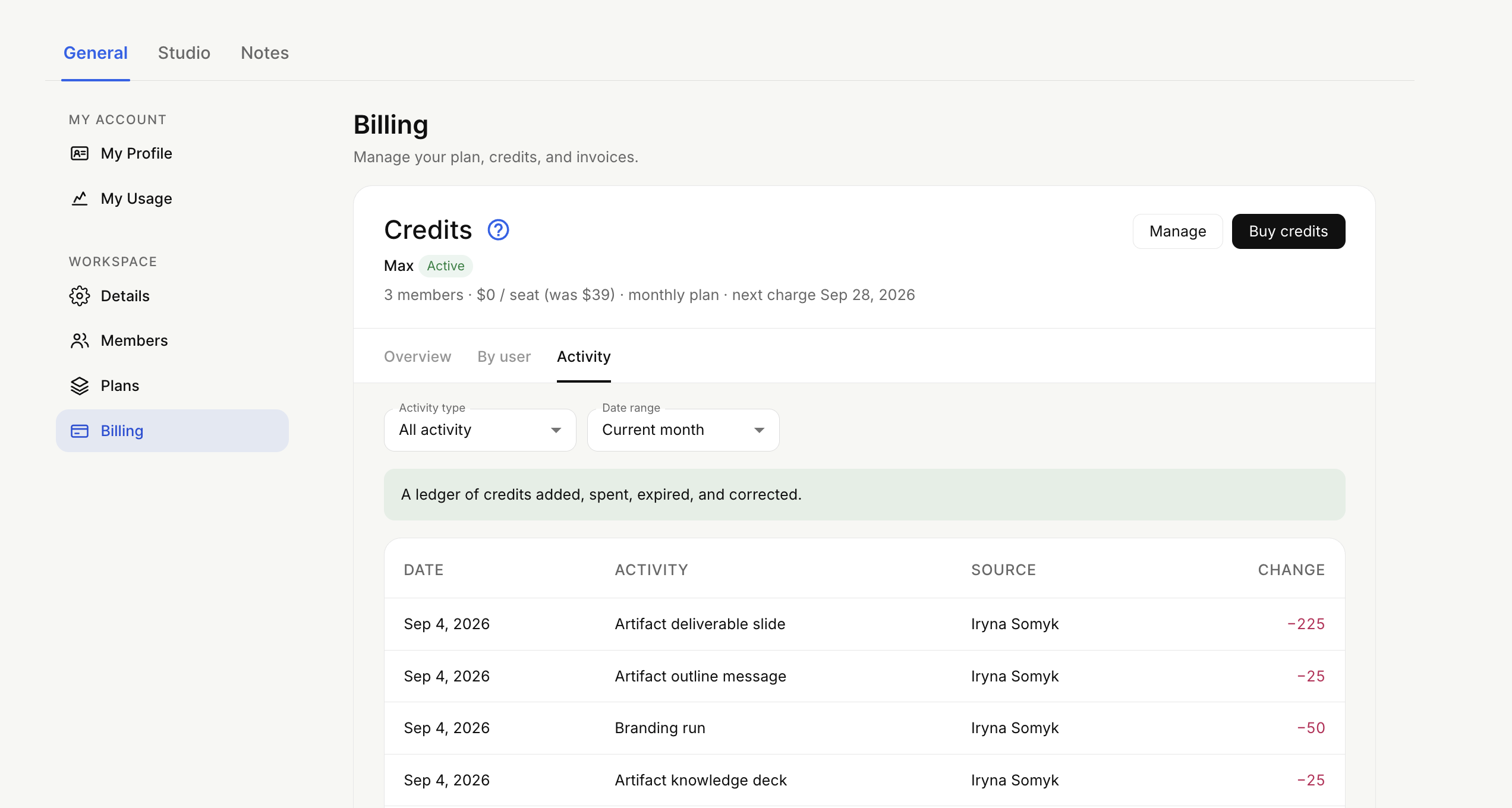
Credits Activity (credits added, spent, expired, and corrected) with filters by activity type and date range:
And top usage this month: