You can connect Sembly to tools that are not on the list of our native automations, using automation tools like Zapier or similar to send Transcriptions, Meeting Notes, and Tasks.
Custom Automations for personal use allows you to export your meeting data automatically. They will also appear inside completed meetings under the "Zap" button, allowing you to extract data from past meetings.
This article shows how to adjust settings in Sembly. Examples of setting up connections in Zapier can be found in these articles: Transcripts, Meeting Notes, and Tasks.
To connect, prepare an endpoint URL that you created in Zapier.
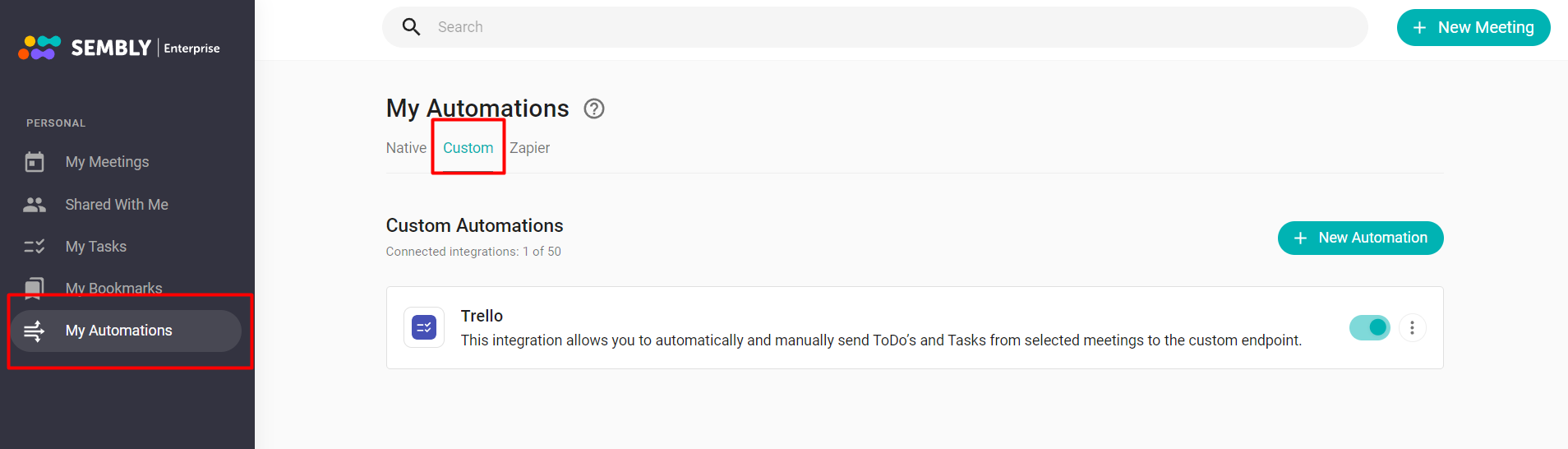
In the menu on the left, select My Automations.
Select the tab Custom and hit Add. You can connect 10 tools to your workspace.
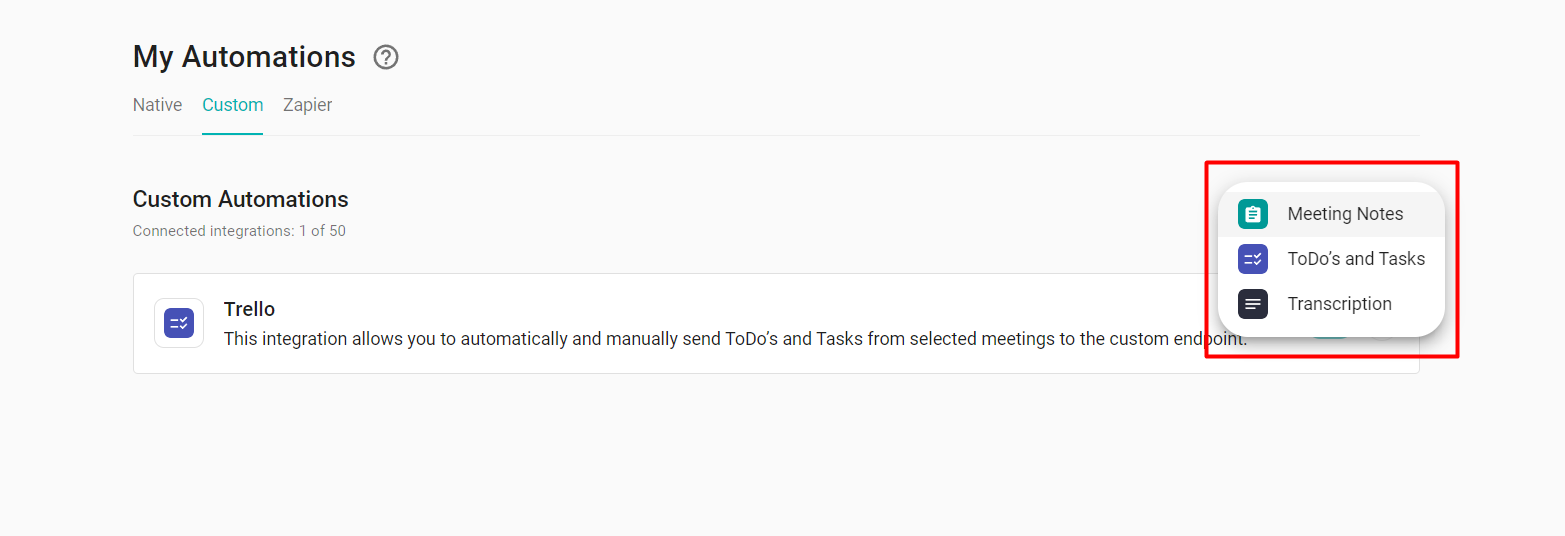
Then choose what exactly you want to export: Notes, Transcription, or Tasks.
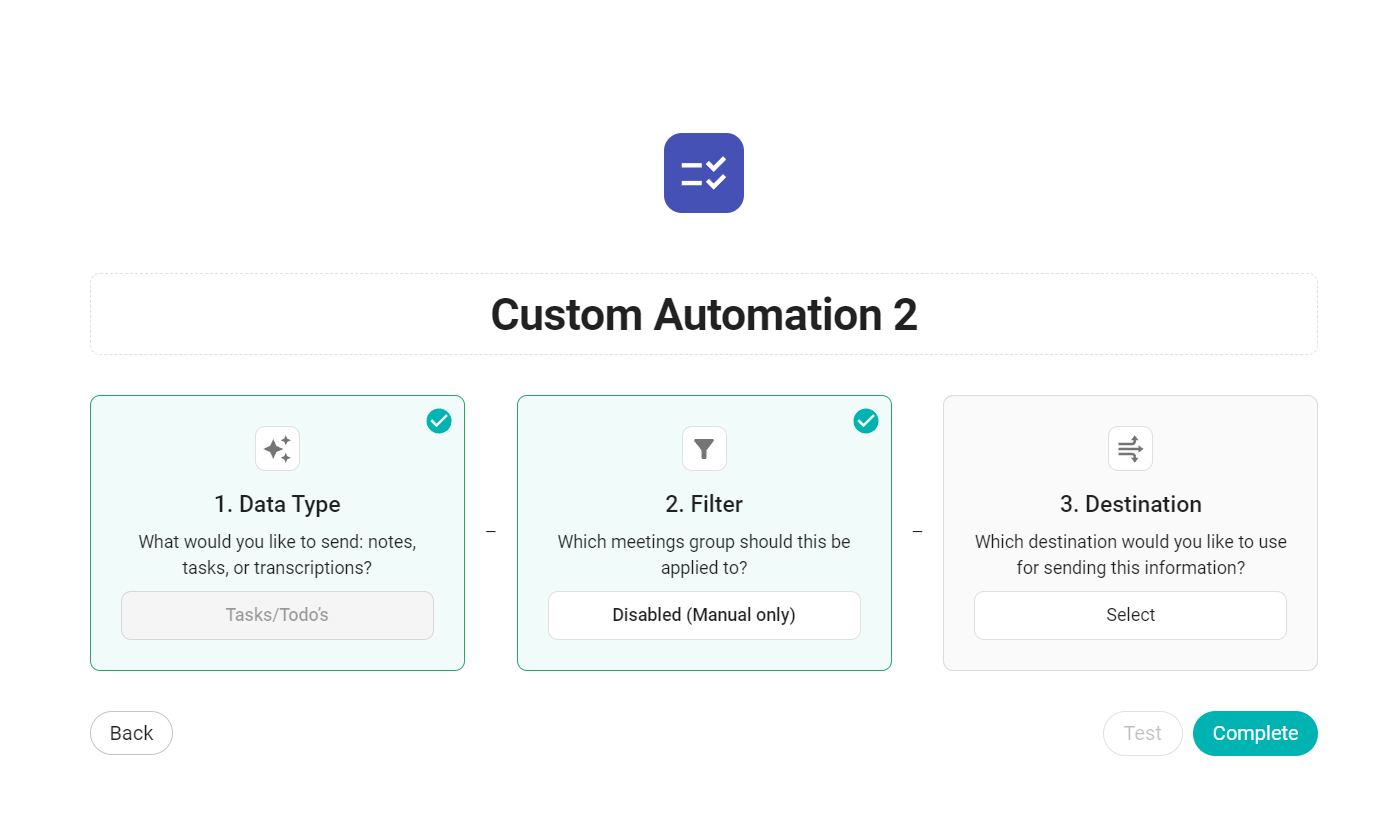
In a new window, start with step 2. Apply filters:
Apply to all meetings that I have access to - will export all meetings that you record;
Apply to meetings with keywords in the title - paste the keyword and click Enter;
Apply to meetings with a specific type - the templates of the Meeting Notes that AI recognizes automatically.
In the Destination field, paste the URL that you generated in the automation software. You will find an example in this article. Click Complete.
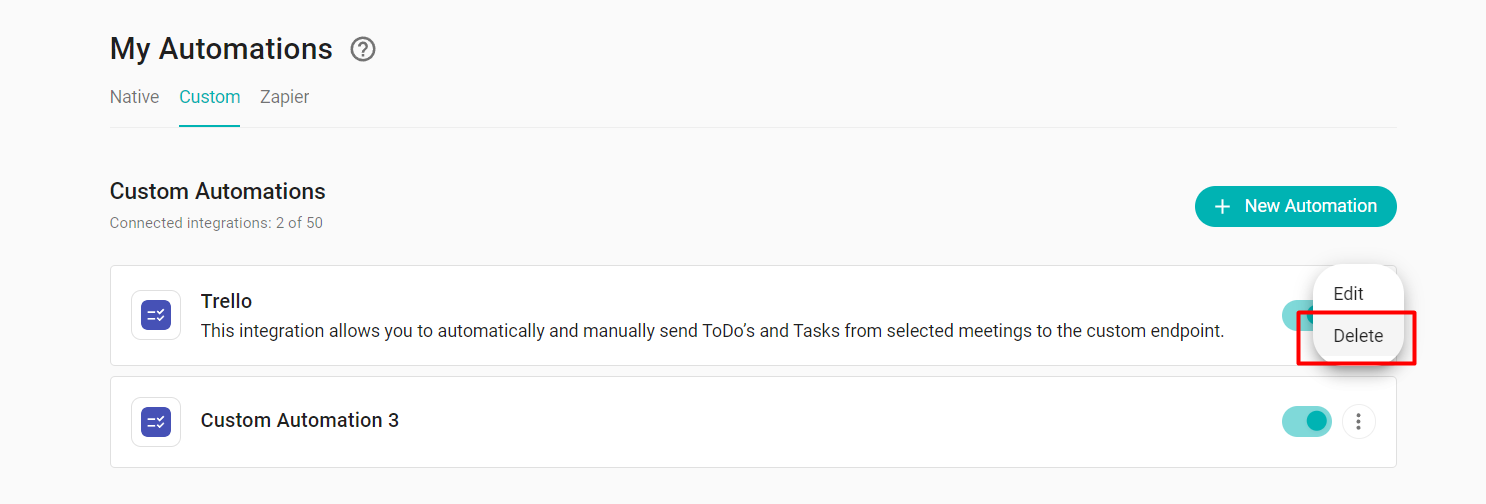
You can change settings and use the “active” toggle to disable automations.
Click the three dots and select Edit in the dropdown opposite the automation you want to change.
After filling in the fields, click Complete.
If you wish to disable the automation temporarily, switch off the toggle.
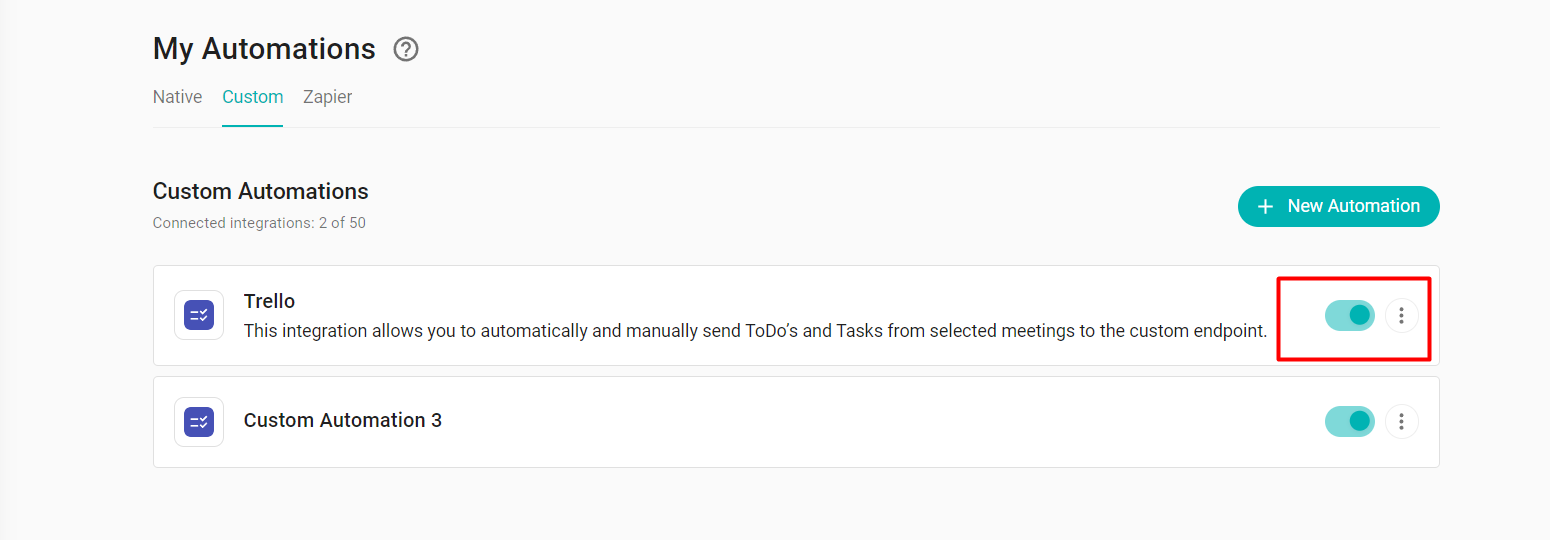
Click the three dots opposite the automation you want to change and select Delete to remove the automation.