When you create a Sembly account, you have settings available both at a personal level and at the workspace level. In this article, we will cover the personal settings and the workspace settings that relate to Studio.
Settings related to Sembly Notes (meeting notes, transcriptions, tasks, and related features) are covered separately. You can find more information about those here.
To open settings:
Log in to your account.
In the bottom-left corner, click the gear icon next to your name and choose Settings.
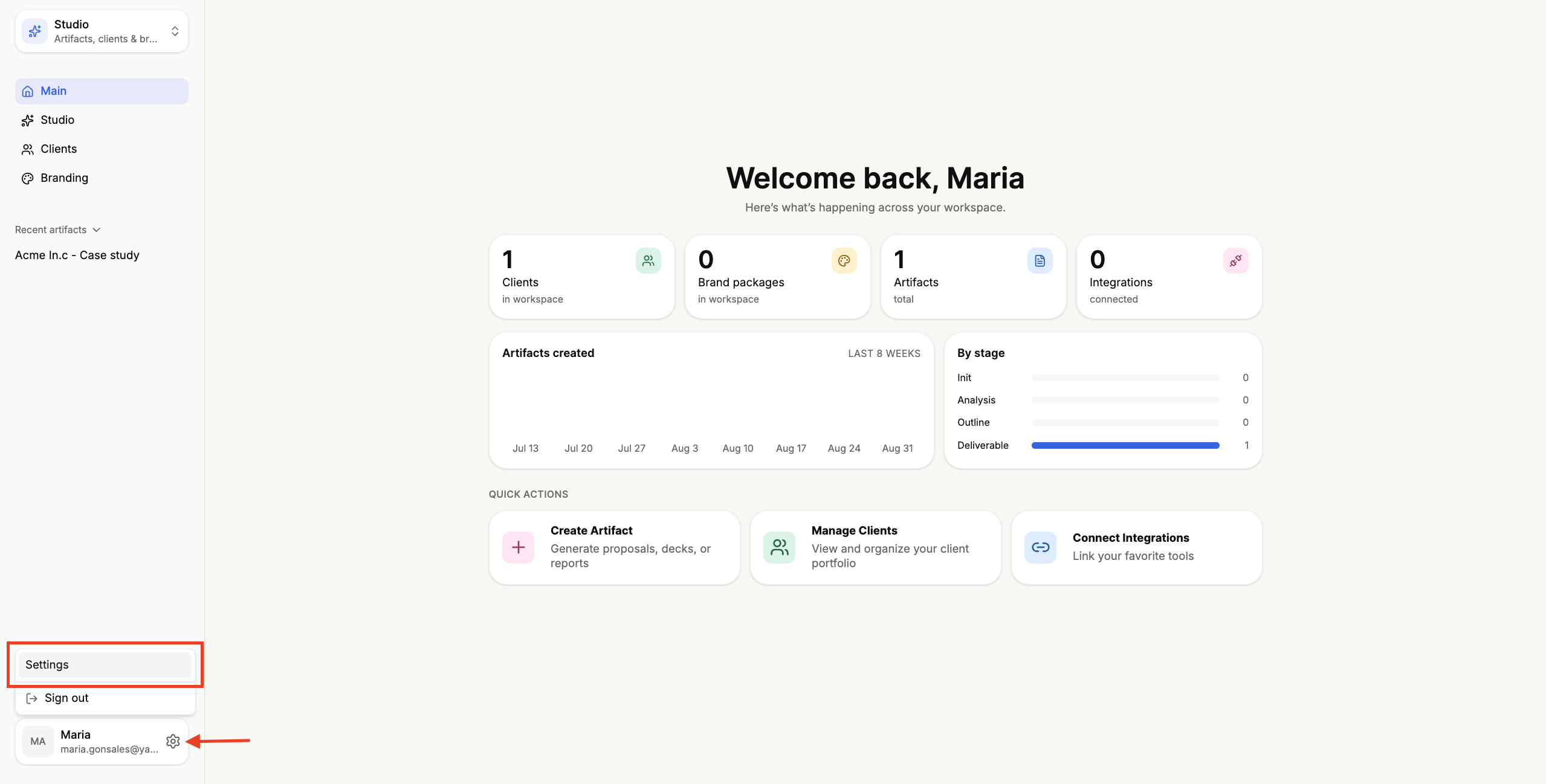
Select the General section.
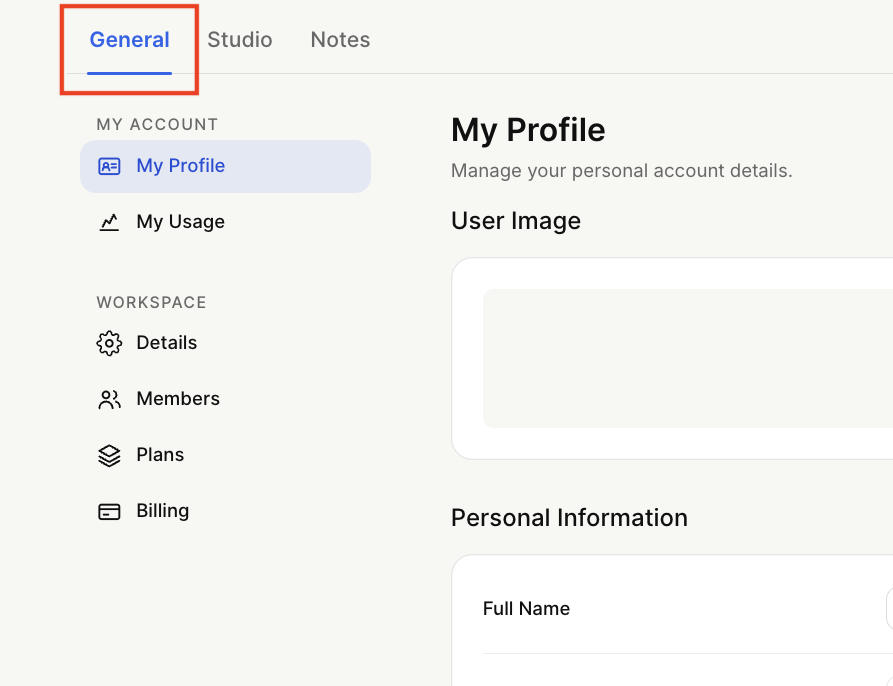
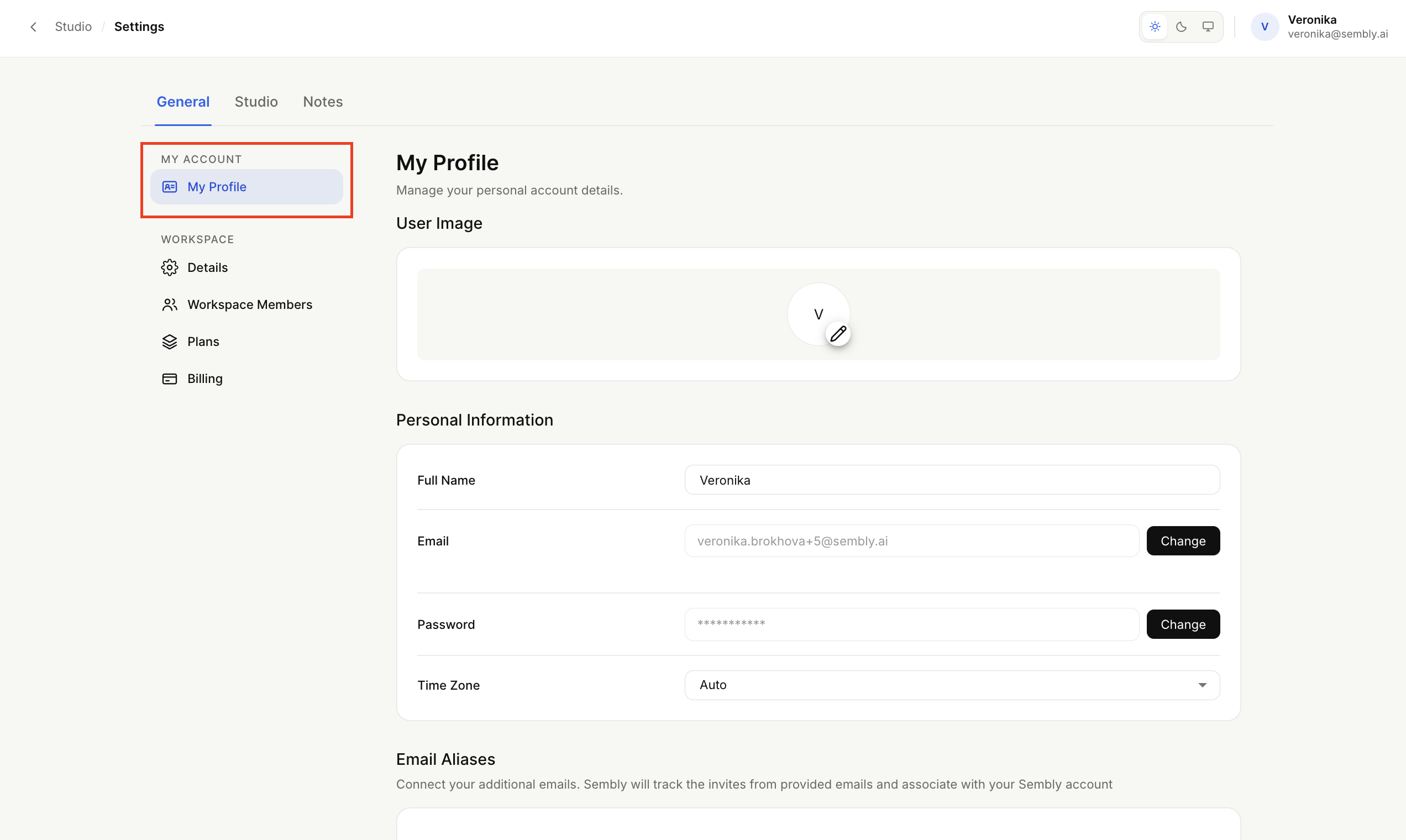
You can change your name, email, password, and set a timezone in My Profile section.
See the attached guide on how to configure those settings here. For email aliases, please refer to this guide.
In this section, you can see the credits you have spent on uploads and Studio activity (such as creating artifacts), and how many credits you have left.
To open it, select My Usage.
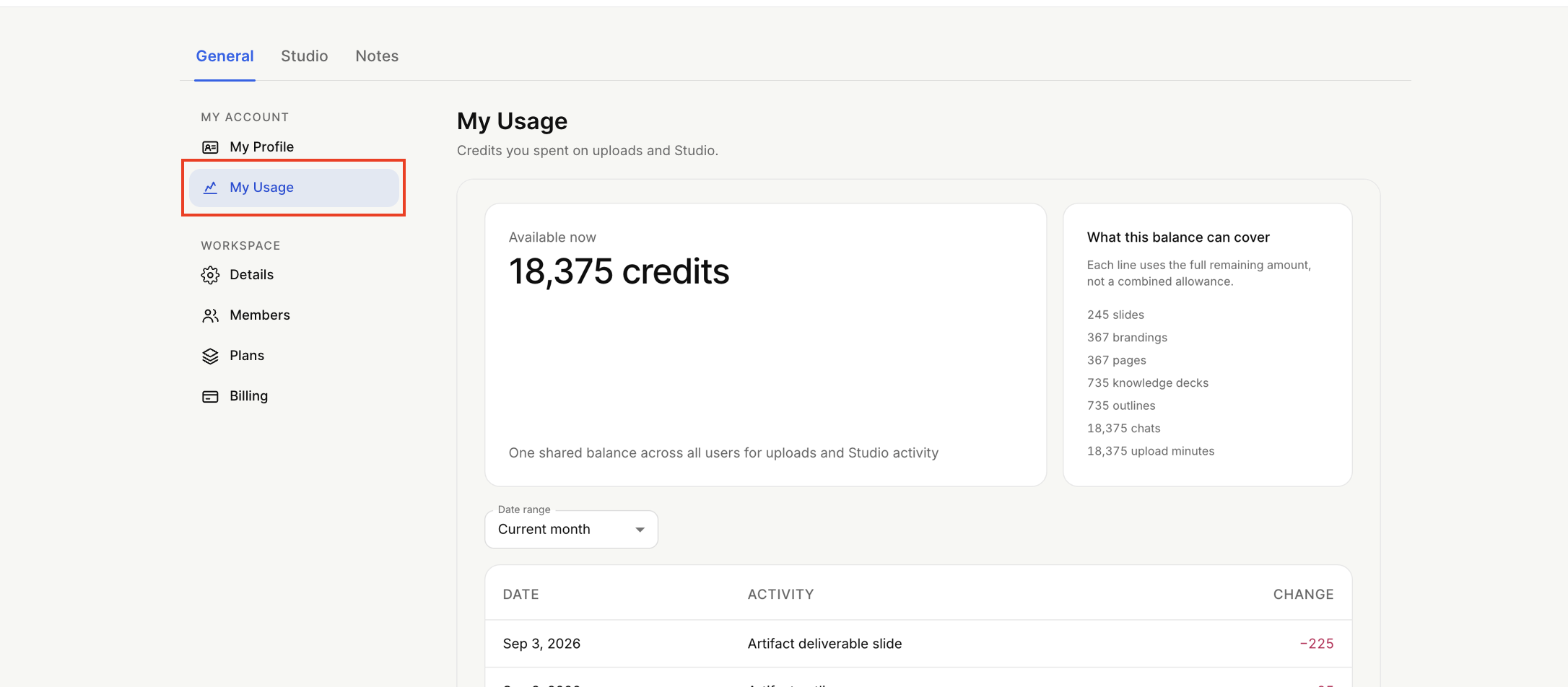
Here you can see:
Your current remaining credit balance. This is one shared balance across all users for uploads and Studio activity.
An estimate of what your remaining credits can cover (for example, slides, brandings, pages, knowledge decks, outlines, chats, and upload minutes). Note that each line uses the full remaining amount, not a combined allowance, so these are separate estimates of what the same balance could cover.
A dated list of your activity and the credits each one used. You can filter this by Date range (for example, Current month), and each entry shows the Date, the Activity (such as "Artifact deliverable slide" or "Artifact knowledge deck"), and the Change in credits.
The Workspace Details settings are mostly related to the Notes section. You can find how to adjust each of these settings in the existing articles below:
For details on managing your workspace members, including inviting members, assigning roles, and removing members, please refer to our existing guide.
For details on billing, including managing your subscription, payment methods, and invoices, please refer to our existing billing article.
For information about credits, how they work, and how they are used across uploads and Studio activity, please refer to the Credits usage in Studio article.