
If you would like to isolate a sign-in for your team, you can do so in Workspace Details (available only to Workspace Admins). The difference between a regular Single Sign-On (SSO) and a Custom SSO lies in the latter's ability to specify which email addresses can access your workspace. Additionally, you will receive a unique URL to log in.
To set up, log in to your Sembly account with the Workspace Admin role, click the gear icon on the bottom-left of the screen, and select Settings
In the Settings window, choose the Workspace section on the left menu and click Details. Or, click this link
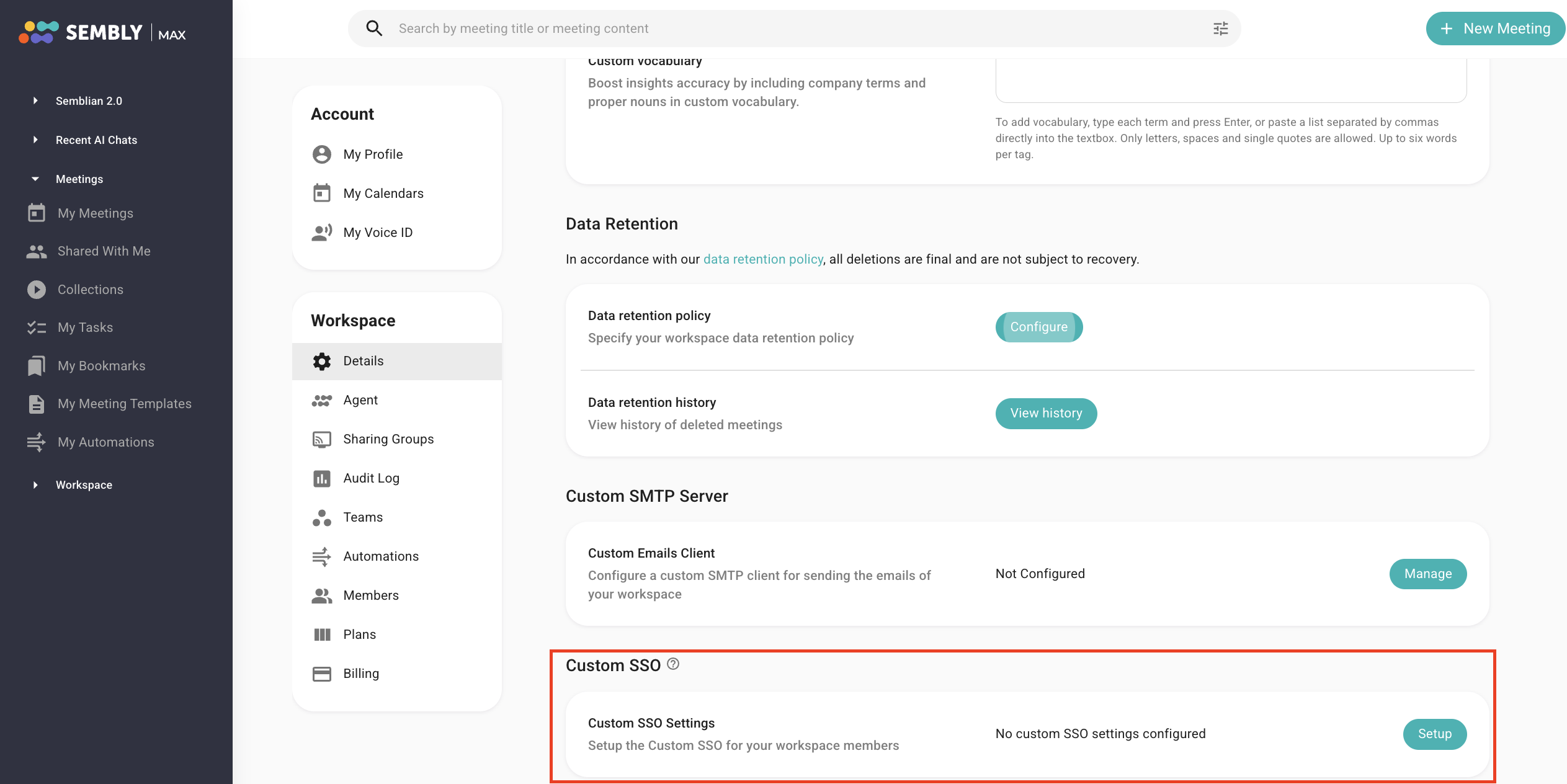
Scroll down to the Custom SSO field and click Setup
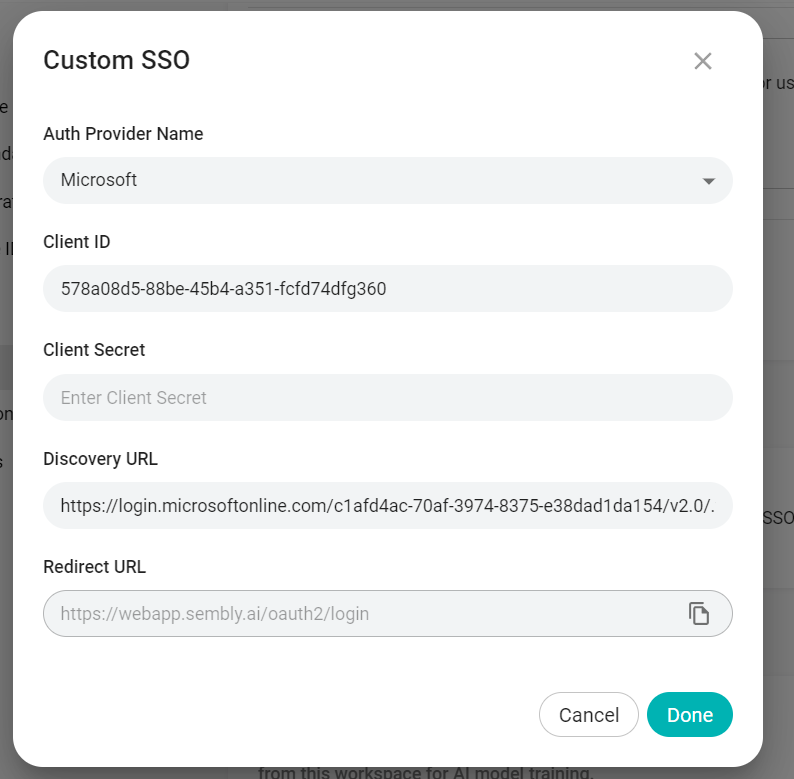
In the next window, insert the necessary details and hit Done
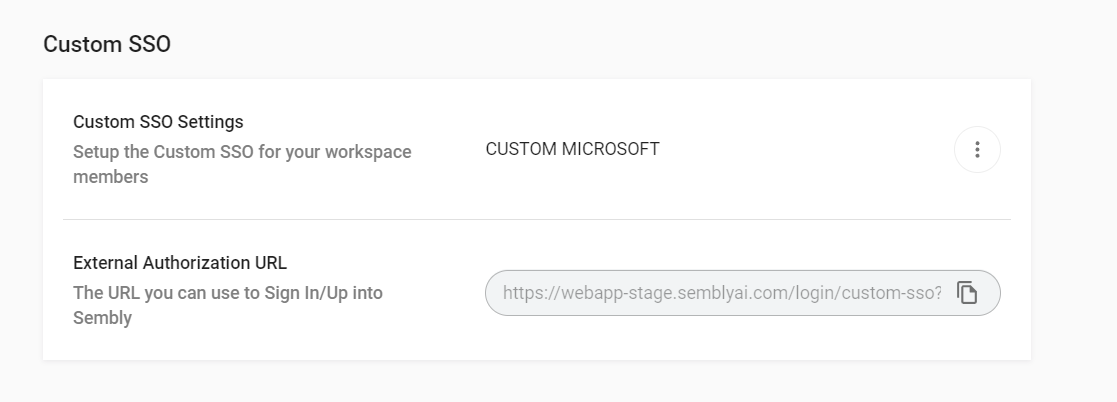
After this step, the URL will also appear in Workspace Details
Once the setup is finished, teammates can join your workspace in two ways:
through the standard email invite flow as described in this guide
with the External Authorization URL generated in the previous step. Clicking this URL will prompt the user to sign in via SSO, providing them with immediate access to your workspace, regardless of whether they have previously created an account in Sembly.
These options offer flexibility for onboarding team members to your workspace.
Existing workspace members must use the URL to log in. The system won't let them in through the regular sign-in page. The URL will always redirect them to the SSO login.


