Connect your workspace to various tools using webhook-based platforms like Zapier or similar.
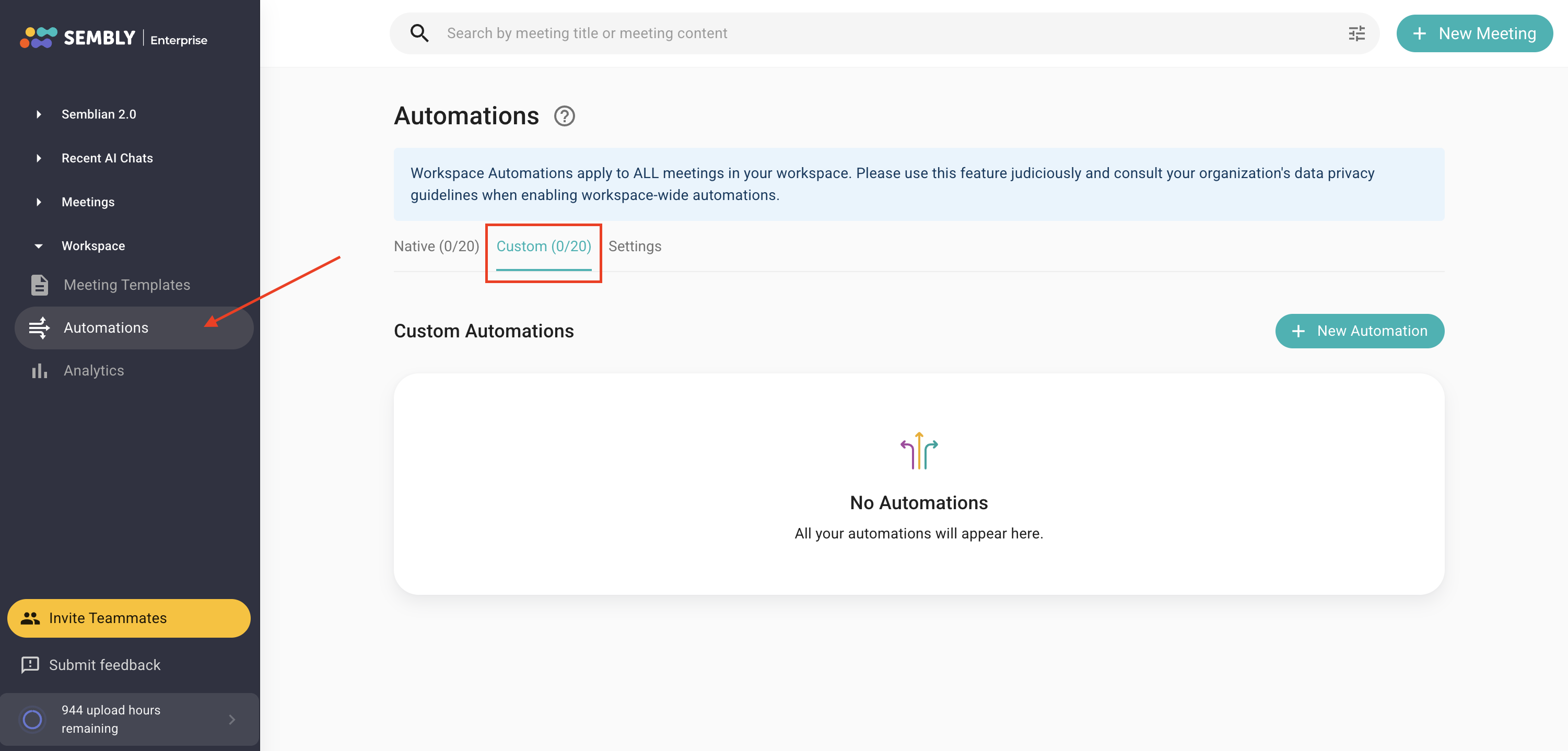
The Automations menu on the sidebar menu allows you to set up an automatic export for all workspace members (do not confuse it with My Automations).
The option to disable the automation and send each meeting individually isn't available in the workspace automations.
Only Workspace Admins can set up custom automations for the workspace.

This article shows how to set up custom automations for your workspace. The guide for Zapier can be found in these articles: Transcripts, Meeting Notes, and Tasks.
Different applications do not require different connection steps, so we will show you how to connect yours using Zapier as an example. As you start connecting and setting up automations, follow the steps described in this article.
To connect, prepare an endpoint URL that you created in Zapier.
Select Automations in the menu on the left. Select the Custom tab and hit Add.
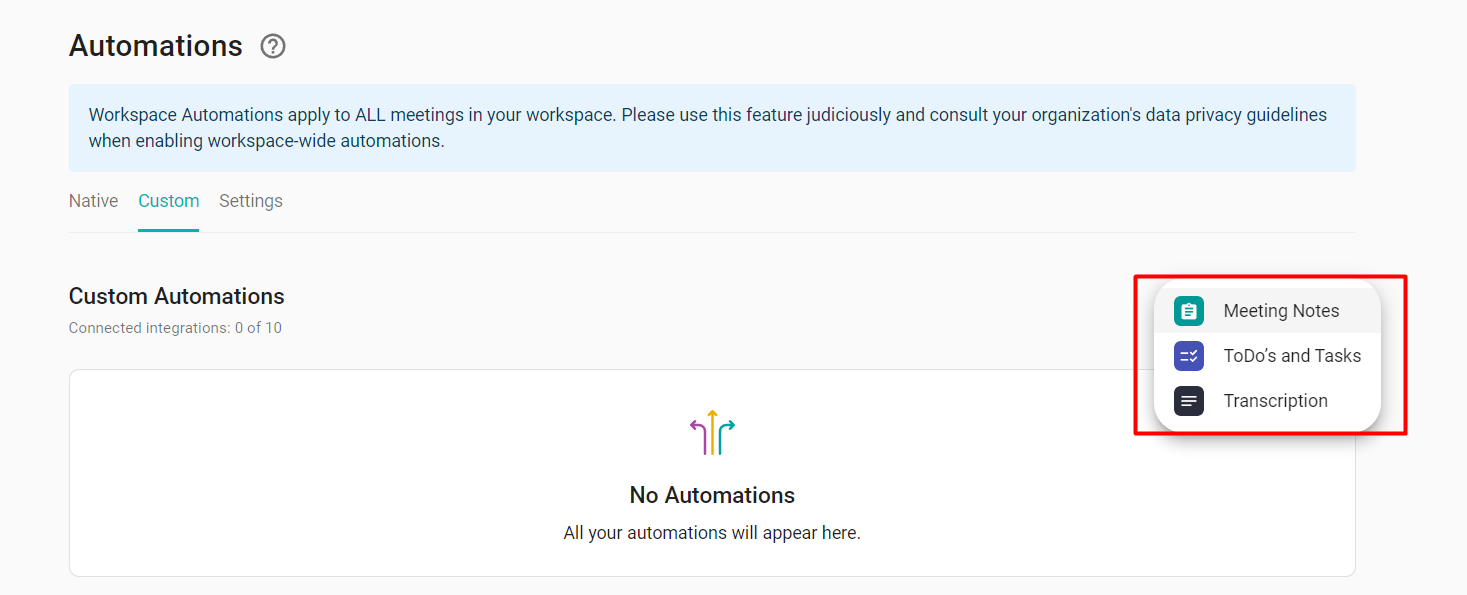
Click +New Automation and choose what you want to export: Notes, Transcript, or Tasks.
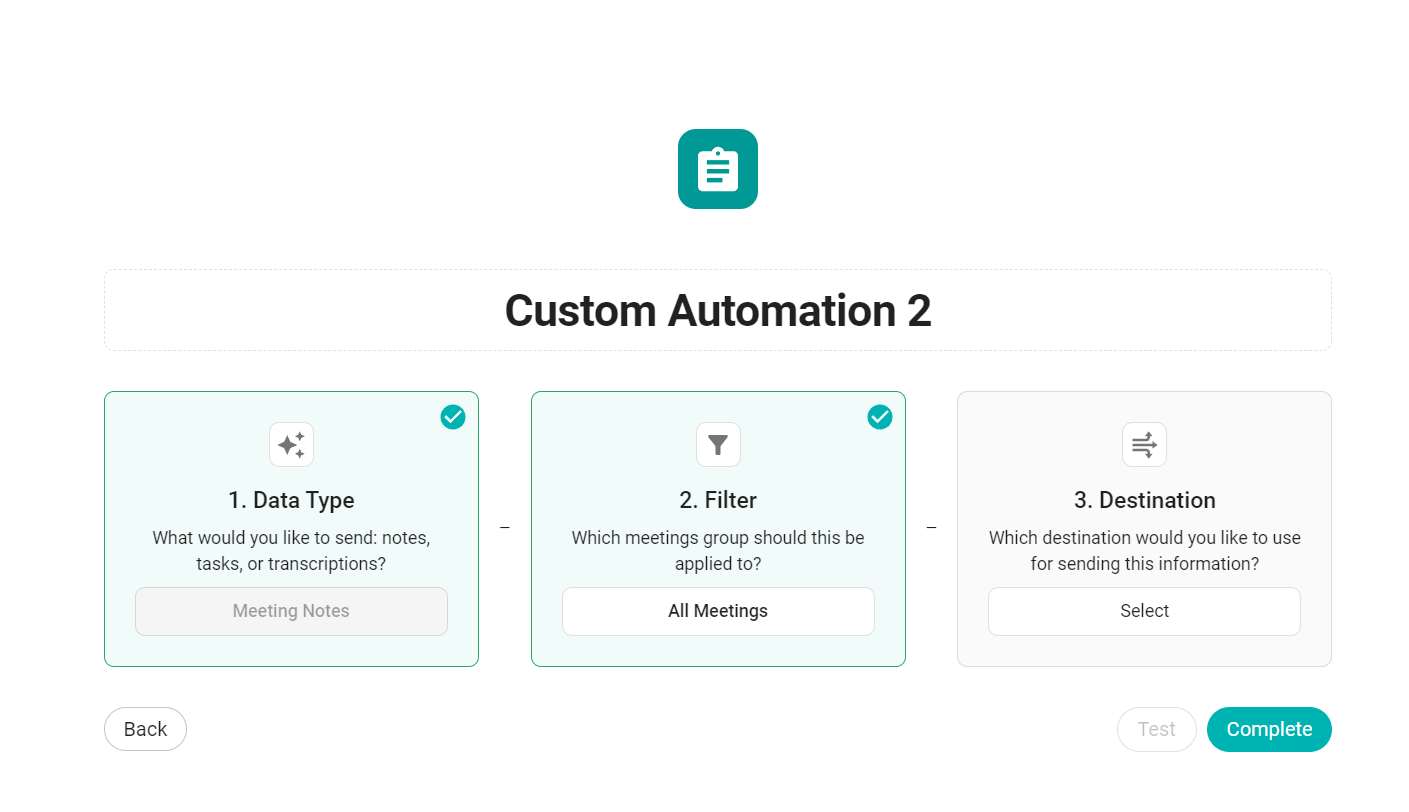
In a new window, start with step 2. Apply filters:
Apply to all meetings - will export all meetings in the workspace;
Apply to meetings with keywords in the title - paste the keyword and click Enter;
Apply to meetings with a specific type - the templates of the Meeting Notes that AI recognizes automatically;
Apply to meetings with a specific Sembly user - usually the meeting organizer, or if the organizer doesn't have an account, the owner will be selected randomly;
Apply to meetings of a specific Team - click here to learn about Teams.
In the Destination field, paste the webhook endpoint URL to which the data payload will be sent. For Zapier webhooks, you can find an example in this article.
Click Complete.
You can change settings and use the toggle to disable automations.
Click the three dots and select Edit in the dropdown opposite the automation you want to change.
After filling in the fields, click Complete.
If you wish to disable the automation temporarily, switch off the toggle.
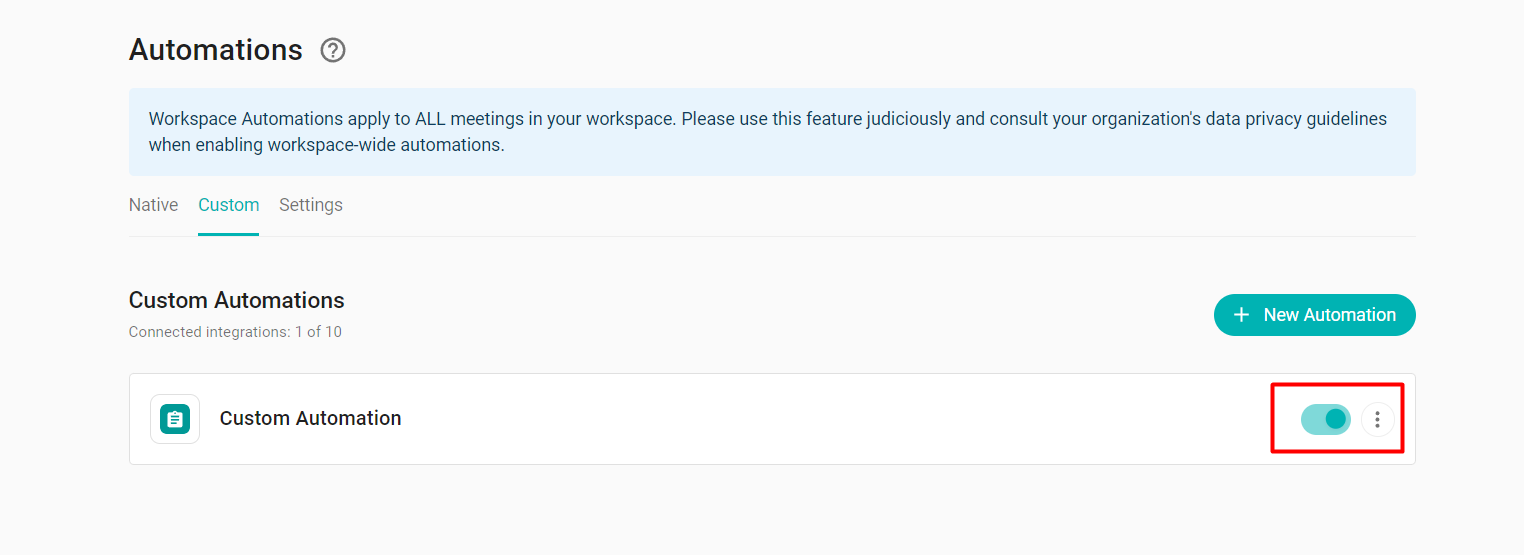
You can remove the existing automations.
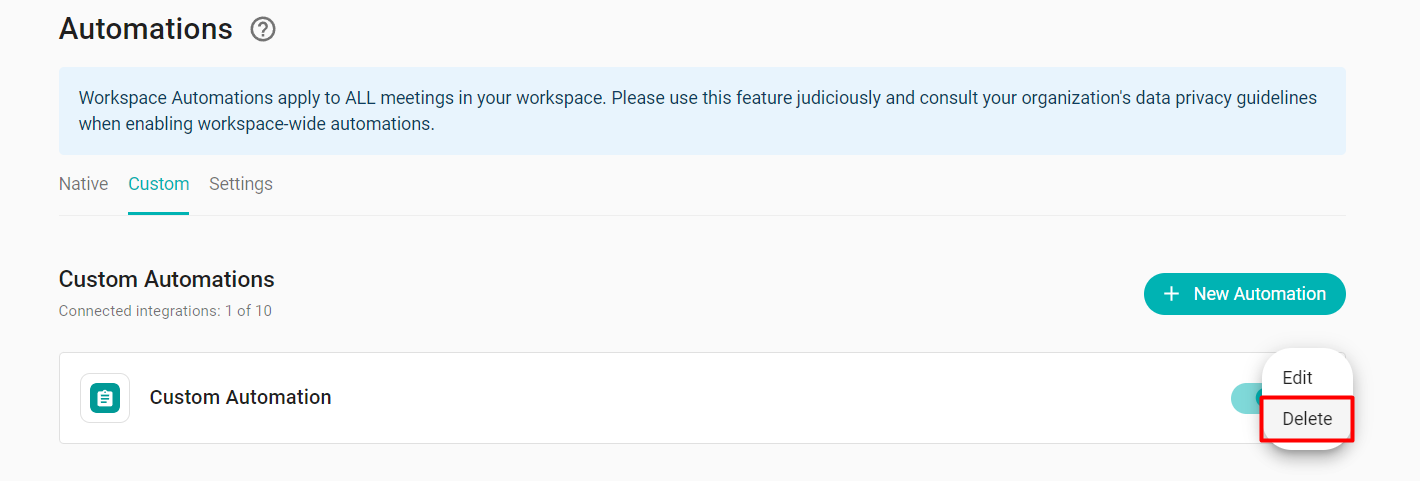
Click the three dots opposite the automation you want to change and select Delete.
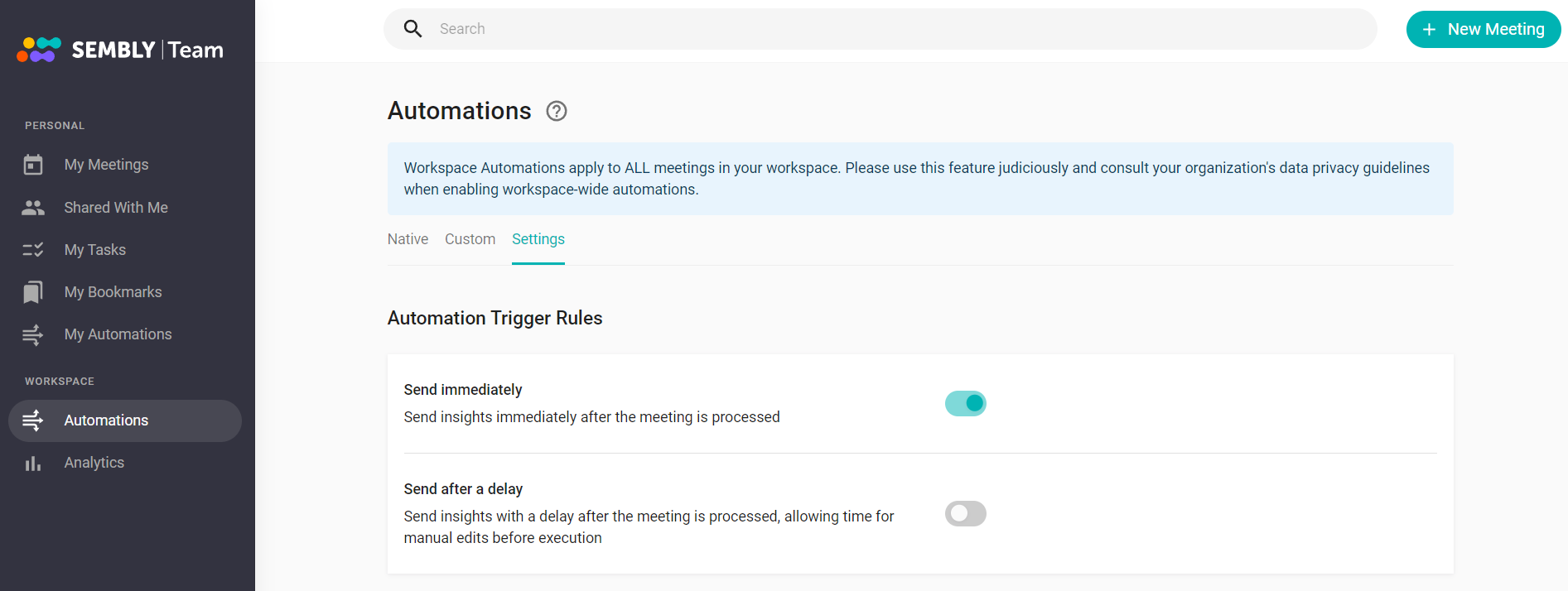
If you need time to edit meetings after the process, you can set up a delay for the export. This setting will apply to all automation you've set up before in the Automations section, including automation in the Native tab.