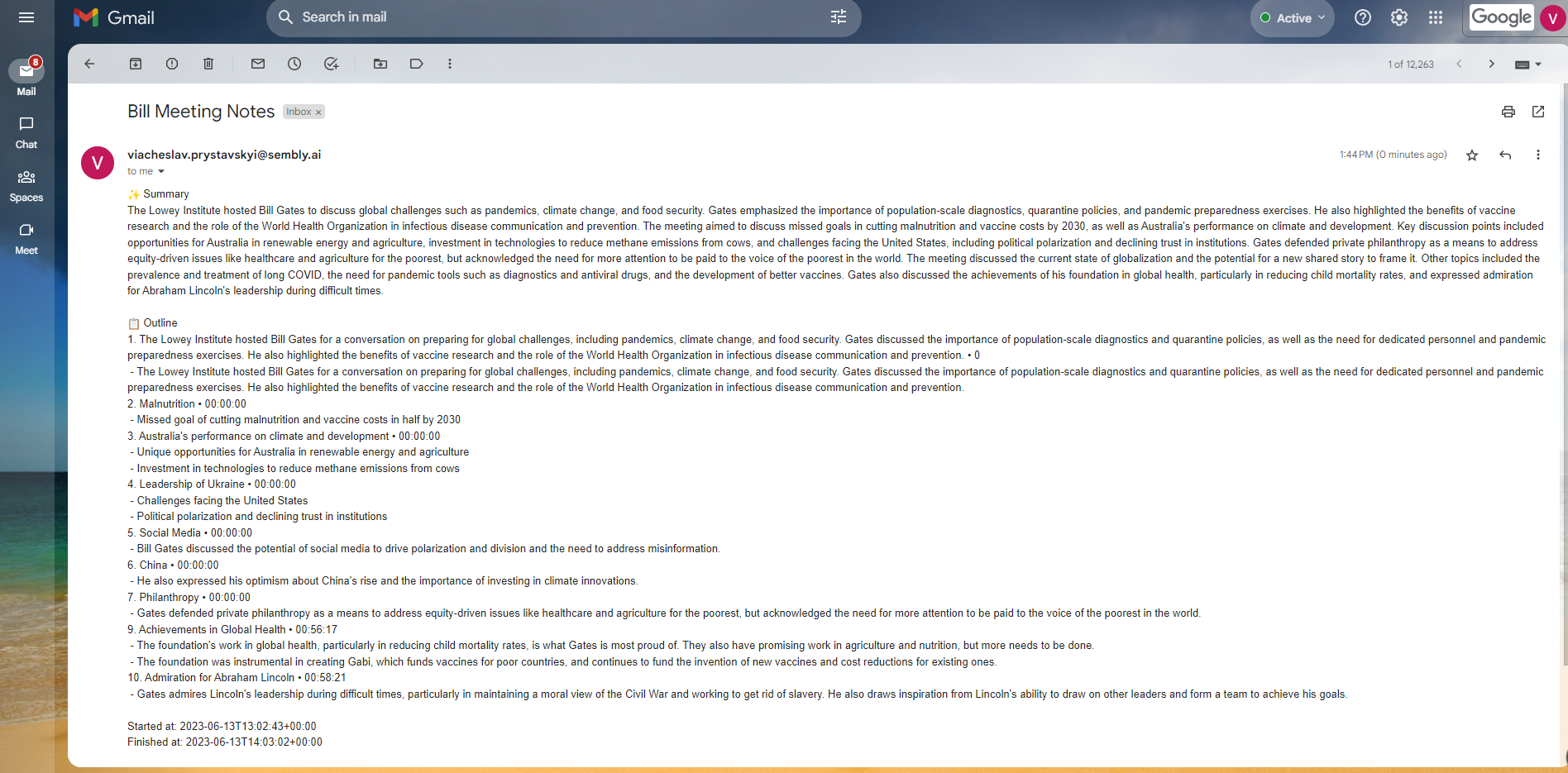
This article shows how to create a custom integration between Zapier and Gmail (as an example) for pushing Meeting Notes from Sembly to every participant of your meeting.
We will use Zapier as a third-party tool. It is online automation software that helps us link other tools to Sembly. You can find additional information on how to work with Zapier here: Zapier Help Center.
Log in to your Zapier account or create a new account.
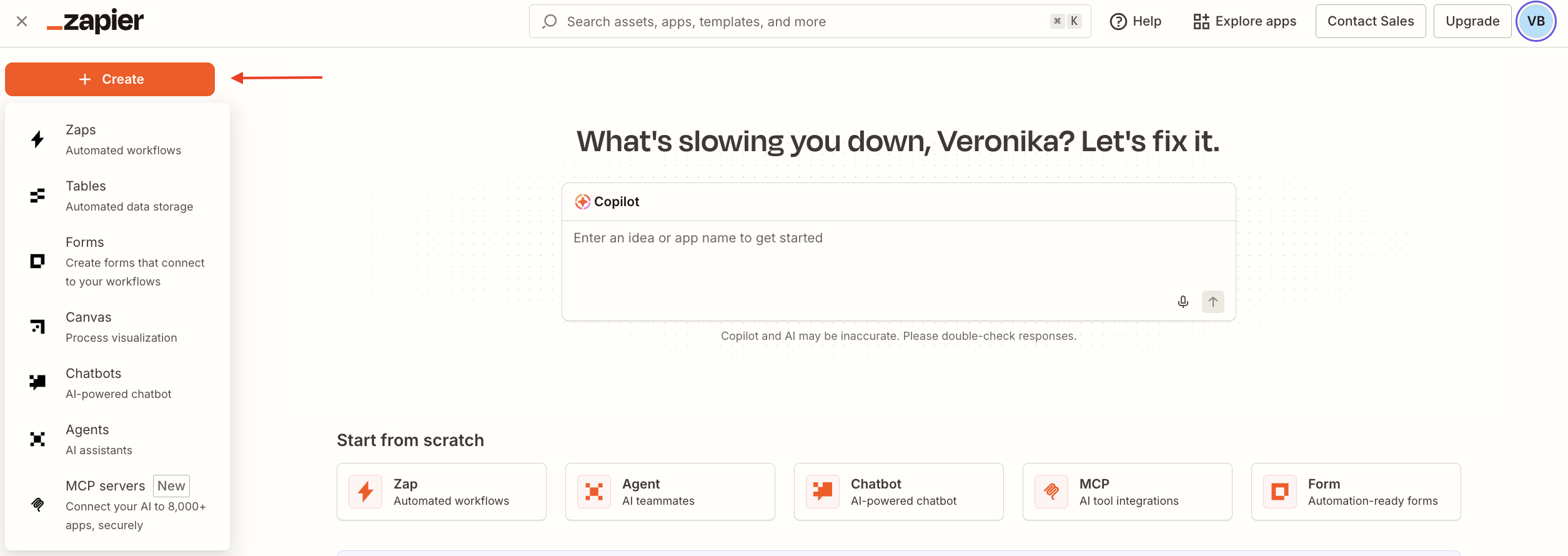
Click + Create Zap in the upper left.
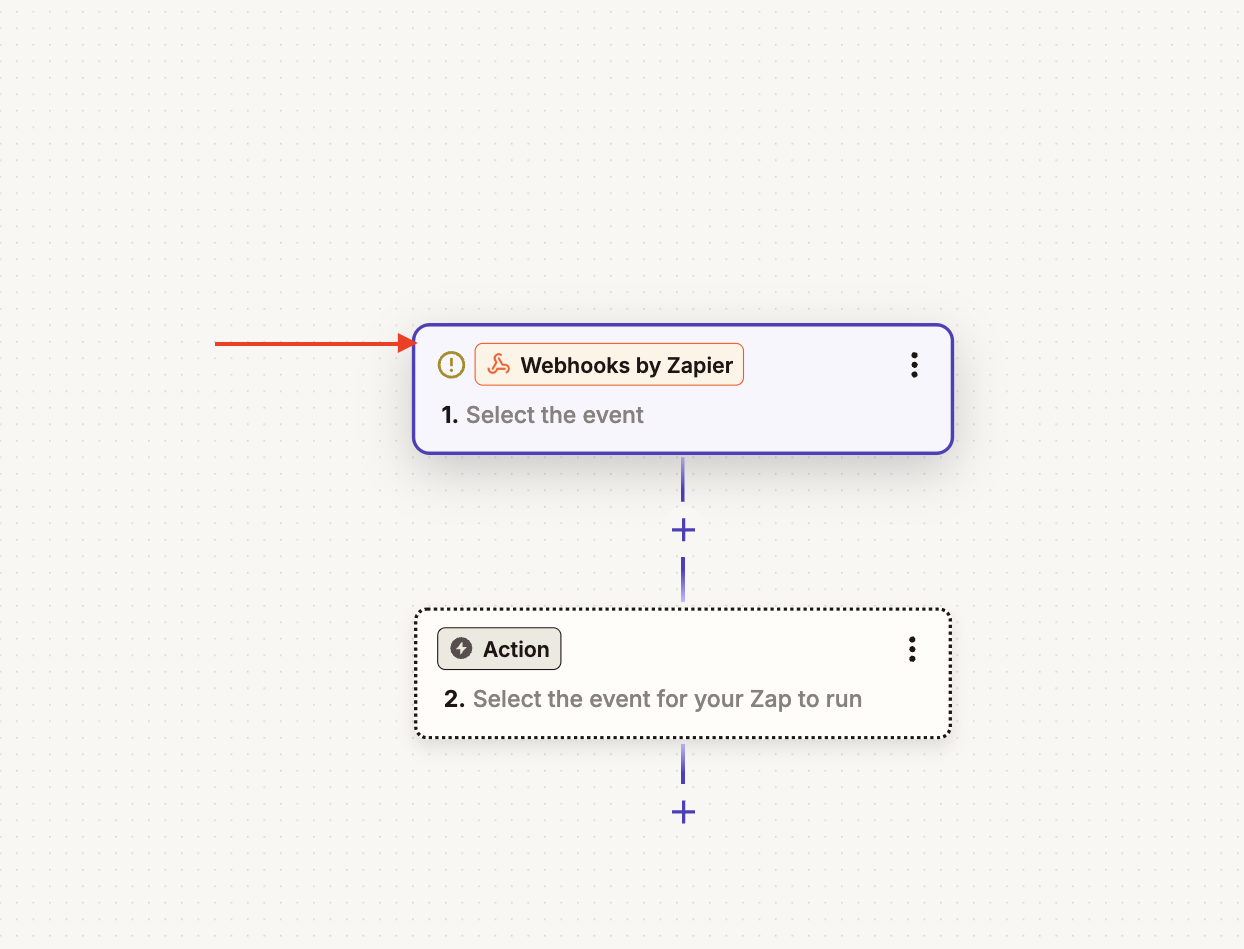
Search for webhooks by Zapier or use our shortcut link: Webhook by Zapier.
In the Event field, click to open a dropdown and select Catch hook.
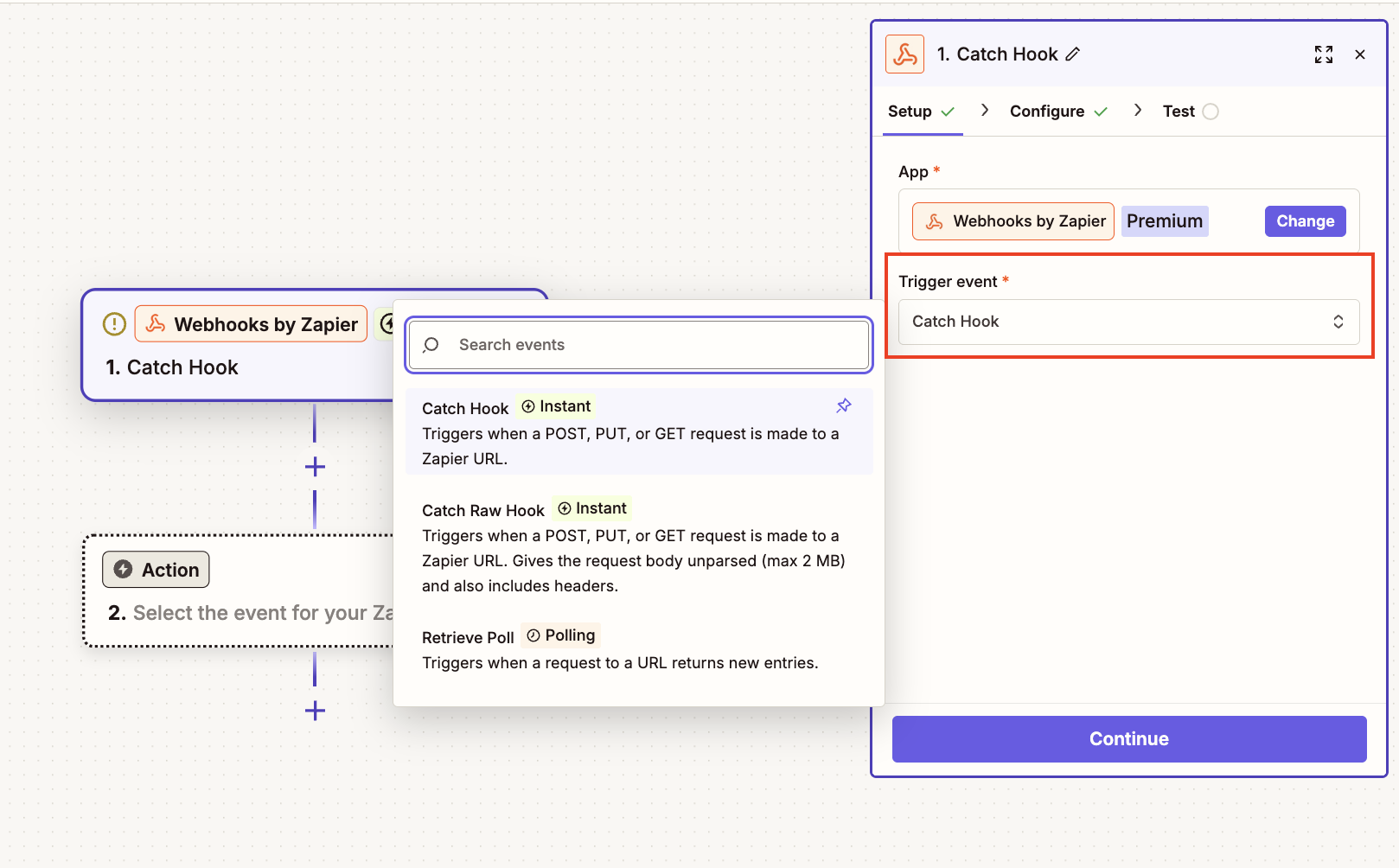
Click Continue (at the App and Trigger event step).
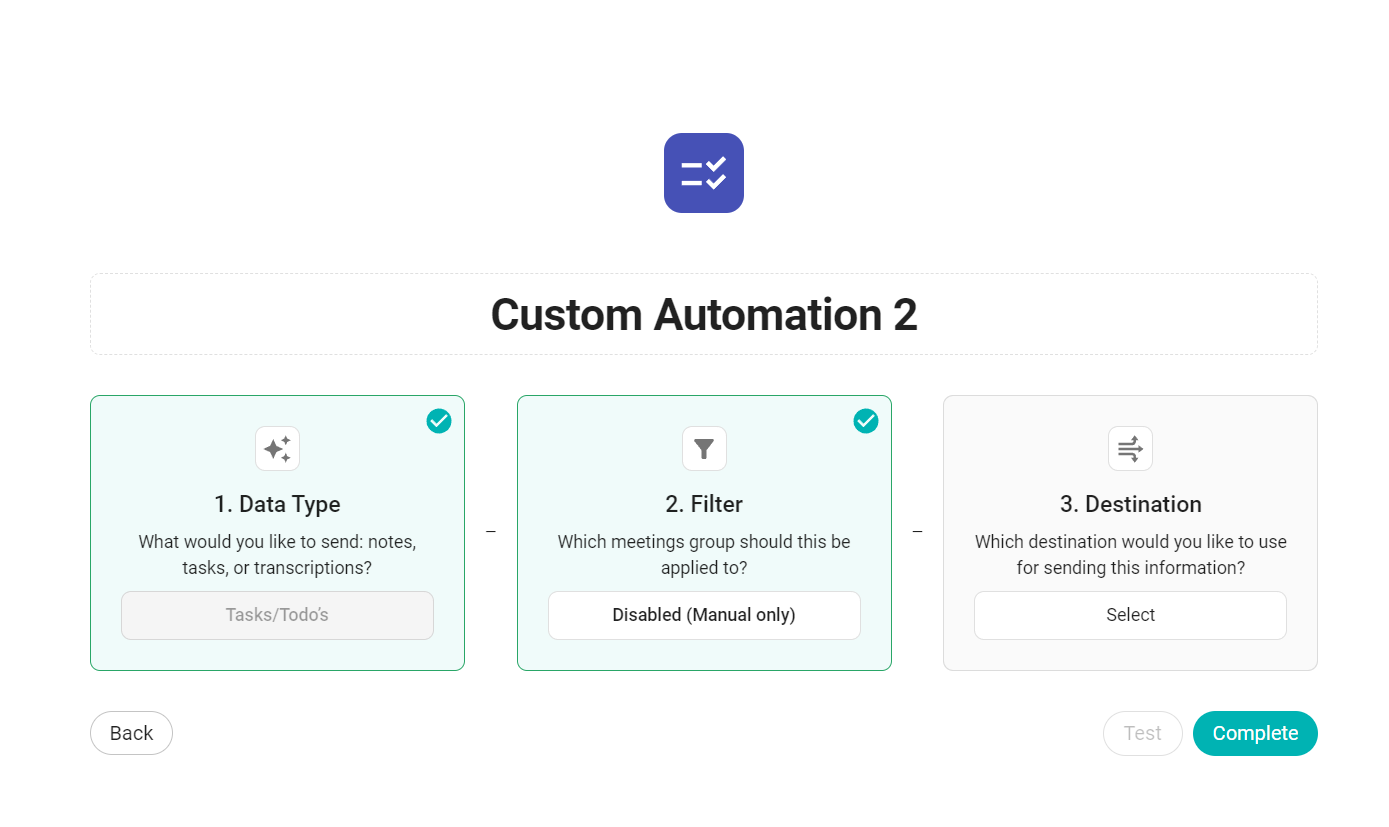
Copy the webhook URL and paste it into Sembly in the Destination field.
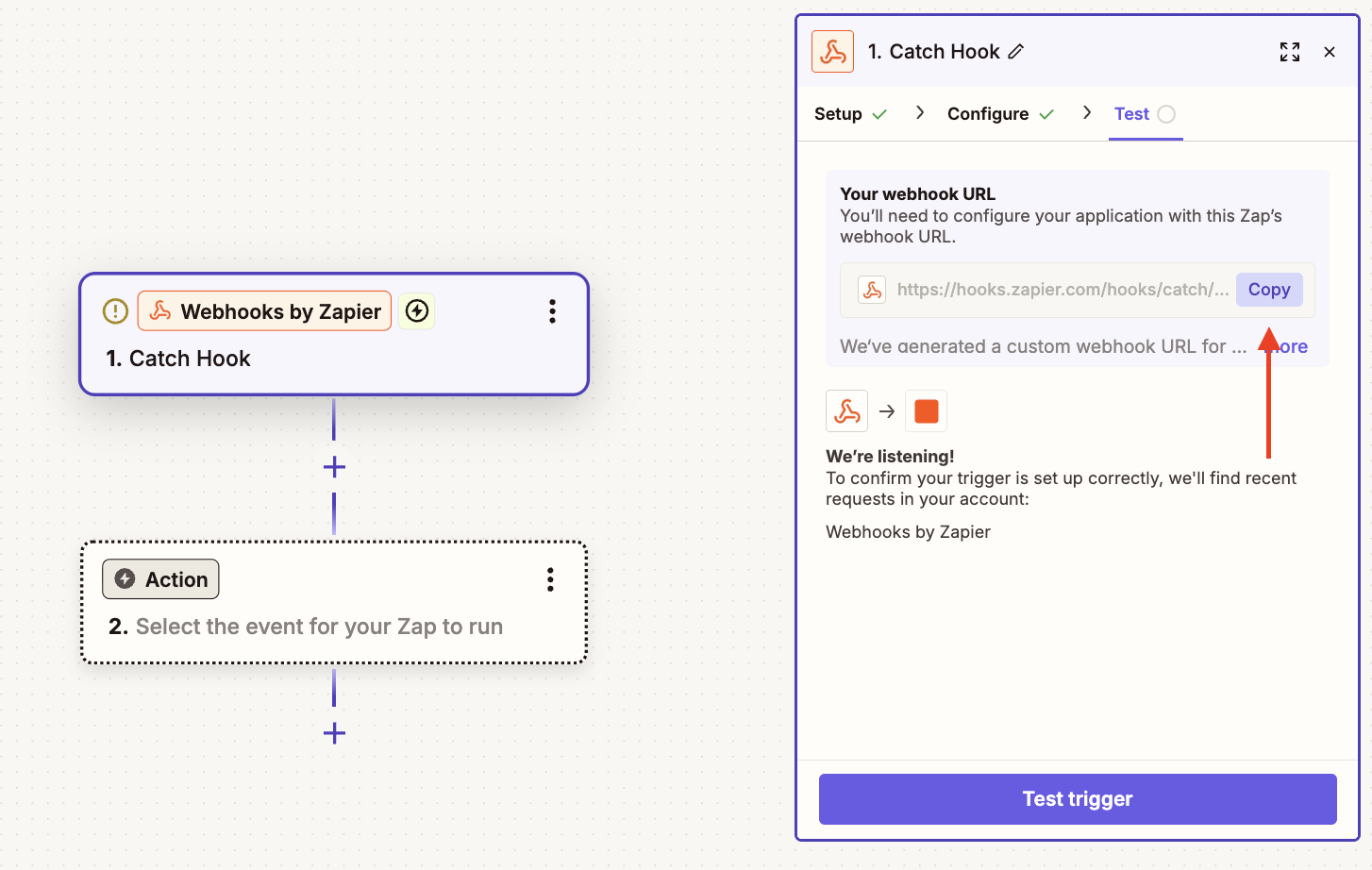
While you are still in Sembly, you can test the link you just pasted.
In Zapier, click Test Trigger, then Continue with selected record.
Search for the app (in our case, Gmail) you will be connecting to Sembly.
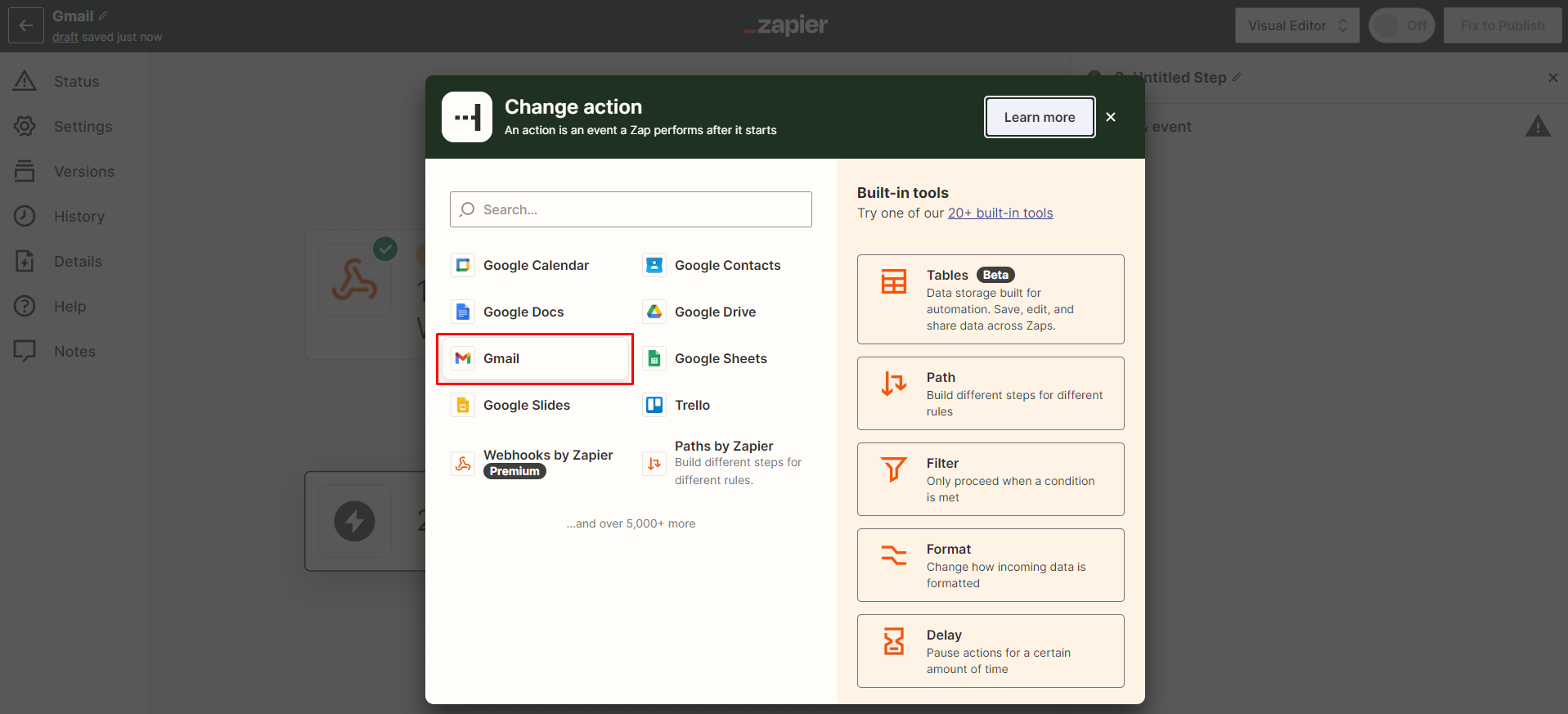
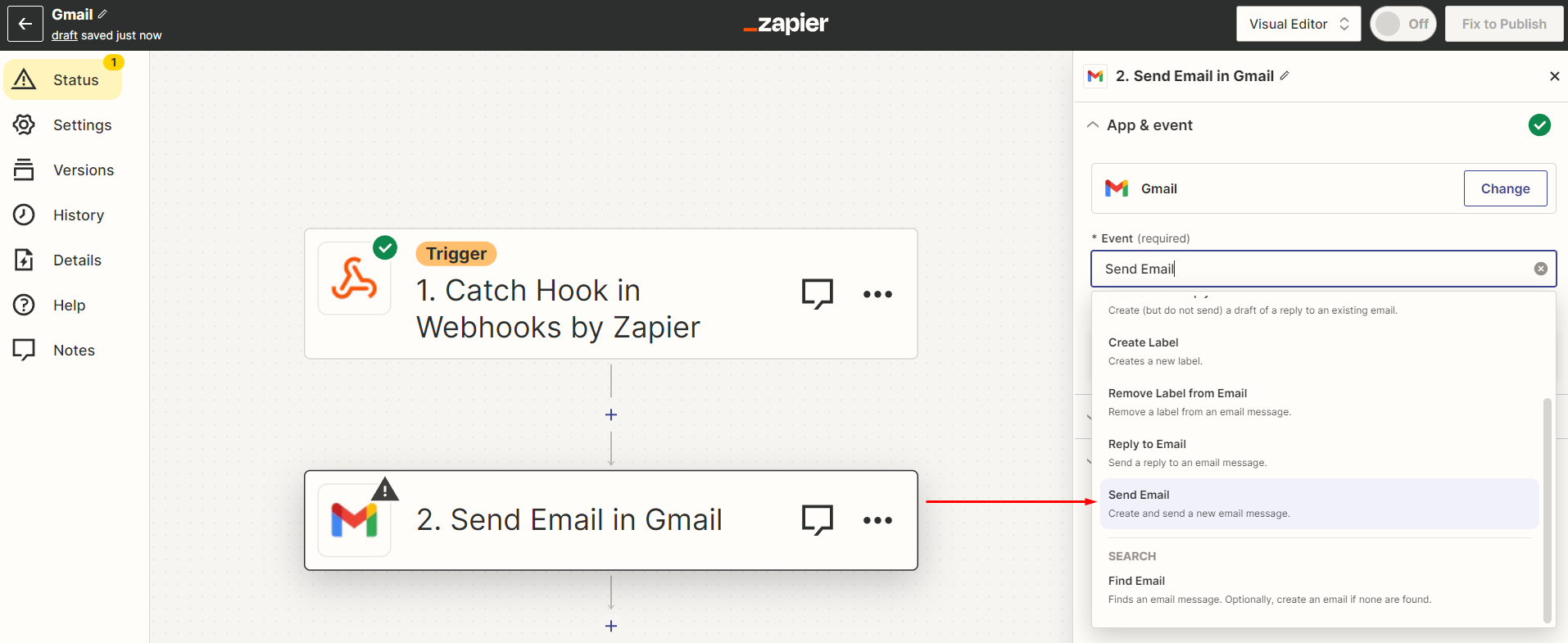
In the Event field, click to open a dropdown, select Send email, and click Continue.
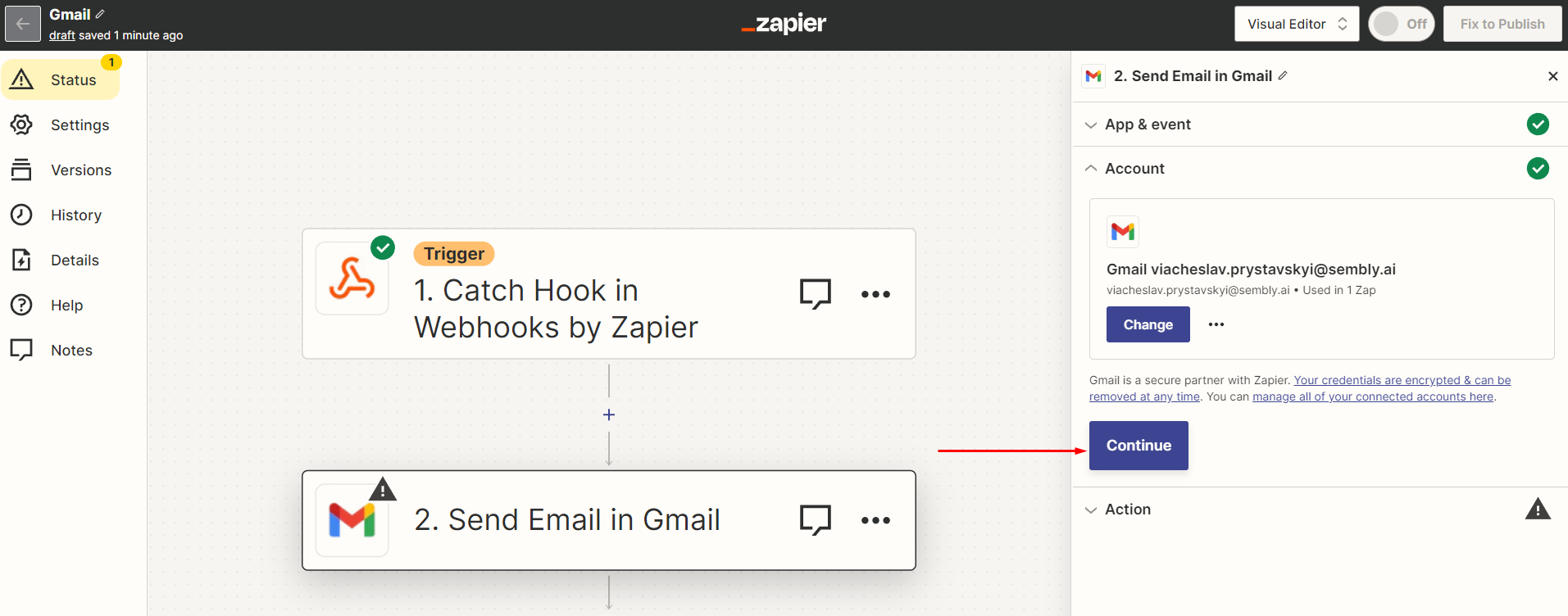
Connect your Gmail account and click Continue.
Then fill in all required fields and click Continue.
Field | What to choose |
To | "Participants" hook |
From | Choose your email |
Subject | Choose the "Meeting title" hook and write the text Meeting Notes |
Bode type | Plain |
Body | Choose the "Meeting Notes" hook. As an option, you can add "Started at" and "Ended at" hooks |
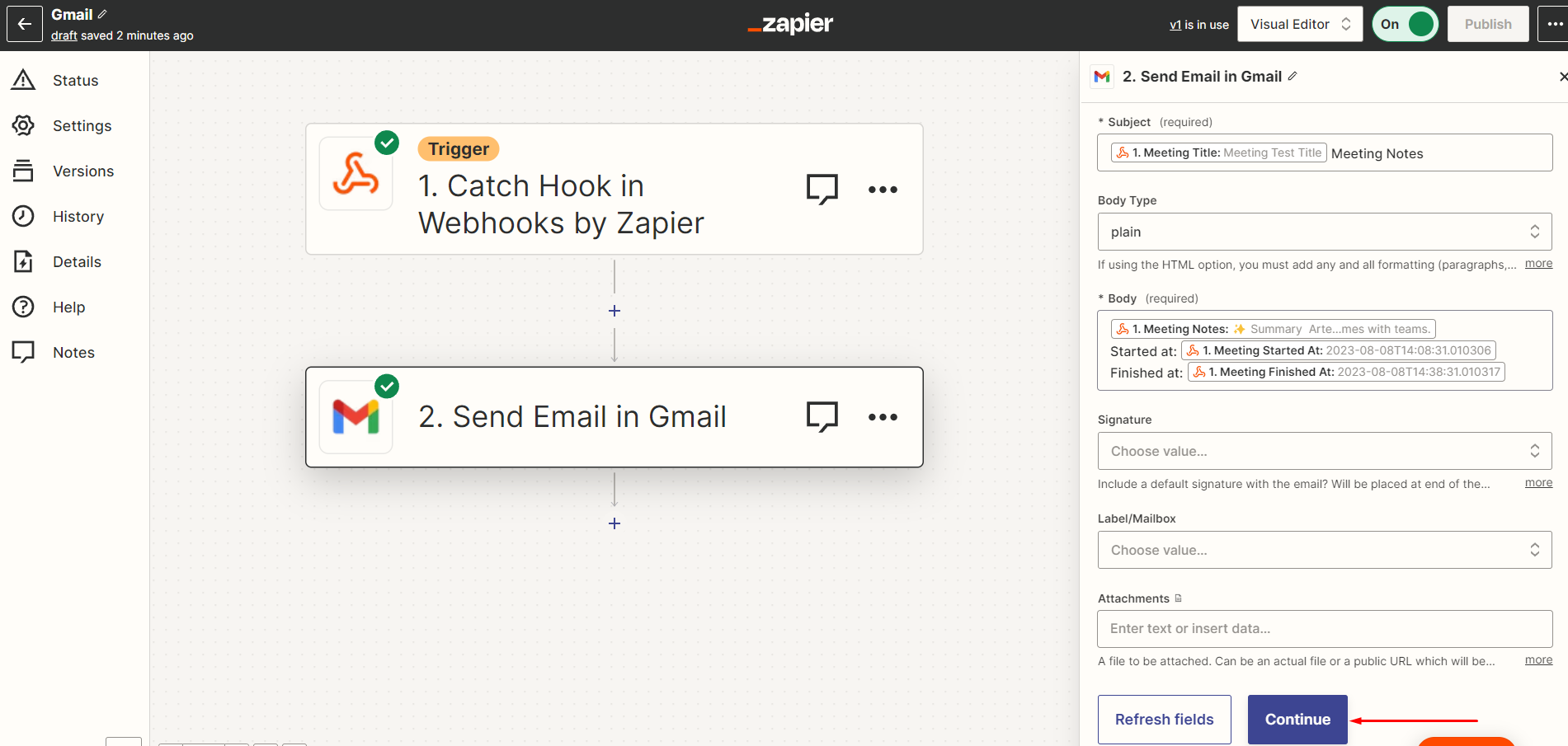
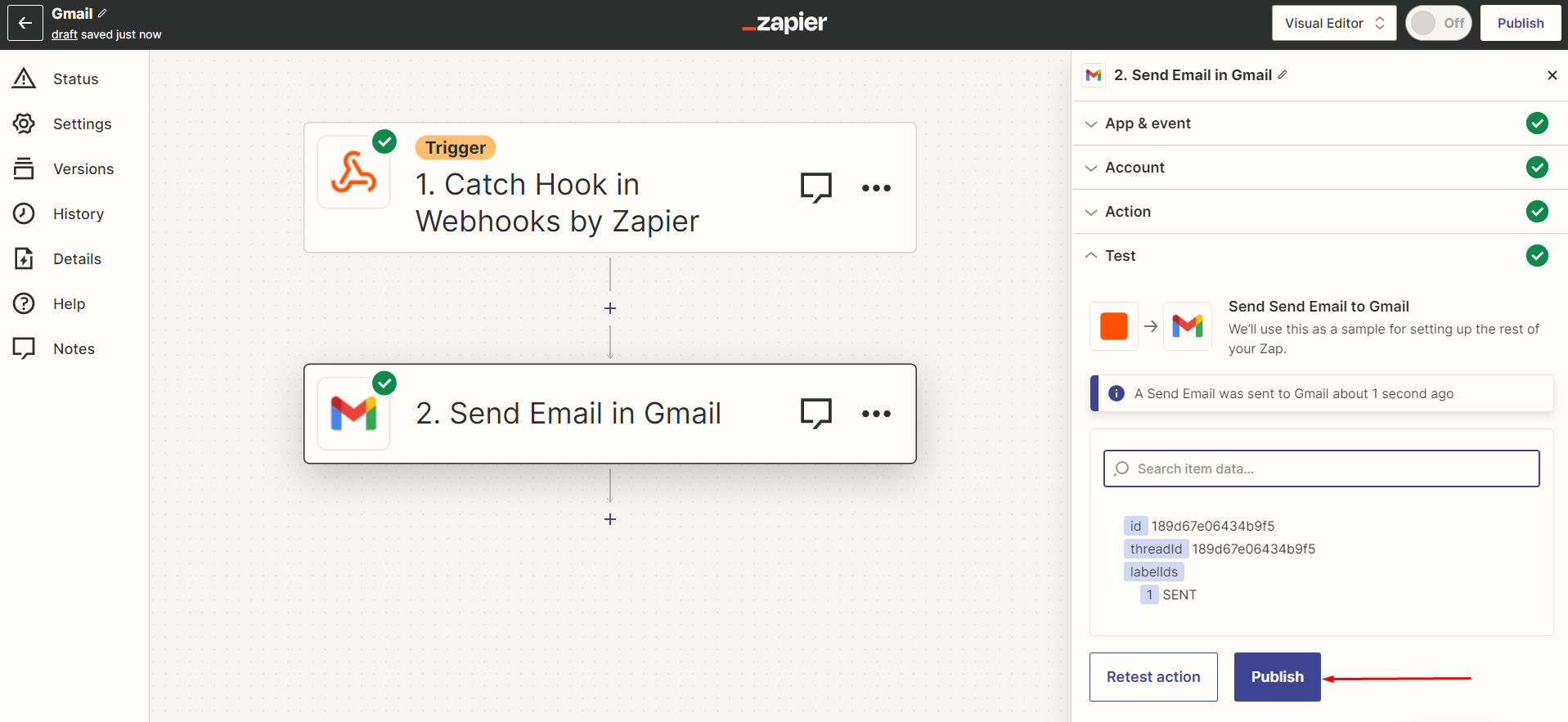
After, you need to click Test action and then Publish.
Go back to Sembly and save your integration by clicking Complete.
Open your meeting in Sembly and click the Zap icon.
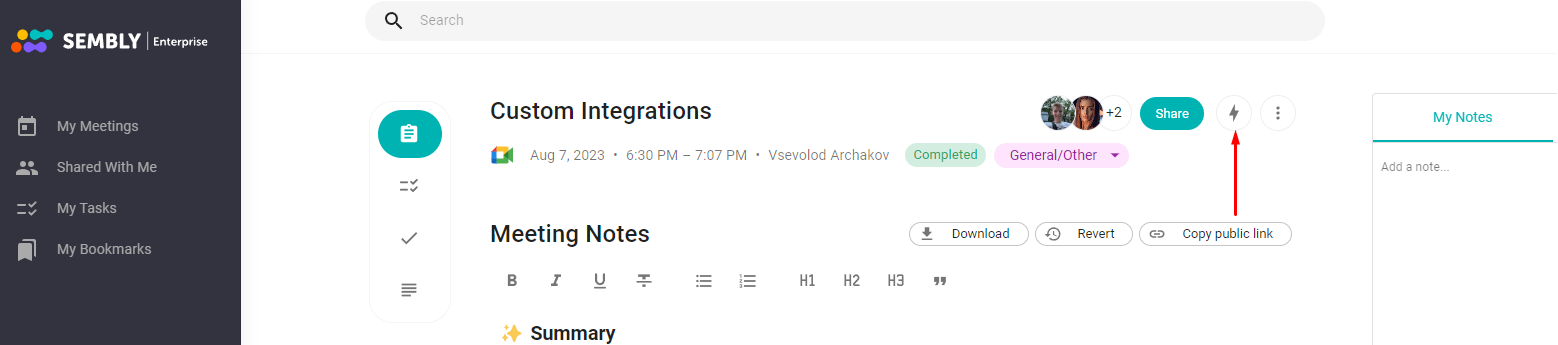
In a dropdown, select the integration and click Post Meeting Notes...
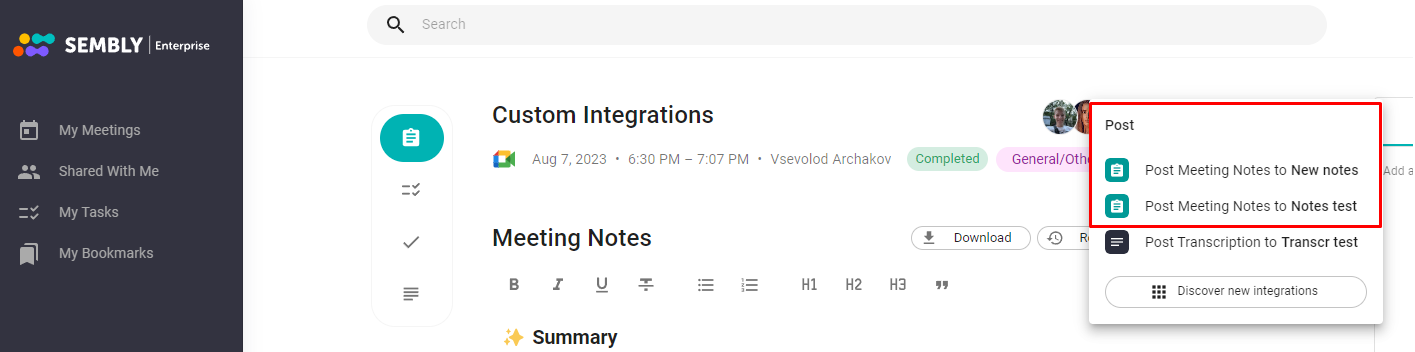
The Meeting Notes will be sent to all people who were on the attendees' list of the meeting.