

If your automation isn’t working as expected, here are a few things to check.
Confirm you are setting up the automation you wanted
My Automations are created at the user level and support both automatic and manual sending
Workspace Automations are managed at the workspace level and only support automatic sending. Manual push is not available. For automatic sending, only meetings that take place after the automation is created will be sent. Past meetings won’t be pushed retroactively.
Ensure that the automation rule is fully configured
The app is properly connected
An automation rule has been created using the + New Automation button
The automation toggle is switched on
Confirm the Destination settings
For most CRMs, the destination is mapped by default (typically to the Contacts section). However, with tools like Monday.com or Notion, you must manually create a board or page and then select it as the destination. Double-check that you’ve chosen the correct area within the app for the data type you’re sending.
Try finding mapped data
If you're unsure where the meeting data was sent in the connected app, use the app’s search function and look up the meeting by its title
Check keywords applied
When using filters like title keywords, keep the following in mind: our system currently does not support phrases or keywords with spaces.
For example, My new meeting won’t work as one phrase. Instead, split it into separate keywords (each keyword must be on a new line — use ENTER, not commas).
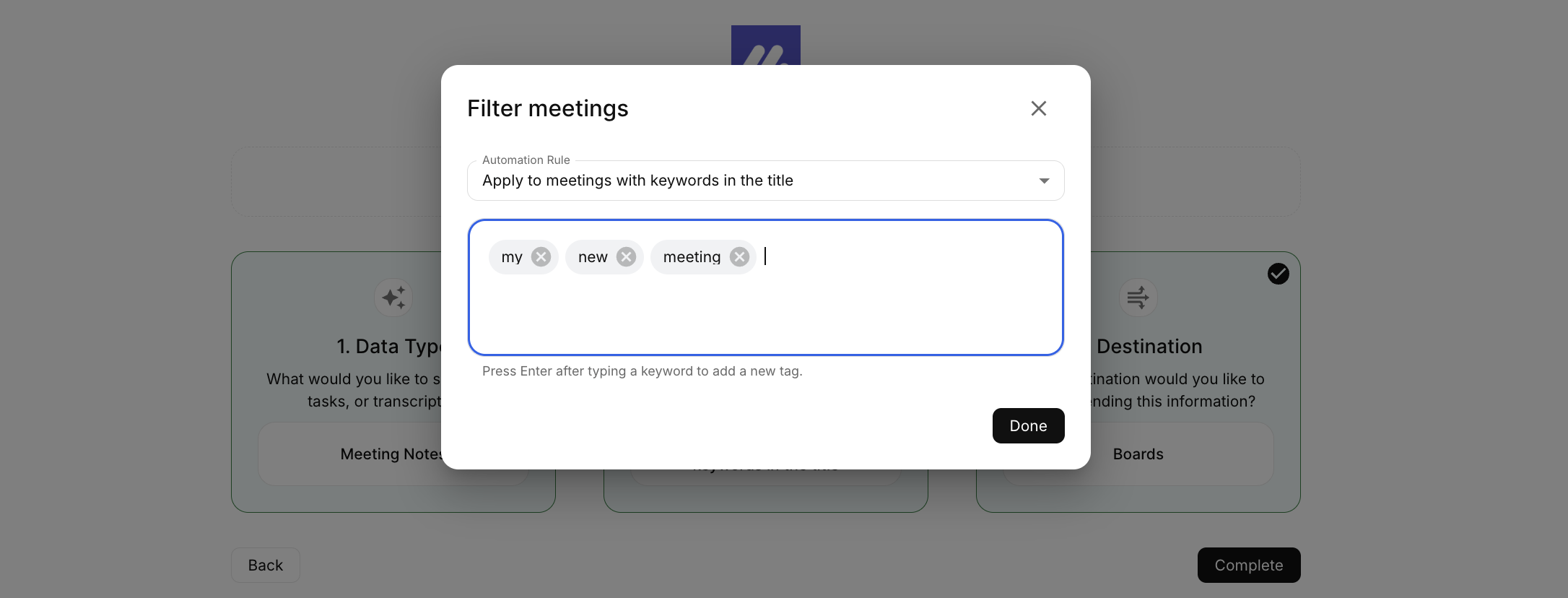
The logic used for keywords is OR, not AND. This means that any meeting containing any of the keywords will match the filter — the system does not require all keywords to appear together. Keywords are not case-sensitive.
Check requirements for sending tasks
When sending tasks, ensure you understand the logic outlined in this guide.
Still Not Working?
If you’ve reviewed all settings and the automation still isn’t sending data:
Try disconnecting and reconnecting the app.
Recreate the automation from scratch and repeat your steps.
If this doesn't help, contact support and include the following information to help us investigate faster: the date and time you attempted to push the data and the session ID of the meeting you attempted to push.