LEGACY PLAN : PROFESSIONAL | TEAM | TEAM PLUS
Sembly identifies speakers by voice and assigns them as Speaker 0 (1,2, etc.) in the transcript. You can manually change the speaker’s displayed name, or it can be done by the system.
Users can record Voice ID, and their names will automatically be assigned to their voices after the call. This option works for users registered in Sembly.
If you record your meeting in MS Teams, Zoom, or Google Meet, voices will be automatically recognized and assigned according to the speakers' names displayed on the call. Sembly can recognize the names of all speakers, including registered Sembly users and participants who haven’t yet signed up.
Below is a list of ways to record meetings in Sembly.
| Automatic name recognition | Voice ID |
Yes | Yes | |
No | Yes* | |
No | Yes* |
* - applied to members of your workspace. Sembly users outside of your workspace won't be assigned by Voice ID in your meetings; you will need to edit their names manually
Change the speaker’s name to any you prefer, or assign a Sembly user to the voice
Log in to Sembly and open your meeting
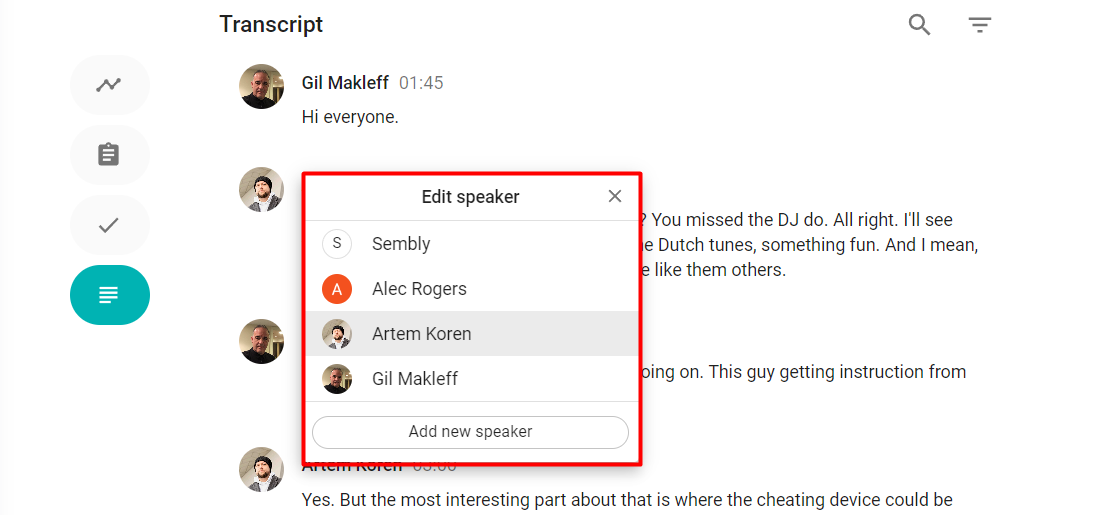
In the utterance that belongs to the speaker you identified, click Speaker 0 (1, 2, etc.).
In a dropdown, select a user that Sembly suggests for this utterance
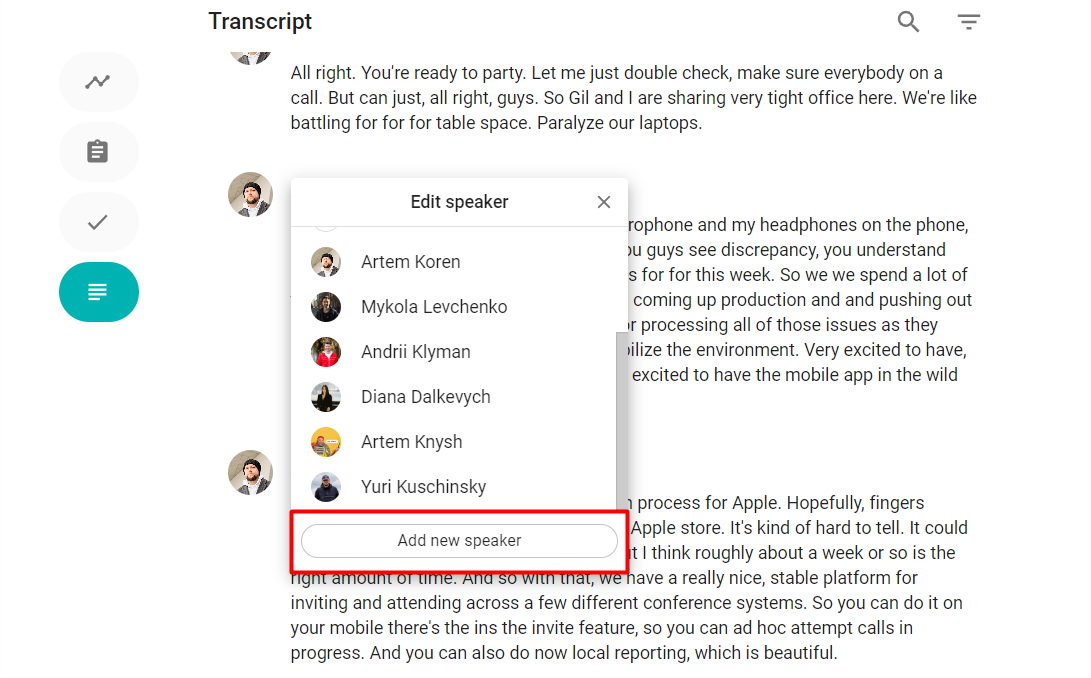
If you didn’t find a correct user, click Add new speaker and select among attendees
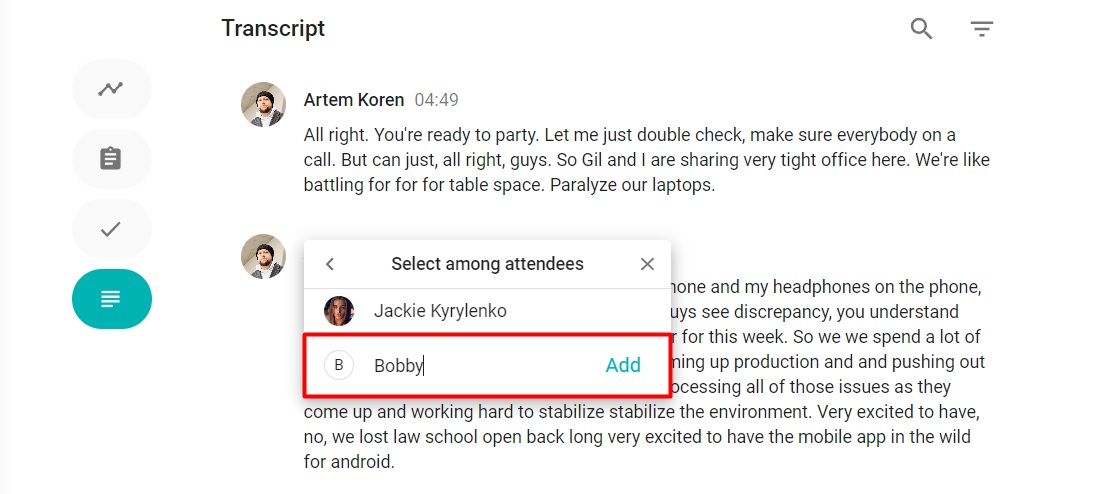
If the Speaker is not a Sembly user, type in the name manually and click add
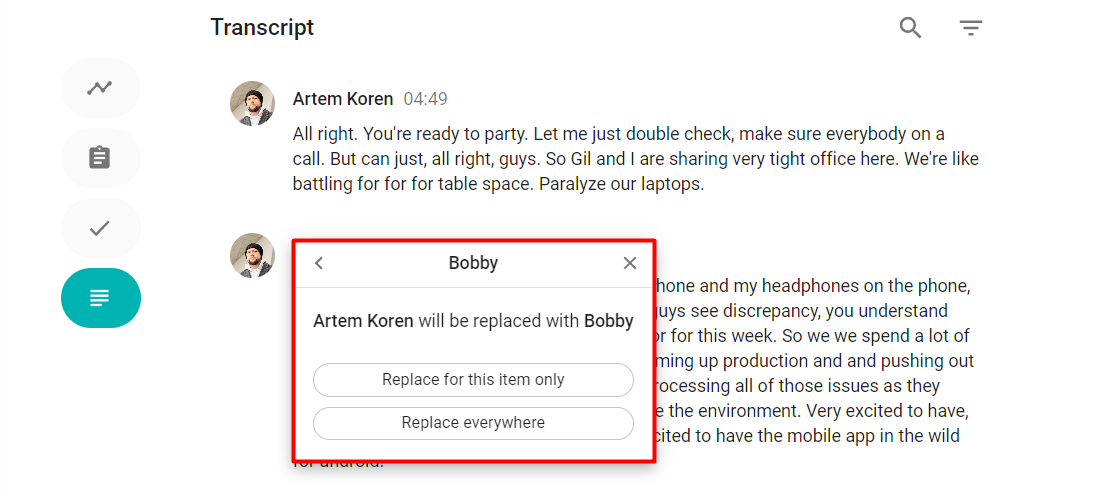
Confirm your choice in a pop-up to replace the Speaker. Select the option Replace for this item only or Replace everywhere (replace this speaker in every utterance)
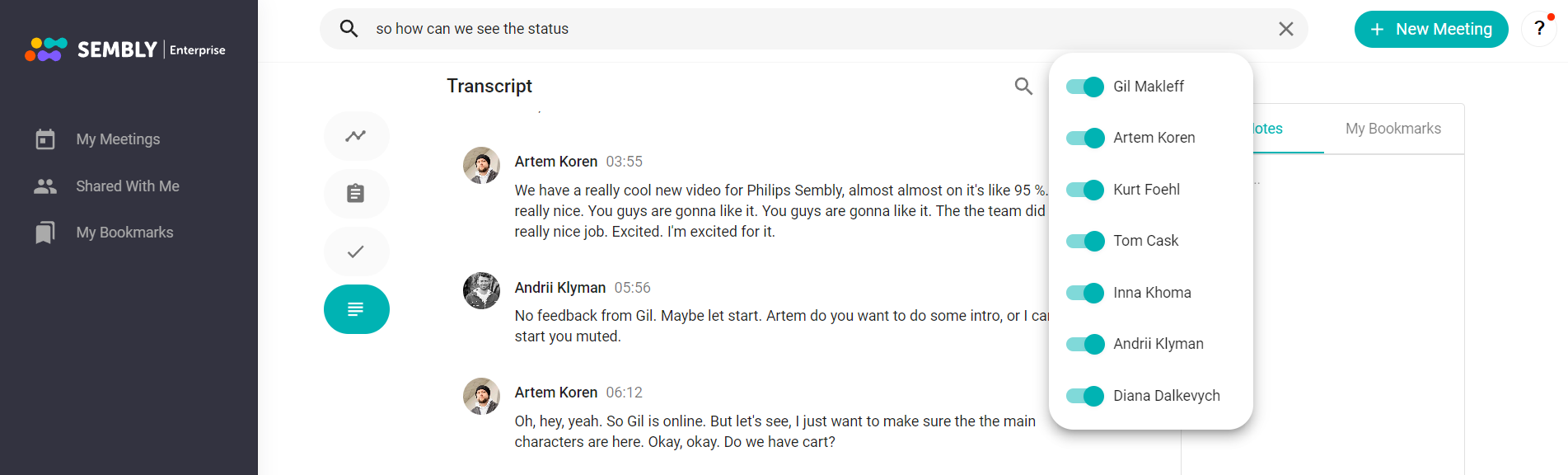
You can filter the dialogue of a specific participant. Filtering the transcription to the selected participants will remove utterances from all non-selected participants.
Click the filter button on the upper-right side of the transcription
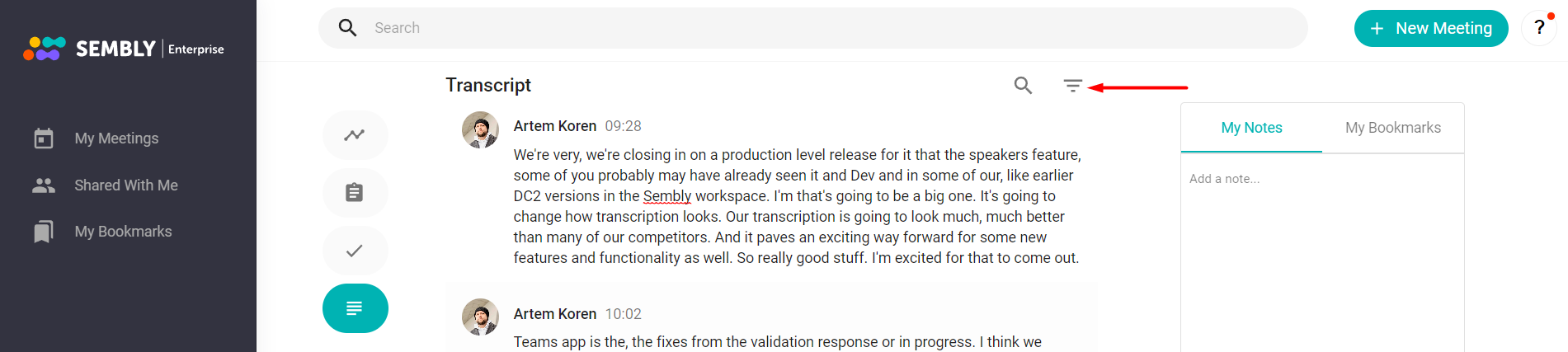
In a dropdown, toggle off/on the users you want to filter out