
LEGACY PLAN : PROFESSIONAL | TEAM | TEAM PLUS
You can record in-person meetings in Sembly without starting a conference call when everyone is in the same room. For clearer sound and better transcription, we recommend using a hardware device. You can also use your device’s built-in microphone.
The Audio Recorder is designed for in-person meetings. If you try to record an online meeting in another tab, your microphone probably won’t capture sound from the speakers. For a successful recording, don’t refresh the page or switch tabs, and keep your internet connection stable.
Enter your Sembly account, click the Notes/Studio tab in the upper-left corner, click the + New Meeting on the upper-right side of the screen, and select Record Audio.
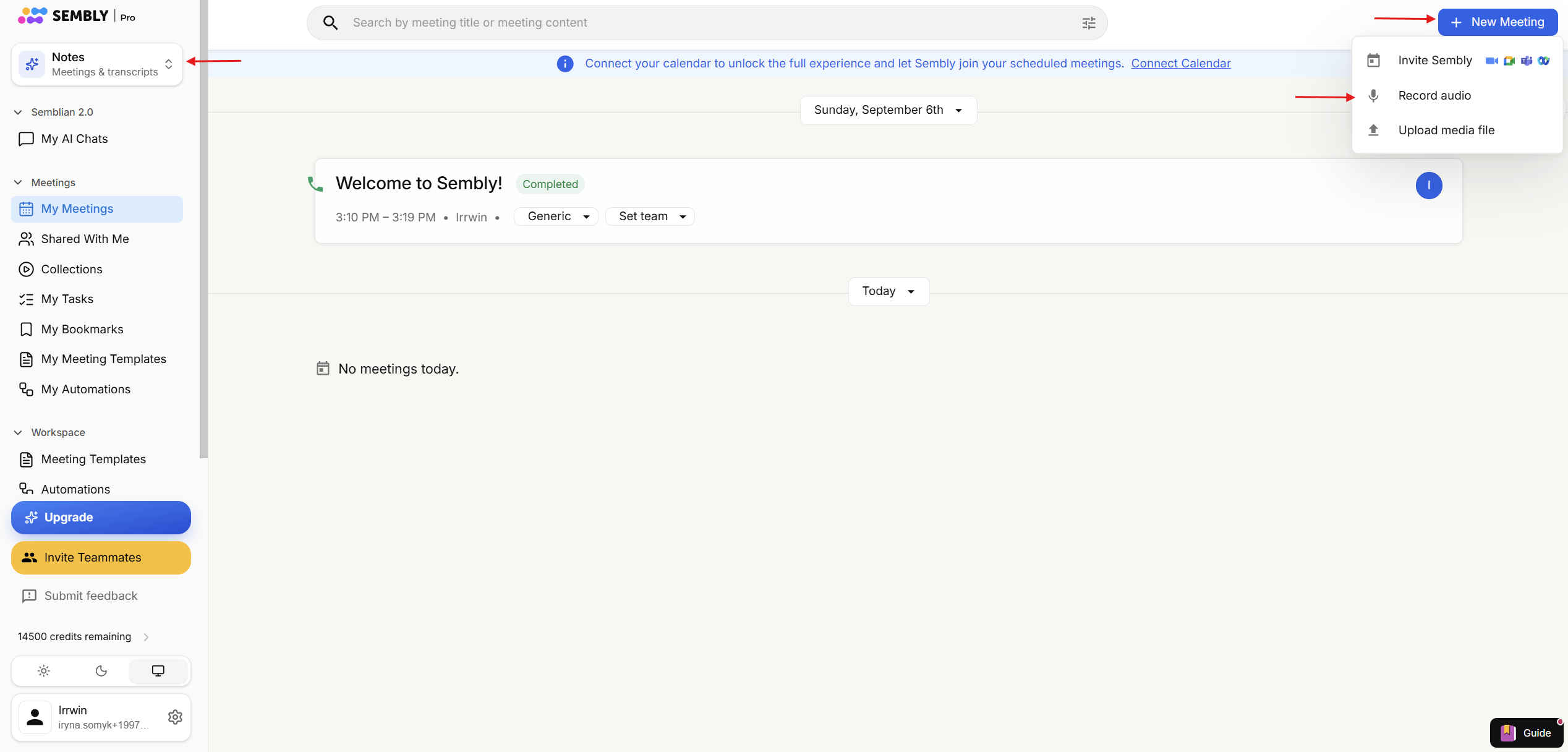
You can change the meeting title in the title field.
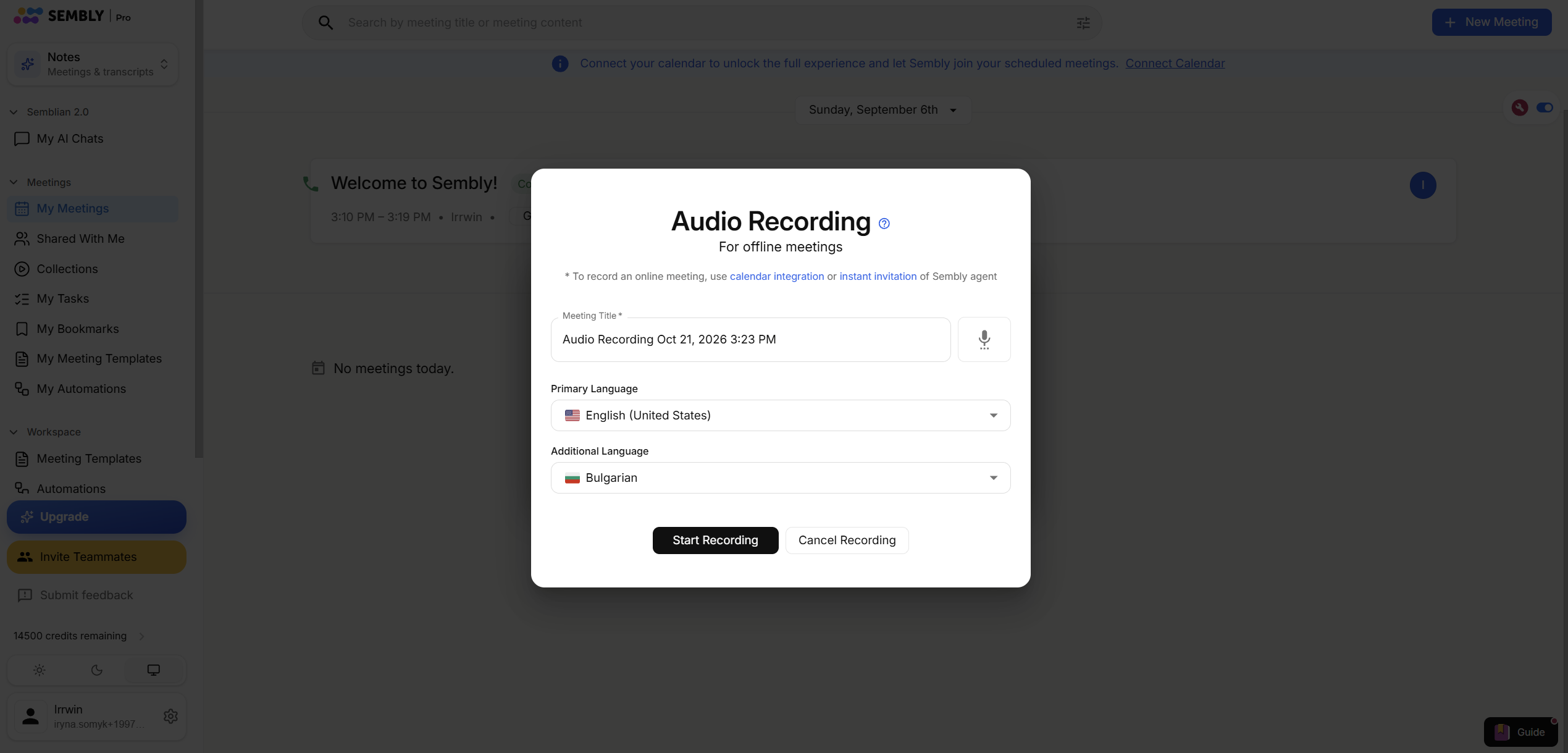
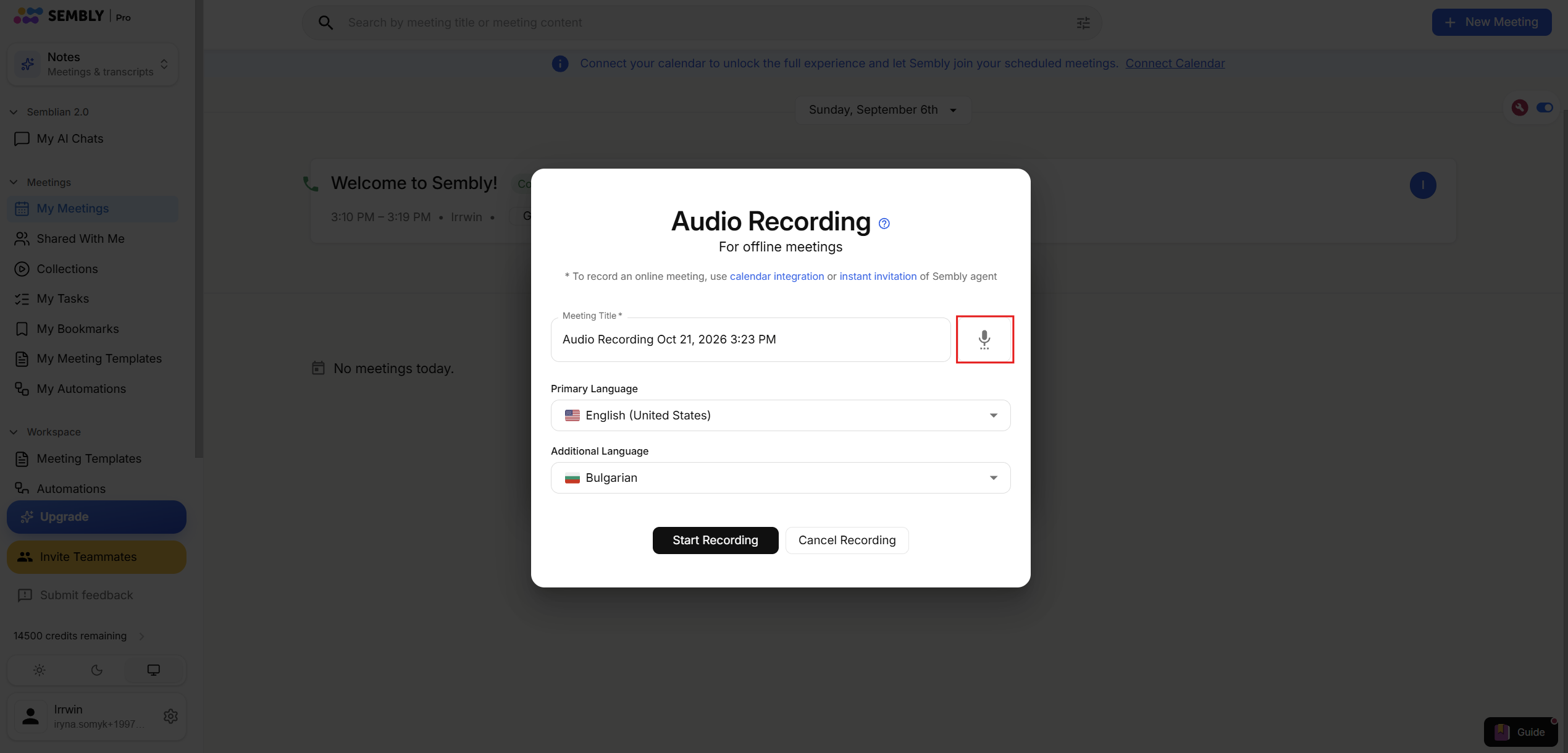
3. Click the microphone on the left side of the title area to apply audio permissions.
Allow Sembly access to your microphone.
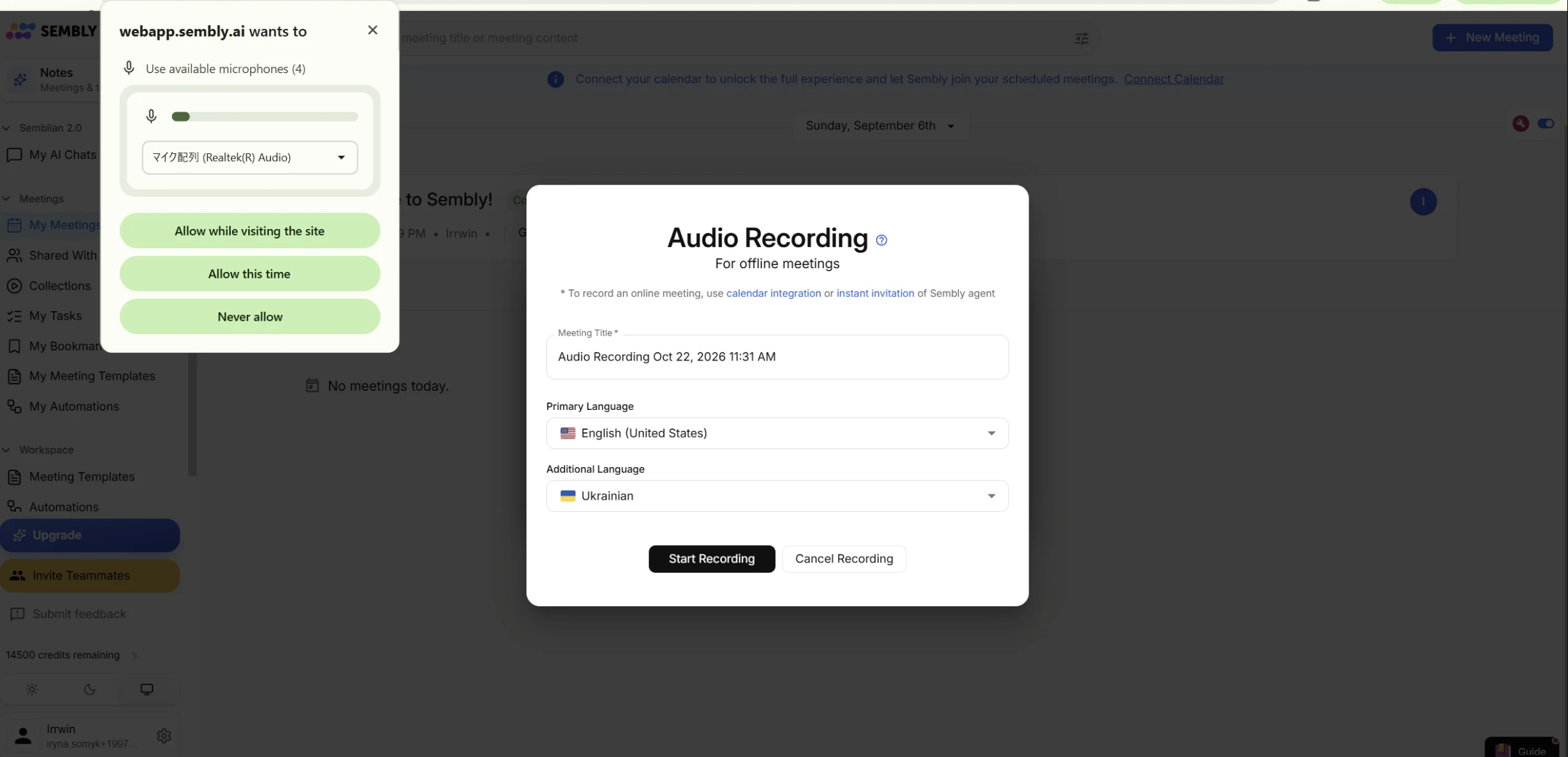
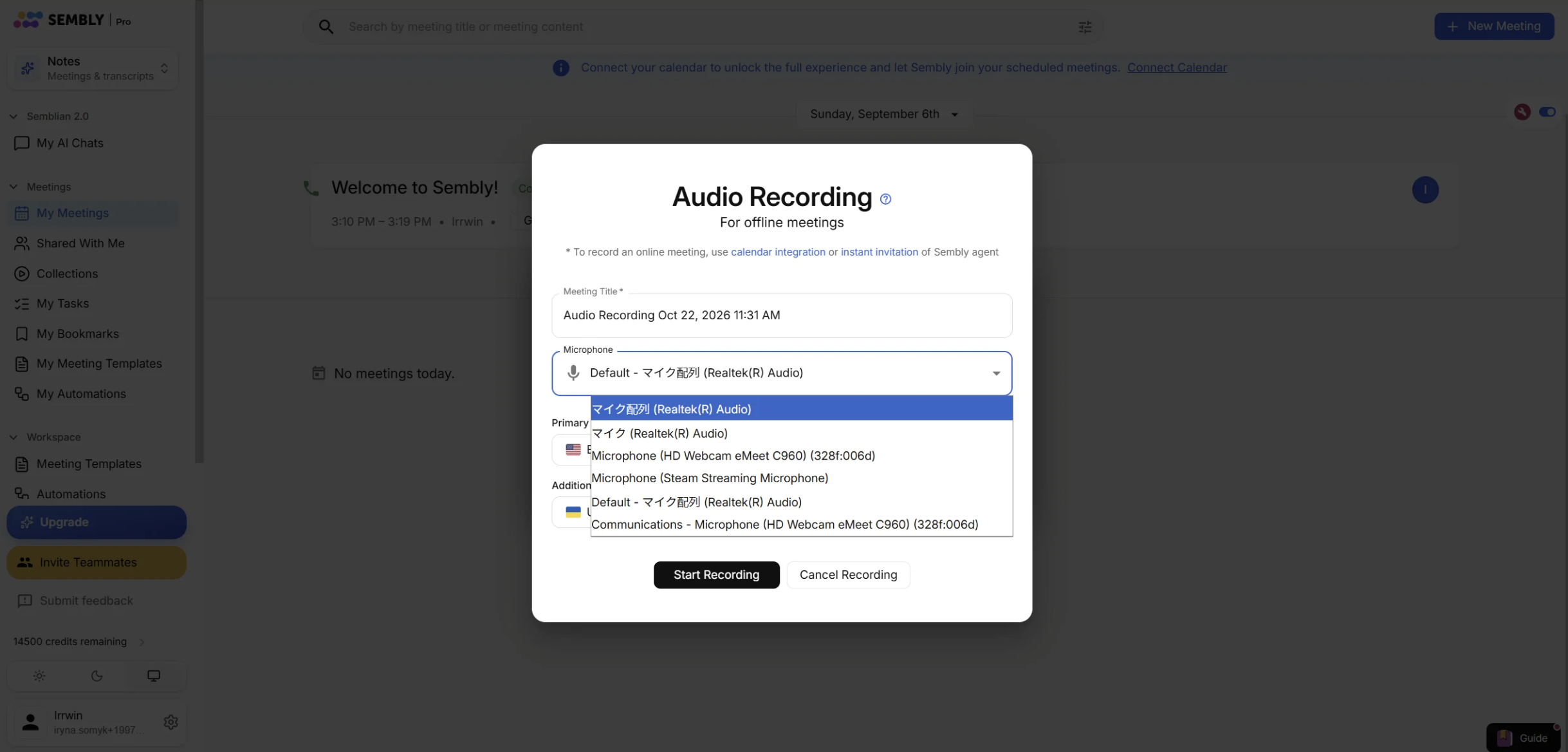
Choose the microphone you wish to use from a dropdown list.
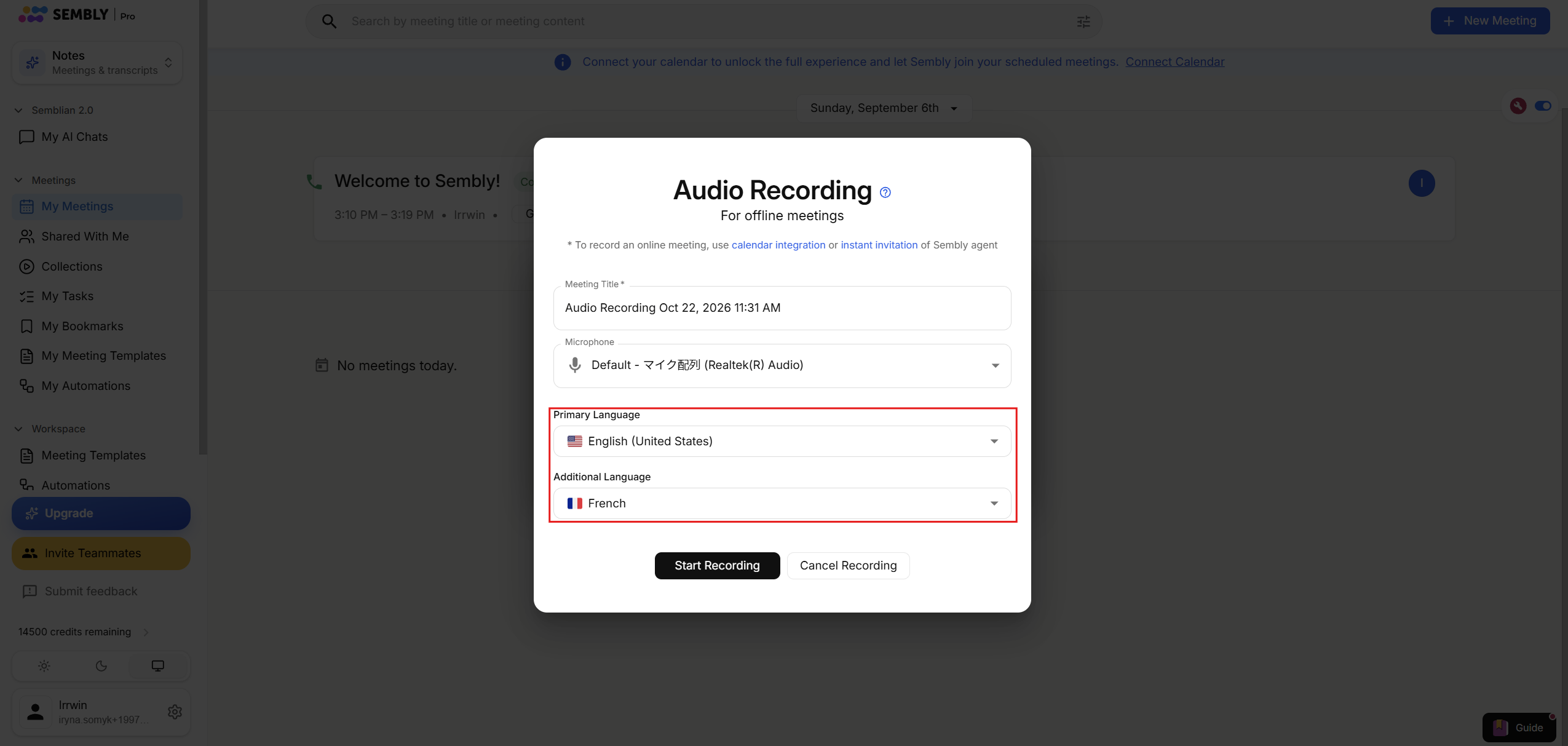
Below, select the language. If you speak two languages, select your second language as an additional language, so the transcription is correct.
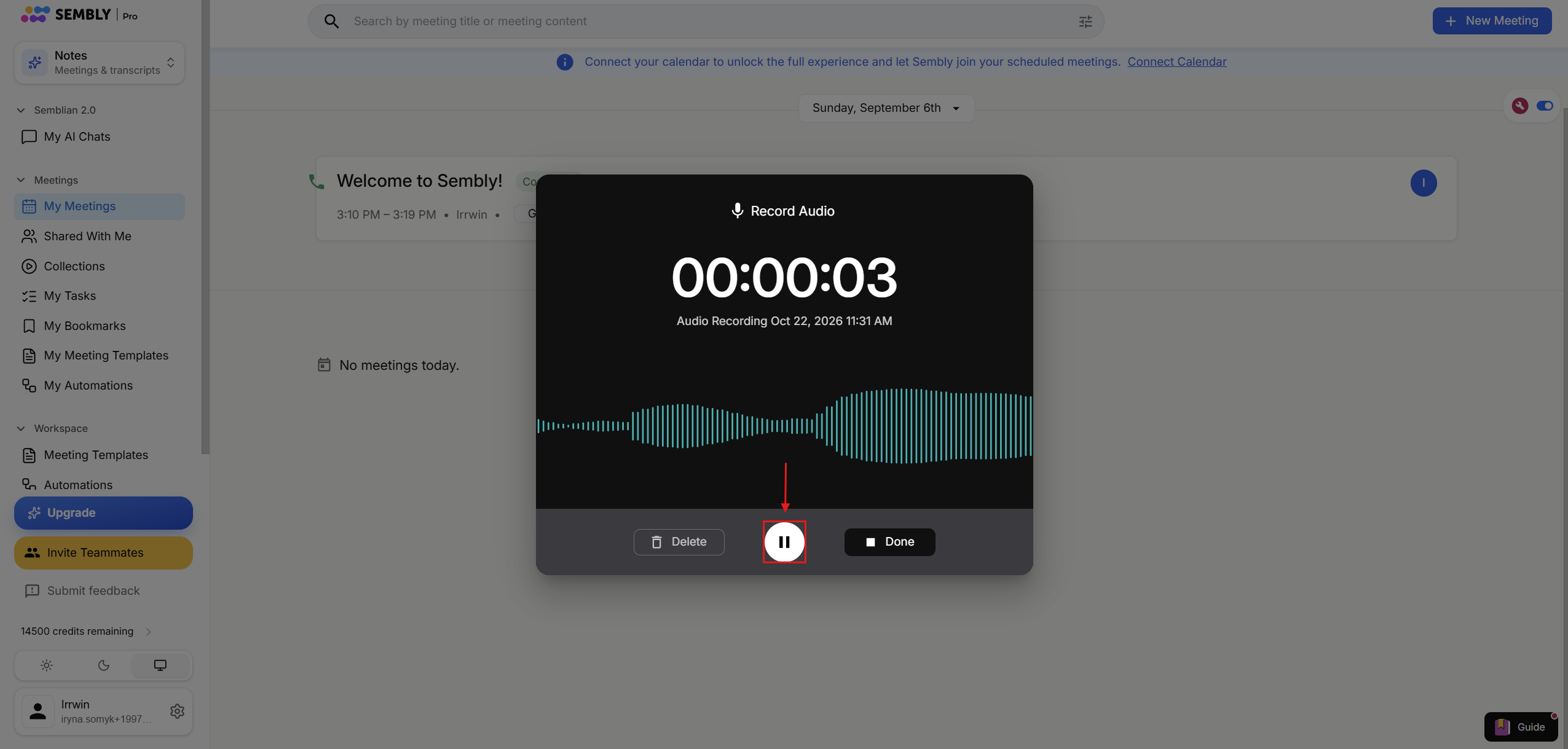
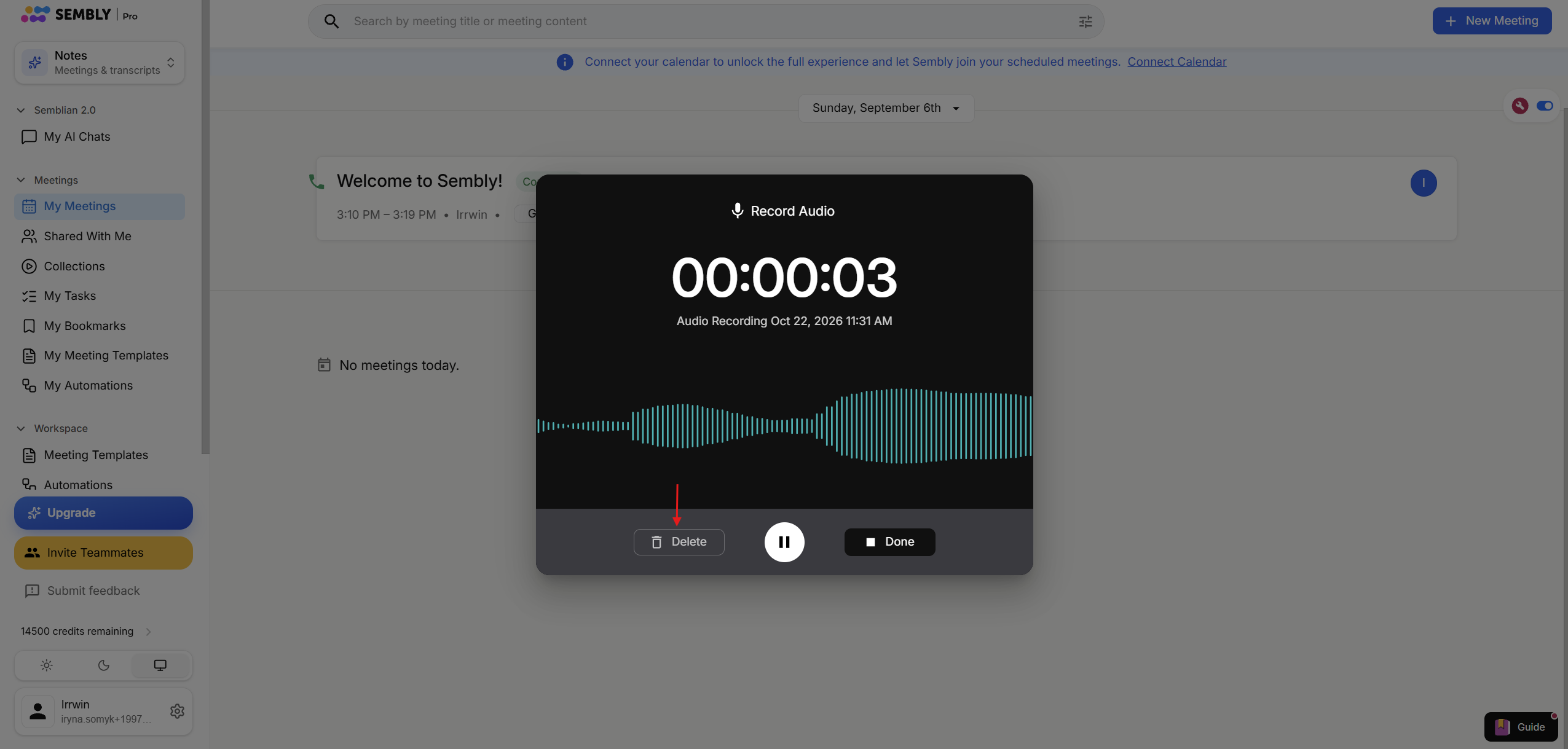
Start your dialogue. You can pause the recording if needed and resume it at the bottom of the recording.

Once you are finished, click Done to save the meeting.
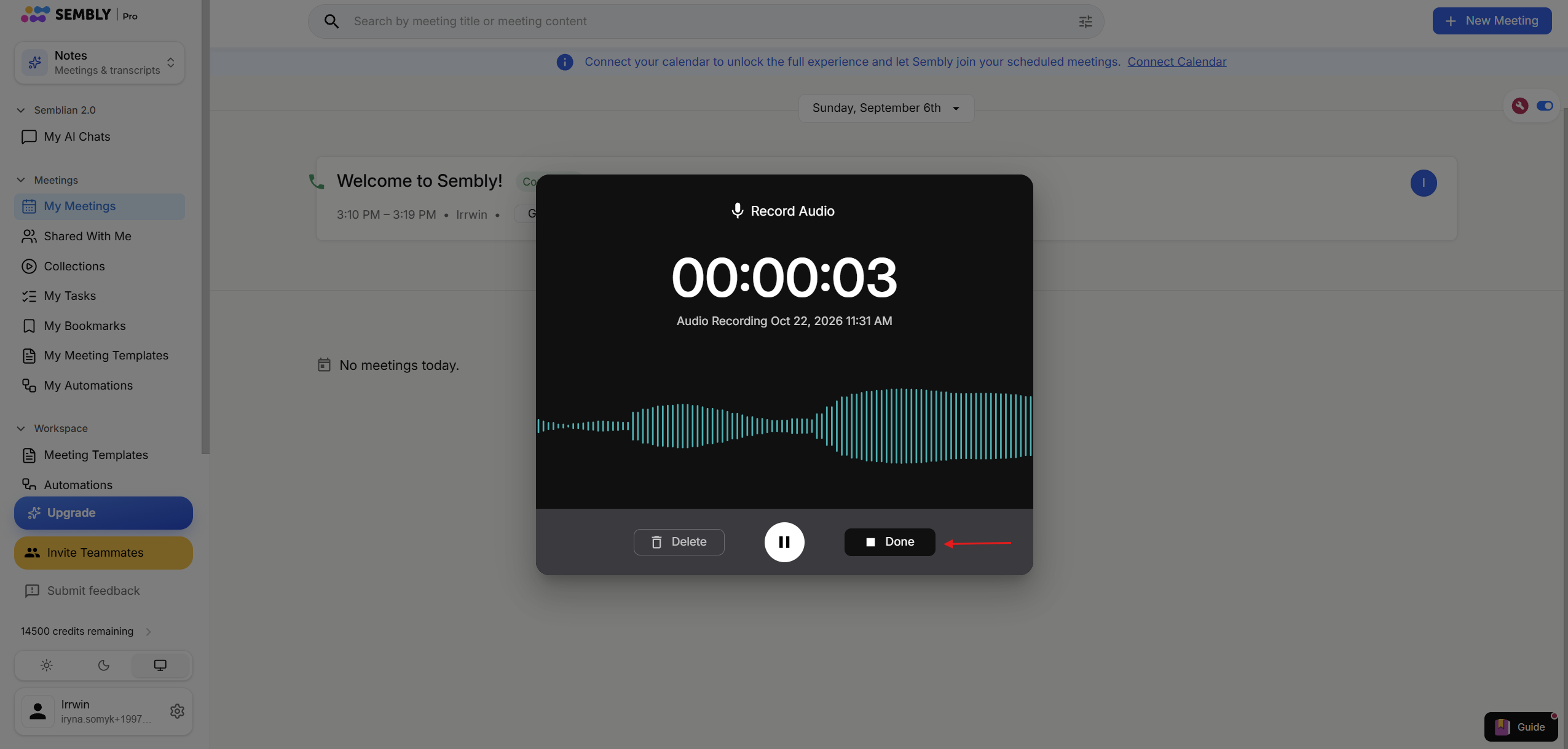
If you wish to cancel the recording, you can click Delete on the left side of the recording window
If you use Safari, using the built-in microphone for recordings is preferable. If you connect an external microphone to your laptop or PC for an enhanced experience, we recommend using Firefox, Chrome, Opera, or Edge to make recordings.

