LEGACY PLAN : PROFESSIONAL | TEAM | TEAM PLUS
This article will briefly show you three easy methods to invite the Sembly agent to your Webex meetings, enabling you to record them effortlessly. Additionally, you’ll find tips here to help you record Webex meetings effectively.

Below, you can find options you can use to invite a Sembly agent to your meetings:
Immediate invite option
Invite Sembly by email
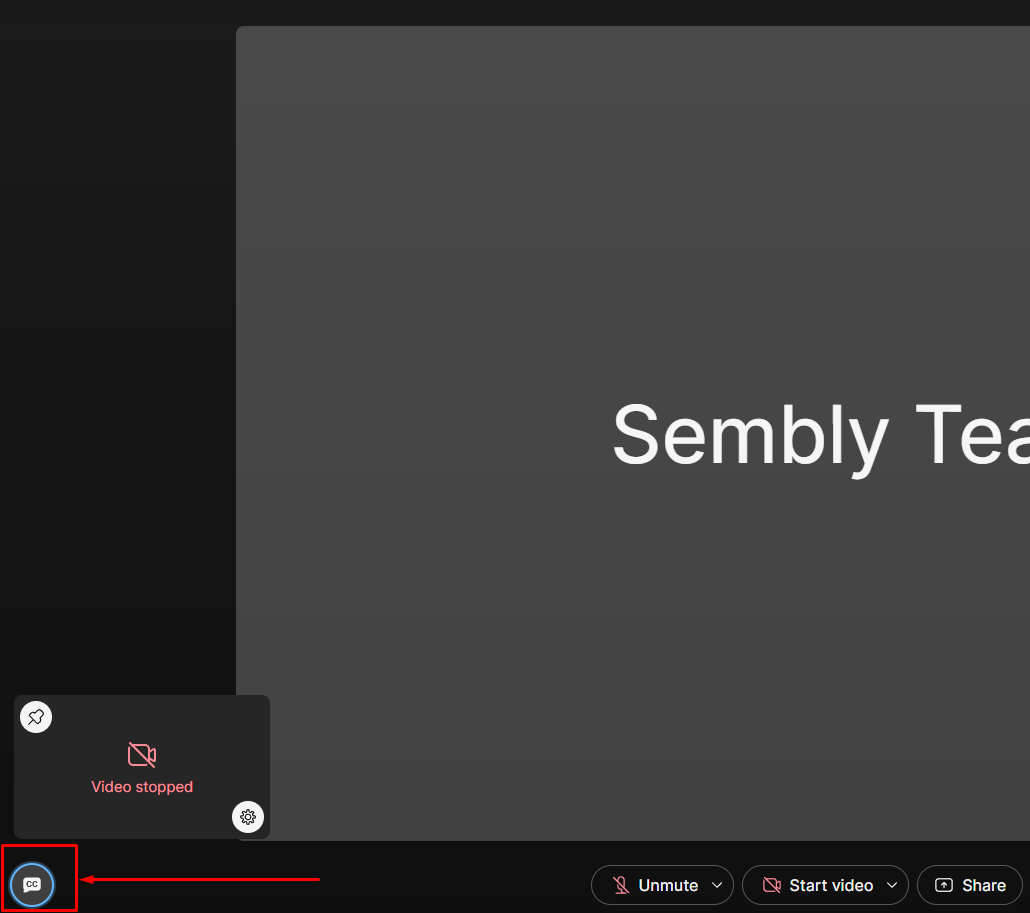
An important thing: before the recording starts, turn on the live captions in the bottom-left corner of the Webex meeting. This ensures that speakers are identified by their names as they join the meeting. If no captions are turned on, speakers will be identified as Speaker 0 (1,2, etc.). Once the meeting is completed, you can manage the speakers' names as described here. To turn on captions, please refer to the following screenshot: