This article will help you understand and troubleshoot errors you may encounter while using Sembly. The errors listed below only appear in meetings with a "No Content" status, highlighted in orange.
At the end of this guide, you will also find possible reasons why the meeting could be missing from your account.
To unhide meetings with errors, on your home page, hover over the toggle in the upper-right corner of the list and click it to switch it on.
Sembly was unable to join your meeting: the meeting does not exist
What you can do:
check if the meeting invite is still valid and not outdated
try to create a new meeting
Sembly was unable to join your meeting: access denied
settings of the conference platform do not allow Sembly to join the call. They require user authorization or CAPTCHA entry
What you can do:
in MS Teams, check your account for attendance restrictions for guests. Check if you have the value "everyone" in the setting "who can bypass the lobby"? Also, please check if the call has the same settings. If you were invited to the meeting, ask the meeting owner to remove restrictions
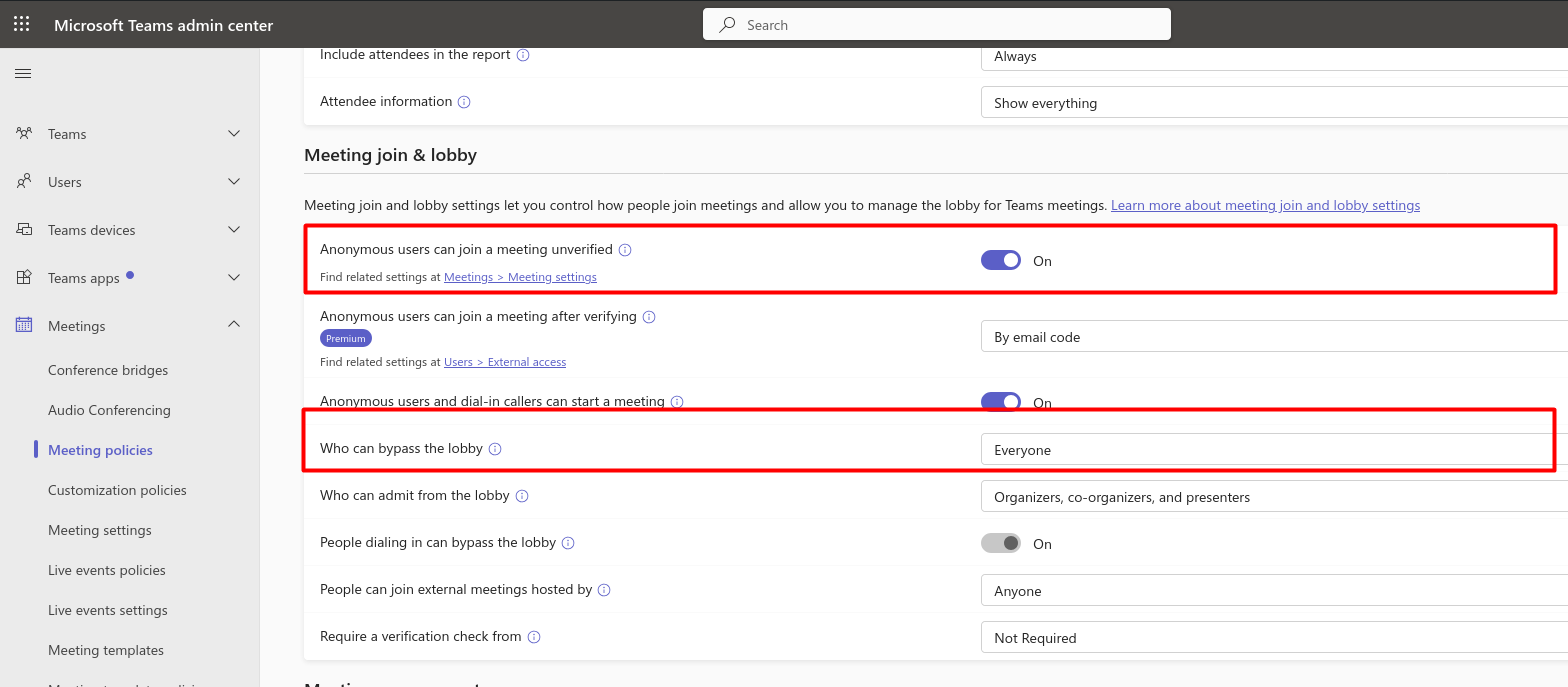
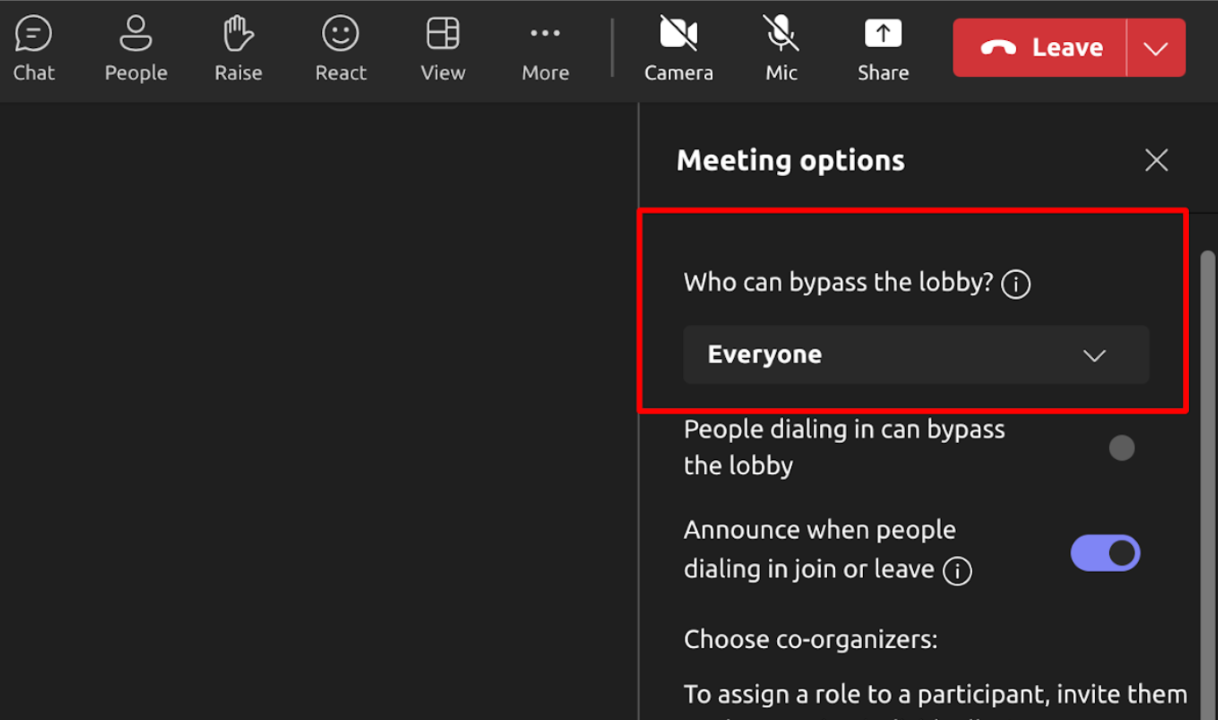
also, in MS Teams, check if CAPTCHA settings are disabled. More in this guide
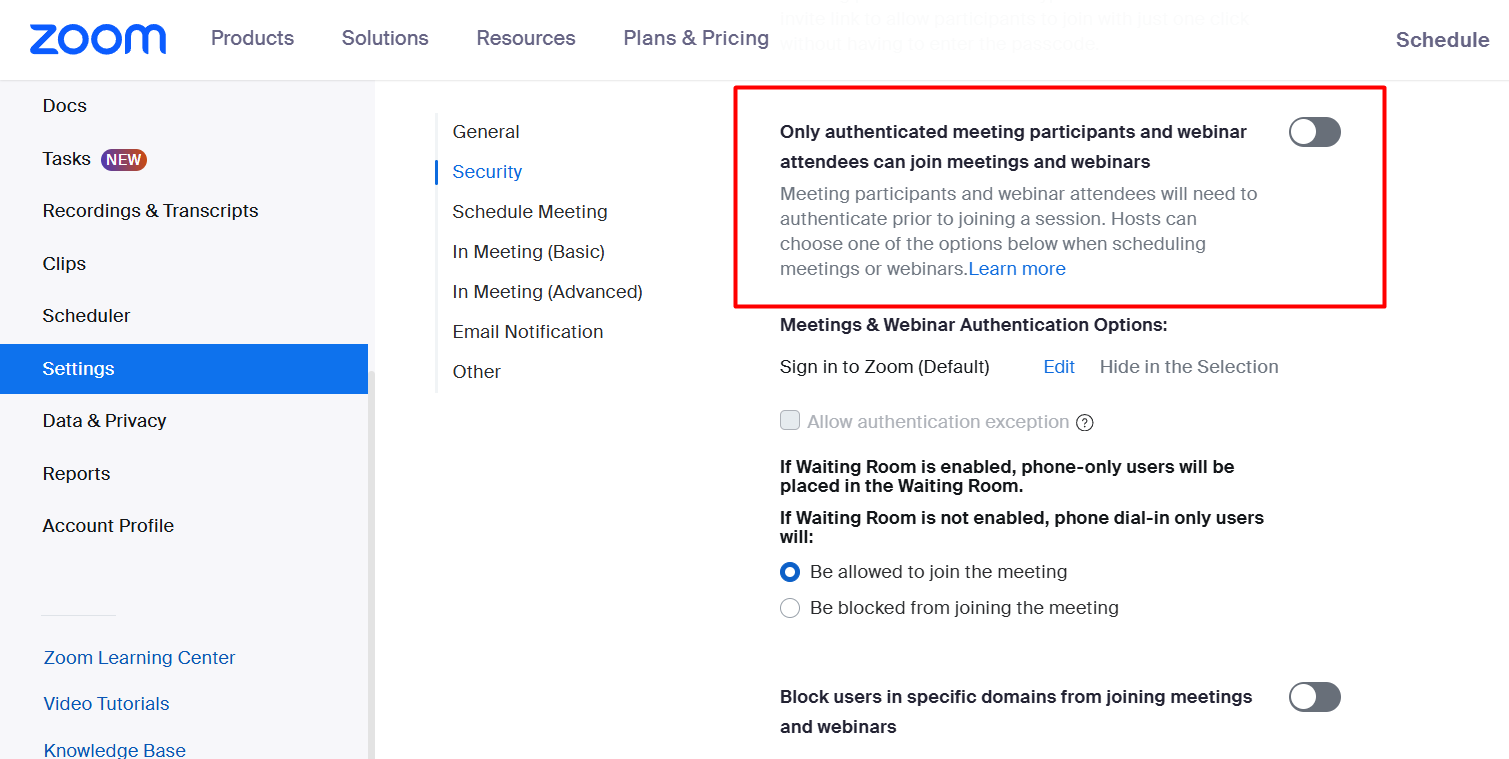
for Zoom, go to your account, Settings -> Security, and turn off the toggle Only authenticated meeting participants and webinar attendees can join meetings and webinars
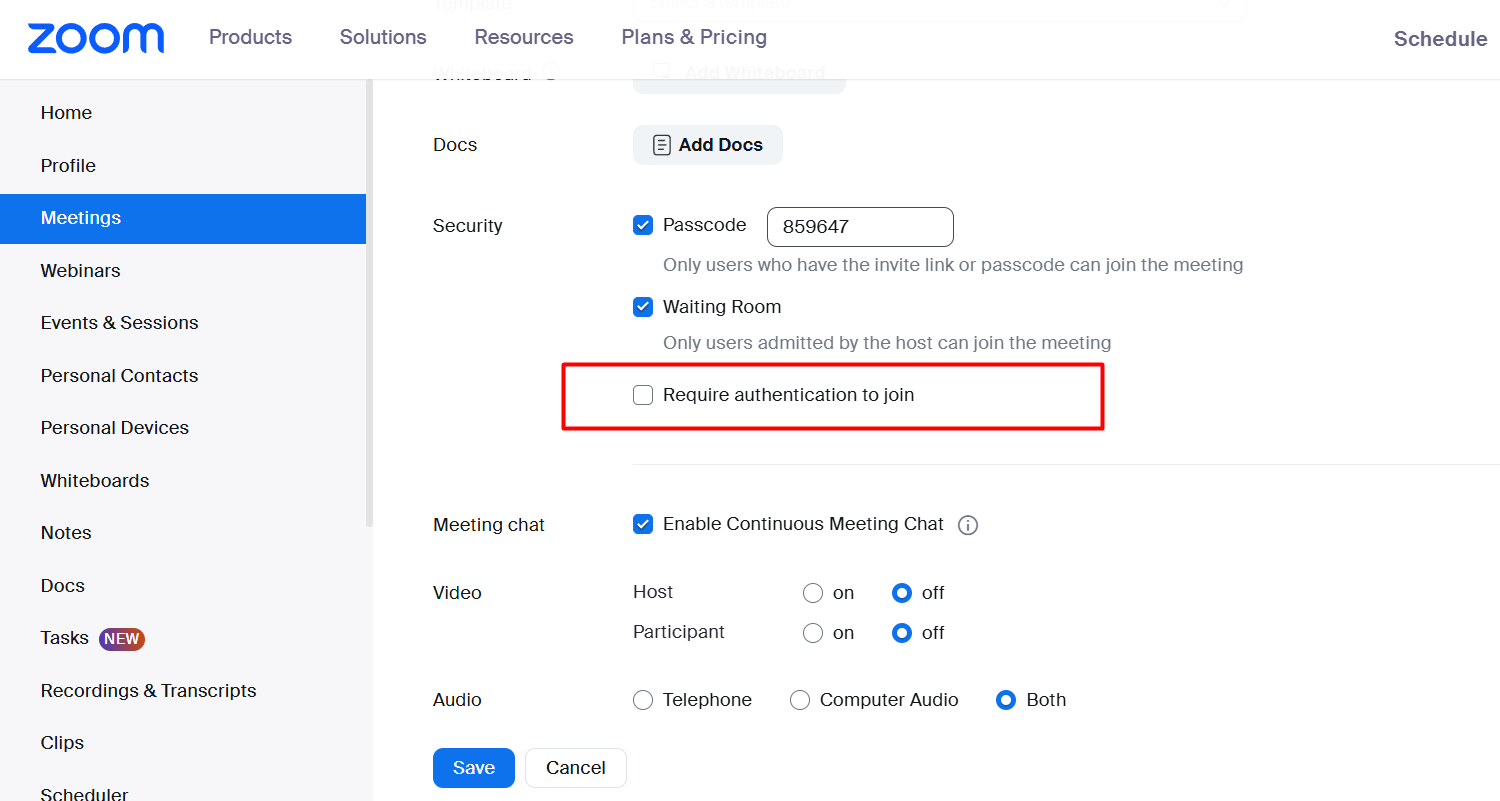
The authentication setting is available while scheduling the meeting. Scroll down to the “Security” section and check off the box Require authentication to join
Sembly was unable to join your meeting: not admitted in lobby
the waiting room is on in the meeting settings
Sembly waited in the lobby for 10 minutes and left the call without a meeting recording. When Sembly joins a meeting with a lobby (or waiting room), it waits to be admitted by the host — or other attendees if the settings allow. If no one admits it within 10 minutes, Sembly will automatically leave the session
What you can do:
if you don't host a meeting yourself, make sure to inform a meeting organizer about your Sembly agent
double-check the waiting room to be sure that Sembly is admitted and recorded
if the meeting is ongoing, you can reinvite the agent using the +New Meeting button in the upper right
if two attendees in the meeting have Sembly, one agent may have been admitted while the other was not. In this case, reach out to support at [email protected] to identify which session was recorded. The user who owns the recorded meeting can then give you access
the time zone setup in Sembly should match the timezone in your calendar. Please check if the time zone is set up correctly
Sembly was unable to join your meeting: denied in lobby
the waiting room is on in the meeting settings
Sembly joined the meeting lobby, and then you or someone else denied Sembly from joining
What you can do:
if you don't host a meeting yourself, make sure to inform a meeting organizer about your Sembly agent
double-check the waiting room to be sure that Sembly is admitted
if the meeting is ongoing, you can reinvite the agent using the +New Meeting button in the upper right
Sembly really wanted to join, but you have used up your recording limit for this month. Upgrade now for unlimited usage
What you can do:
double-check your payment details, and make sure to insert valid card details to let Sembly charge your monthly fee. Click here to open billing
Sembly was unable to join your meeting: invalid meeting link
the meeting to which you invited Sembly is probably outdated
the link doesn’t correspond to the required format
the link is invalid
What you can do:
make sure you can join the meeting using the link you provided for Sembly

Sembly was unable to record your meeting: meeting audio is too short
someone removed Sembly from the call in less than 10 seconds
there was no actual dialogue during the meeting. Sembly captured a silence and left
participants who were speaking could have been muted (if you record hybrid meetings, for example)
What you can do next time:
inform a meeting host and/or meeting attendees that Sembly will be recording the meeting, and make sure they won't kick it out of the call
double-check your microphone while talking. It should be unmuted
do not stay silent (muted) on a call for more than 10 minutes. Sembly will leave a call in case you do. At least one person should be talking on a call.
Sembly recorded a meeting, but the recorded audio didn't contain enough speech to transcribe
Meeting transcription is too short
What you can do:
unfortunately, there is nothing we can do with short speech audio recordings
What you can do next time:
inform a meeting host and/or meeting attendees that Sembly will be recording the meeting, and make sure they won't kick it out of a call
double-check your microphone while talking. It should be unmuted
do not stay silent (muted) on a call for more than 10 minutes. Sembly will leave a call if you do. At least one person should be talking on a call
if you are using Audio Recording for in-person meetings, make sure to follow our recommendations in this guide
Meeting transcription is too long
we process meetings for up to 5 hours, longer meetings won’t be processed and submitted to Sembly
What you can do:
for the next time, try this method for longer calls with Sembly
Meeting audio is invalid
usually pops up for Audio Uploads or Audio Recordings. The meeting audio is broken for unprecedented reasons. Unfortunately, we may not be able to recover the audio recording and resubmit it to your meeting list
What you can do:
make sure you can play the file in an external audio player outside of Sembly. If the audio sounds fine, use an online file converter to convert it to WAV or MP3. Then try uploading it again
Prepare your meeting details — including the session ID or meeting title, along with the start date and time — and contact us at [email protected]
Encountered an error while transcribing the meeting
What you can do:
find out if we are able to restore the meeting by contacting [email protected]. Prepare your meeting details — including the session ID or meeting title, along with the start date and time
Encountered error while processing the analytics
meeting audio was recorded, but something failed during processing.
What you can do:
Prepare your meeting details — including the session ID or meeting title, along with the start date and time — and contact us at [email protected]
We encountered a problem during your meeting recording
this can be a complex issue that needs to be reviewed by our technical team
What you can do:
if Sembly was present on a call, there could be a chance to recover your meeting. Contact [email protected] with details about the issue, and be sure to include the session ID or meeting title along with the meeting’s start date and time.
Sembly couldn’t record this meeting because the “Automatically start meeting recording” option in Agent Settings is disabled
you had the attendance delay setting on and did not turn on the recording
What you can do:
if you didn't manually activate a recording with the attendance delay setting, the meeting can't be recovered since it wasn't recorded. There is nothing you can do here. You can only ensure you don't forget to turn on the recording for future meetings. Or, enable automatic recording in Agent Settings
Encountered an unexpected error
a complex issue that needs to be reviewed by our technical team
in rare cases, such as failures caused by third-party service providers, audio recordings may be lost. While we do our best to recover them when possible, recovery is not always guaranteed
What you can do:
if Sembly was on a call, there may be a possibility to recover your meeting. Contact [email protected] with details about the issue, and be sure to include the session ID or meeting title along with the meeting’s start date and time.
If you created the event in your calendar, but the meeting doesn’t appear in Sembly,
for calendar integrations:
enable your calendar integration to invite Sembly automatically in Calendar settings;
double-check if the calendar is connected in Settings -> My Calendars. Sometimes calendars may randomly disconnect for various reasons; read here why;
If you connected a calendar under an email other than the one registered in Sembly, make sure it’s listed in the alias in My Profile settings;
sometimes, calendars can take more time than usual to synchronize changes in Sembly (especially with Outlook). To force this process, you can make another change in your calendar;
If you decide to reschedule your meeting to another day and time when the previously scheduled start time had already begun, new changes won't reflect in Sembly as it has already joined this meeting. Sembly will wait in the lobby for 10 minutes, then drop off and raise the error. You might want to duplicate the meeting in the connected calendar or schedule a new meeting or invite the agent using an instant invite.
for e-mail invites (your calendar isn't connected to your Sembly account):
make sure [email protected] was invited as a meeting participant;
the invite sent to [email protected] should come from exactly the same e-mail registered in your Sembly account, including accurate capitalization (e.g., "[email protected]" vs "[email protected]");
make sure you actually sent an invite (the agent is an attendee for the e-mail invite; invitation mode is correct);
refresh a page, and check again. If the meeting slot still doesn’t appear, check the invite details are correct;
double-check your invite date and time - Sembly will attend based on the time of the invite. If a meeting is rescheduled, ensure that an invitation to [email protected] is re-sent.
one more thing you can do:
delete cookies. Clearing cache is a key step in troubleshooting. The links below provide updated information on the most popular browsers:
If you’re still having trouble, please contact [email protected] with a screenshot of the invite, if possible

