

Users who wish Sembly to join their meetings later can deactivate an automatic recording and activate the recording when they need to.
To delay the recording, follow the steps below:
Log in to your account and click the gear icon on the bottom-left, select Settings → Notes.
Click Agent in the Workspace section in the menu on the left side or click click this link.
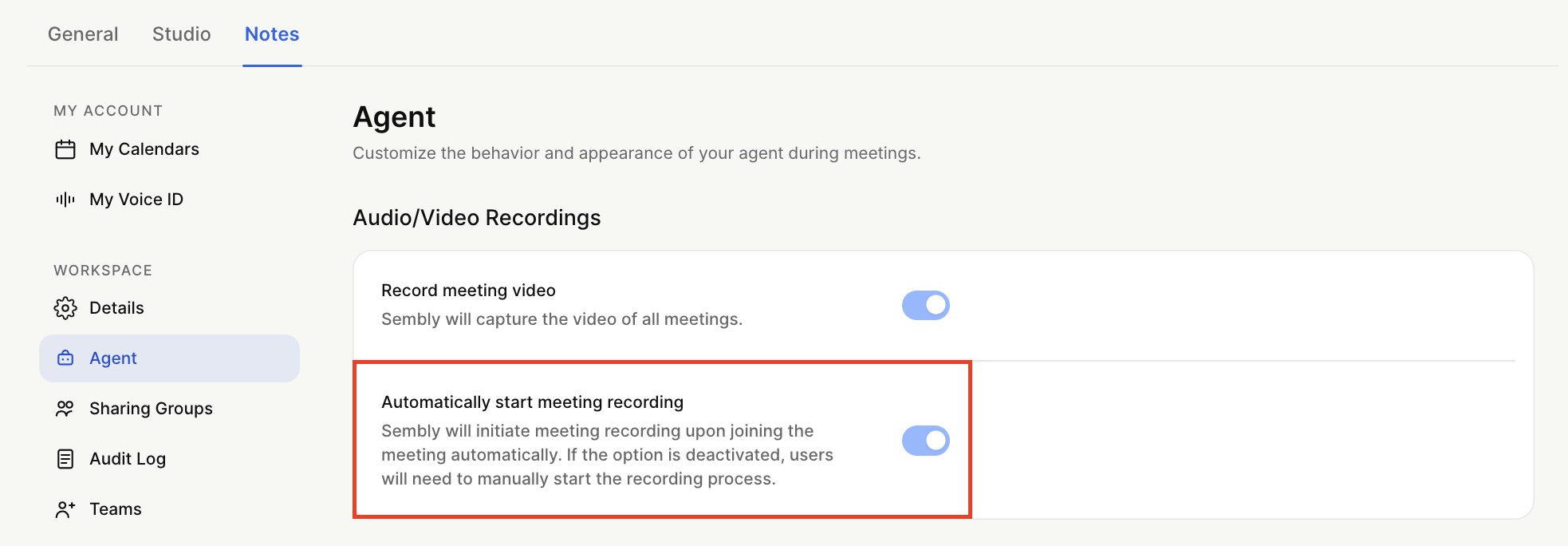
In the Audio/Video Recordings block, use the toggle next to Automatically Start Meeting Recording to switch the setting on or off.
To start the recording, make sure to open your Sembly home page and activate the recording by clicking the Resume button. Sembly will send a message in the meeting chat indicating that recording started.
The Agent will show up on your meetings, and if you don't activate the recording on your Sembly Home page, it will wait for 10 minutes and drop your call. Sembly will be periodically leaving the message during its waiting time The Do Not Record Meeting setting is currently active in your workspace, and the agent is not recording your meeting at the moment. Please log in to Sembly and click the "Resume" button to begin recording this meeting.
If you don't activate the recording, the meeting will fail with an error message: Sembly couldn’t record this meeting because the “Automatically start meeting recording” option in Agent Settings is disabled.