There are multiple ways of sharing a meeting in Sembly. These include allowing access to the meeting tools, full meeting downloads, and ready-made documents. In this article, we list all ways to share a Sembly meeting.
Sharing allows existing Sembly users, whether inside or outside your workspace, to receive full access to your meeting. When sharing a meeting, you have the flexibility to grant either full access, which includes editing abilities, or limit access to viewing only.
You can add multiple email addresses in the access window to share the meeting. Once added, the recipient will receive an email with a URL link to the meeting. There is also an option to include a personalized message for the invitee.
Important:
Unregistered Users: If you add an unregistered user, they will receive a registration link. After creating an account, they will be able to access your meeting.
Guest Access: If you prefer to share the meeting without requiring the recipient to create an account, consider using the Guest Access option.
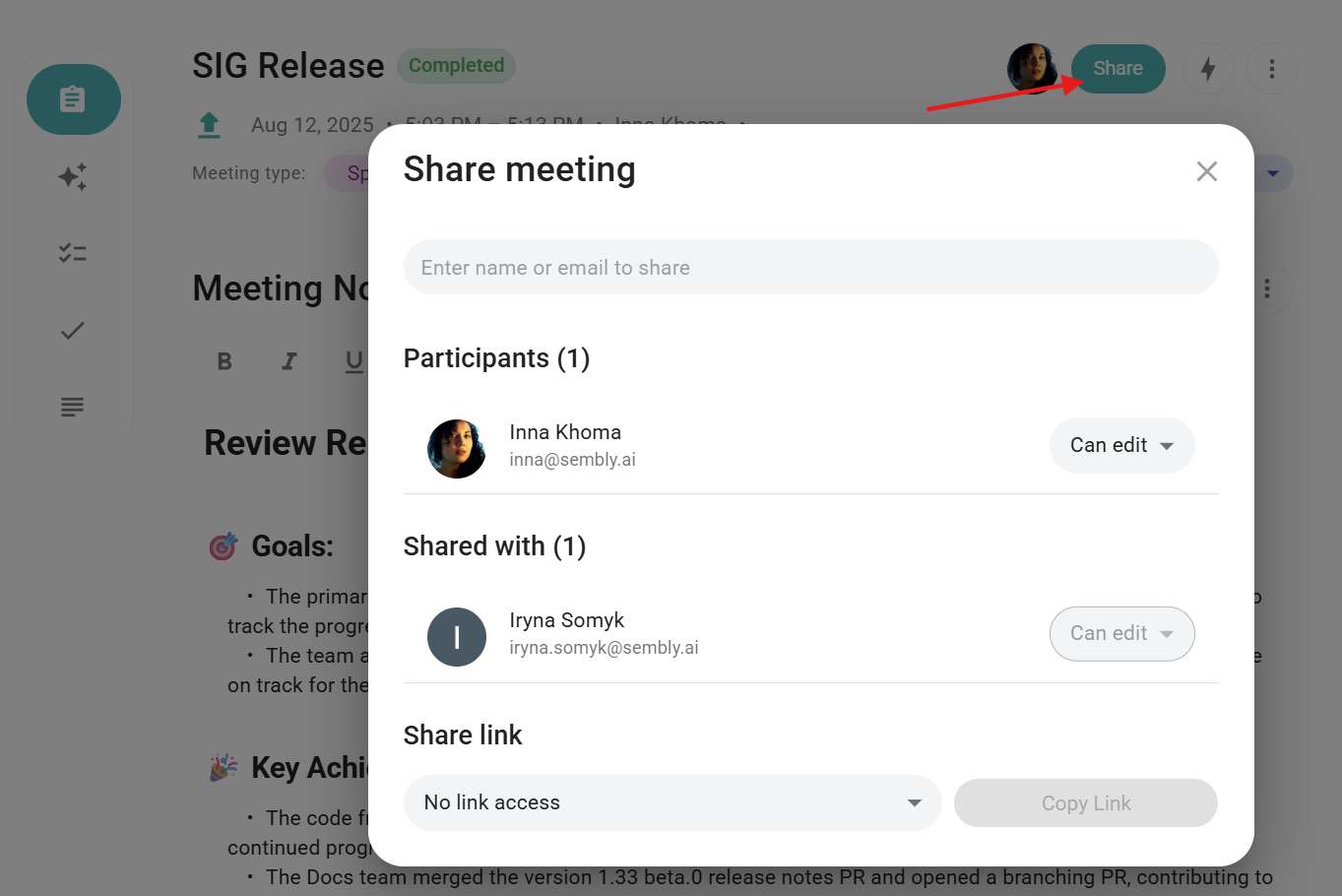
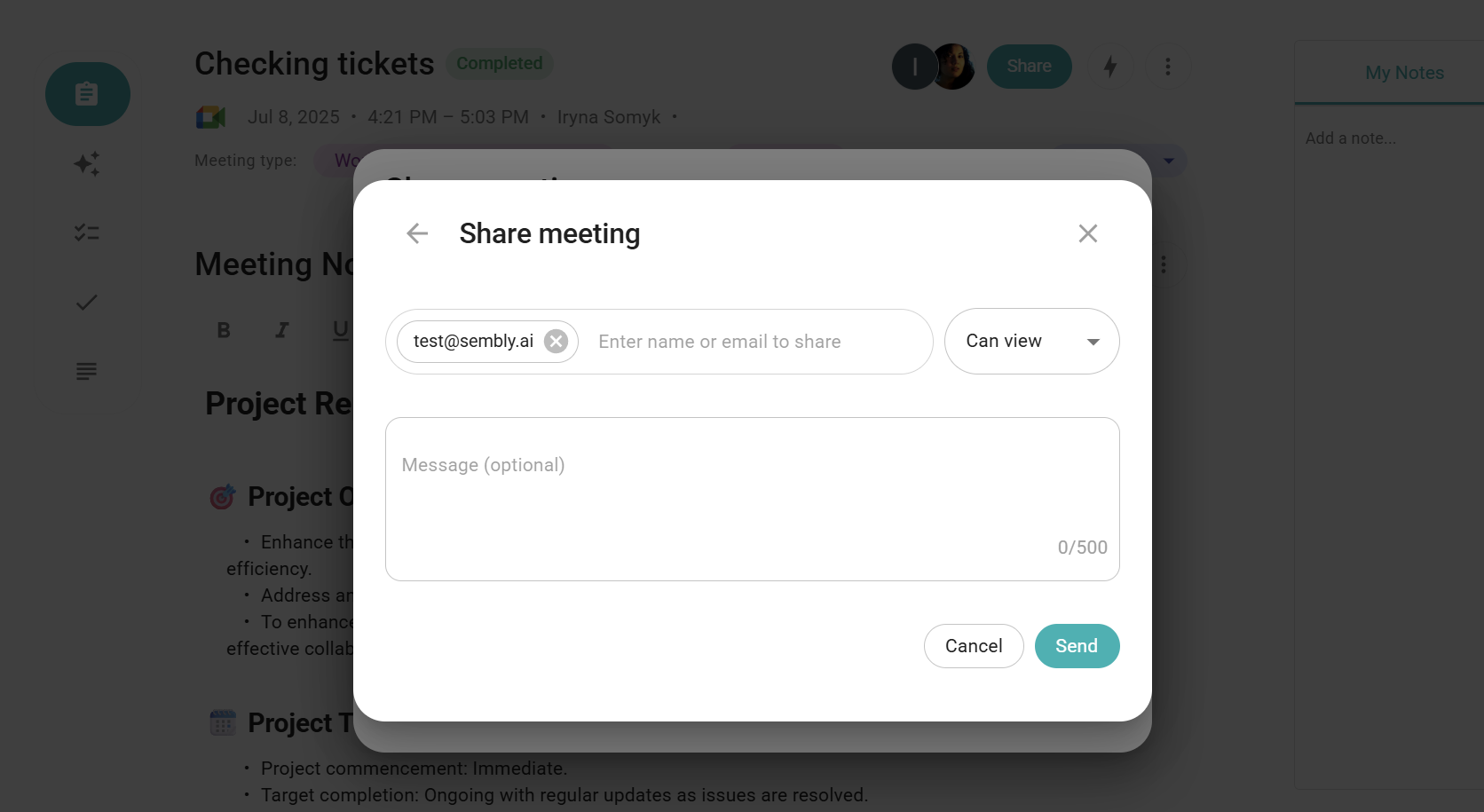
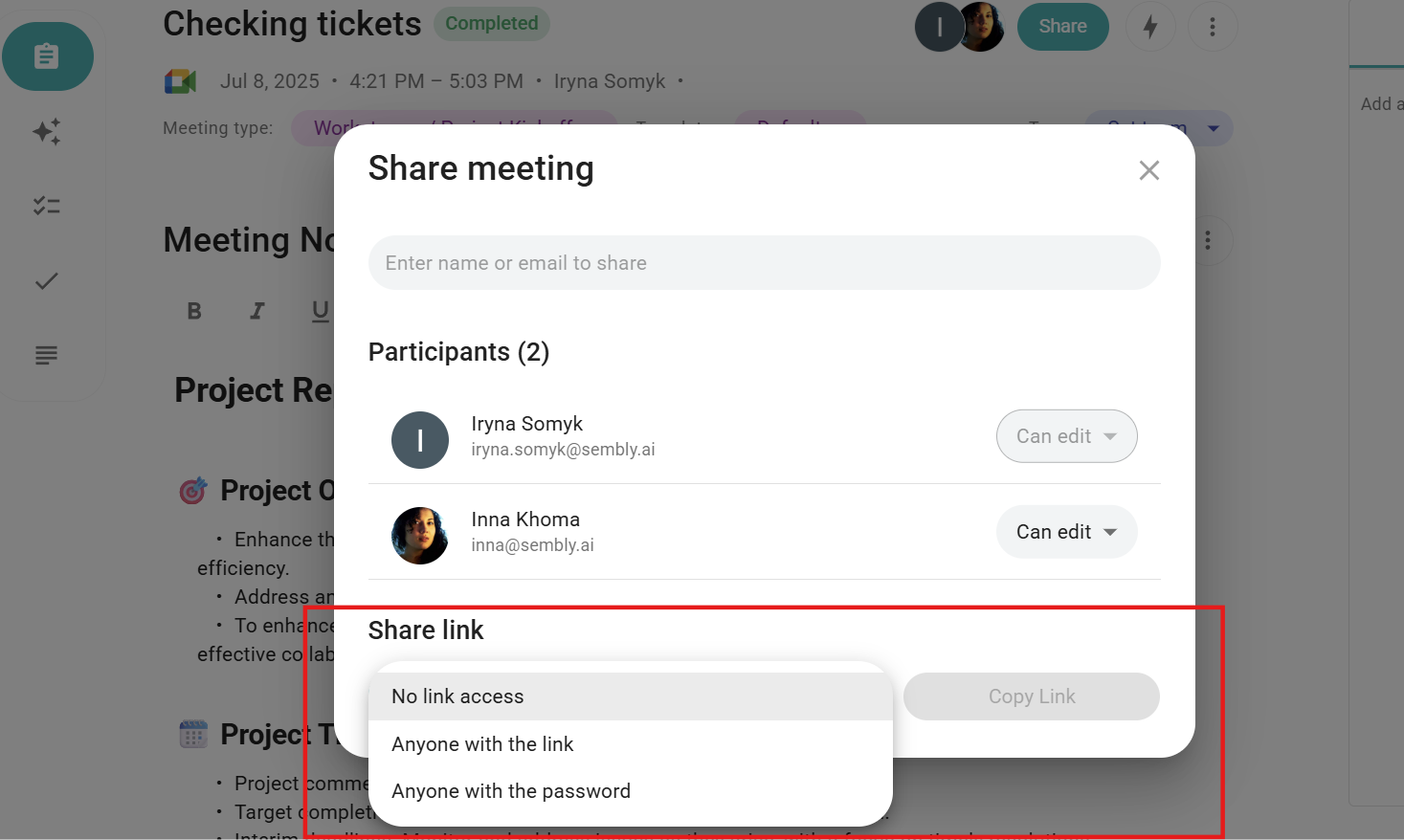
With a guest link, you can share your meeting results with anyone, whether they have an account in Sembly or not. To do this, simply click Share in the meeting, set up Anyone with the link, and copy the provided URL.
For added privacy, you can also set a password for the link. To set up the password, open the dropdown and change the setting to Anyone with the password.
Please note that guest links can be restricted by users who have Edit access to the meeting. Learn more here.
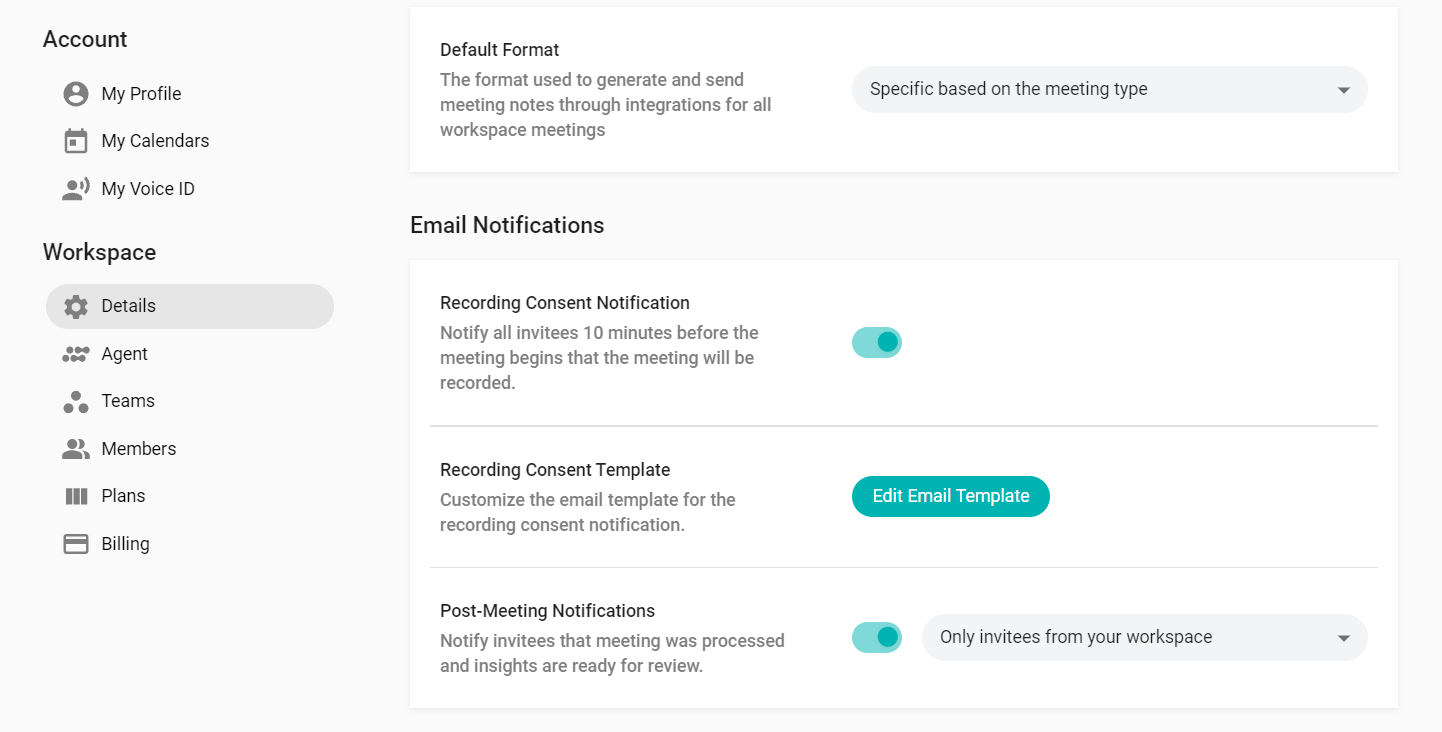
You can automatically send a Guest Link to the meeting attendees after your meeting ends. The notification is an email sent to the address mentioned in the meeting invite. The users in your workspace will receive a direct meeting link; unregistered users will receive the Guest Link (registered users in Sembly but outside your workspace are treated as unregistered users in the mechanics of post-meeting notifications).
To set up post-meeting notifications, go to the Workspace Details, scroll down to the Email Notifications, switch the toggle on, and choose a preferred setting.
All invitees - shares with meeting invitees
Only invitees from your workspace - shares with the invitees from your workspace
Only invitees outside of your workspace - shares with every invitee who is not a member of your workspace
The notification is optional and is turned on by default. To deactivate it, go to the Workspace Details, scroll down to the relevant setting, and switch the toggle off.
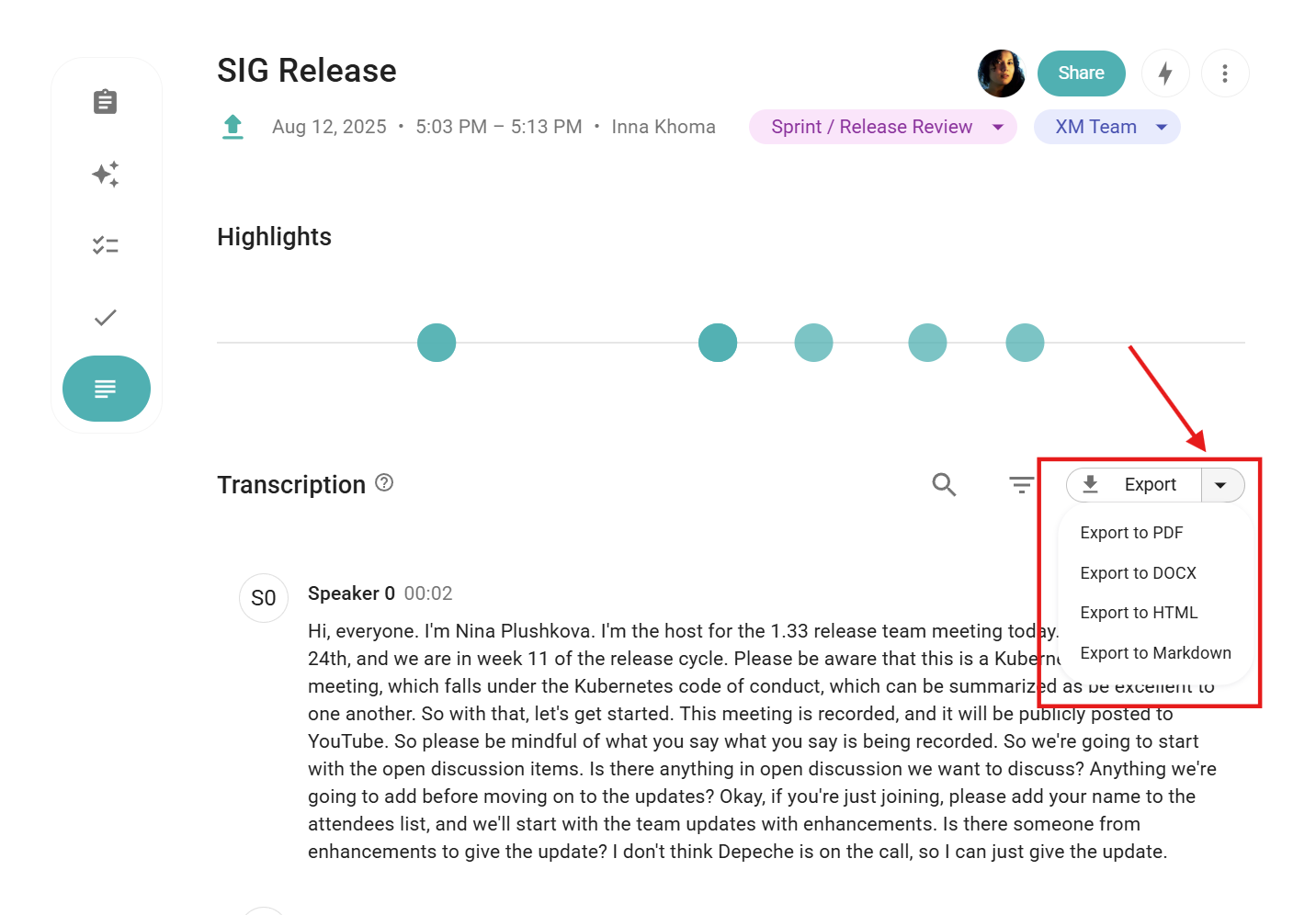
Save transcription on your computer in several formats: PDF, HTML, DOCX, and Markdown. The file will display a diarization with sections for each participant’s utterance, as in Sembly.
Click the Export button to download the file.
If you would like to choose a different format, click the right side of the Export button.
Select the needed format and download it.
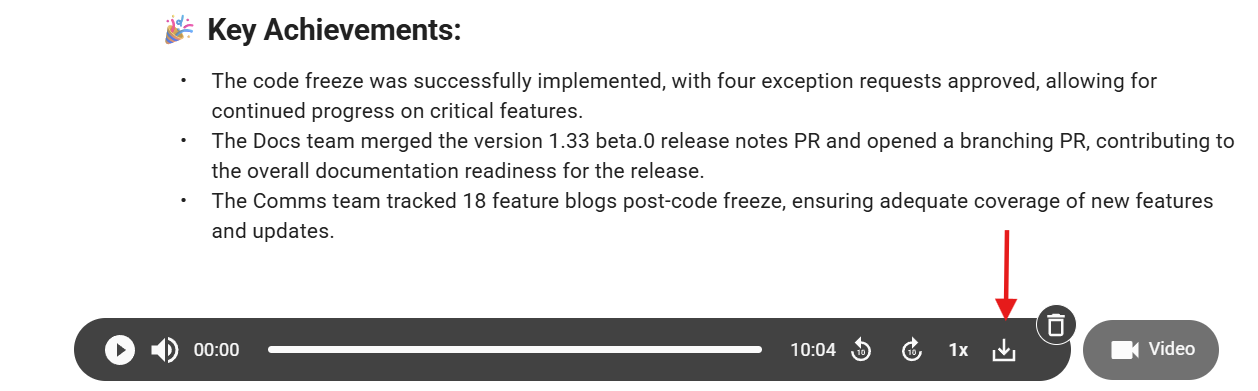
You have the option to download an MP3 file with the full meeting audio and/or download the meeting video recording in MP4.
Log in to Sembly and open the meeting that you wish to download
On the audio player inside the meeting, click the download button
Meeting audio will be saved on your computer
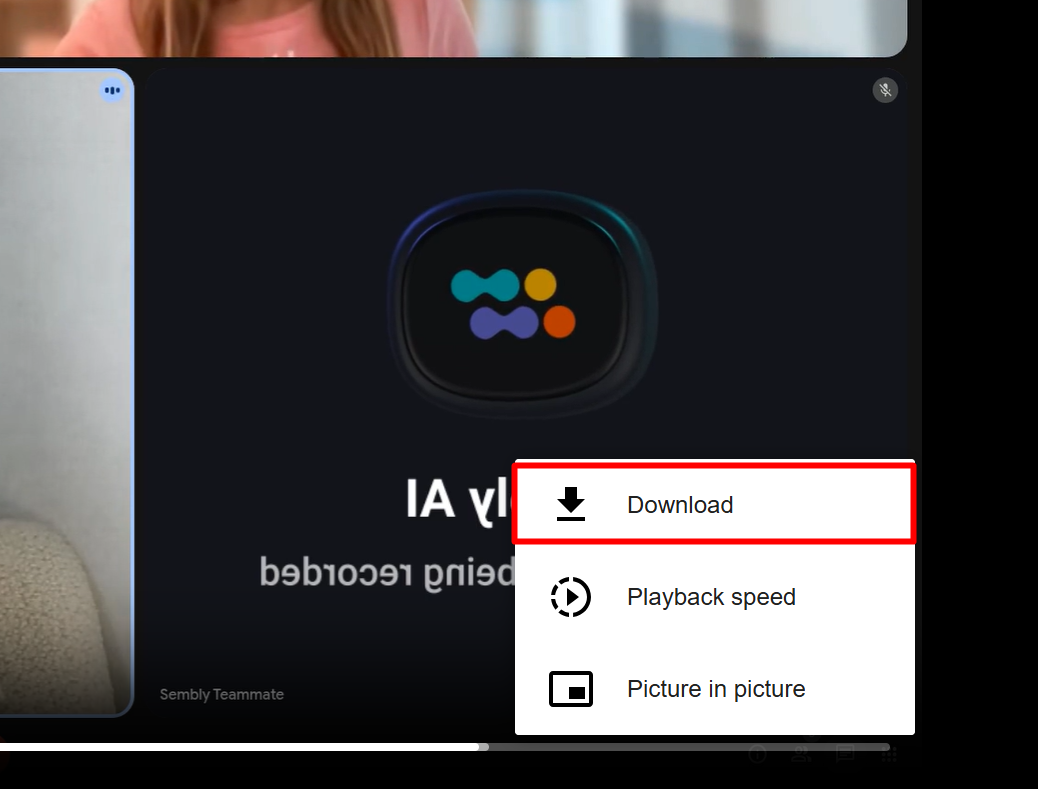
Open video recording on the right side of the audio player
In the video window, click the three dots on the bottom right and select Download
As you review the meeting, it is important to engage in continued dialogue even after the meeting is complete. Instead of starting the conversation from scratch, start directly from where you left off during the meeting. Send a link to a specific utterance to a receiver in your preferred chat app to start the conversation. Hover over an utterance to unhide the “link” iсon in the upper-right corner 🔗. Click to copy the link to your clipboard. The link is ready to share in any chat app you prefer.


Another way to keep everyone up to date on the meeting details is to connect an Automation to push the data to the preferred tool and then share access to the folder with that data. Let's check this option on Google Drive Automation for Meeting Notes.
Firstly, please connect the Google Drive Automation as shown in the article.
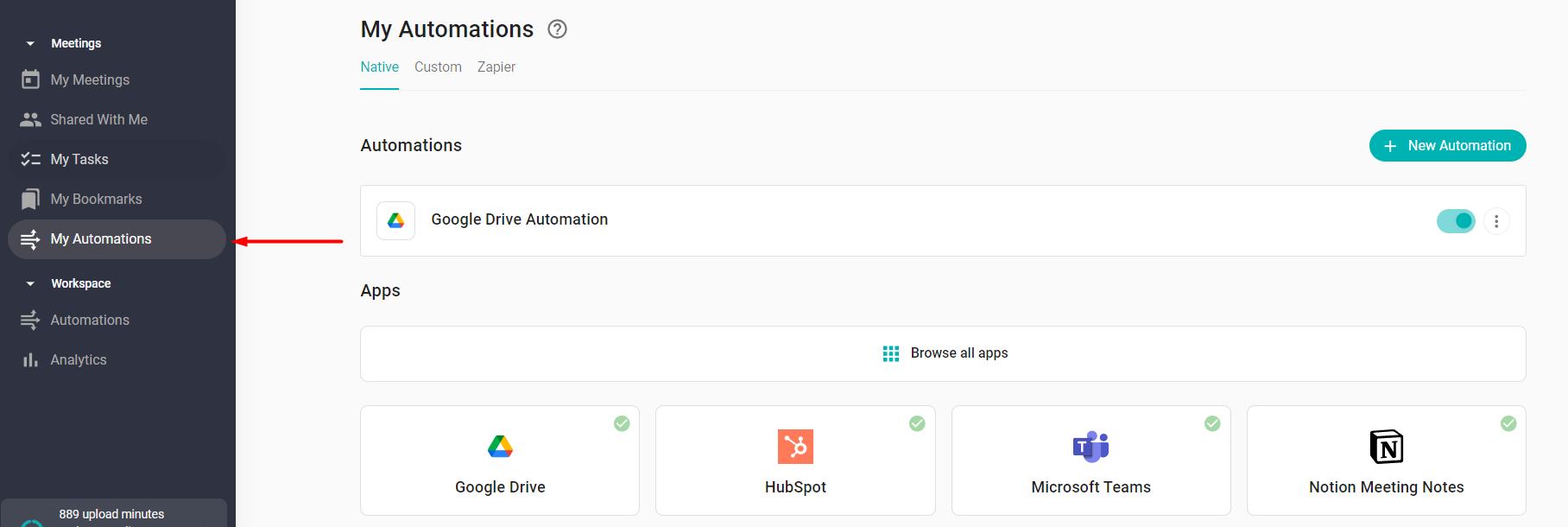
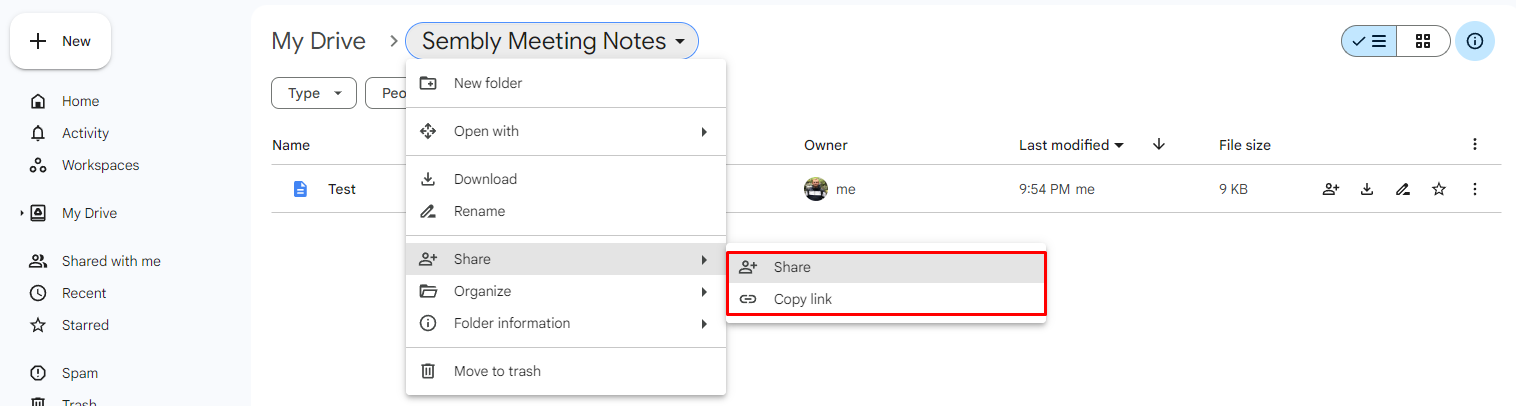
Once you connect this Automation and record the meeting, a "Sembly Meeting Notes" folder will be created inside your Google Drive, where Meeting Notes will be stored.
After this, you can share access to the folder or specified documents with anyone you want to give access to review/edit the Meeting Notes.
In the Enterprise Plan, you can automatically share all your meetings with your manager. To learn more, check out our guide here.

