Manager View lets you easily share your meetings with your manager. Once you add them, they get Edit access and show up in the Share tab of all your meetings in Sembly (excluding previously submitted meetings).
You can assign anyone from your workspace as a manager.
Open the dropdown by clicking your avatar at the bottom of the sidebar menu to open Settings → General → My Profile.
Scroll down to the Manager View section. In the My Manager dropdown, select a team member of your workspace.
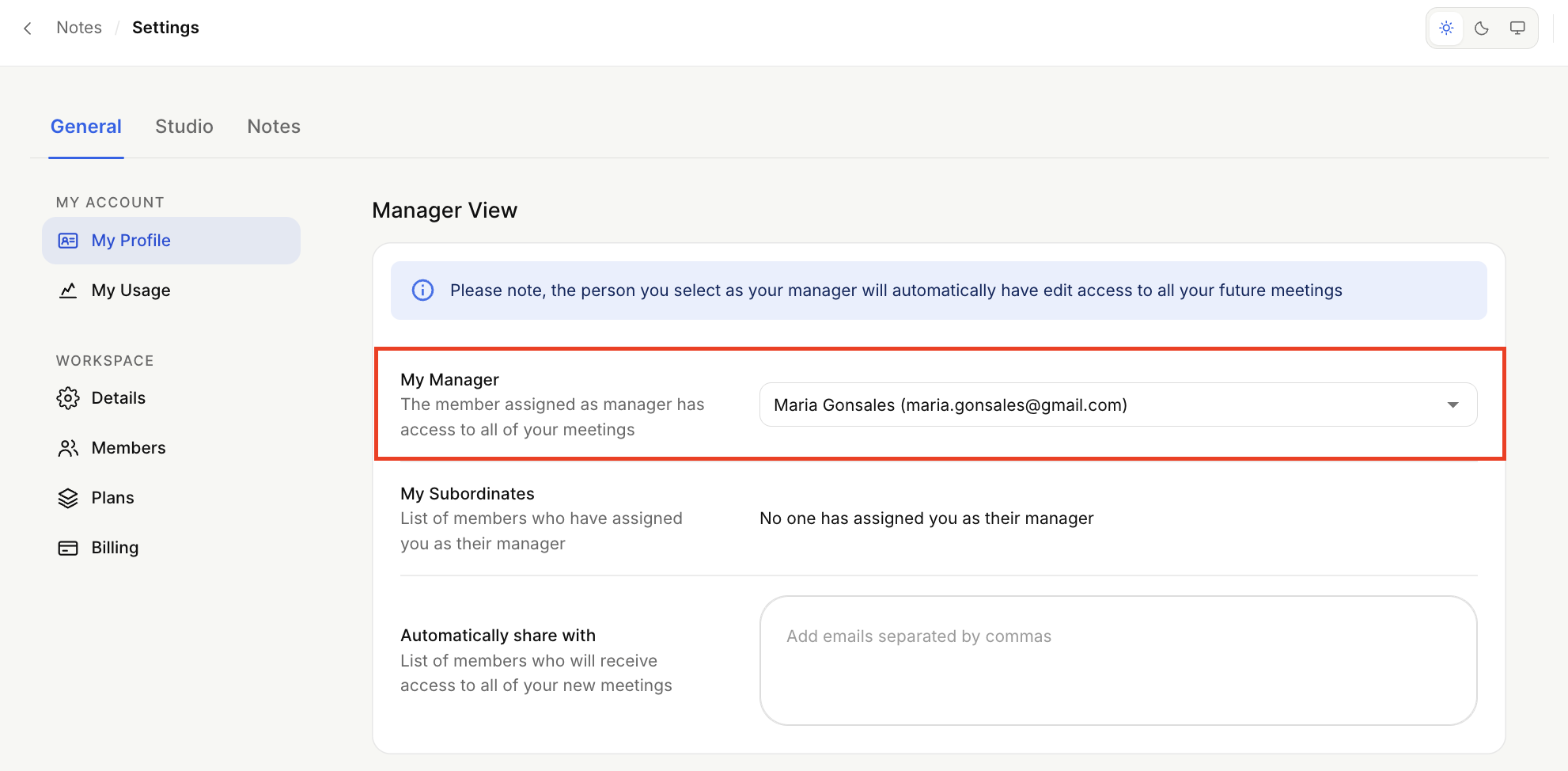
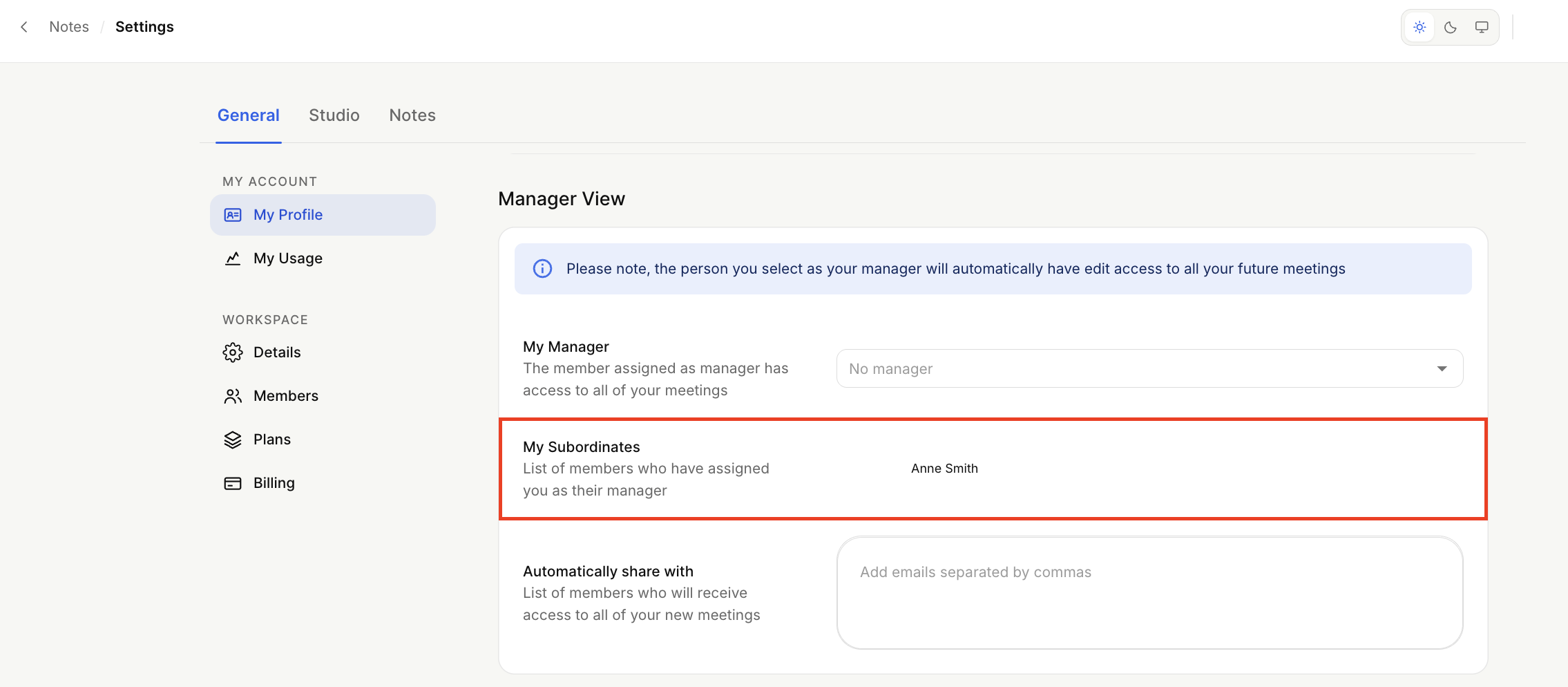
That's it! After you assign a manager, they will be able to see you in their settings, under the My Subordinates section.

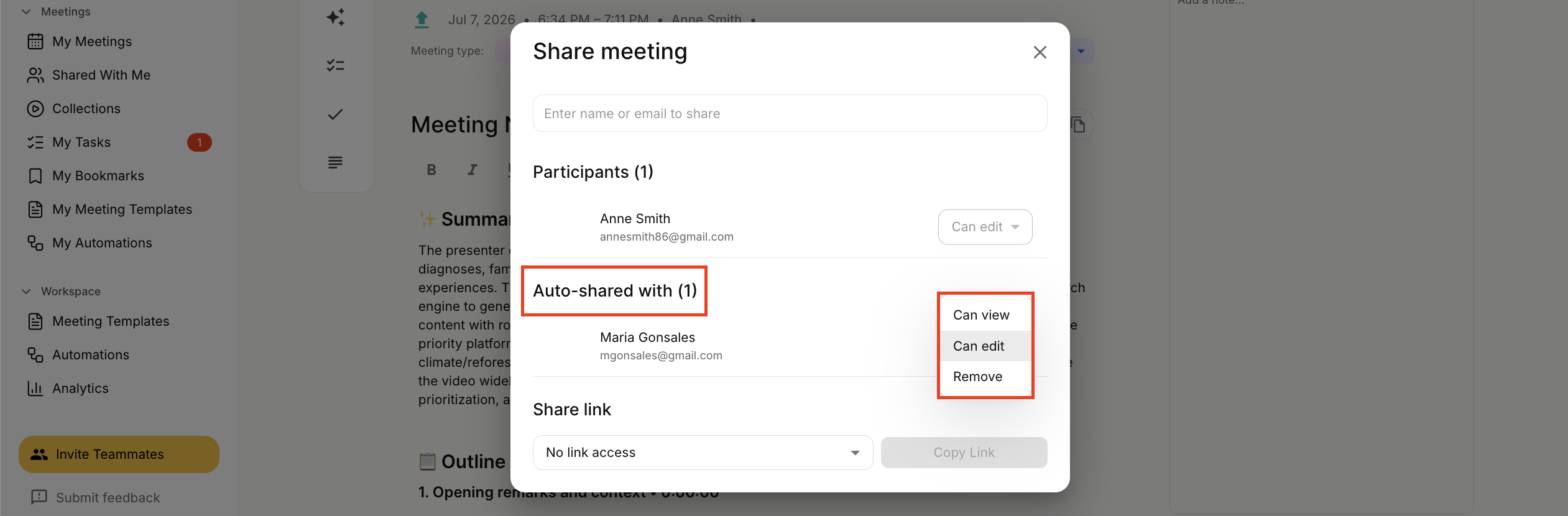
From now on, your manager will have edit access to each recorded or uploaded meeting in your account. You can change their access to View or Remove inside each meeting in the Share tab.
If you no longer want to share your meetings, you can always remove a manager from your Settings.
Open the dropdown by clicking your avatar at the bottom of the sidebar menu to open Settings → General → My Profile.
Scroll down to the Manager View section. In the My Manager dropdown, click the X next to the manager's name.
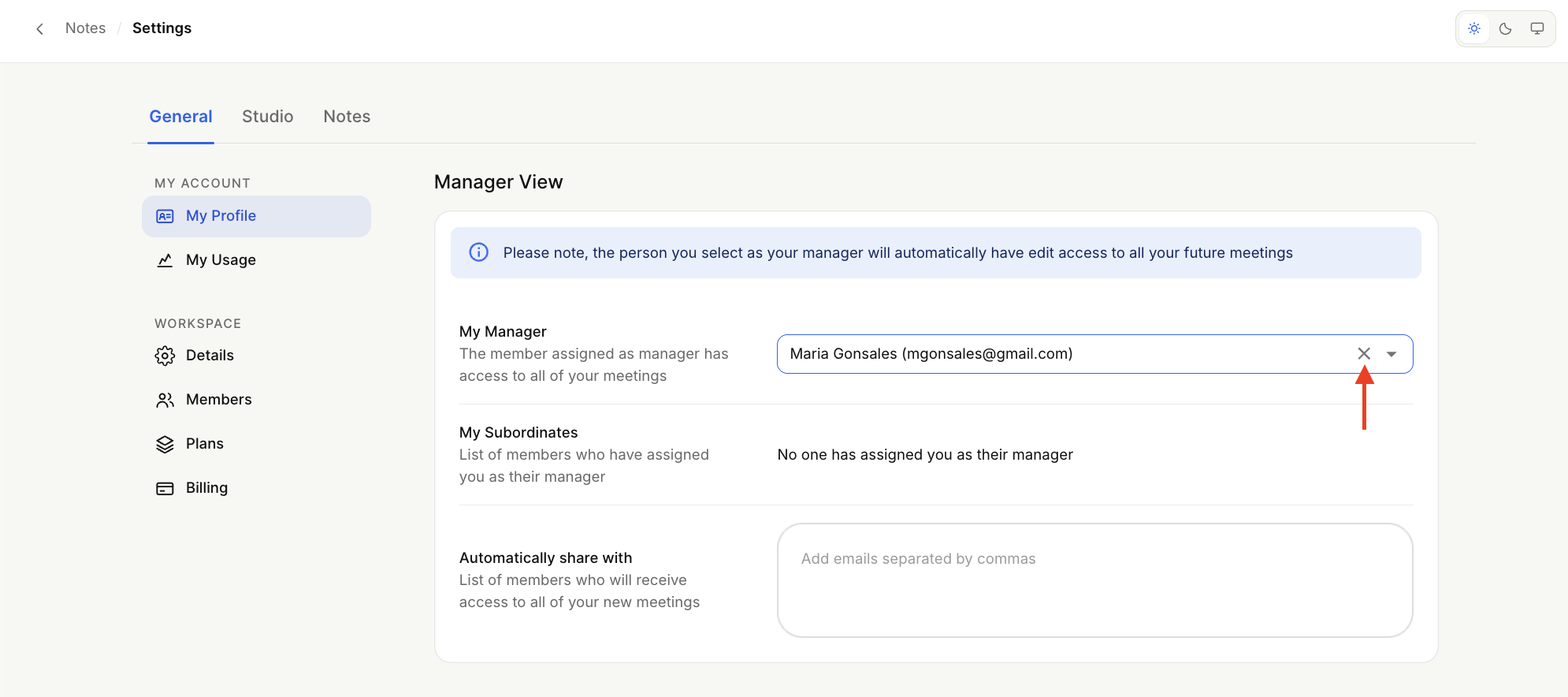
After this action, they will lose access to all your future meetings. Access to previously recorded meetings will remain the same.
As a manager, you can only see your subordinates in your profile. If you want to remove any of them, get in touch with them directly so they can take you off as their manager in settings.
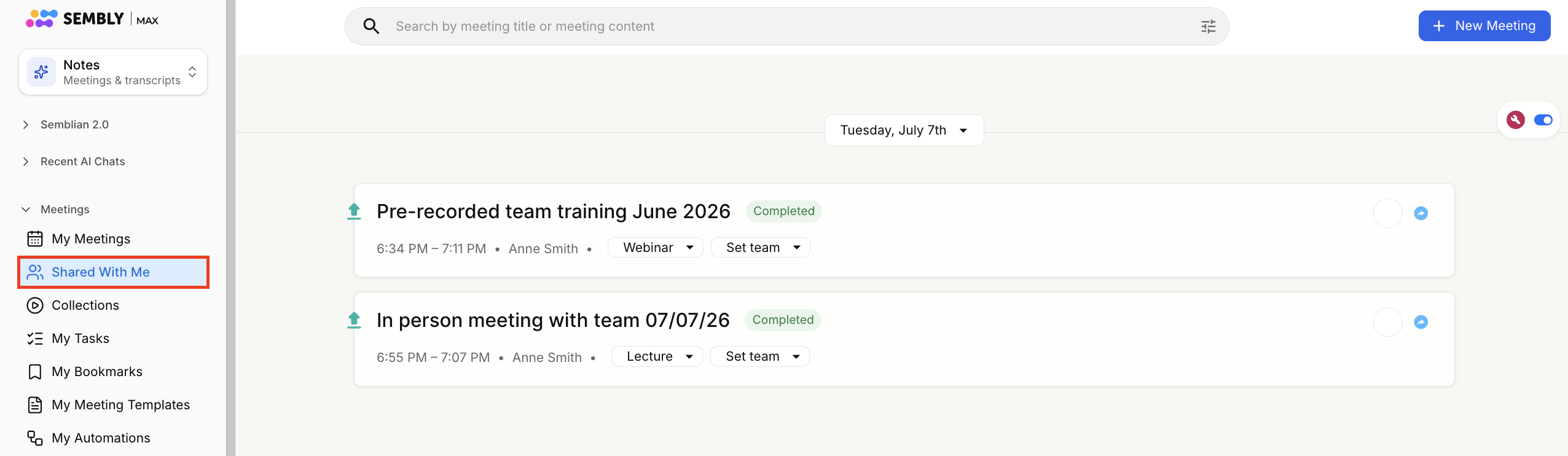
To review your subordinates' meetings, click Shared with Me in the left-hand menu. All the meetings will be listed by day.
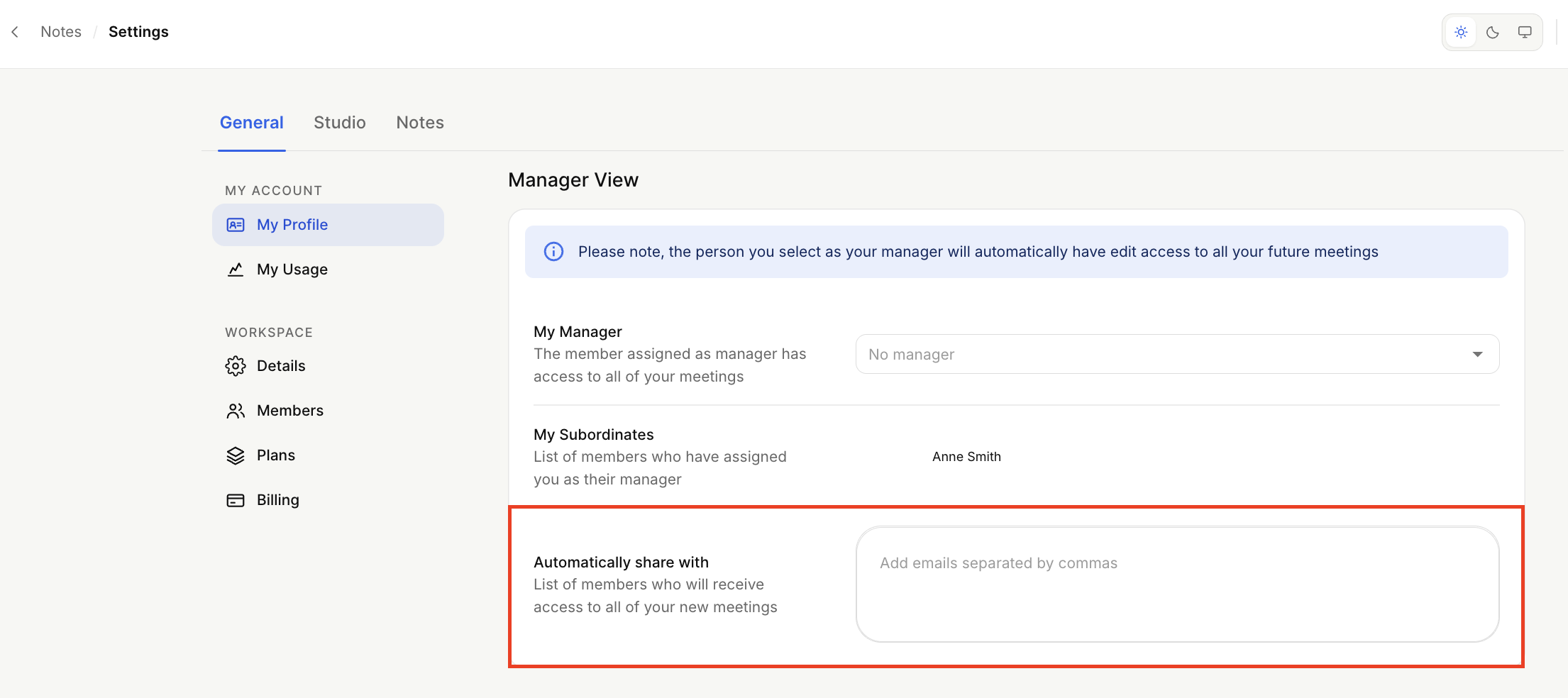
You can now create a list of designated users who will automatically receive access to all of your meetings. This list can be customized to include key stakeholders, team members, or any individuals who need to stay informed. Once you've set your designated users, Sembly takes care of the rest, ensuring that everyone on the list gets immediate access to the meeting details, recordings, and notes as soon as they become available.
In your Sembly account, go to My Profile and scroll down to the Manager View section. Here, you can add or remove users from your designated list at any time, giving you full control over who has access to your meetings.