LEGACY PLAN: PROFESSIONAL | TEAM | TEAM PLUS
Many meetings are confidential and should be set to the appropriate privacy restrictions. Sembly can help to make sure you only give meeting access to the appropriate people.
As you can see in this article, all meeting participants who are part of your Sembly workspace will have access to edit the meeting by default. You can, however, restrict this access. In this article, you will learn how to limit access to a meeting.
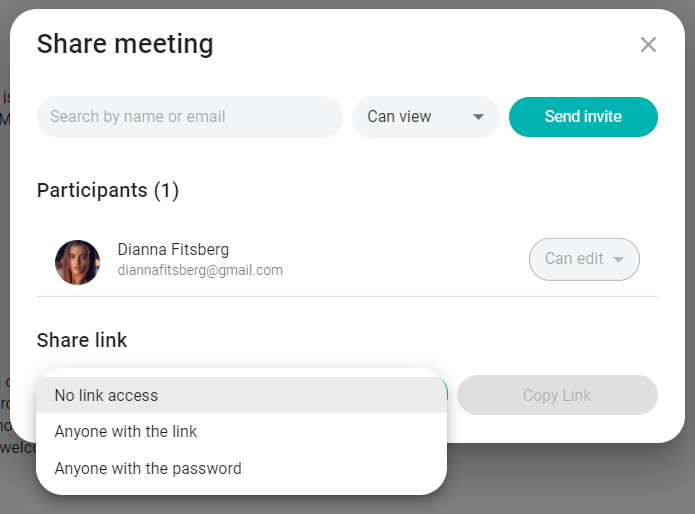
At the bottom of the same panel, select the "no link access" setting in the guest link section.
If you shared a public link to meeting notes with someone previously, you can't unshare it
If you want to limit or restrict the access for participants or for the users that had been provided access, follow these steps:
Log in to Sembly and open the meeting you wish to manage
Find the "Share" button next to the meeting title. Click to open the window
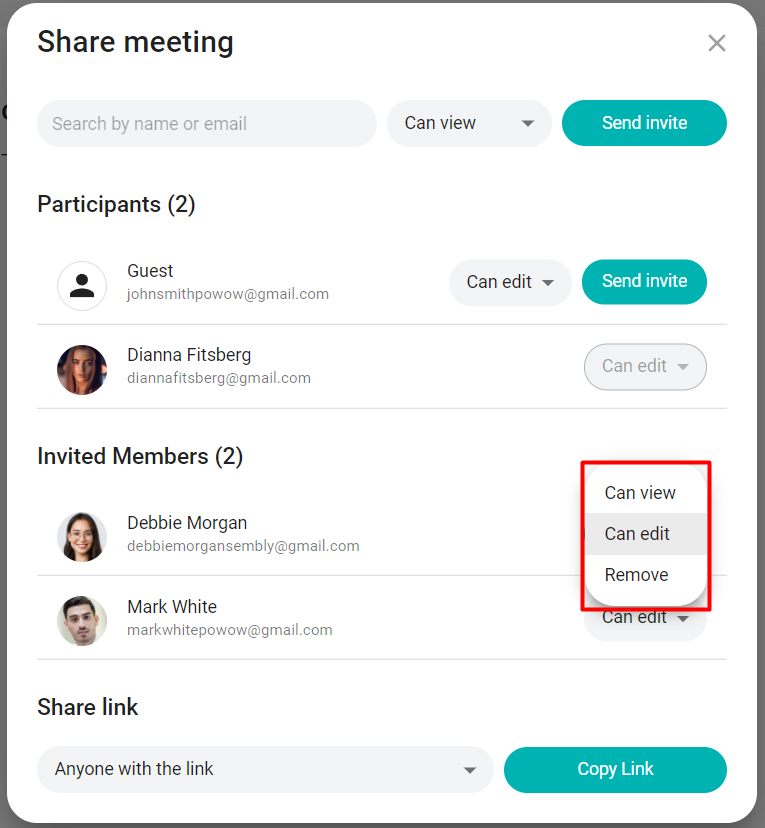
Select a user you'd like to restrict
Click Permissions to unfold the dropdown
In the drop-down, select Can View to lower access from Edit to View or Remove to remove access completely
Users with access to edit a meeting can restrict other users from generating and share a guest link to the meeting.
Log in to Sembly and open the meeting that you can edit
Find the Share button next to the meeting title. Click to open the window
In the Share Link, open the dropdown and select No link access. A Copy Link button will be blocked from now on until you or another user with Edit abilities activates it again
Close the Share window