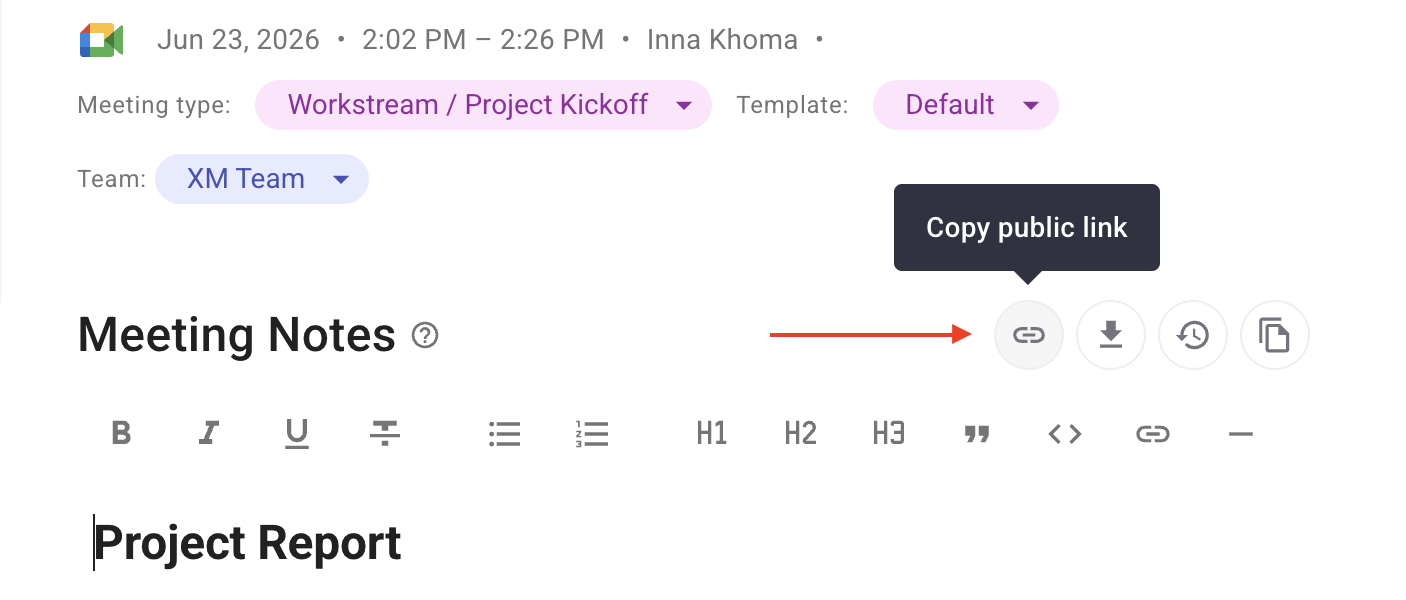
Custom templates let you set the agenda of your meeting notes. Whether you are running a weekly stand-up, a sales discovery call, or a project sync, you can configure your templates to highlight the information that matters most to you. Each workspace member can create custom meeting notes templates.
My Meeting Templates are templates that only you can see and use.
Workspace Templates can be created by workspace admins only and made available across the entire workspace.

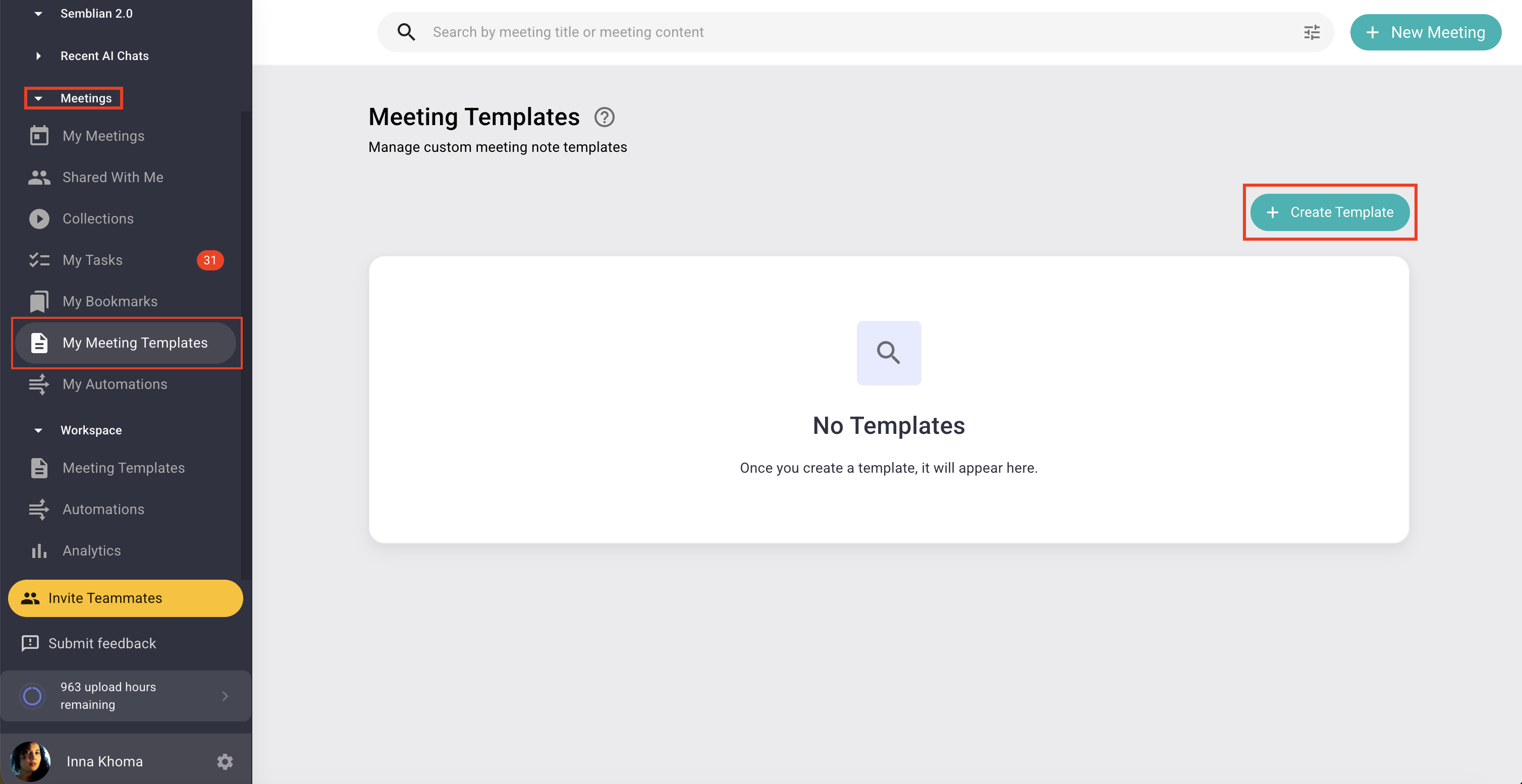
Log in to your Sembly account and navigate to Meetings settings on the left-hand menu
Select the My Meeting Templates tab and click the + Create Template button
Name your template (e.g., "Weekly Sync," "Client Discovery," or "Project Post-Mortem")
Configure Meeting Type* if needed. Use this dropdown only if you would like to categorize your template (e.g., "QA Session," "Demo Call") and attach it to a particular meeting type
*Meeting Type is a label assigned to a meeting that Sembly can detect automatically and use to apply the specific notes template configured for that type.
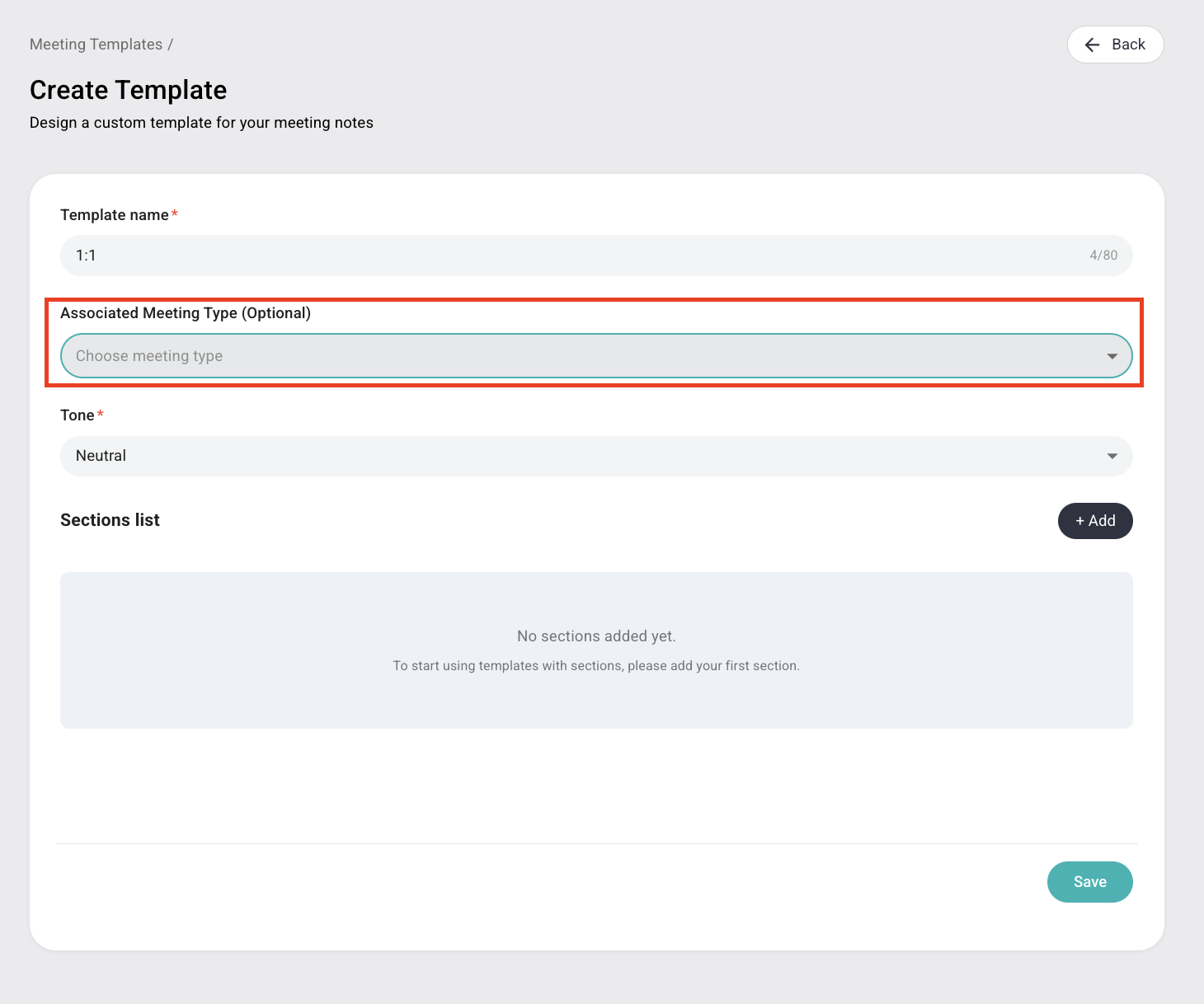
Select Tone of Voice. This setting tells our AI how to phrase the summary, ensuring the final output matches your needs

Add template sections by clicking +Add. You can mix and match Suggested Blocks (pre-set by us) and Custom Blocks (created by you) to build the exact structure you need
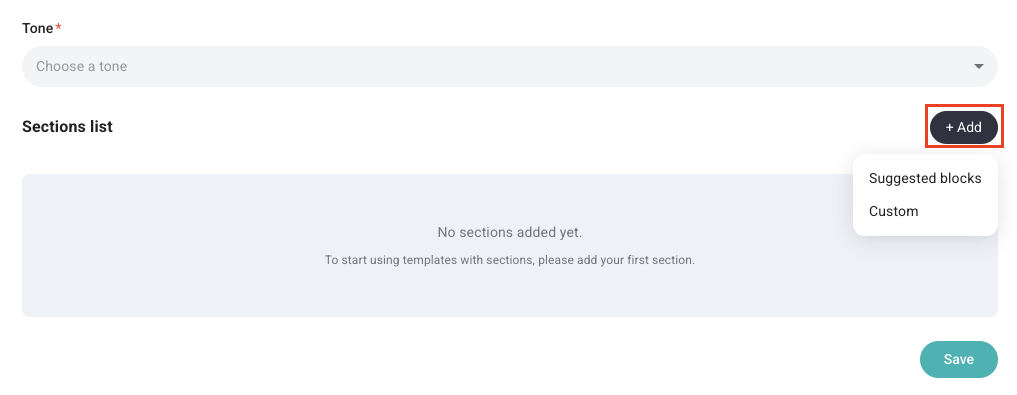
Suggested blocks: include pre-configured AI prompts that Sembly relies on to extract specific information from your meetings (e.g., Action Items, Areas for Improvement, or Decisions Made). Simply select the block and add it to your template
Custom Blocks: designed for unique requirements. If you have specific needs that aren't covered by the suggested blocks, add a custom block with an AI prompt to define the logic for that section
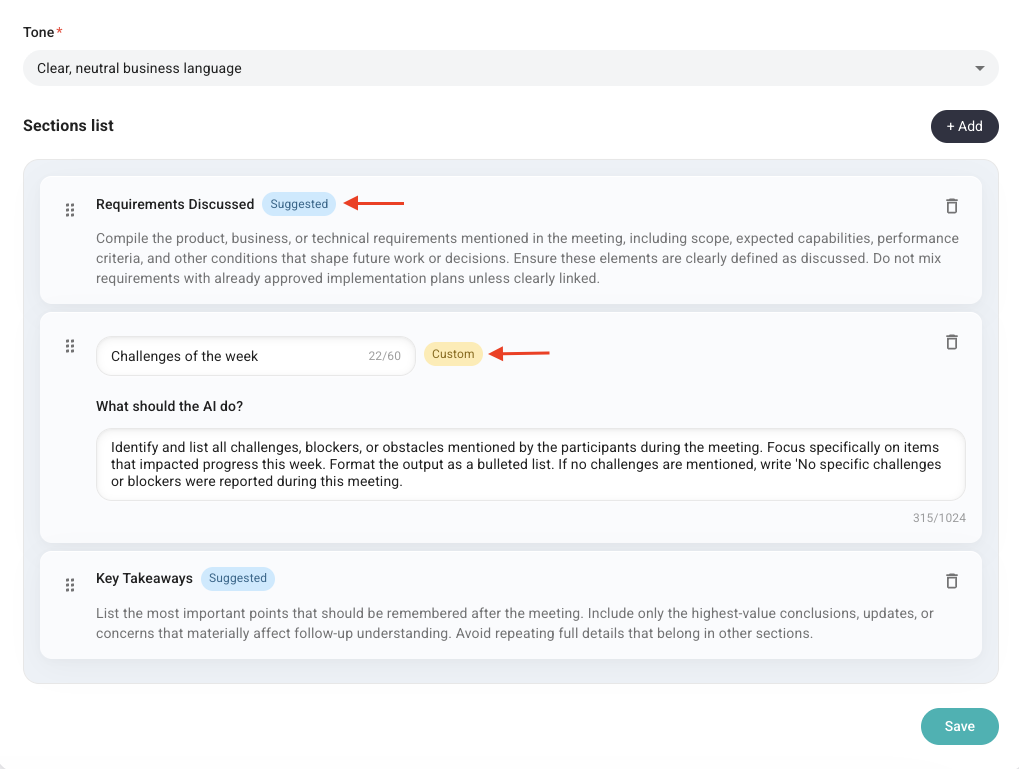
Once you have created your blocks, you have total control over the notes structure. You can add, remove, or edit these blocks at any time as your team's workflow or project needs evolve
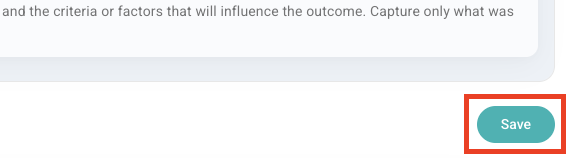
Once your layout is perfect, click Save
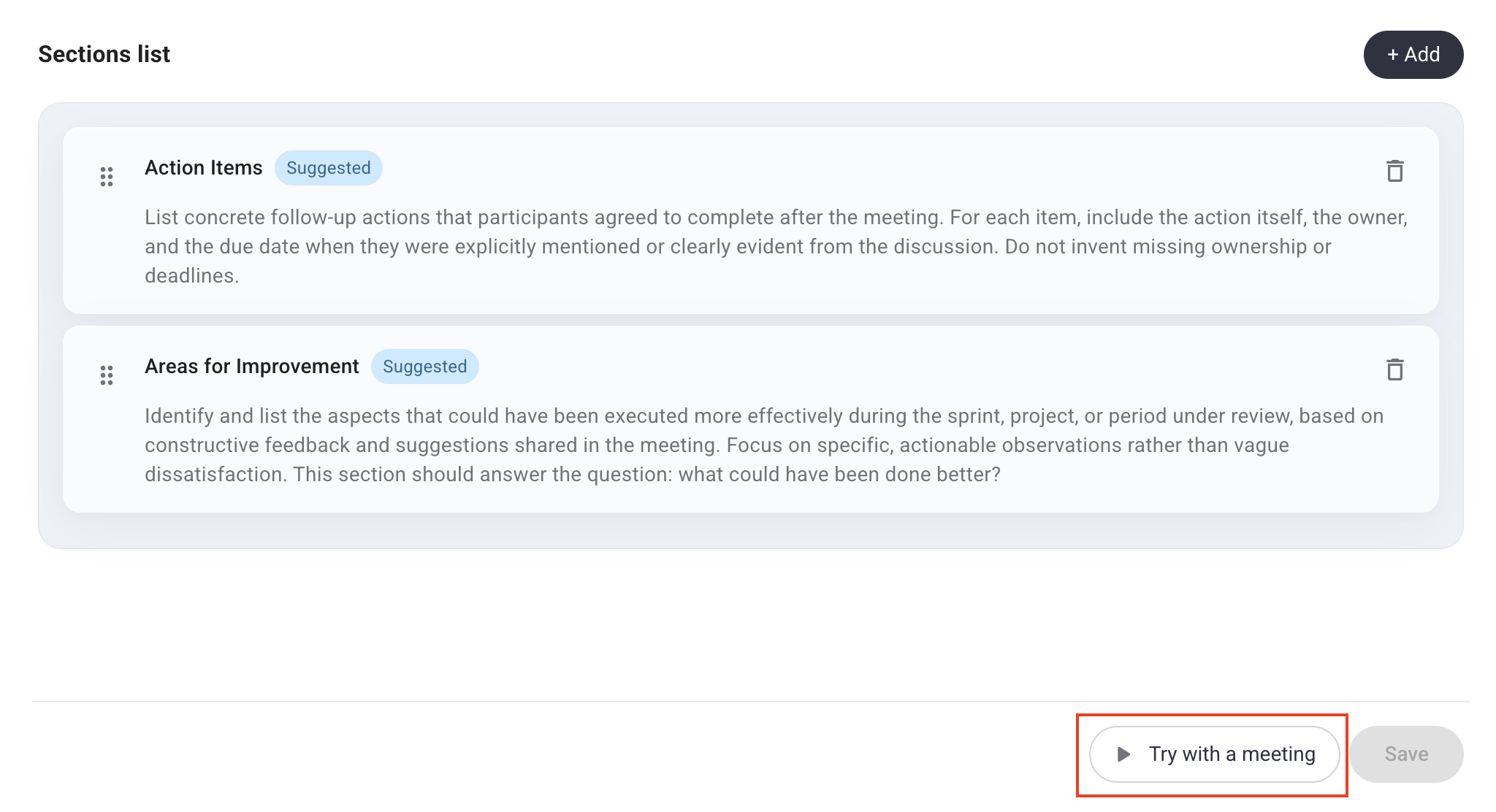
After you have saved your template, you can test it on a real meeting to see the results. To do so, click the Try with a meeting button and select a meeting from the list to apply a newly created notes template, then hit the button one more time
As soon as the notes are generated, you can see the outcome, choose another language for it from a dropdown, or choose a different meeting
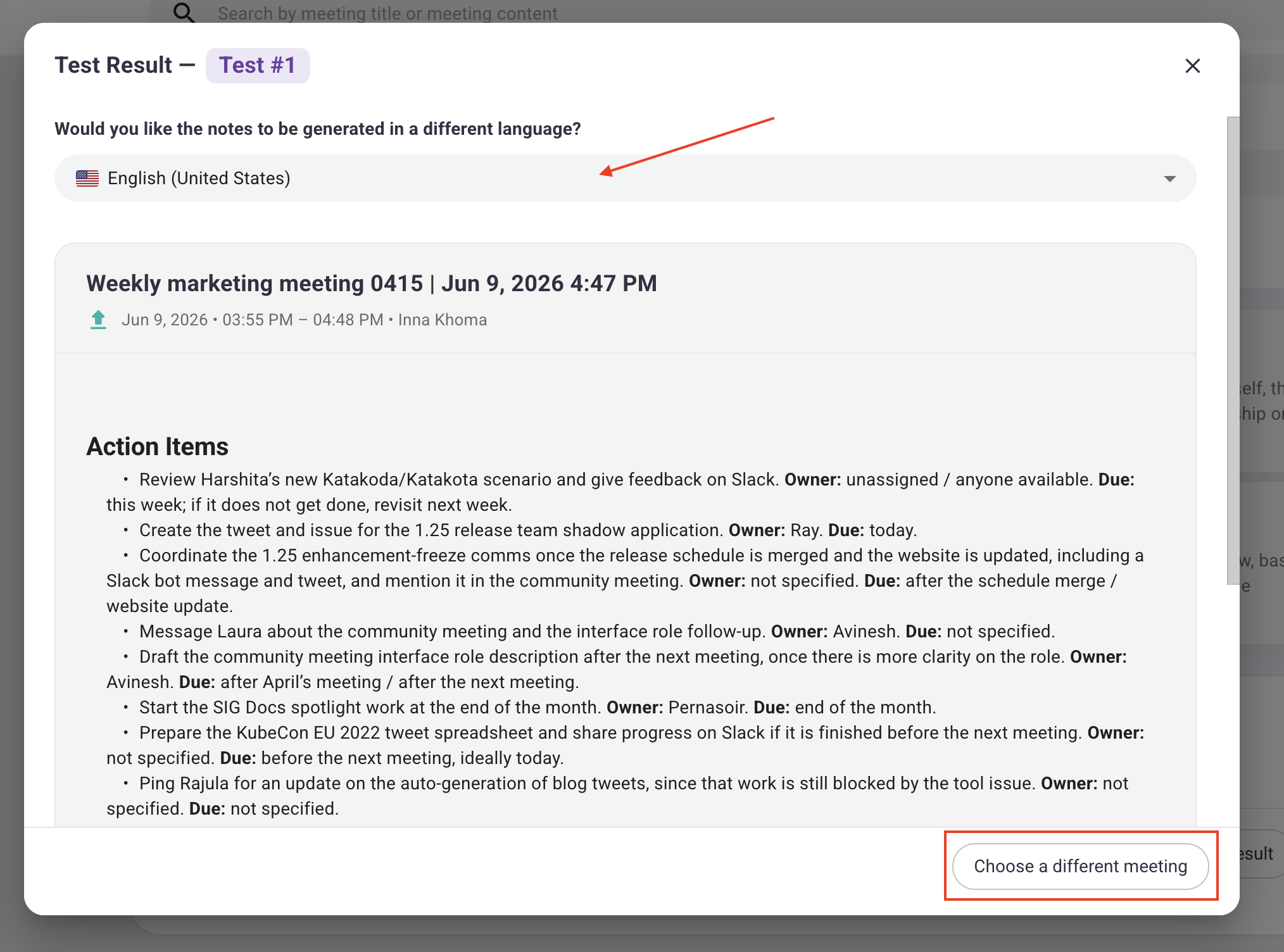
If you are not satisfied with the outcome, you can easily return to the template settings by closing the pop-up to edit your configuration or review test results one more time
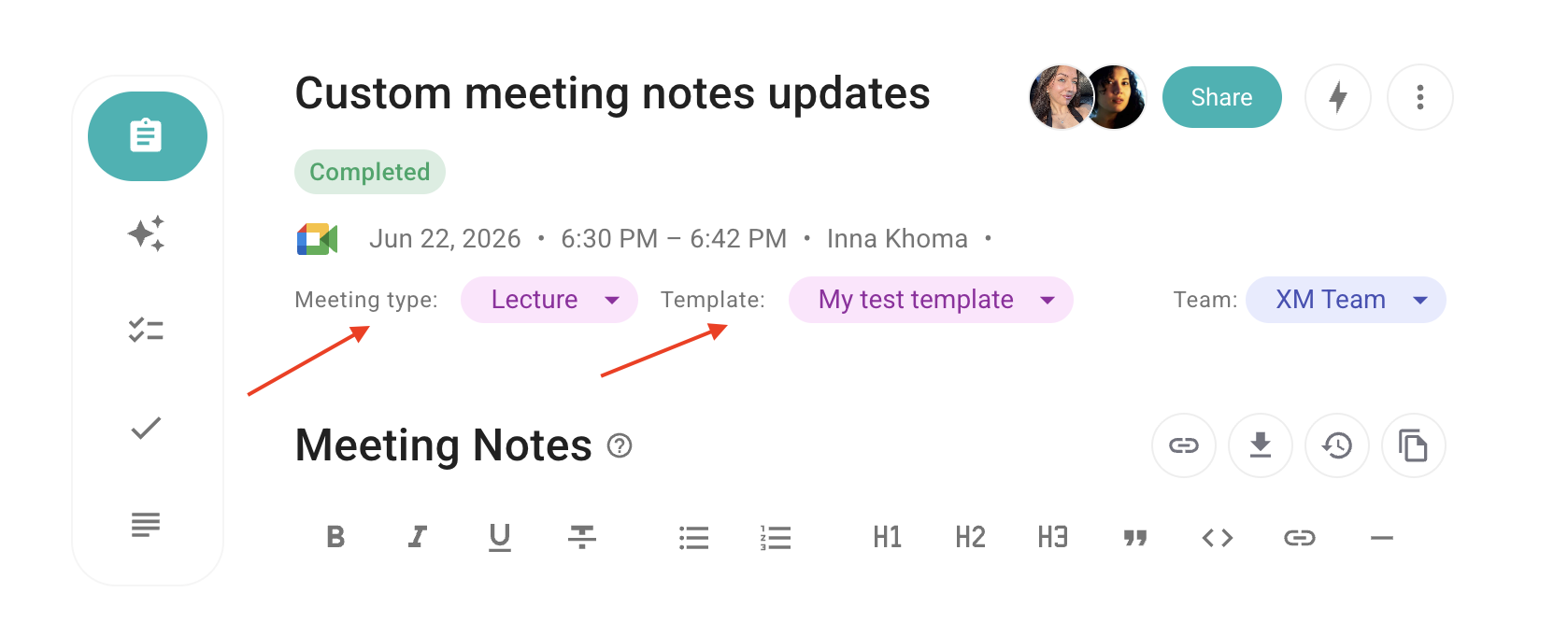
When done, go to your meetings, choose one, and apply a new template. If it's attached to a specific meeting type, choose it from the dropdown first, then apply your meeting template. Sembly will regenerate the meeting notes according to the new structure
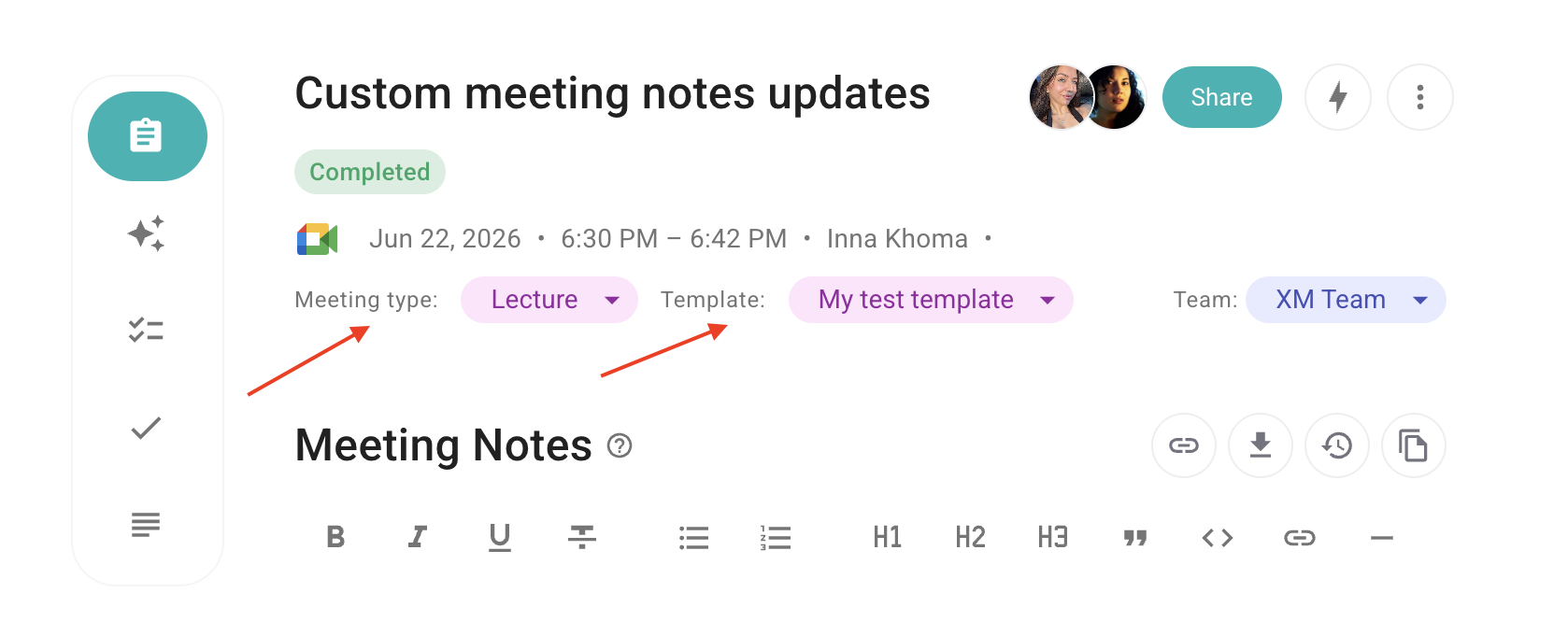

This section applies to workspace admins who want to create templates available across the entire workspace.
Log in to your Sembly account and navigate to Workspace settings on the left-hand menu
Select the Meeting Templates tab and click the + Create Template button
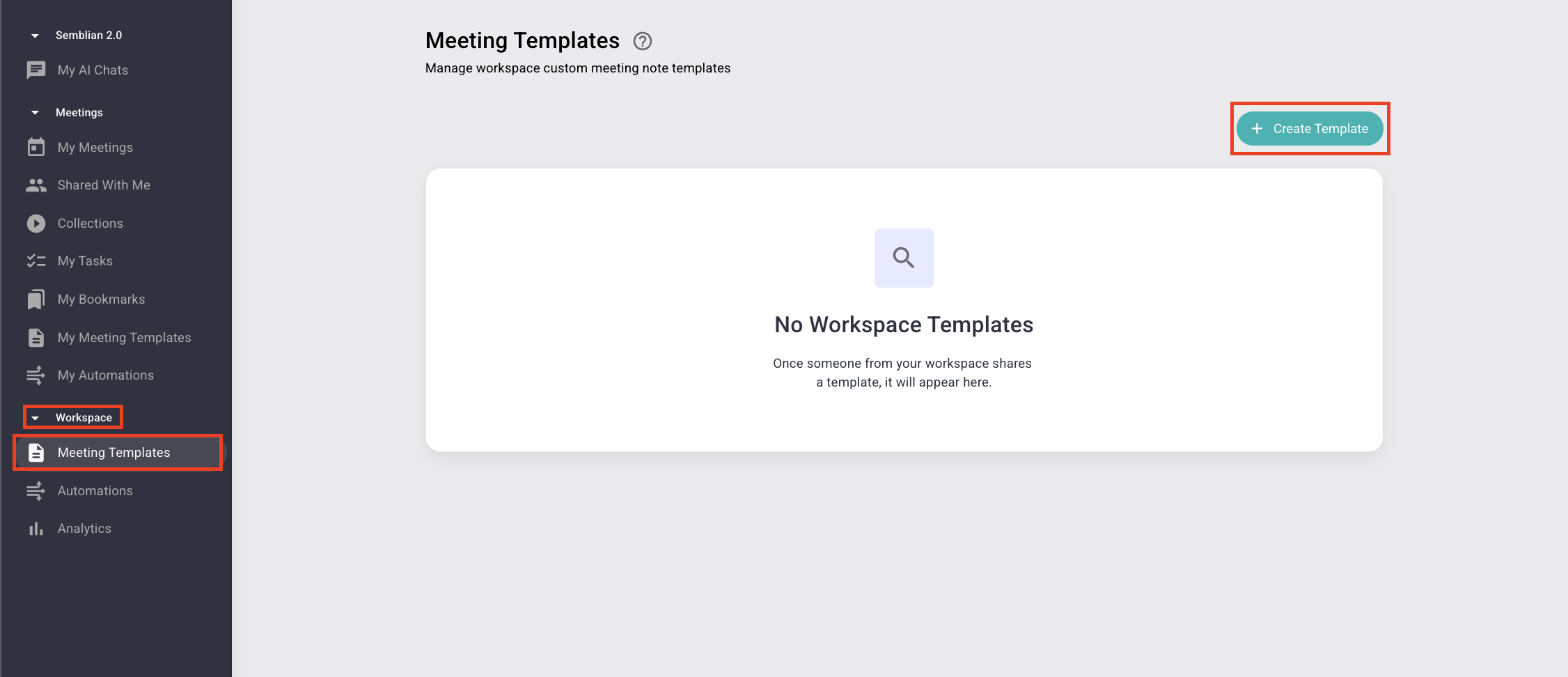
Name your template (e.g., "Weekly Sync," "Client Discovery," or "Project Post-Mortem")
Configure Meeting Type if needed. Use this dropdown only if you would like to categorize your template (e.g., "QA Session," "Demo Call") and attach it to a particular meeting type
Pick the status:
Published - the template is visible to everyone in the workspace and can be selected and applied by any member. Each workspace admin can manage it
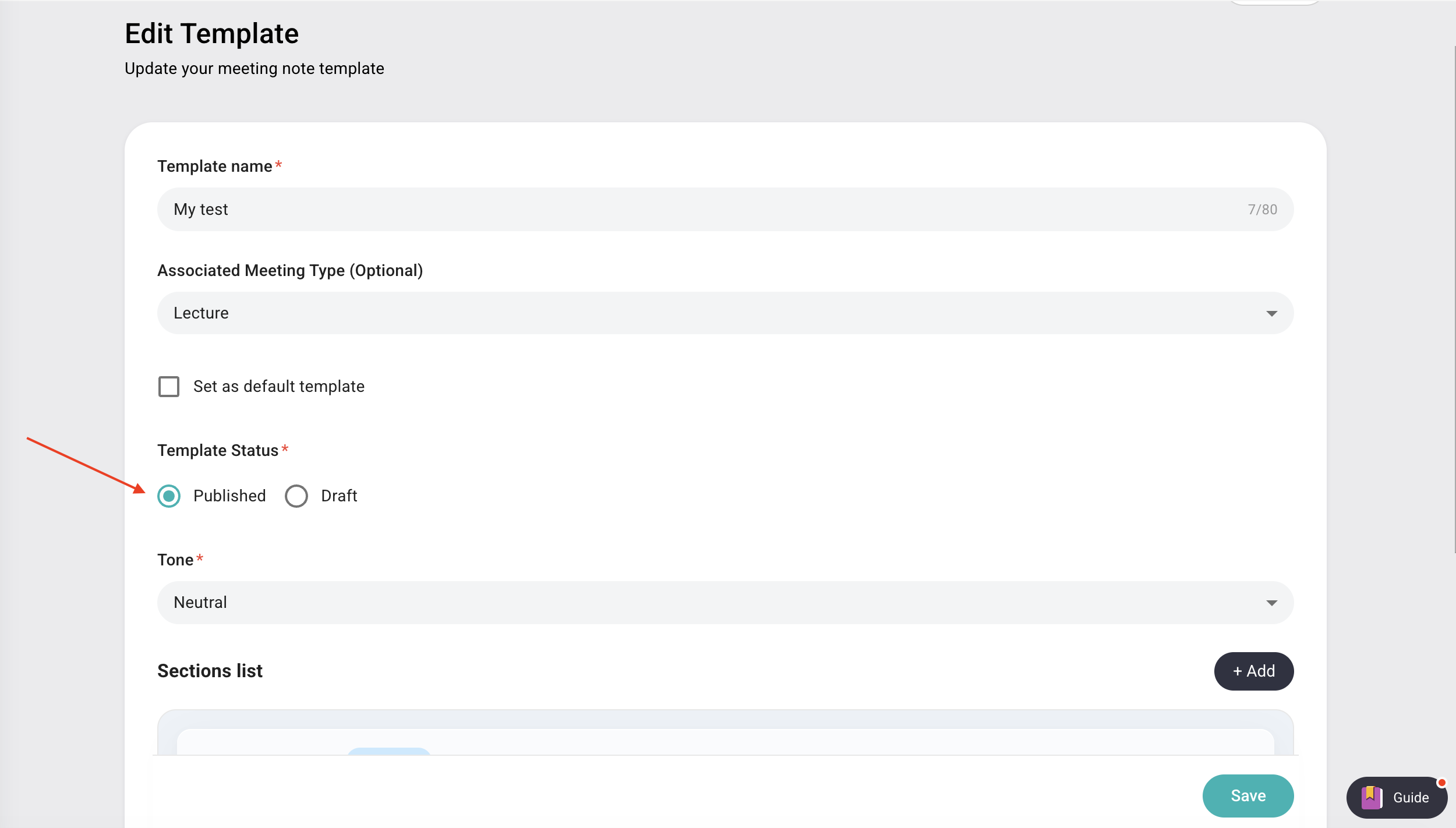
Draft - the template is visible only to the admin who created it. Even other admins in the workspace will not see drafts created by their colleagues. Draft mode hides the template from the template library, but not from any meeting where it has actually been used
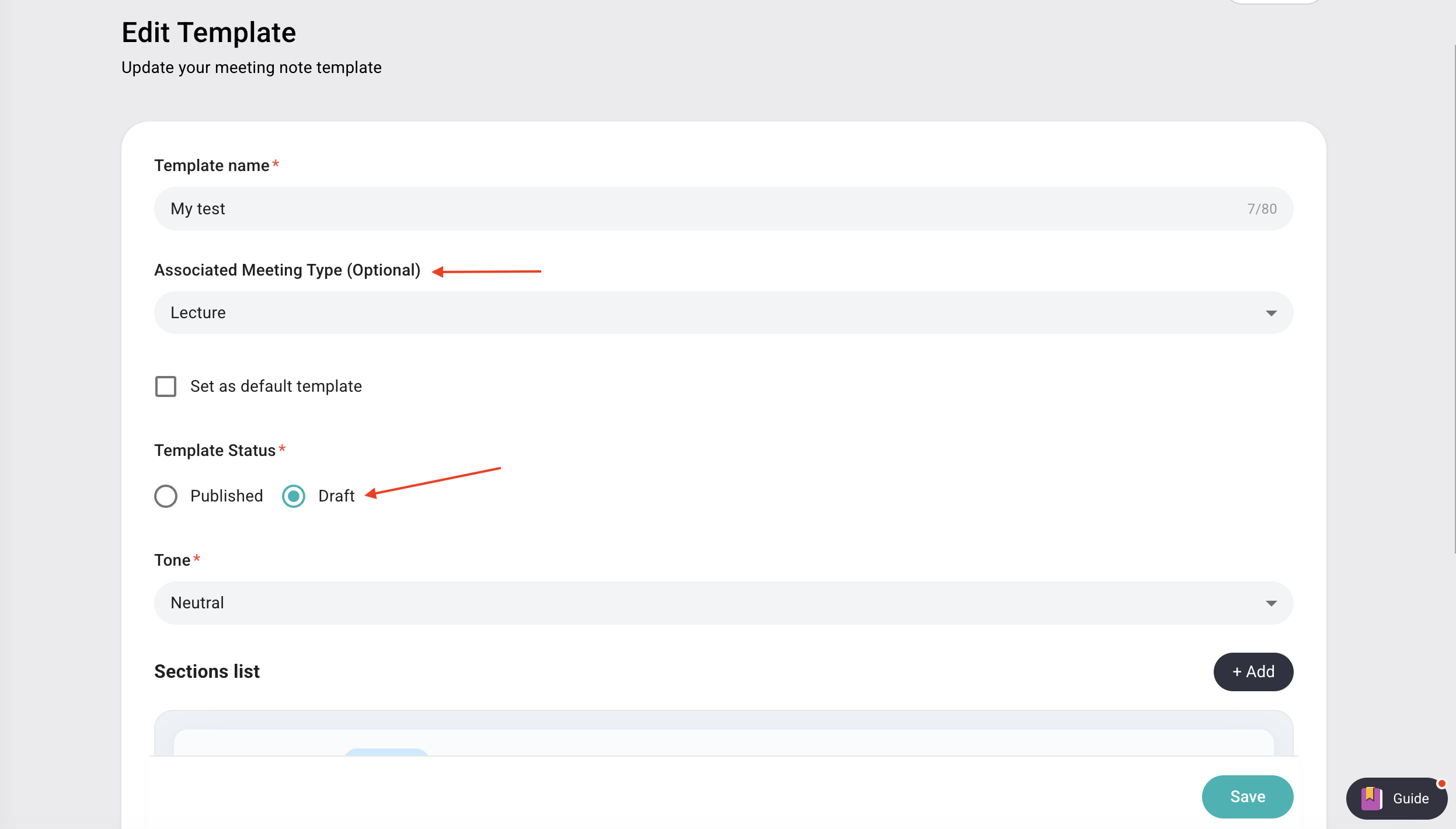
If you want Sembly to automatically apply this custom template structure whenever this specific meeting type is detected by Sembly or manually assigned, check the box Set as a default template
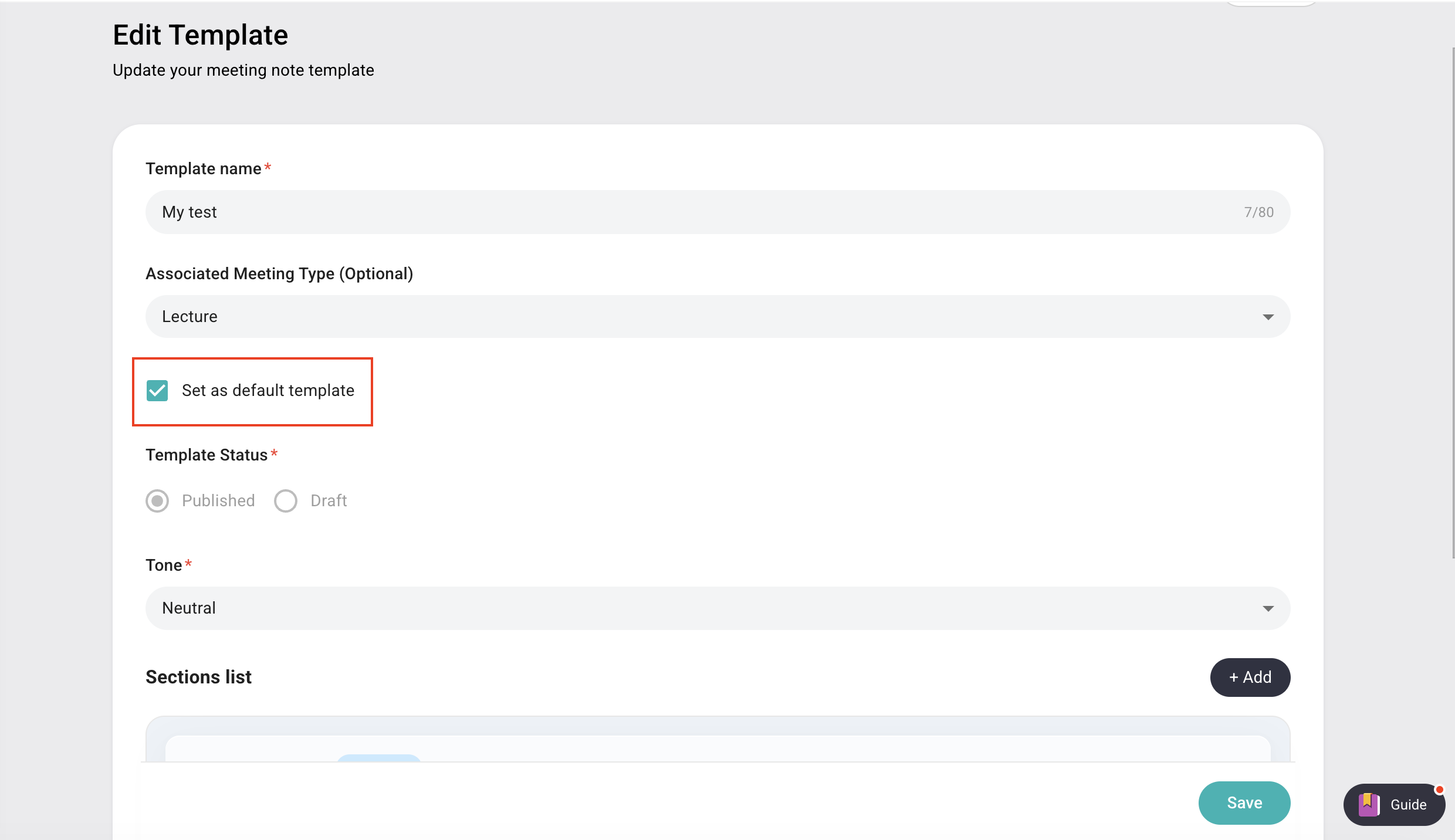
Select Tone of Voice. This setting tells our AI how to phrase the summary, ensuring the final output matches your needs

Add template sections by clicking +Add. You can mix and match Suggested Blocks (pre-set by us) and Custom Blocks (created by you) to build the exact structure you need
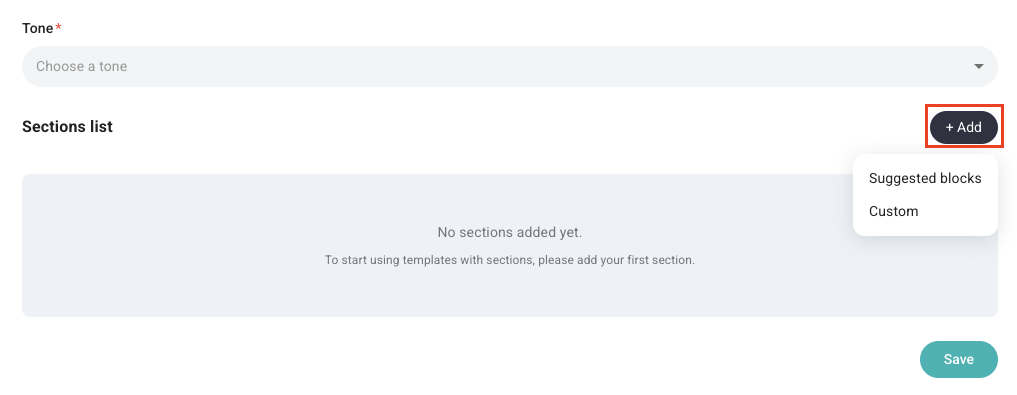
Suggested blocks: include pre-configured AI prompts that Sembly relies on to extract specific information from your meetings (e.g., Action Items, Areas for Improvement, or Decisions Made). Simply select the block and add it to your template
Custom Blocks: designed for unique requirements. If you have specific needs that aren't covered by the suggested blocks, add a custom block with an AI prompt to define the logic for that section
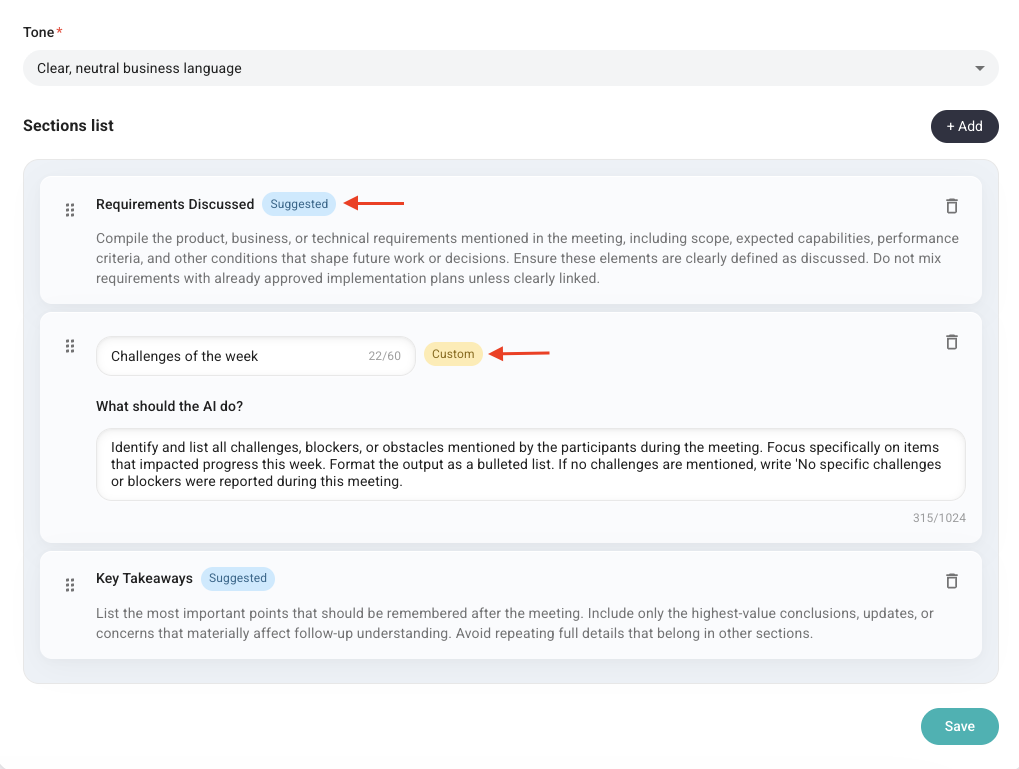
Once you have created your blocks, you have total control over the notes structure. You can add, remove, or edit these blocks at any time as your team's workflow or project needs evolve
Once your layout is perfect, click Save
After you have saved your template, you can test it on a real meeting to see the results. To do so, click the Try with a meeting button and select a meeting from the list to apply a newly created notes template, then hit the button one more time
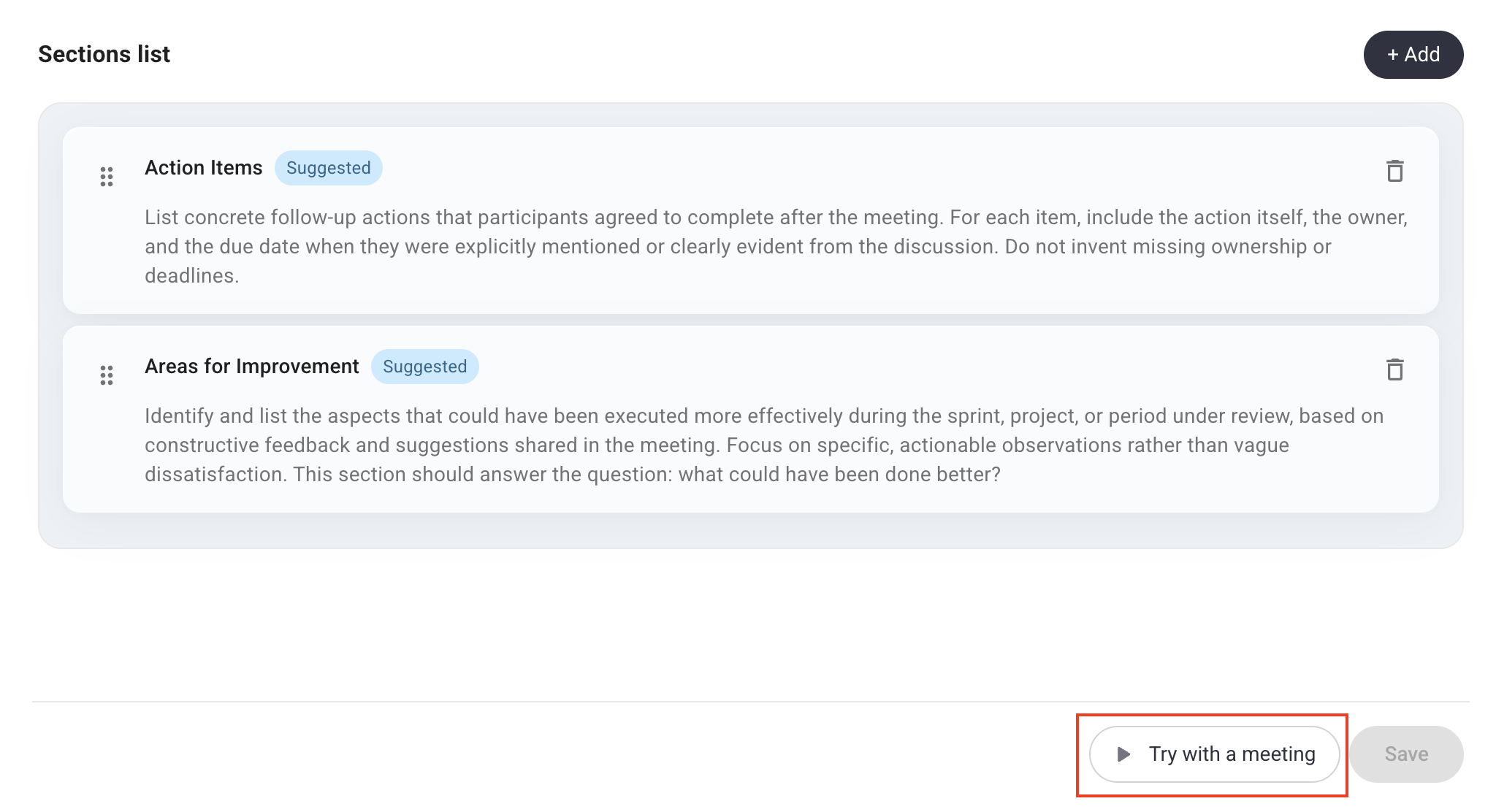
As soon as the notes are generated, you can see the outcome, choose another language for it from a dropdown, or choose a different meeting
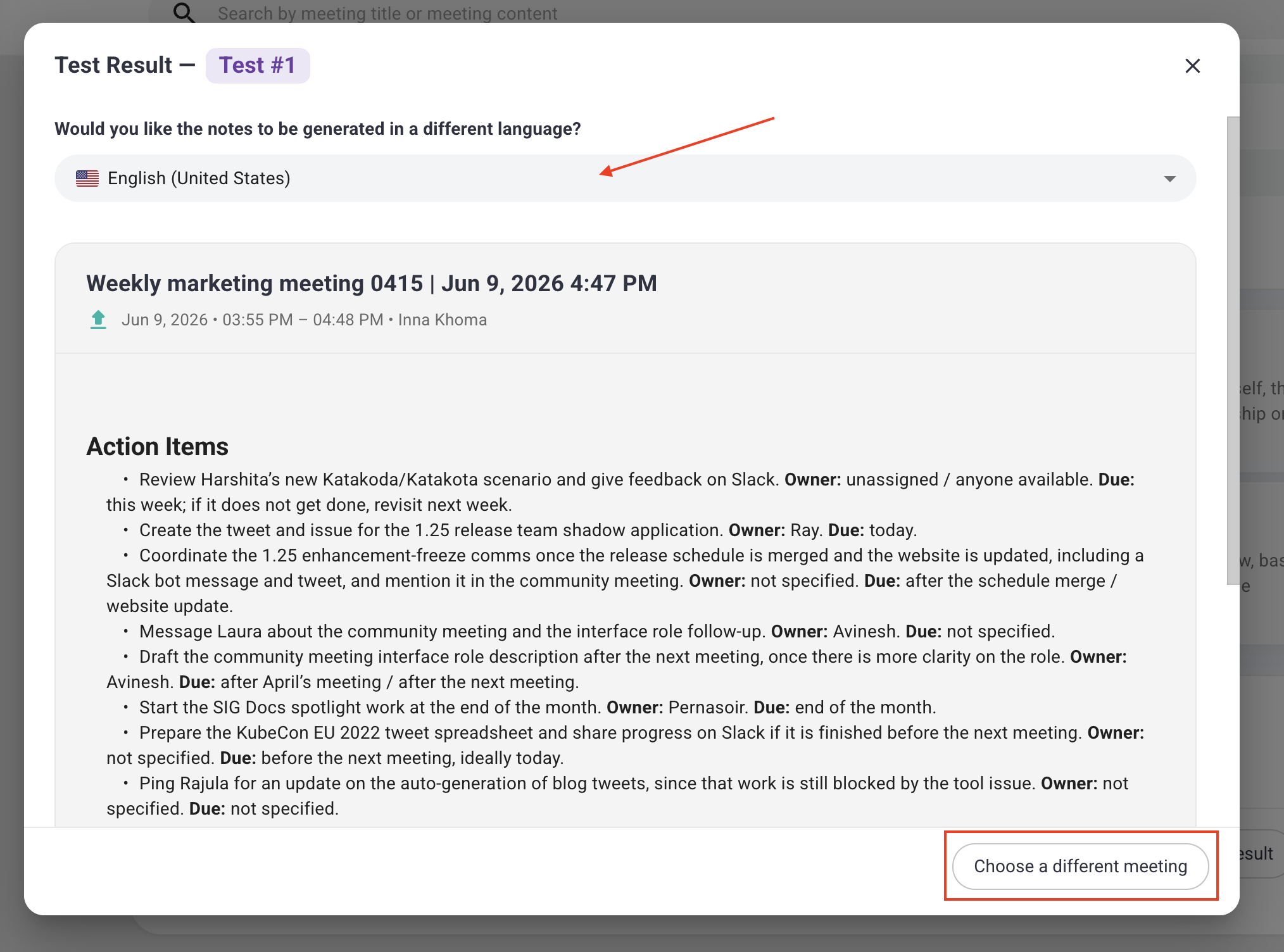
If you are not satisfied with the outcome, you can easily return to the template settings by closing the pop-up to edit your configuration or review test results one more time
When done, go to your meetings, choose one, and apply a new template. If it's attached to a specific meeting type, choose it from the dropdown first, then apply your meeting template. Sembly will regenerate the meeting notes according to the new structure
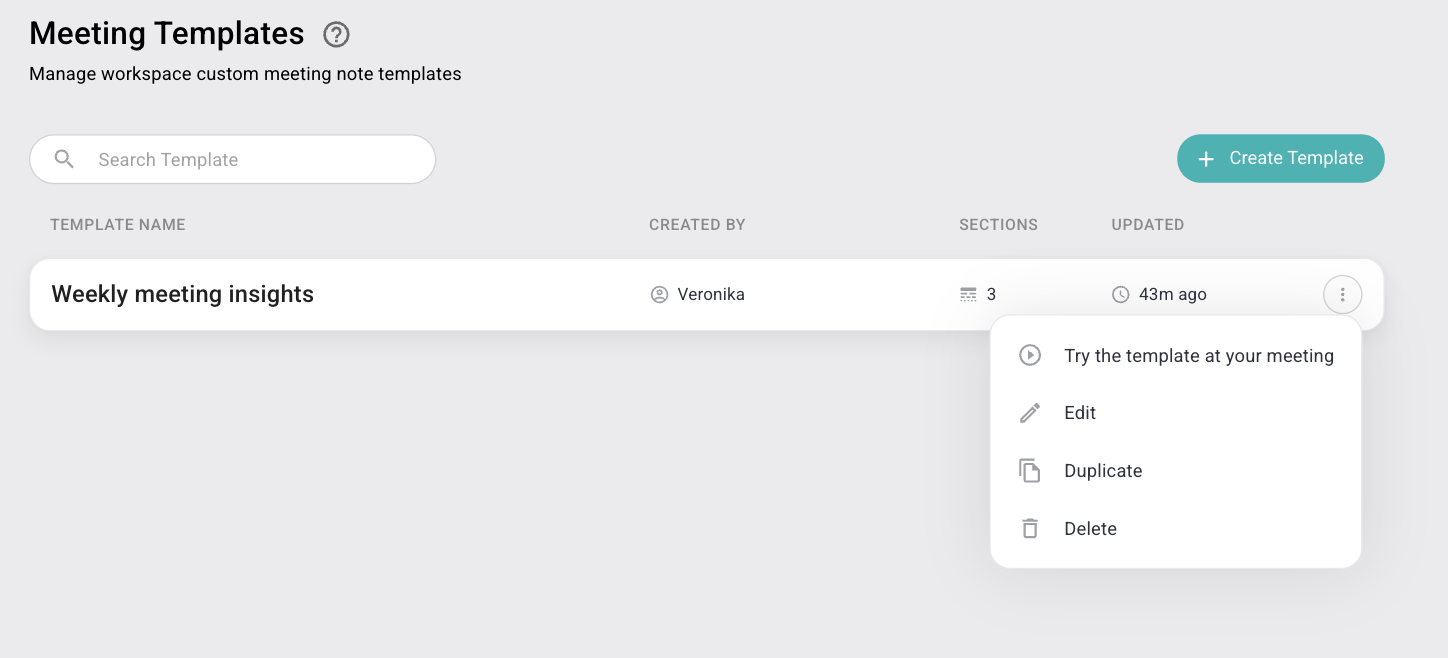
On your main templates dashboard (My Meeting Templates or Workspace Meeting Templates), you can view and manage all your configurations. For every template in your list, you have four primary actions available:
Try the template at your meeting: helps you test it properly before modifying any real meeting or View test result: check what's already been generated.
Edit: update your template by modifying blocks or adjusting prompts to better suit your needs.
Duplicate: create an exact copy of an existing template, allowing you to use it as a base for a new template.
Delete: permanently remove the template from your account. Before deleting, we strongly recommend considering whether it is better to edit the existing template or simply create a new one. Keeping the old template ensures that your historical meeting data remains intact and accessible.
By default, when you share meeting notes outside of your workspace, Sembly uses the template assigned to that meeting. However, you can manage whether your custom templates are visible to external recipients or if they should see a standard, generic version instead.
This is particularly useful if your custom templates contain internal-only structures or specific logic that you’d prefer not to share with clients or external partners.
How to Change Sharing Templates:
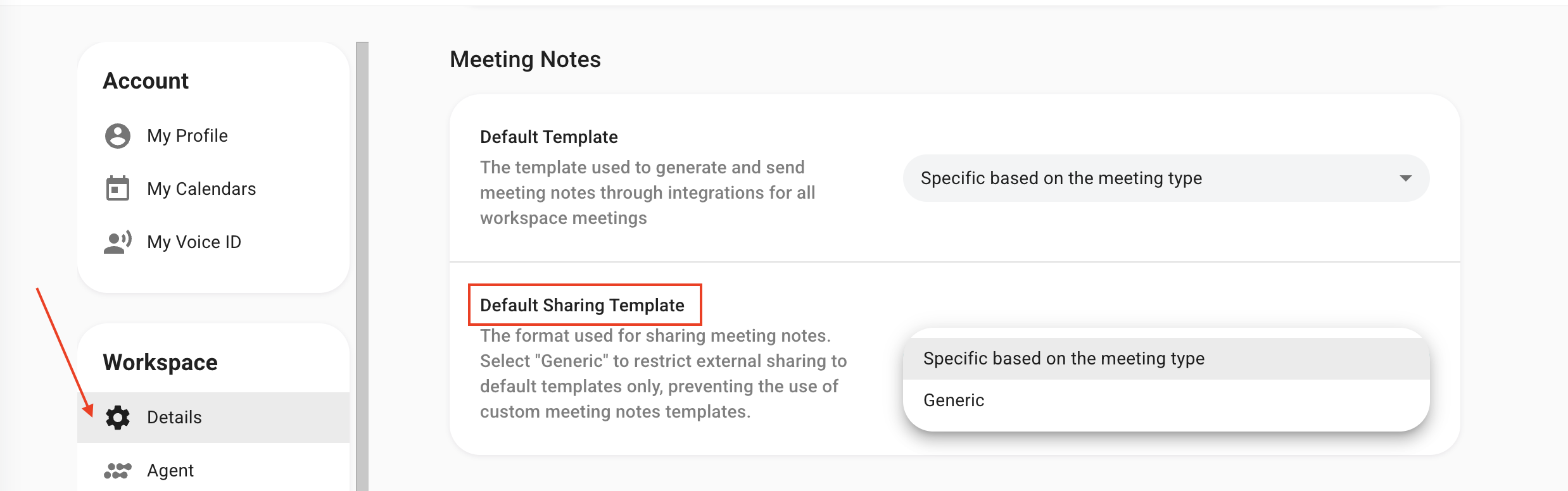
Log in to your Sembly account and click the gear icon in the left-hand menu to choose Settings
Select the Details tab under the Workspace
Scroll down to Meeting Notes -> Default Sharing Template
You have two options to choose from:
Specific based on the meeting type - both workspace and external users* will see the same notes with custom templates applied when a meeting is shared
Generic - only workspace users will see notes with custom templates applied. All external users* will see only the default Sembly templates when a meeting is shared with them
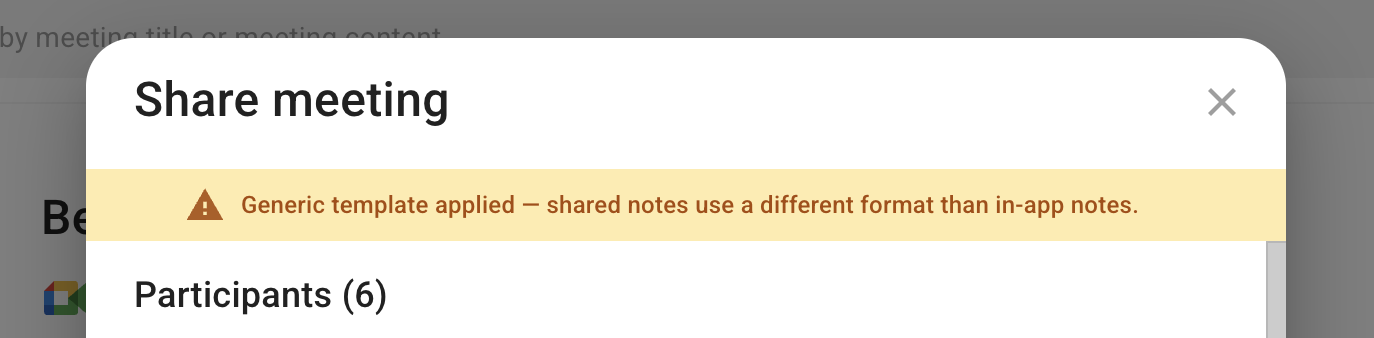
*external users are users who received access to a meeting via a guest link, by email (shared with another workspace), with view or edit access.
IMPORTANT! If you choose Generic, apply a custom meeting notes template, and share only a public link to the meeting notes, anyone who receives that link will see the meeting notes with the custom template, not the default one.