LEGACY PLAN: PROFESSIONAL
With the Philips VoiceTracer Audio Recorder or Philips VoiceTracer Recorder Pen, you receive a promo code for a free one-month Sembly Basic plan and 1,000 bonus credits (~8 upload hours).
Here's how your credits add up:
Free plan: Every new workspace starts with 2,500 credits (~21 upload hours): a 1,750-credit workspace grant plus 750 monthly credits.
Basic plan with the promo code: When you upgrade to Basic using your promo code, you get 3,500 more credits (~29 upload hours): 2,500 for the Basic plan and 1,000 from the promo code.
That's 6,000 credits in total, or 50 upload hours.

You can apply the promo code to paid accounts on a monthly subscription (for an annual subscription, you will receive a $17 USD discount, not a free month).
Users who wish to register their accounts with a “single sign-on” can select one of the authentication options Sembly offers and skip entering a password and email.
Sign up by this link to get a free 30-day subscription.
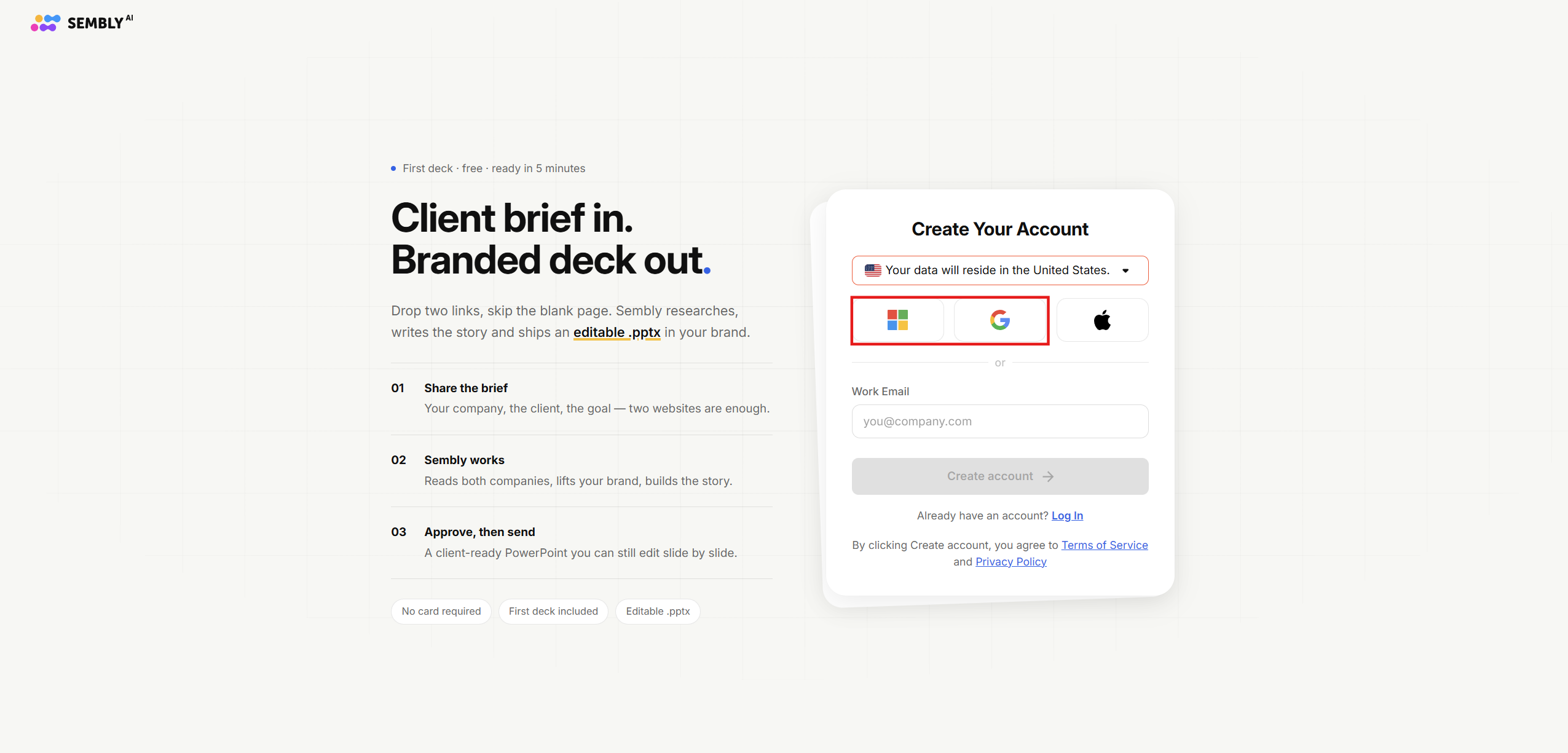
Select Google or Microsoft authentication.
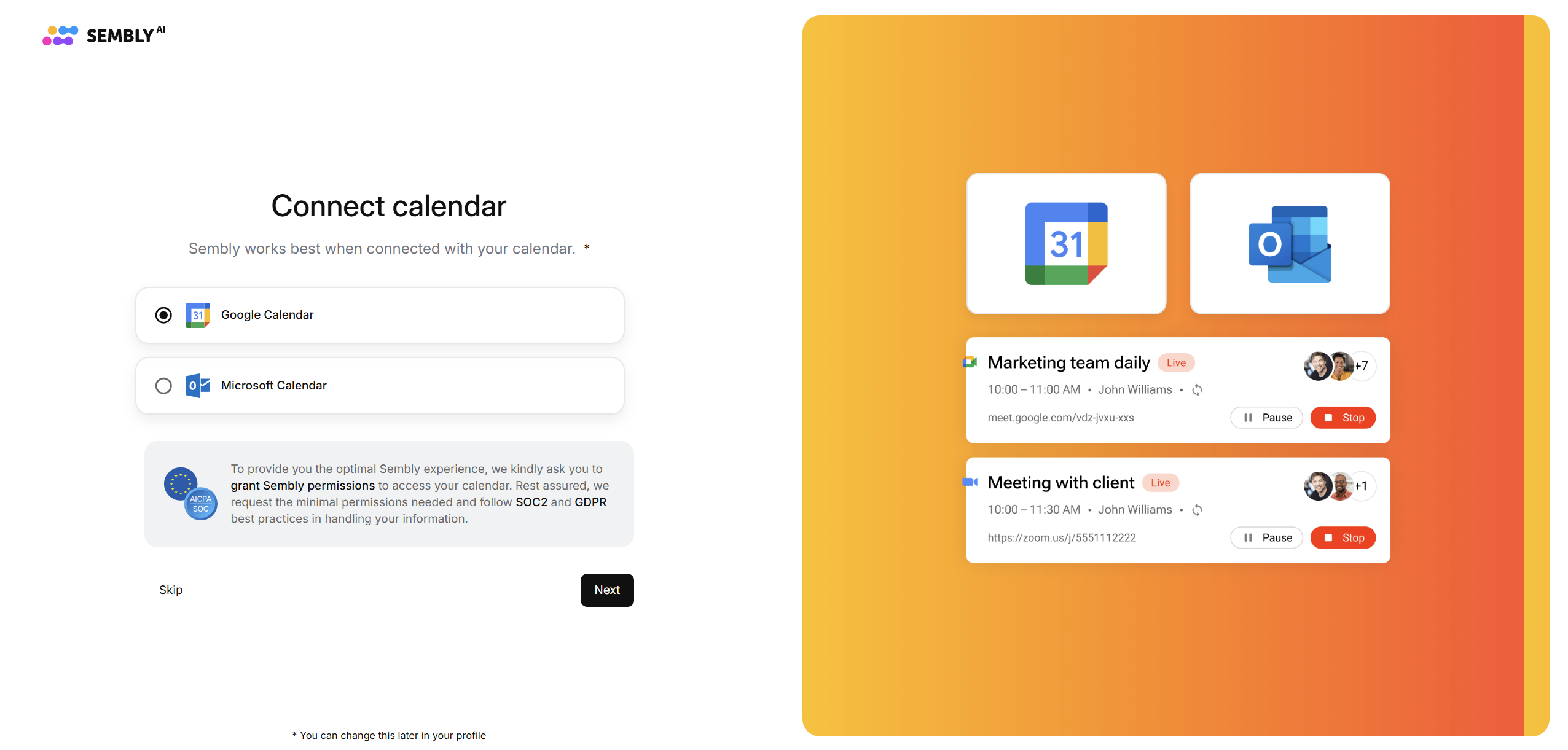
In the next step, you will be asked to connect your Google or Microsoft Calendar to your Sembly account. If you don't wish to connect your calendar for recording online meetings, you can skip the calendar connection step. You can connect your calendars in calendar settings later.
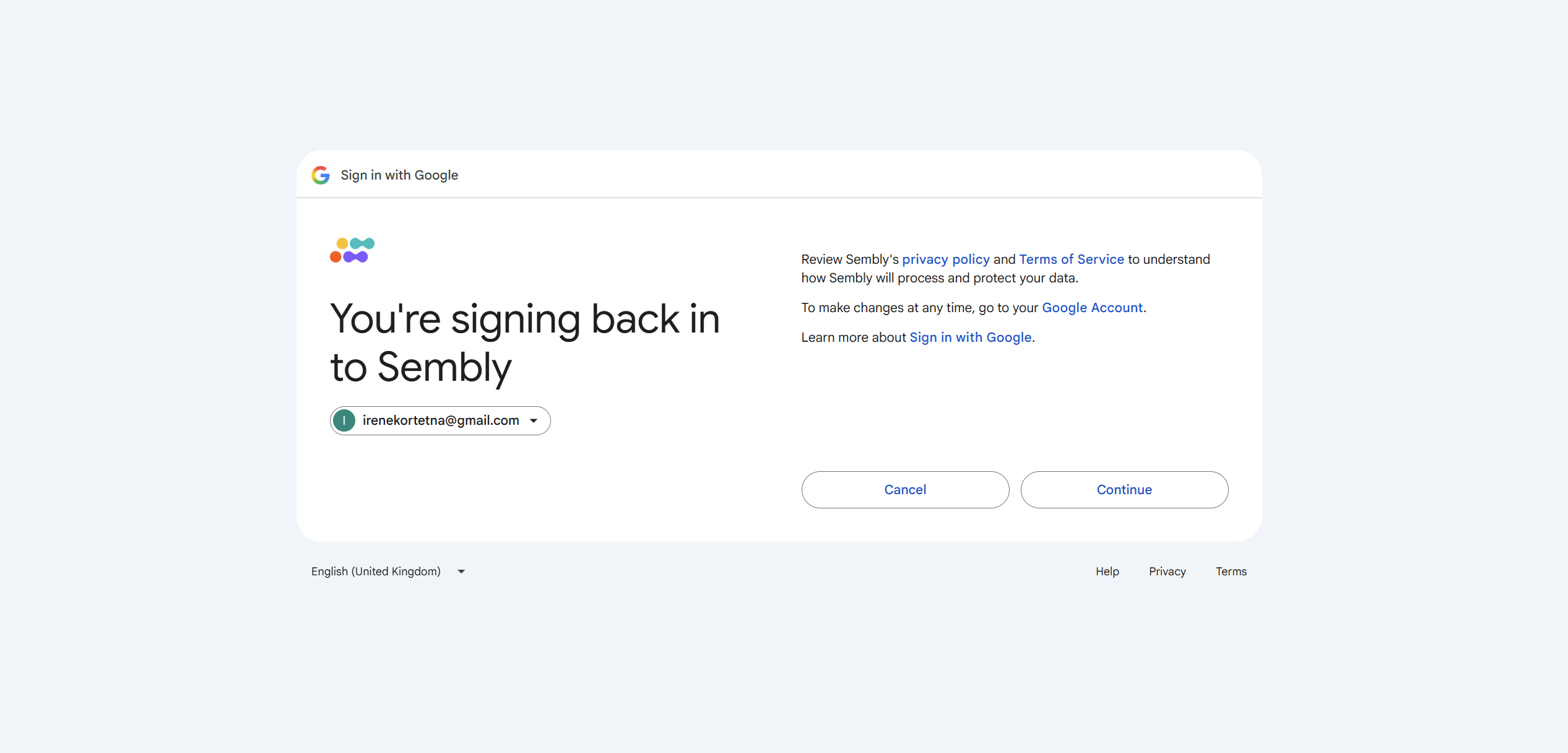
Next, pick the Microsoft or Google account you’d like to sign up with.
In the next window, agree to our Terms of Service and Privacy Policy and press Continue. By agreeing, you confirm that you have read both documents.
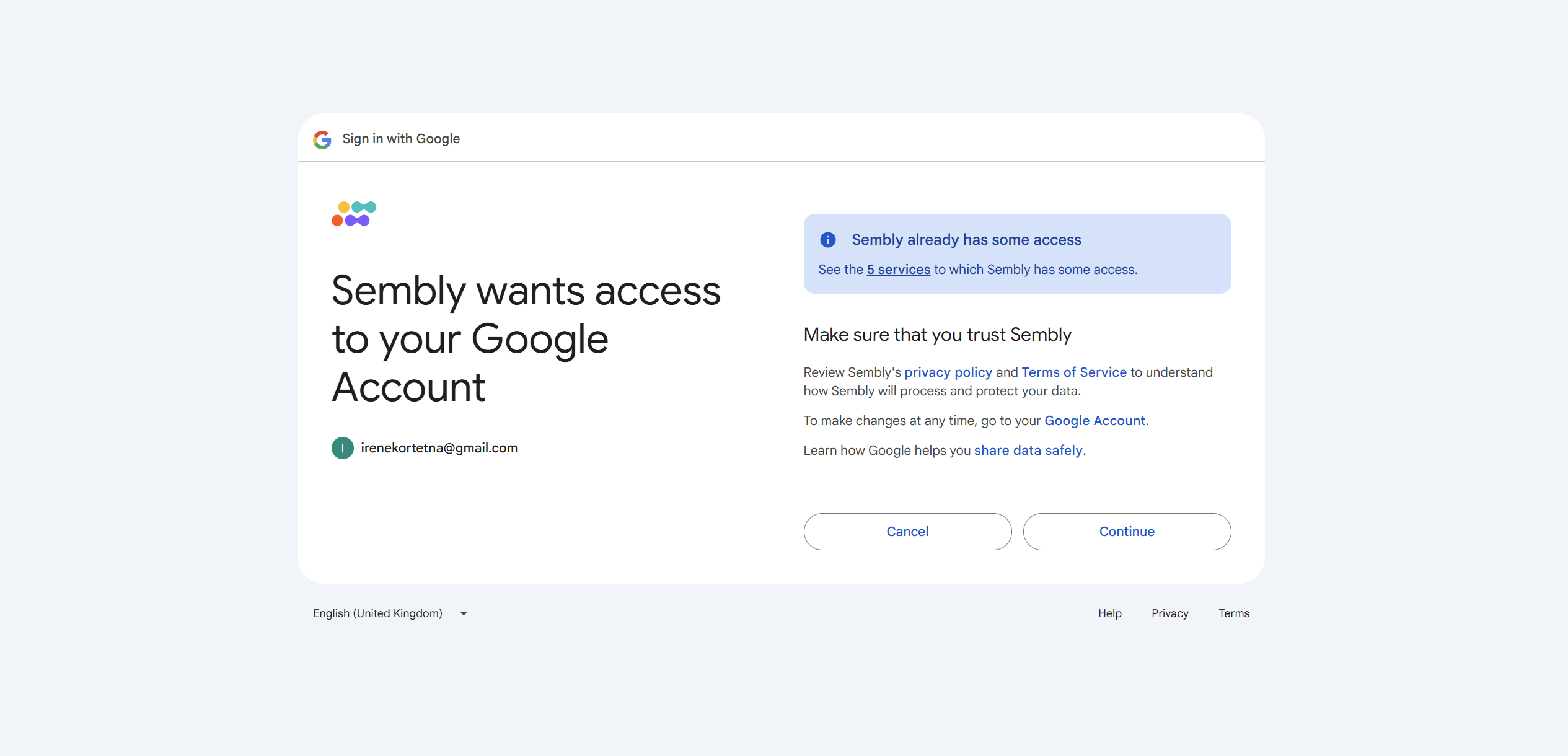
On the next screen, review the additional access request from Sembly. Review the details and press Continue.
In the next step, you’ll be asked to fill in the payment details. Make sure to select the Monthly Basic plan to apply your promo code bonus.
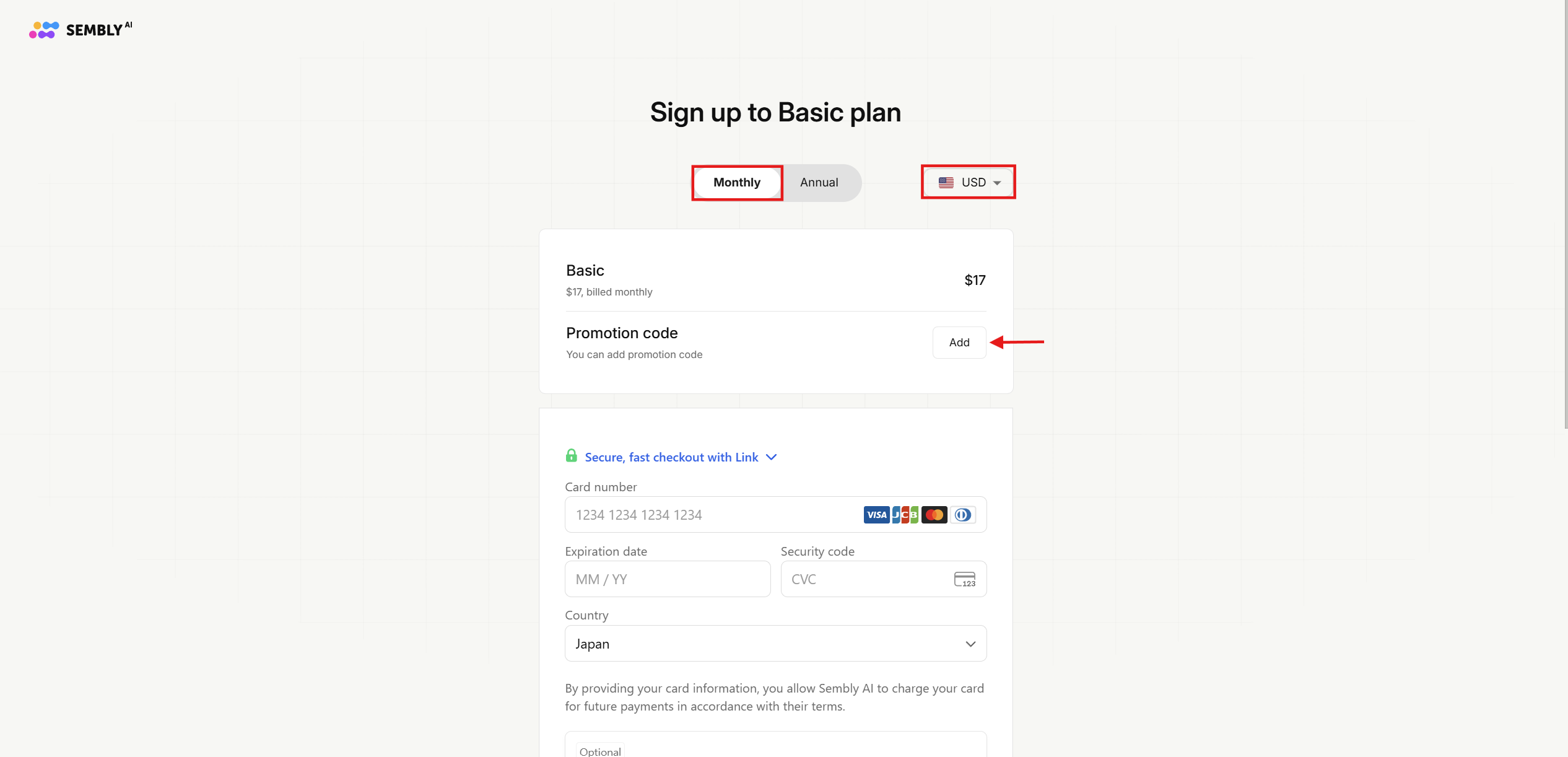
In this window, you can also choose a currency and payment method. Add the promo code (DVTXX) by clicking ADD next to Promotional code to unhide the field. Fill in your payment details and click Purchase.
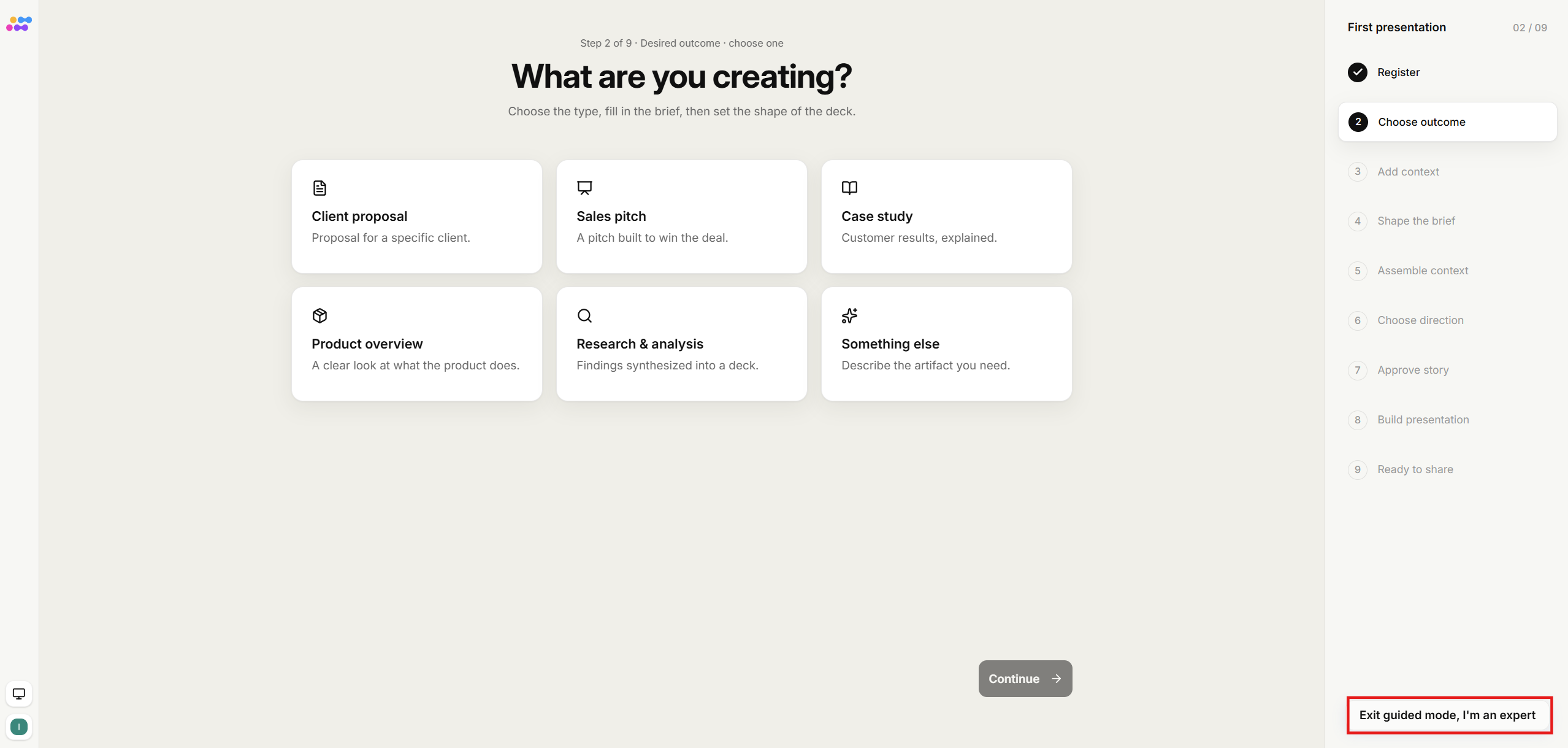
Your account is almost ready to use now. Once you’re on onboarding page where you can create your first presentation, you have two options: either to create you first deck, or to click Exit guided mode, I'm an expert to leave the guided flow and enter to your account immediately. You can check the guide here.
Now you're all set! Use the SSO login each time you log in. Upload your first meeting and enjoy using Sembly!
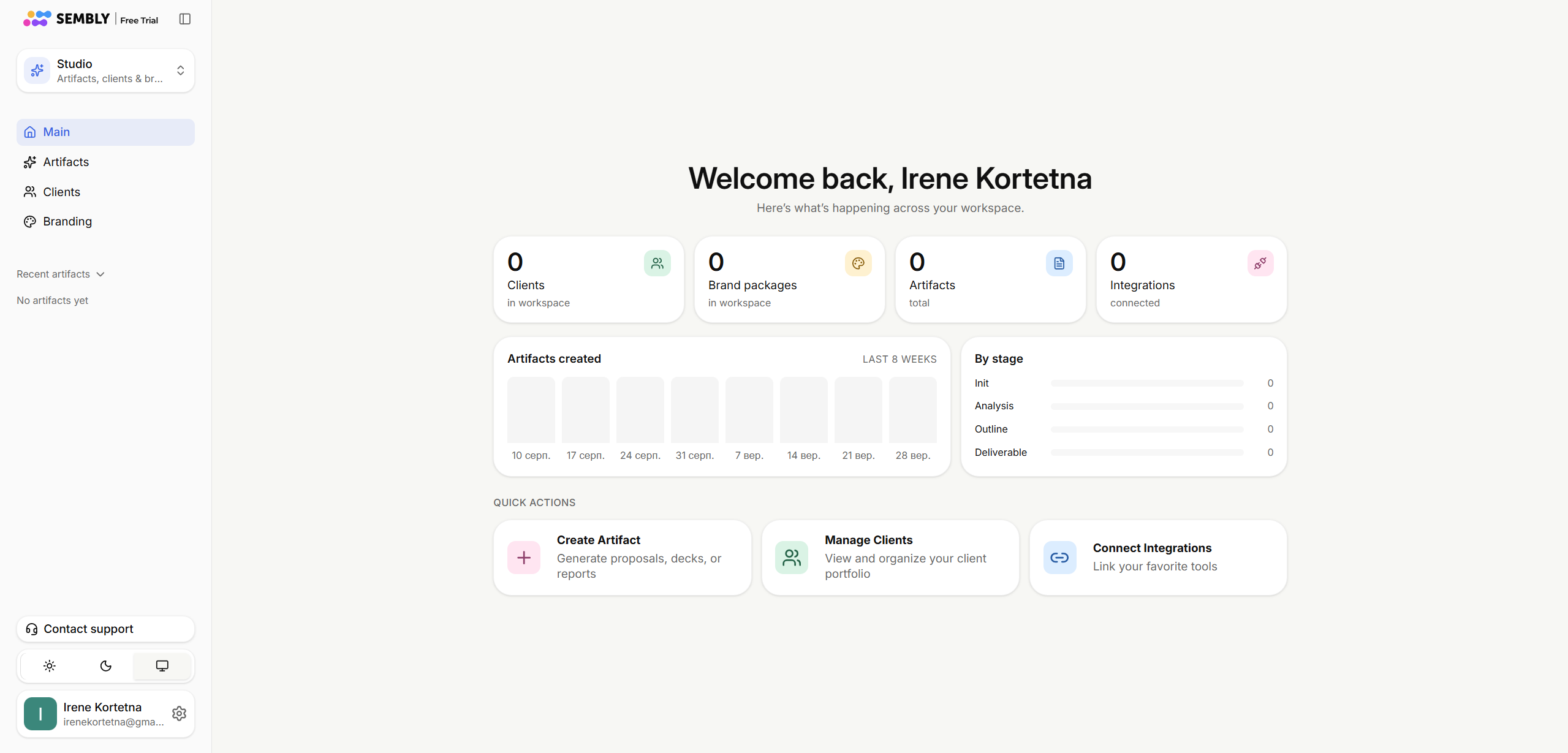
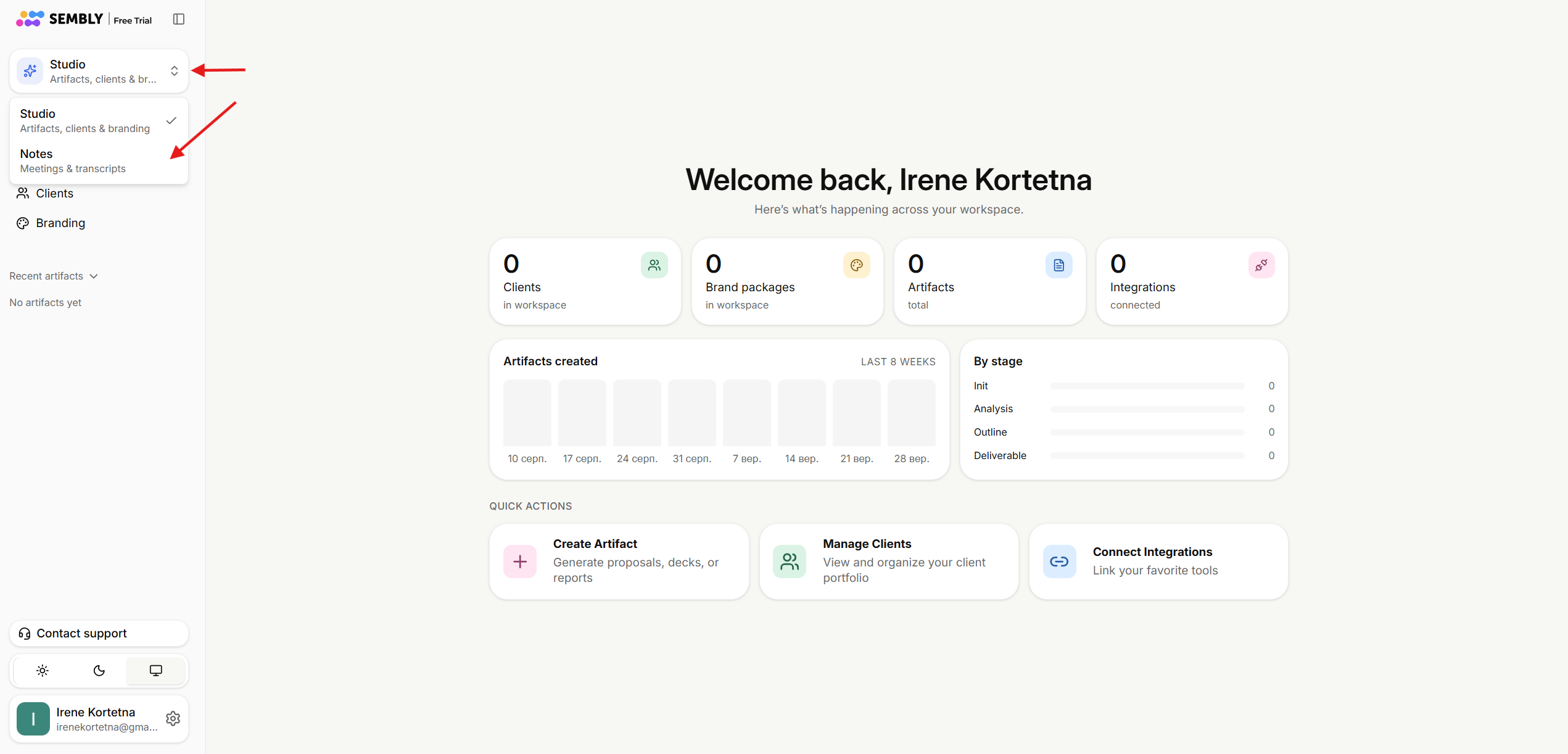
If you want to switch from Studio to Notes, click the Studio/Notes dropdown and choose what you want.
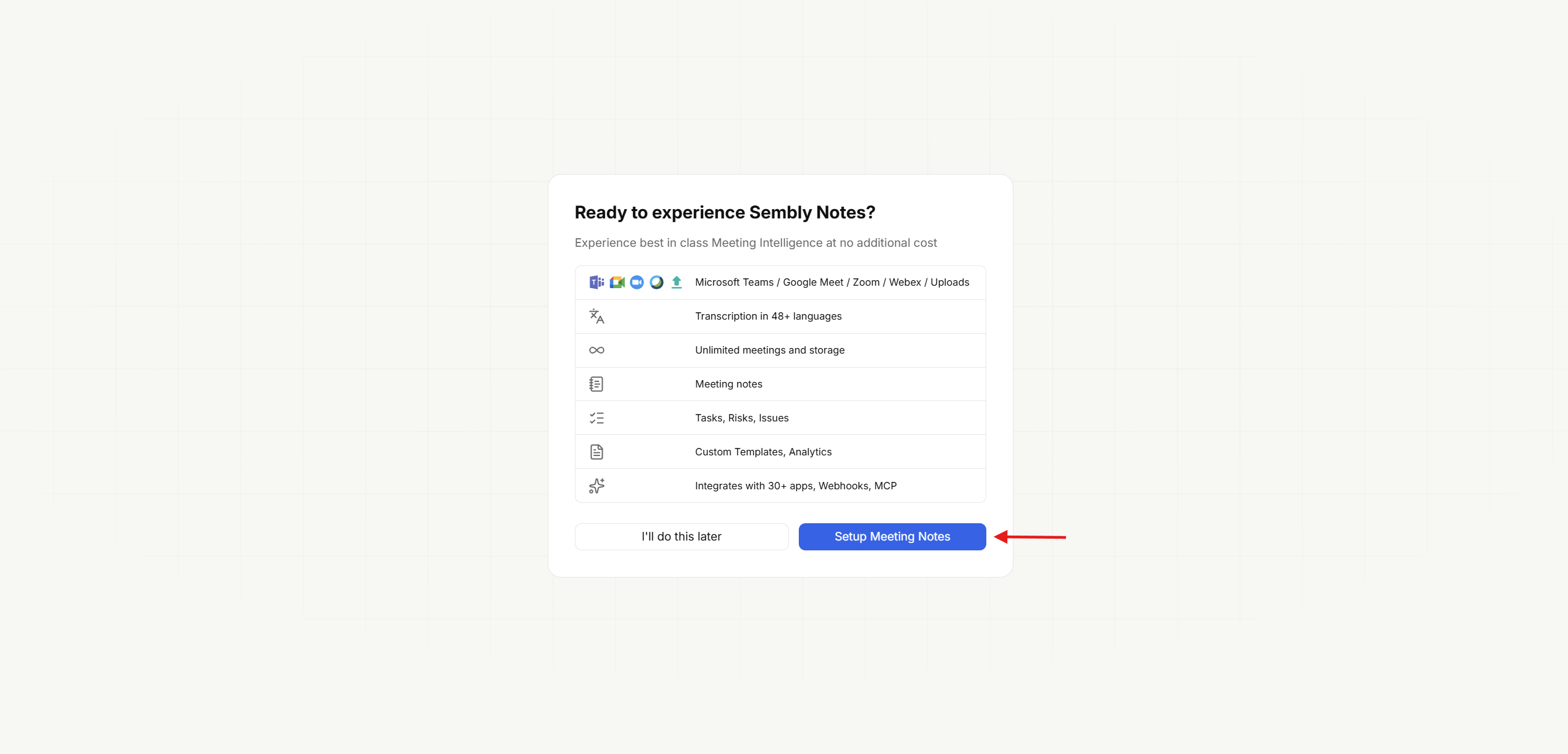
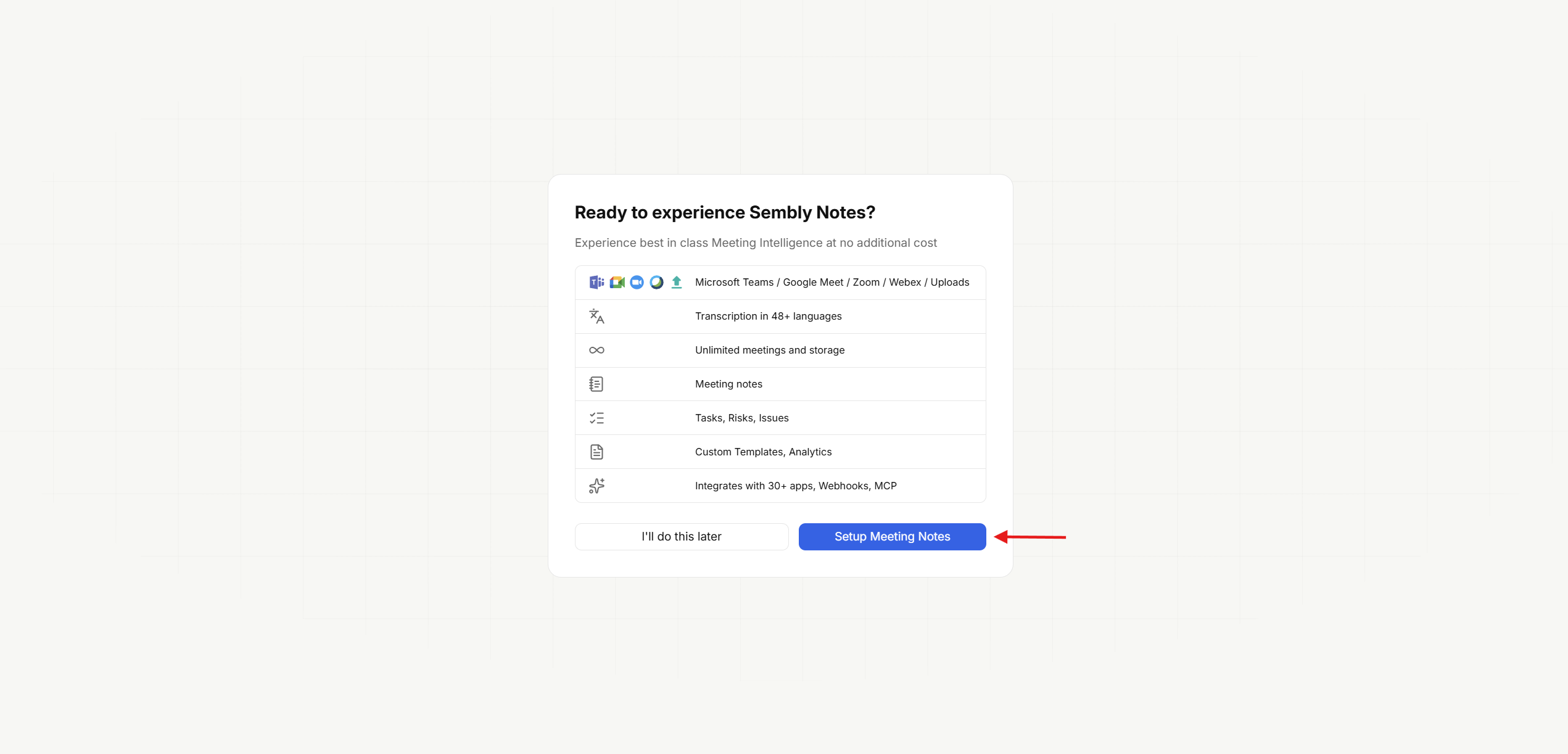
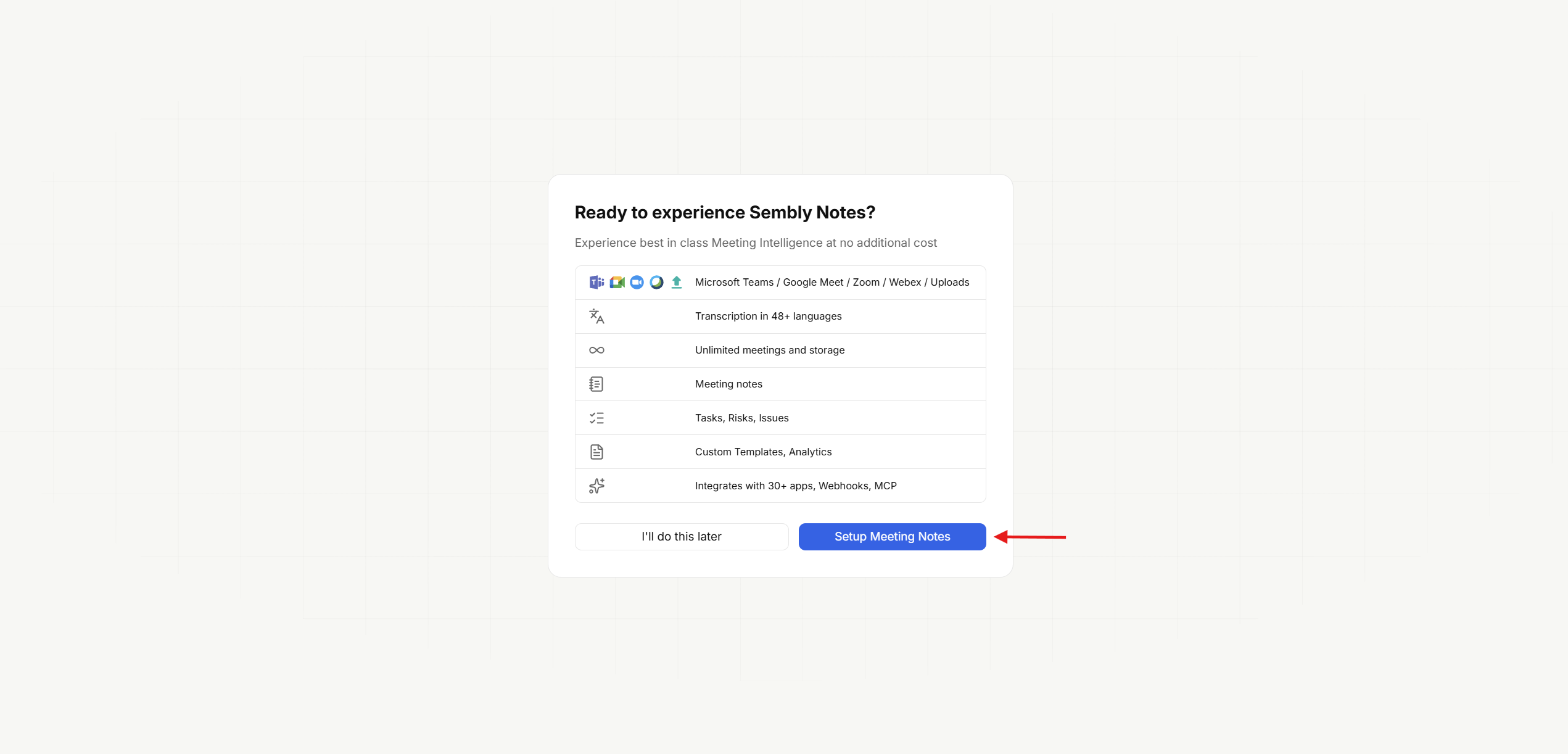
If it’s your first time in Notes, you will be sent to the Meeting Notes activation page. Just click Setup Meeting Notes to proceed. If you click I’ll do this later, you will be redirected back to the Studio.
Sign up by this link to get a free 30-day subscription.
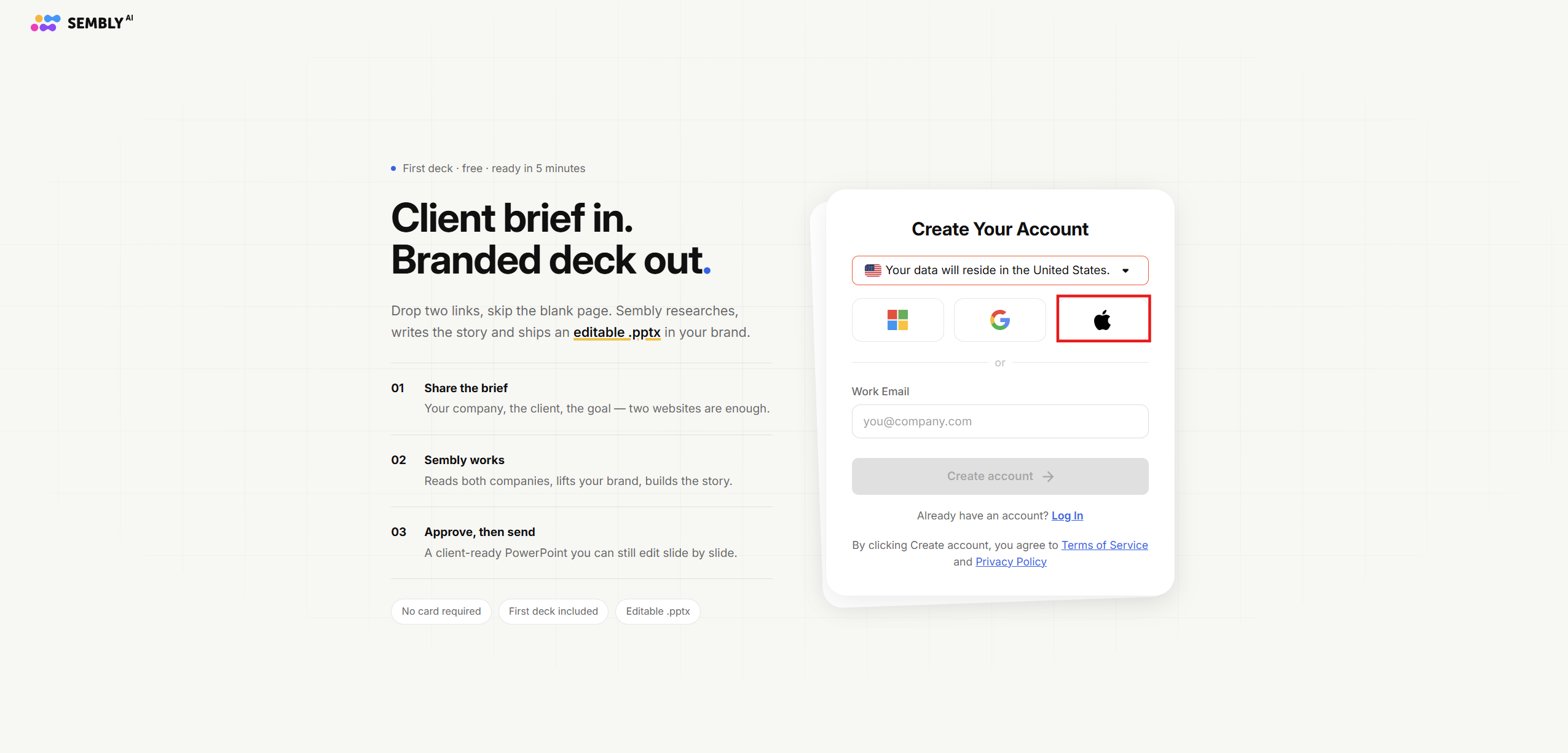
Select Apple authentication.
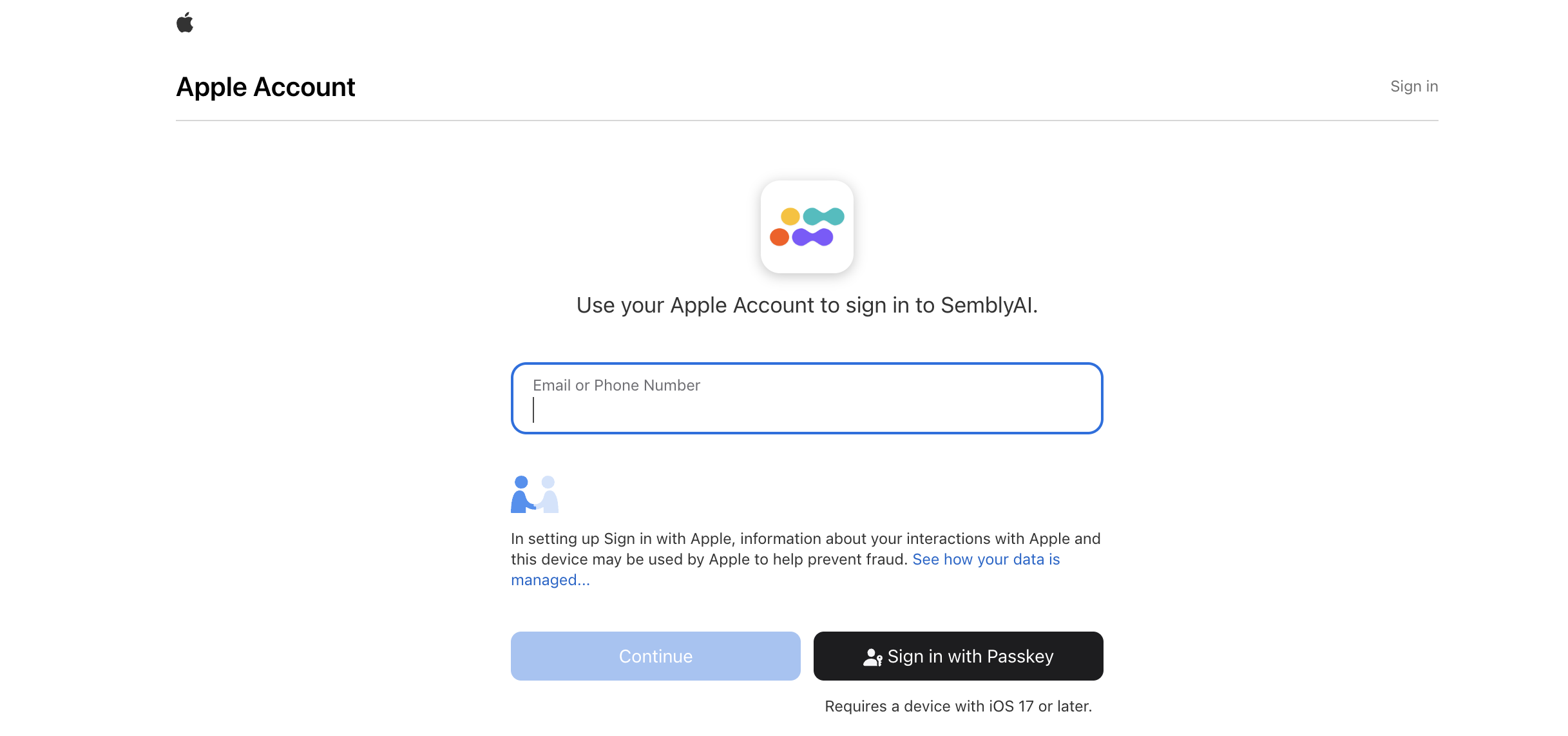
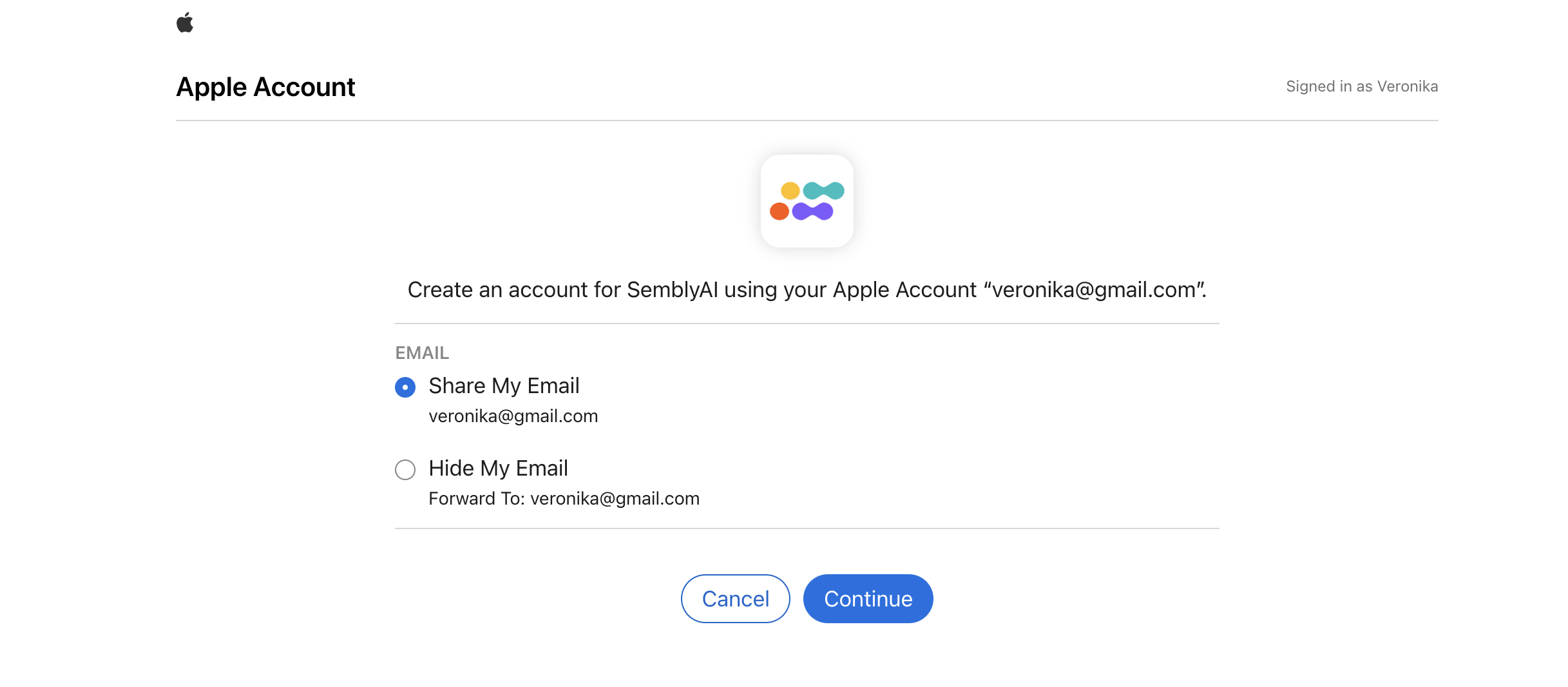
Sign in to your Apple ID and confirm that you want to continue using Sembly with your Apple ID.
Select where you would like to share your email or hide it.
In the next step, you’ll be asked to choose a plan. Make sure to select the Monthly Basic plan to apply your promo code bonus.
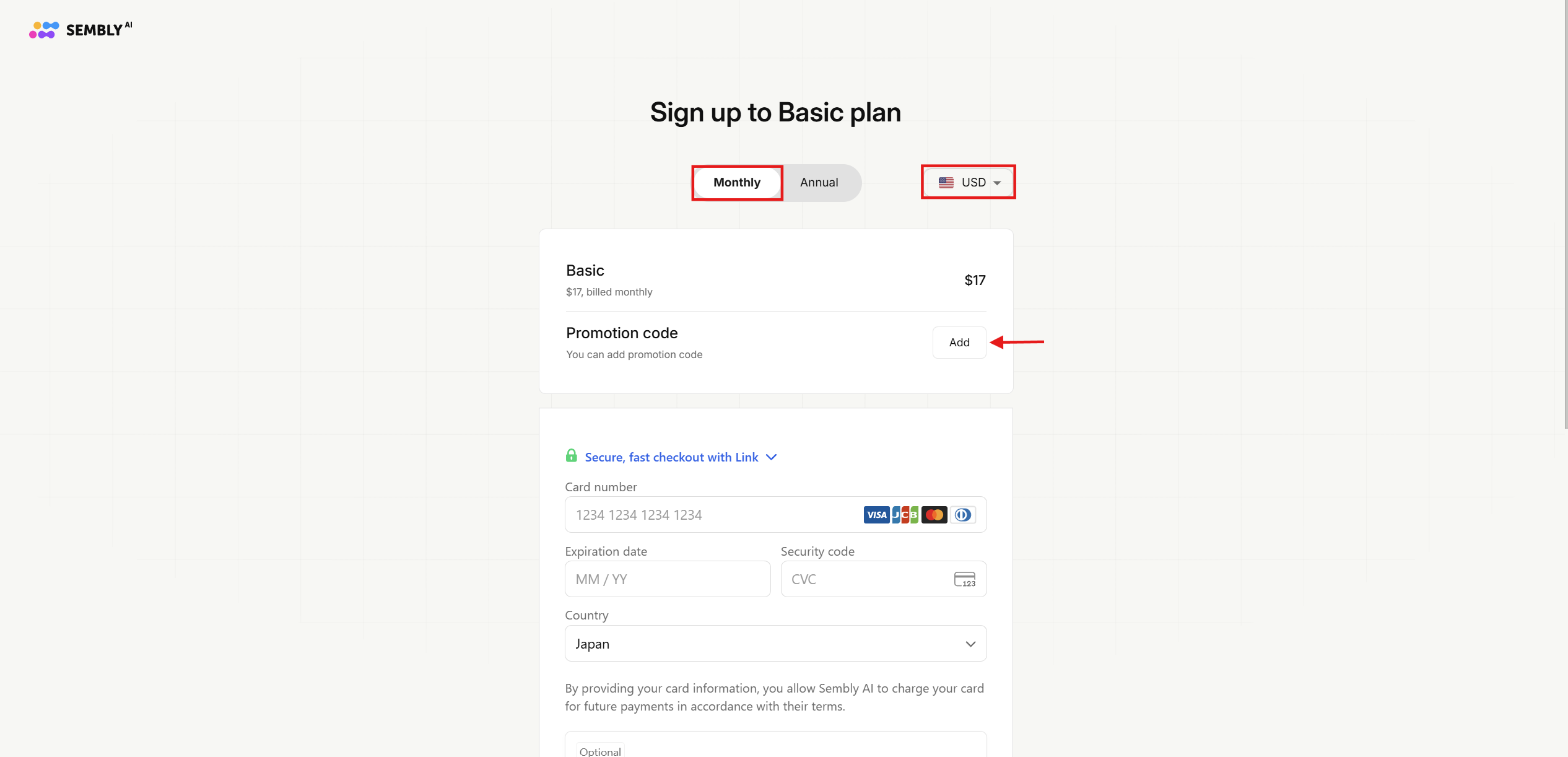
In this window, you can choose a currency and payment method. Add the promo code (DVTXX) by clicking ADD next to Promotional code to unhide the field. Fill in your payment details and click Purchase.
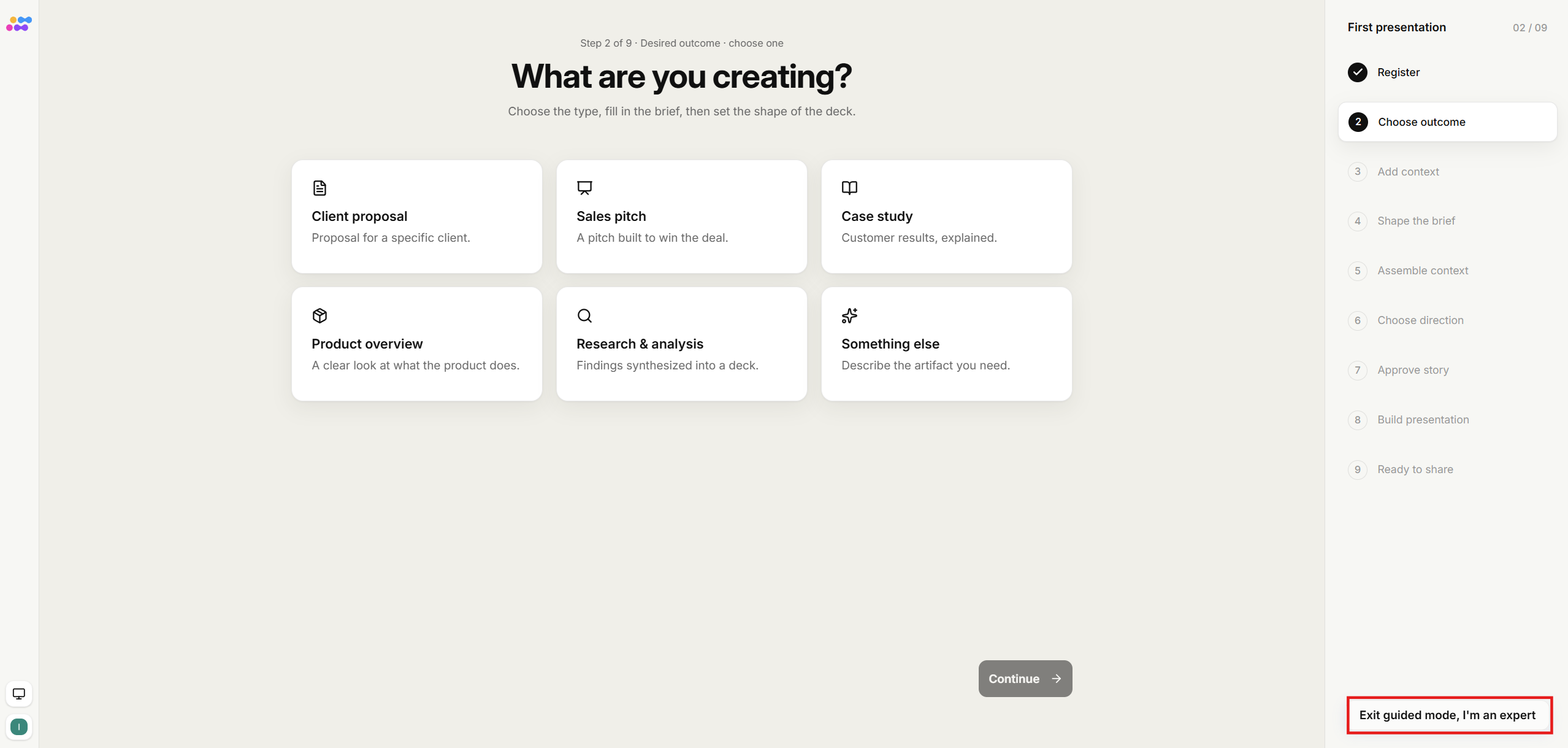
Your account is almost ready to use now. Once you’re on the onboarding page where you can create your first presentation, you have two options: either to create you first deck, or to click Exit guided mode, I'm an expert to leave the guided flow and enter to your account immediately. You can check the guide here.
You're all set! Next time you log in to Sembly, use Apple SSO. Upload your first meeting and enjoy using Sembly.
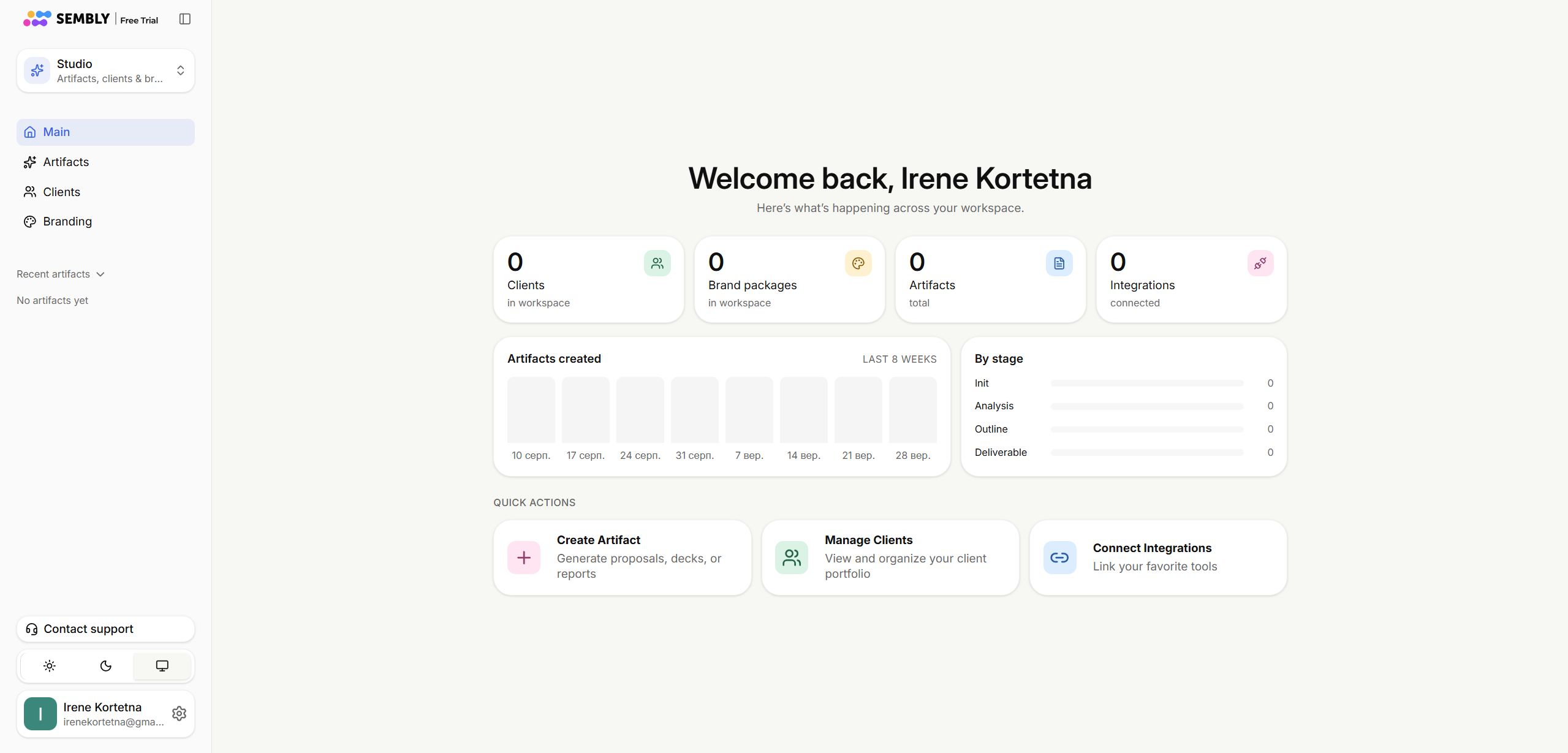
If you want to switch from Studio to Notes, click the Studio/Notes dropdown and choose what you want.
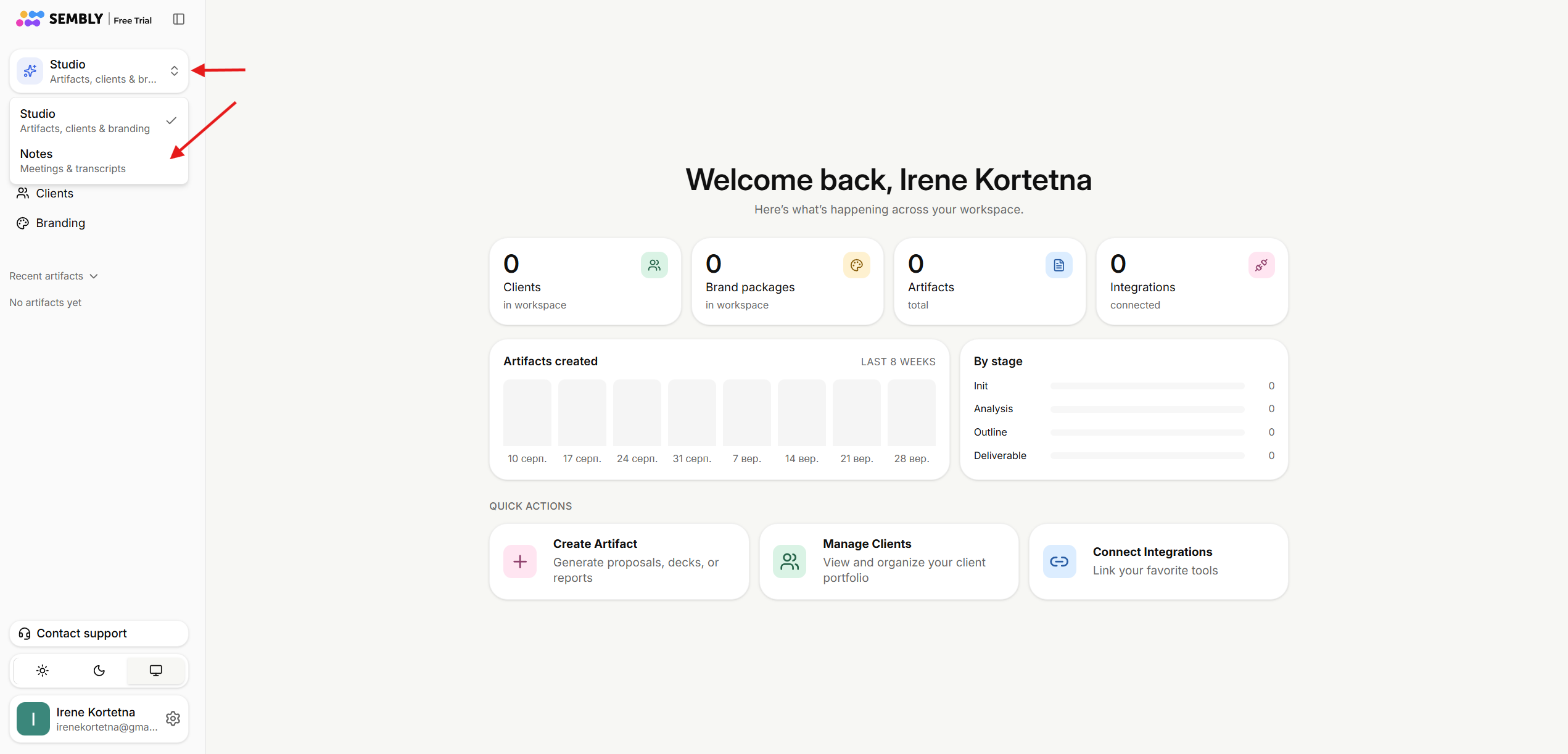
If it’s your first time in Notes, you will be sent to the Meeting Notes activation page. Just click Setup Meeting Notes to proceed. If you click I’ll do this later, you will be redirected back to the Studio.
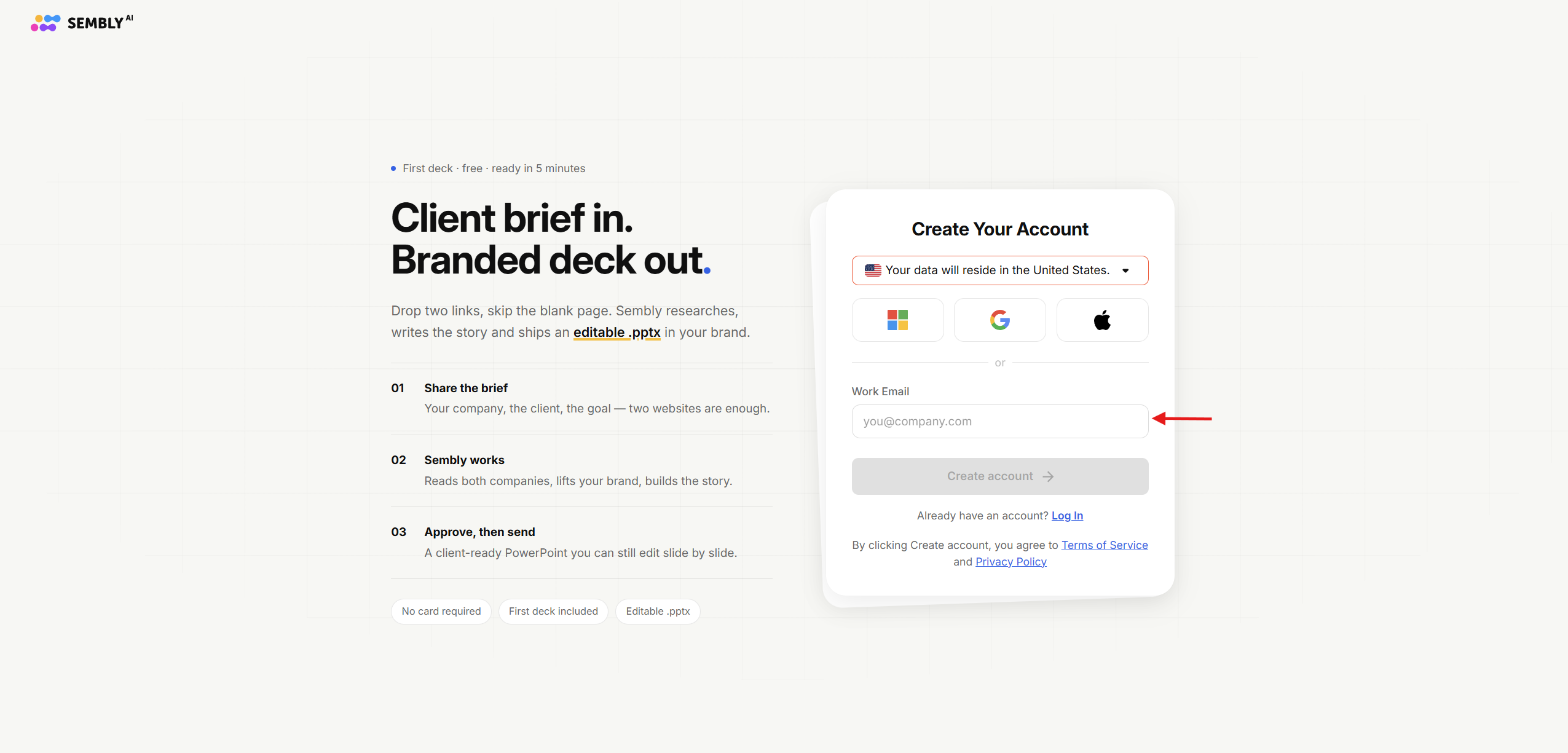
Sign up by this link to get a free 30-day subscription.
Write down the email and press Create Account.
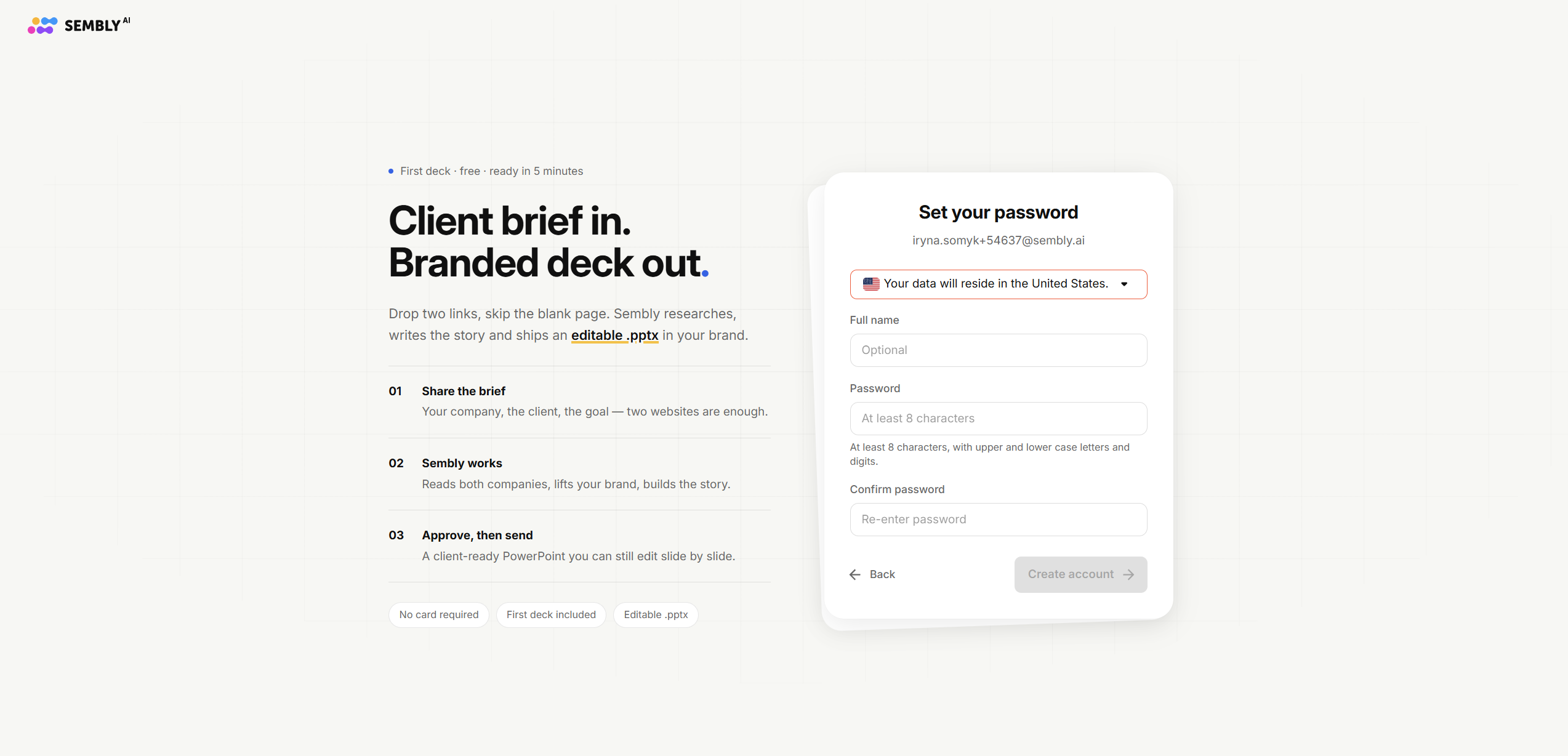
In the next window, fill in your credentials and click Create Account.
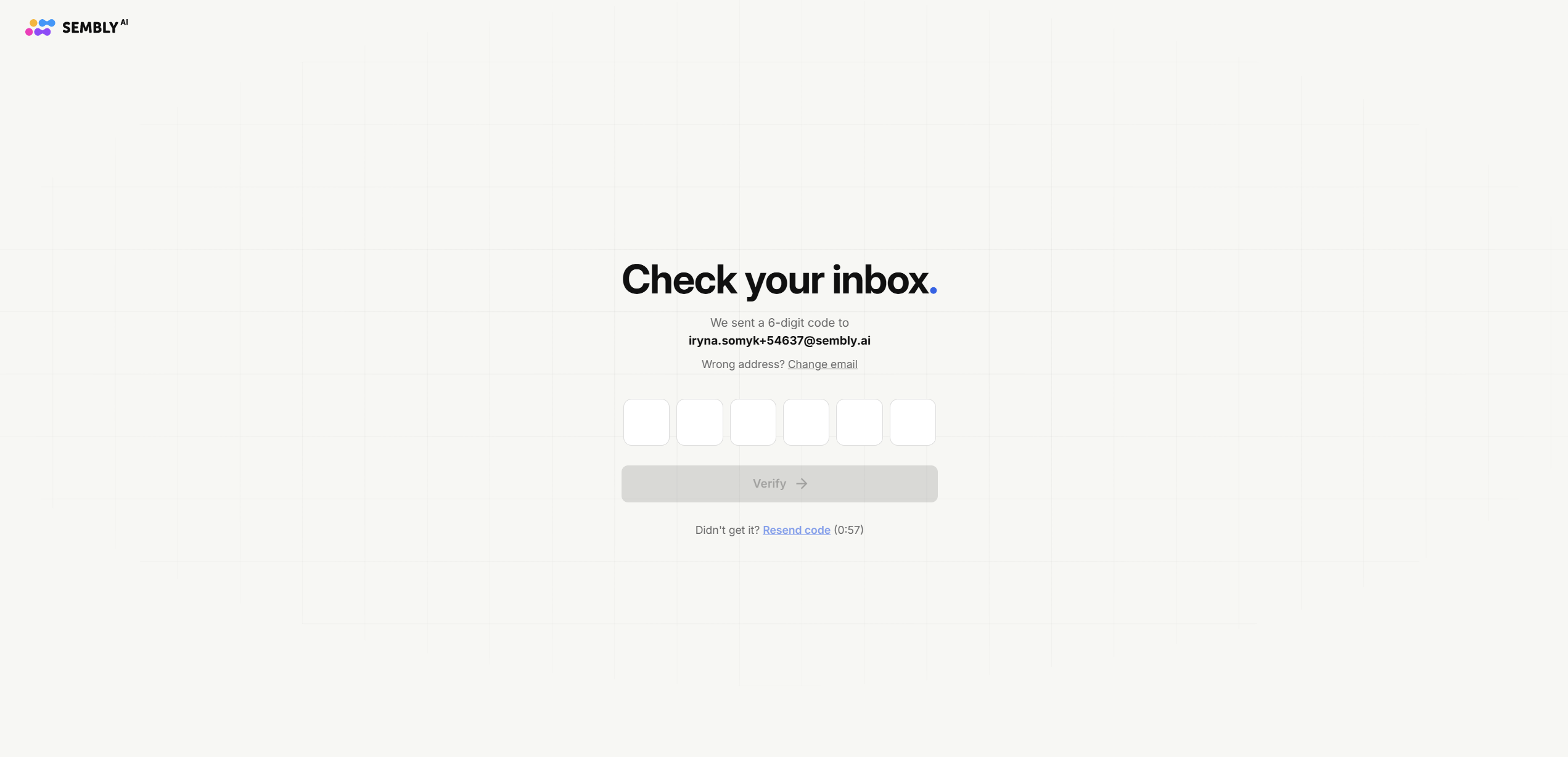
Enter the Validation Code that has been sent to your email.
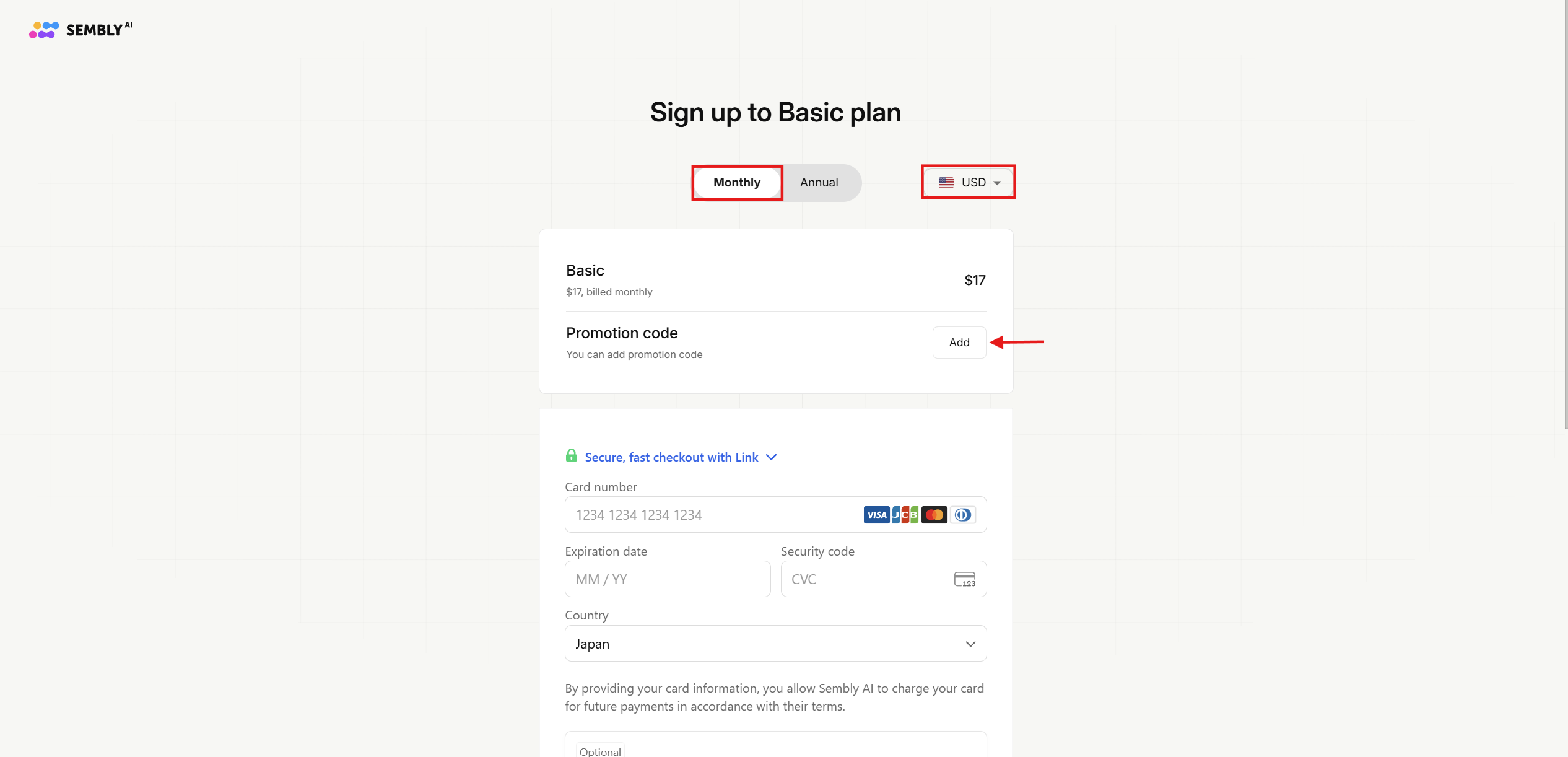
In the next step, make sure to select the Monthly Basic plan to apply your promo code bonus. Here you can choose a currency and payment method. Add the promo code (DVTXX) by clicking ADD next to Promotional code to unhide the field. Fill in your payment details and click Purchase.
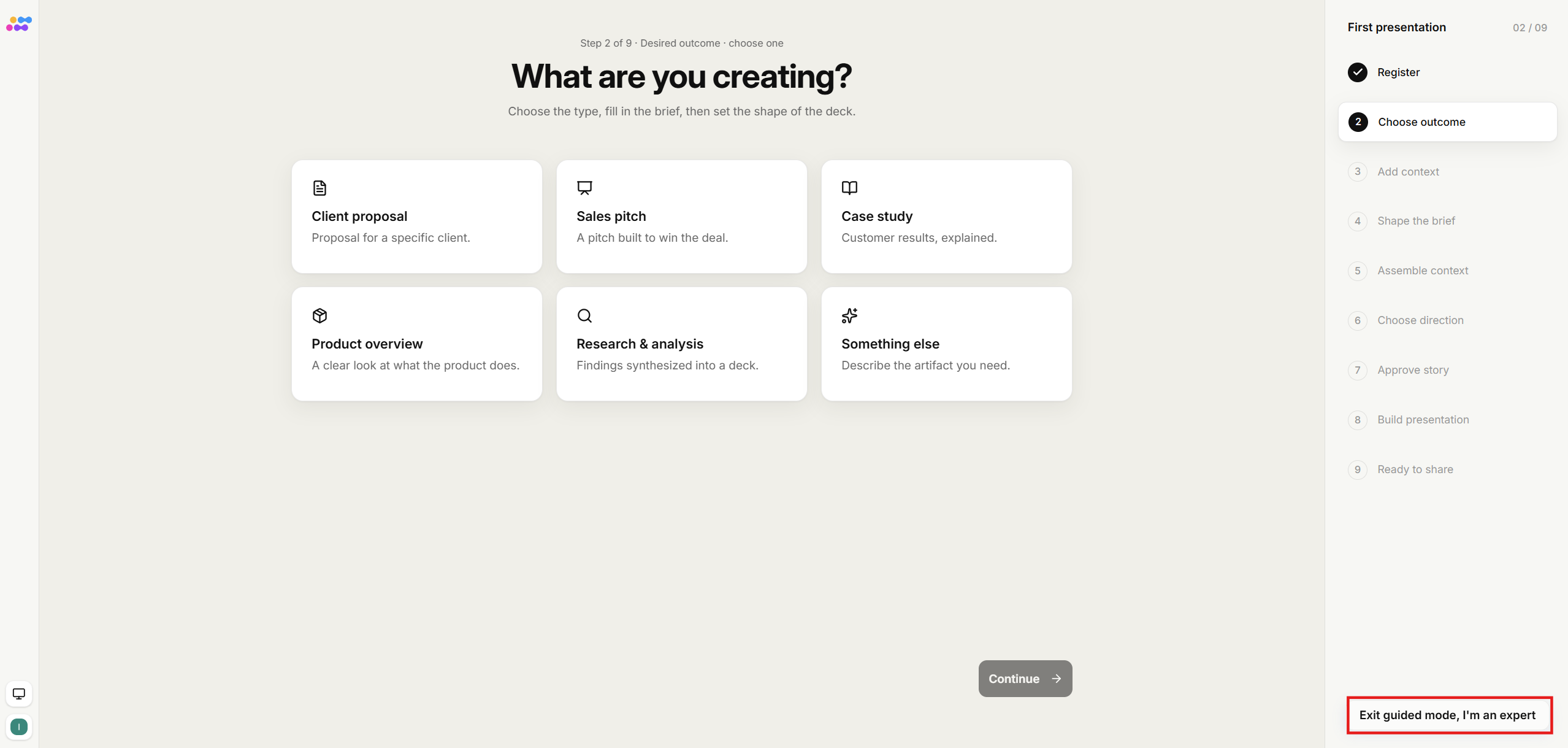
Your account is almost ready to use now. Once you’re on onboarding page where you can create your first presentation, you have two options: either to create you first deck, or to click Exit guided mode, I'm an expert to leave the guided flow and enter to your account immediately. You can check the guide here.
Now you're all set! Use the email and password fields each time you log in. Upload your first meeting and enjoy using Sembly!
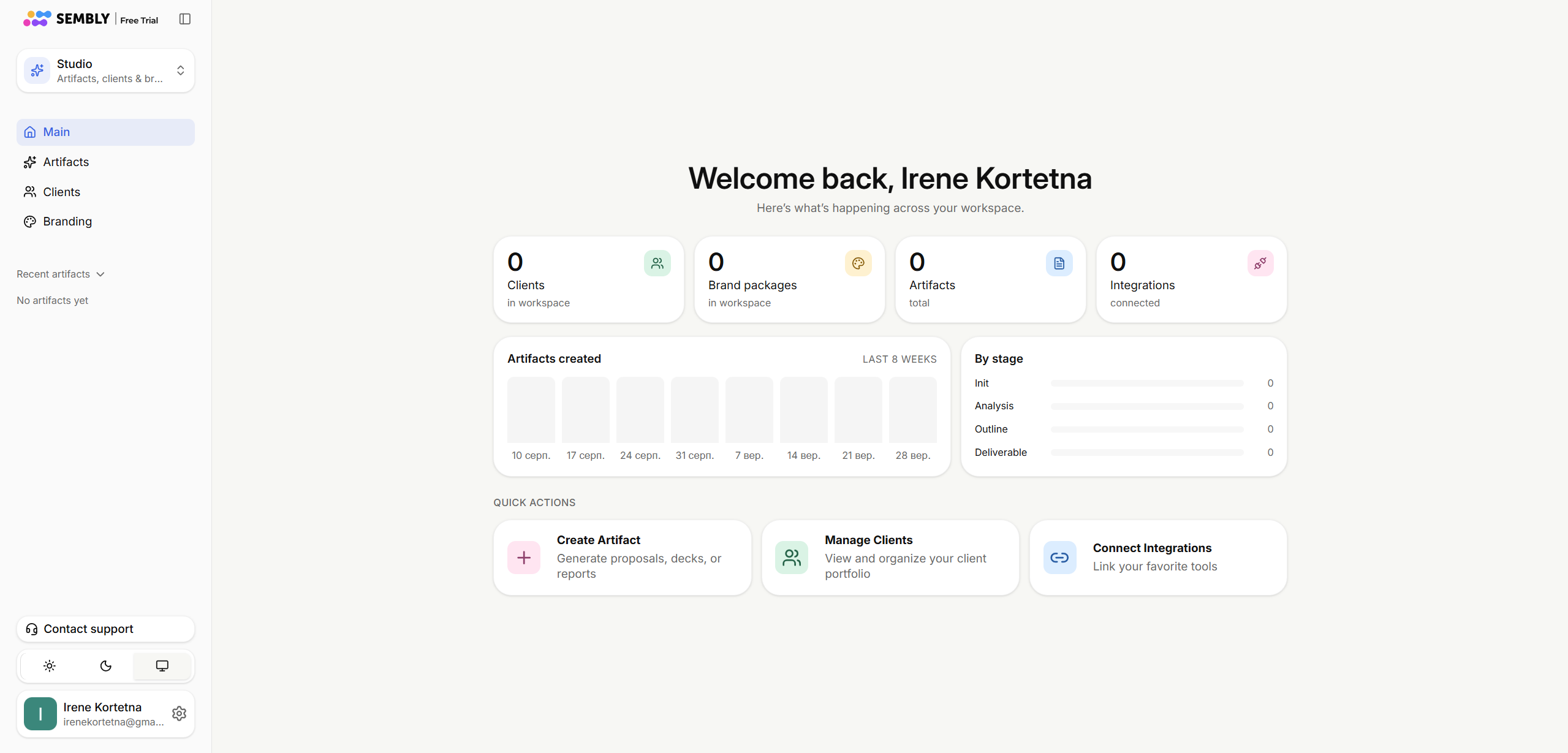
If you want to switch from Studio to Notes, click the Studio/Notes dropdown and choose what you want.
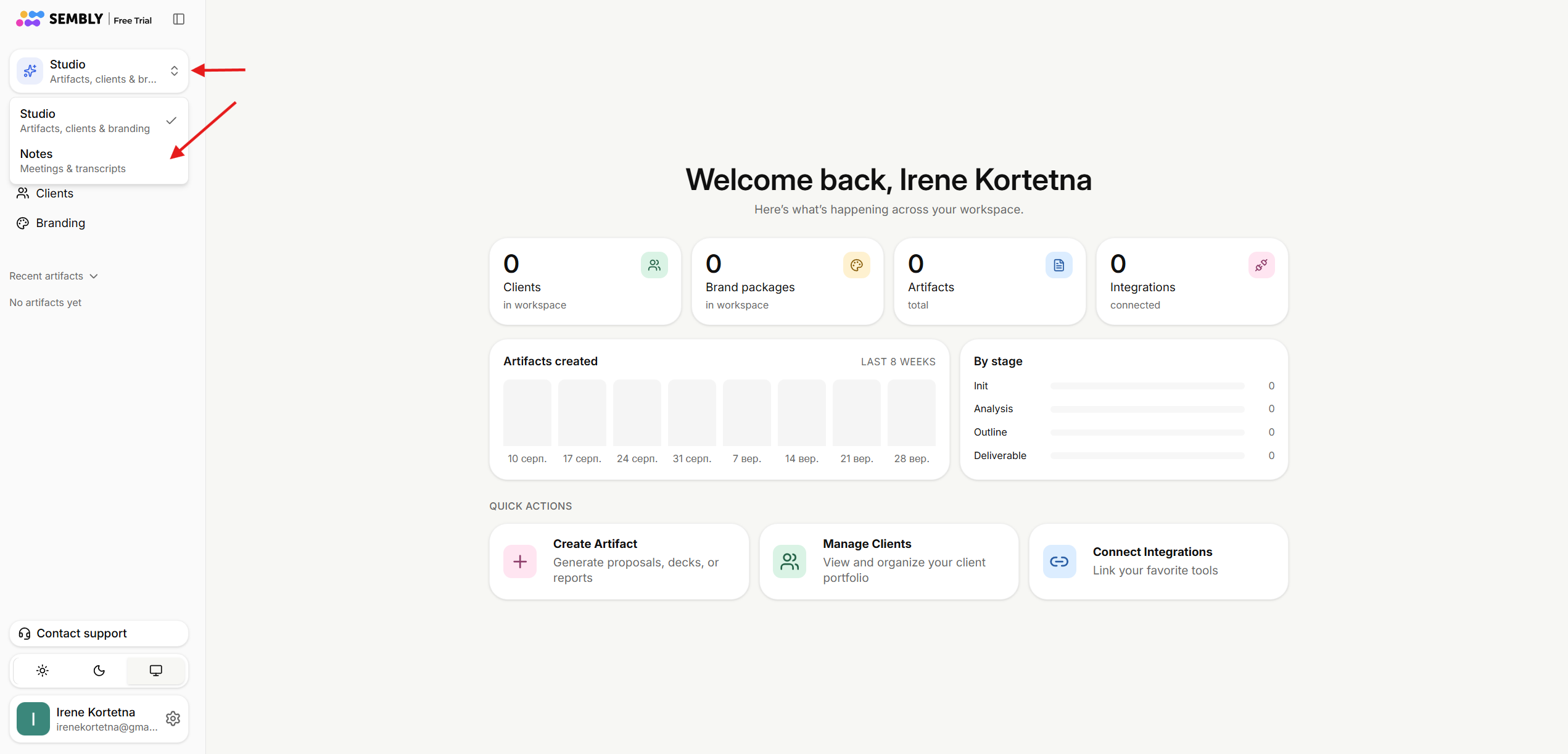
If it’s your first time in Notes, you will be sent to the Meeting Notes activation page. Just click Setup Meeting Notes to proceed. If you click I’ll do this later, you will be redirected back to the Studio.