Artifacts are deliverables (presentations or documents) you create based on the client branding you have added to your platform. You can create artifacts with your client’s branding or your company’s branding.
Artifacts can be created in Guided mode or Advanced mode.
Guided mode is a quick mode that does things for you and gives you the final result, which you can check once the artifact creation is successful.
Advanced mode gives you full information and shows what data it uses, along with details you can edit, change, and approve. This allows more control over your final product.
If you want more control over the final product, we recommend using Advanced mode. Here is the article on how to work with it.

Log in to your Sembly account US or EU.
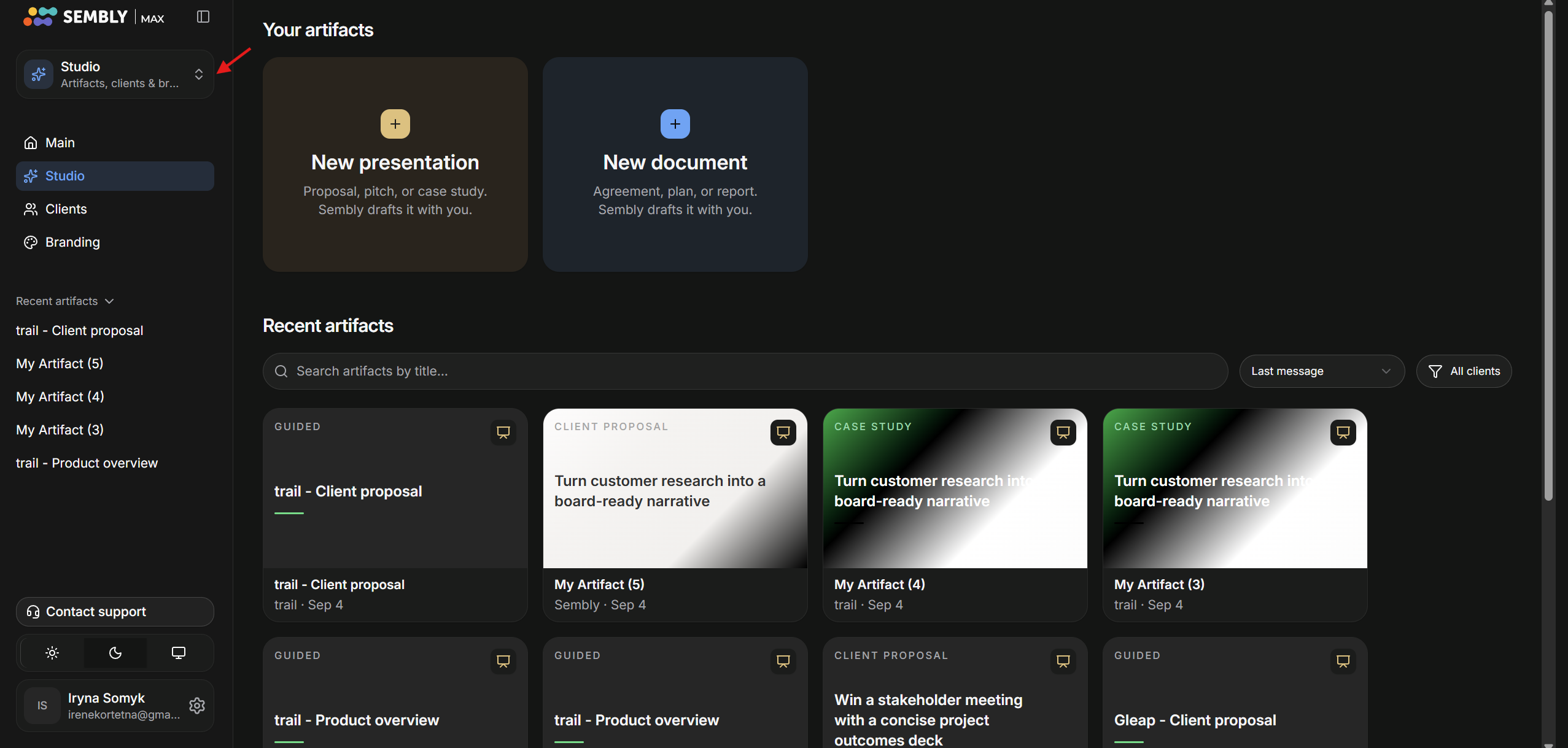
On the left sidebar, click on Studio/Notes.
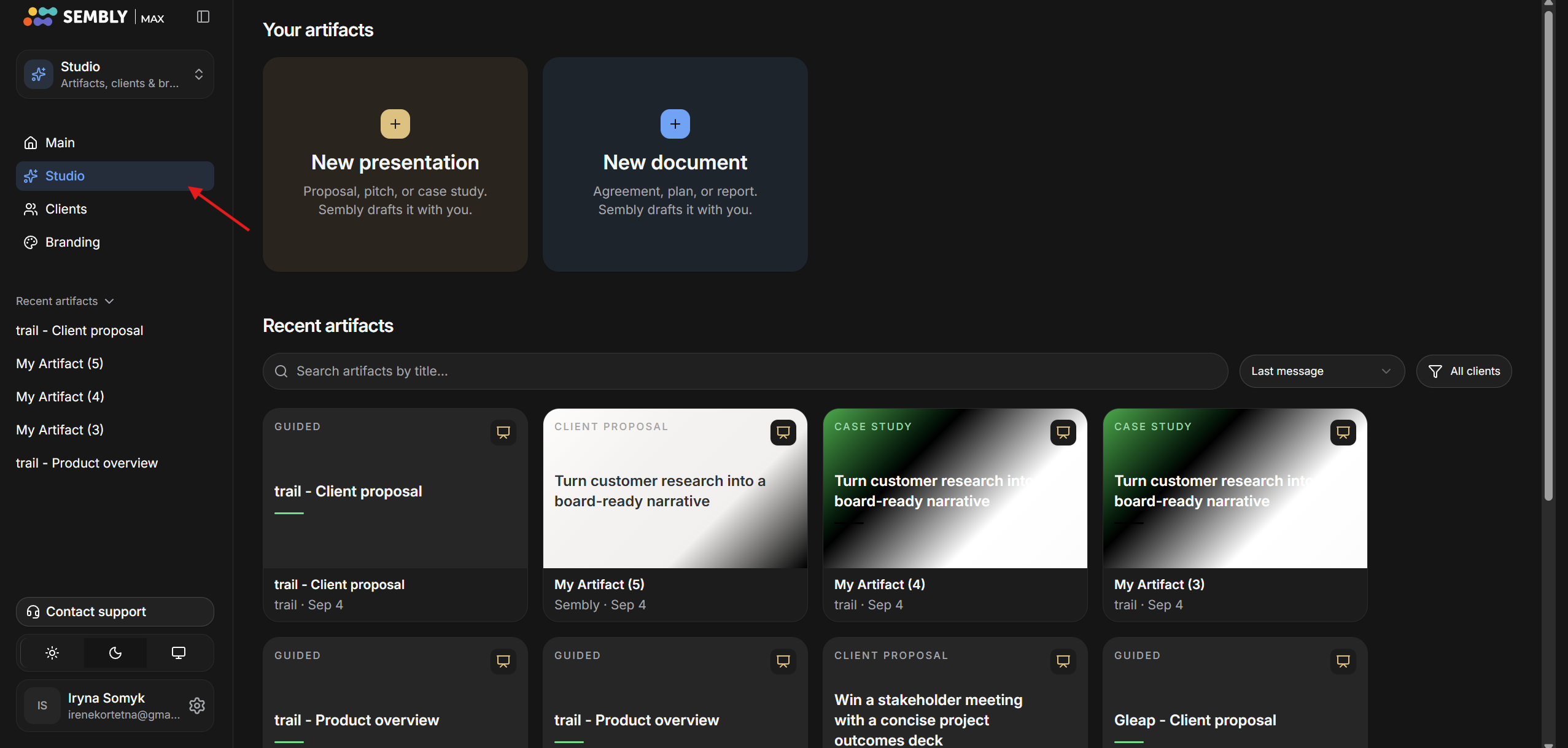
Then click Studio to go to the Artifacts page.
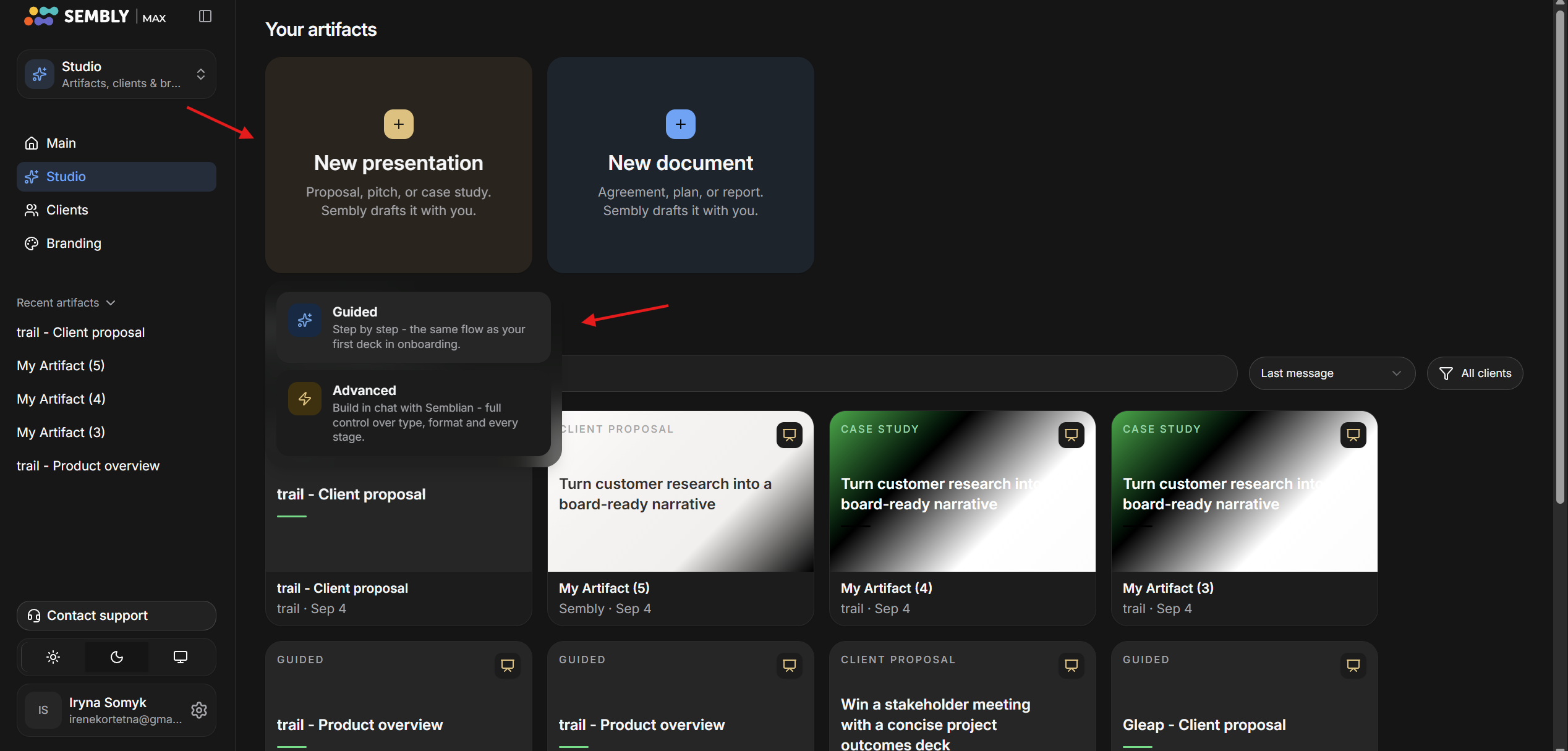
Choose Presentation or Documentation, based on your needs.
Choose Guided mode.
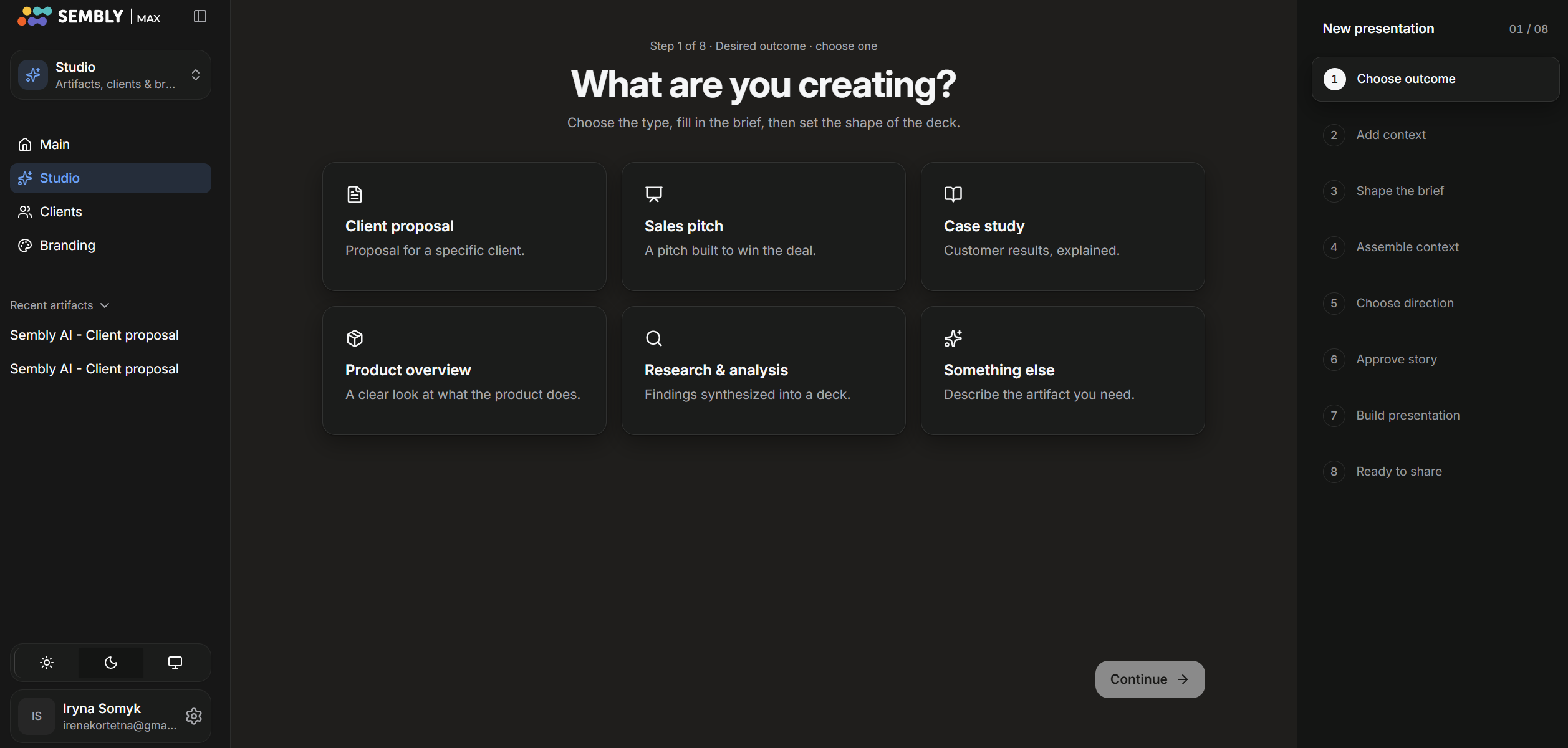
On Step 1, you need to choose the Artifact type, or define your own.
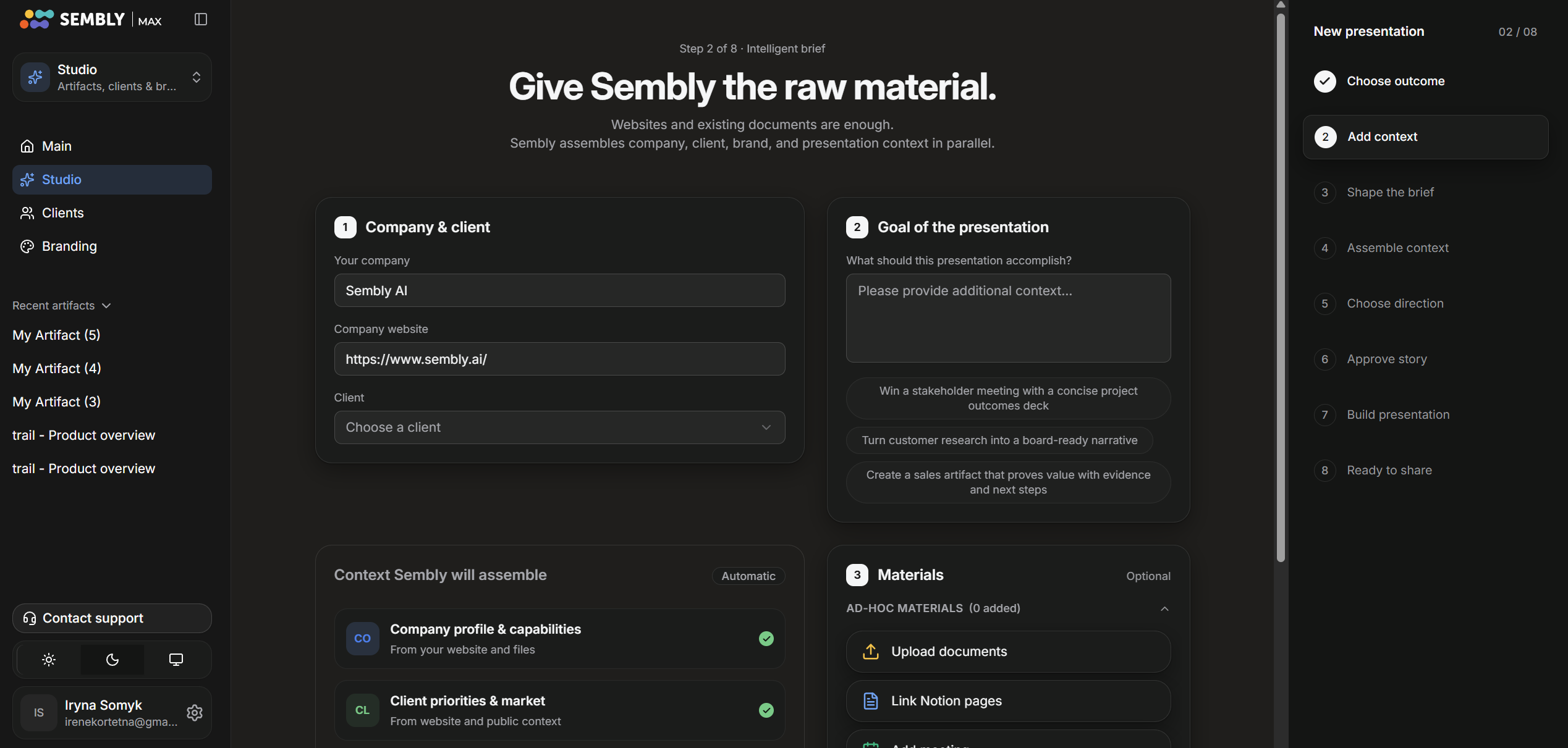
On Step 2, fill in your company info, choose a client, add additional context, and add relevant materials if you want to. Then proceed by pressing Continue.
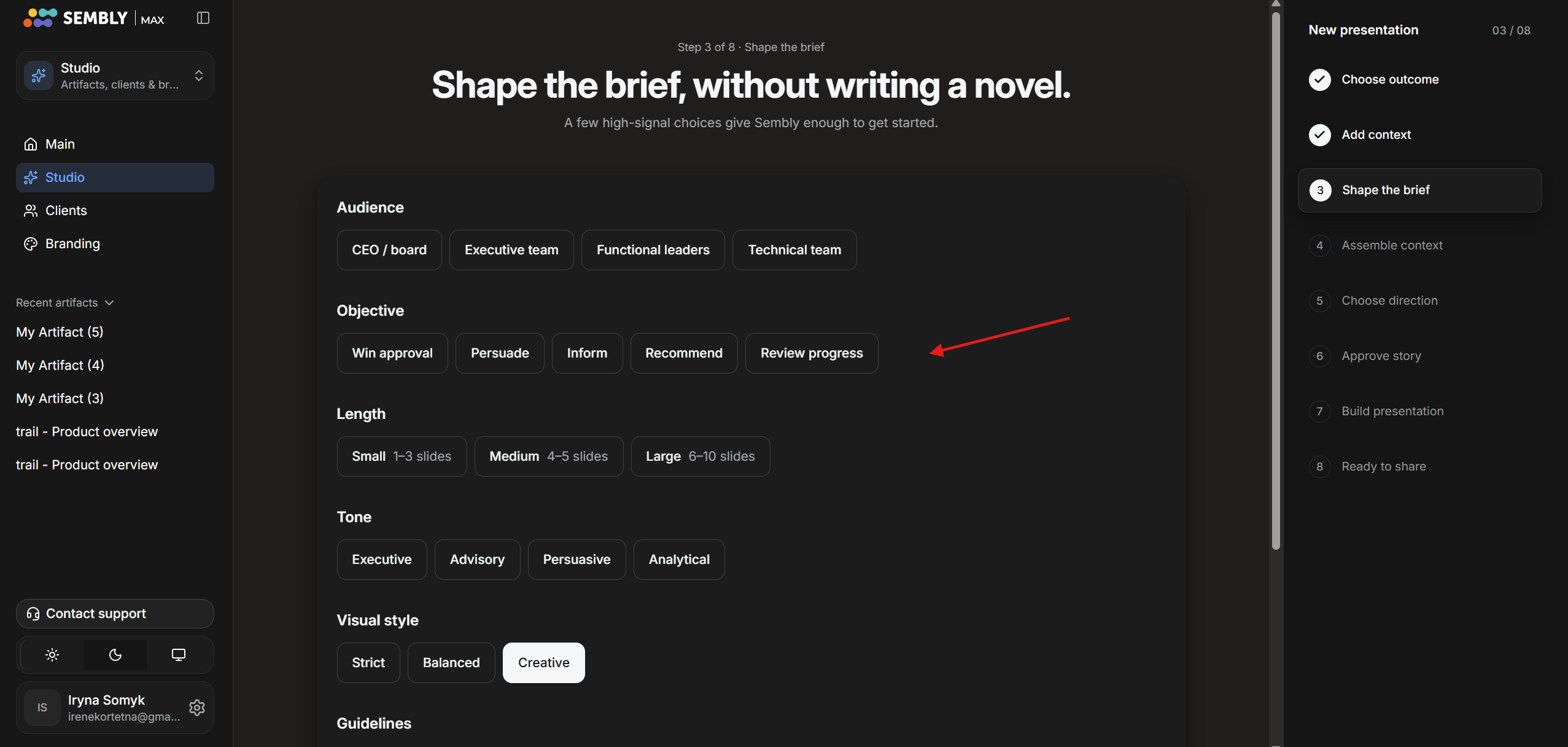
On Step 3, shape your brief by choosing the required tone, audience, and other things, then scroll down and press Continue.
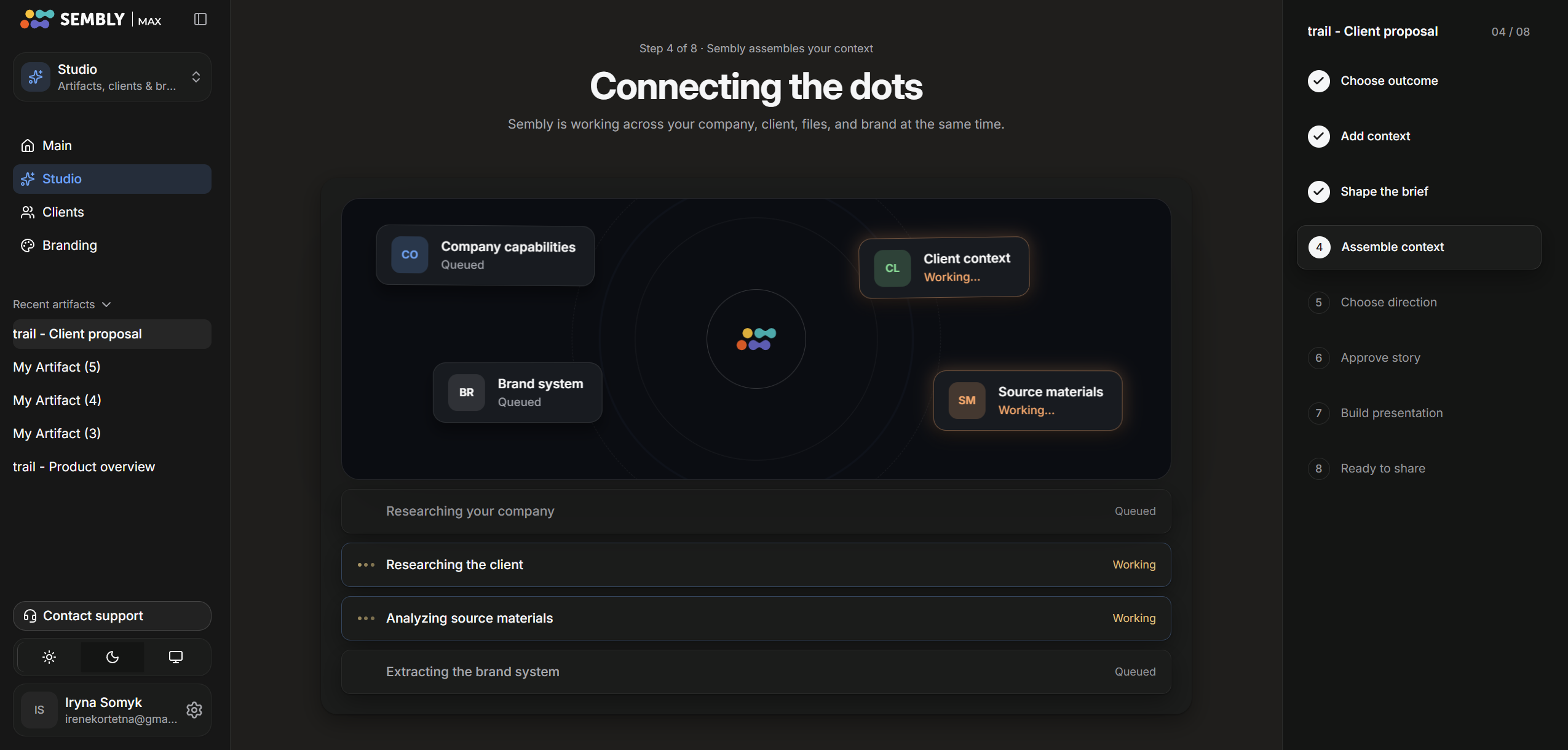
On Step 4, Sembly will be assembling your context to create the artifact.
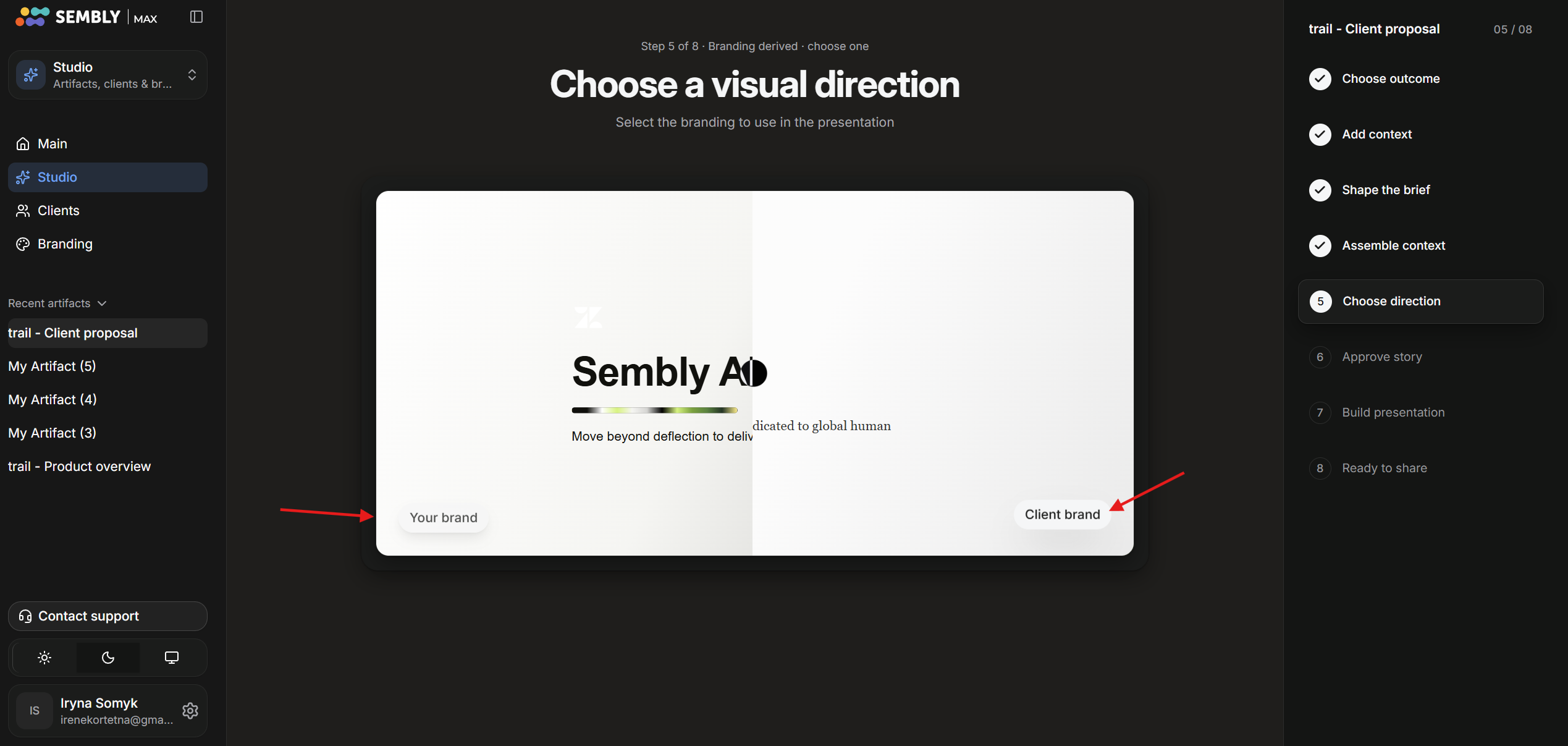
On Step 5, choose the visual direction, either your company’s or your client’s.
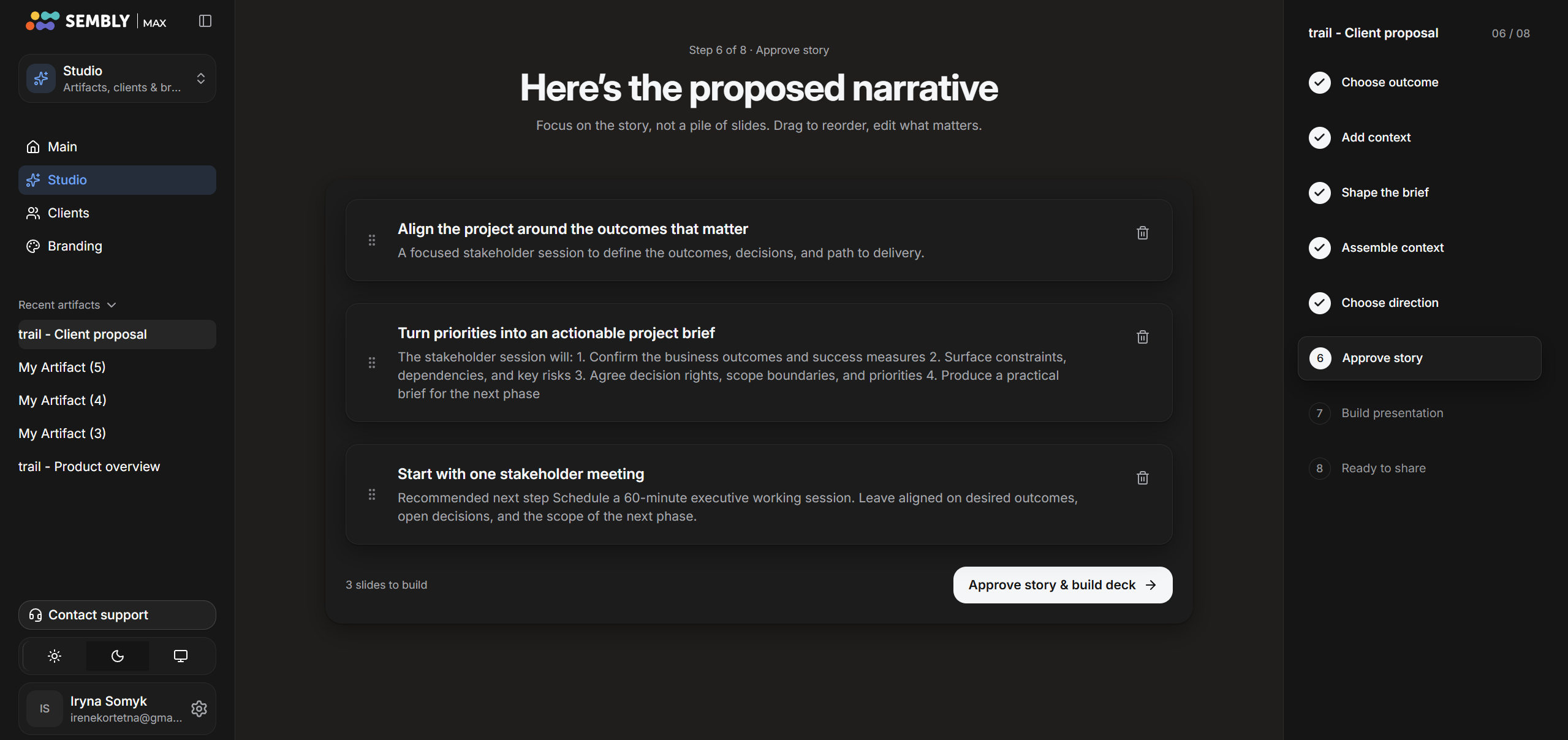
In Step 6, review the proposed narrative, edit the slides, and approve the story. Press Approve story & build deck to continue.
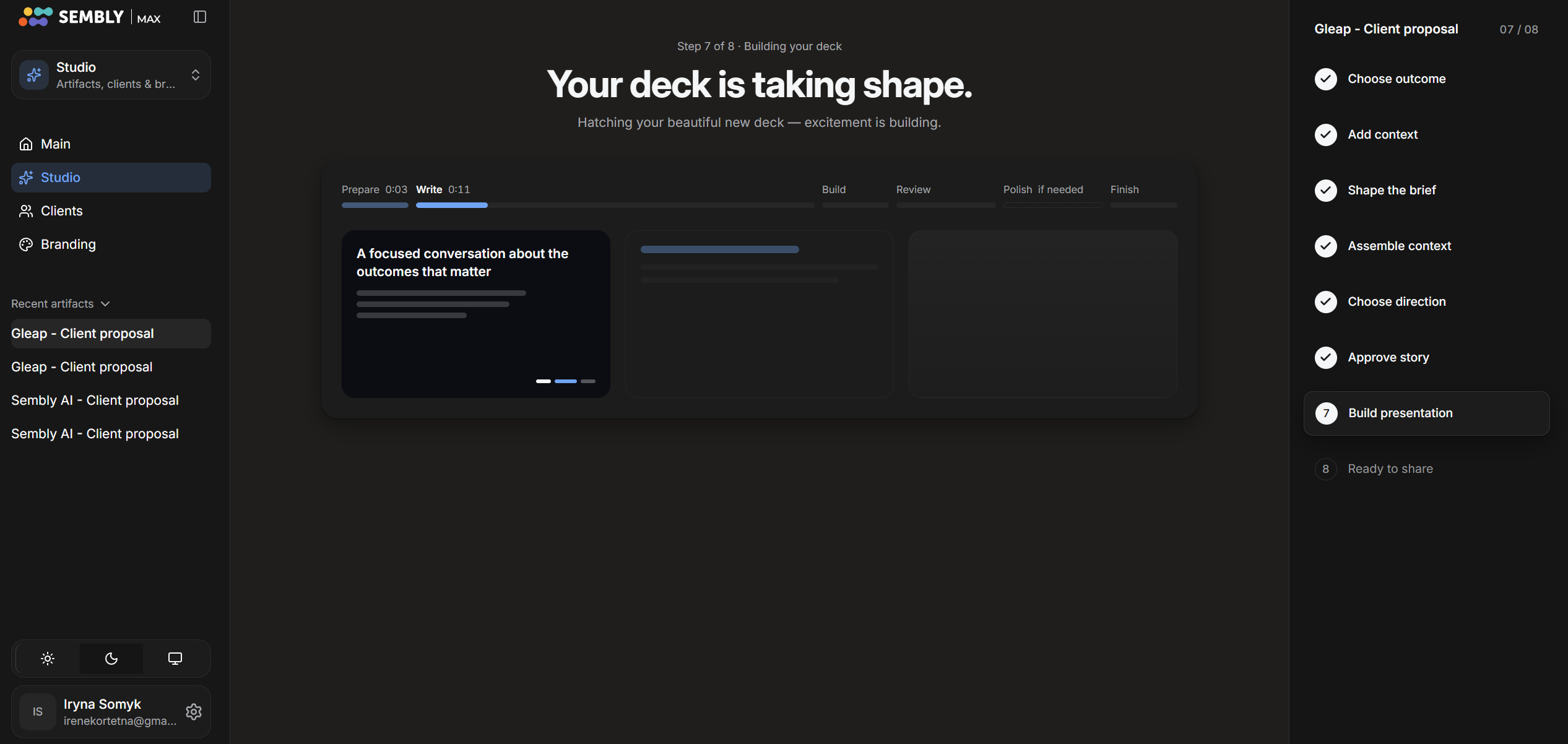
On Step 7, Sembly is working on your deck, please wait for a few minutes until it is done.
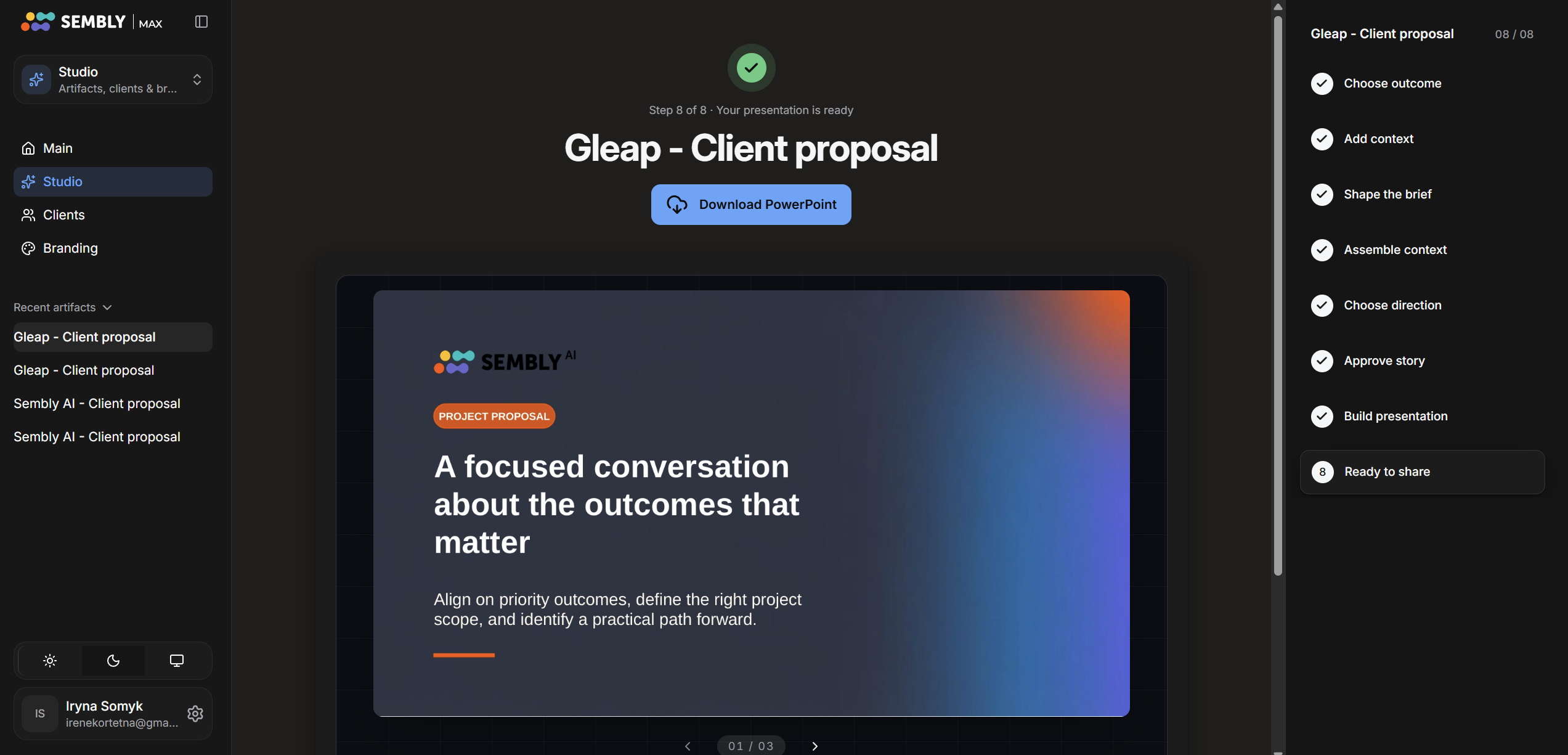
On Step 8, check your finished artifact and download it.