Artifacts are the deliverables(presentations or documents) that you create based on the branding attached to the client that you have added to your platform. You can create artifacts with your client’s branding or your company’s branding.
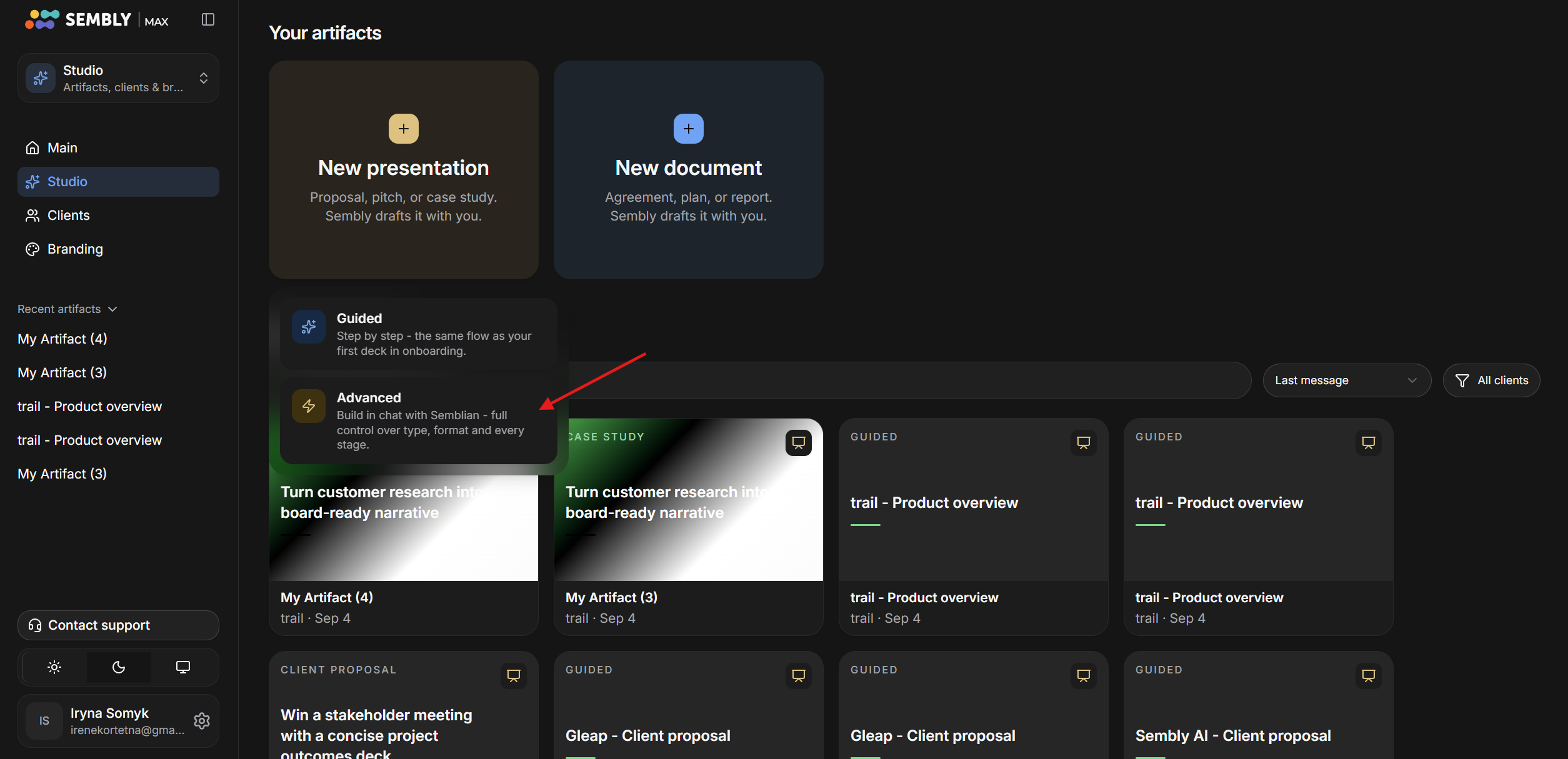
Artifacts can be created in Guided mode or Advanced mode.
Guided mode is a quick mode that does things for you and gives you the final result, which you can check once the artifact creation is successful.
Advanced mode gives you full information and shows what data it uses, along with details you can edit, change, and approve. This allows more control over your final product.
If you wish to have more control over the final product, we advise using Advanced mode. Here, you can make suggestions, request changes, and add specific details to help streamline the process. Providing more guidance allows for greater customization and helps produce more polished results in the finished Artifact.
If you would like to create an Artifact quickly, with suggestions provided to you during each step, please use the Guided mode.
Log in to your Sembly account in the US or EU.
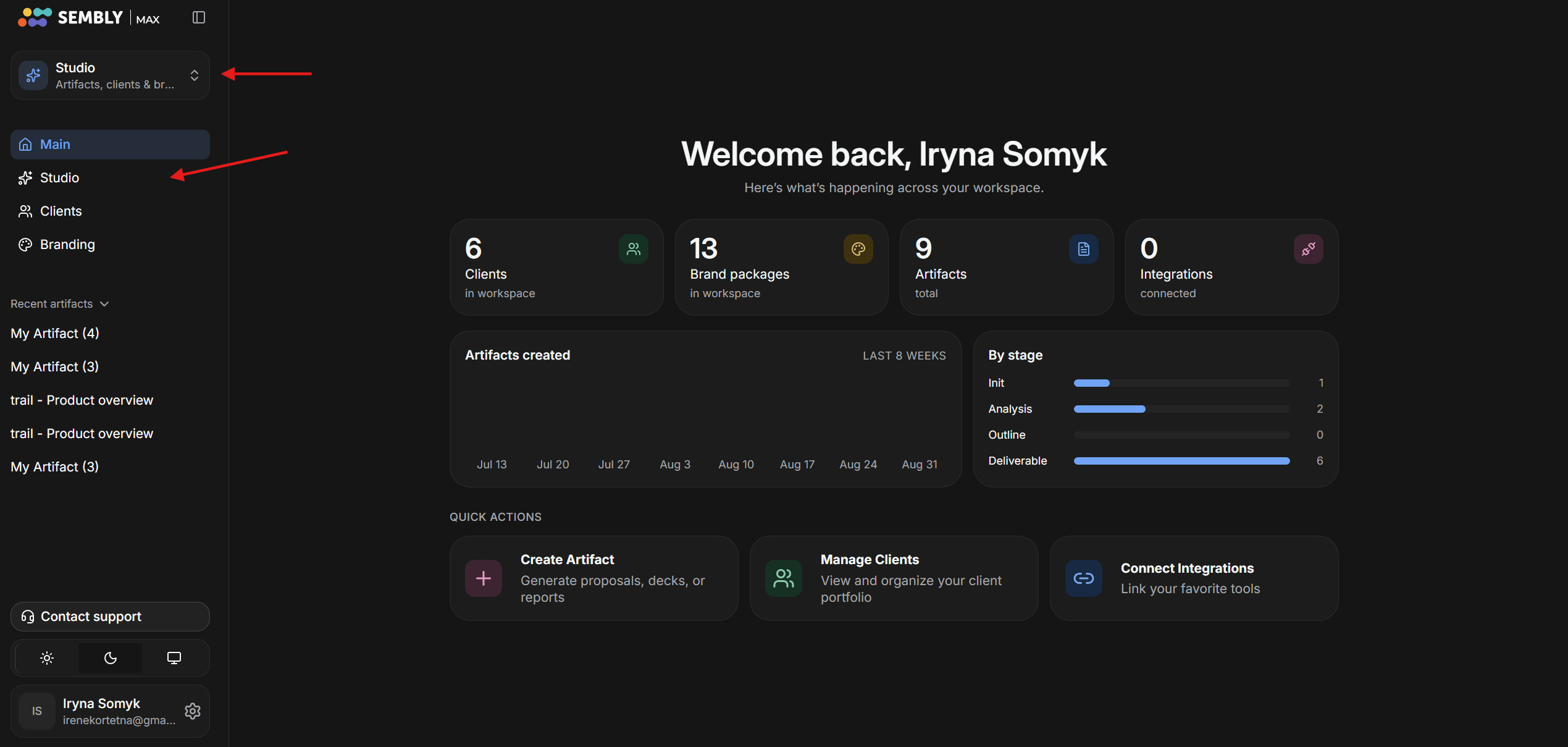
On the left sidebar, click on Studio/Notes. Then click Studio to go to the Artifacts page.
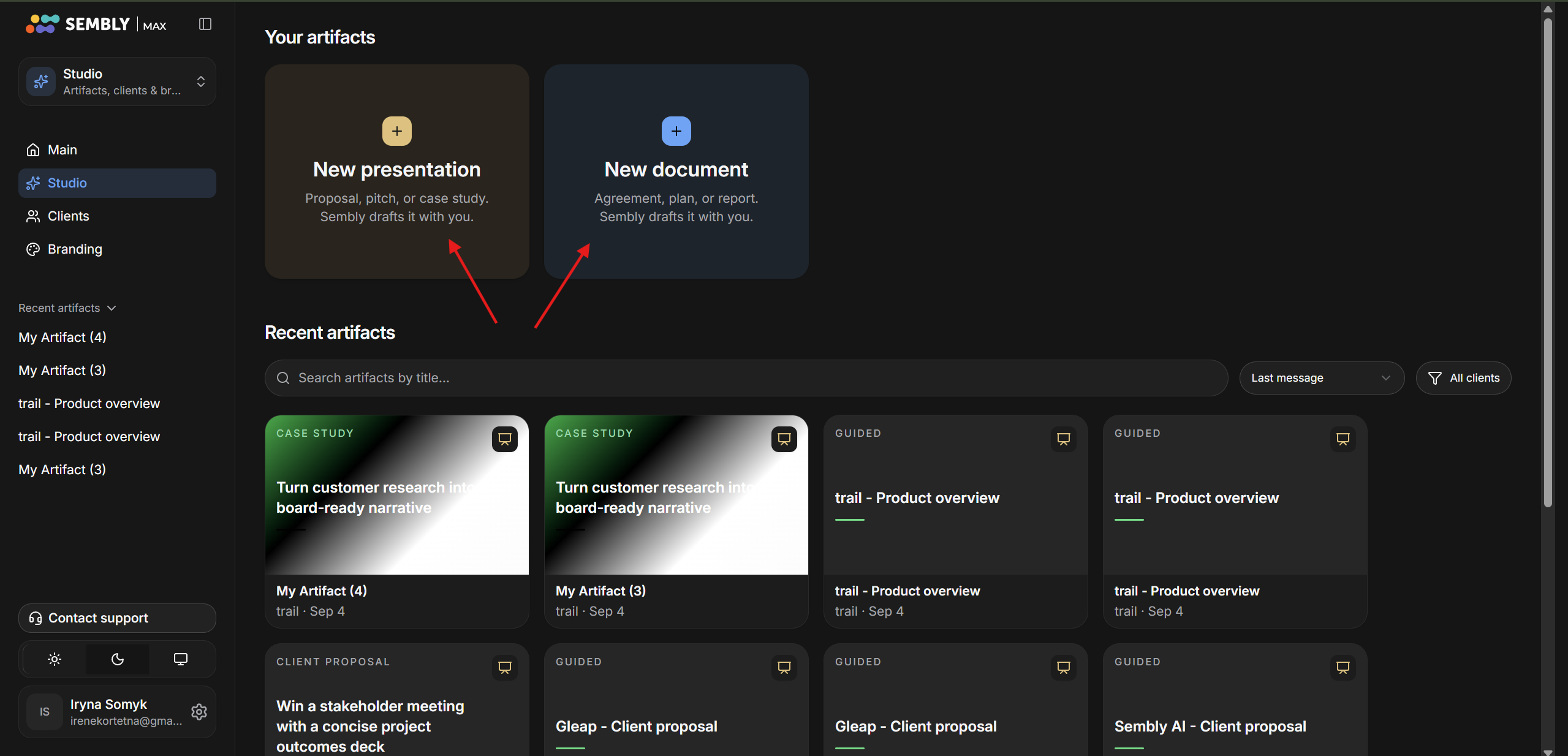
Choose Presentation or Documentation, based on your needs.
Choose Advanced mode.
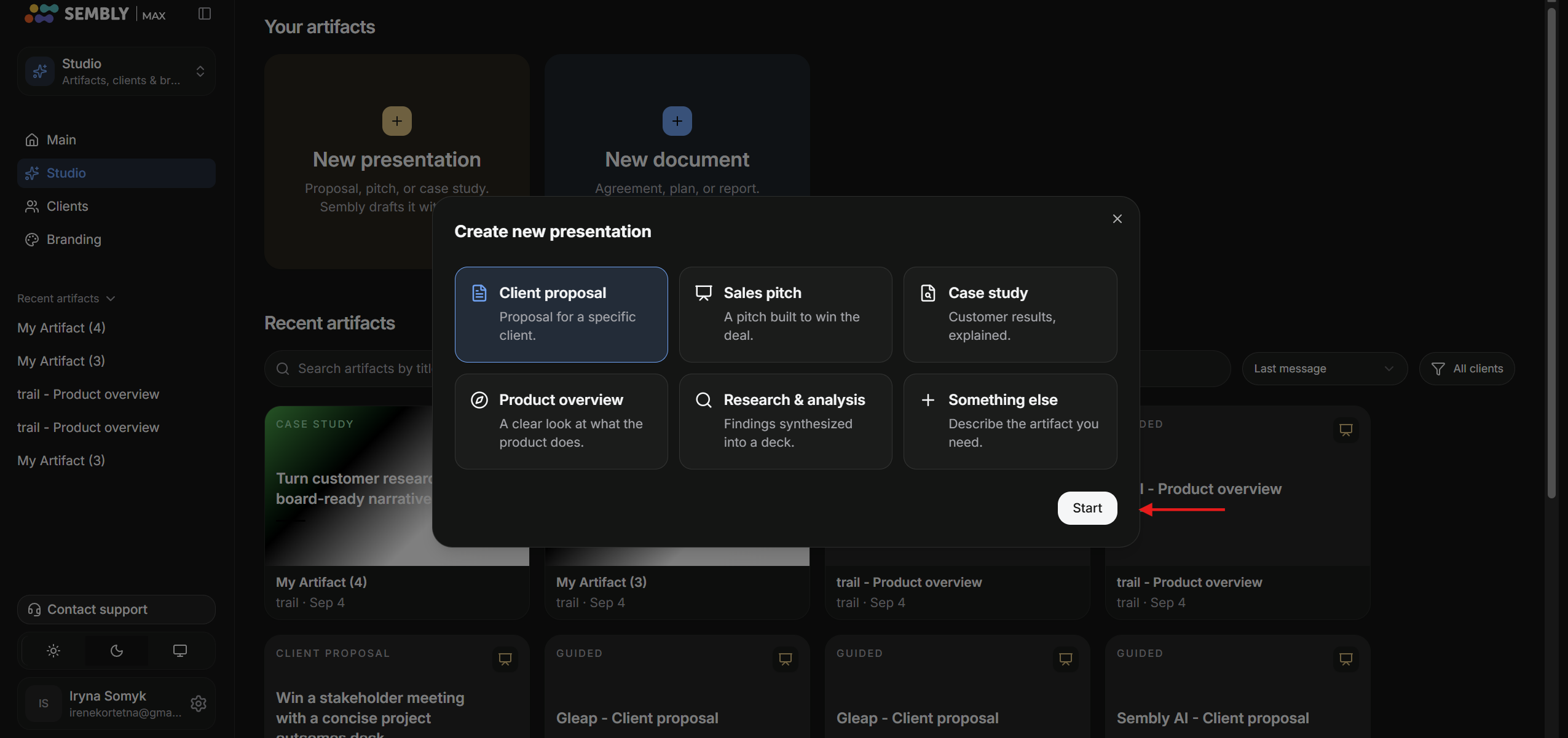
Choose a presentation type and click Start.
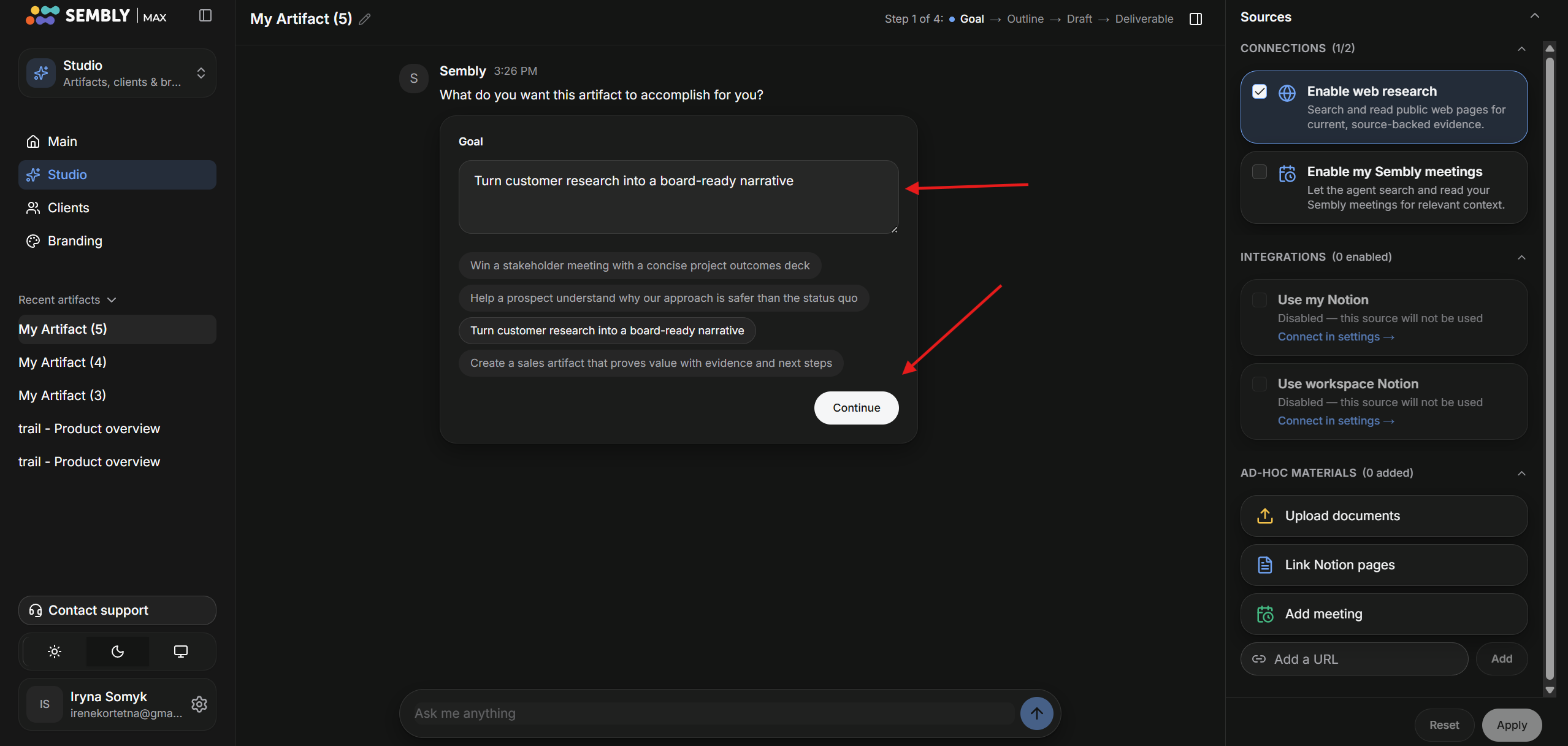
In step 1, provide your Goal to the chat by choosing from the proposed options or add your own. You can add additional sources to provide more details and context. Then press Continue.
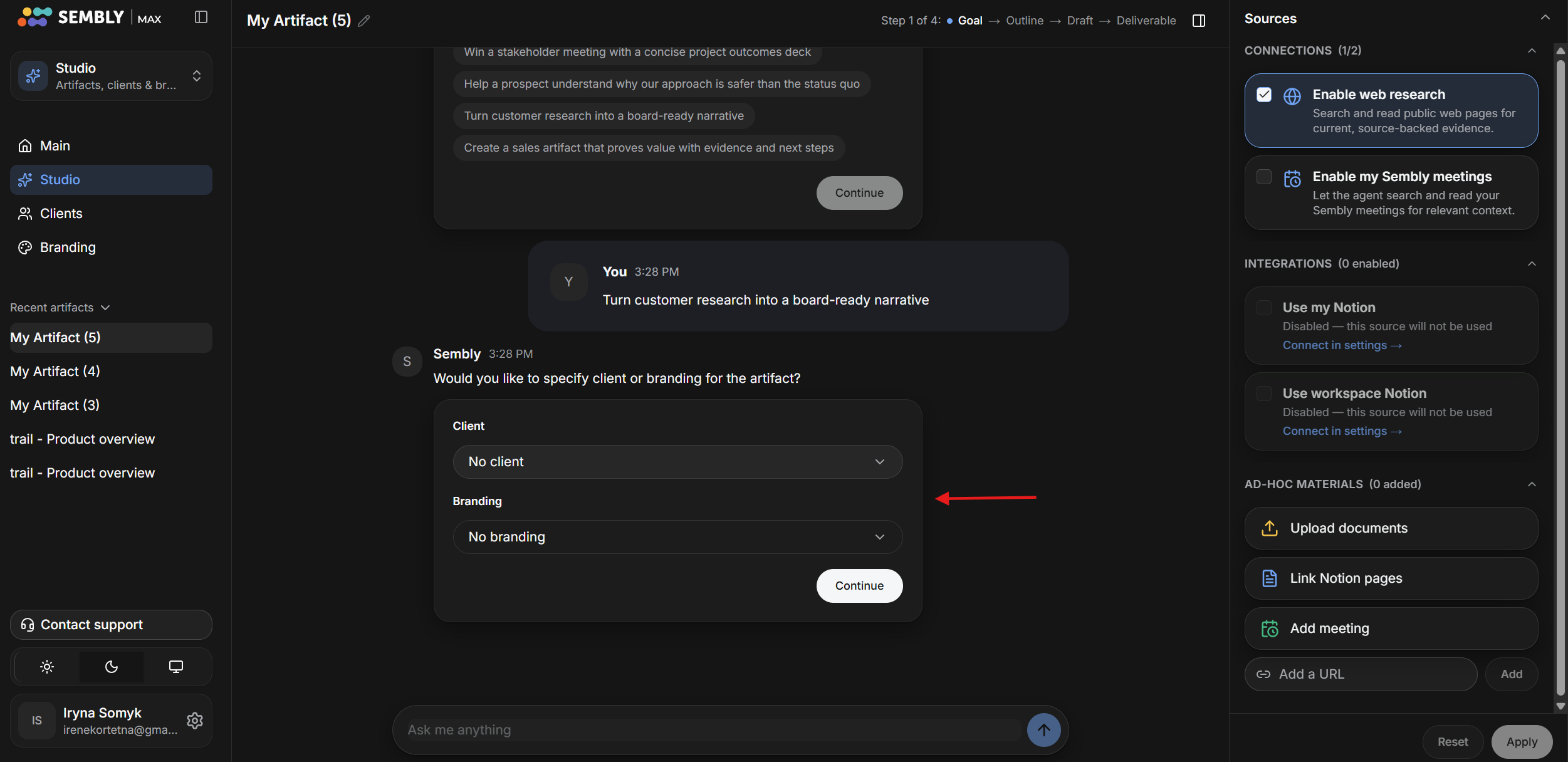
Then specify the Client and Branding, and press Continue.
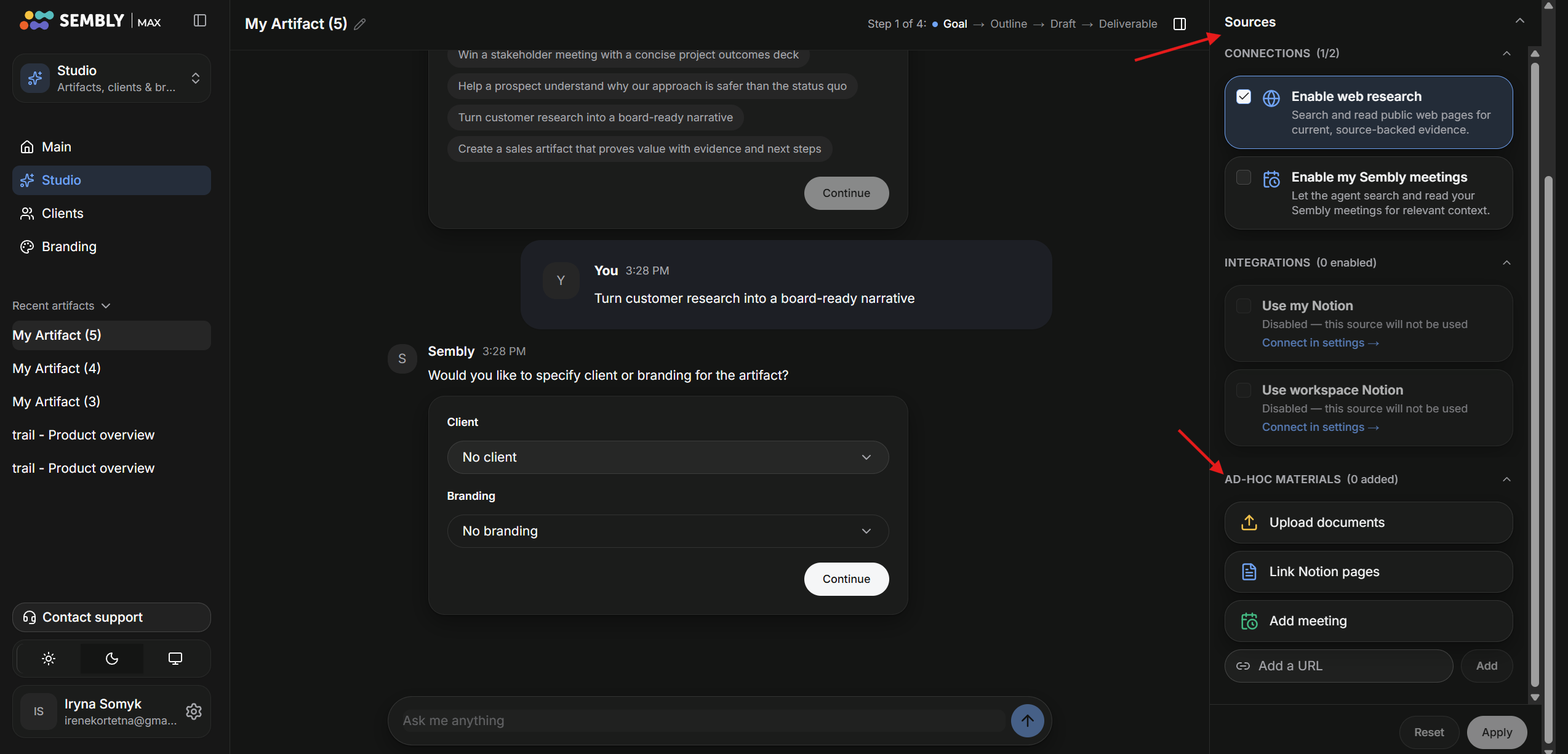
You can configure your sources and add additional materials, or let Sembly proceed with the default settings.
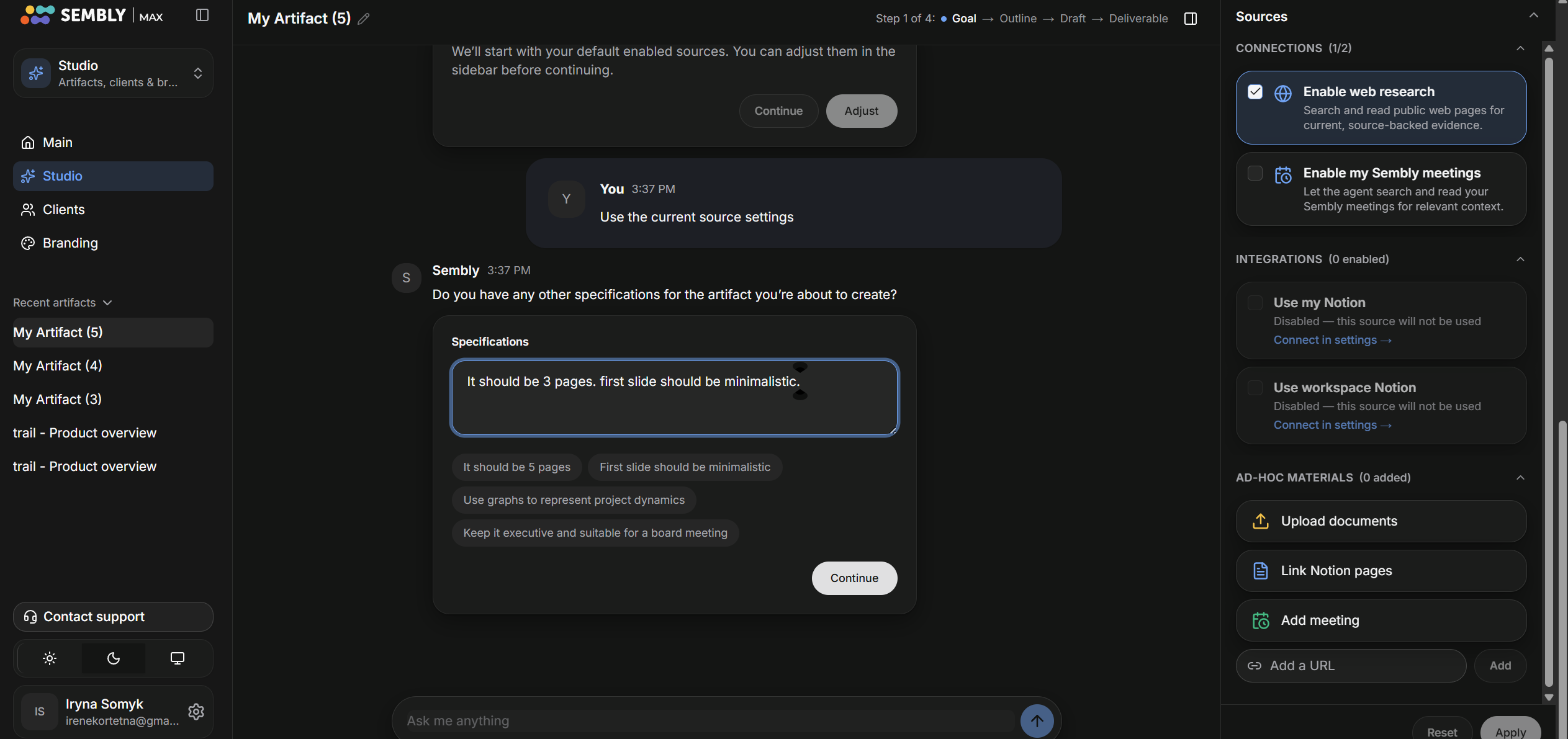
Provide any other specifications for what you would like to see in the final product.
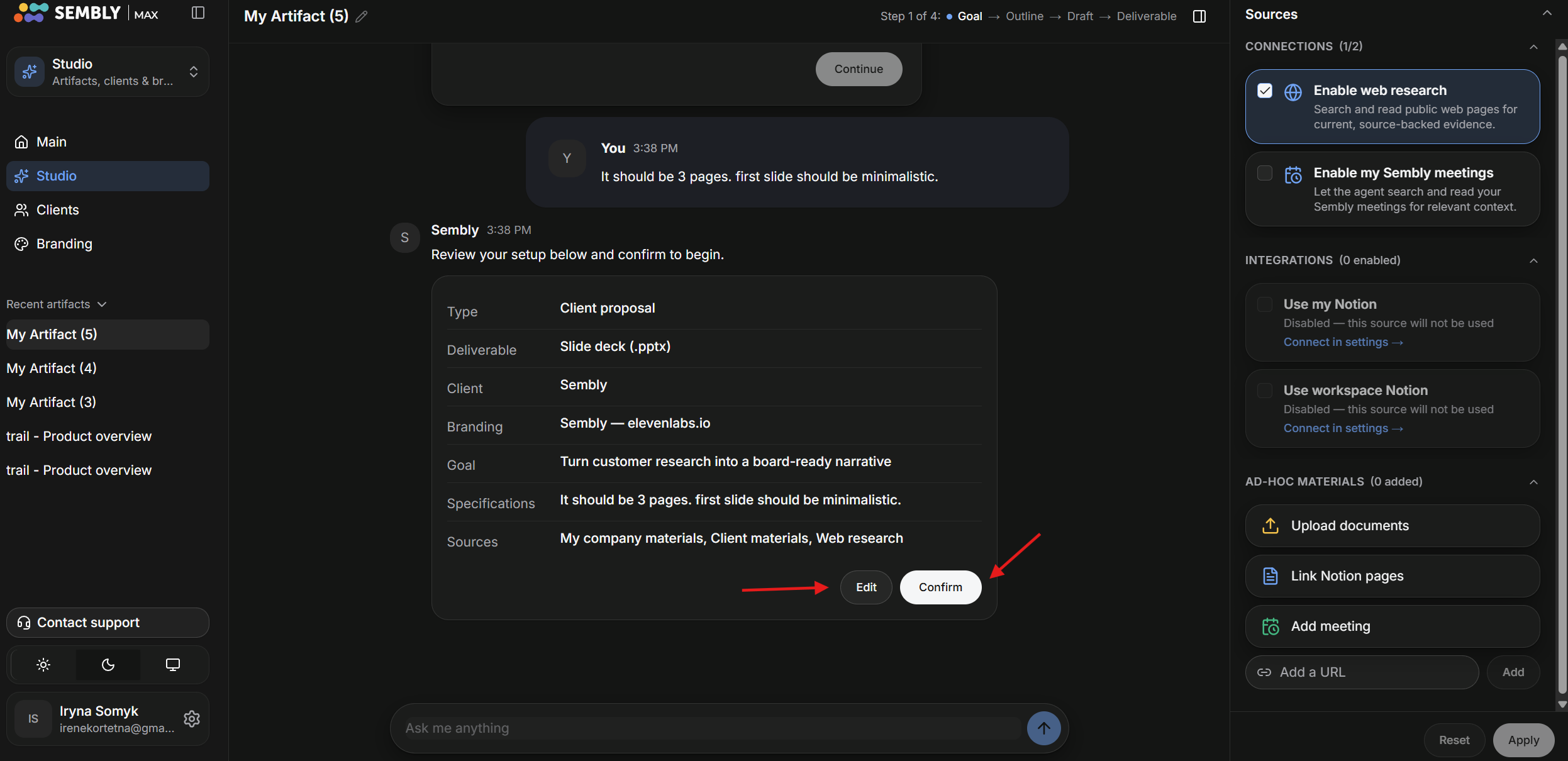
Make adjustments if needed by pressing Edit. If everything is okay, press Continue.
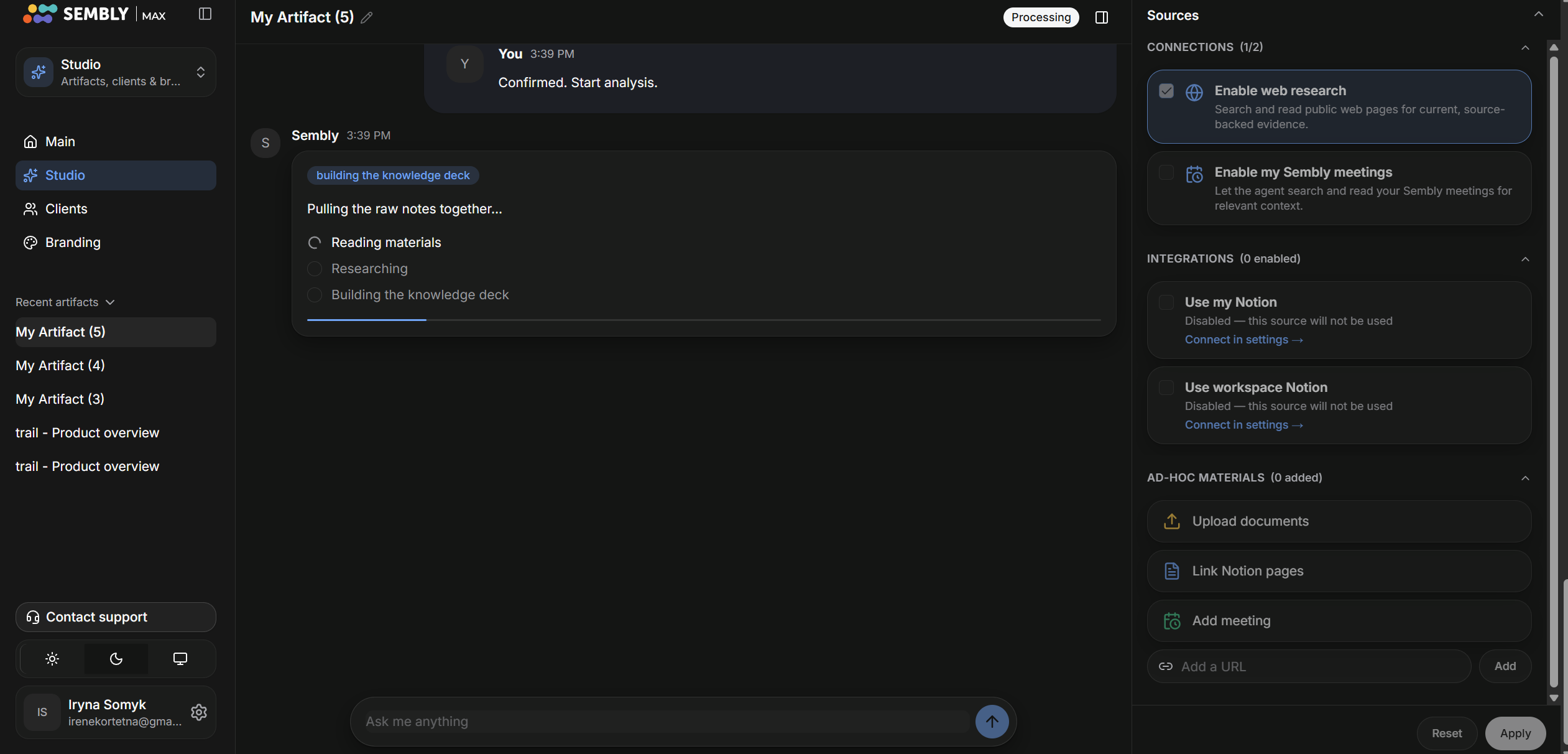
Please wait until Sembly finishes building the Knowledge deck.
Review the Knowledge deck: Facts, Claims, Clarifications, Gaps, and Story Angle. You can Accept or Reject the proposed details. Starting from here, you can also write in the chat and provide Sembly with additional details.
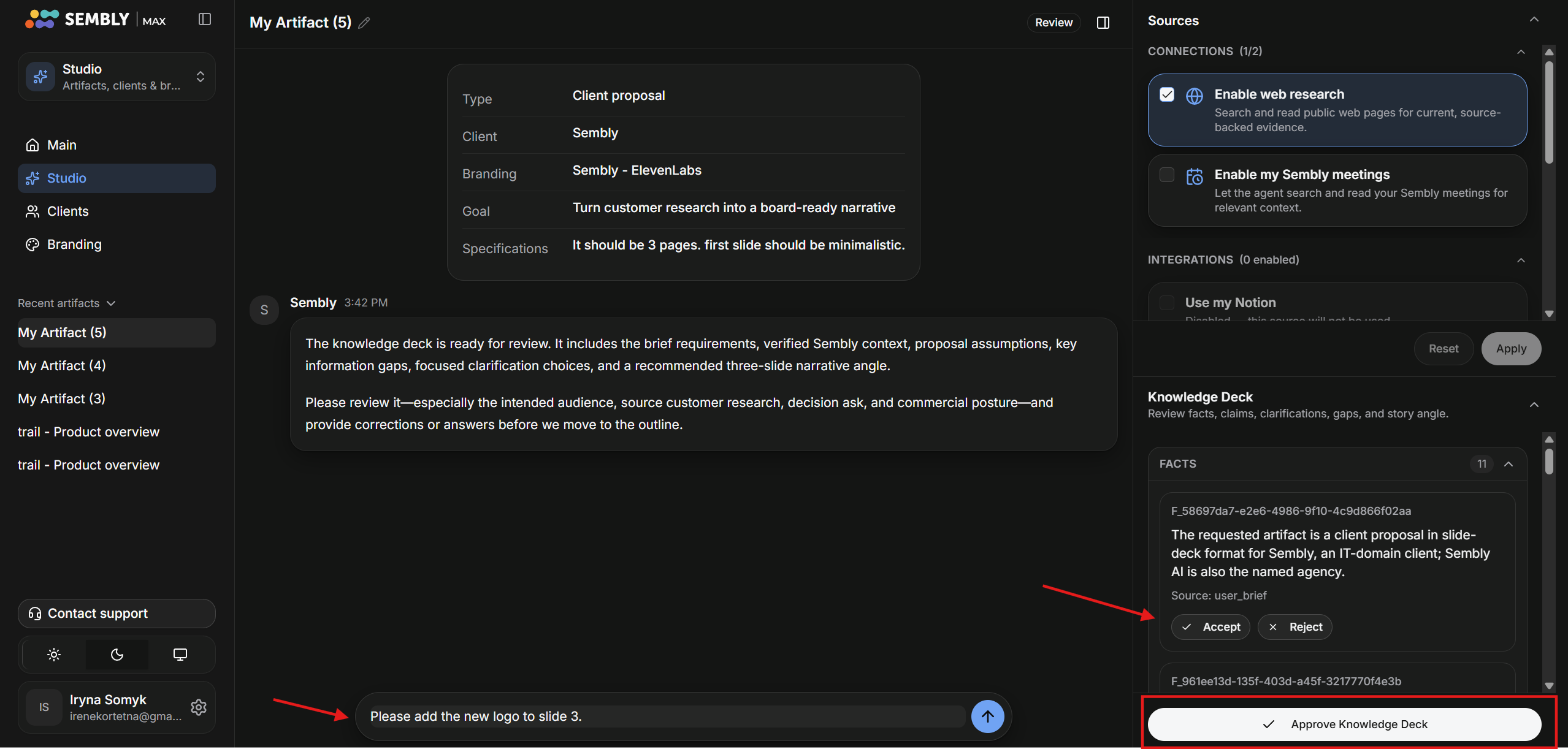
Once you press Accept or Reject, you can submit feedback and allow the chat to process the Knowledge Deck.

If everything meets your needs and choices, press Approve Knowledge Deck and proceed.
Sembly will work on the outline, please wait a bit until it’s done
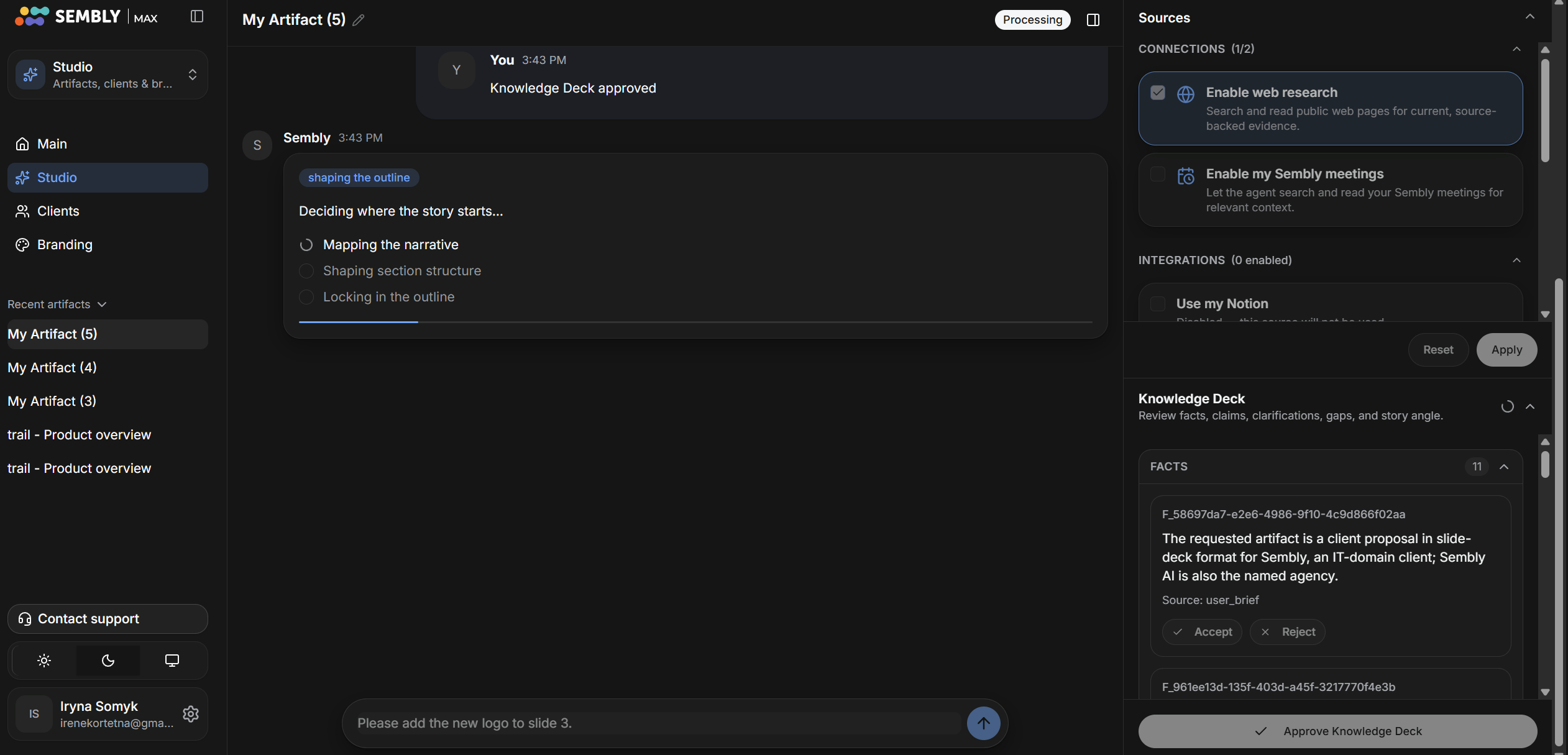
Check the Outline information and either make changes or approve it for deliverable creation. You can suggest changes to the Outline via chat, then wait for Sembly to finish revising it.
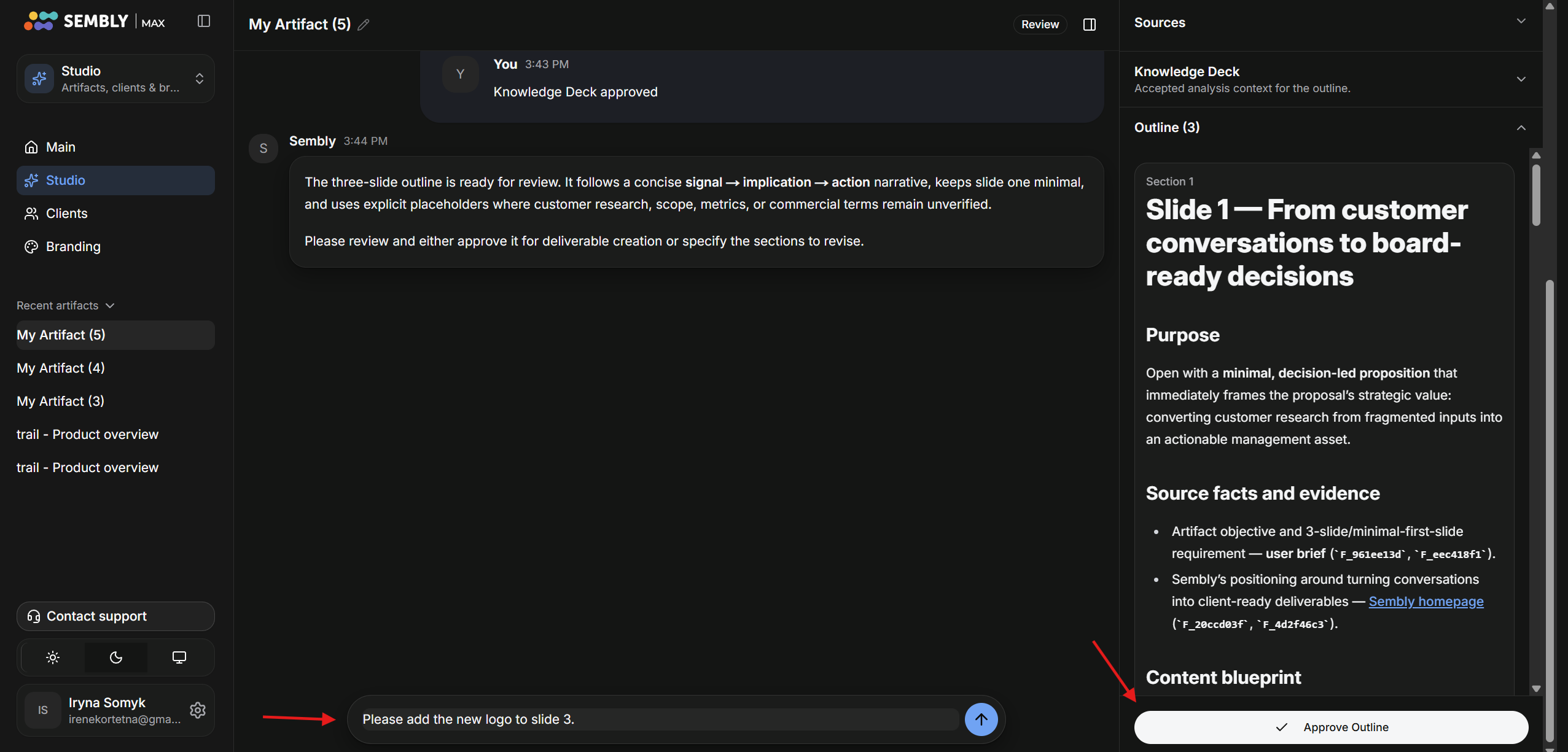
If everything is up to your needs, please press Approve Outline
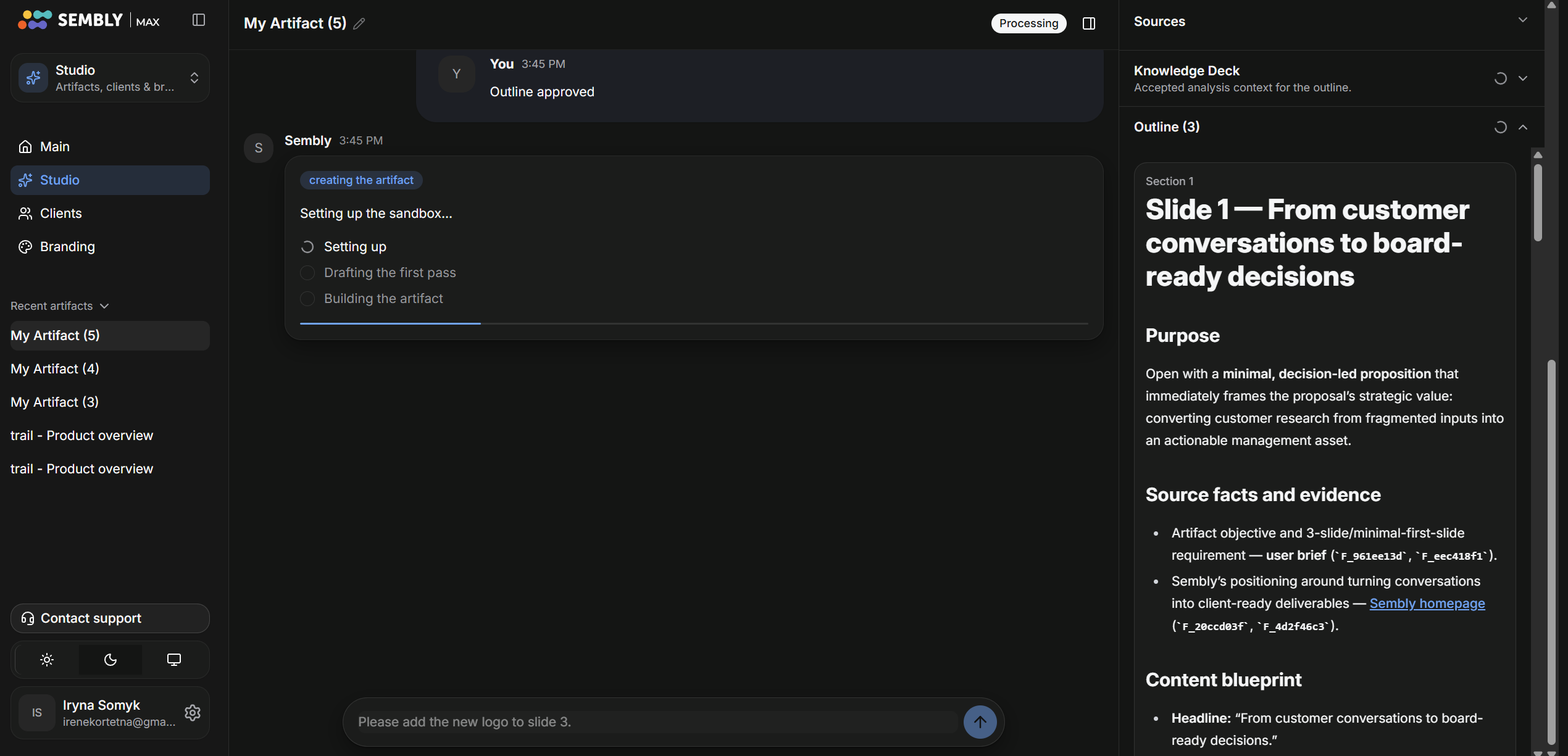
Sembly will create the artifact; please wait a few minutes until it’s done.
Your Artifact is done; you can preview it or download it on your device.
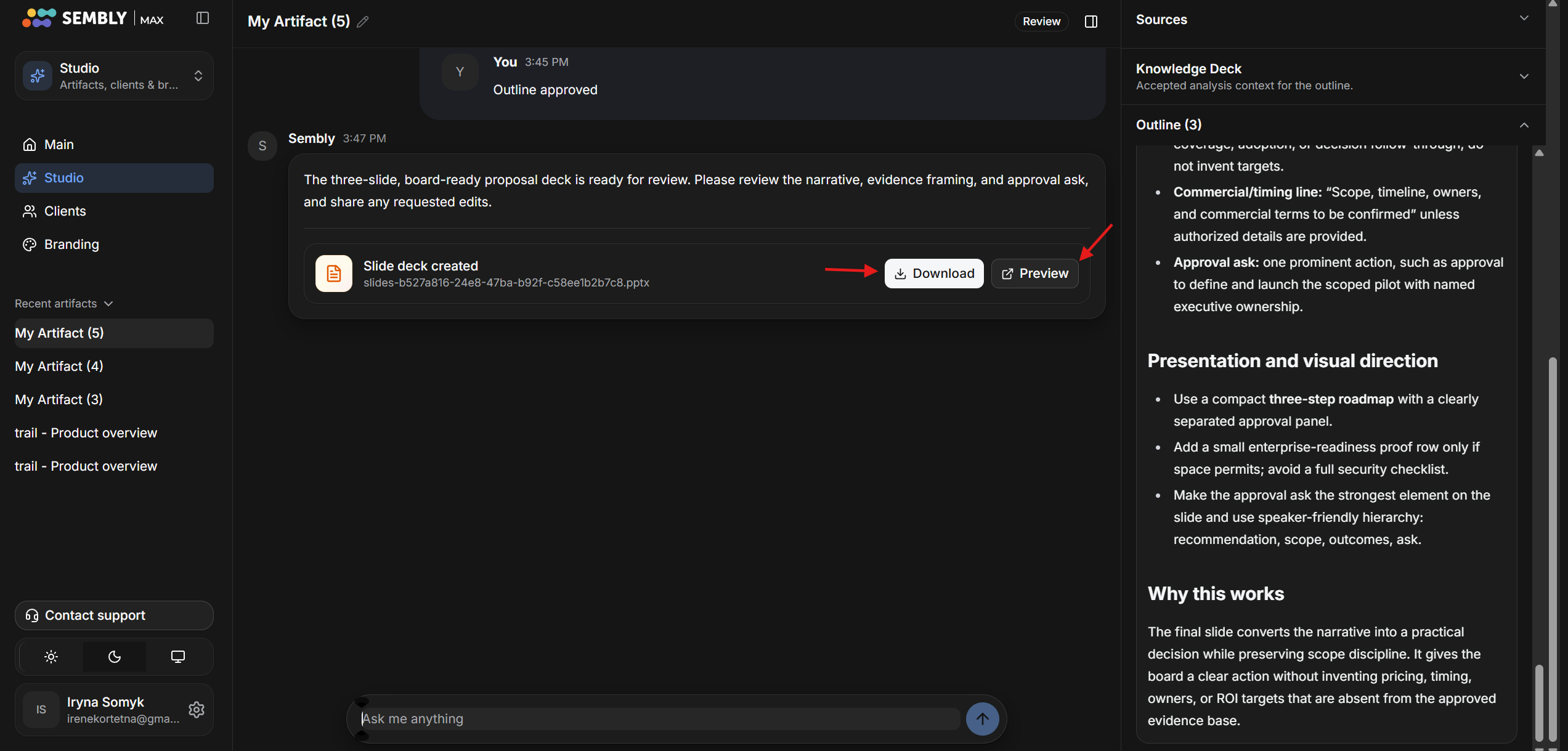
After reviewing the finished Artifact, you can write in the chat asking for additional changes to it. For example, adding the company logo to slide 3.


