To connect your Sembly account with a second Google or Outlook calendar, or another calendar, use the Other Calendars feature. This option allows you to connect a single calendar by providing its URL.
The Other Calendars feature supports calendars that use the iCalendar standard (.ics). Popular options include Apple (iCloud) Calendar, Outlook, Yahoo Calendar, Zoho Calendar, and Google Calendar. To ensure compatibility, verify that your calendar supports the .ics format.
For help connecting multiple Google Calendars, check out our guide here.
Calendars give us access to capture all your scheduled video conferencing meetings in Google Meet, Zoom, Microsoft Teams or Webex.

As with all other meetings you’d like to capture, Sembly will join only meetings that you schedule using a registered or aliased e-mail in your Sembly user account.
This article will guide you through the process of connecting to other calendars.
Below are the steps to connect to other calendars within the profile settings in Sembly:
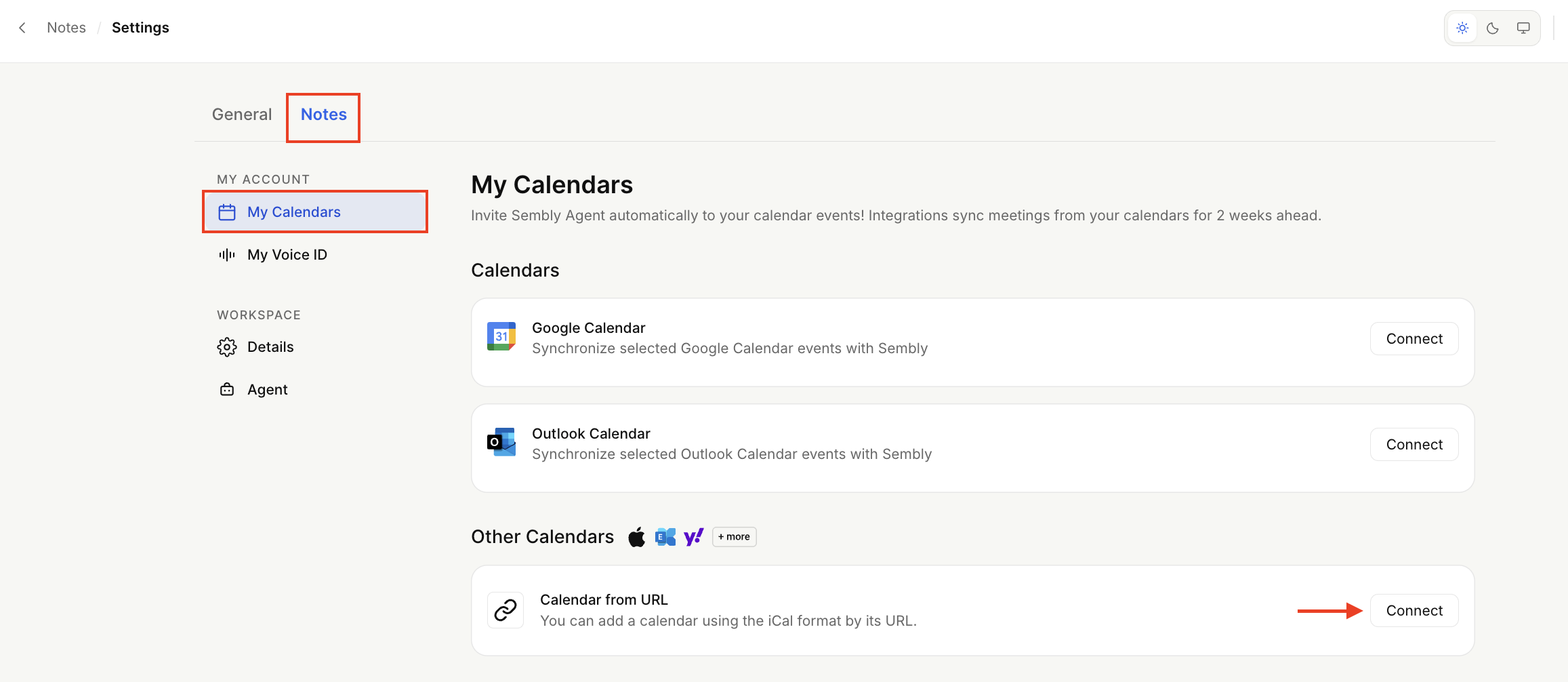
Open the dropdown by clicking your avatar at the bottom of the sidebar menu to open Settings → Notes → My Calendars.
Next to Other Calendars, click Connect.
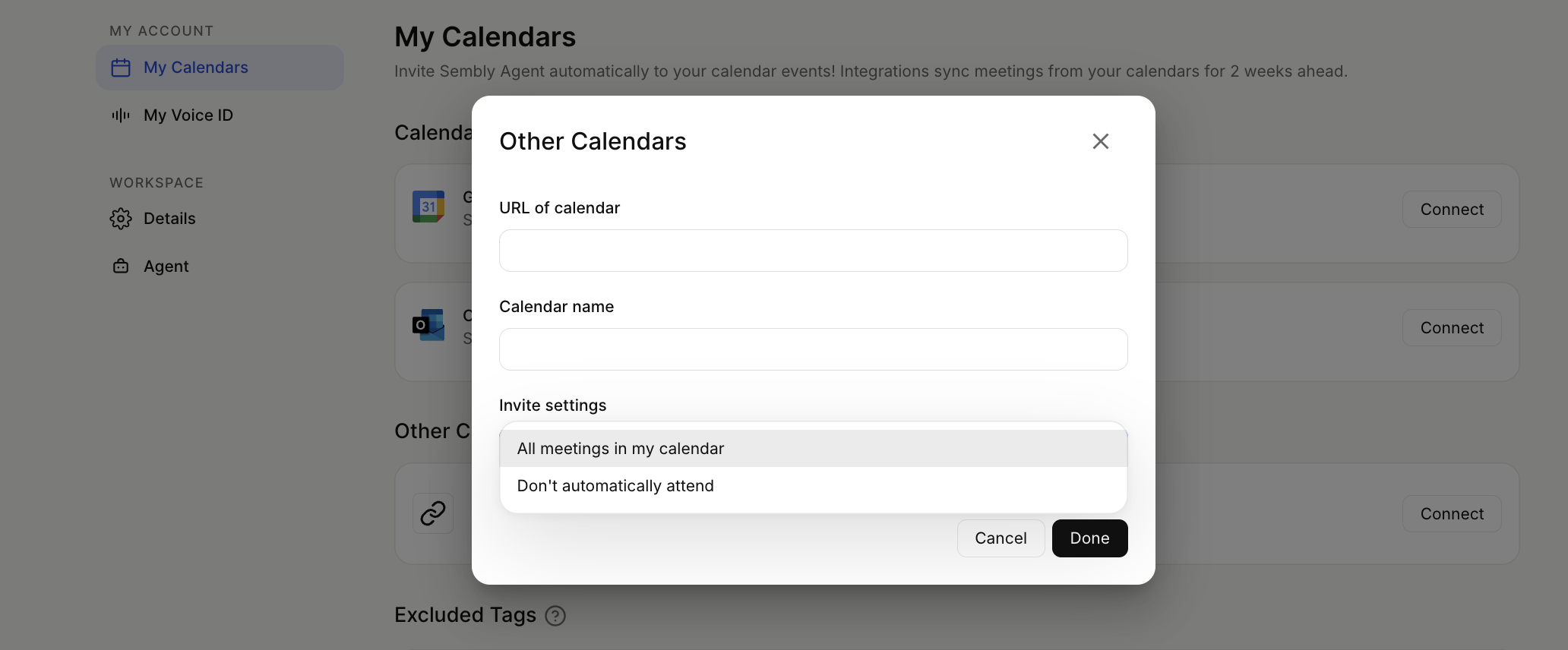
In the pop-up, you will need to paste the URL of the calendar, name your calendar, and choose one of two attendance options: All meetings in my calendar or Don't automatically attend, and click Done.
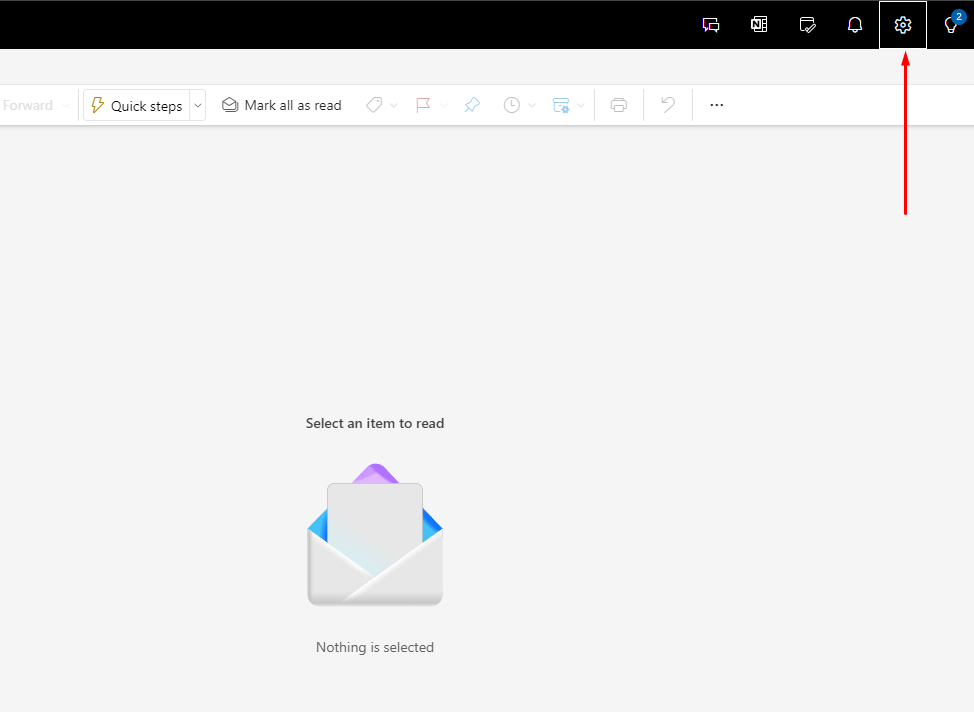
Open your MS Outlook Calendar settings.
Open the Shared calendars tab.
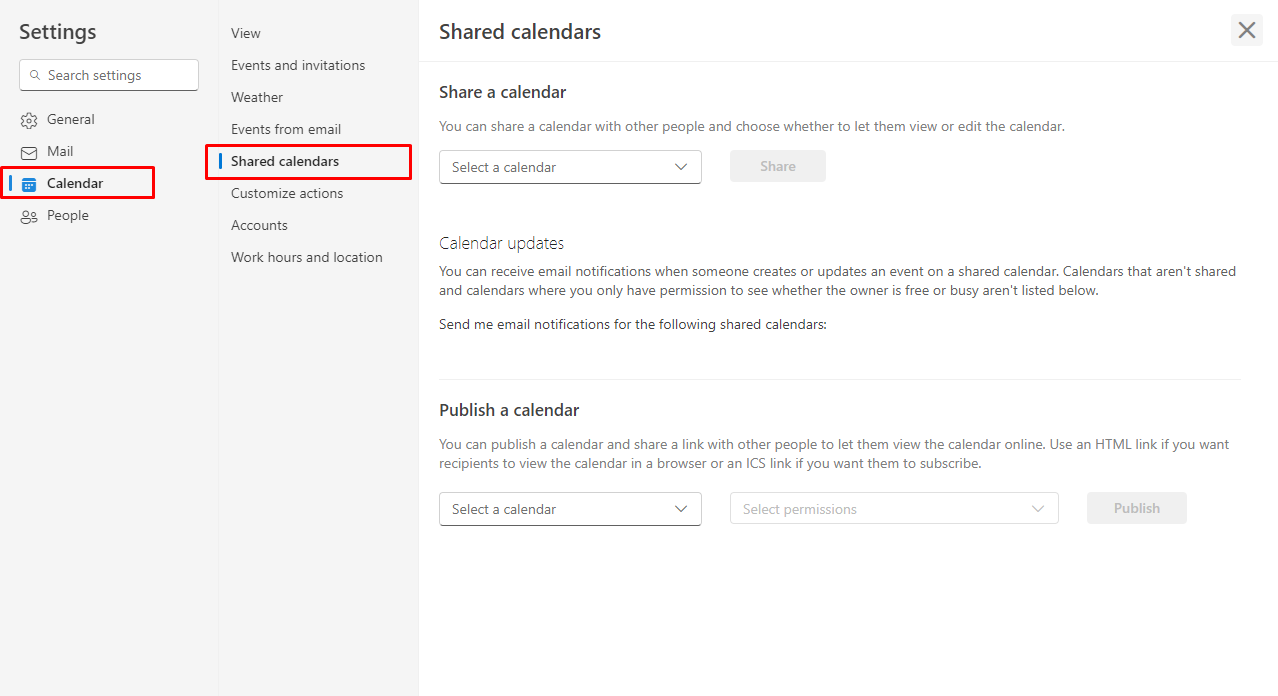
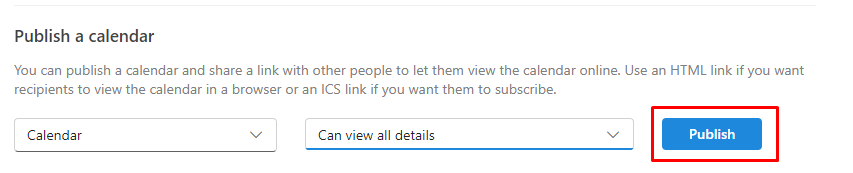
In the Publish calendar section, select: Calendar - Can view all details and click Publish
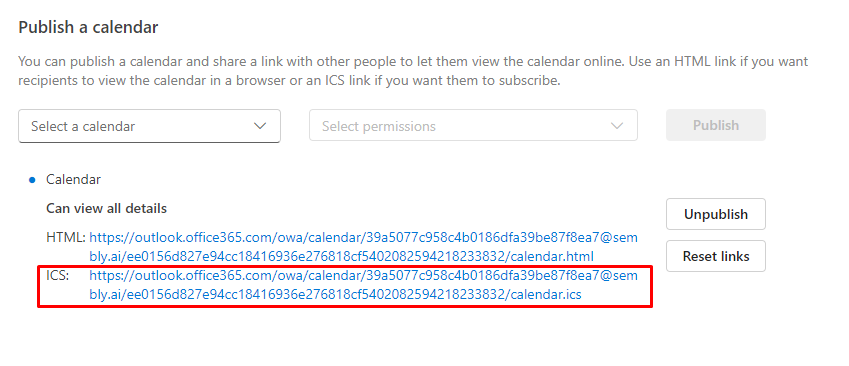
After that, copy the ICS link and paste it into the Sembly app, then click Done.
That's all! From now on, Sembly will sync calendar meetings to your Sembly account. Make sure the Attend toggle is on and Sembly is admitted in the lobby to record a meeting.