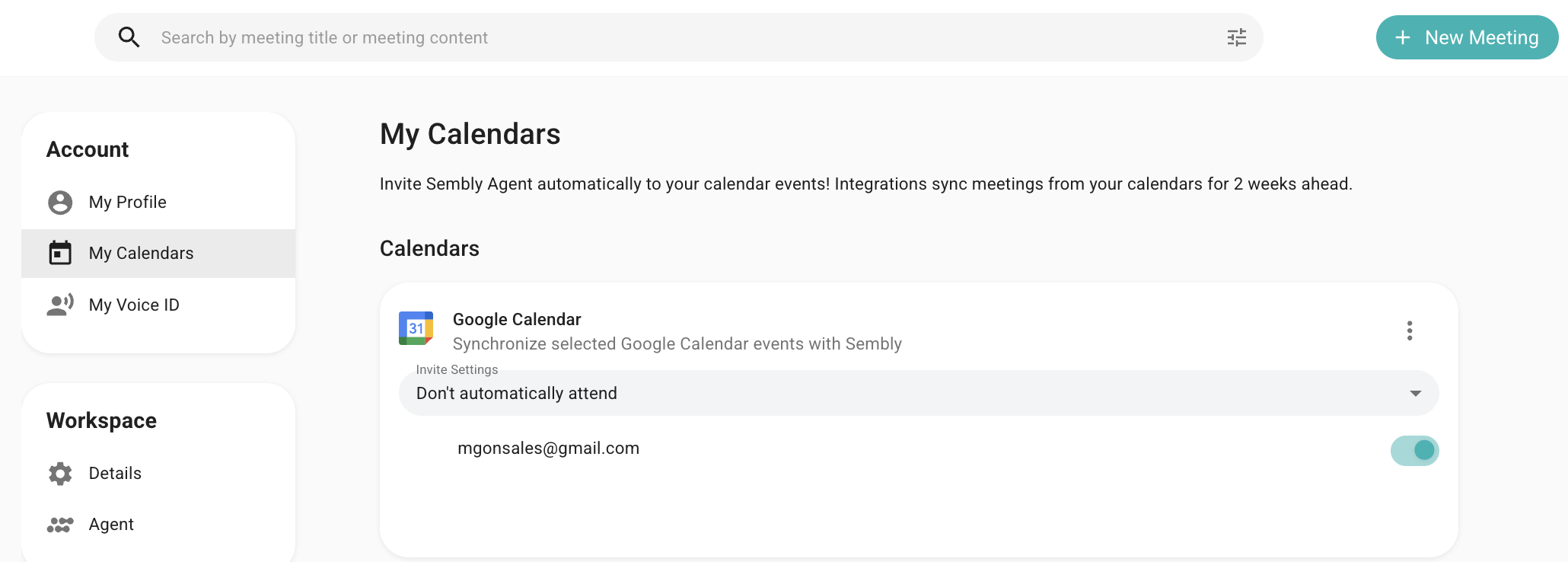
Currently, Sembly supports connecting one Google Calendar per account. If you use multiple Google or G Suite (Workspace) accounts — for example, if you work with different companies — you’ll need to use a simple calendar sharing workaround.
Unfortunately, such a workaround can't be applied to Outlook.
Here’s how to get Sembly to join meetings from multiple Google accounts:
Choose one main Google account to connect to your Sembly account
Share your other Google calendars with this main account in your GCal settings:
Go to your secondary Google Calendar
Click the three-dot menu next to the calendar name and choose Settings and sharing
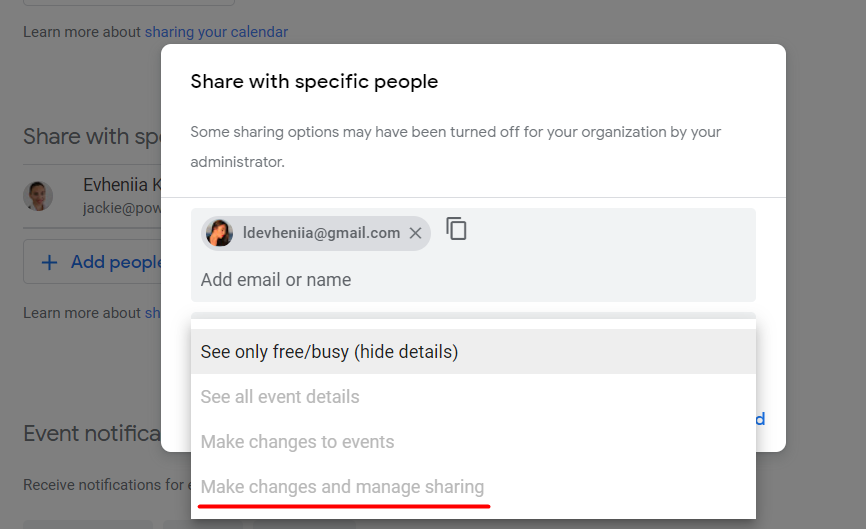
Under Share with specific people, add your primary Google account, and give Make changes and manage sharing access. Note, some GSuite accounts restrict the sharing of your calendar with outside accounts (like on the screen below)
Repeat this for any additional accounts you want to include
Make sure your meetings are visible: once shared, the events from your other calendars will appear in your main GCalendar view

In the My Calendars section, select Google Calendar -> toggle on the calendar you wish to sync with Sembly. The list shows calendars that are available in your Google account in the My Calendars list