A calendar overbooked with meetings is typical in today’s working environment. With Sembly integrations to Google and Outlook calendars, there’s no need to invite the agent to every meeting! Connect your calendar and have all of your conference meetings captured, or handpick meetings to record. It’s that easy!
Calendars give us access to capture all your scheduled video conferencing meetings (whether with Google Meet, Zoom, Microsoft Teams, or WebEx).

As with all other meetings you’d like to capture, Sembly will join only meetings that you schedule using a registered or aliased e-mail in your Sembly user account.
This article will guide you through the process of connecting to Google Calendar.
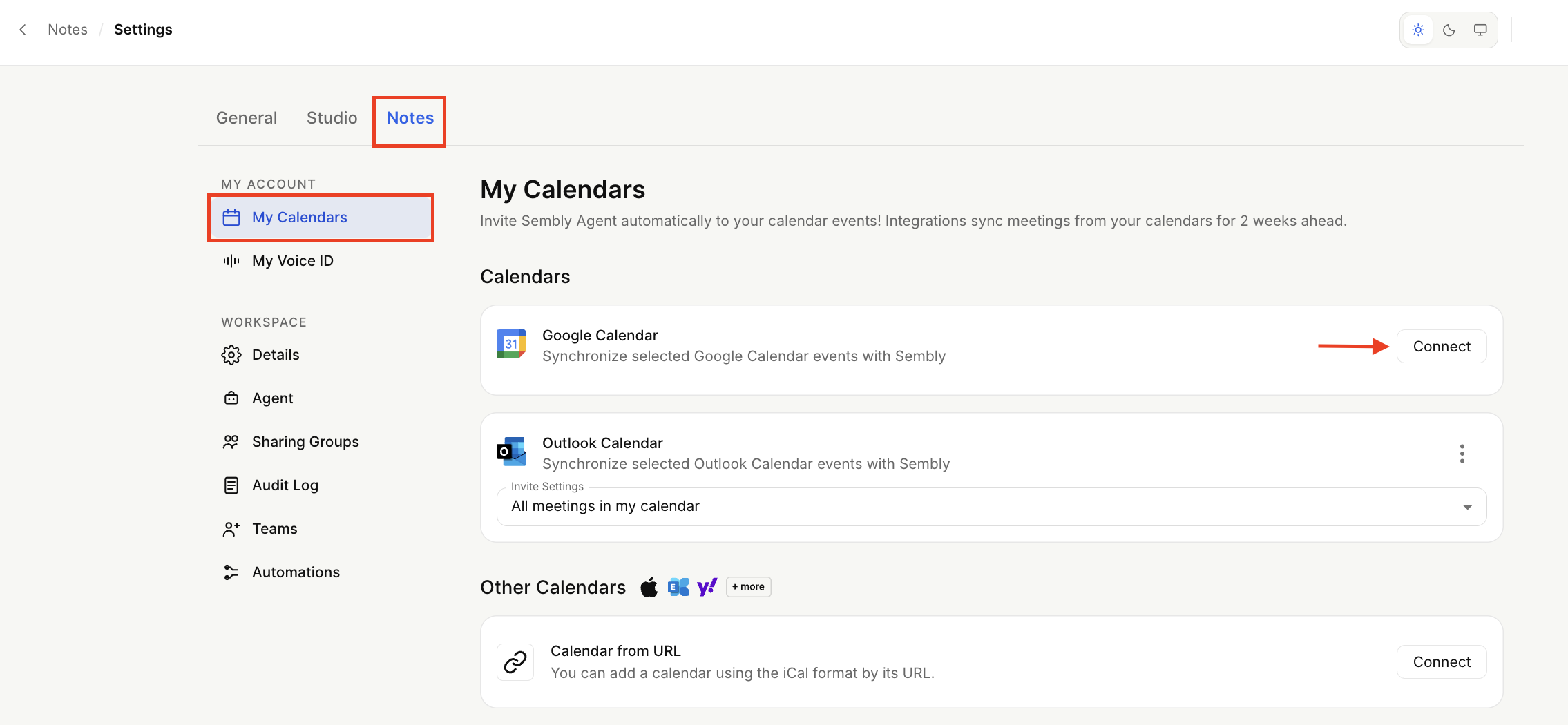
Users can connect to Google Calendar upon registration in Sembly or skip the step and connect in Settings. Below are the steps to connect to Google Calendar within the profile settings in Sembly:
Open the dropdown by clicking your avatar at the bottom of the sidebar menu to open Settings → Notes → My Calendars.
Next to Google Calendar, click Connect.
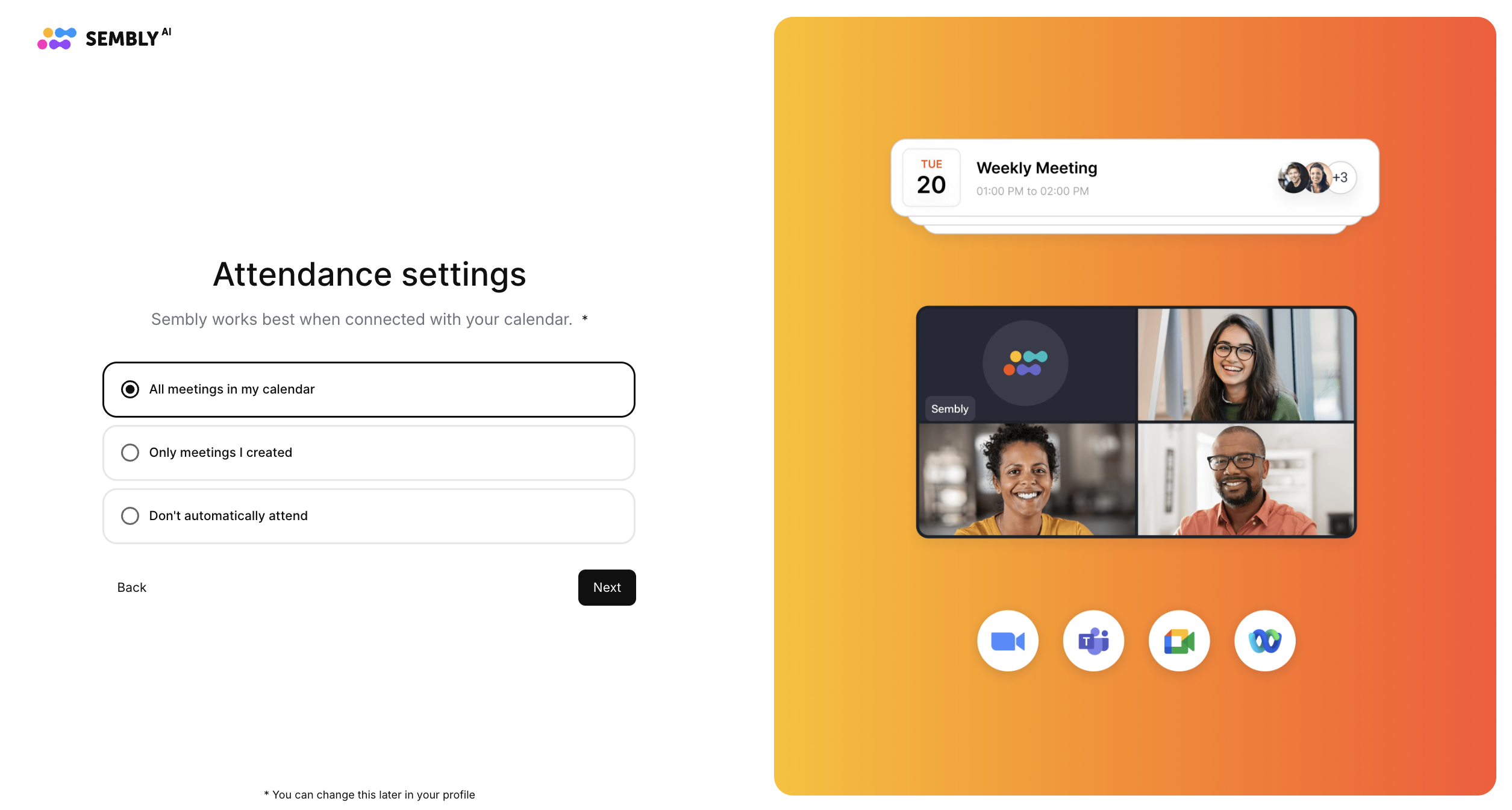
Set up the inviting setting under which you'd like Sembly to attend your meetings:
only meetings you created,
all meetings in your calendar, or
do not automatically attend meetings (all the meetings will still sync with Sembly with an Attend toggle that you can activate whenever needed).
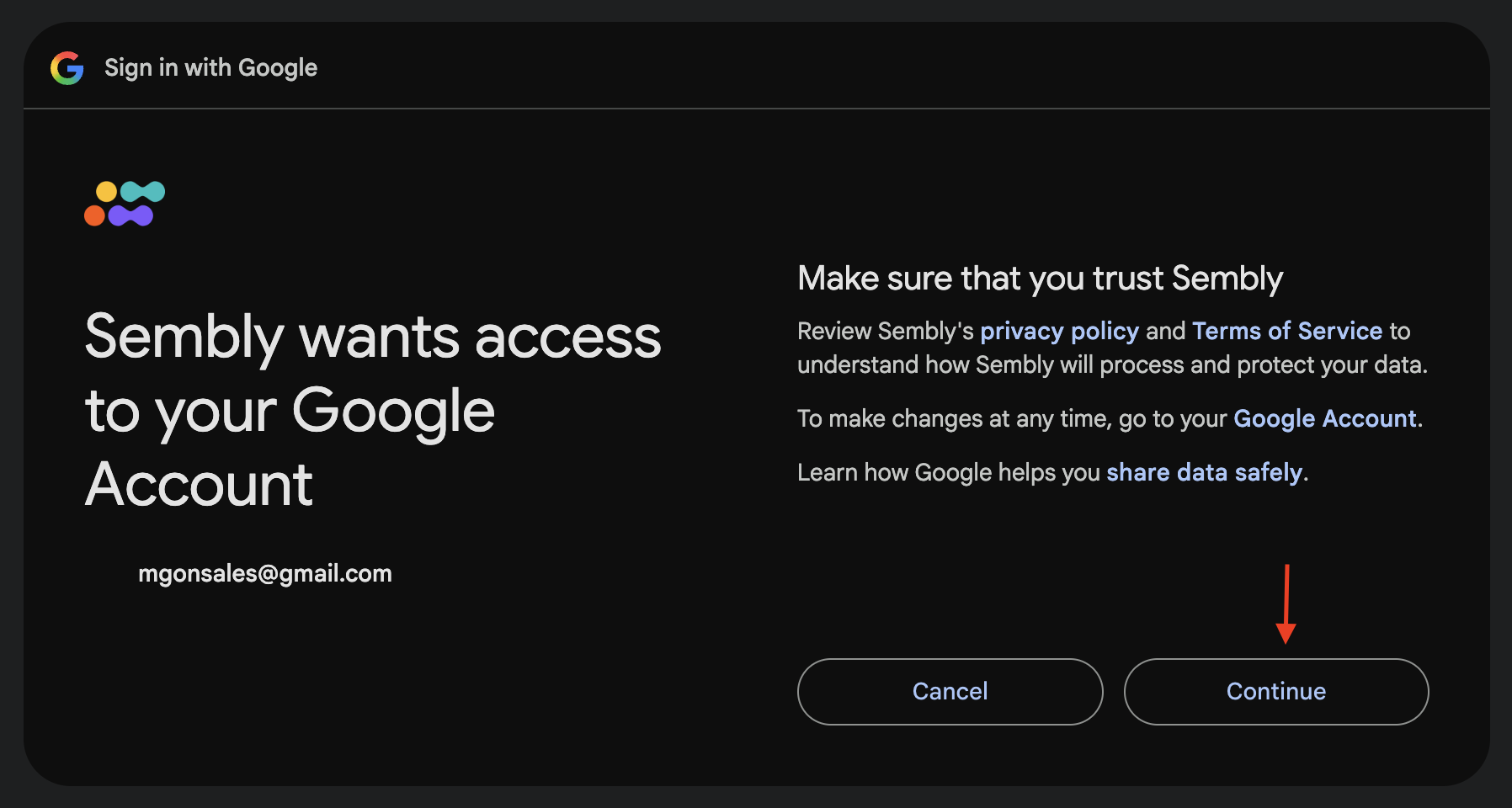
Log in to your Google Calendar account or select the account from the list if you have more than one. You can connect your Google account with an email address other than the address registered in Sembly. Sembly will recognize this email as an alias and will add it to an alias list.
Accept permissions by clicking Continue in a pop-up and proceed. You will be redirected back to Sembly.
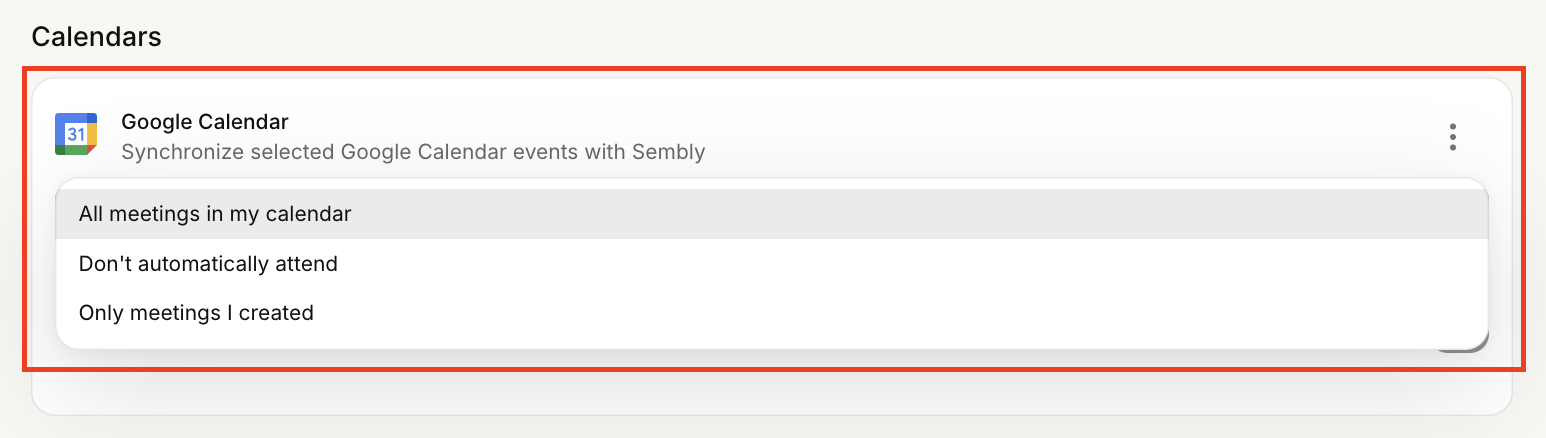
Google Calendar will now be connected. From now on, Sembly will automatically join meetings scheduled in your calendar (according to the invite settings you chose).

Once you connect your calendar, all calendars associated with the Google account you logged in to will be listed under Google Calendar. You can toggle relevant calendars to sync them. You can toggle all the calendars to collect meetings from all of them or select calendars from the list and leave others without syncing.
You can also modify invite settings to select meetings you wish Sembly to join: All meetings in my calendar, Only meetings I created, or Don't automatically attend. If you choose Don't automatically attend, Sembly still syncs all meetings in your calendar to its list, where you can handpick meetings you wish to record by toggling on/off the Attend button.
Should you have a reason to stop syncing your Google Calendar meetings with Sembly, you can do it in two ways:
Disconnect one of the calendars
Disconnect your Google Calendar account
If you choose to disconnect one of the calendars, follow the steps below:
Open the dropdown by clicking your avatar at the bottom of the sidebar menu to open Settings → Notes → My Calendars.
Find the calendar you wish to stop syncing with and switch off the toggle.
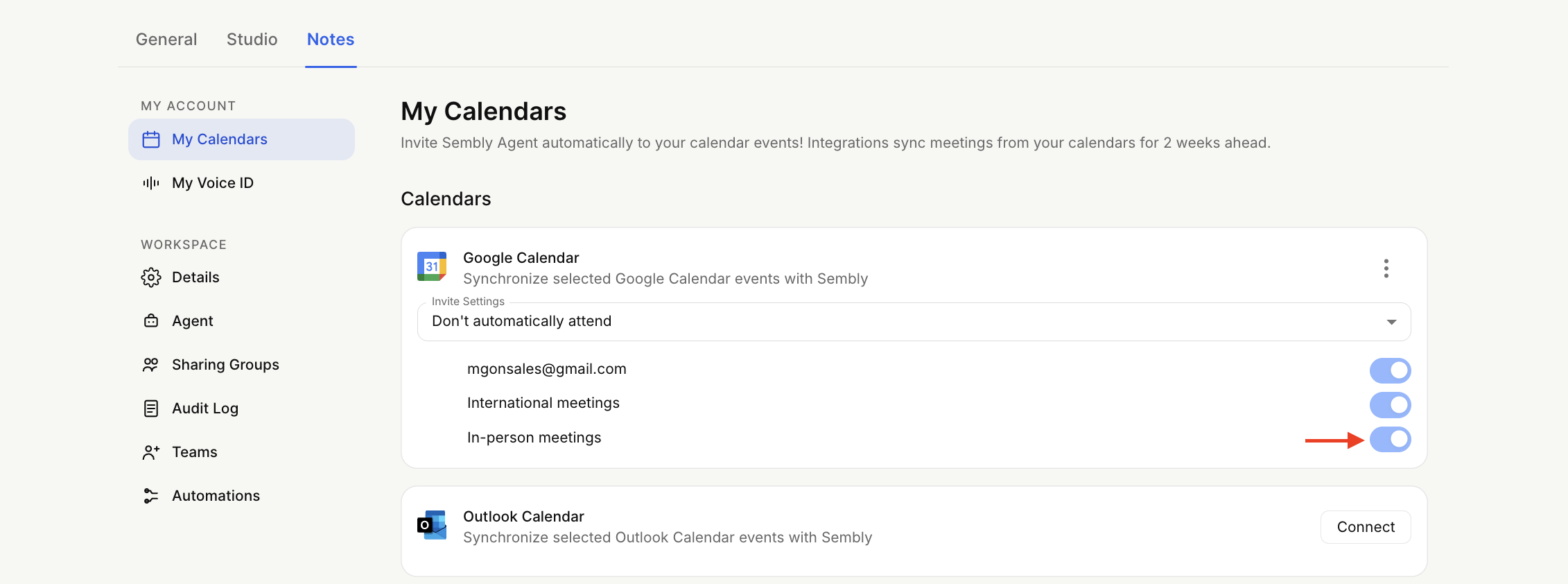
If you decide to disconnect your Google Calendar account, follow the steps below:
Open the dropdown by clicking your avatar at the bottom of the sidebar menu to open Settings → General → My Calendars.
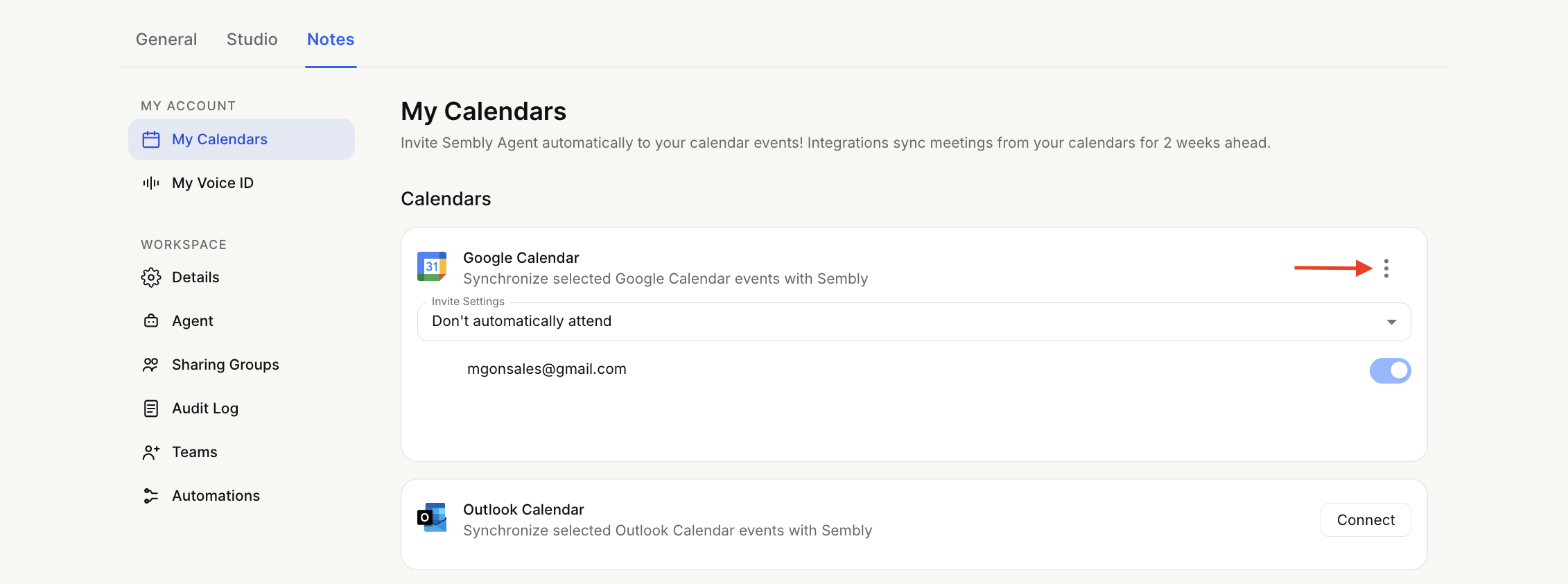
Click the three dots next to the Google Calendar.
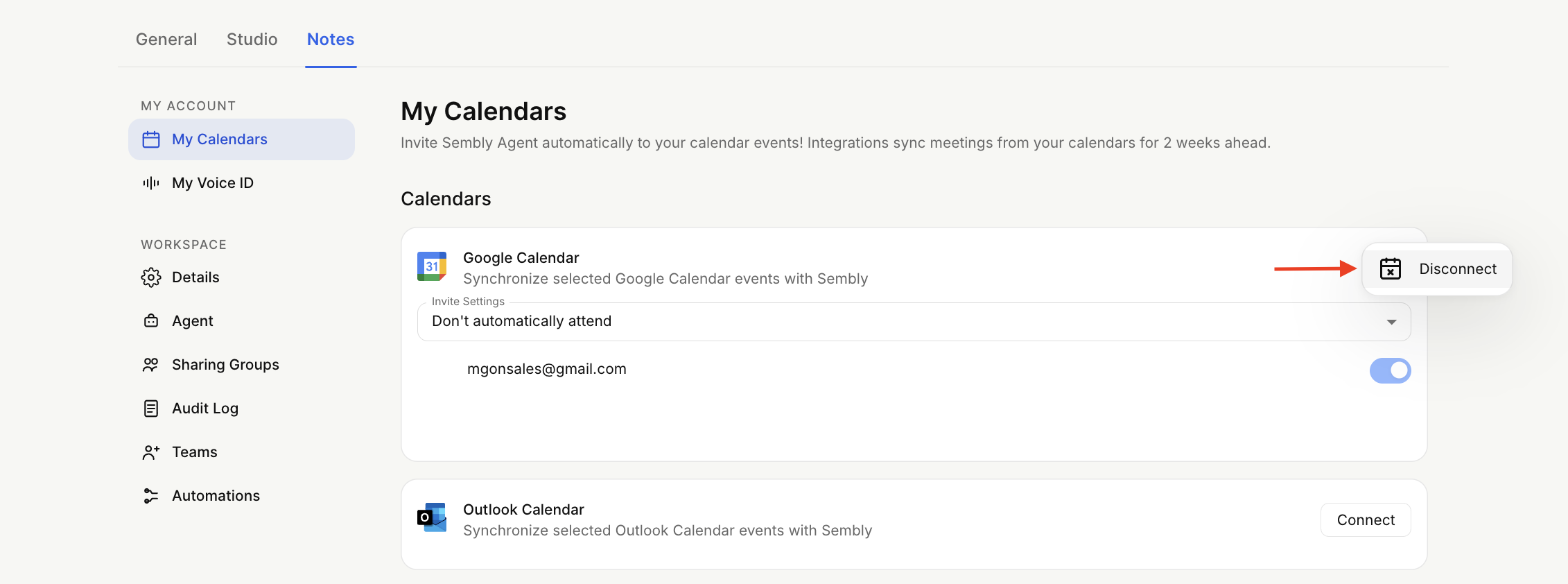
Click Disconnect.
If you wish to connect another Google Calendar account to Sembly, disconnect first and then repeat the connection steps. A new account e-mail will now be listed in Aliases if it doesn’t match the e-mail you registered with.