Claude Code is Anthropic’s agentic coding tool for the terminal. When you connect Sembly AI’s Model Context Protocol (MCP) server, Claude can find meetings by title or date and review their Meeting Notes and Key Items. The MCP server doesn’t provide full transcripts, so Claude can’t quote meetings verbatim or search their contents for a specific topic.
Prerequisites
Claude Code CLI installed and authenticated on your machine.
An active Sembly AI account.
Your Sembly Bearer Token (see the Configure Sembly MCP Server guide to generate one in your web app settings).
You can connect the Sembly server to Claude Code in two ways: using the quick CLI command or manually editing your configuration file.
Option A: Using the CLI (Recommended)
Sembly operates as a remote HTTP MCP server authenticated via a Bearer token. To register it with Claude Code, open your terminal and run the following command (replace the placeholder with your actual token):
claude mcp add sembly --transport http https://mcp.sembly.ai/mcp \
  --header "Authorization: Bearer YOUR_TOKEN"
💡 Note on naming: In the command above, we named the integration
sembly. You can change this alias to anything you prefer
Option B: Configuring via mcp.json directly
If you prefer to define your tools manually (or want to commit a project-specific setup), you can edit your mcp.json configuration file directly.
Open or create your mcp.json file and add Sembly to your mcpServers object using the following structure:
JSON
{
  "mcpServers": {
    "sembly": {
      "url": "https://mcp.sembly.ai/mcp",
      "transport": "http",
      "headers": {
        "Authorization": "Bearer YOUR_TOKEN"
      }
    }
  }
}
Save the file. Claude Code will automatically detect the new server configuration.
To confirm Claude Code has successfully indexed Sembly's workspace tools:
Start an interactive Claude session in your terminal:
claude
Once inside the prompt, enter:
/mcp
You should see a green tick next to Sembly.
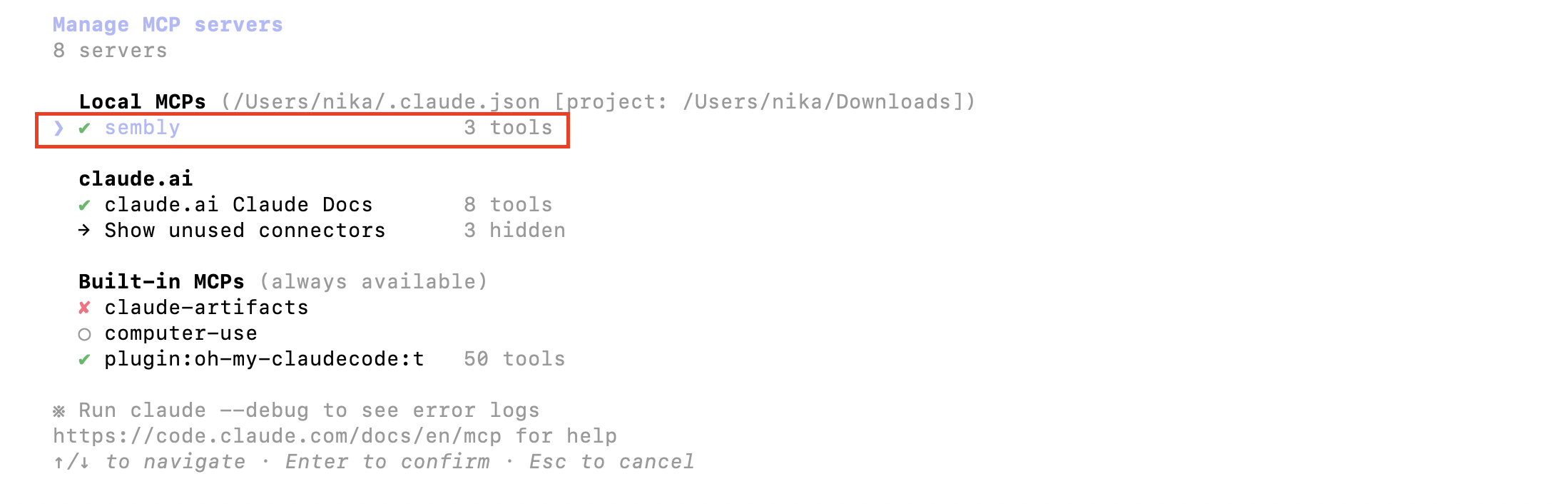
You can now reference your meetings naturally while writing code. Try testing the connection with prompts like:
"Check my Sembly meeting transcripts from yesterday afternoon and draft a Markdown summary of the technical decisions we made."
"Search my meetings for any mention of 'database migration' and list the open action items assigned to me."
"Look at our weekly engineering sync meeting and use the agreed points to update this repository's CHANGELOG.md file."
Prerequisites: Node.js must be installed on your system.
1. Open the config file:
macOS: ~/Library/Application Support/Claude/claude_desktop_config.json
Windows: %APPDATA%\Claude\claude_desktop_config.json
2. Add the following (if the file already has other fields, don't forget the trailing comma — otherwise the config will be overwritten). Replace the placeholder with your token from the webapp:
{
  "mcpServers": {
    "semblyAI": {
      "command": "npx",
      "args": [
        "-y",
        "[email protected]",
        "https://mcp.sembly.ai/mcp",
        "--header", "Authorization: Bearer <token from webapp>"
      ]
    }
  }
}
3. Restart Claude Desktop and verify in a new chat that the MCP server is enabled.