

You can view meetings and share them with your teammates within the Microsoft Teams platform. You can find the Sembly App in the Microsoft Marketplace.
Although the functionality of the Teams Sembly App is somewhat limited and navigating through Sembly settings requires exiting to the full-size webapp, this application gives you complete leverage of your meeting insights.
To add Sembly, do the following steps:
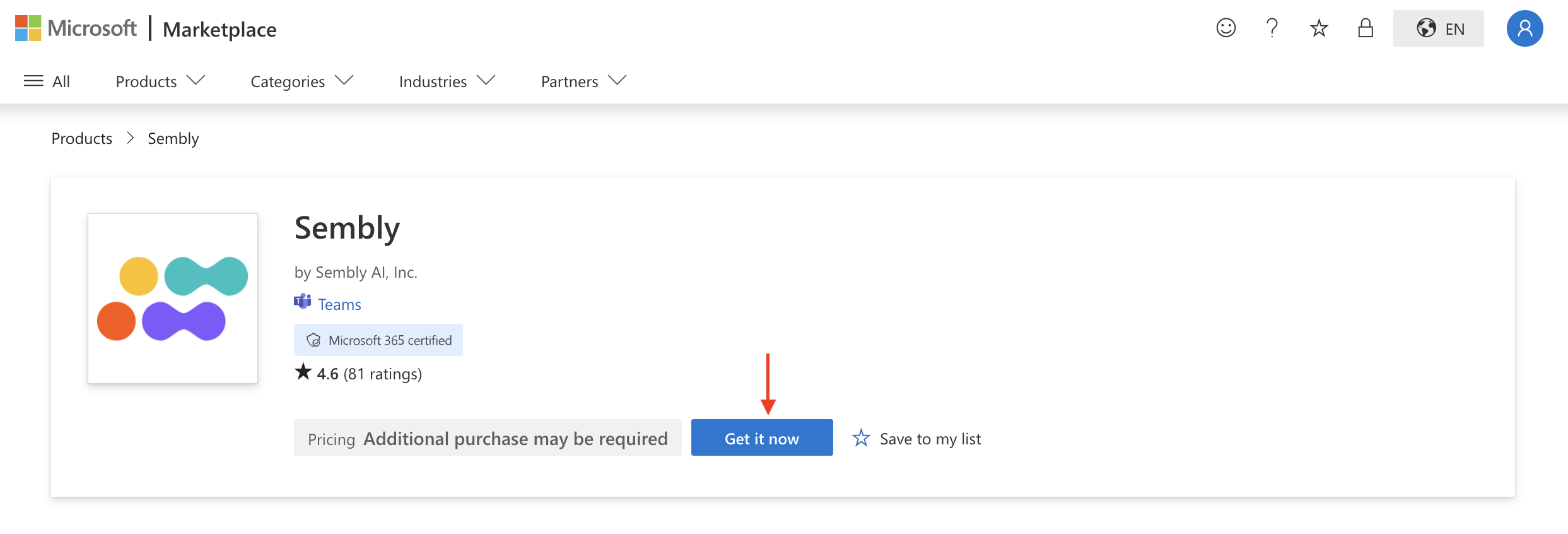
Follow this link to add Sembly to your MS Teams apps list. Click Get it now.
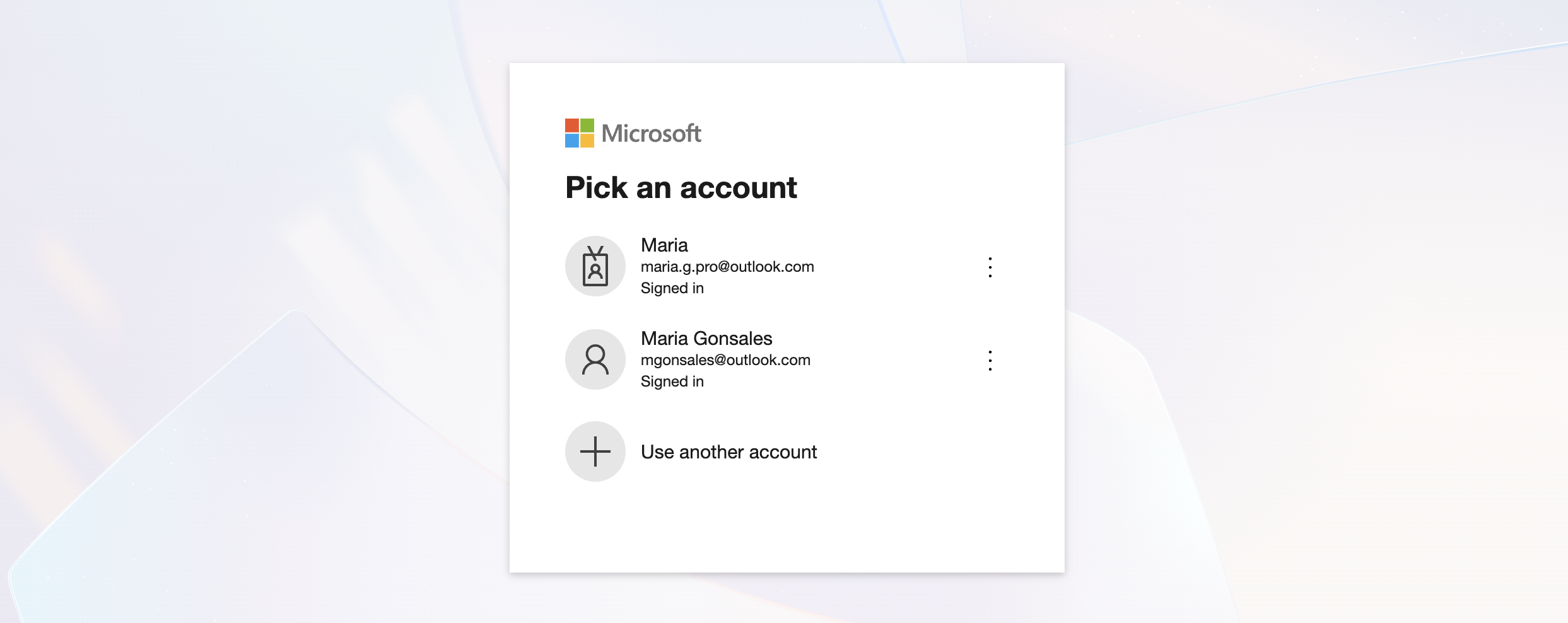
Pick a Microsoft account you want to use.
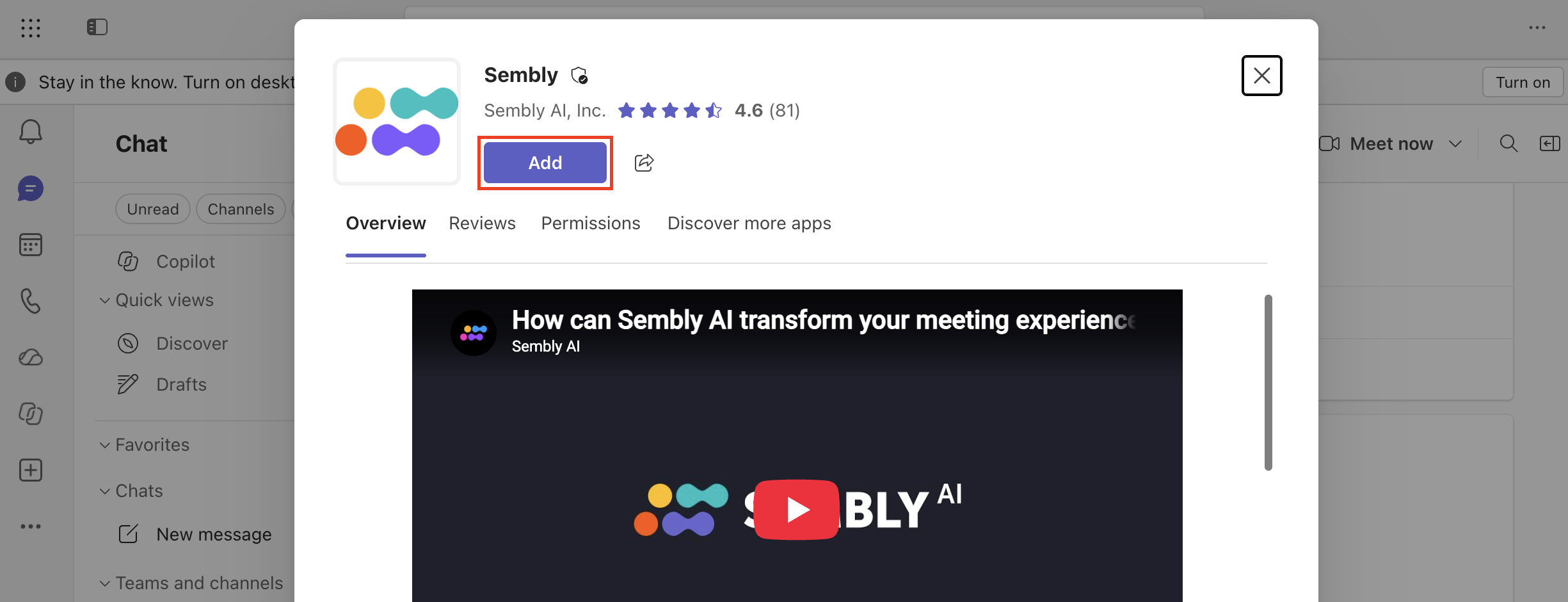
After logging in to the account, click Add.
Sembly App will open on the Activity tab with a greeting. Switch to the My Meetings tab to log in to Sembly or to register if you don’t have an account yet.
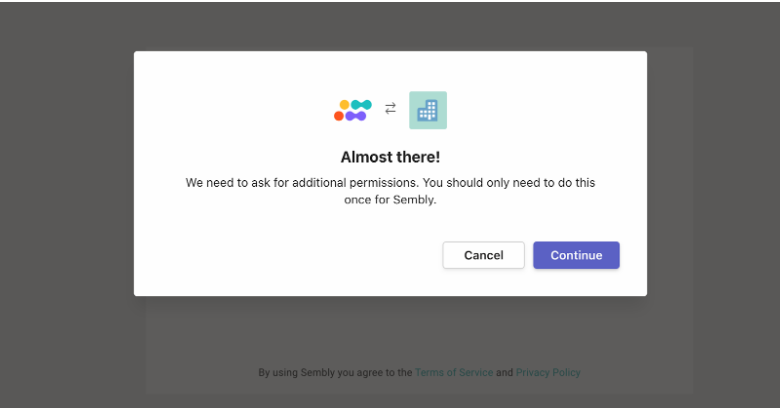
Prior to the registration or login steps, the app will request additional permissions for Sembly. The pop-up window will let you know if that hasn’t been done yet. Once the window appears, click Continue to proceed.
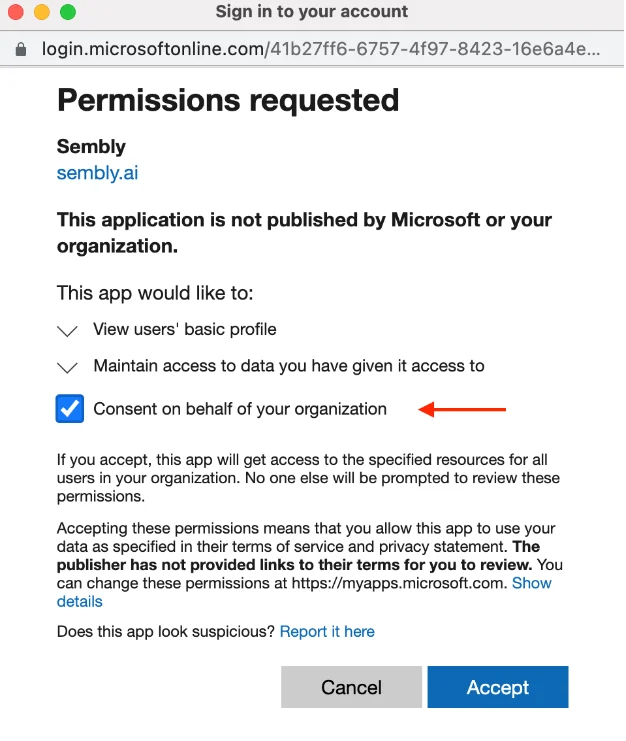
In the next pop-up window, put a checkmark next to “Consent on behalf of your organization” and click Accept.
That’s it! You can now log in to your Sembly account or create one. Check what registration options are available in this article.