
LEGACY PLAN : PROFESSIONAL | TEAM | TEAM PLUS
Sembly Chrome Extension brings essential features accessible within reach. The extension is included in all Sembly plans. Use this link to access the Sembly extension in the Chrome Web Store, or use the search to find it. Click Add to Chrome to download.

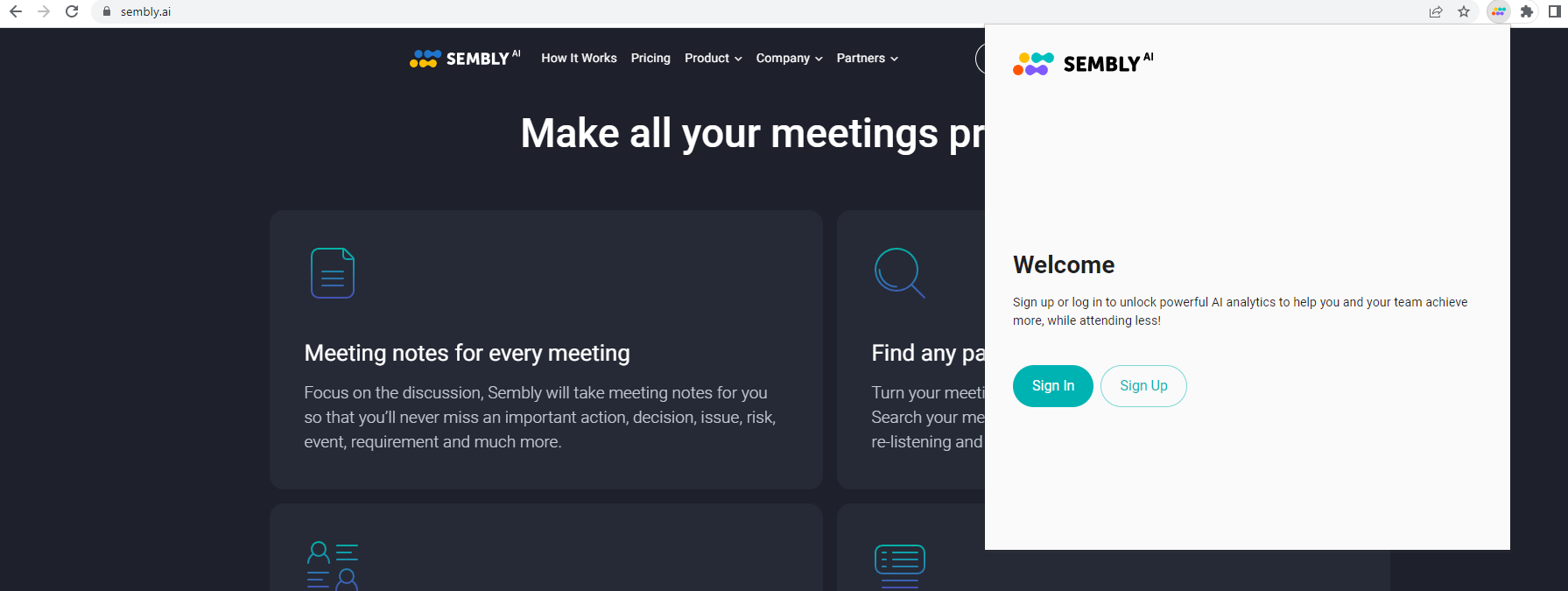
Start by signing in to your Sembly account. By clicking Sign In, you will be transferred to the login page. Should you need help with signing in to your account, click here to read the instructions.
Users who haven’t created an account in Sembly yet can access the registration page via the Sign Up button. Should you need help with account creation, learn how to do so using this link.
Note: the extension will connect automatically if you are already logged in to your account via webapp in Chrome.
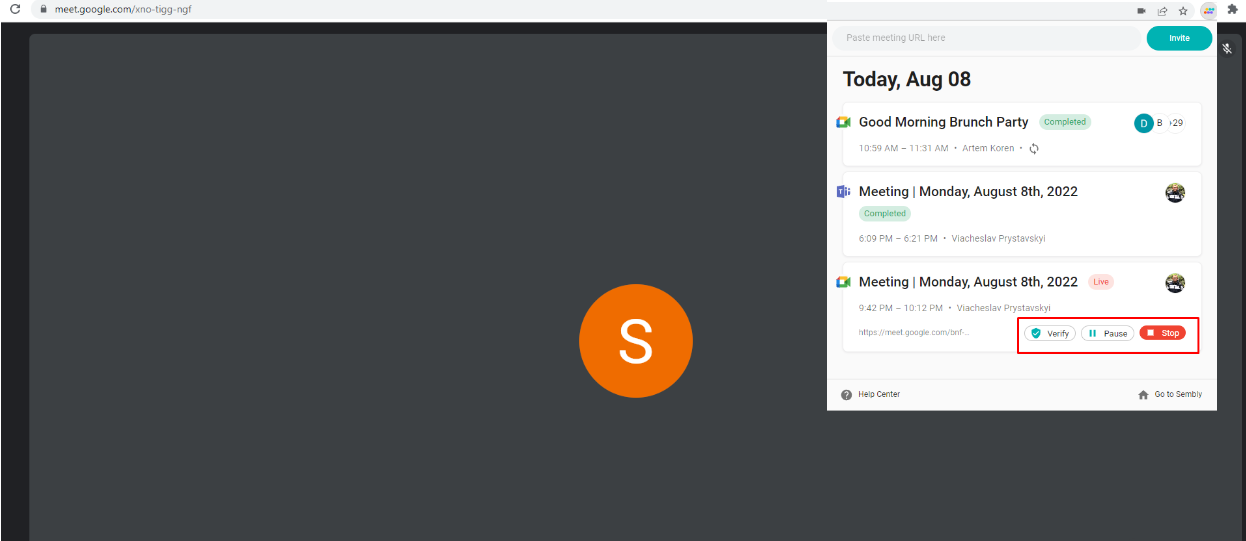
In the extension, you can see your meeting list for the current day, with all the meeting slots functionality available in the main Sembly webapp, the URL field for immediate invites, and a Go to Sembly key that opens the Sembly webapp in the browser window. And the Help Center key.
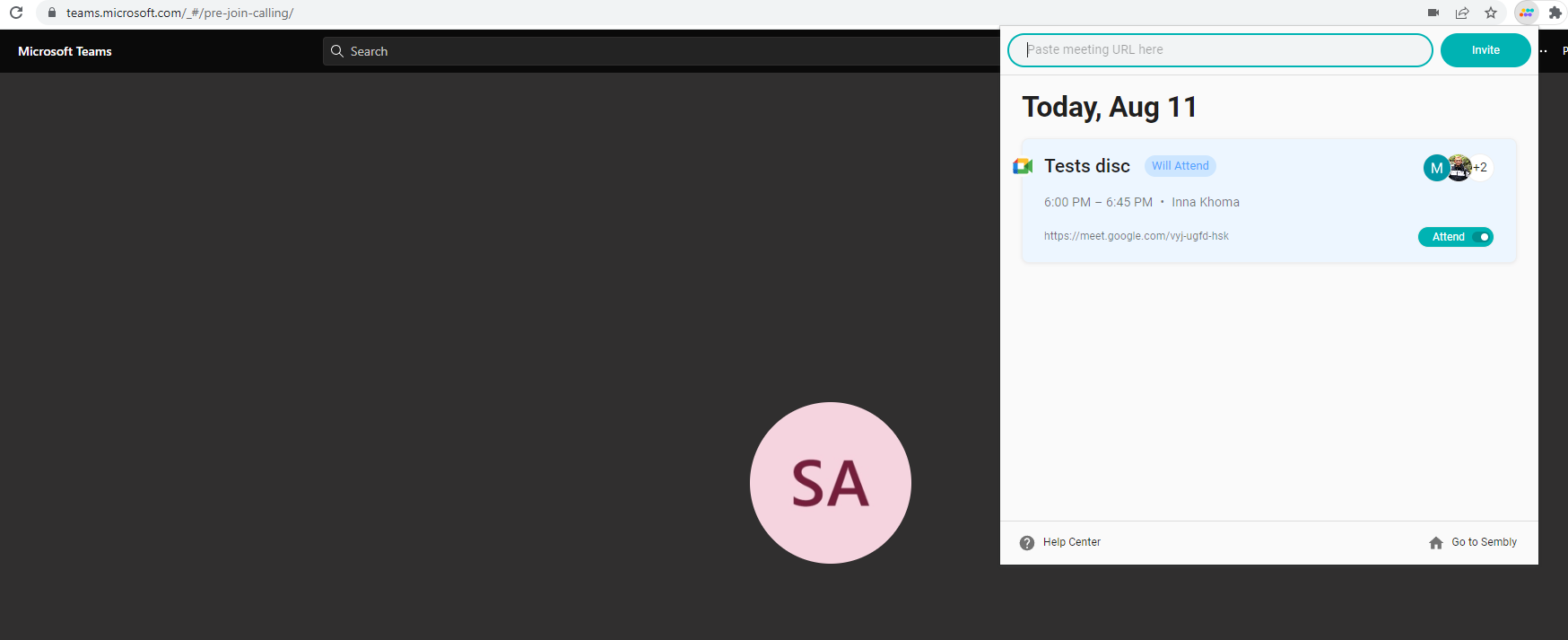
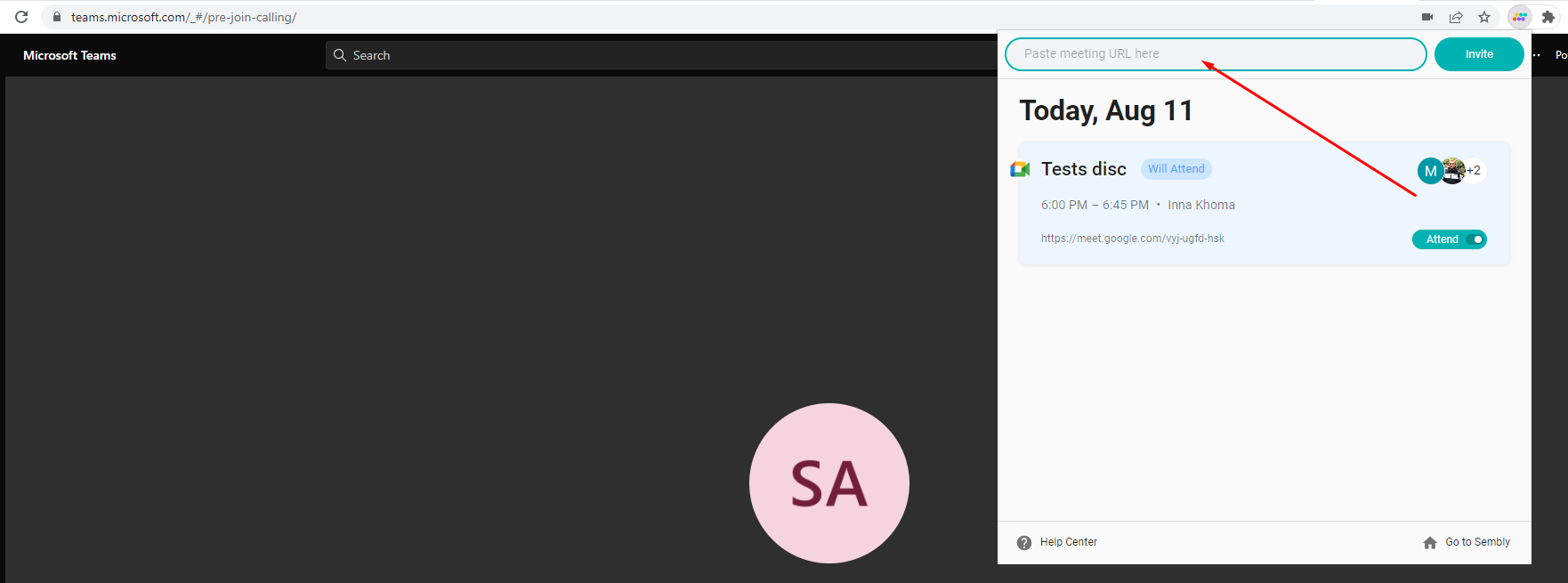
You can also invite Sembly to a call immediately using the link (for MS Teams, Zoom, or Google Meet meetings). All you need to do is copy your meeting link, paste it into the URL-required field, and click Invite, as you would in the Immediate invite form in the Sembly webapp.
This feature becomes handy if:
You would like to invite Sembly to the ongoing meetings.
Your meeting is longer than 5 hours, which is a limit for Sembly; thus, it must be reinvited.
Someone kicked Sembly off the call, and you want it back quickly.
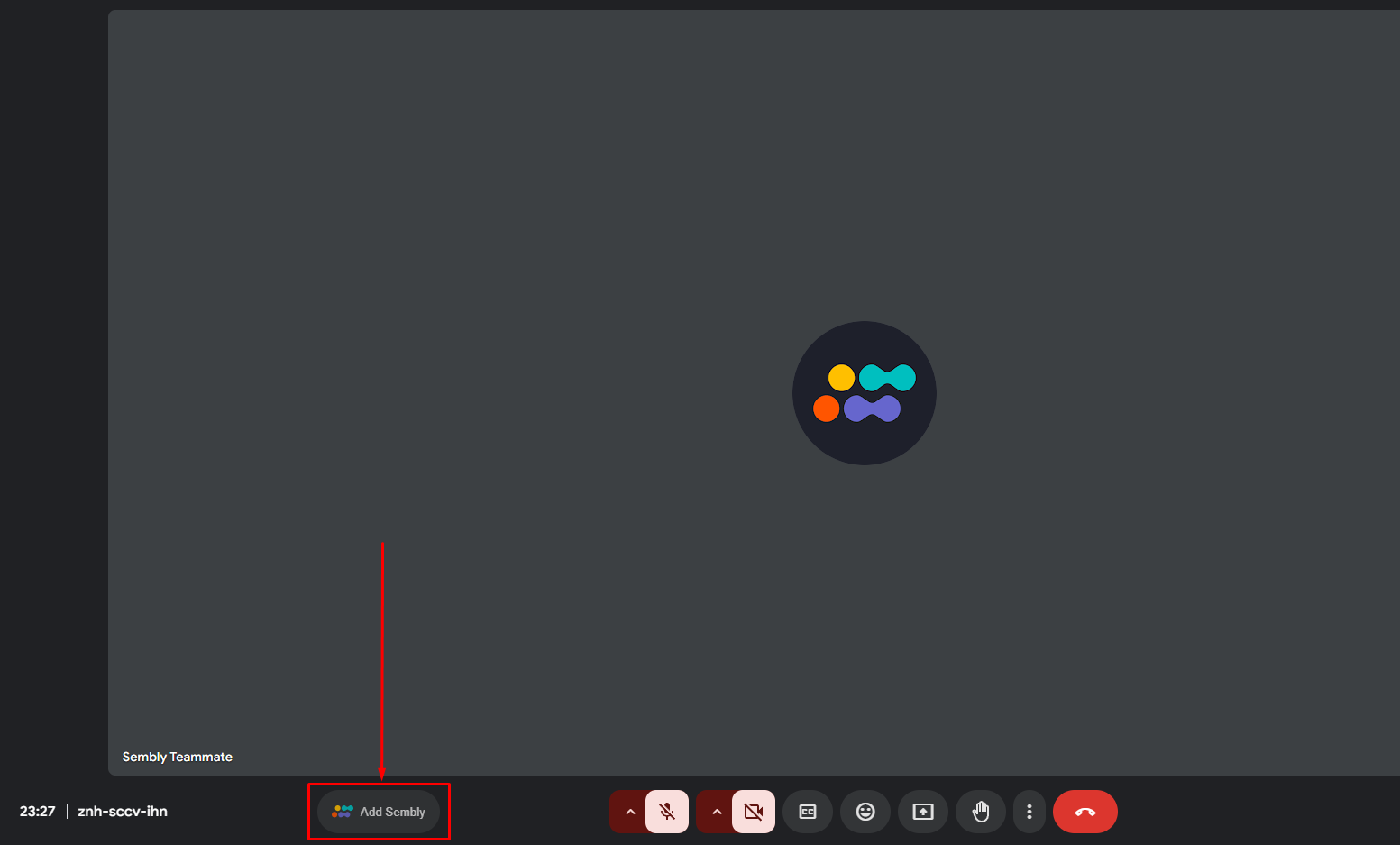
The simplest way to add a Sembly agent to your ongoing Google Meet is to click the "Add Sembly" button inside the meeting. Once clicked, the agent will join your call within a minute.
Sembly allows various control options during the meeting, such as pausing the recording, stopping it, or activating the verification code. These keys are also available in the Sembly Chrome extension.
After clicking Verify, you'll see a pop-up with a security code. Then click a button to make Sembly announce a code that matches the one you see in the pop-up. Sembly announces the code in the meeting chat.
If you say information that isn't for a record during a call, you can set Sembly on Pause. Afterward, you can Resume your recording.
Stop Sembly from recording to launch immediate meeting processing. If you end the conference call, Sembly will stay on for 10 more minutes.
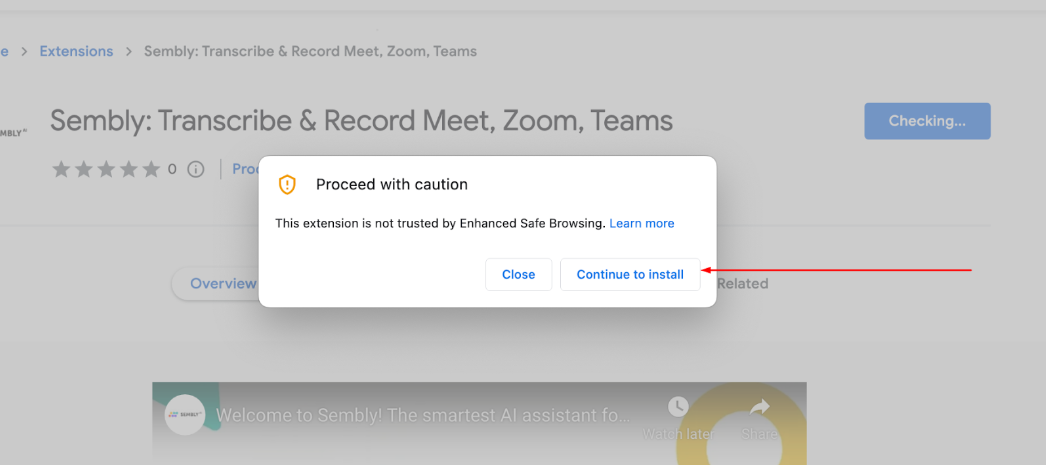
You might see the following message if you have enabled your browser's Enhanced Safe Browsing setting. But don’t worry, it is very safe to install our extension. We need a few months to become a trusted partner for Chrome and eliminate the message.
Press Continue to Install if you see this pop-up.
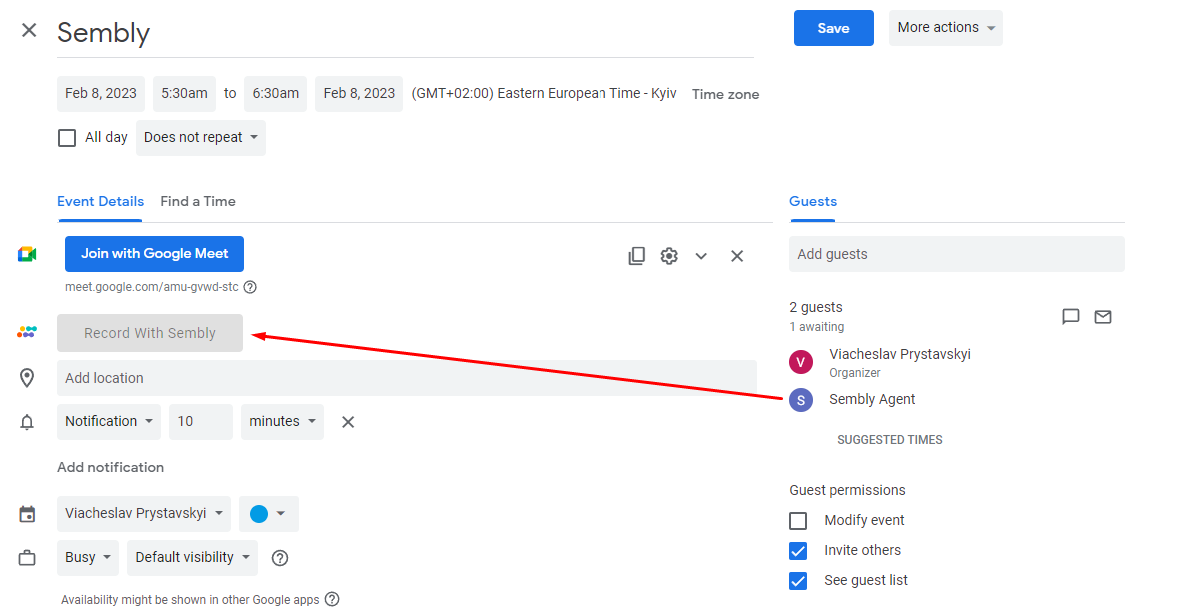
Enjoy the extra convenience of adding Sembly to your next meeting - simply add it when scheduling in your calendar. This possibility replaces the manual step of adding an agent email address to the participants' list.
Create a meeting in Google Calendar. Make sure the conference details are included in the description field. If you use Google Meet, the link will be automatically added when adding participants. If you manually add a link from Zoom or MS Teams, it should be provided in the event description field.
Click “Record With Sembly”. Sembly will be added to your meeting as an attendee. Afterward, hit “Save”.
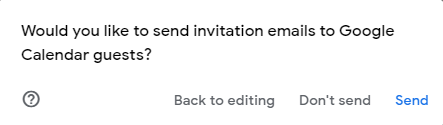
Hit “Send” to email an invitation to the Sembly Agent.
The meeting will appear in your Sembly meetings list.



