Automation Reports give Workspace Admins a clear overview of failed Automations across the Workspace, all in one place. Rather than waiting for issues to surface on their own, Admins can proactively monitor Automation health, quickly identify which Automations are encountering errors, and take action to troubleshoot and resolve them before they cause further disruption.

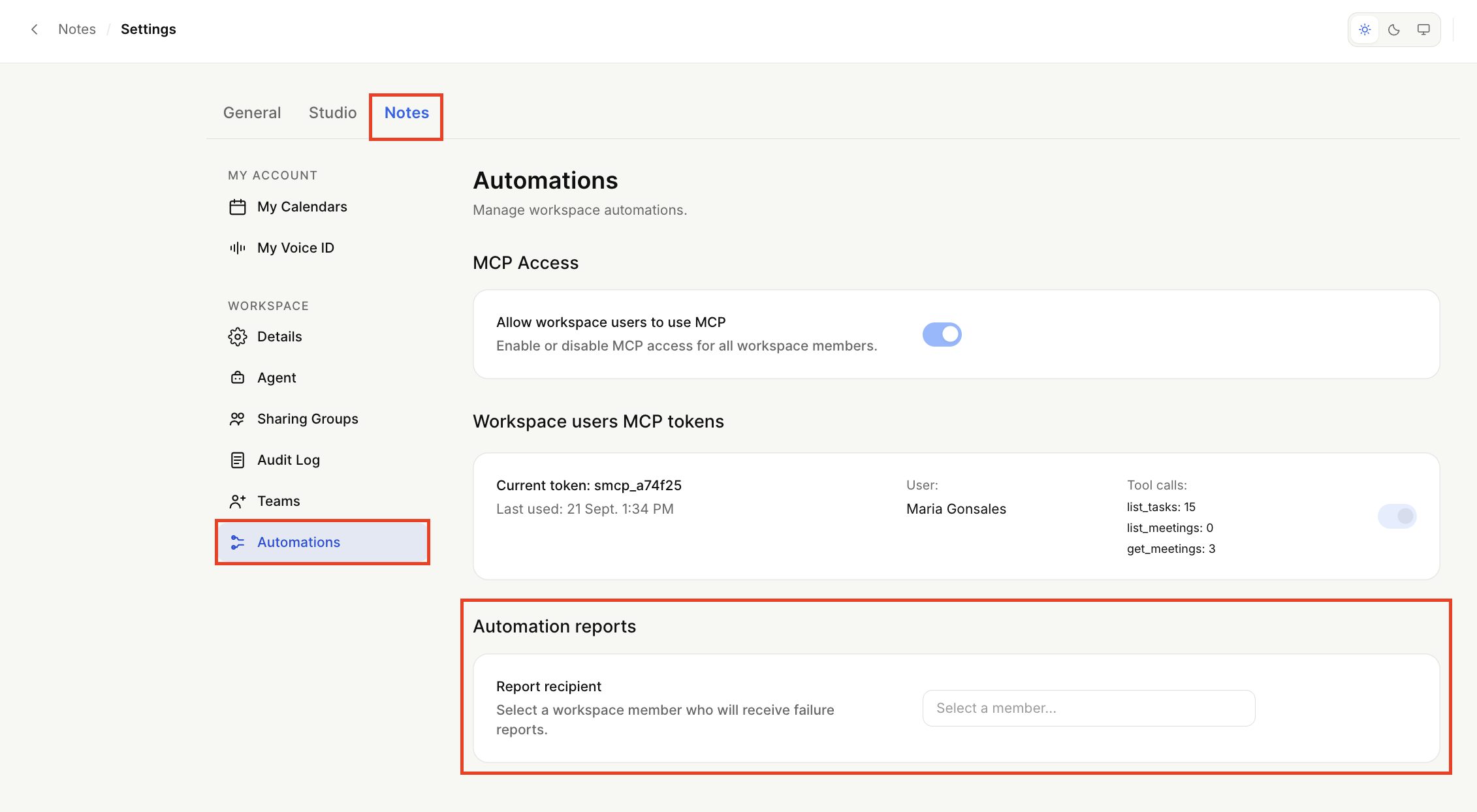
Open the dropdown by clicking your avatar at the bottom of the sidebar menu to open Settings → Notes → Automations.
In Automation reports, you can choose the Report recipient, an Admin, who will receive emails with failure reports.
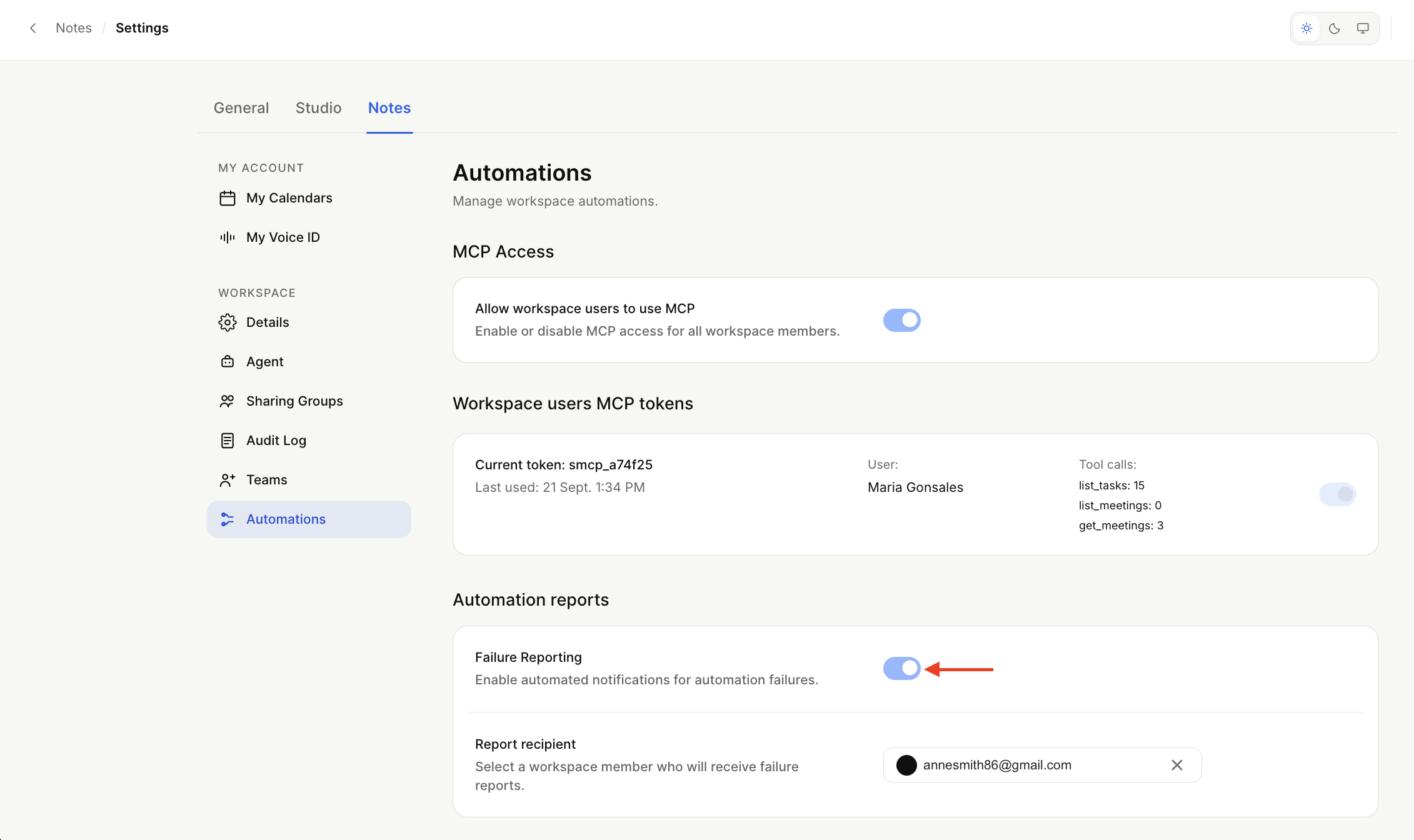
After you choose the Report recipient, you can enable or disable automated notifications for automation failures by clicking the Failure Reporting toggle.
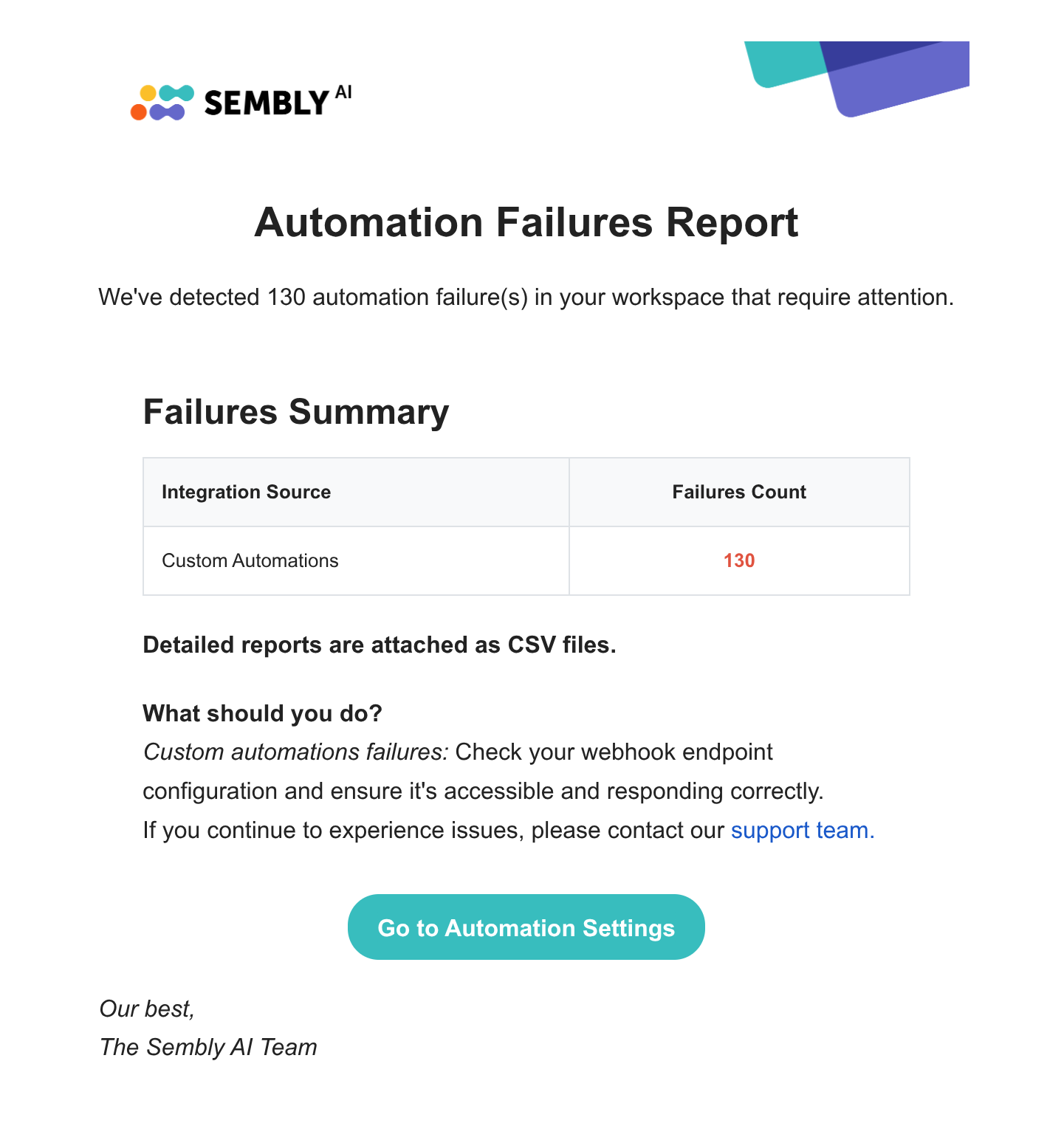
After you set up the Automation reports, the Report recipient will receive the following email in their inbox once there is an Automation failure.
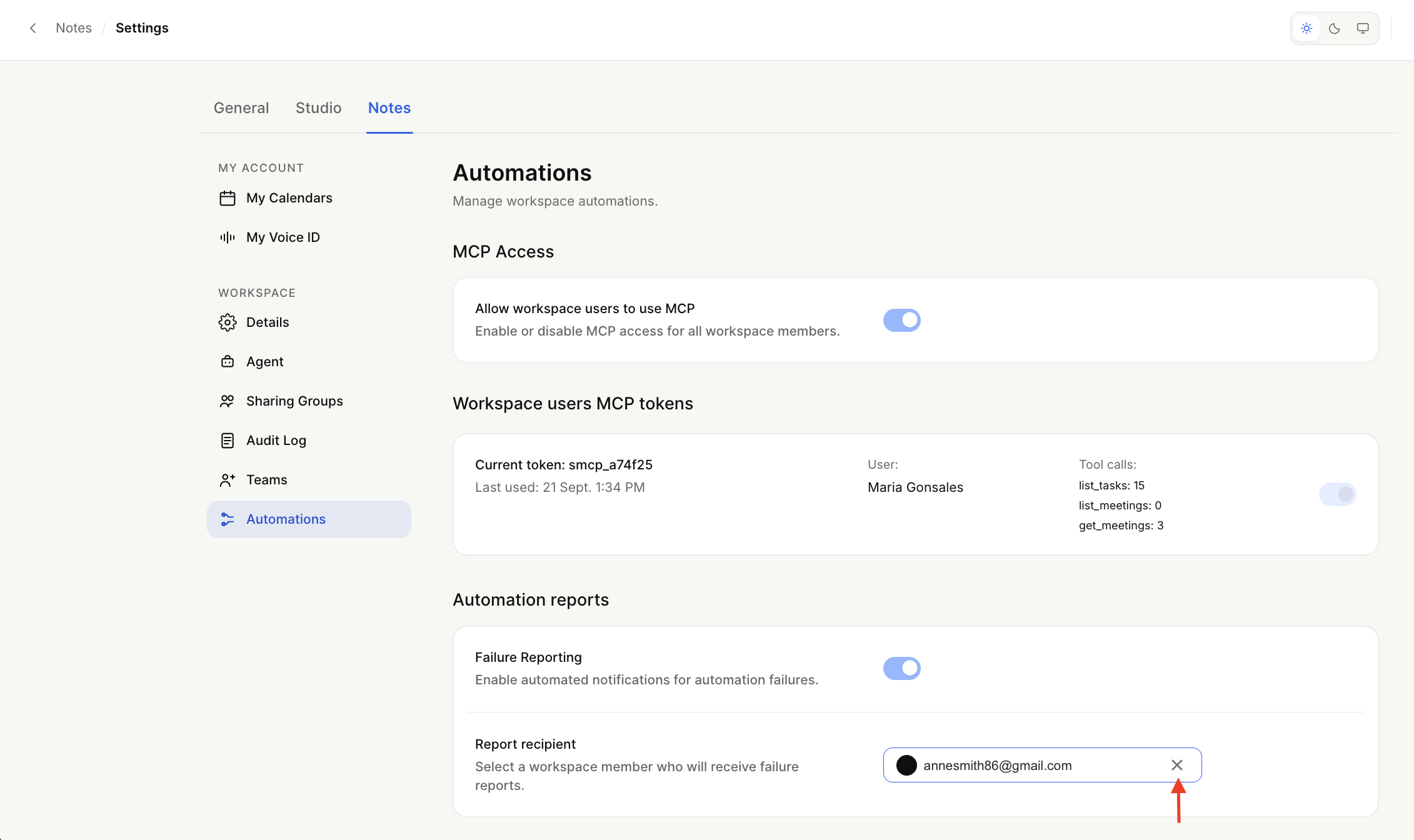
To disable the Automation reports, click the cross next to Report recipient.
Below you'll find links to dedicated troubleshooting guides for each Automation type — Custom Automations and Native Automations- to help you quickly find the information most relevant to your setup.
Select the guide that matches your Automation type to find a list of possible errors you may see in Automation Reports, along with steps to help you resolve them.
If you’re still having trouble, please contact our support team at [email protected] with details and a screenshot of the error, if possible.