You can send Tasks from Sembly to Microsoft Teams, whether you are using the desktop app or the web version. To do this, you need a Microsoft To Do account and an account with the same email in Microsoft Teams.
Follow the steps below:
Connect Microsoft To Do with your Sembly account (check this guide).
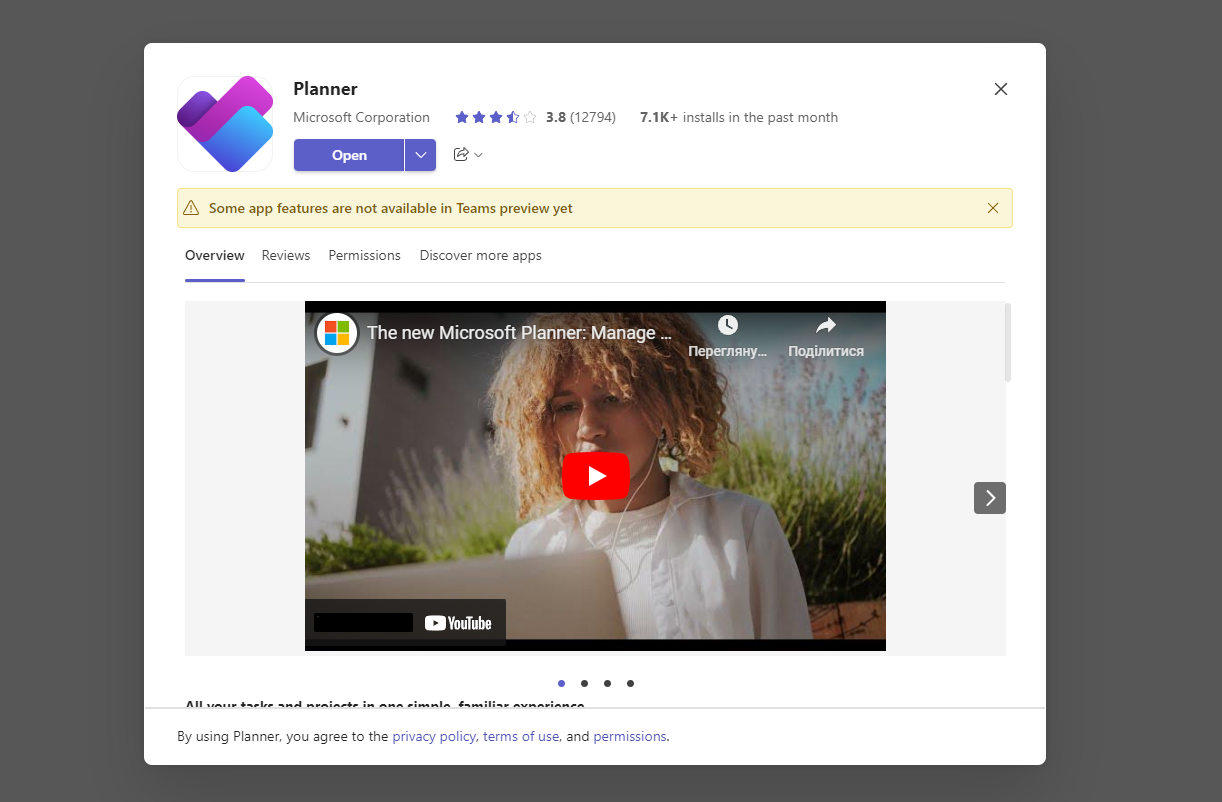
Go to MS Teams and install Planner.
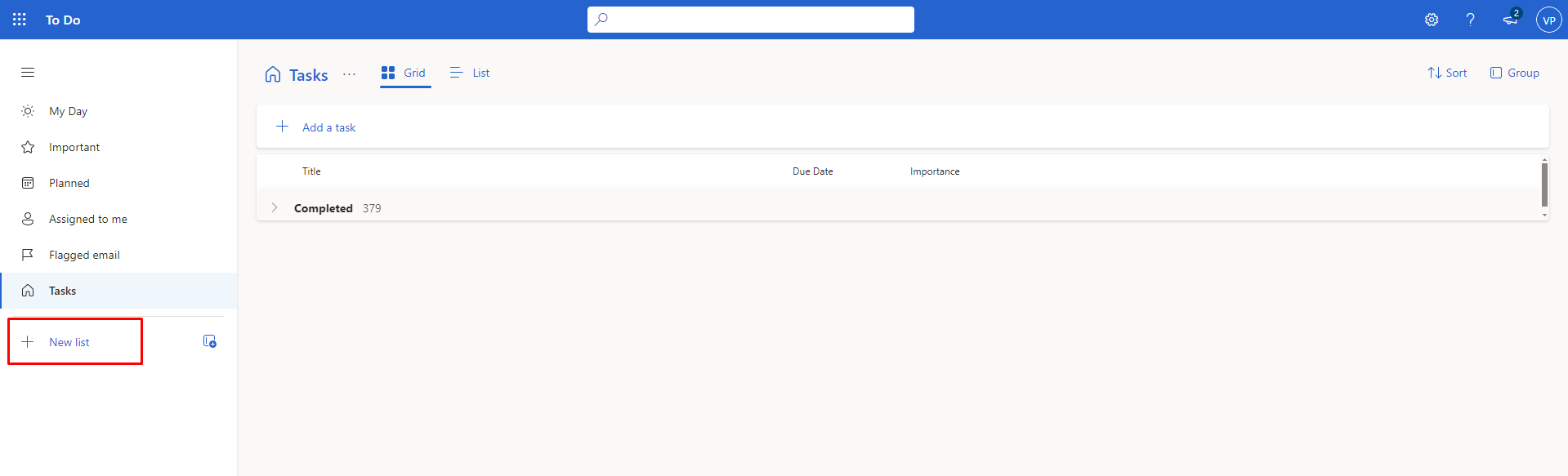
Return to Microsoft To Do and create a new list.
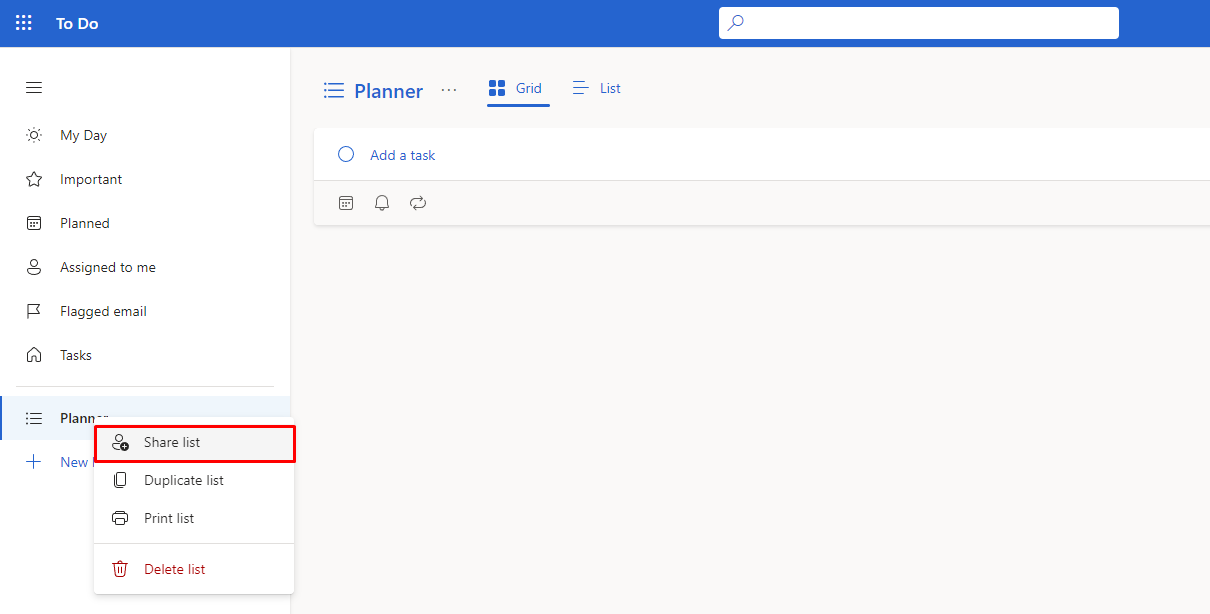
After creating it, you should be able to share that list and create an invitation link.
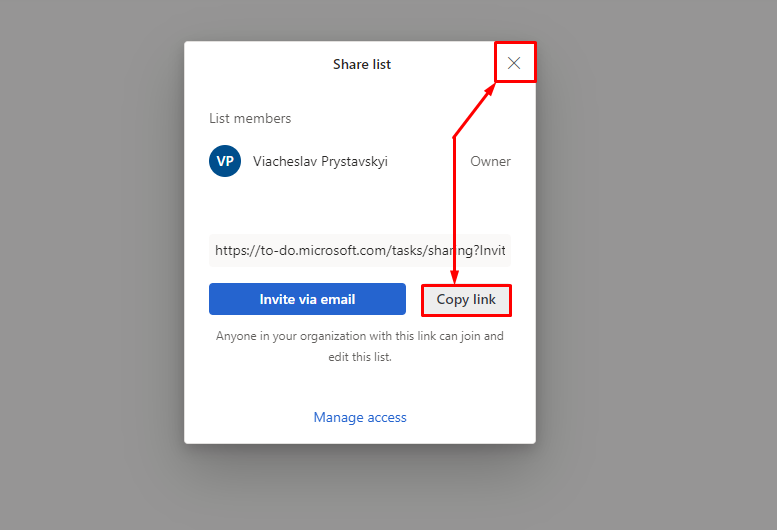
Once you've done it, you can copy the link or just close the pop-up window.
Record a meeting in Sembly and wait until it has finished processing.
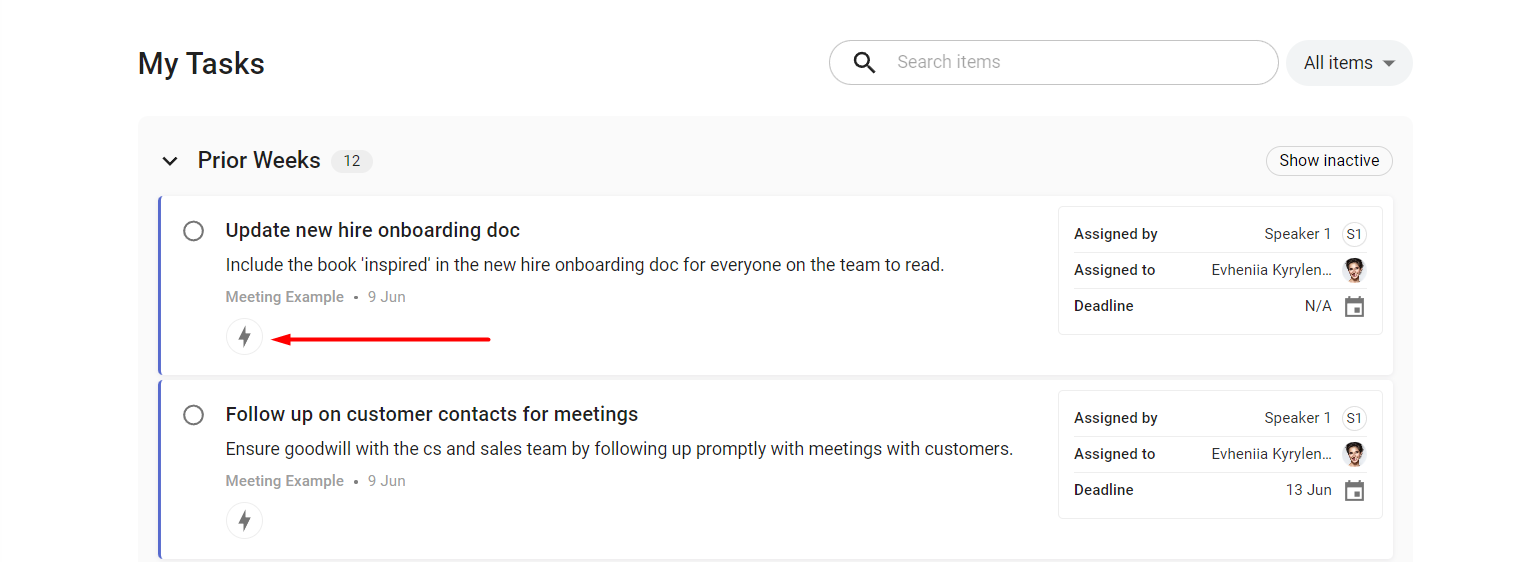
Send Tasks to Microsoft To Do manually by clicking the integration icon, or use automation rules by selecting the created list in Microsoft To Do in the Destination step.
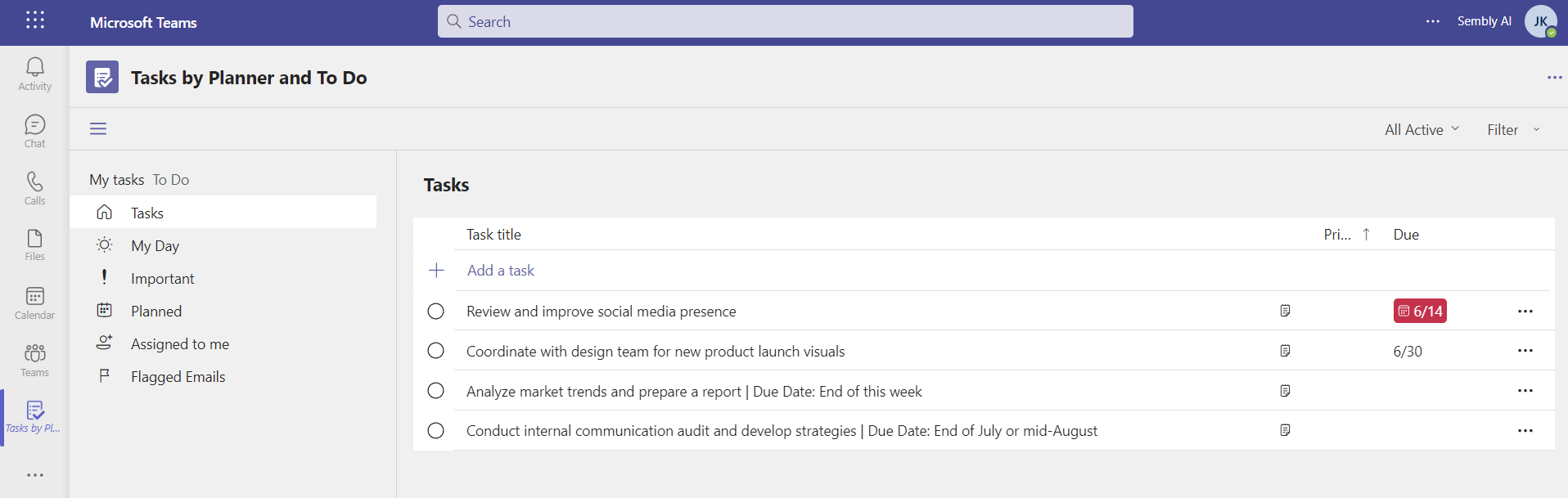
Your tasks, sent to MS To Do, will automatically reflect in the Planner app.
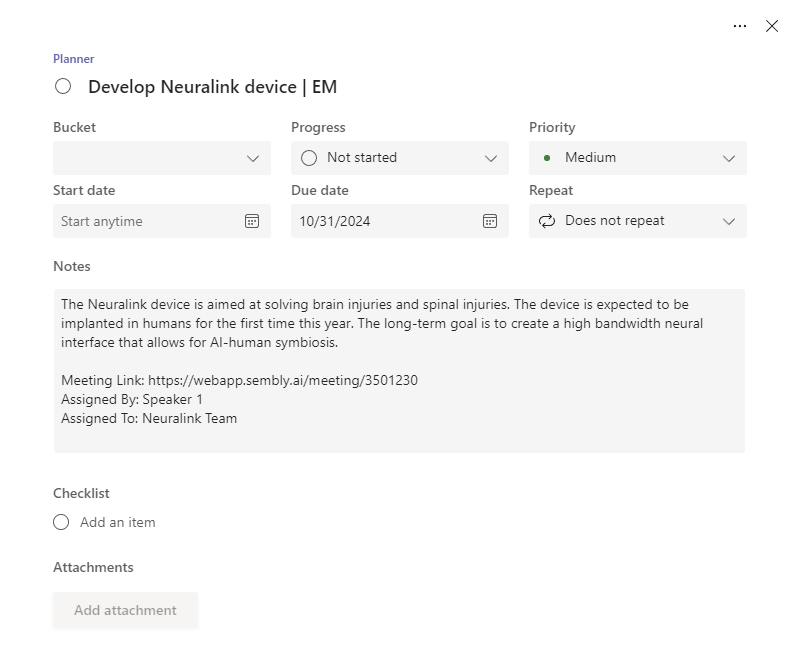
To open the task and see all task details (due date, description, who assigned it, and to whom), including access to the meeting link in Sembly, double-click the task or click its title.
Check the Microsoft guide here for more insights into the Microsoft Teams Planner app.