Sembly allows you to automatically send Meeting Notes, Transcriptions, or Tasks from your meetings to ClickUp. This is useful for capturing meeting insights, creating action items, and keeping tasks organized directly in ClickUp — helping teams stay aligned and streamline their project and support workflows.
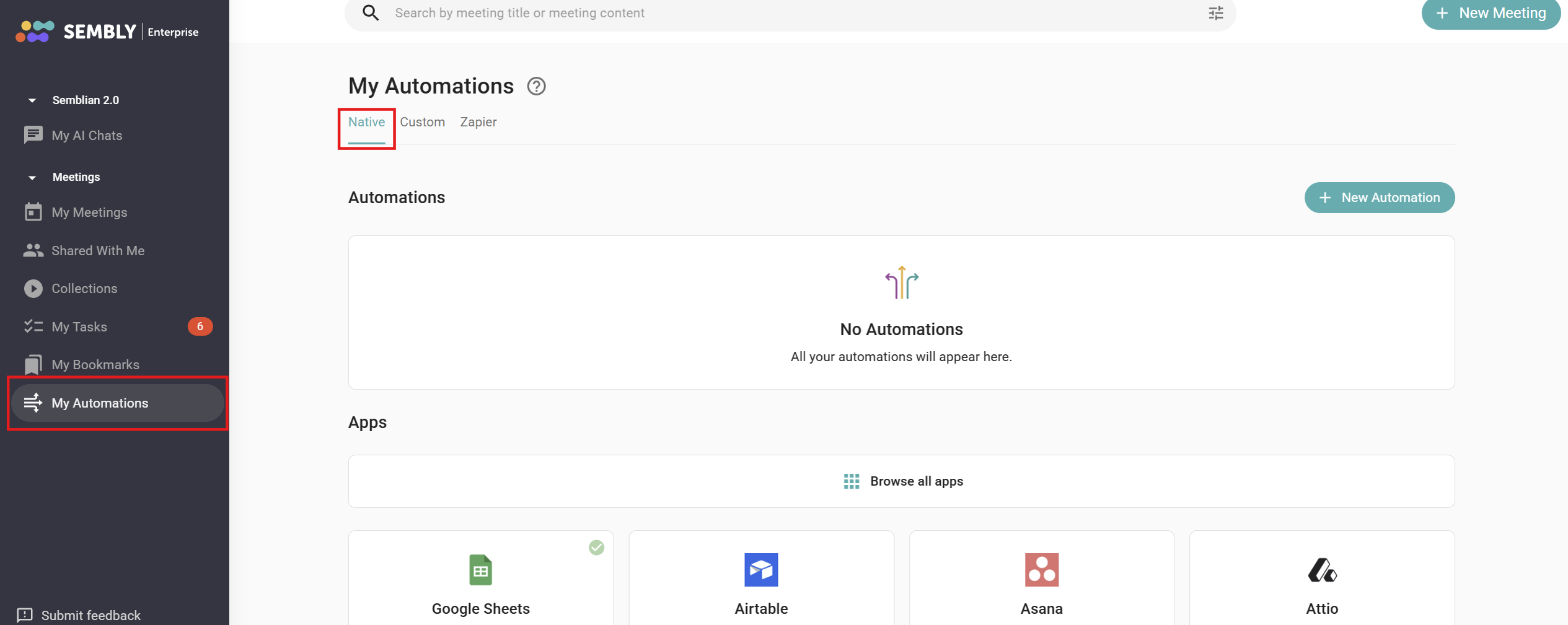
Open your Sembly account, choose Personal or Workspace Automations in the left-hand menu, then the Native tab, as shown in the screenshot below.
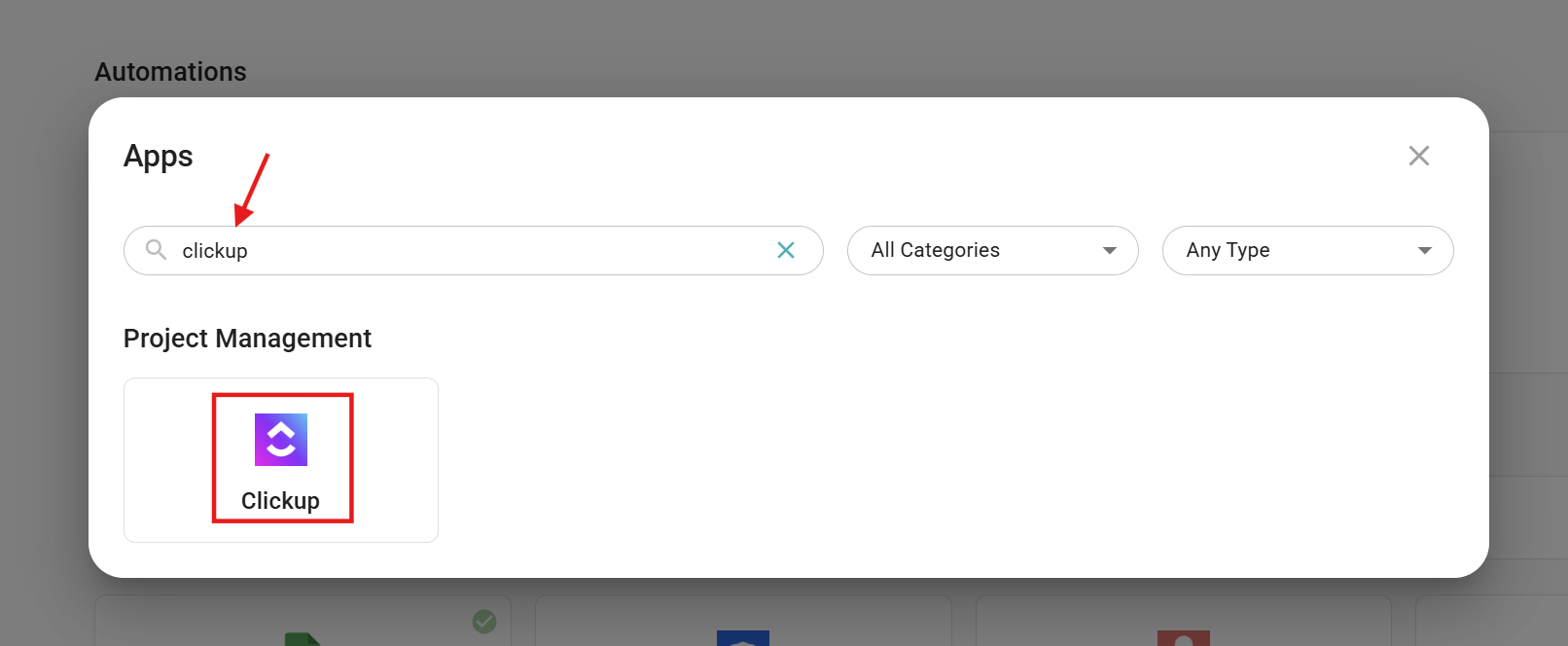
Select Browse all apps. You will find ClickUp in the Project Management category, or simply use the search field.
In the next window, you can connect to the app, read the app description, and see what types of data can be pushed (in bubbles).
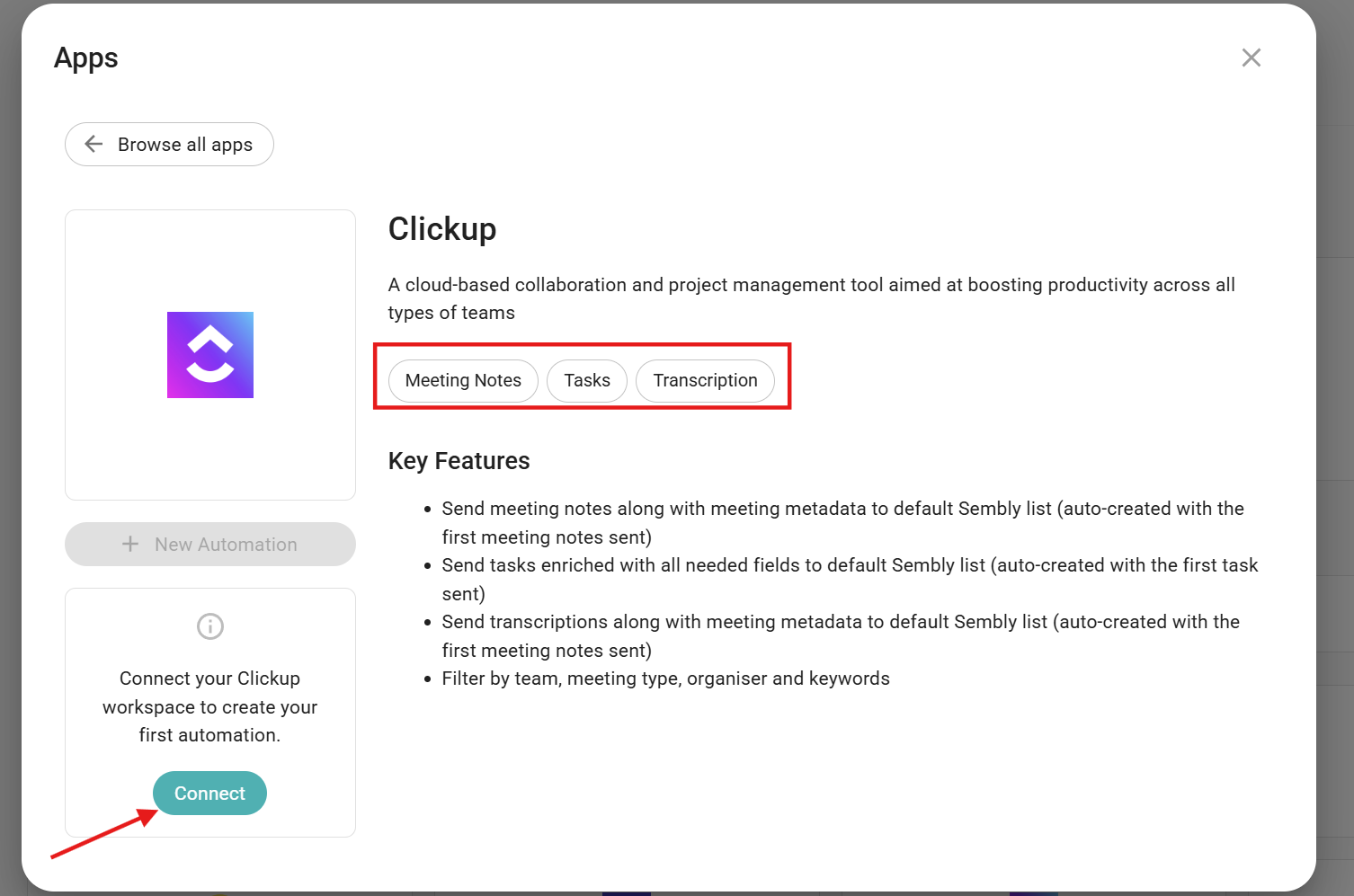
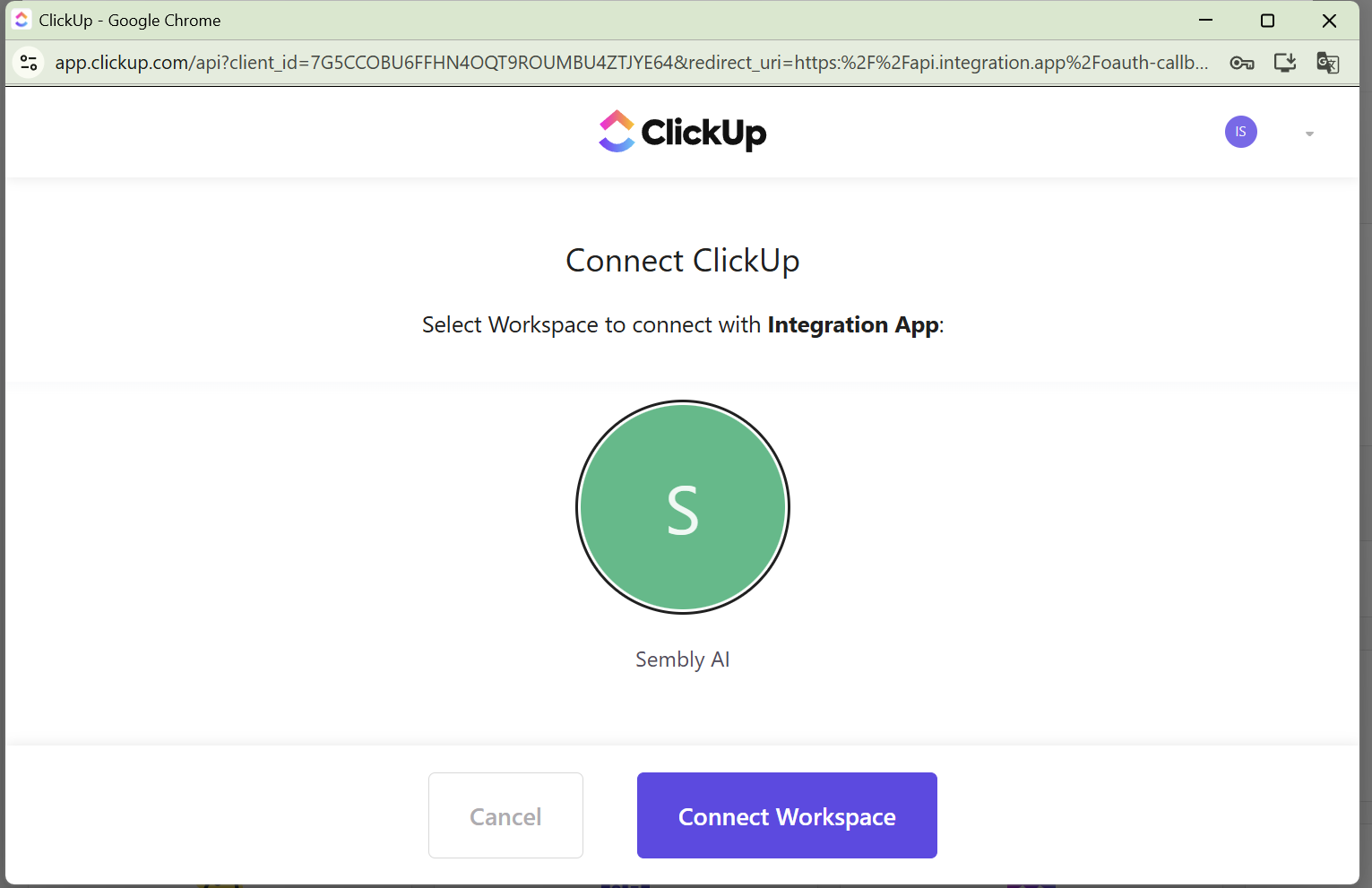
Once you click Connect, a new webpage will pop up offering you to choose which ClickUp account you want to connect your Sembly account to. After choosing your Account, you will be asked to connect to your Workspace in the next window.
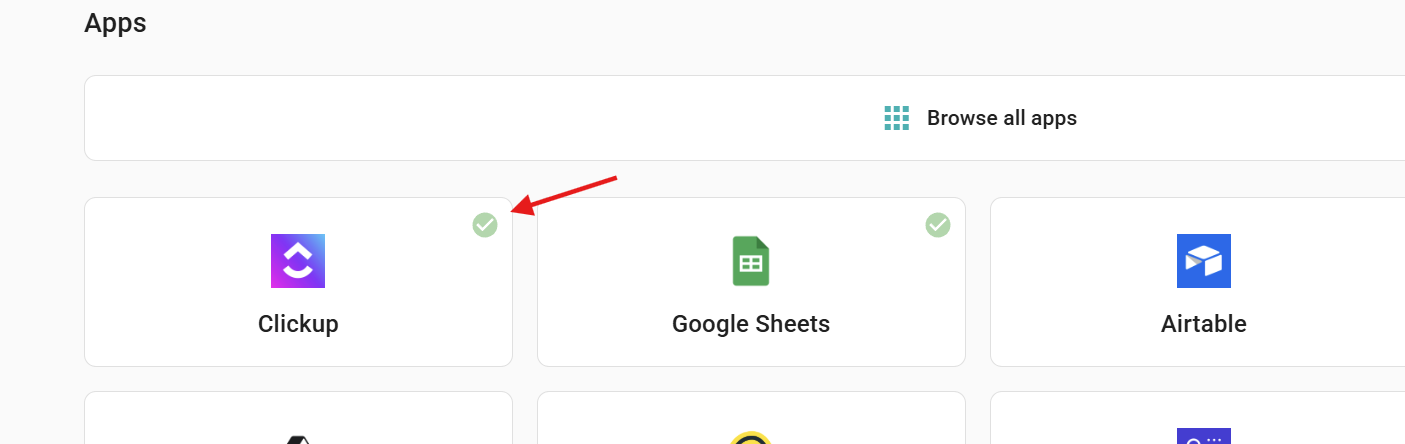
After you connect the app, a green checkmark will appear. This means the app is connected.
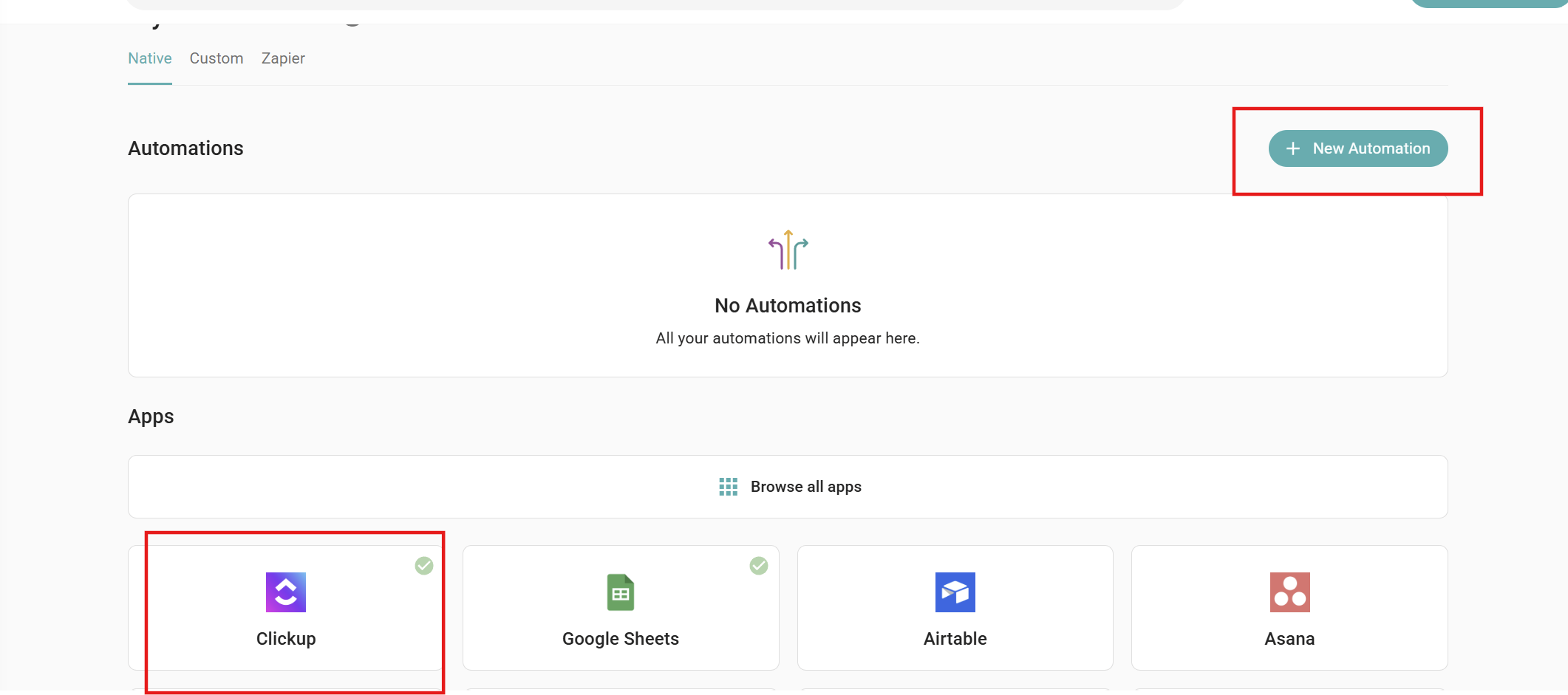
Automation is a rule that contains specific information about the place you want to send meeting data from Sembly to any other app. One app can have a set of Automation rules based on your use case. For ClickUp, you can send Transcriptions, Notes, and Tasks from Sembly to different contacts. Therefore, you need to create 3 automations: one for Notes, one for Transcriptions, and one for Tasks.
To add an automation, select the connected app and then click +New Automation in the pop-up, or click +New Automation and select the connected app on the page.
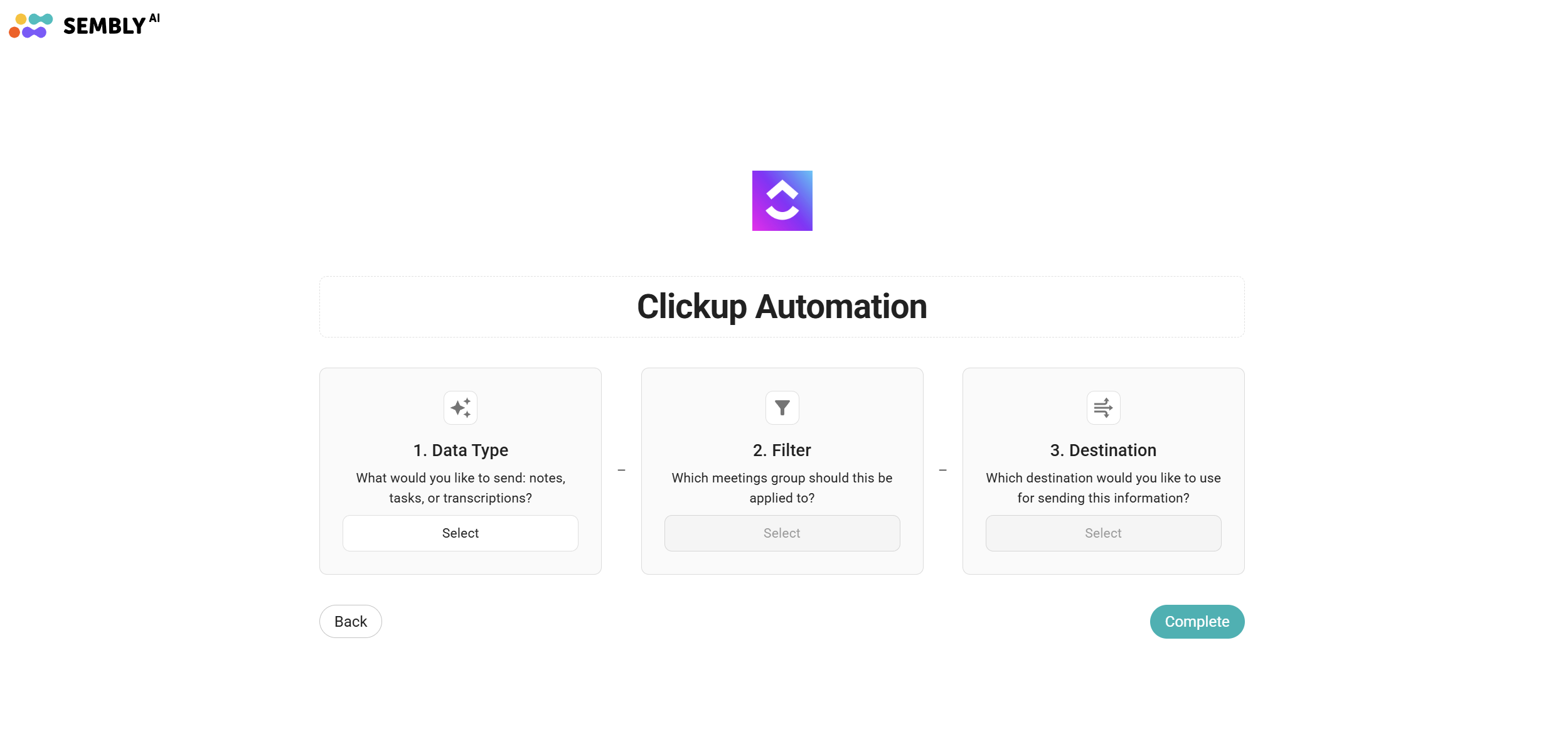
Type the automation name and customize the following fields:
Data Type - select what you want to push: Meeting Notes, Tasks or Transcriptions.
Filter - select whether you want to apply the Automation rule:
Apply to all meetings that I have access to - works for meetings where you received access before the meeting status is Completed;
Apply to meetings with keywords in the title - requires pasting those keywords into the specific field;
Apply to meetings of a specific team - requires selecting the team;
Apply to meetings with a specific type - requires selecting the meeting type (it's the same type you choose in the meeting as a specific template for Meeting Notes);
Apply to meetings of a specific Sembly owner - requires selecting the meeting owner, a person who is inside your workspace;
Disabled (manual only) - you can choose what data to send manually, available only for Personal Automations.
Destination - is predefined. Click Complete to save the automation.
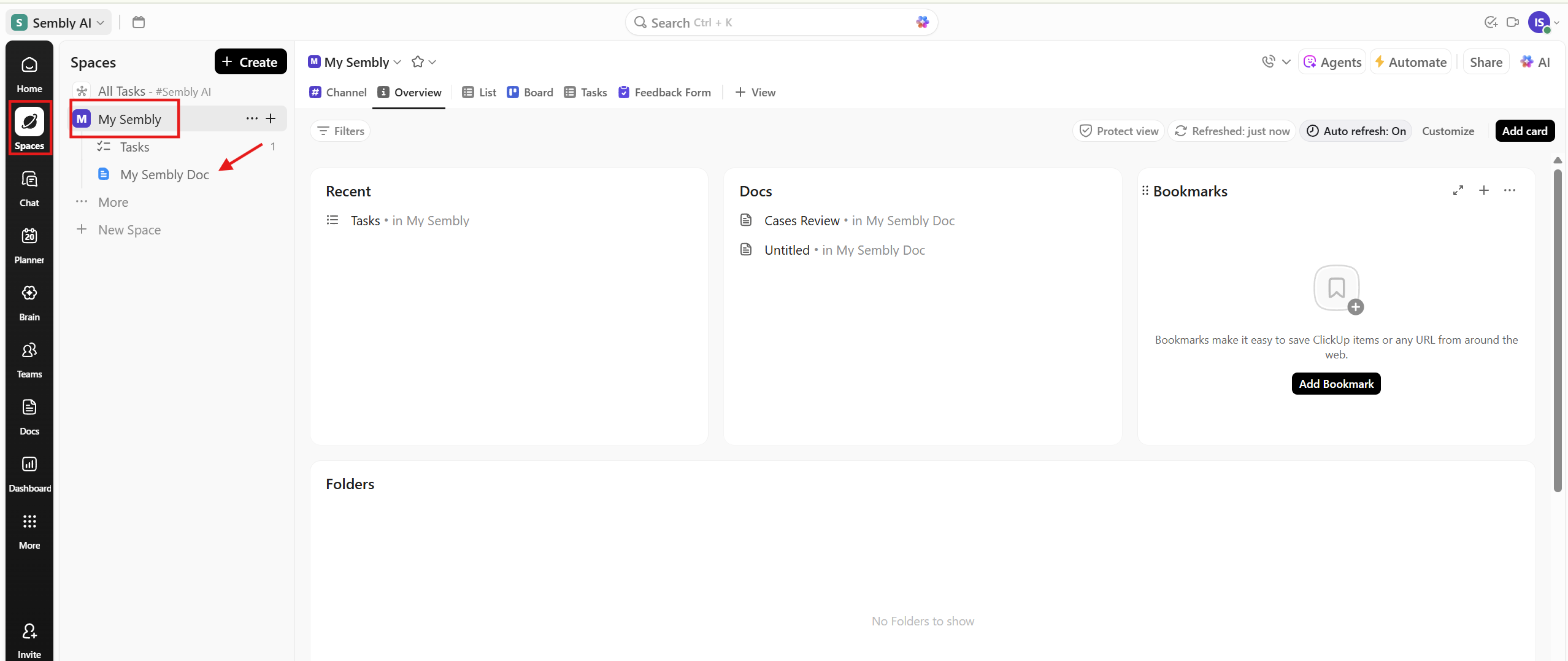
For ClickUp, a new Space will be created, named My Sembly. The Data destinations are predefined as follows:
Transcriptions are sent to the My Sembly Doc, in the My Sembly Space. My Sembly Doc is created automatically the first time you push either Transcriptions or Meeting Notes.
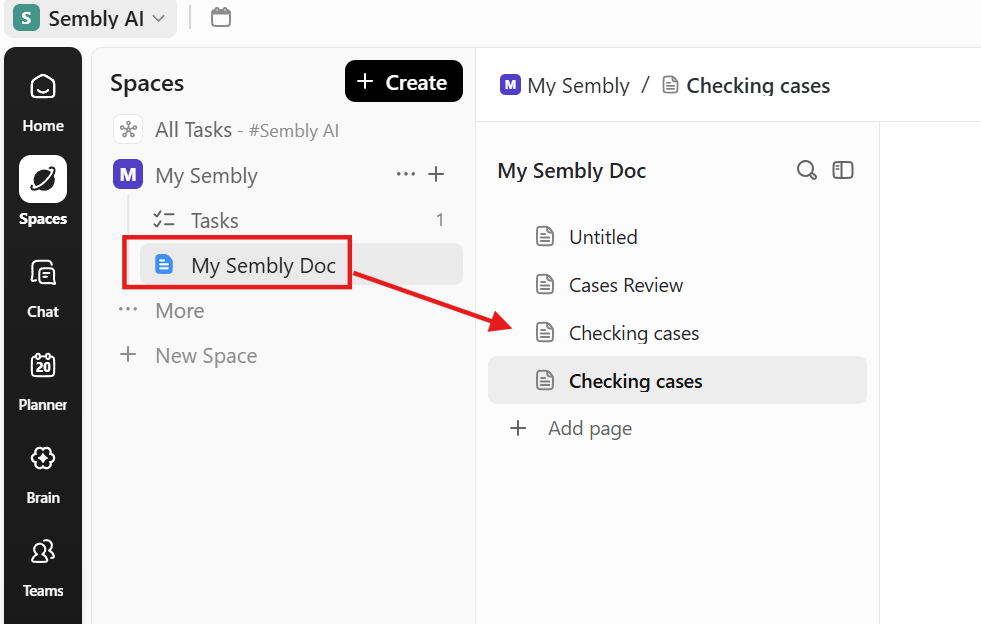
Meeting notes are sent to the My Sembly Doc and create a new file.
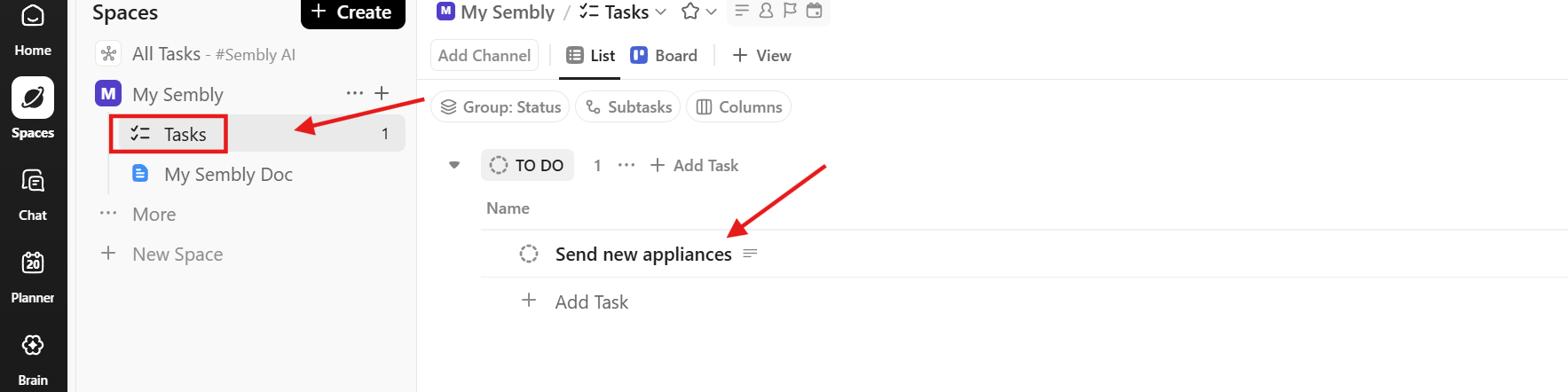
Tasks are pushed to the Tasks tab in My Sembly Space, enriched with all necessary fields. If the tab does not exist, it will be created automatically.
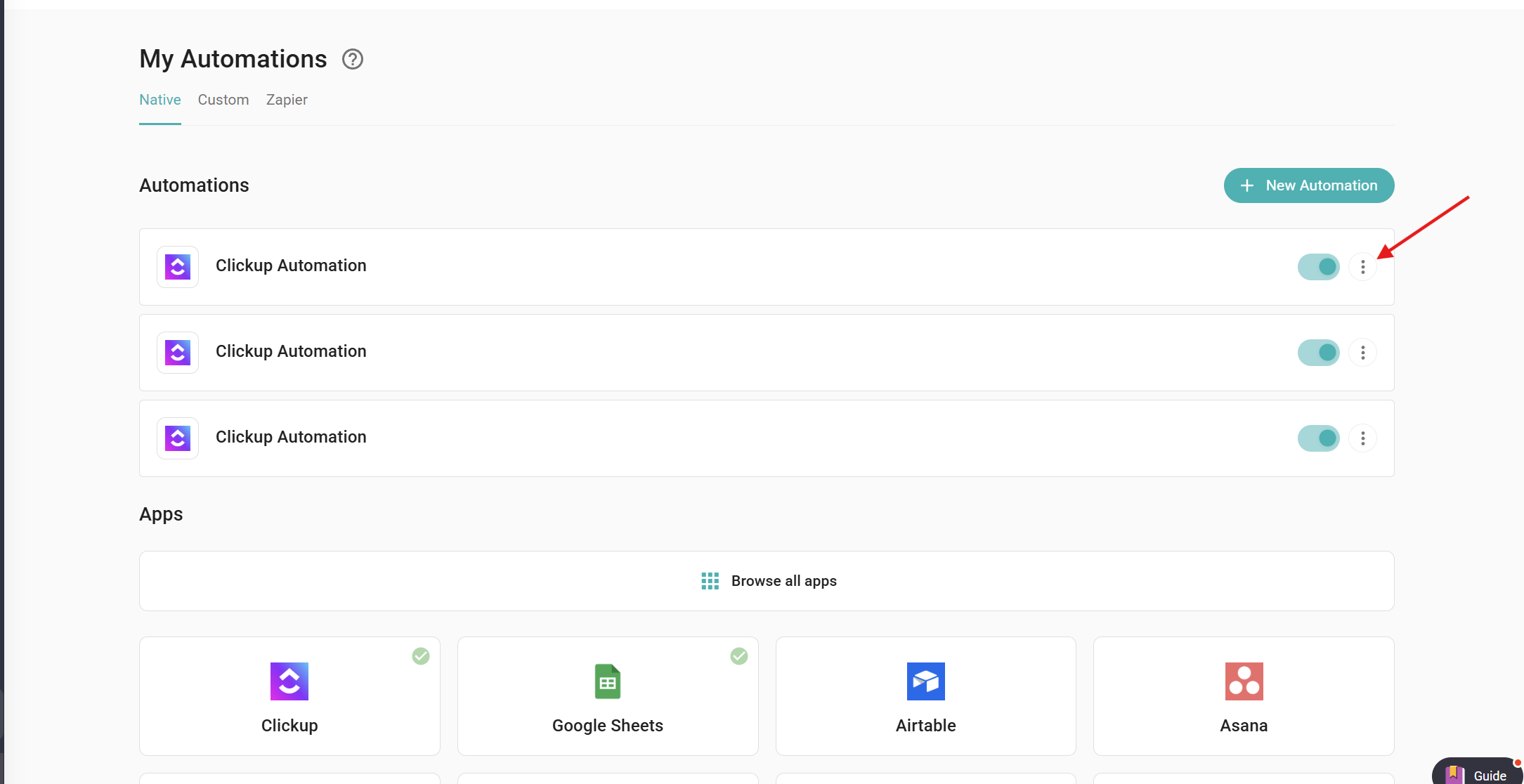
If you wish to disable Automation, just click the toggle off on the appropriate Automation, and it will be disabled. Also, you can Edit or Delete the Automation: near the toggle, click three dots and choose the option you need.
To disconnect the app, click ClickUp, then in the next window, click Disconnect.