You can add new payment methods in the Billing section. For Sembly Team, Team Plus, Pro, MAX, and Enterprise plans, only users with admin access can manage Billing.
Want to switch from monthly to annual payments? You can update your payment period on the Plans page. Check this guide to learn more.
If your account is on a free trial and you haven’t subscribed to a paid plan yet, follow the steps below.
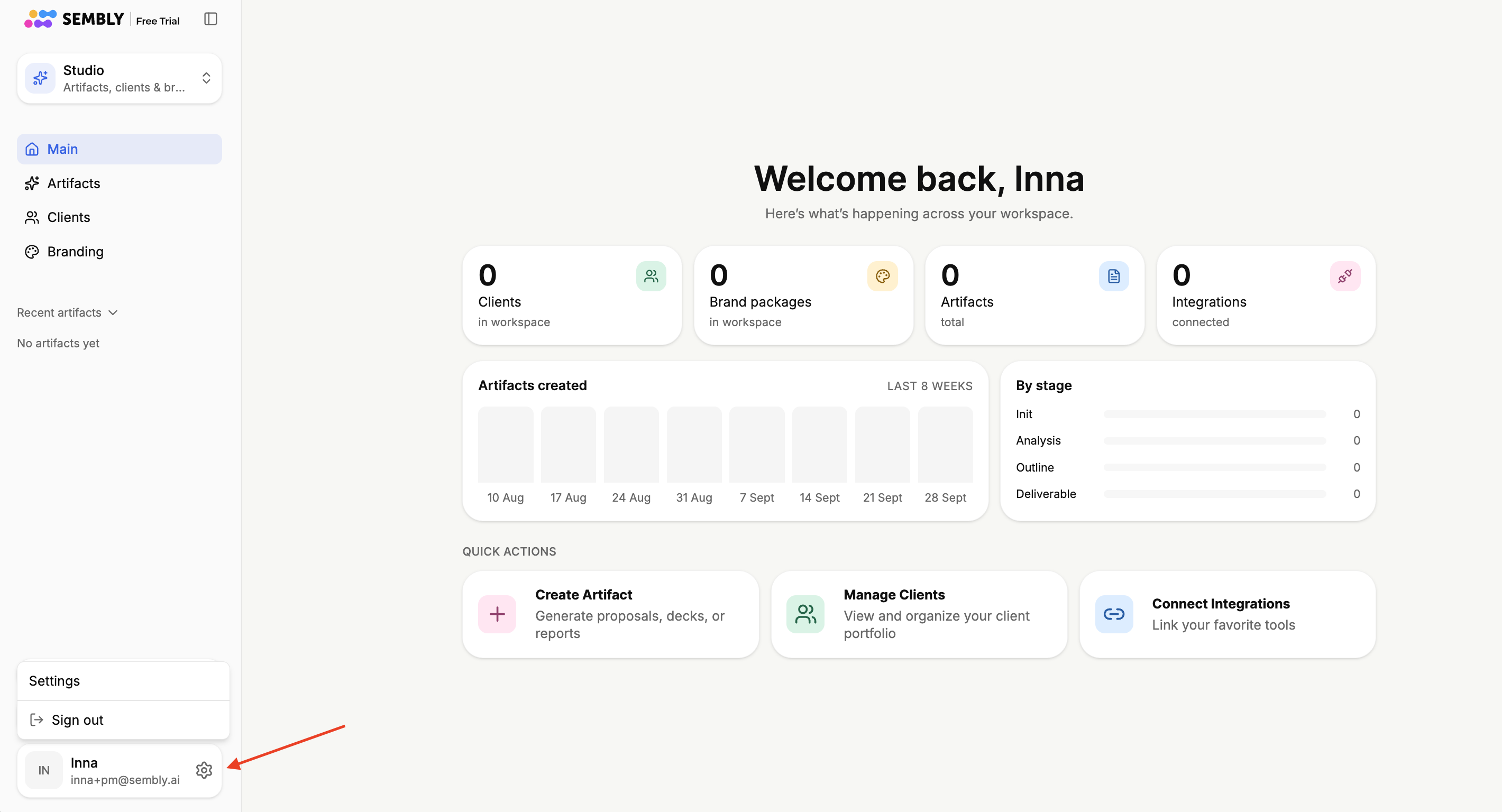
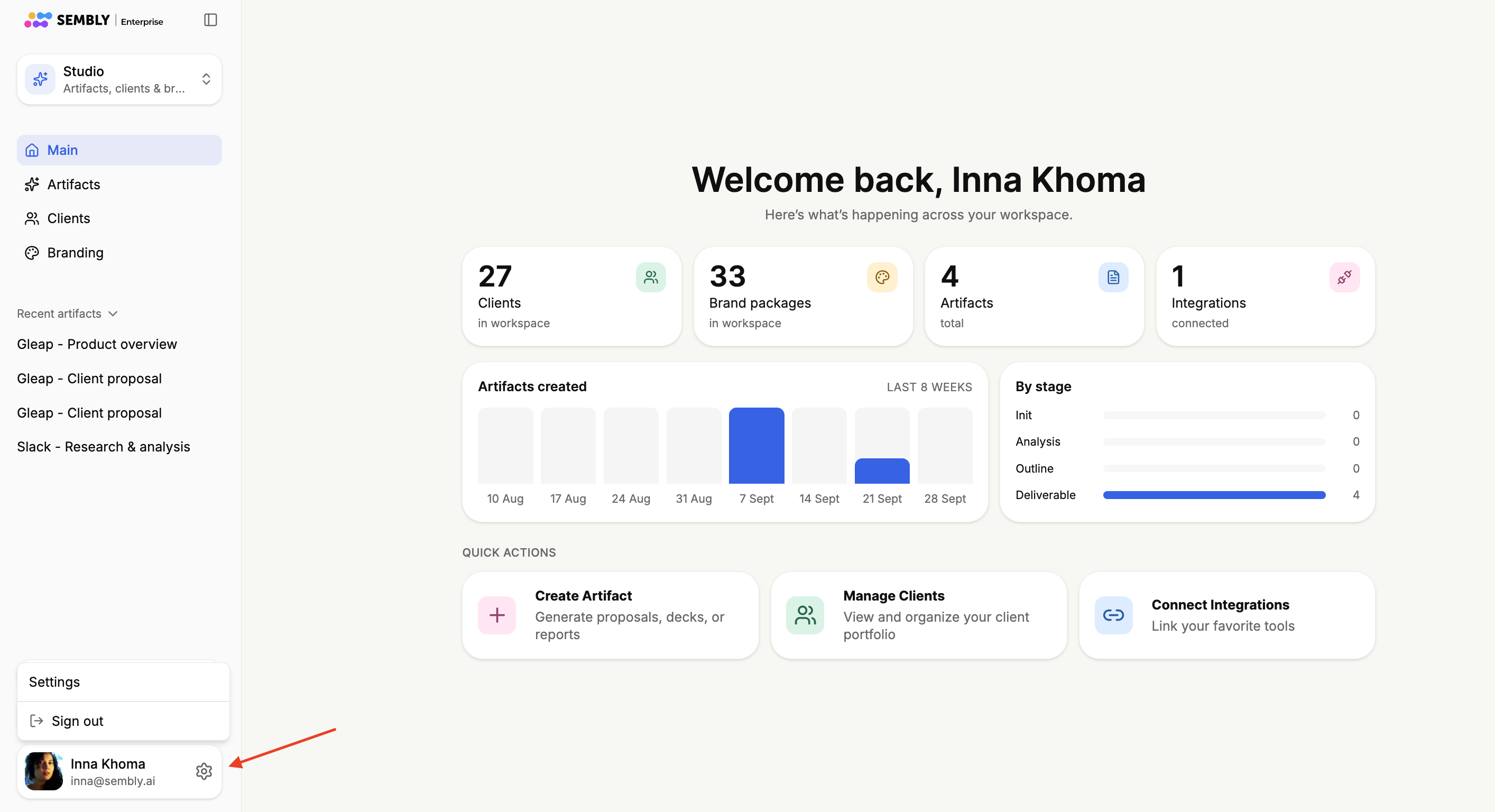
Log in to Sembly and choose Settings by clicking the gear icon.
In General → Billing, scroll down and click Upgrade Plan.
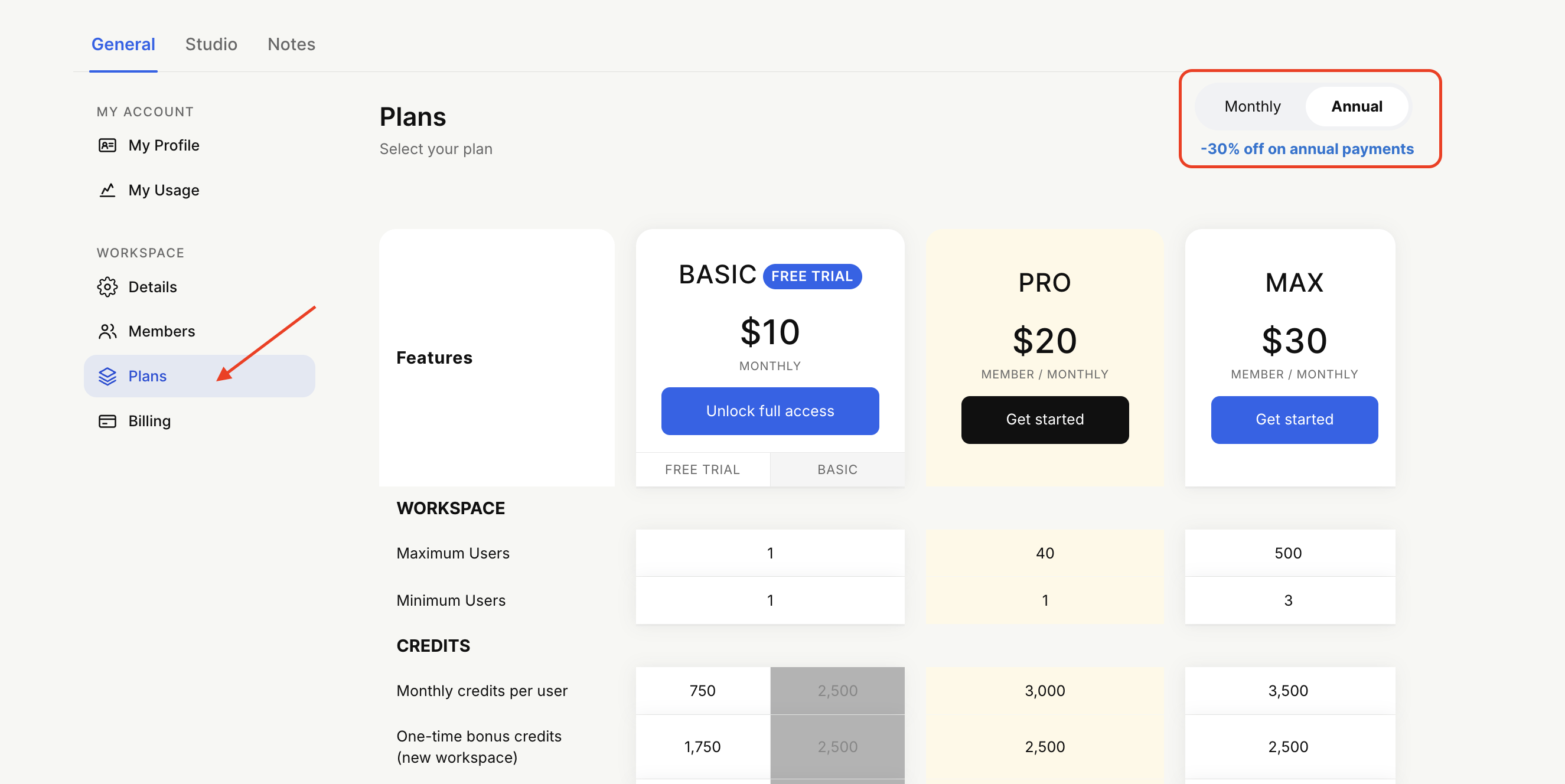
You’ll be redirected to the Plans section. Choose a plan and how you will be billed - monthly or yearly.
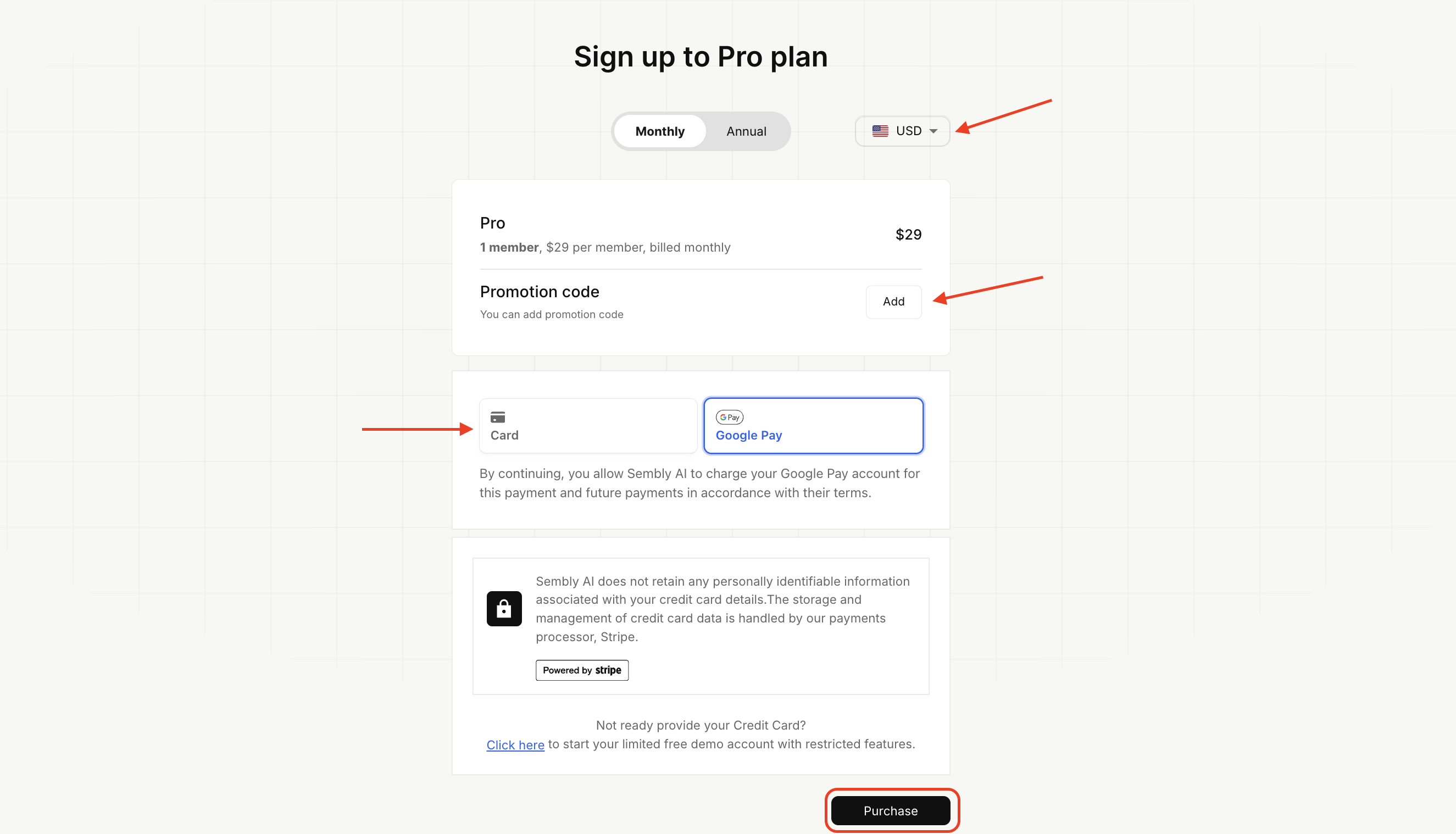
Fill in your card details or choose other available payment options (Apple Pay, Google Pay, Link, etc.). Add a promo code (if available), and change the currency (if needed), then click Purchase.
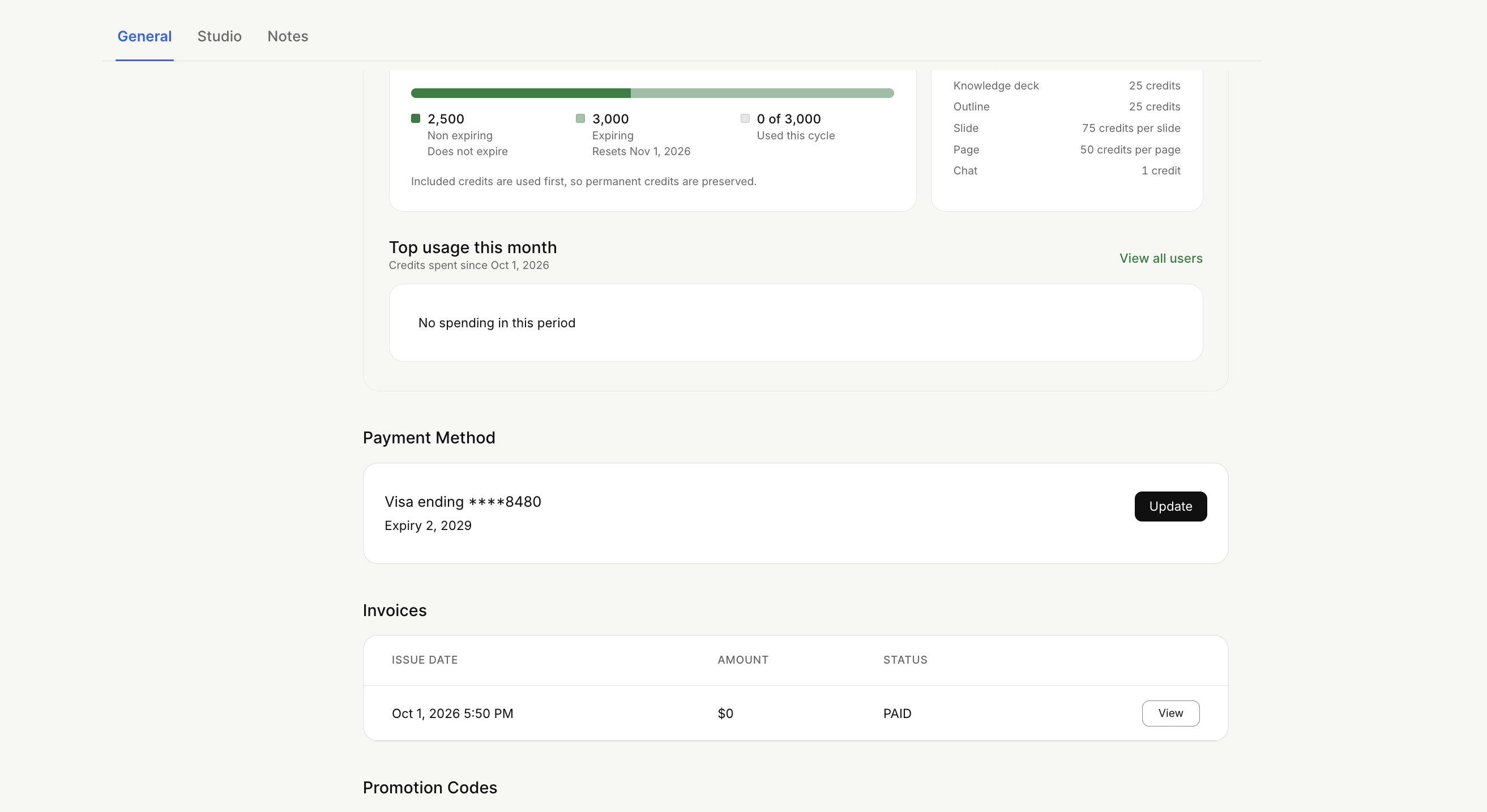
After successful payment, you will be returned to Billing, with new sections: Payment Method, Invoices and Promotion Codes.
If you’re on an active subscription or would like to resume it and change your card details, do the following:
Log in to Sembly and choose Settings by clicking the gear icon.
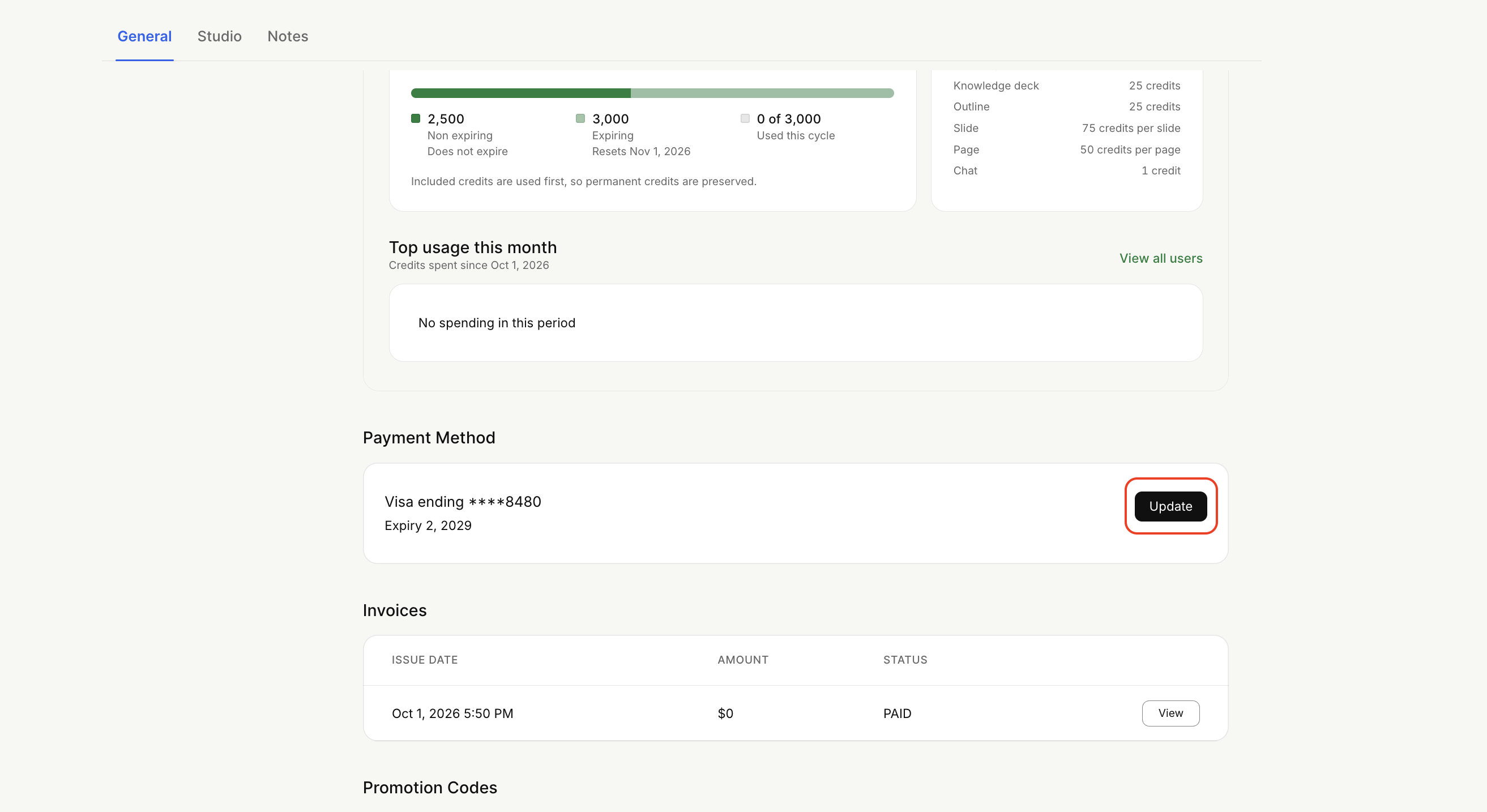
In General → Billing, scroll down to Payment Method and click Update.
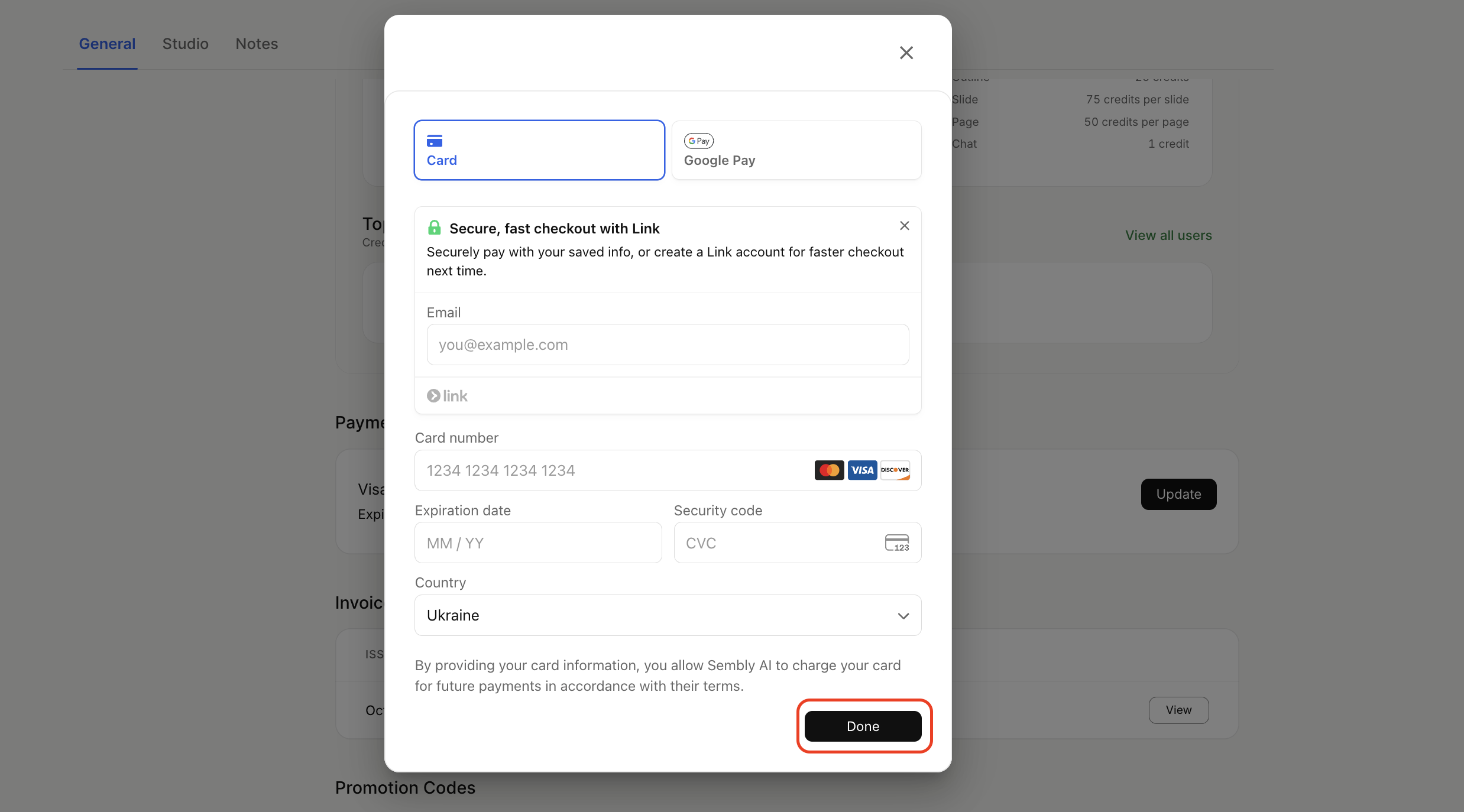
Fill in your card details or choose other available payment options (Apple Pay, Google Pay, Link, etc.), and click Done.
You will see your new payment method in the Billing section.

