LEGACY PLAN: PROFESSIONAL | TEAM | TEAM PLUS
Workspace Admins can delete past meetings in bulk via the Data Retention feature in the Workspace settings. This feature allows you to customize the period after which meeting data will be erased across the workspace.
If you want to delete meetings from your account one by one, follow our instructions here.


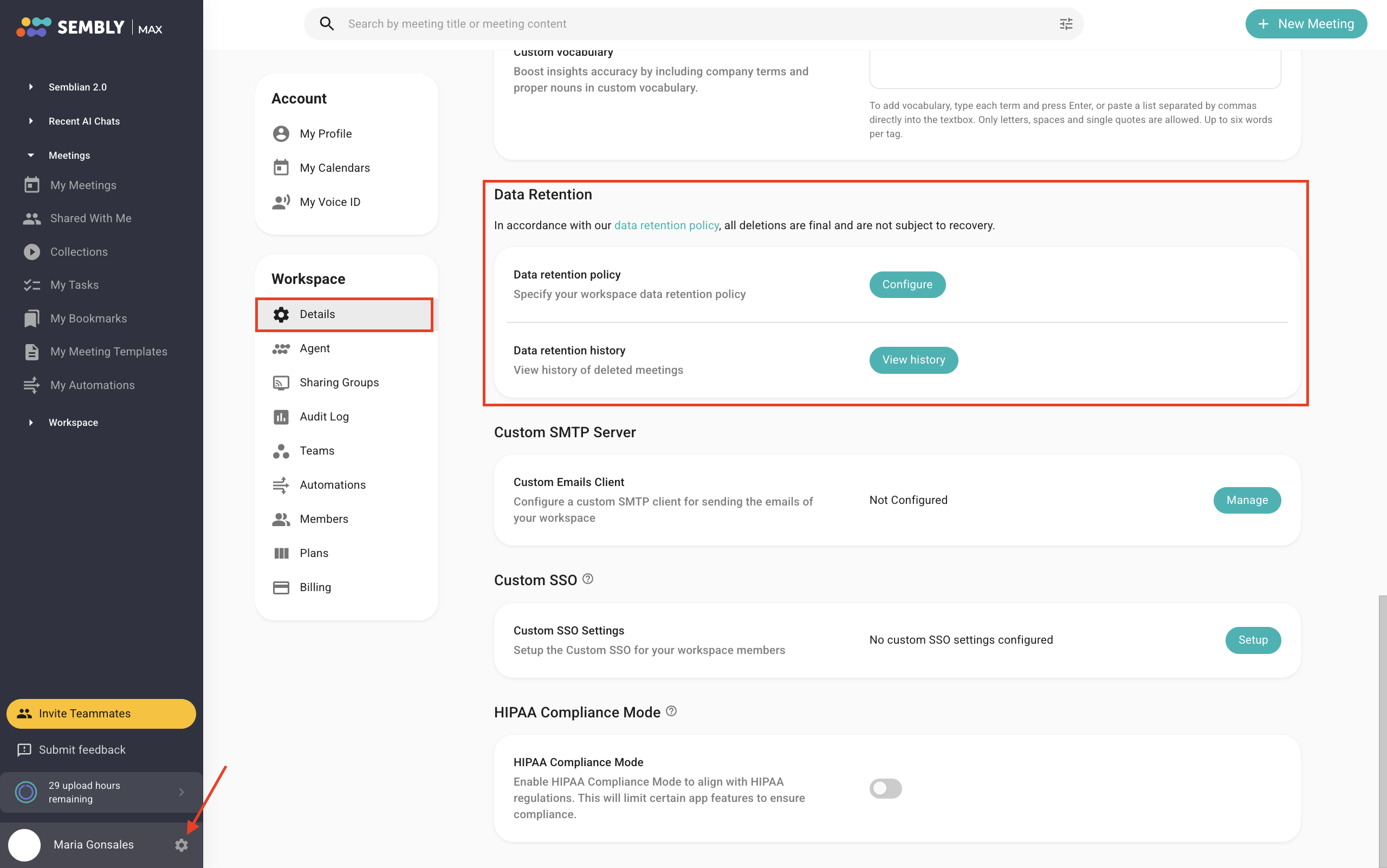
In your Sembly account, in settings, open Workspace details, scroll down, and find the Data Retention block
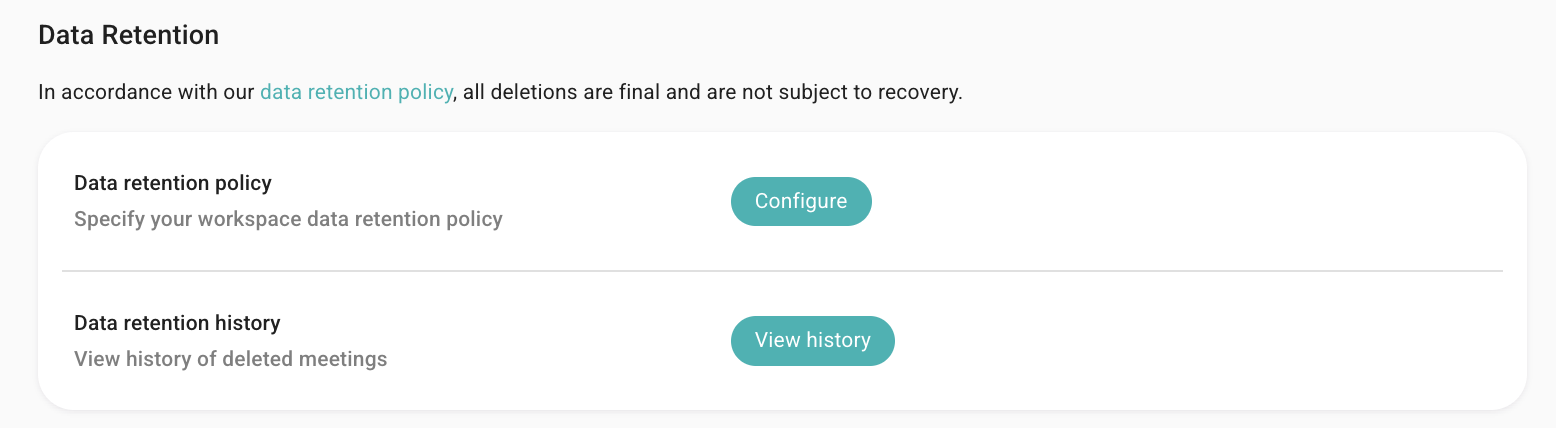
Click Configure
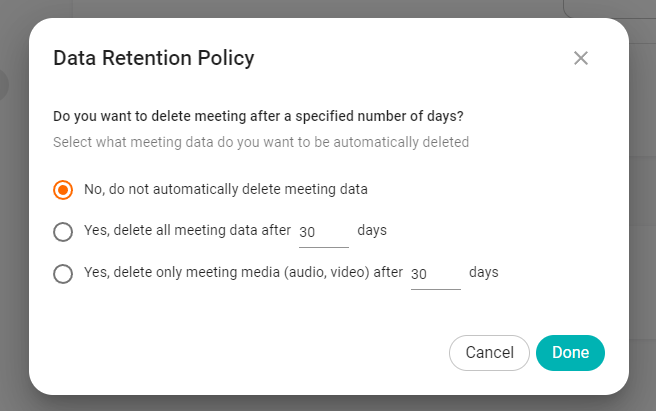
Then, you'll be able to select what meeting data you want to be automatically deleted:
No, do not automatically delete meeting data - while selecting this option, your meeting data won't be deleted. This option is set by default;
Yes, delete all meeting data after ** days - by selecting this option, you can set after how many days your meeting data will be deleted from Sembly;
Yes, delete only meeting media (audio, video) after ** days - by selecting this option, you can set after how many days your media data (video and audio) will be deleted from Sembly. It's important to note that meeting transcripts and AI features will remain accessible for use.
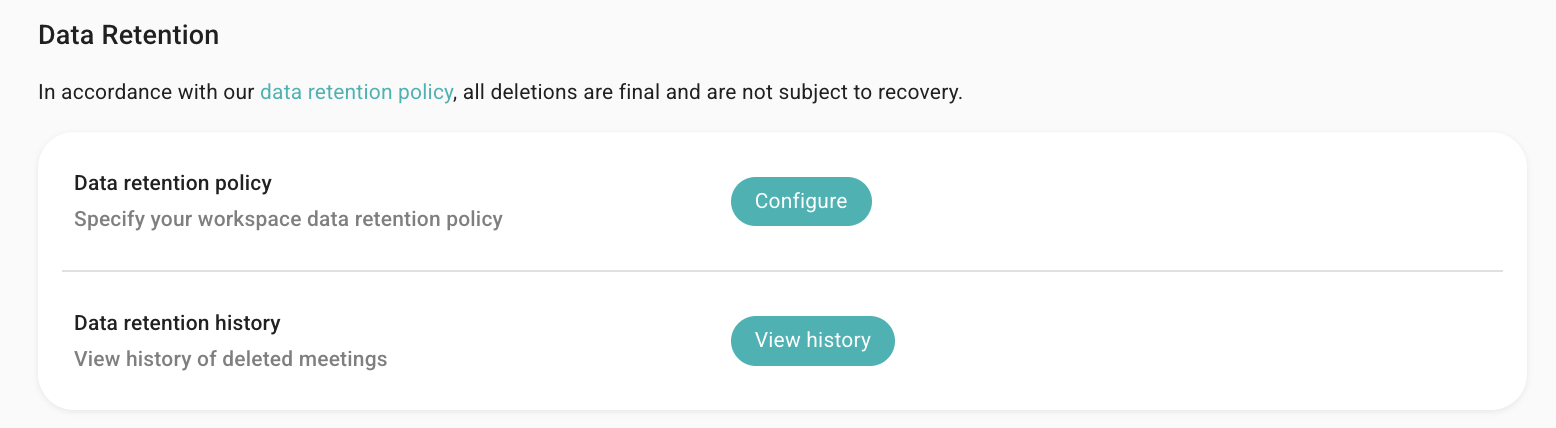
In your Sembly account, in settings, open Workspace details, scroll down, and find Data Retention history
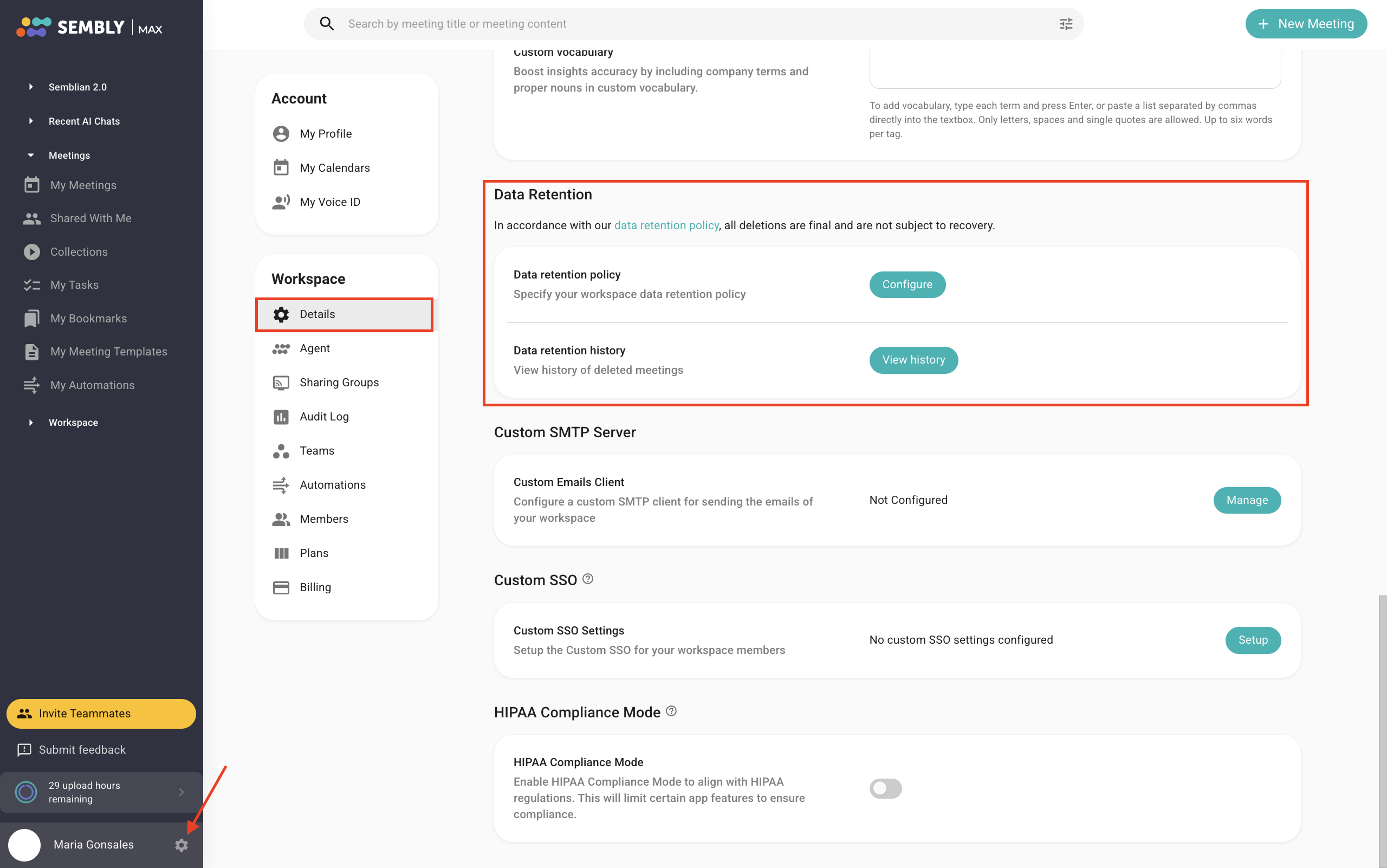
Click View history
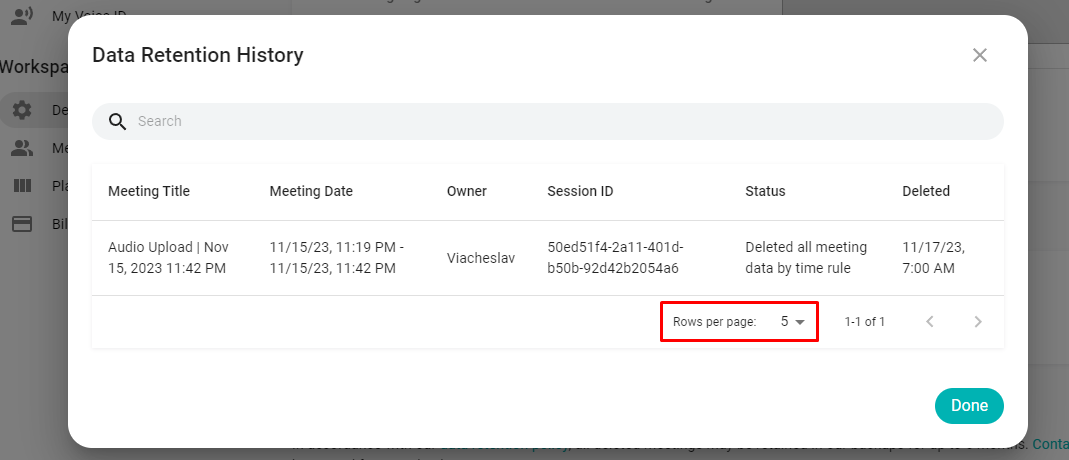
In the next window, you can see the history and details of deleted meetings and set how many rows per page are displayed