
This feature helps you track user activity, system changes, and security events. It is really useful for larger teams, as Admins can control what happens in the Workspace.

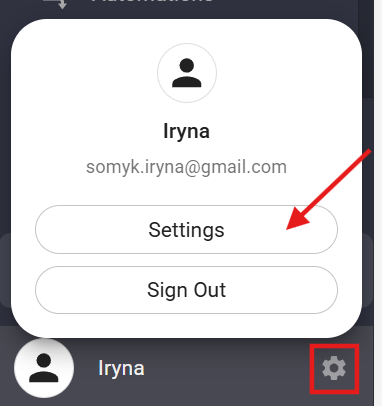
Press the Gear icon near your Profile name in the bottom left corner, then click on Settings US or EU
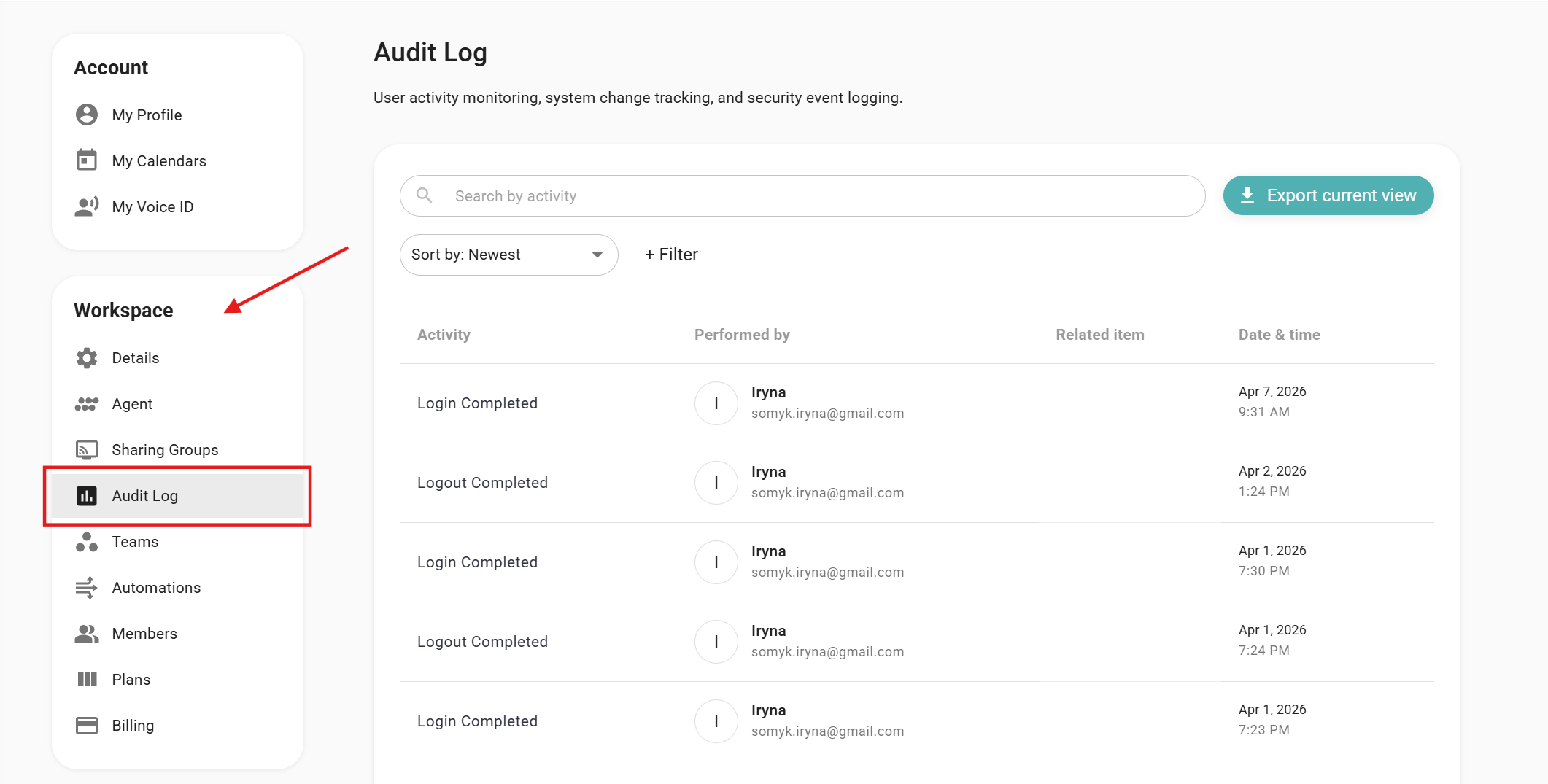
In the Workspace tab, click on the Audit log tab
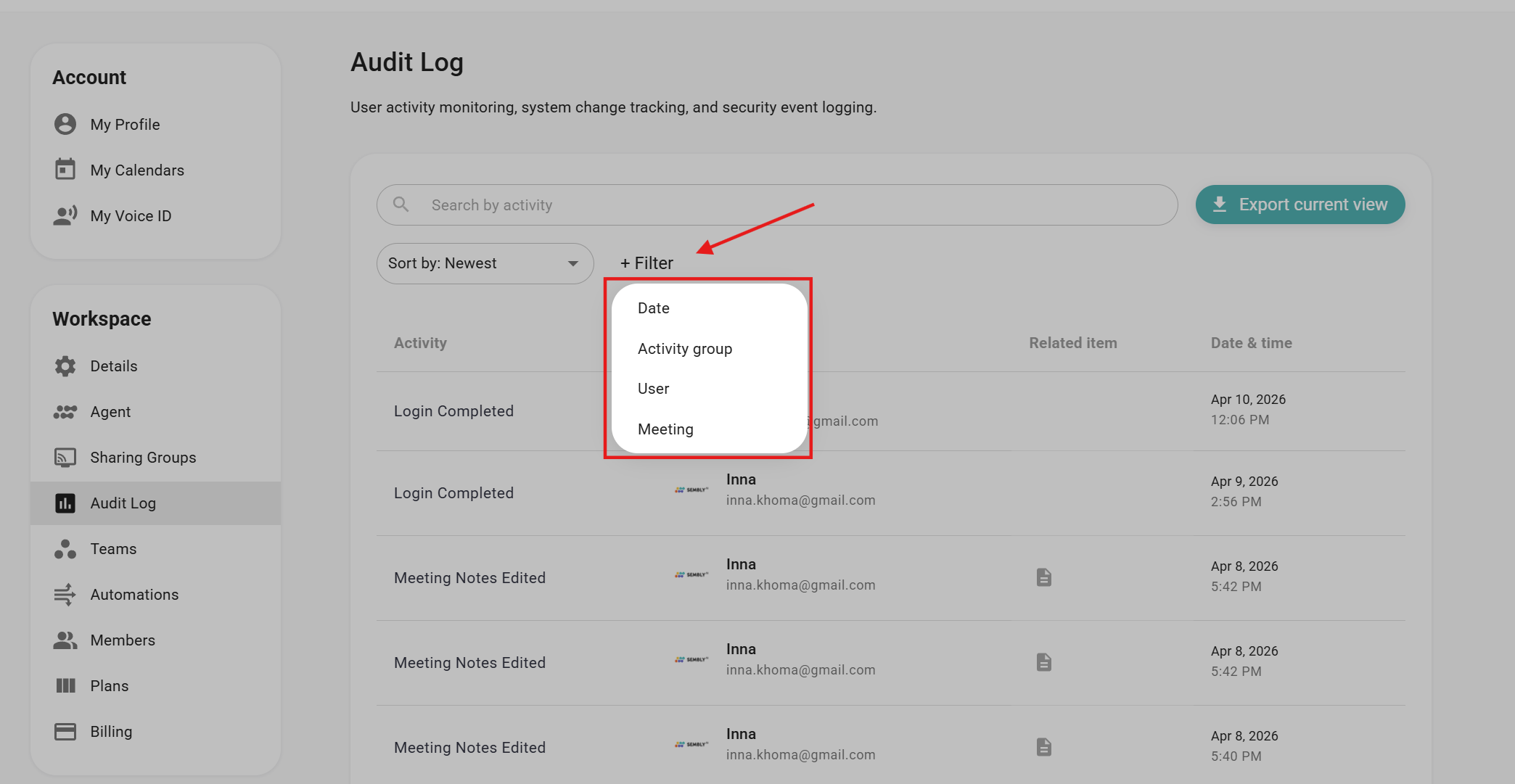
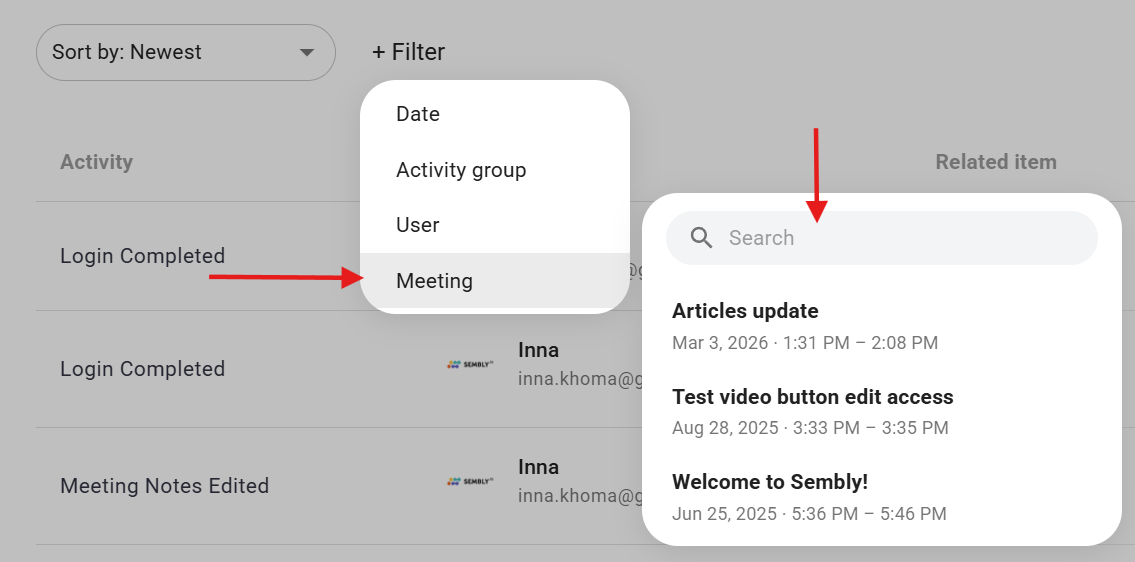
You can filter logs to speed up your search or find something in particular. Click on the +Filter button and choose how you want to filter:
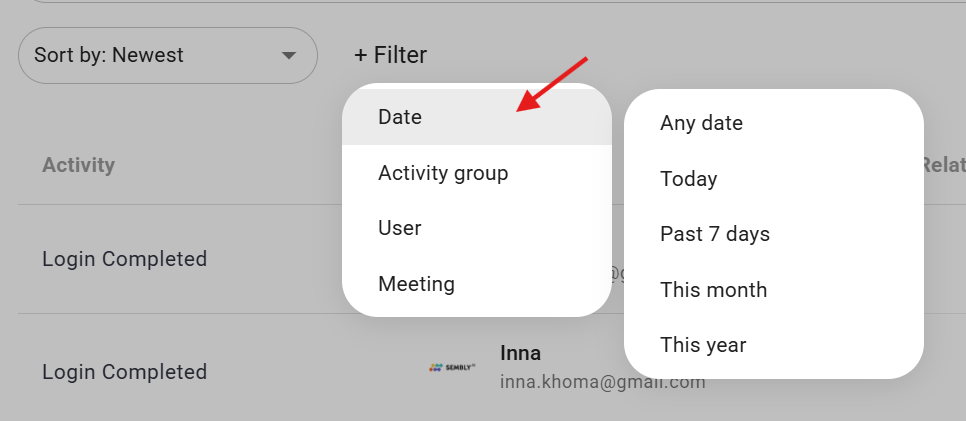
- by Date: Any Date, Today, Past 7 Days, This Month, This Year
- by Activity group: Authentication events, Export events, Edit Events
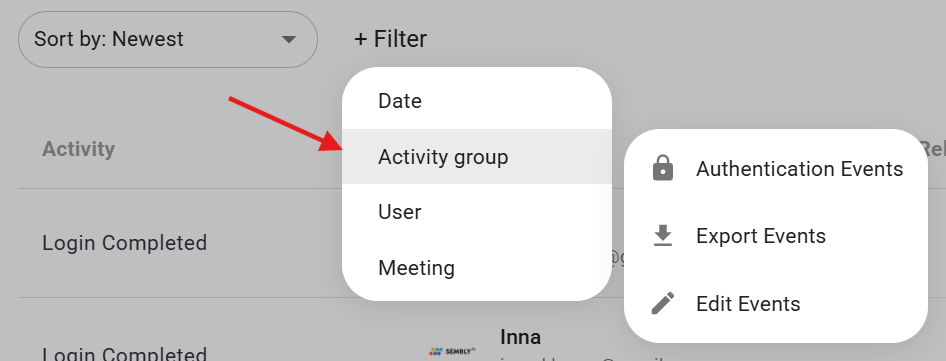
- by User: any users that are present in your Workspace
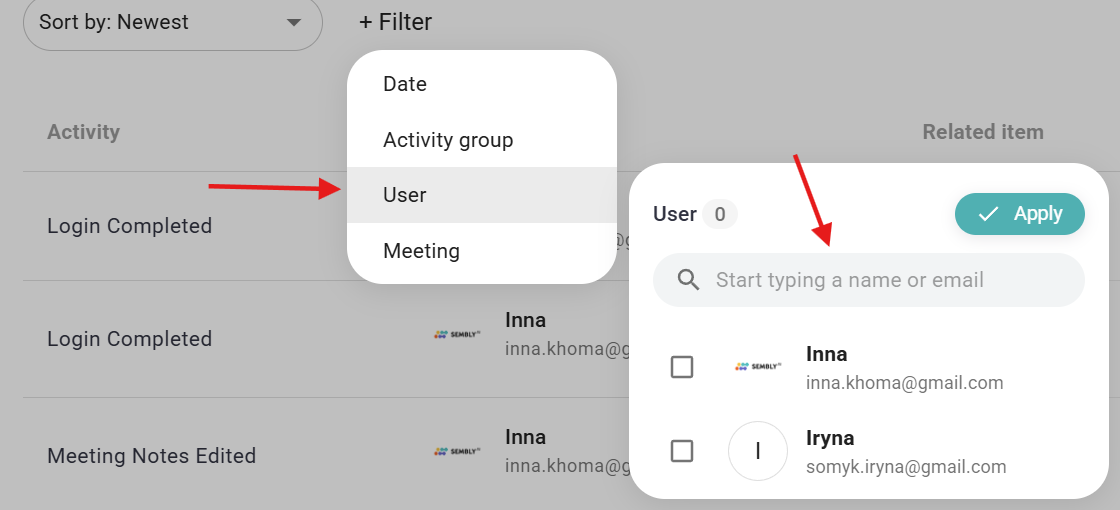
- by Meeting: any Meeting that is present in your Workspace
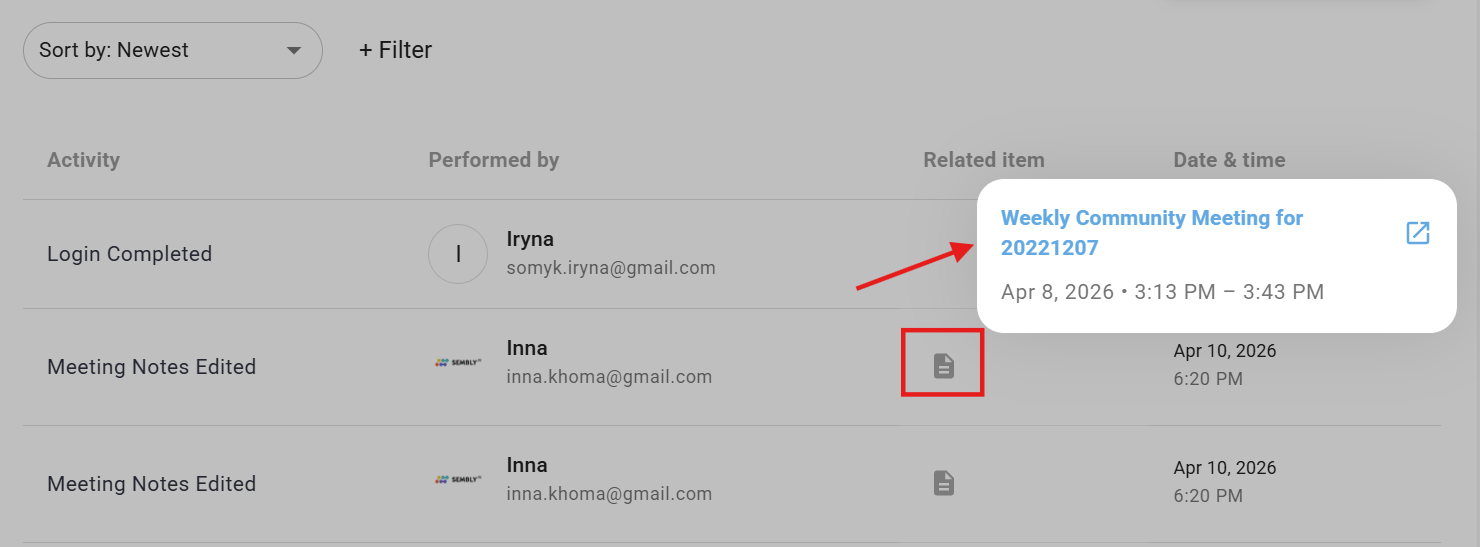
If any changes were made in the particular meeting, you can open it by clicking the File icon -> Meeting Title. Please note that you will be able to see meeting data only if you have permission to edit or view a meeting.
You can export the Audit Logs by pressing the Export current view button in the top right corner. It will export the logs currently shown on the page. The exported file is in .csv format
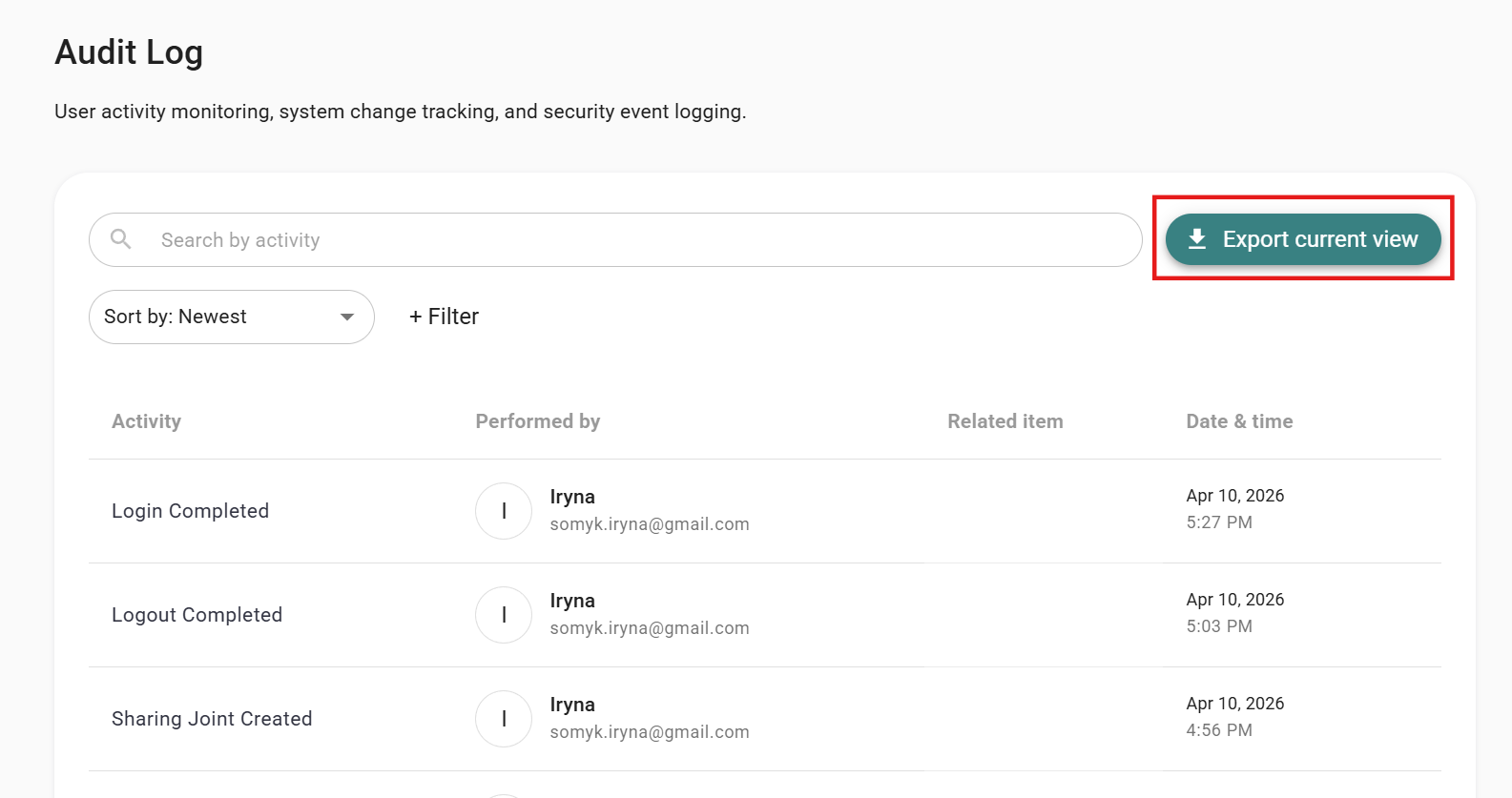
Below, we have listed the activity events tracked in Audit Logs.
Event Name | Explanation |
Authentification Events | Login Completed¹, Login Failed, Logout Completed |
Edit Events | Meeting Audio Removed, Meeting Notes Edited, Meeting Notes Restored, Meeting Video Removed, Sharing Group Created, Sharing Group Deleted, Sharing Joint Created², Sharing Joint Deleted |
Export Events | Transcript Exported, Meeting Notes Exported, Tasks Exported, Key Items Exported, Artifact Exported, Insights Exported, Audio Downloaded, Video Opened or Downloaded, Meeting Guest Link Generated, Manually Triggered Automation Flow, Meeting Notes Public Link Generated, Meeting Access Granted |
When a user logs in through the login page.
Sharing Joint is an Auto-sharing rule.

