LEGACY PLAN: TEAM
Semblian 2.0 is your personal helper and a valuable addition to your Sembly meetings. It delivers actionable insights, with next steps tailored to your role, goals, and business dynamics. Chat with Semblian 2.0 about one or several meetings recorded in Sembly, and it will answer your questions and create reports, proposals, or any other professional document.
Starting March 1, 2026, Semblian 2.0 is included in the Pro, MAX, and Enterprise plans as part of the subscription. It no longer serves as an add-on that requires activation, license assignment, and a separate payment. Semblian 2.0 will be available from the left-hand menu for each workspace member.
For legacy plans, Semblian 2.0 is an add-on and is not a part of your primary Sembly subscription. It operates as a separate, member-based subscription, costing $29 per license per month or $300 per license annually.
Below, we describe the steps to activate Semblian 2.0 if it wasn't added during registration.

Only workspace admins can activate Semblian 2.0. Regular workspace members can see My AI Chats in the menu, but can't access the settings to complete the activation steps.
Log in to Sembly, then click My AI Chats in the sidebar menu.
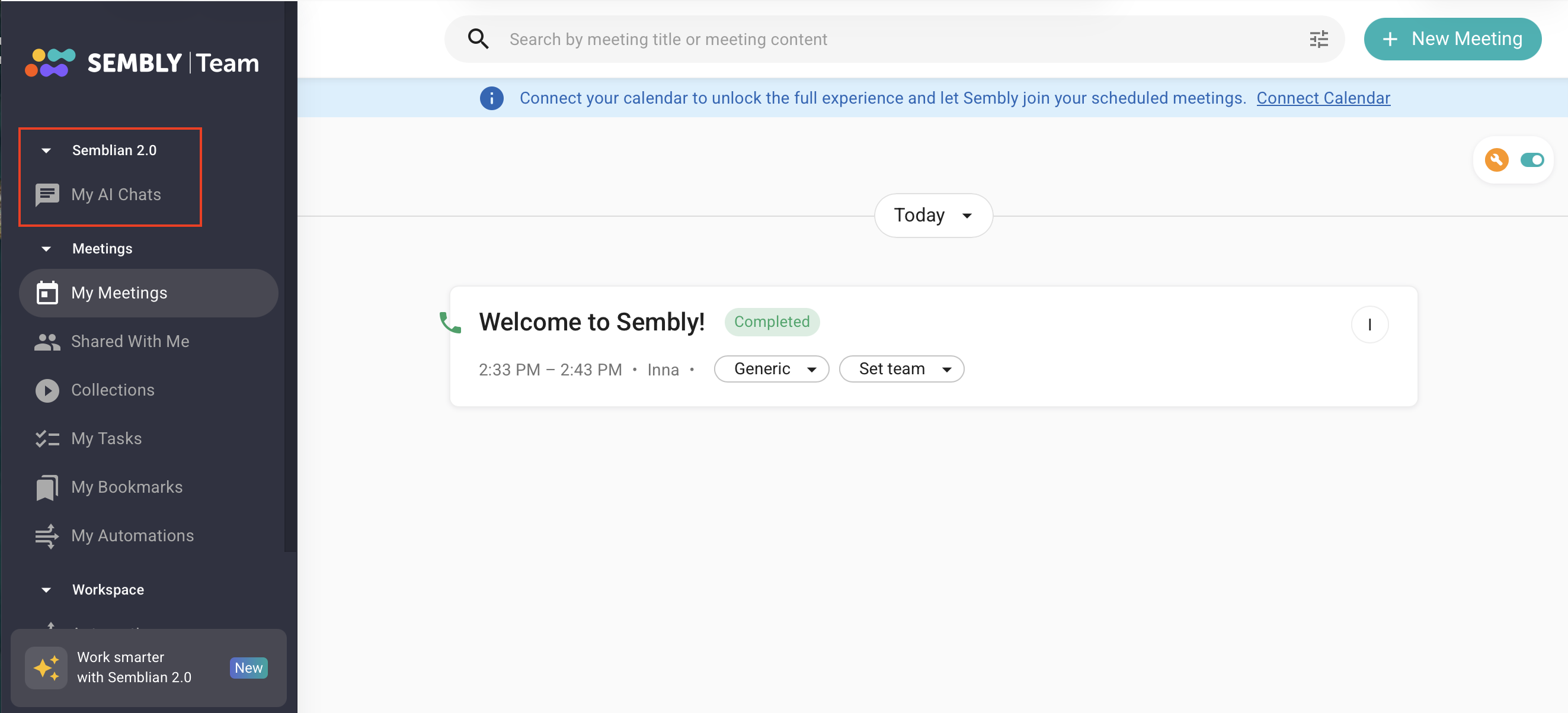
Click Get Semblian Licence on the opened page.
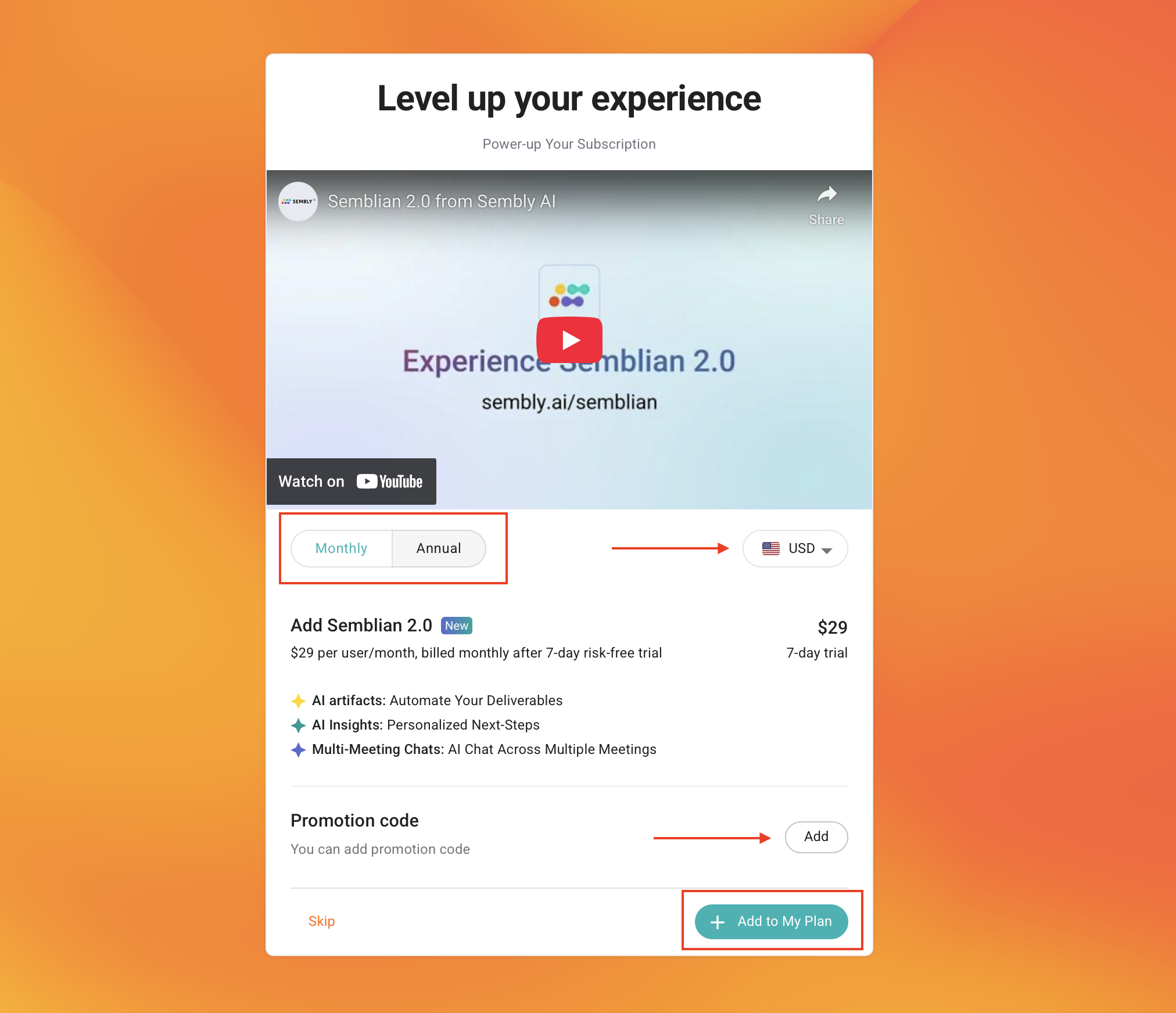
Choose between Monthly and Annual payment plans, and change the currency if needed. You can also add a promotion code on this page by clicking the Add button, pasting a code, and clicking Apply. When all is set, click the +Add to My Plan button.
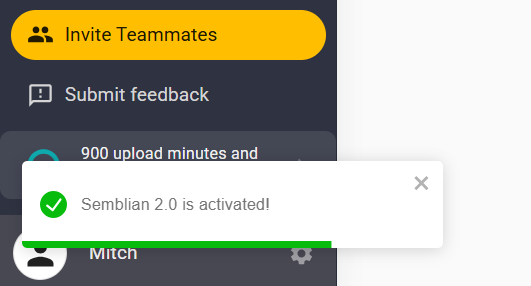
Once added, you will see a confirmation that Semblian 2.0 is activated in the bottom-left corner.
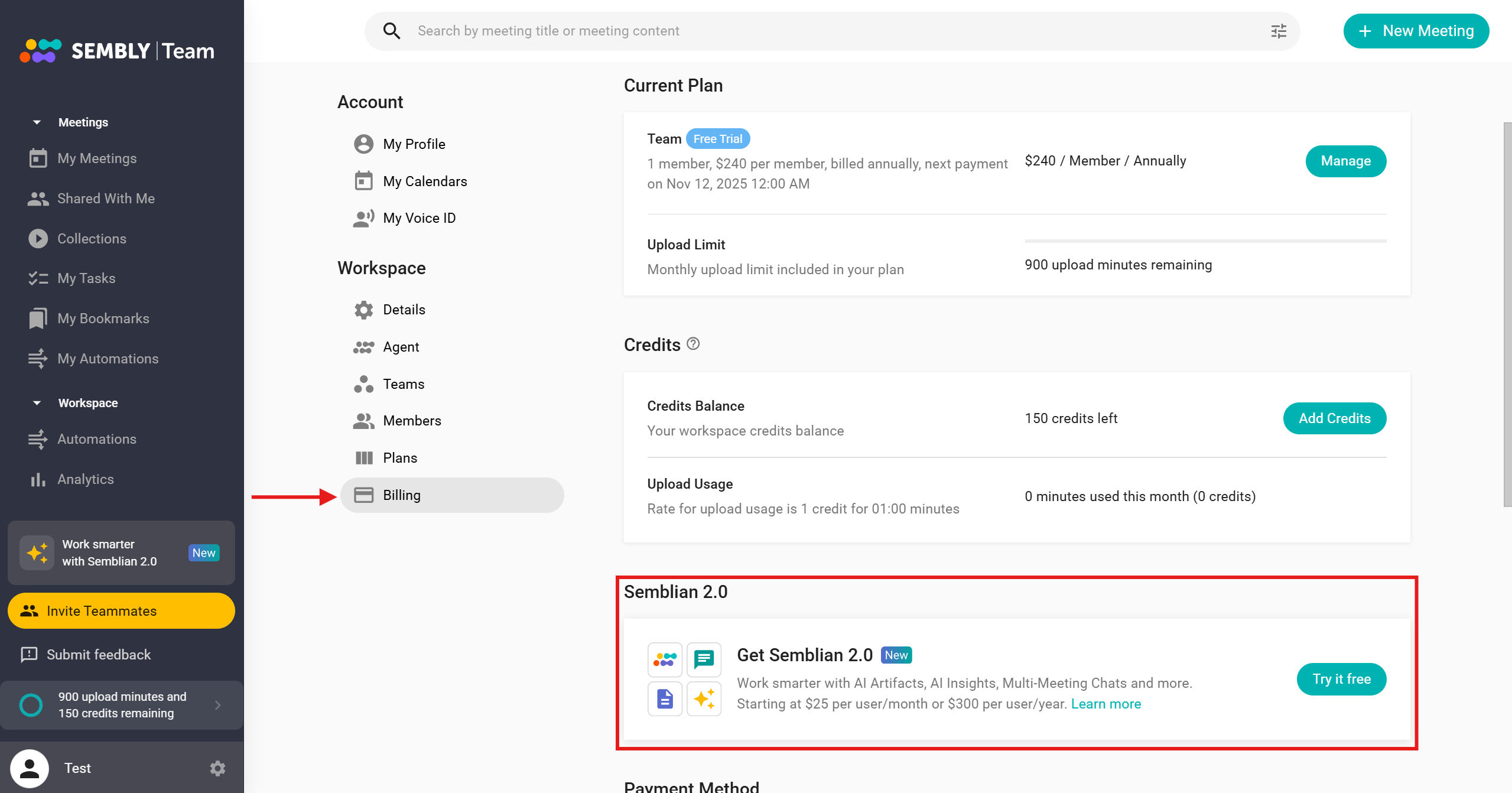
You can also click a banner or activate Semblian 2.0 in the Billing section. We will show you how to find Semblian in settings.
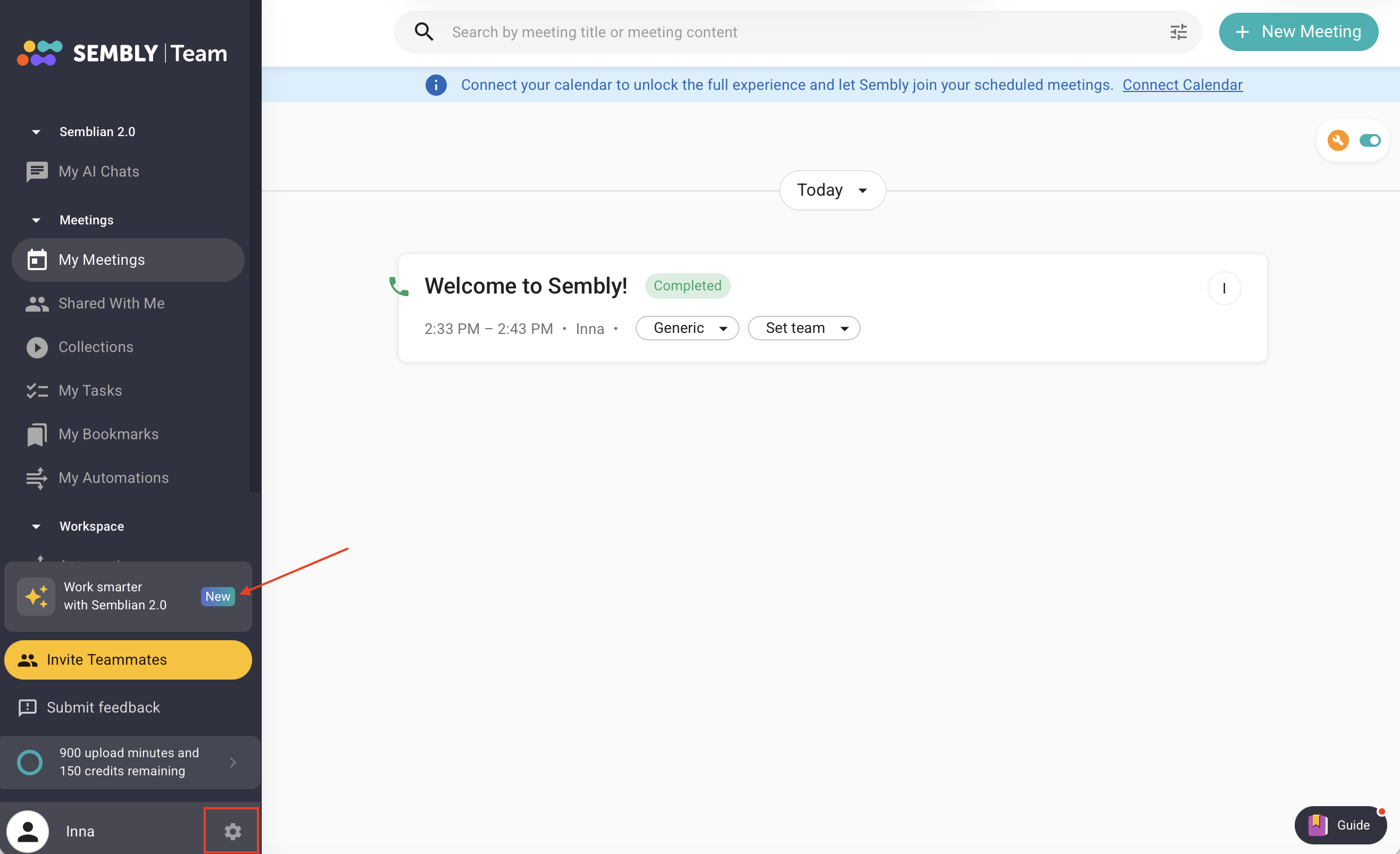
Click a gear icon to open Settings.
Select Billing and find the Semblian 2.0 section. Click Try it free.
After that, you will be redirected to the payment page, where you can choose between a monthly and an annual subscription. Click Add in the Promo code section. Paste a code and click Apply, then click +Add to My Plan.
Log in to Sembly.
In the sidebar menu, find and click the gear icon, then select Settings.
In the left context menu, select Workspace, then find the Members section.
Find the needed member and assign the license by clicking on the appropriate drop-down list and selecting Semblian License Assigned.
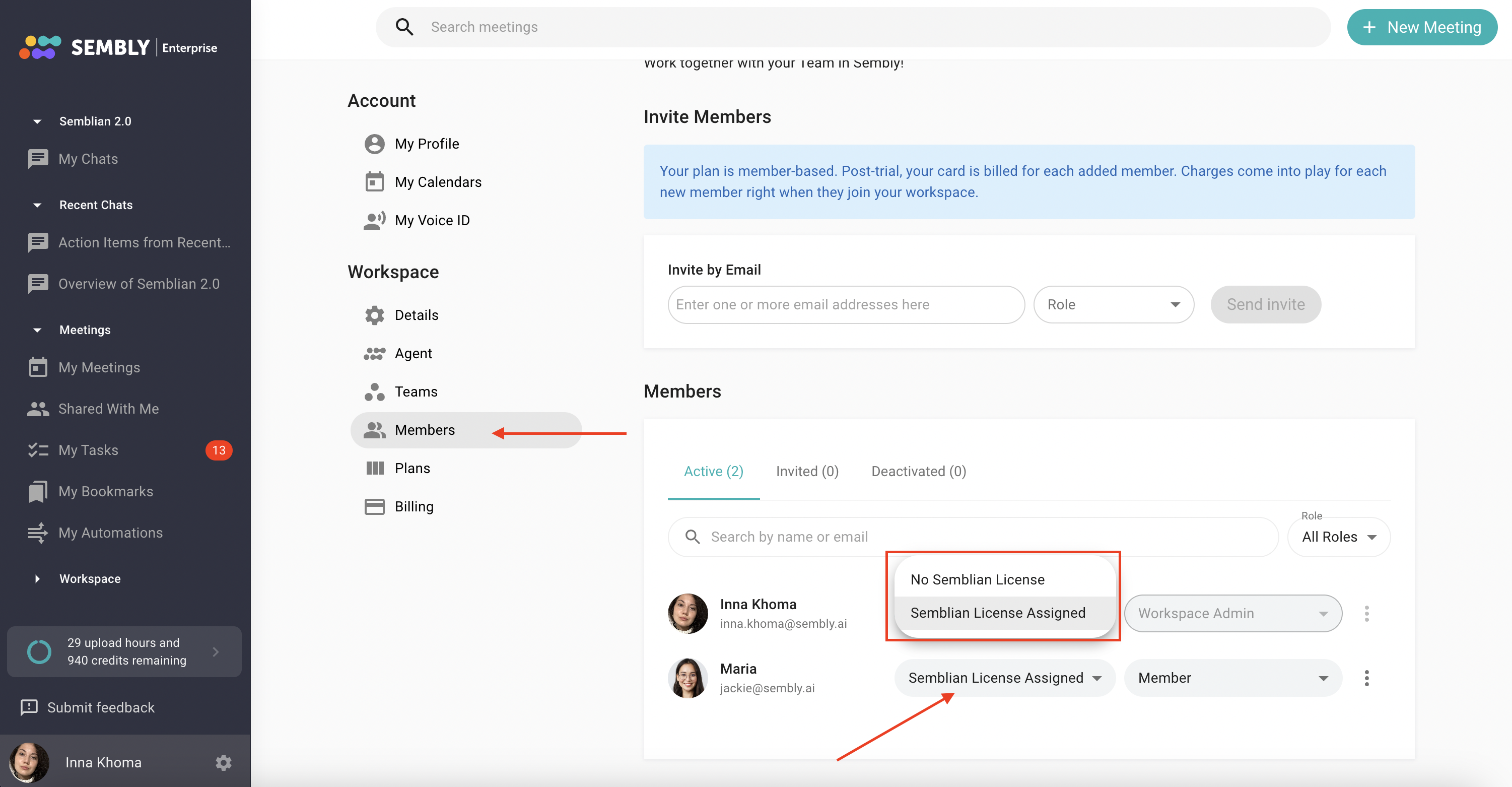

To remove the license, you just need to get back to the default option - No Semblian License.
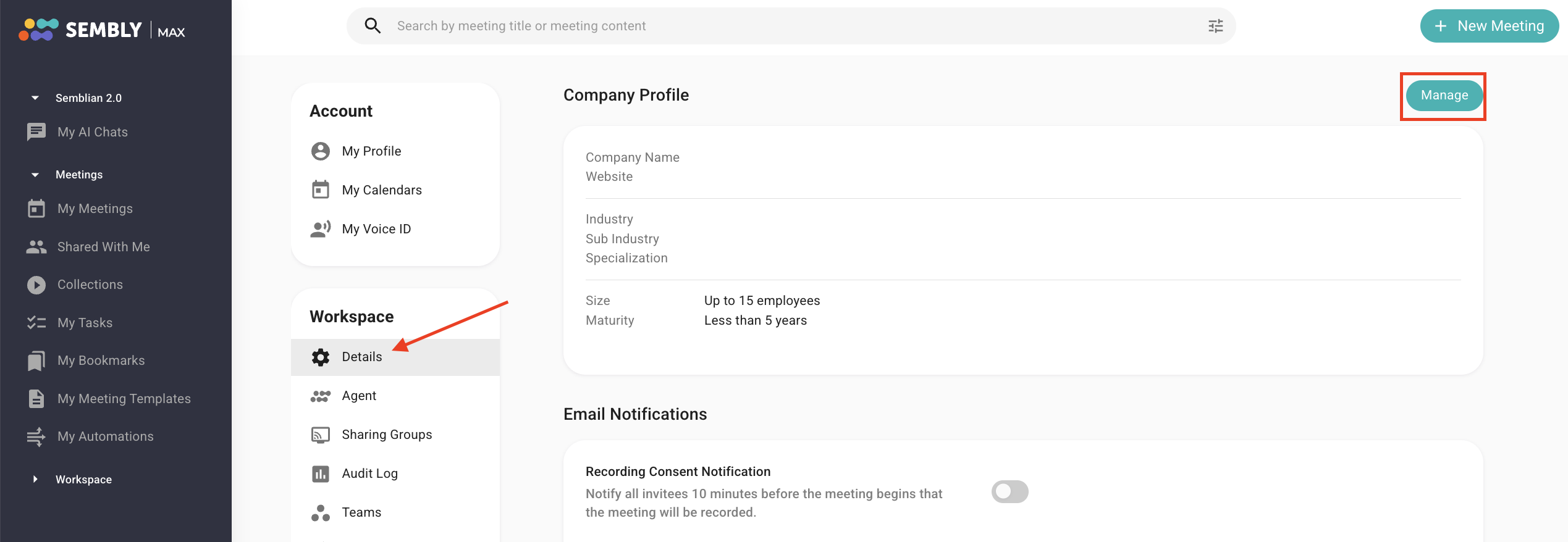
If you need to change the information about your company you added during the activation step, go to the workspace details, find information about your company, click Manage, and edit the details.
Click the gear icon in the bottom-left of the window, next to your profile picture, then dive into Settings and select Billing.
Scroll down to Semblian 2.0 and click Manage
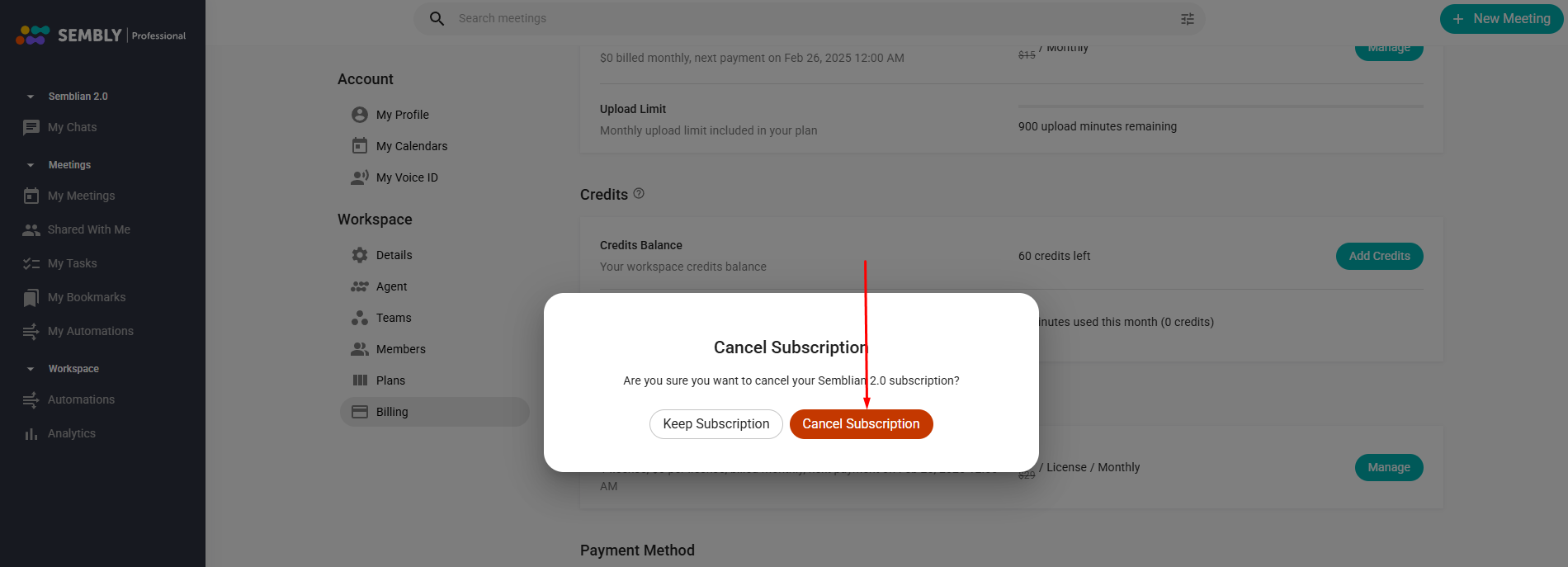
Choose Cancel Subscription in the dropdown
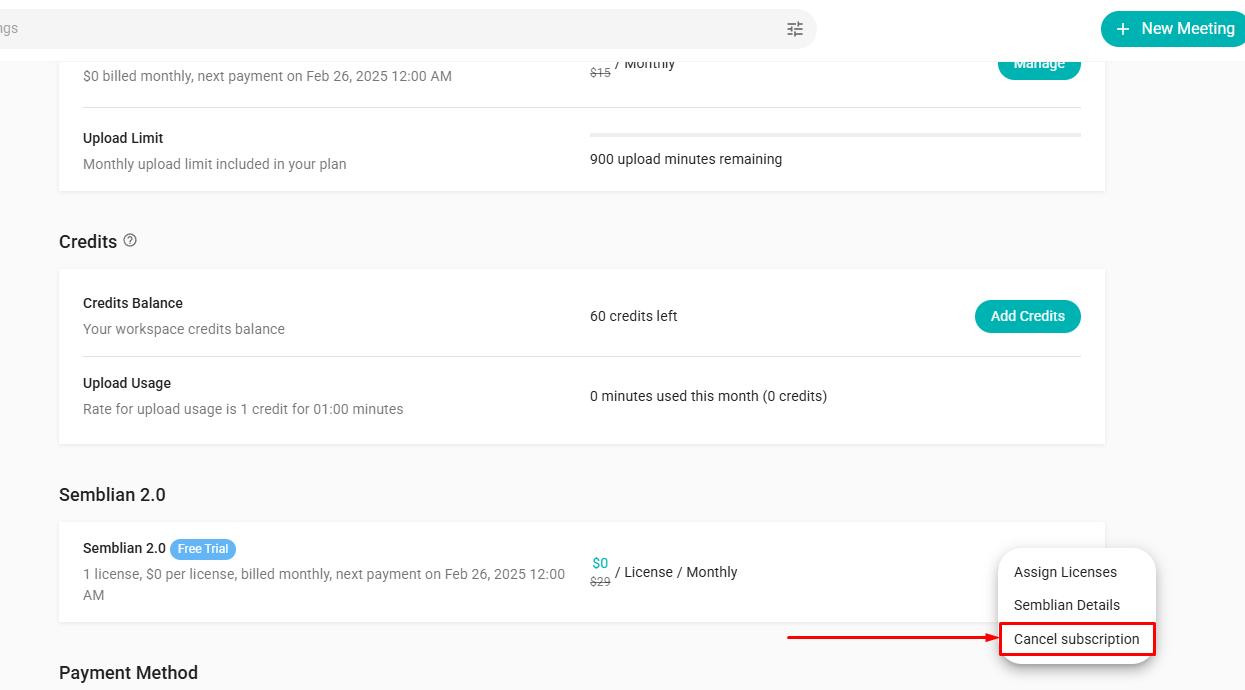
Confirm your decision. The cancellation is automatic. Your benefits will stay active until the end of the paid month or year.