For New Accounts
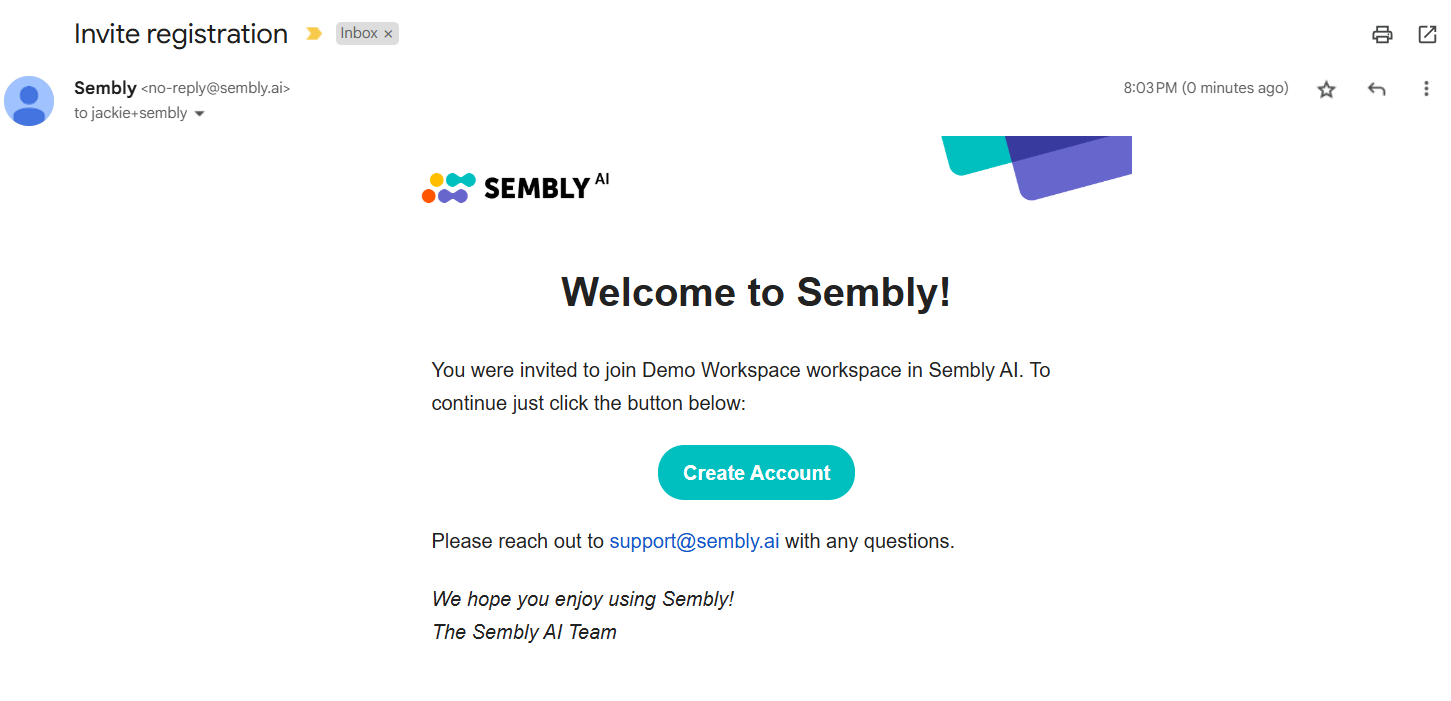
If you're new to Sembly and have received an invitation, you can sign up by clicking Create Account in the invitation email. You will be redirected to the registration page for invited members, where you can fill in the required information. After you complete the registration steps and connect your calendar, you'll be able to access your meetings and account settings.
Tip: Connect your calendar during the registration steps so that all your scheduled meetings are immediately displayed on your homepage. You can change calendar settings and add more calendars later in settings.

For Existing Accounts
Users with existing accounts can be invited to join their team workspace. After the transition, all account settings and recordings from the user’s previous Workspace or personal account will remain unchanged. The new workspace administration will then manage billing responsibilities for the new member.
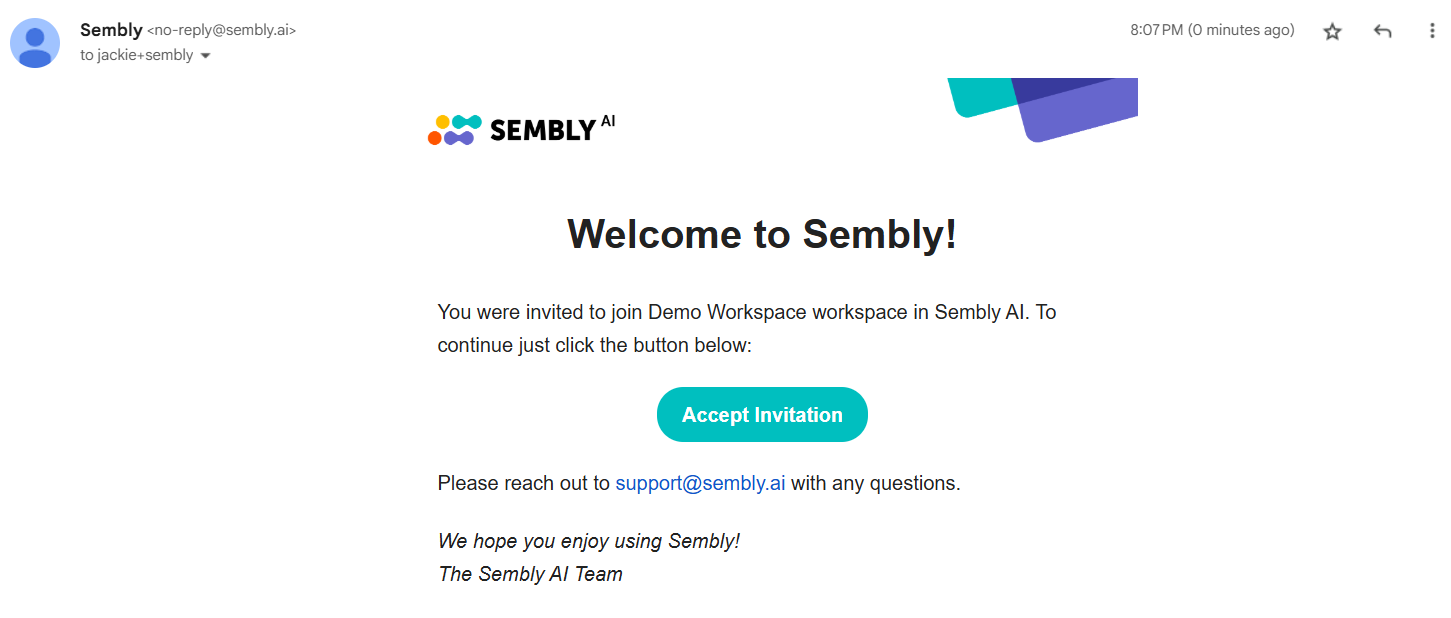
As an existing account, your invitation email will have an Accept Invitation button instead of Create Account.
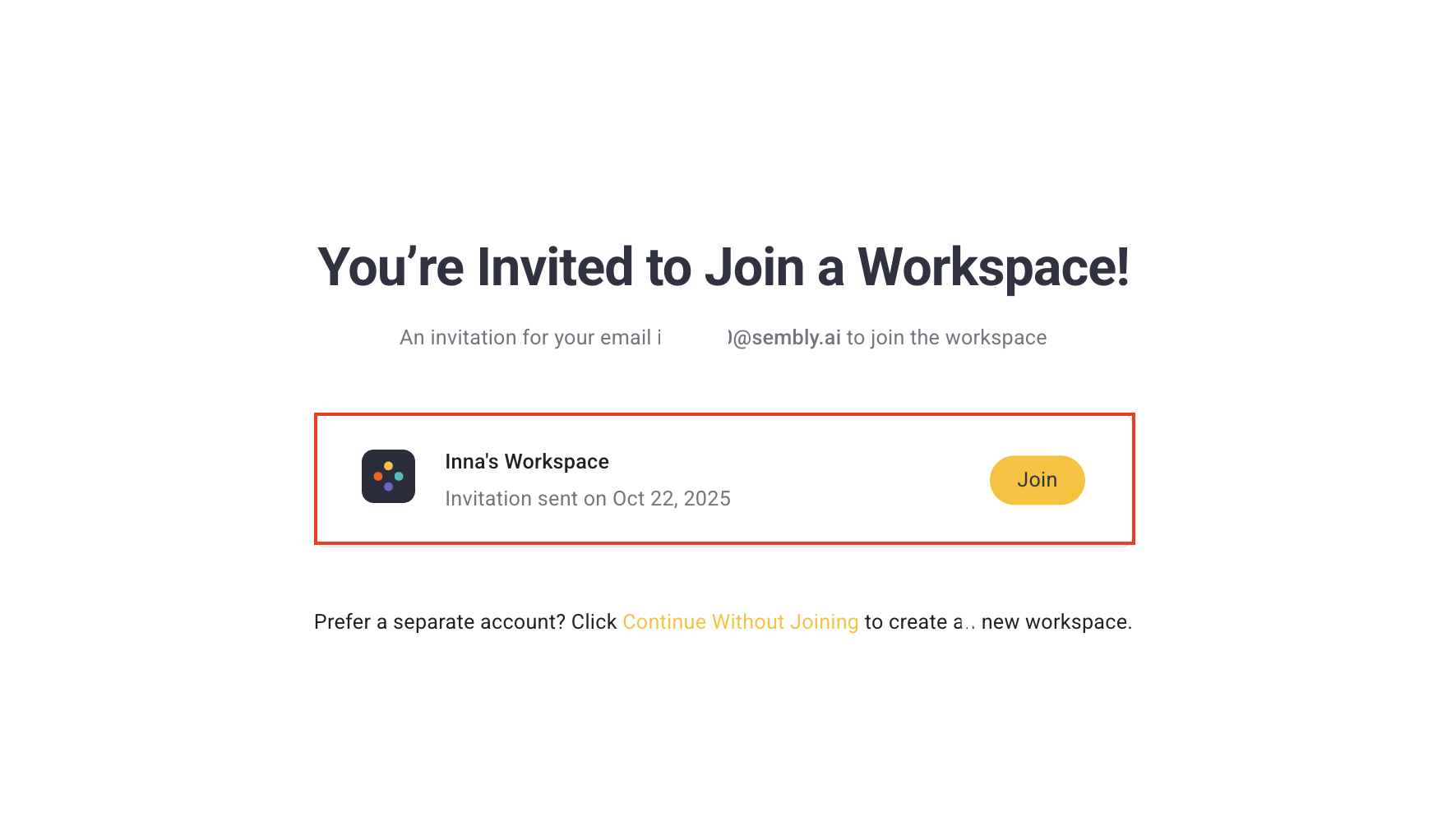
If you have multiple invites to join different workspaces, you can choose which one to accept. When you log in to the existing account associated with the email that was invited to join a Workspace, you will be redirected to a pop-up displaying the workspace name and a button to join.
If you wish to join, click the Join button; if not, click Continue Without Joining.
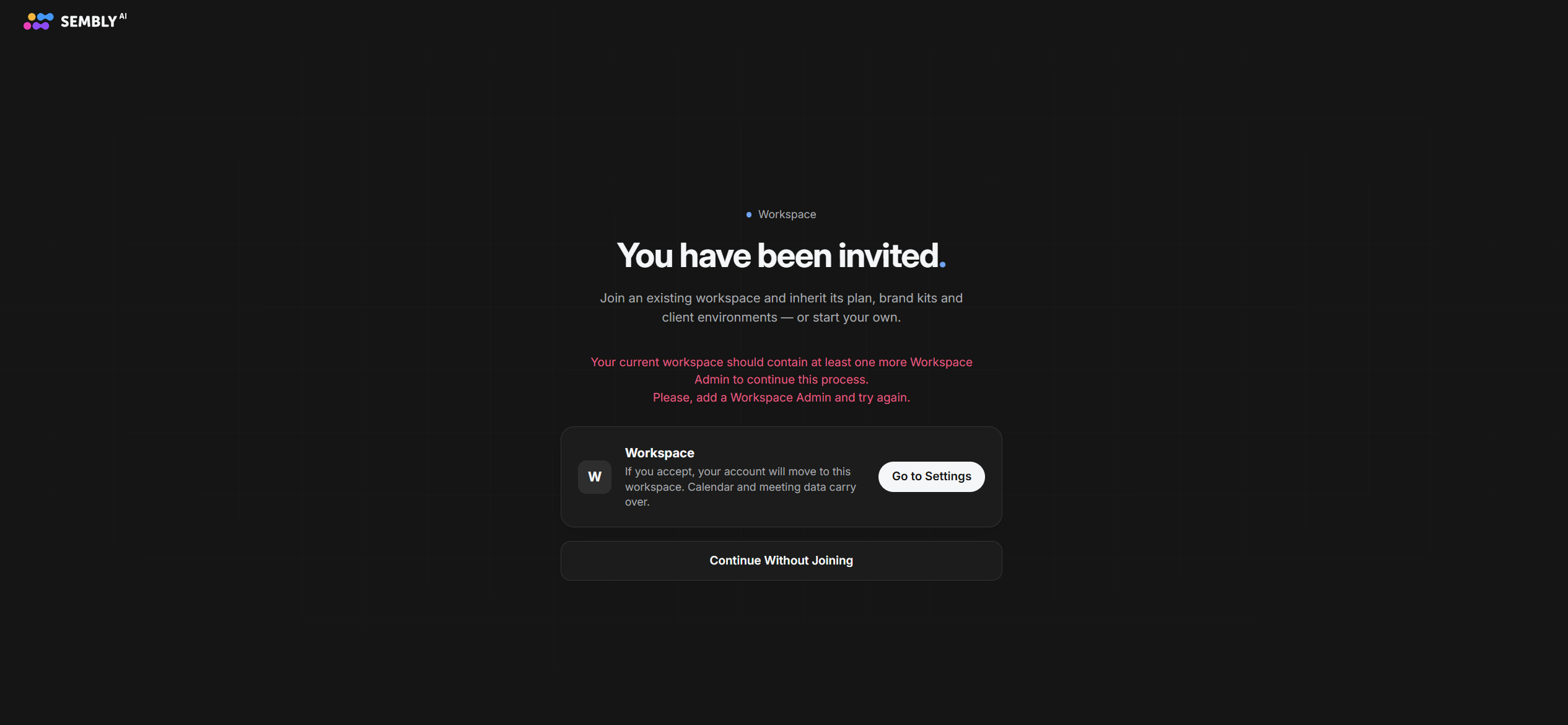
If you received an invite to a Workspace, clicked the link, and encountered an error, here’s what might be happening. Check the button in the email: if it says Create Account but you already have a Sembly account, the issue could be a mismatch between email addresses. Contact the Workspace admin to confirm which email they sent the invite to. The invitation must be sent to the exact email registered with your Sembly account - even if you use an email alias. Using a different email or alias won’t link the invite to your existing account and may cause errors.