---
title: "Overview and getting started"
description: "Sembly API overview and how to setup it in the account."
url: https://help.sembly.ai/en/articles/213-overview-and-getting-started
collection: "Workspace API"
updated: 2026-11-16
language: en
---

# Overview and getting started

Sembly API overview and how to setup it in the account.

> **Success:** PLAN: MAX | ENTERPRISE

The Workspace API gives your systems read-only access to pull data from the meetings of your Sembly workspace: meeting details, notes, tasks, and full transcripts. API won’t pull meeting audio or video.

Typical uses are syncing meetings into a data warehouse, showing Sembly meetings inside an internal app, or feeding transcripts to your own AI tools.

## Who can use it

The API is available to enterprise workspaces. During the beta, Sembly enables it on request. Your Sembly contact can tell you whether your workspace is eligible.

## Turn it on

A workspace admin does this once:

1.  In the Sembly web app, open **Settings → Automations → Workspace API**.
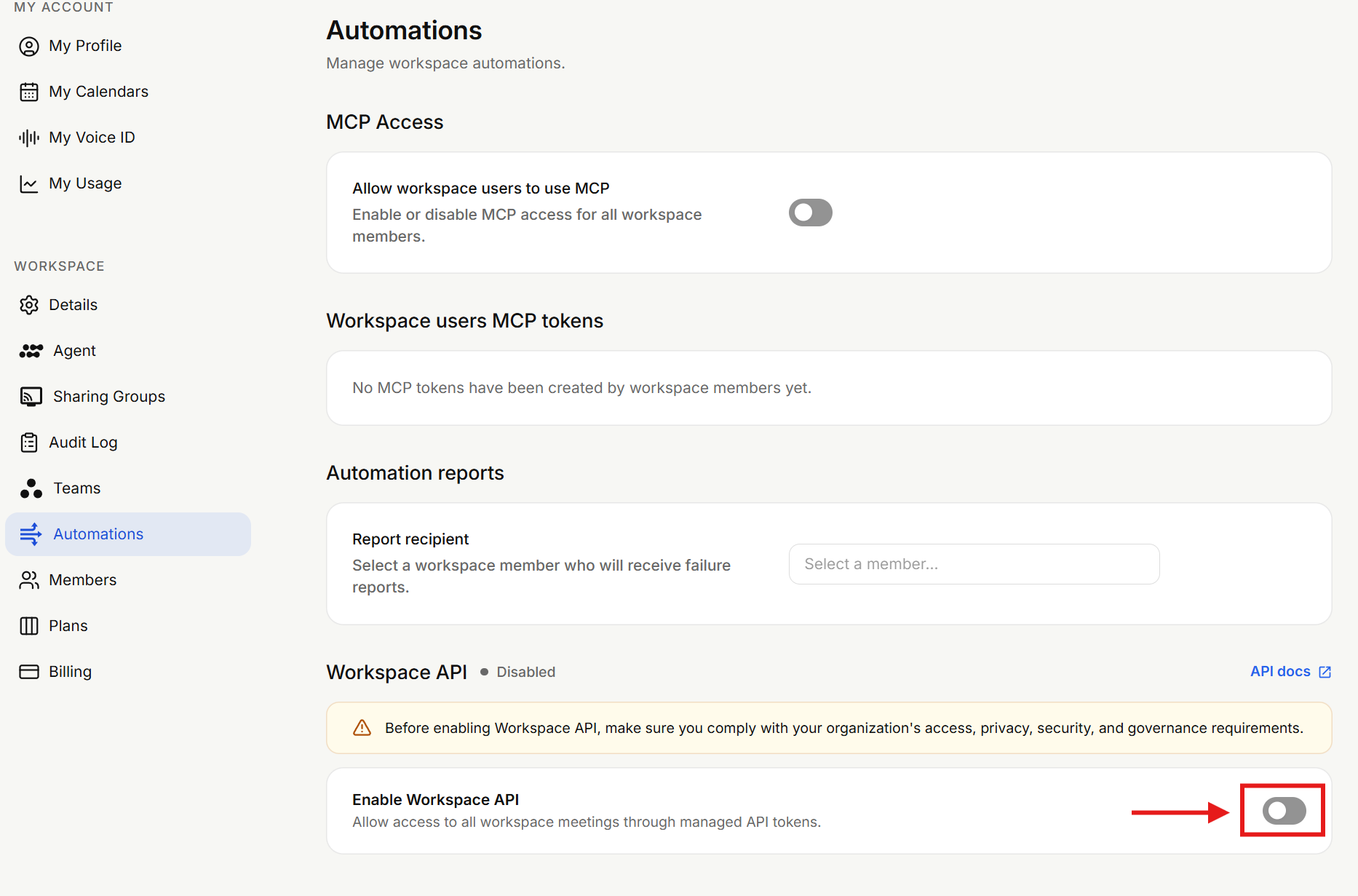
    

![](https://staticfiles.gleap.io/ghelparticle/qe7RGpgC9IeiViQ8xwihuYauV473yq3wiI5NsDbV0FzfpEPiOJmrEA1TQqI5OcM3cDjQvkKrbtX.png)

2.  Click **Enable Workspace API**, read the reminder, confirm that your workspace is authorized to enable this access, and submit.
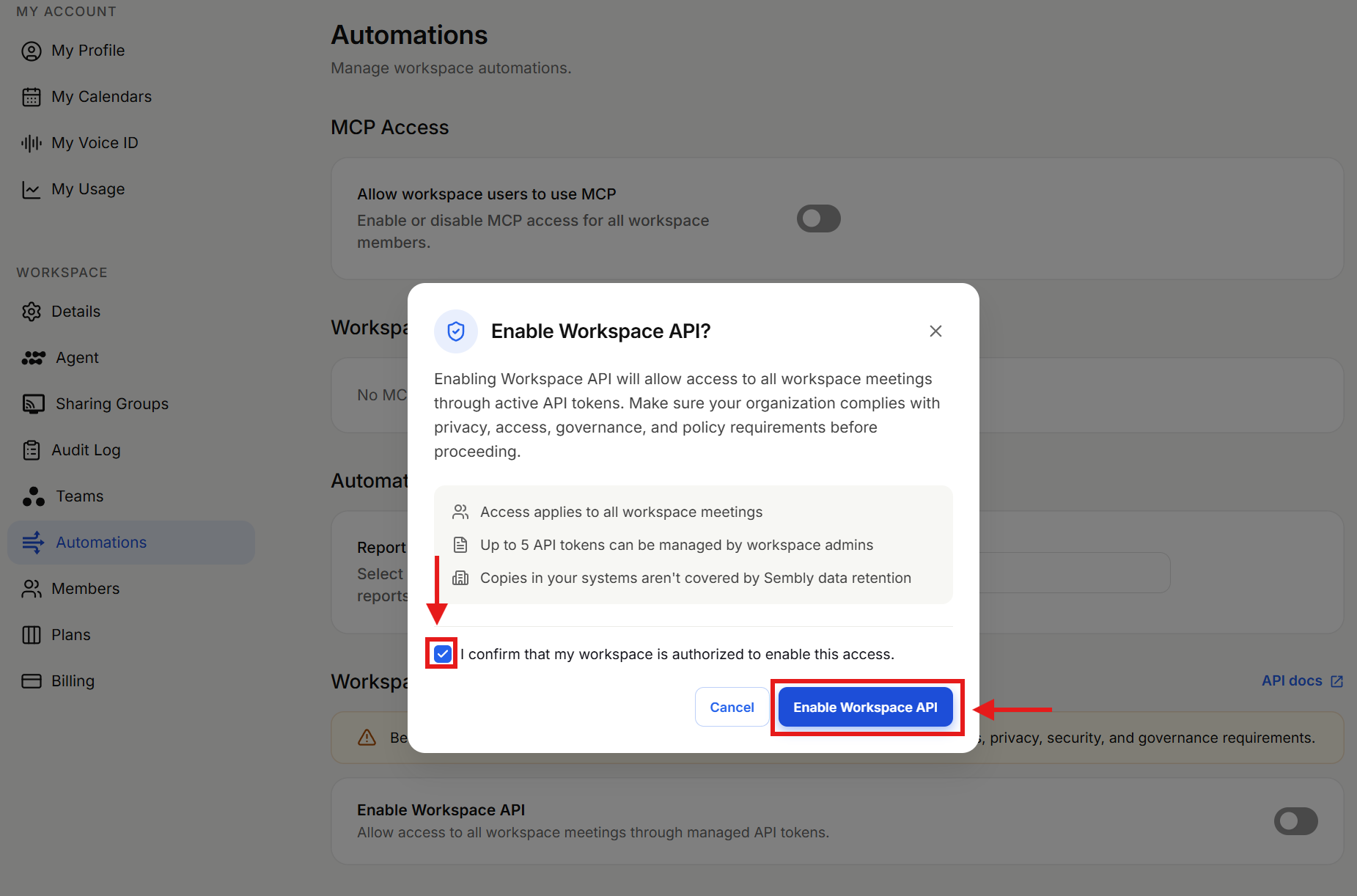
    

![The Automations workspace settings screen shows an “Enable Workspace API?” confirmation dialog; red arrows highlight the authorization checkbox and Enable Workspace API button. Visible: Automations, Manage workspace automations., MC Access, Allow workspace users to use MCP, Workspace, Enable Workspa](https://staticfiles.gleap.io/ghelparticle/0qzJx2Bm442ncFv0vsB9w1LjKK7TZh9bctGHUwWzJjnB9w3EzYV8R8kRrw0lI0MNoQqNdKhJoMS.png)

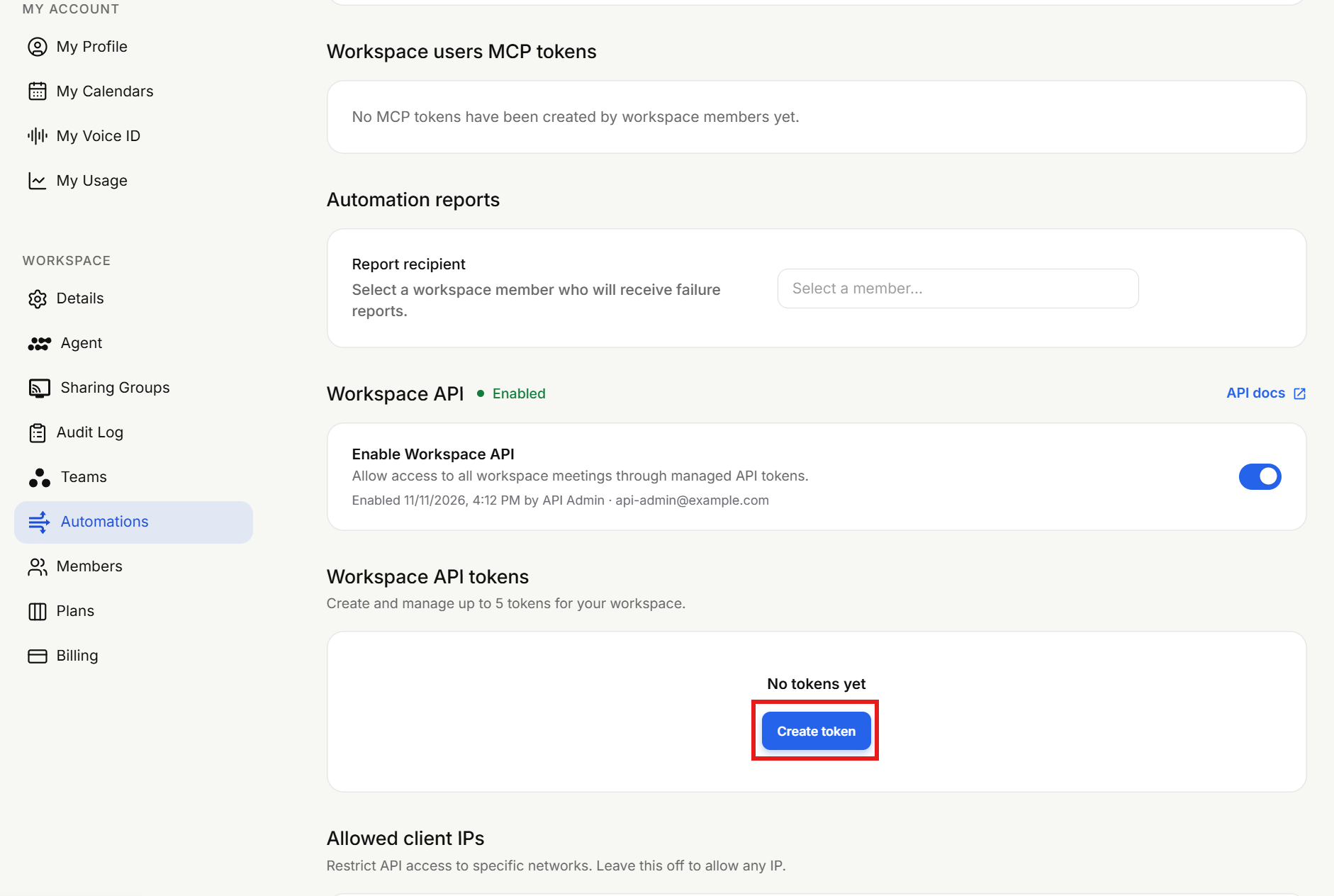
3.  Click **_Create token_**.
    

![Workspace Automations settings page shows Workspace API enabled and an empty Workspace API tokens section, with a red box highlighting the Create token button. Visible: Automations, Workspace API, Enabled, Enable Workspace API, API docs, Workspace API tokens.](https://staticfiles.gleap.io/ghelparticle/ohuSDl3vRW8GPmOuAvrCzSoUfQIYyWsth3spFXzt77nQi7sHDyYb0J9Vt8OczVHJBpIXRshDQH8.png)

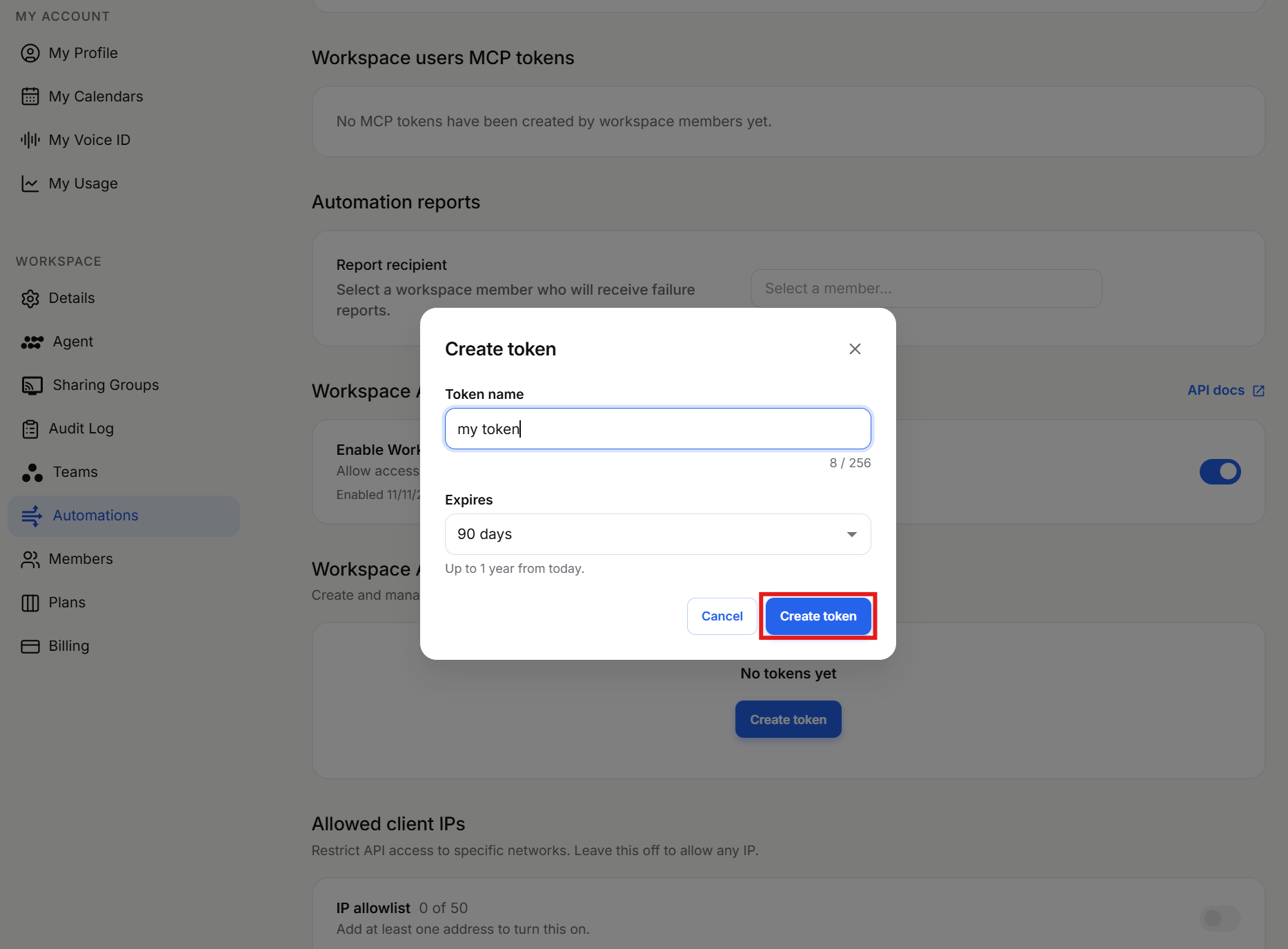
4.  Give it a name and an expiry.
    

![The Automates settings screen shows a Create token dialog with a token name and expiration; a red outline highlights the Create token button. Visible: Automates, Workspace users MCP tokens, Automation reports, Report recipient, Select a member..., Create token.](https://staticfiles.gleap.io/ghelparticle/8ol7W9rN0W6kcyOmdqmOvvpRTcxeooFAy2Y7td1Q0ifJw0Cly2MXctxDeDsroWKFLFtVbSjuvIg.png)

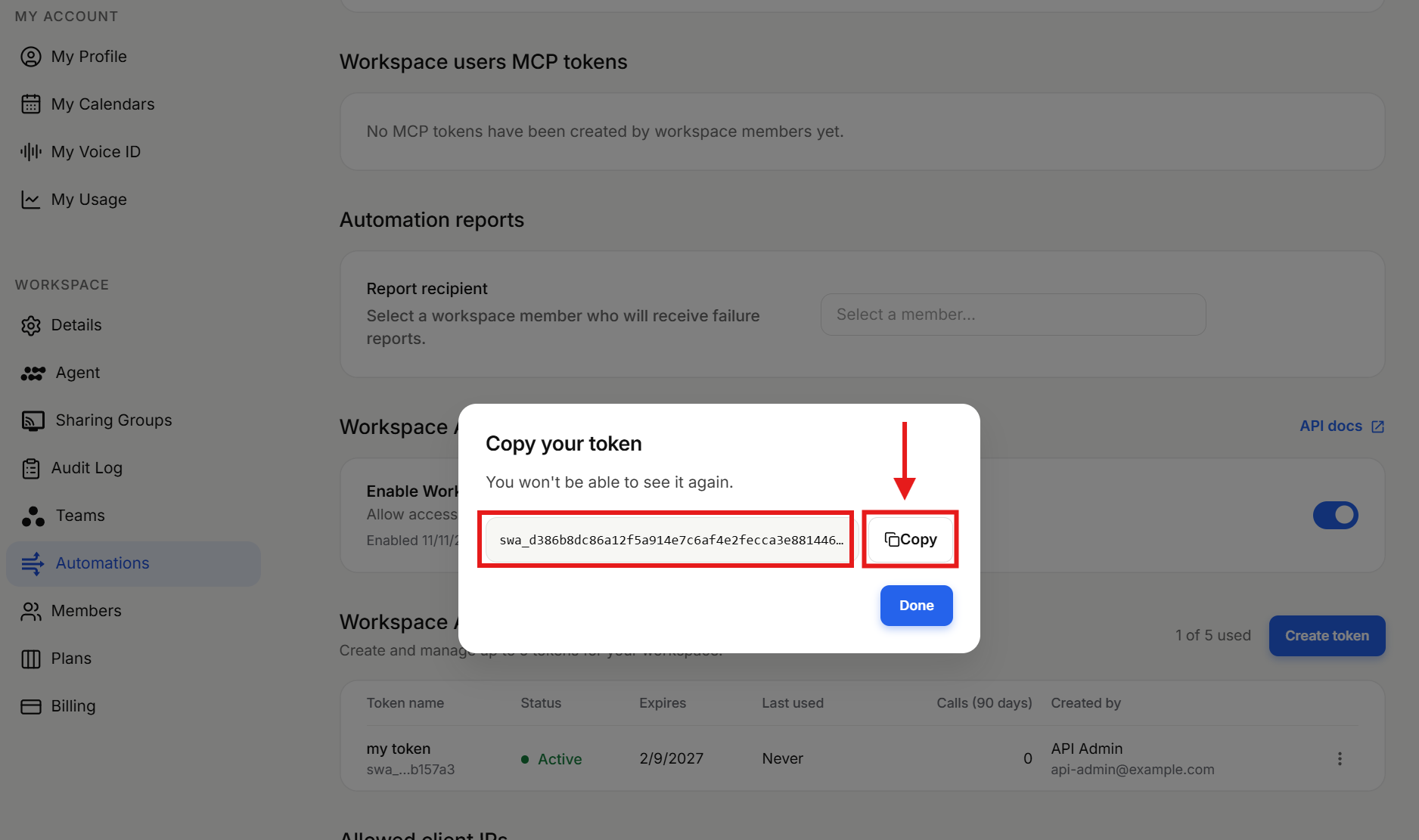
5.  Copy the token. It is shown only once.
    

![](https://staticfiles.gleap.io/ghelparticle/JoEhLzpvdq6eBi4gtoAcG5n91Nk24d6g708twOny7OQwkoaOTYimNDjGRUbcMRQUXK0jnyDWZiX.png)

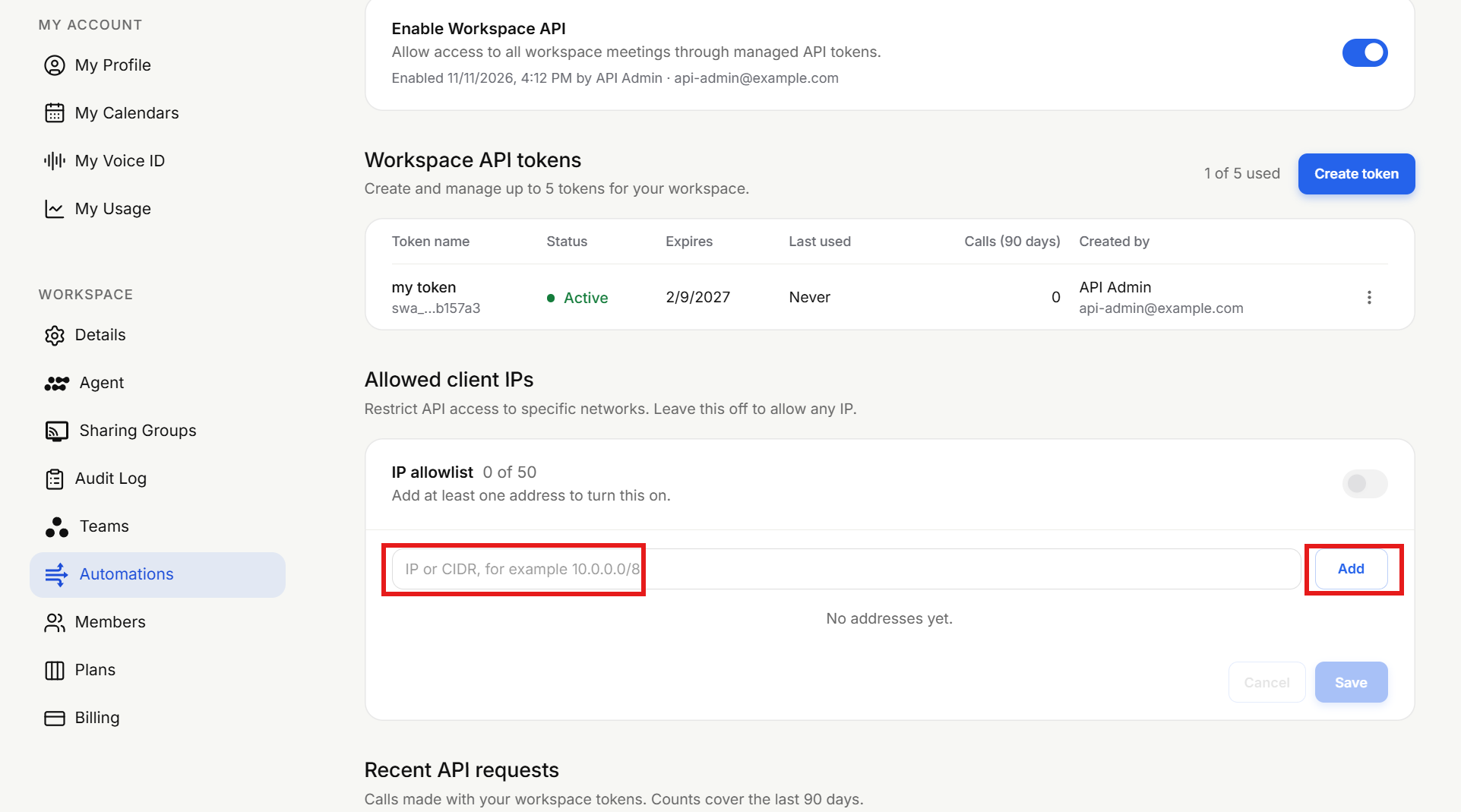
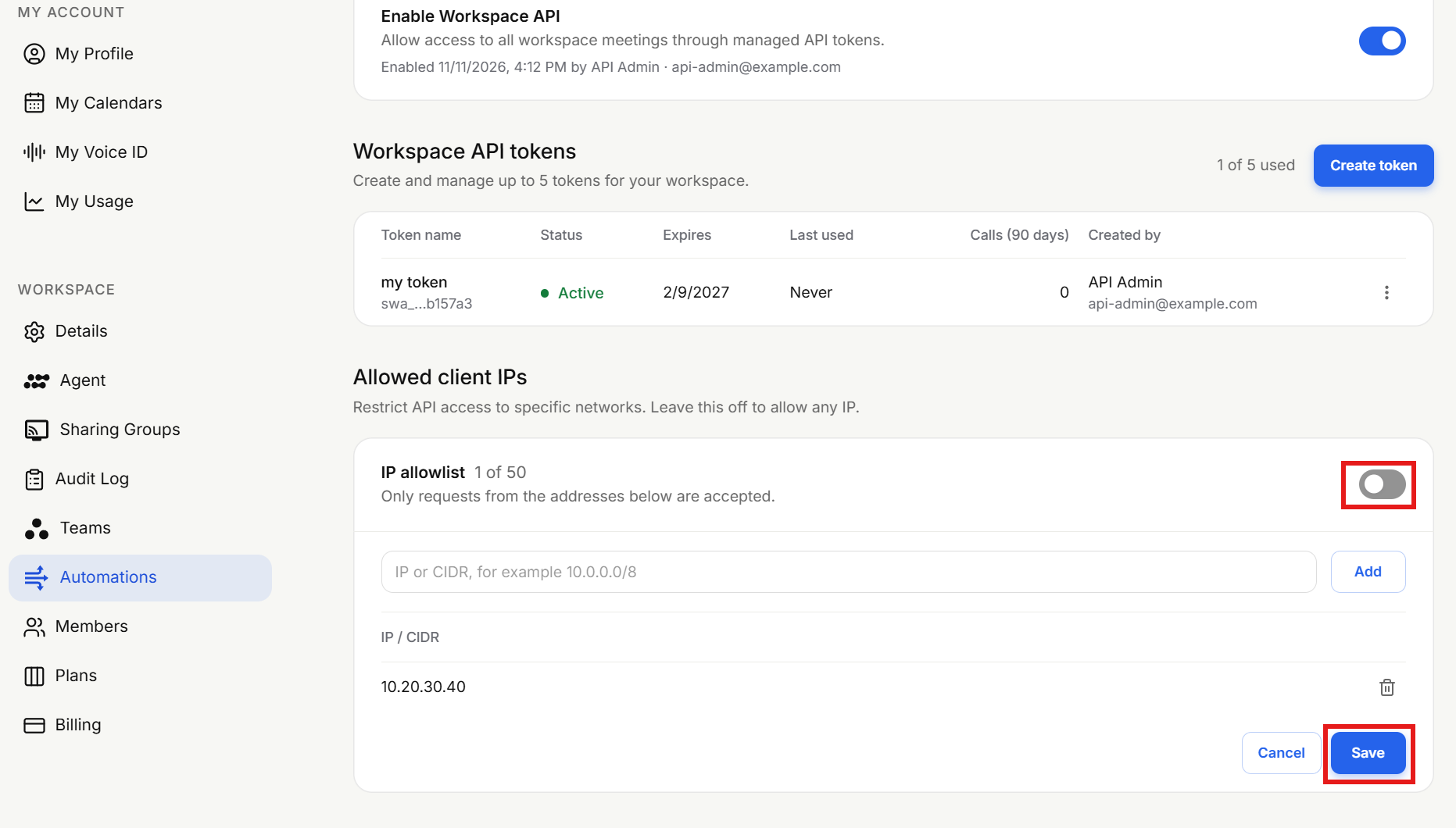
6.  Optional: turn on the **IP allowlist**.
    

![](https://staticfiles.gleap.io/ghelparticle/k9Z4YUulg7cA8a7nLGXpqI515i56XxVHtniZF7FslzvEkQ3efcVjnE11L3vSZfcJsmOTgRj9ocf.png)

7.  And add the public IP addresses your servers call from.
    

![Workspace Automations settings show API tokens and an IP allowlist; red boxes highlight the allowlist toggle and Save button. Visible: Enable Workspace API, Workspace API tokens, Create token, Allowed client IPs, IP allowlist, Add.](https://staticfiles.gleap.io/ghelparticle/lBwCSAOPLfL3rCW6NYwkGKfVfdAspE0sTxb0fqAyDYAyngOVCMksnV09Cp27ucCXtRdyNFEmTRC.png)

## Base URL

Use the host of your workspace's region. The region is the one you pick when you sign in to Sembly (United States or European Union).

<table data-id="fba5fb79-ea9b-4bd5-bafc-cd584f8447a6" style="min-width: 50px;"><colgroup><col style="min-width: 25px;"><col style="min-width: 25px;"></colgroup><tbody><tr><th colspan="1" rowspan="1"><p data-id="2c8f59f6-84eb-4d98-90a4-bad64fb2b230">Region</p></th><th colspan="1" rowspan="1"><p data-id="e0eac005-2ba7-4a5c-9c40-306ca94f4fb0">Base URL</p></th></tr><tr><td colspan="1" rowspan="1"><p data-id="5dbe2b7d-87af-47a9-a13d-621cdce4e4f8">United States</p></td><td colspan="1" rowspan="1"><p data-id="e676a4bf-e1fe-4df5-a40b-0f1e39131373"><code>https://api-us.sembly.ai/v1/workspace</code></p></td></tr><tr><td colspan="1" rowspan="1"><p data-id="f18ca4f0-a8c1-433f-afc5-9f4af69387bc">European Union</p></td><td colspan="1" rowspan="1"><p data-id="cb65426b-5b4a-4611-a735-ecc34878a489"><code>https://api-eu.sembly.ai/v1/workspace</code></p></td></tr></tbody></table>

A token works only in the region that issued it. Calling the other region returns `401 invalid_token`.

### First call

```bash
curl -H "Authorization: Bearer $SEMBLY_TOKEN" \
  "<https://api-us.sembly.ai/v1/workspace/meetings?status=processed&limit=5>"

```

The machine-readable description of every endpoint is the OpenAPI document:  
`https://api-us.sembly.ai/v1/workspace/openapi.json` (or the `api-eu` host). Code generators and AI agents can use it directly.