Users can create new clients directly within the platform and add them to a centralized Clients catalog for easy management. Each client gets a dedicated profile page where you can edit their details, add their website URL, and automatically derive branding elements (colors, logos, fonts) straight from their site — keeping everything client-related in one place, ready to use across your projects.

Subscription Plan | Client count |
Free trial | 5 |
Basic | 25 |
Pro | 100 |
MAX | 500 |
Log in to your Sembly account in the US or EU.
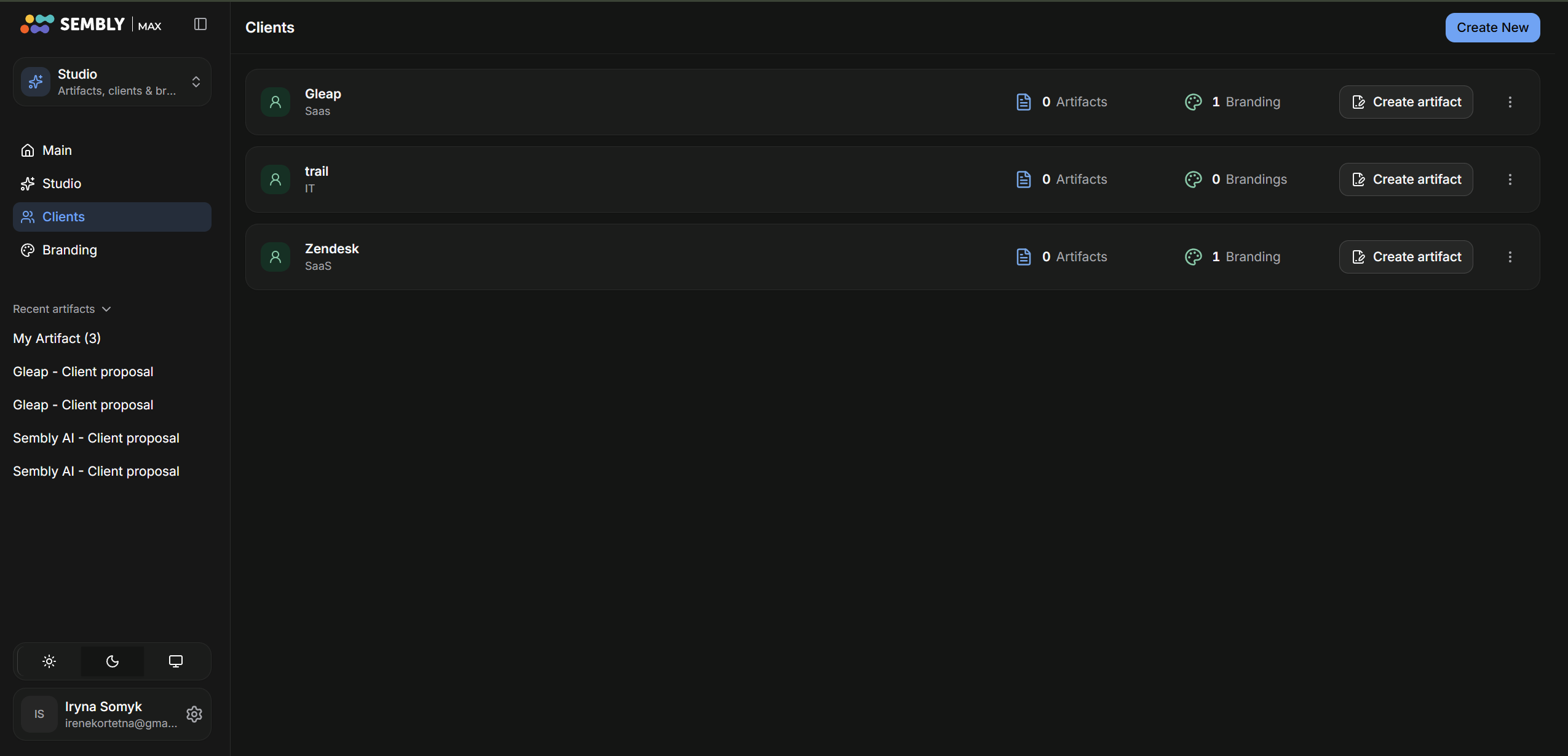
In the left sidebar, press the Clients button.
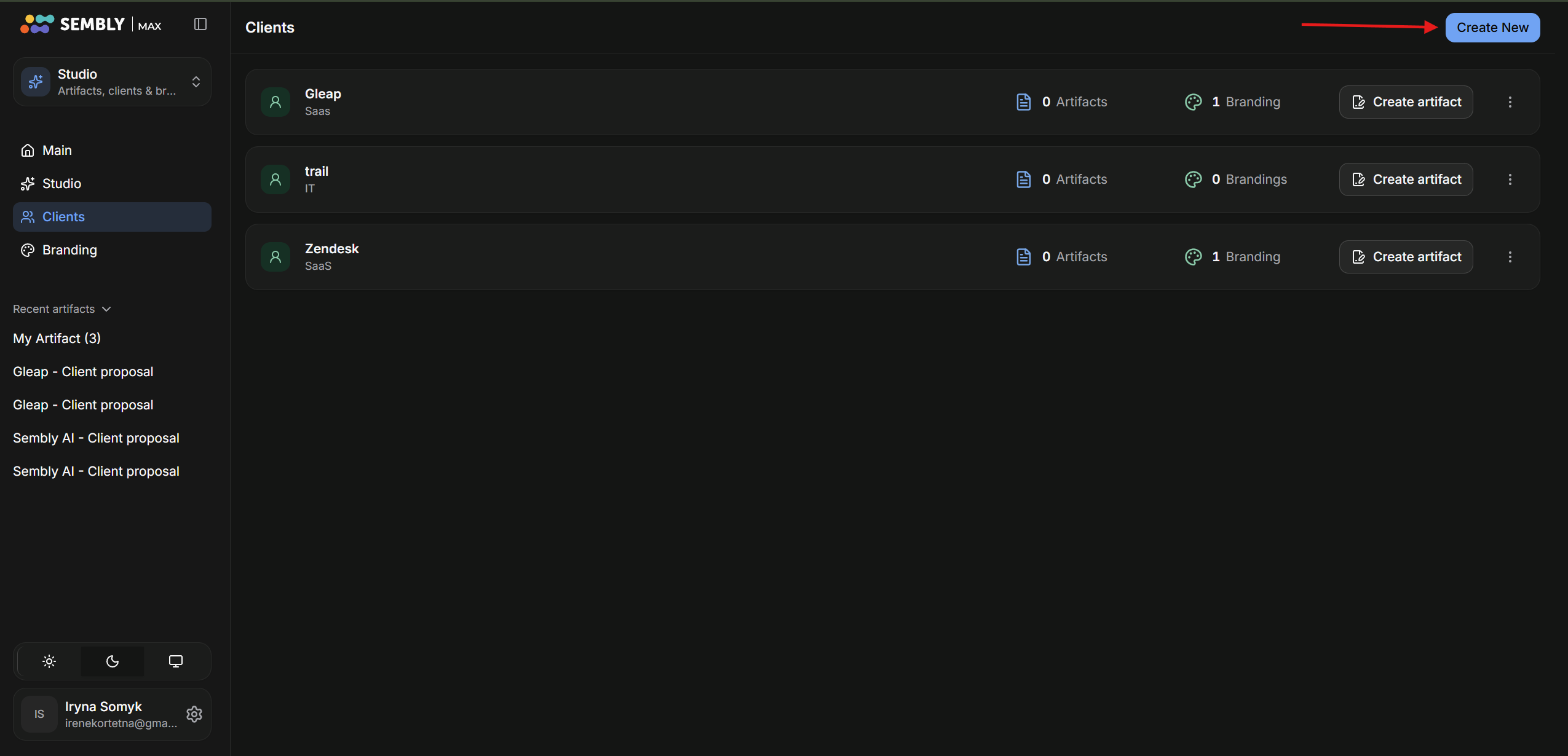
In the Clients Catalog, in the top right corner, press the Add Client button.
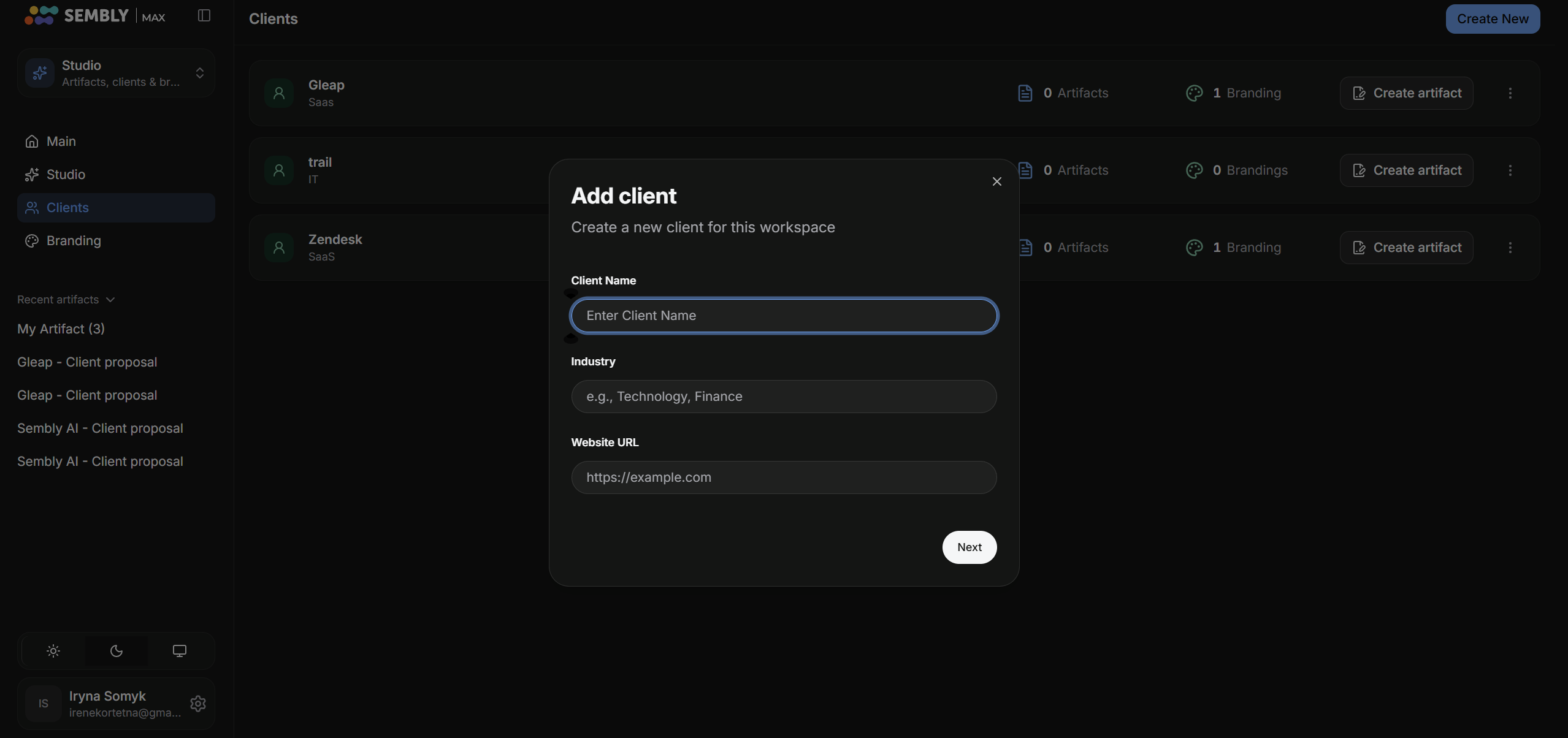
Fill in the Client’s Name, Industry, and Website URL, and press Next.
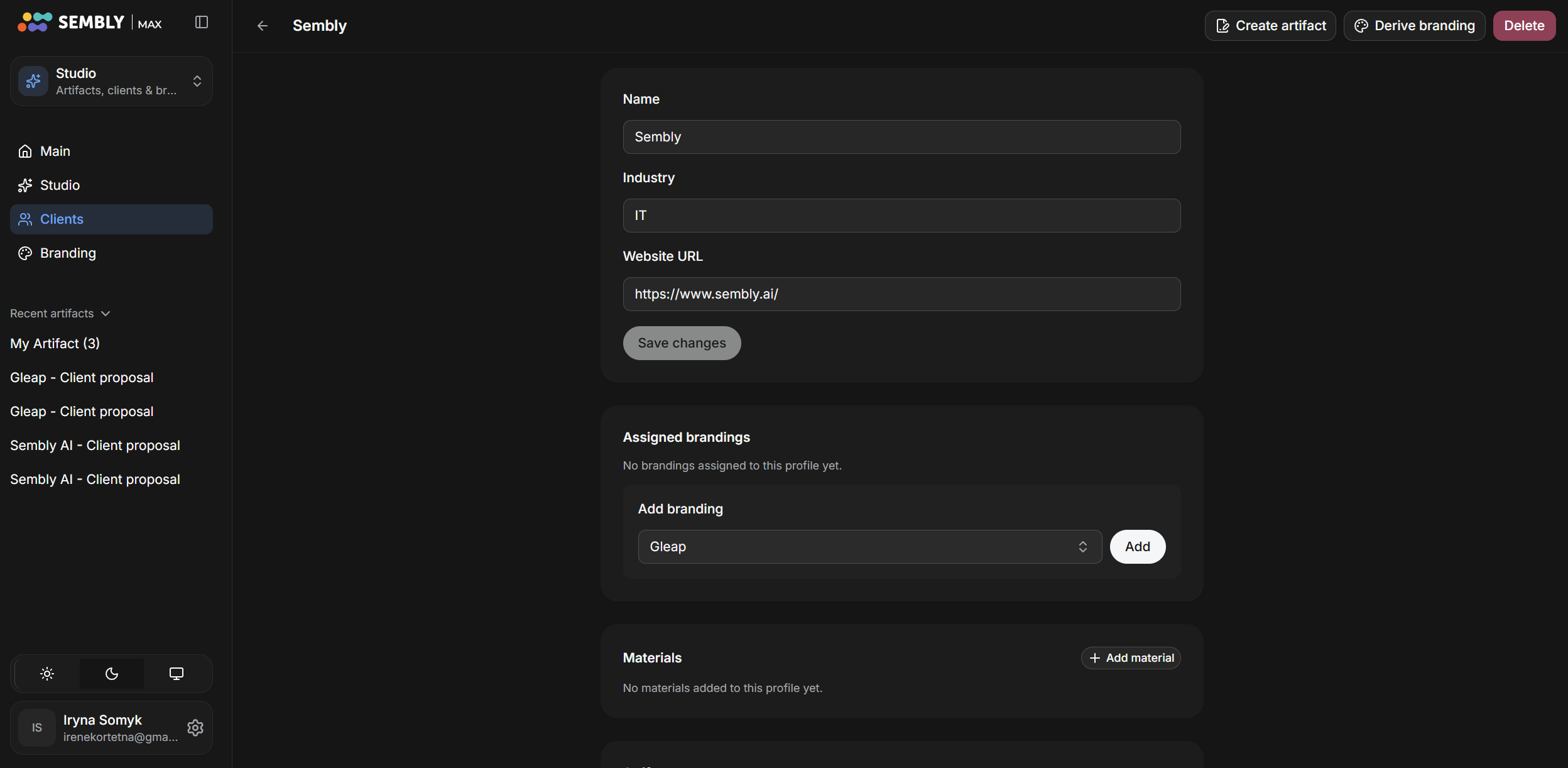
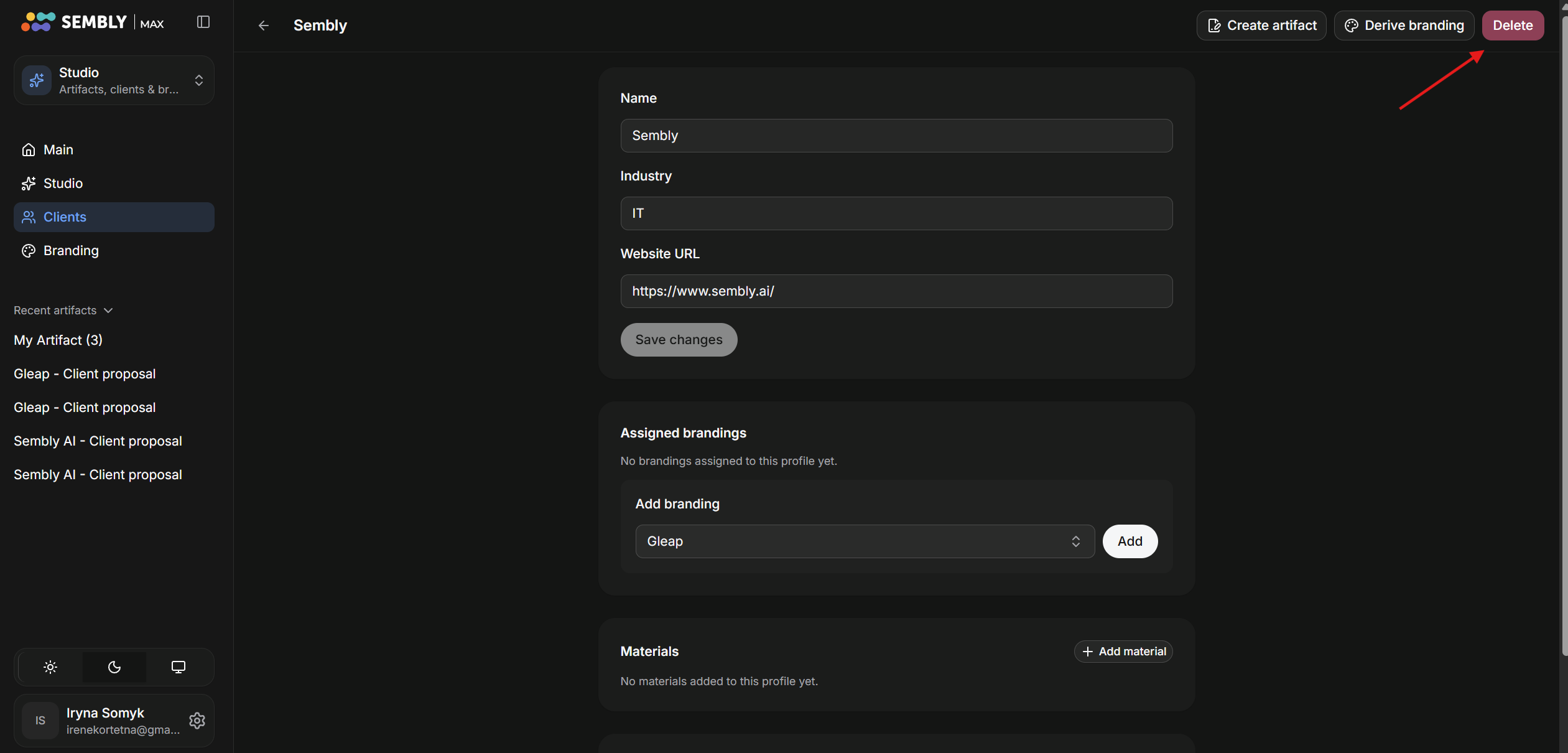
You will be moved to the Client’s page in the Catalog. You can edit the Client’s information, add or derive branding, add materials, and delete the Client completely.
Log in to your Sembly account in the US or EU.
In the left sidebar, press the Clients button.
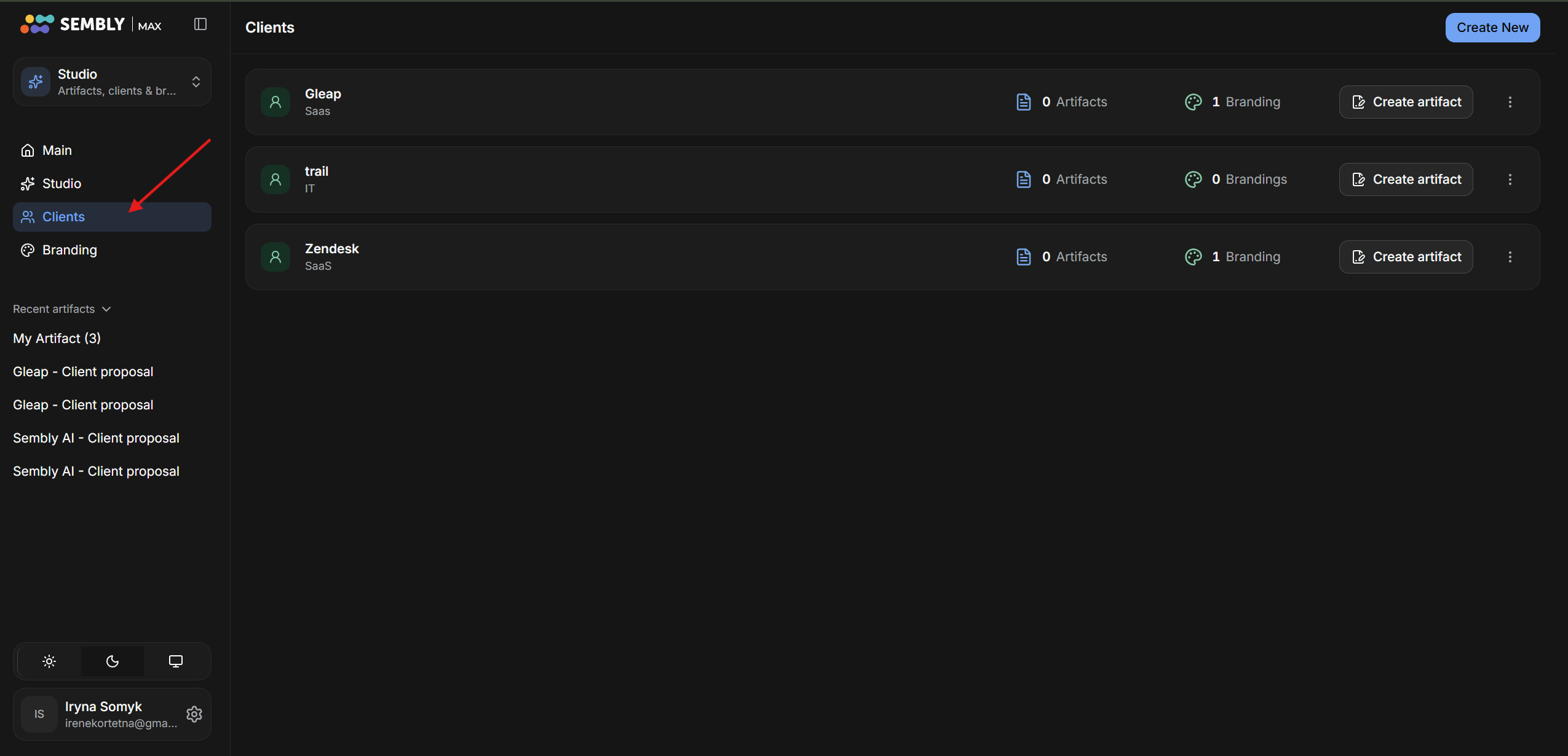
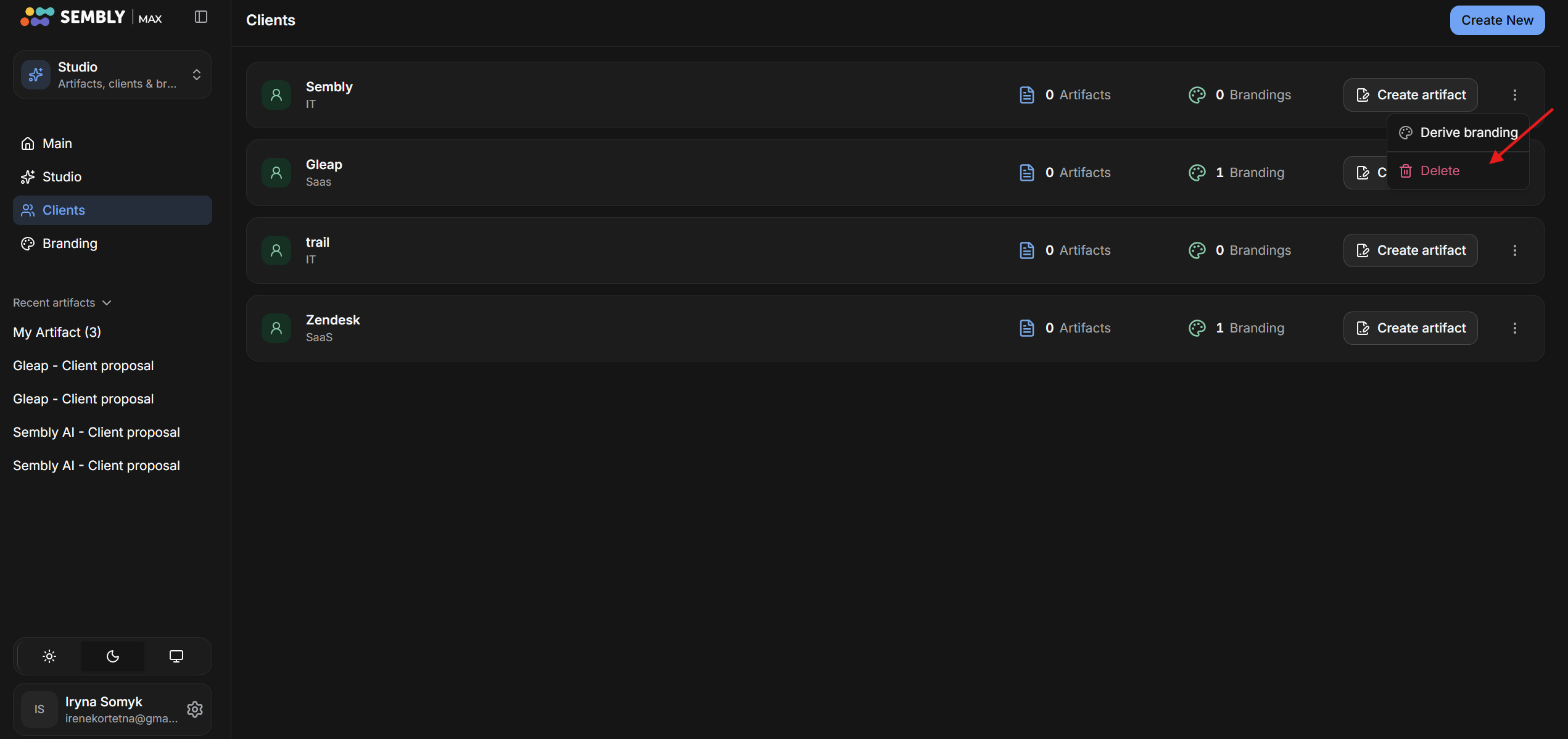
In the Clients Catalog, search for the client that you want to delete, then click on the 3 dots on the far right side of the client’s name.
You can also remove the client by clicking on their name, and on their page, click the red Delete button.
Click on the Delete button; you will see the pop-up warning that this deletion is permanent.
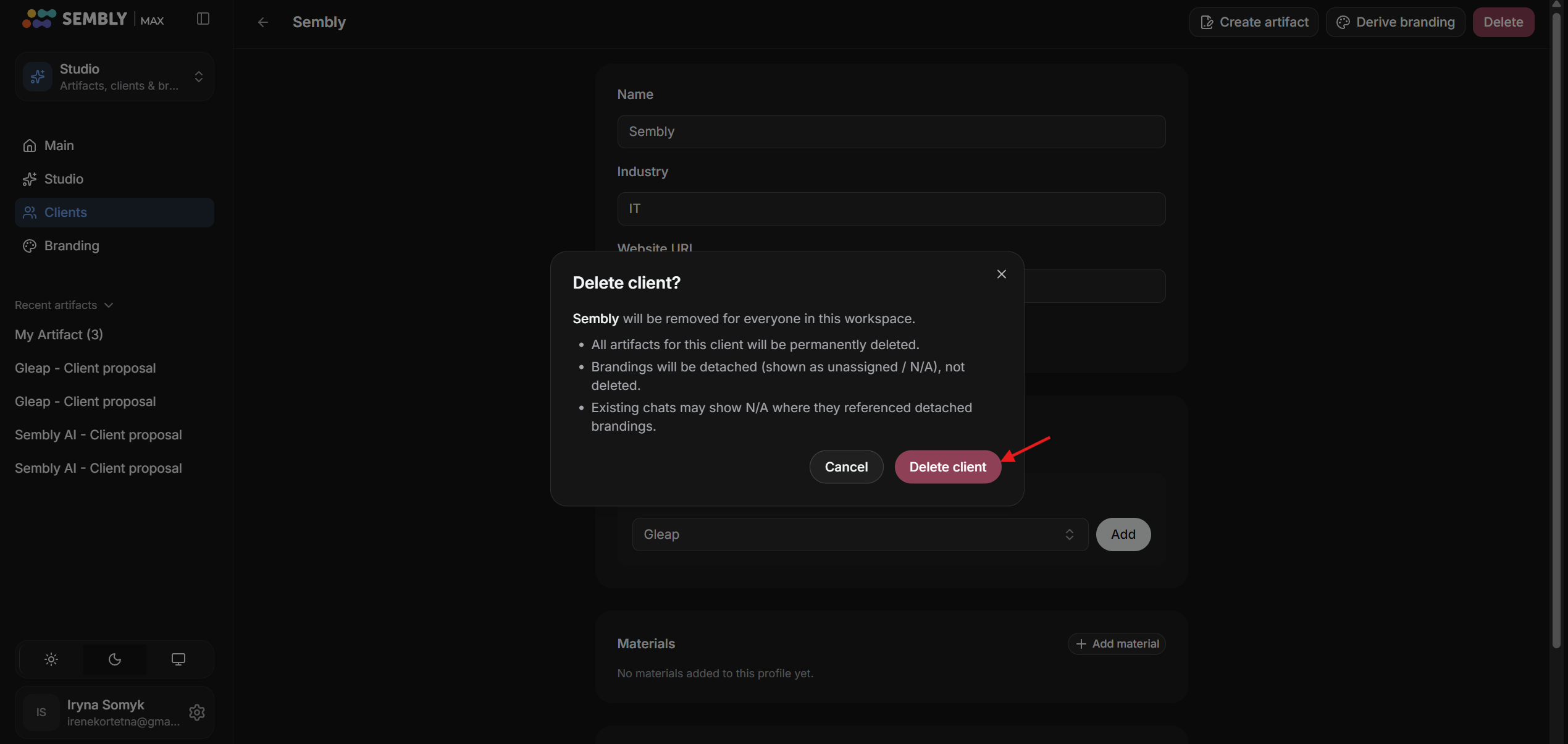
After reading the warning, press Delete to completely remove the client from the Catalog


