In the Workspace integrations section, you can manage shared connections that your team uses. These are the connections members draw on during artifact work, and that admins use to link company or client materials, so they are shared across the workspace rather than tied to one person.
To open this setting
Go to Settings → Studio section
In the left-hand menu under Workspace, choose Workspace integrations
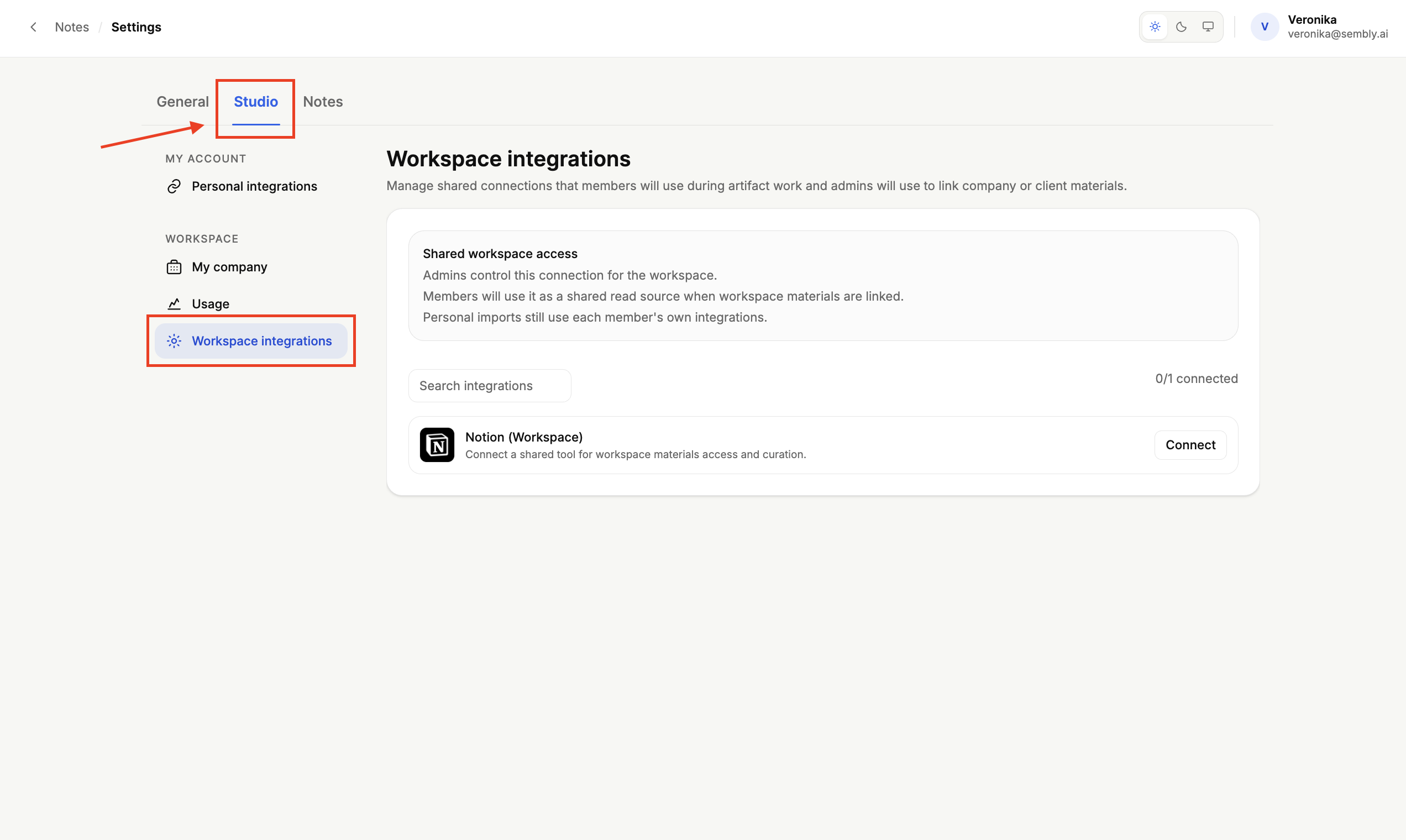
Workspace integrations are shared connections controlled at the workspace level. A few important points on how they work:
Admins control the connection for the workspace.
Members use it as a shared read source when workspace materials are linked.
Personal imports still use each member's own integrations, so this shared connection does not replace the personal integrations set up under your own account.
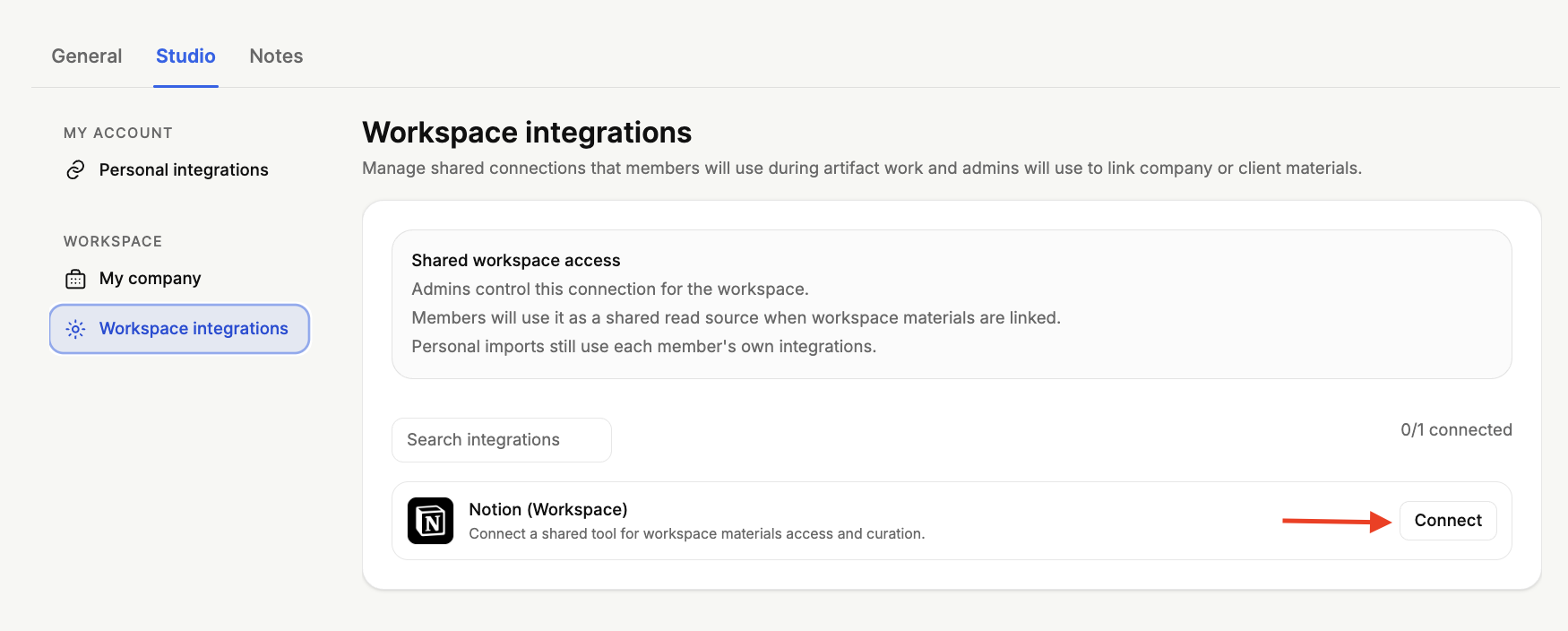
Using Workspace integrations, you can connect a shared tool for your workspace. To do so:
Locate the Notion integration in the list and click Connect next to it.
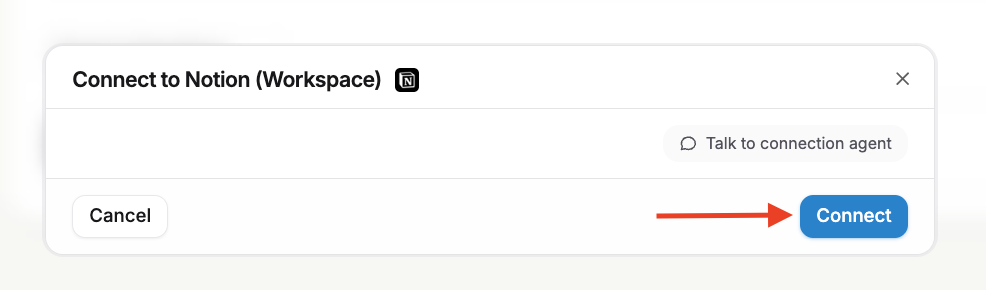
A pop-up window will appear that prompts you to connect the integration; click Connect.
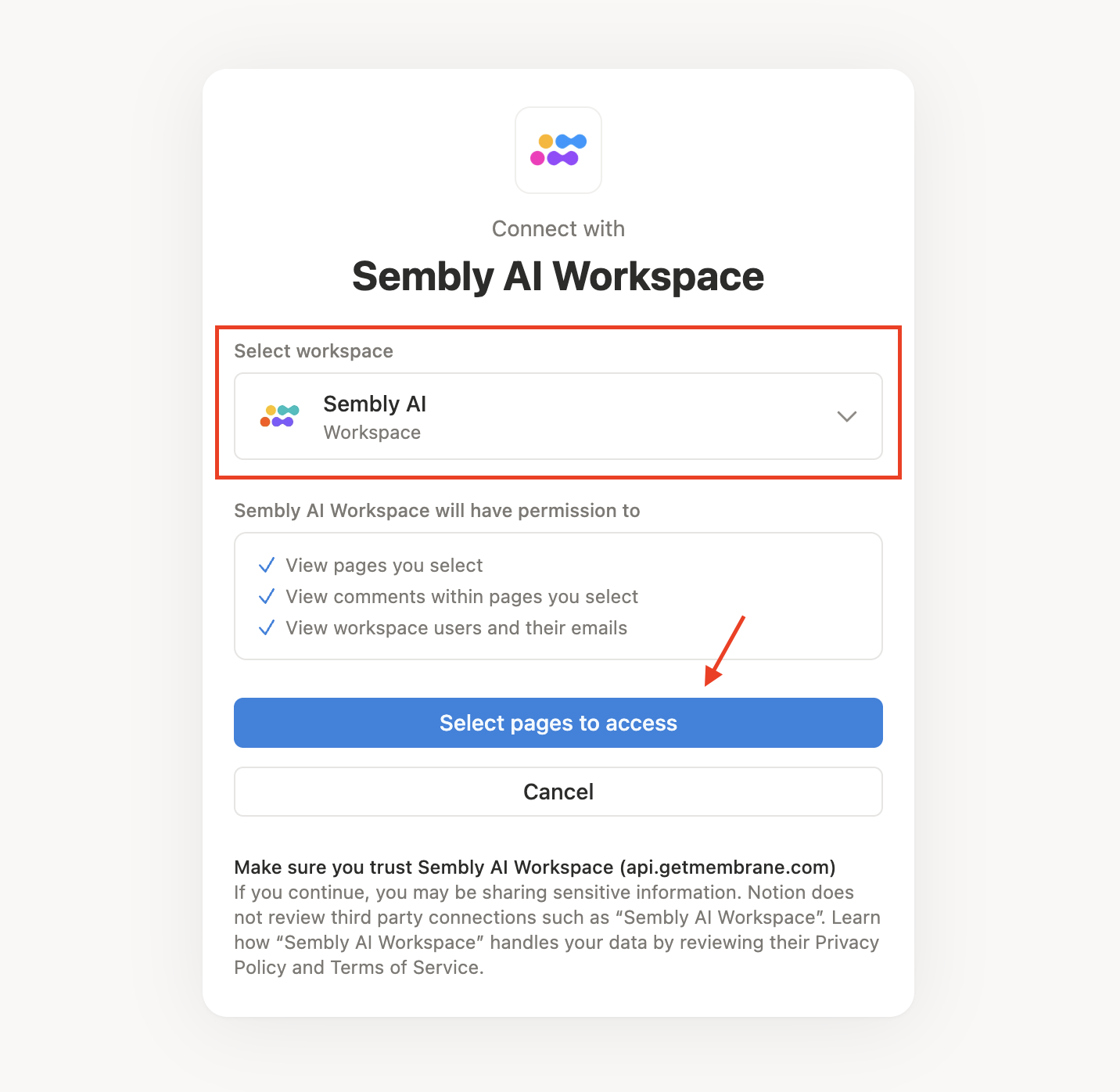
Choose the workspace you would like to connect to inside the integration and click Select pages to access to continue.
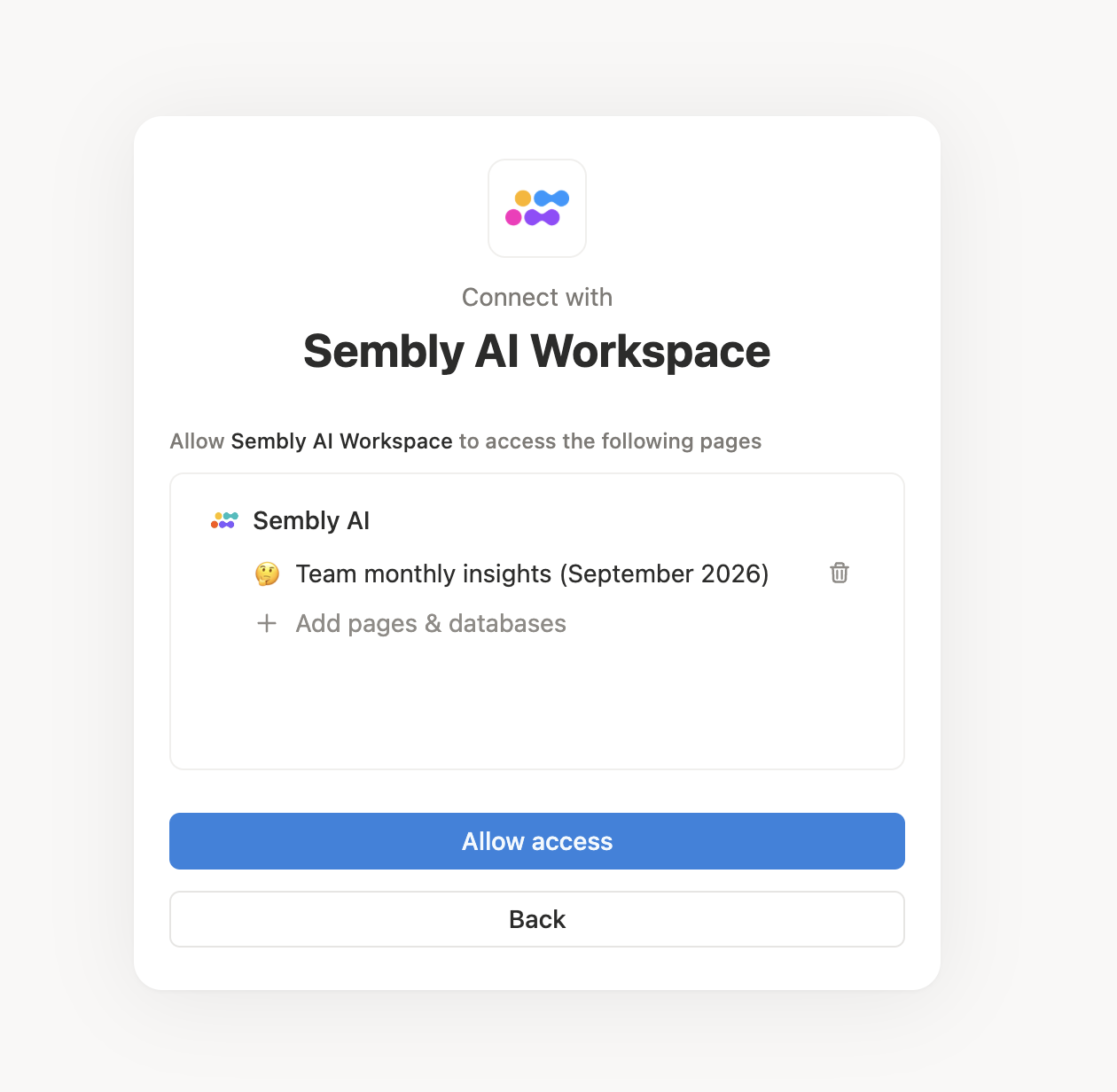
Allow access to connect with Sembly.
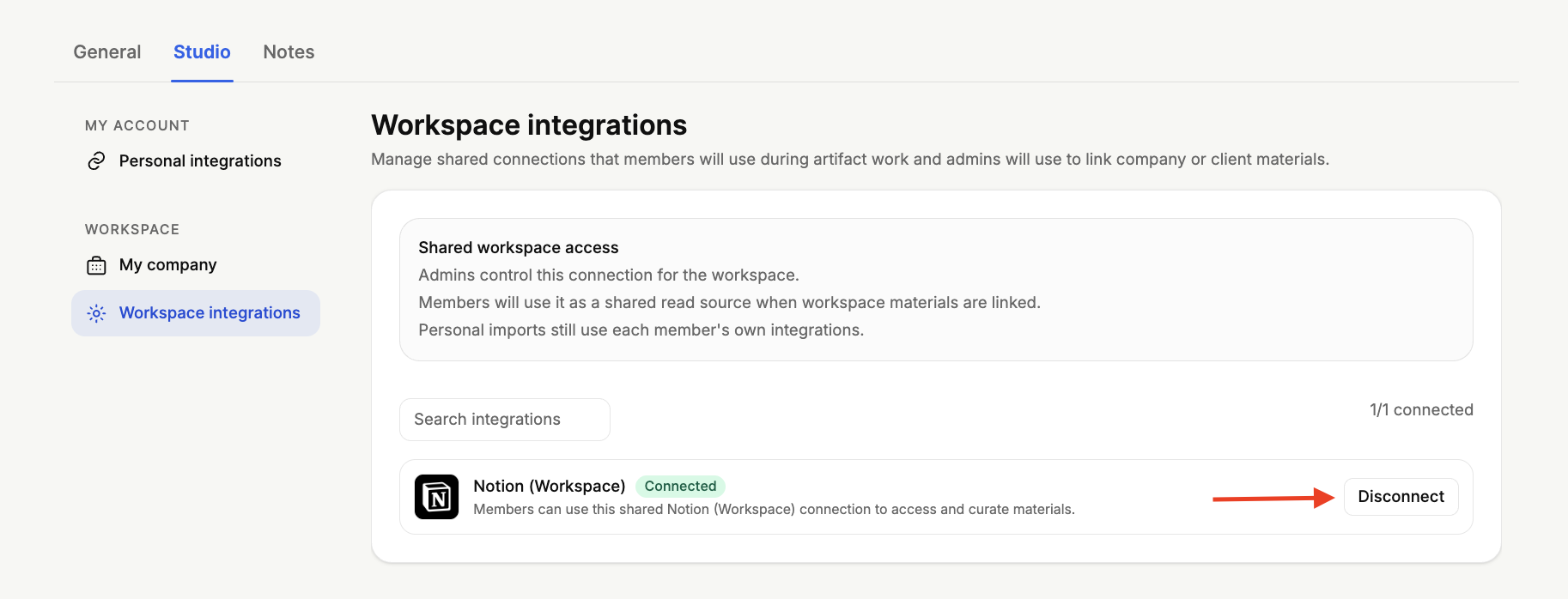
You've now connected the integration! Once connected, the tool becomes a shared read source that members can use when workspace materials are linked, and that admins can use to link company or client materials.
To disconnect the integration, press Disconnect next to it.
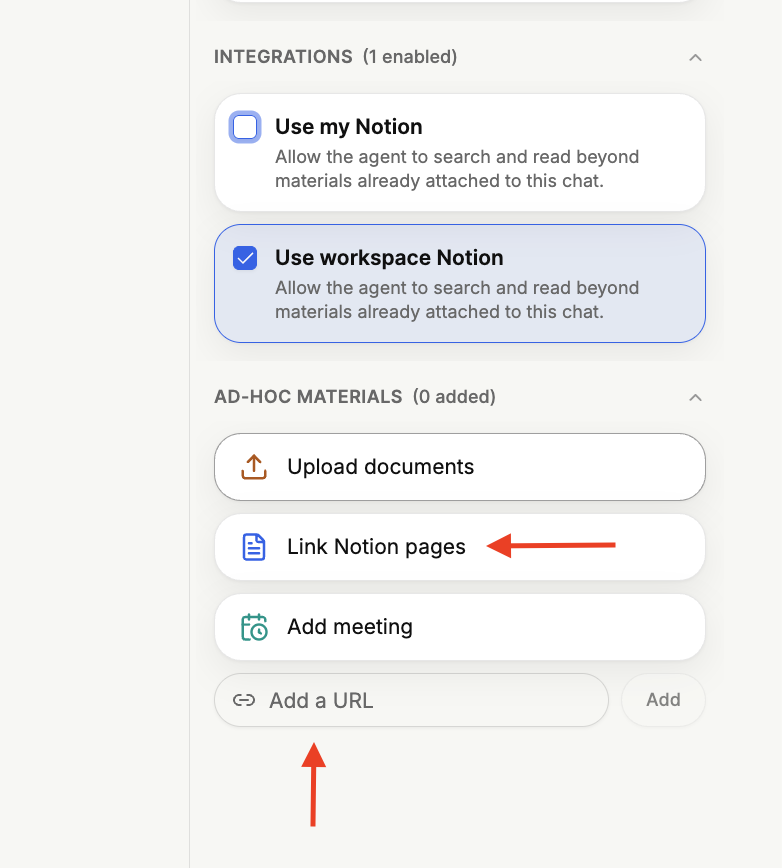
Once you have connected an integration such as Notion, it becomes available when creating an artifact in Advanced Mode. In the artifact chat, on the Sources panel on the right, under Integrations, you will see your connected integration (Use workspace Notion). Tick its checkbox to allow the agent to search and read your workspace Notion content when building the artifact.
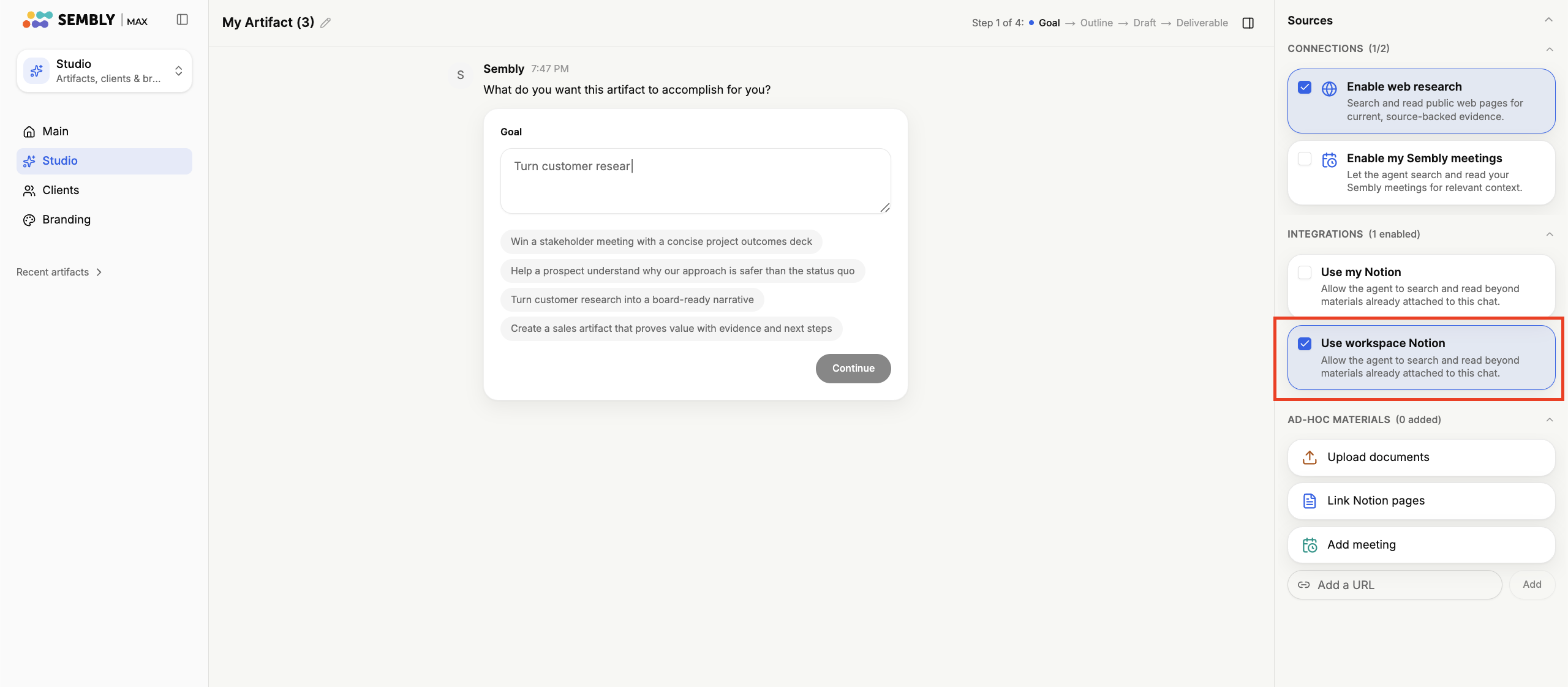
If you can't connect the Notion integration but still need to use your Notion pages to create a presentation, you can add them manually instead. In the Sources panel, under Ad-hoc materials, use the Link Notion pages option, or simply paste the page's link into the Add a URL field and click Add.