In the My company section, you can manage your workspace's company profile, including your company details, the branding assigned to your workspace, and the materials you would like to make available for creating artifacts and presentations.
To open this section:
Log in to your account
In the bottom-left corner, click the gear icon next to your name
In Studio → Workspace, choose My company
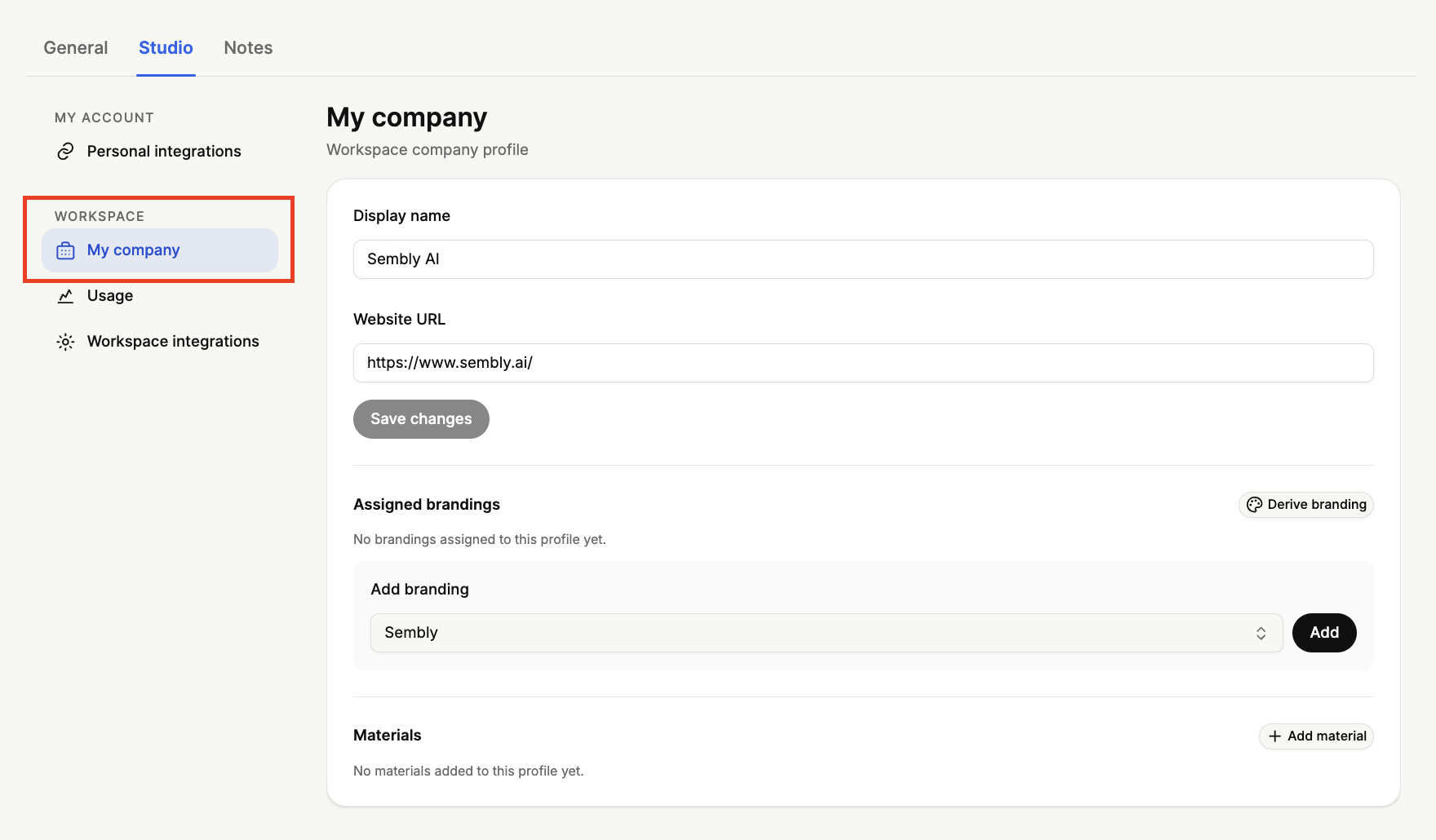
You can set:
Display name, your company's name as it appears in your workspace. Click into the field to edit it.
Website URL, your company's website address. Click into the field to add or update it.
Once you have made your changes, click Save changes to apply them.
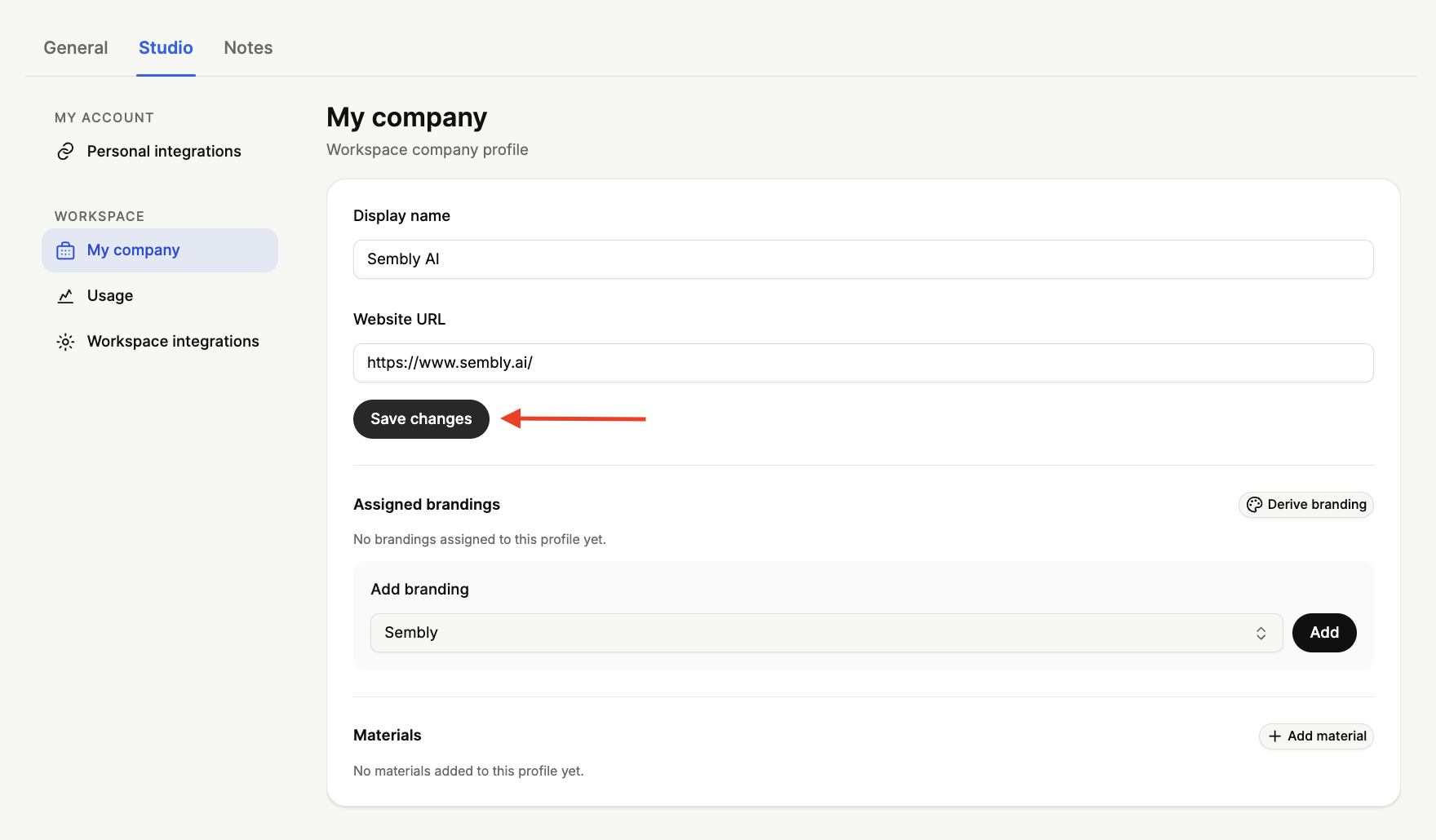
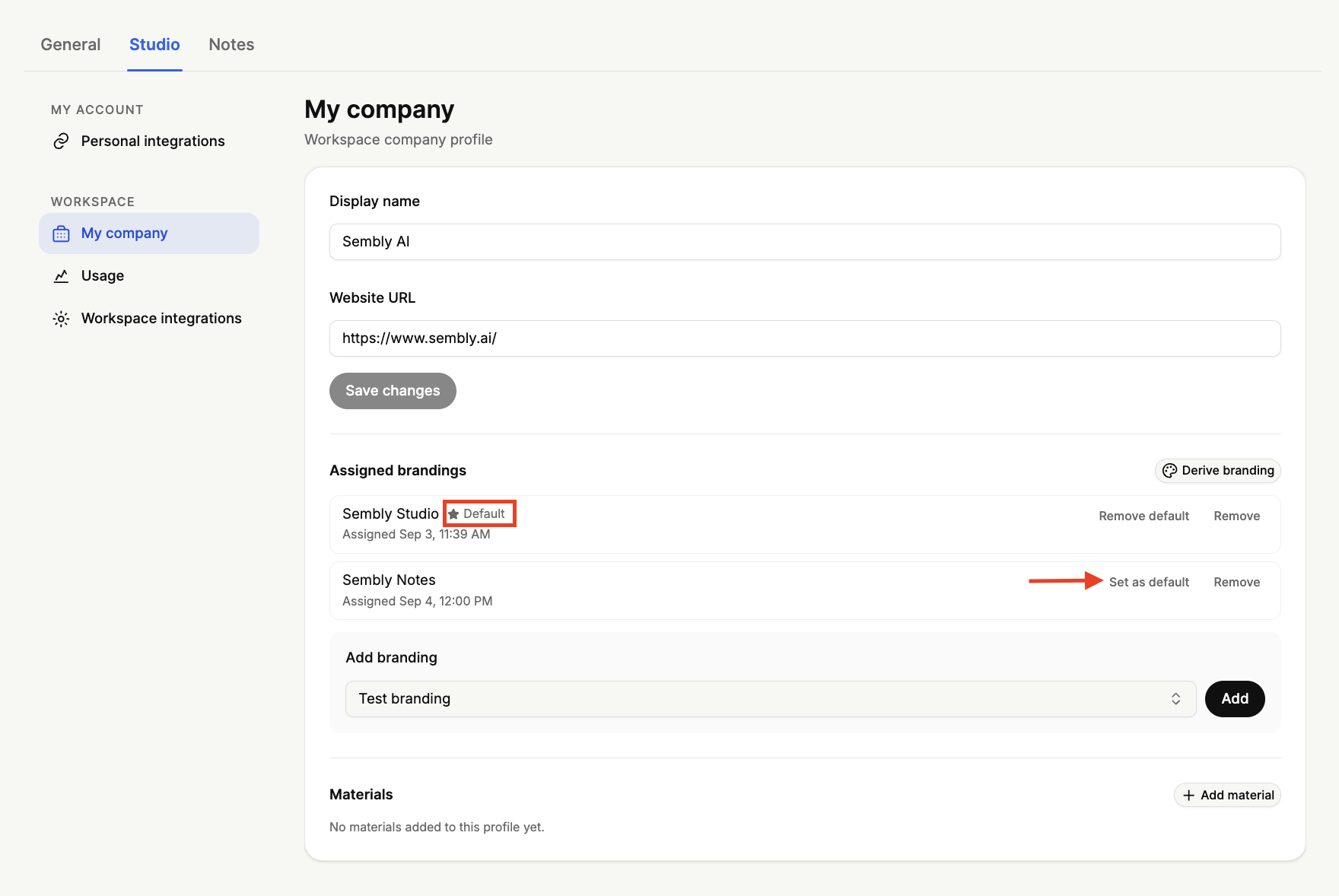
Under Assigned brandings, you can see the brandings currently assigned to your workspace, along with when each was added. Here you can manage which brandings are available and which one is used by default.
The branding marked Default is the one applied by default. To make a different branding the default, click Set as default next to it.
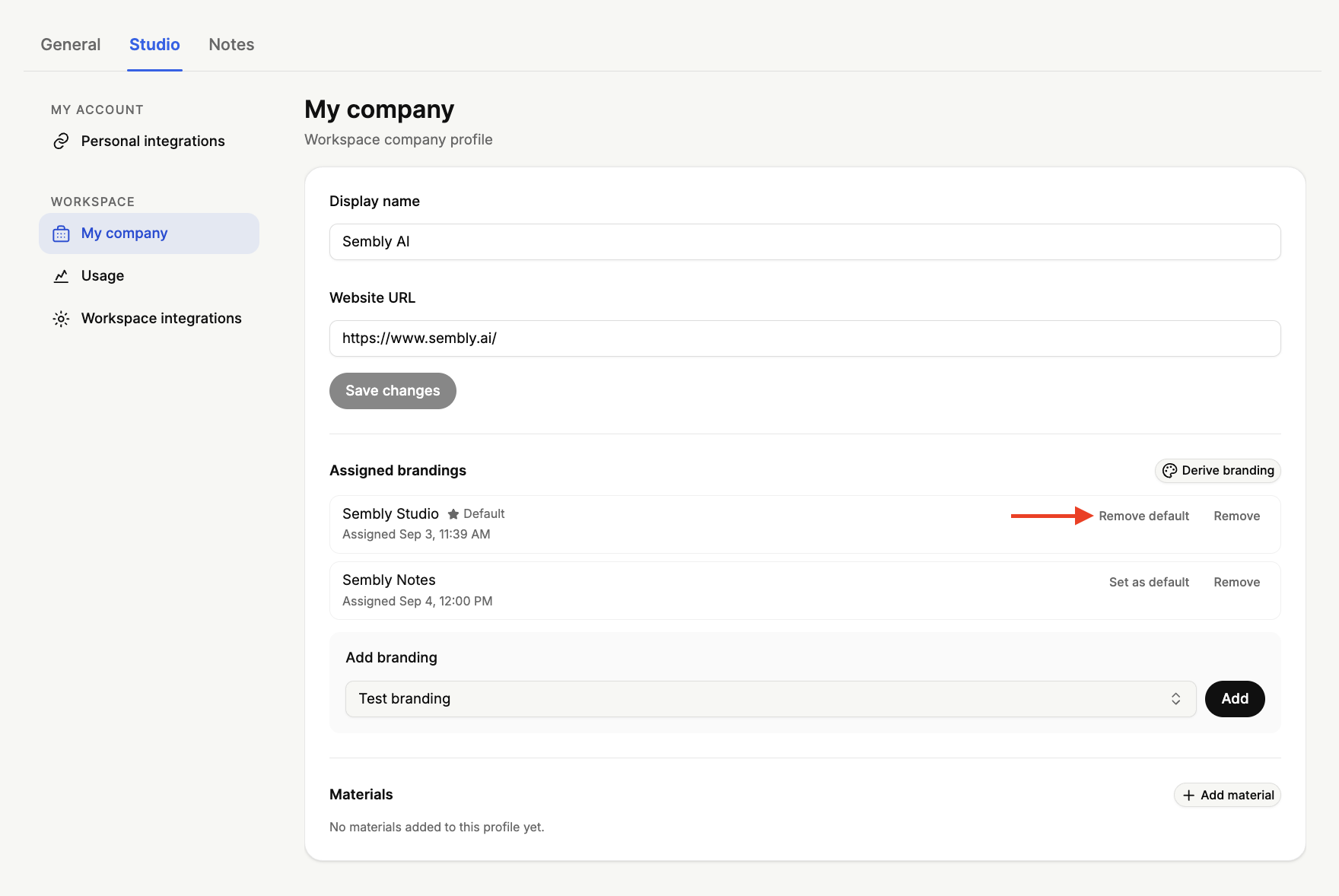
To remove the default status from the current one, click Remove default.
To remove a branding from your workspace, click Remove next to it.
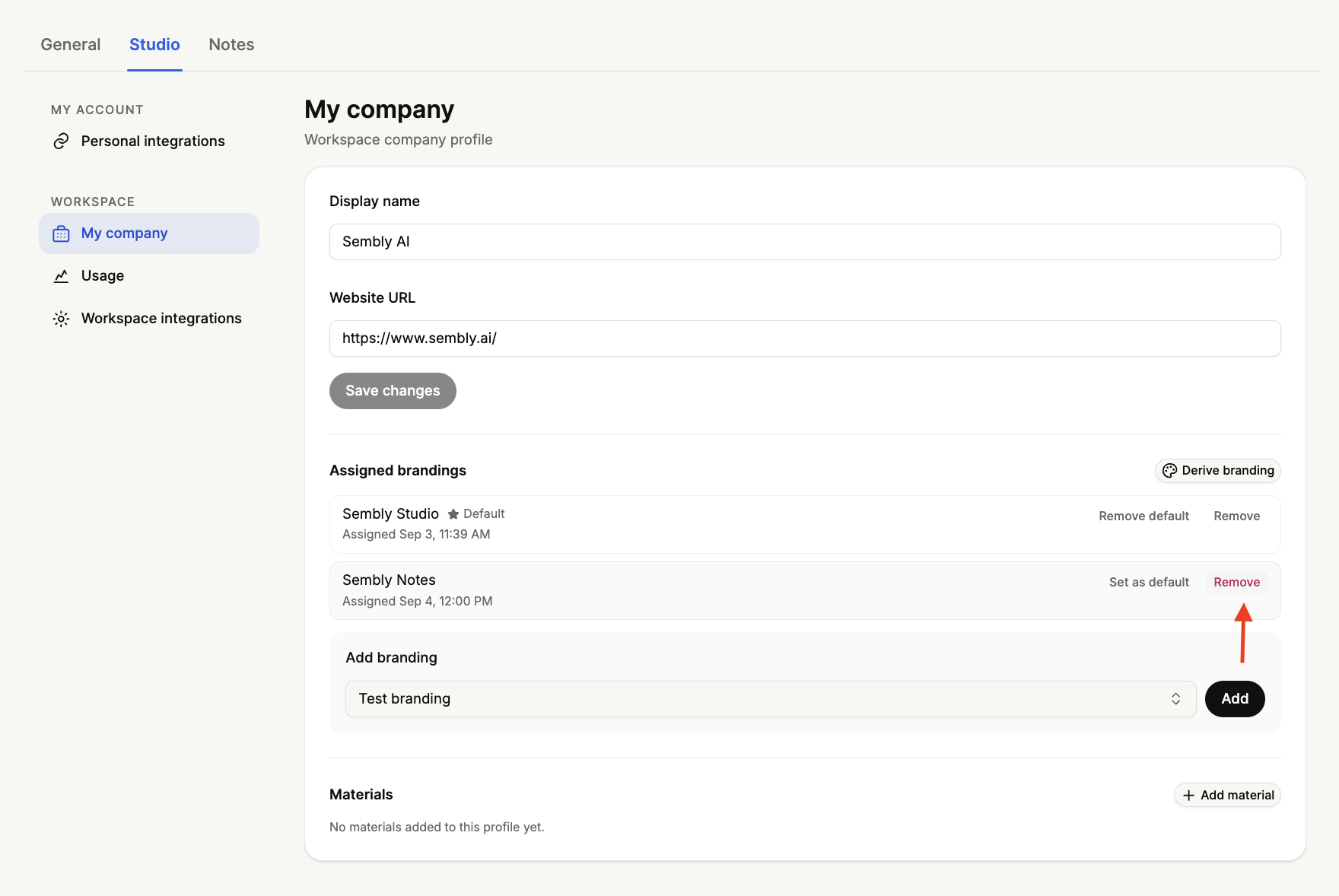
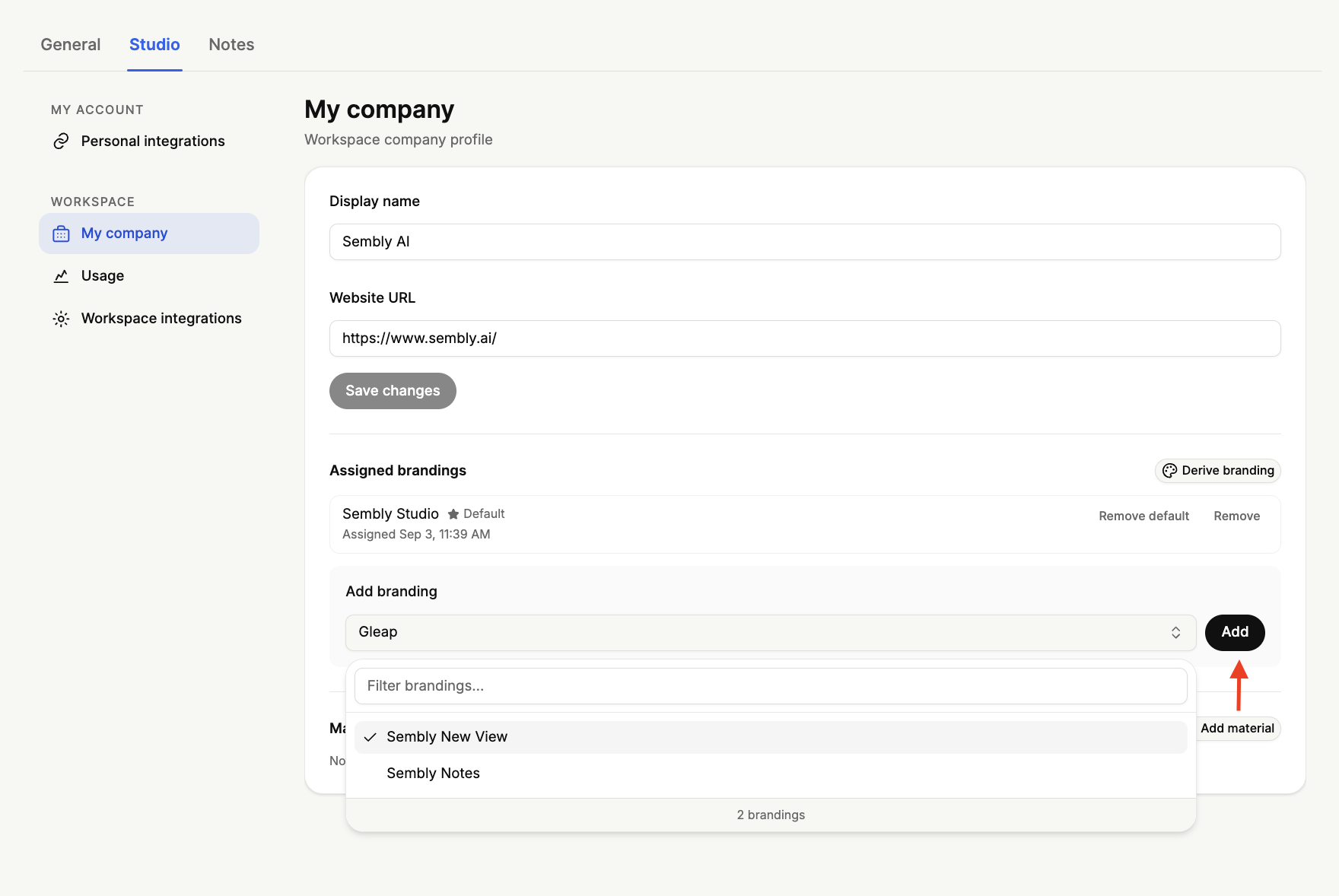
In the Add branding section, select the branding you would like from the dropdown, then click Add. It will then appear in your list of assigned brandings.
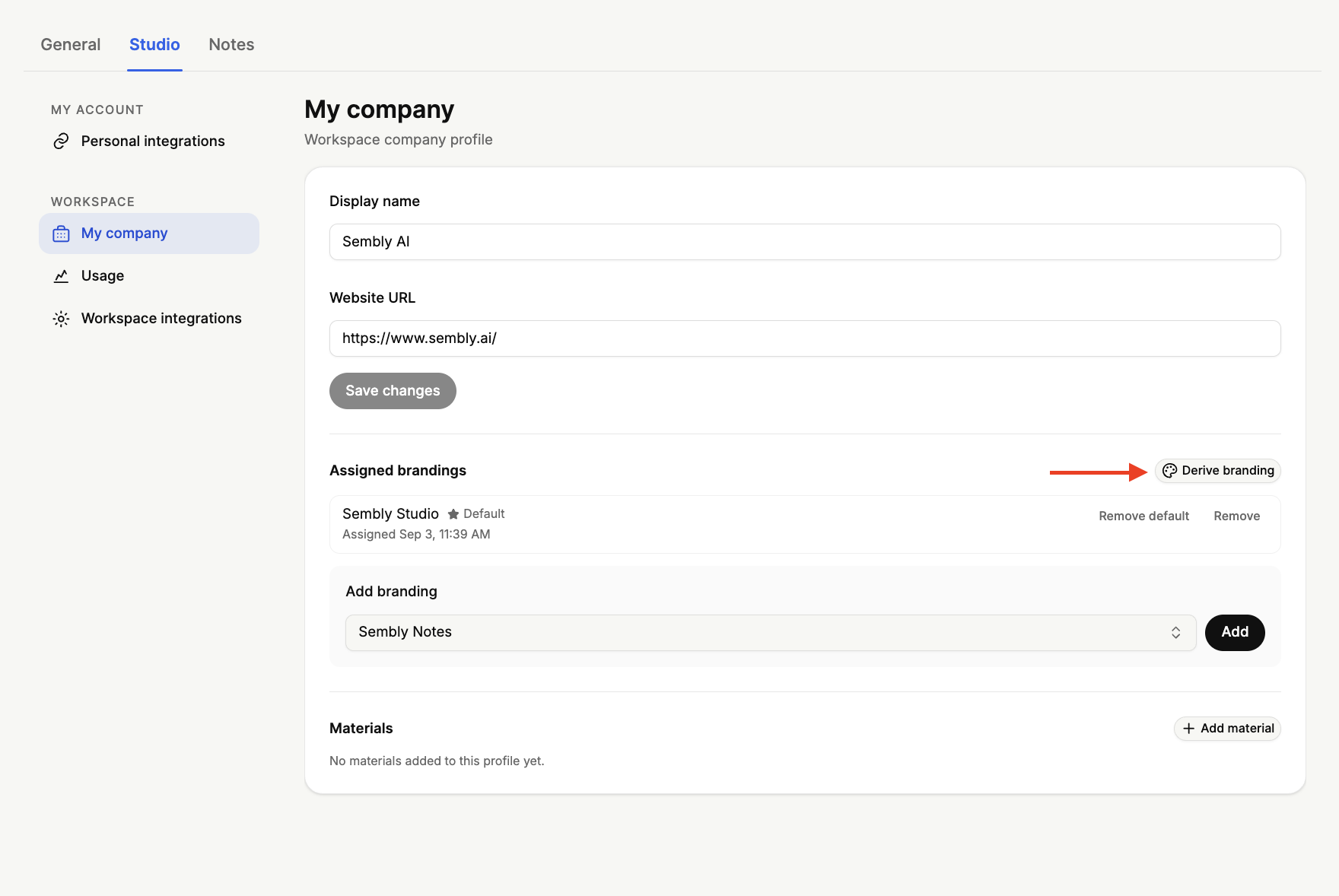
You can also use the Derive branding option (top right of this section) to generate a branding automatically from your existing materials. Instead of setting up your colors, fonts, and logos by hand, you can paste a homepage URL, upload reference files, or both, and Sembly will extract the logos, colors, fonts, and a brand specification for you. To do so:
Press Derive branding
Give this branding profile a name so you can identify it later. A default name is filled in automatically (for example, "Branding (1)"), and you can change it to anything that makes sense for you, such as your company or client name.
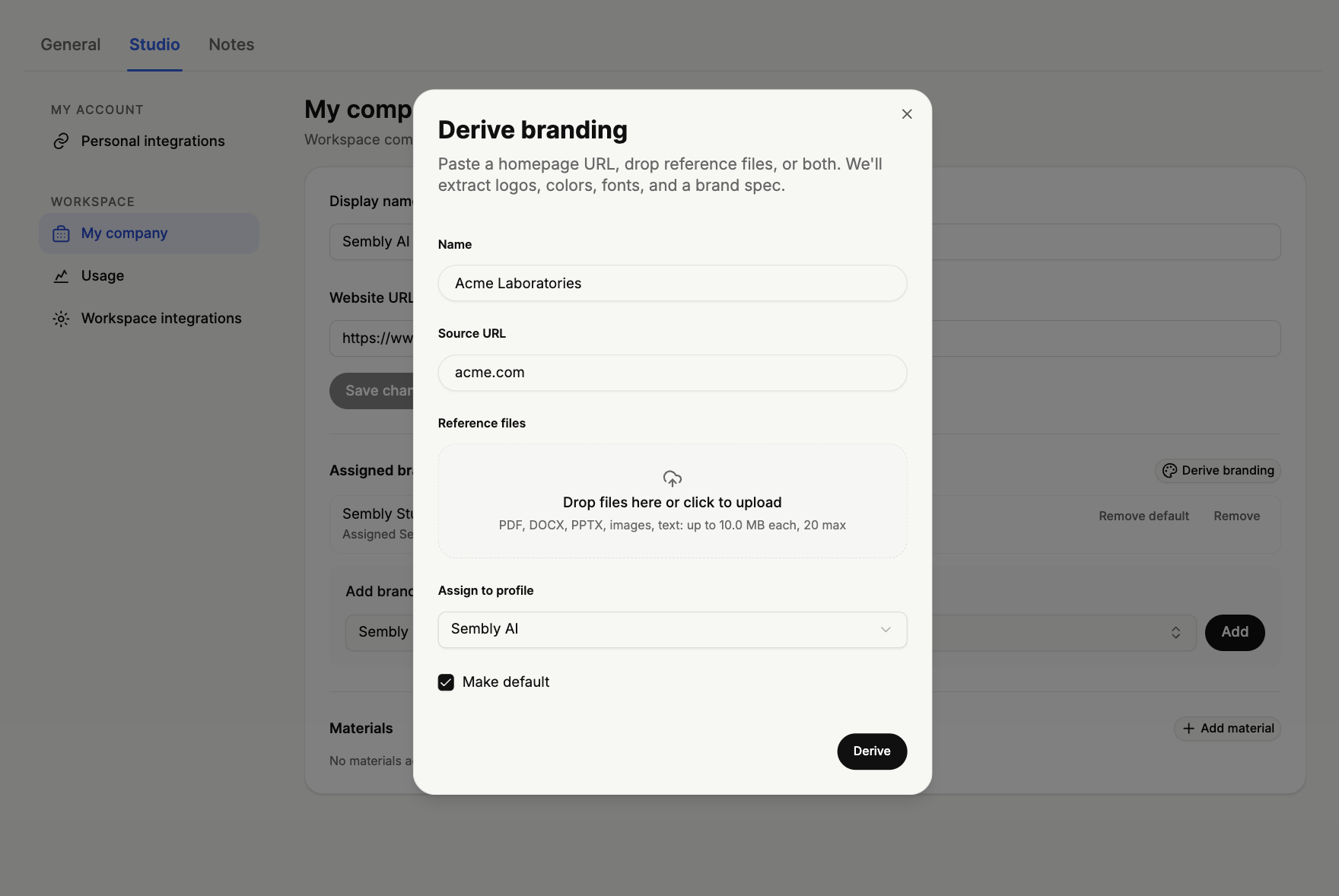
3. Paste the homepage URL of the website you want Sembly to pull branding from (for example, your company or client's site). Sembly will scan the page and extract brand elements such as the logo, colors, and fonts.
*This field is optional, if you prefer to provide your own files instead of a website, you can leave it blank and use the Reference files section below.
In Reference files you can upload your own brand materials for Sembly to draw from. Drop files directly into the box, or click to upload them
Choose which profile this derived branding should be applied to, using the dropdown. This links the extracted branding to the profile you select (for example, "Sembly AI")
Make default. Tick this box if you would like this branding to become the default for the selected profile. When set as default, this branding will be used automatically going forward
Click Derive. Sembly will then extract the logos, colors, fonts, and brand specification and create your branding profile
Here you can see the remaining credits and spend across your workspace.
To open it, go to Settings → Studio, and under Workspace, select Usage.
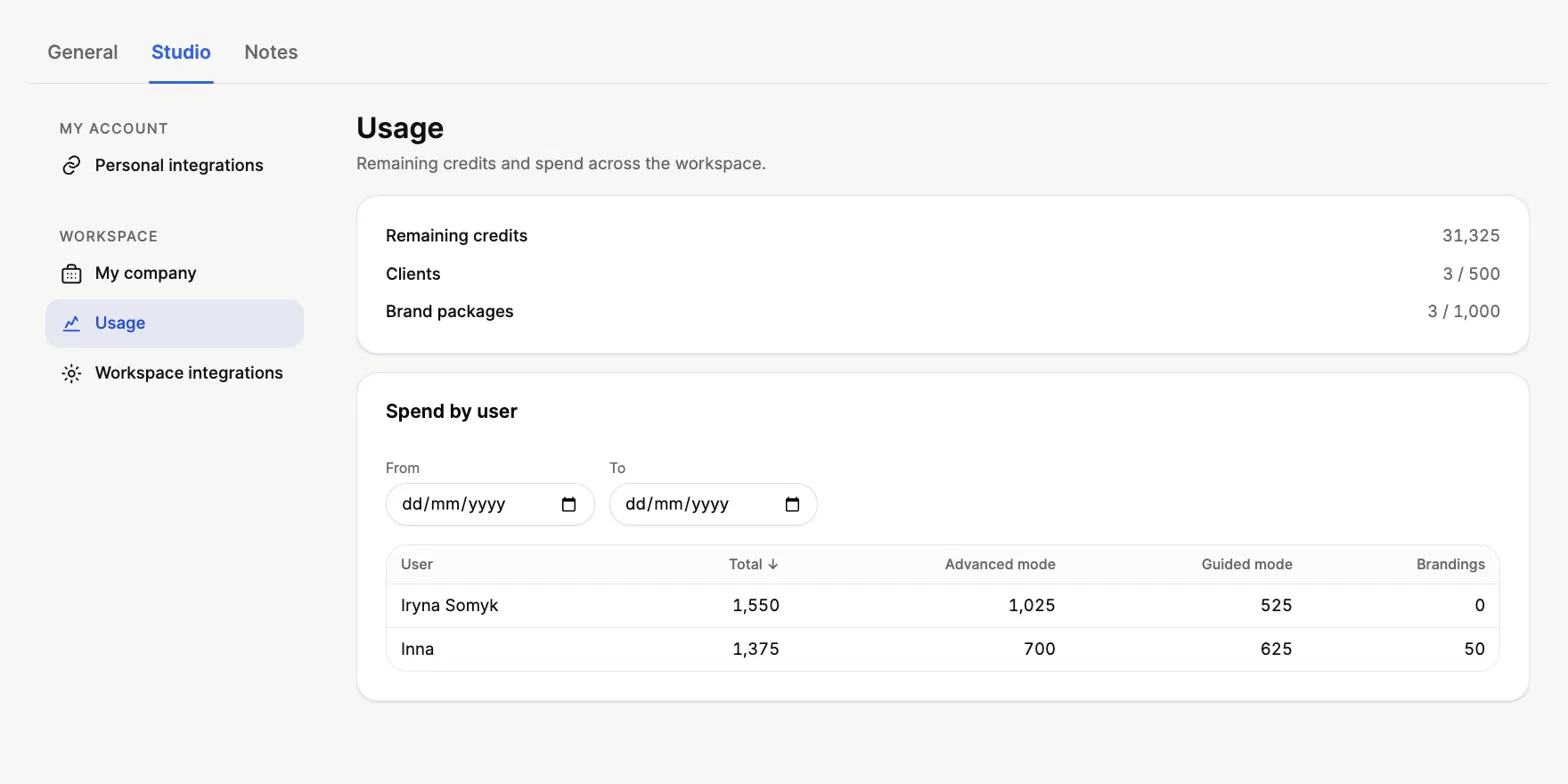
At the top, you will see your workspace totals:
The number of credits left for your workspace.
How many client slots you have used out of your limit (for example, 3 / 500).
How many brand packages you have used out of your limit (for example, 3 / 1,000).
Below that, the Spend by user section shows how credits have been used by each member of your workspace.