LEGACY PLAN: PROFESSIONAL | TEAM | TEAM PLUS
You can control your assistant's actions by customizing messages sent to a meeting chat. If the chat is on for guests, Sembly will send greetings and warnings by default.

Turning off the Hello Prompt will disable the greeting message that Sembly agent sends in chat at the beginning of the meeting. Also, you can change the message to a custom option.

To turn off the Hello Prompt, follow the steps below:
Click the gear icon on the bottom-left next to your avatar, select Settings → Notes → Agent in the Workspace section in the menu on the left side.
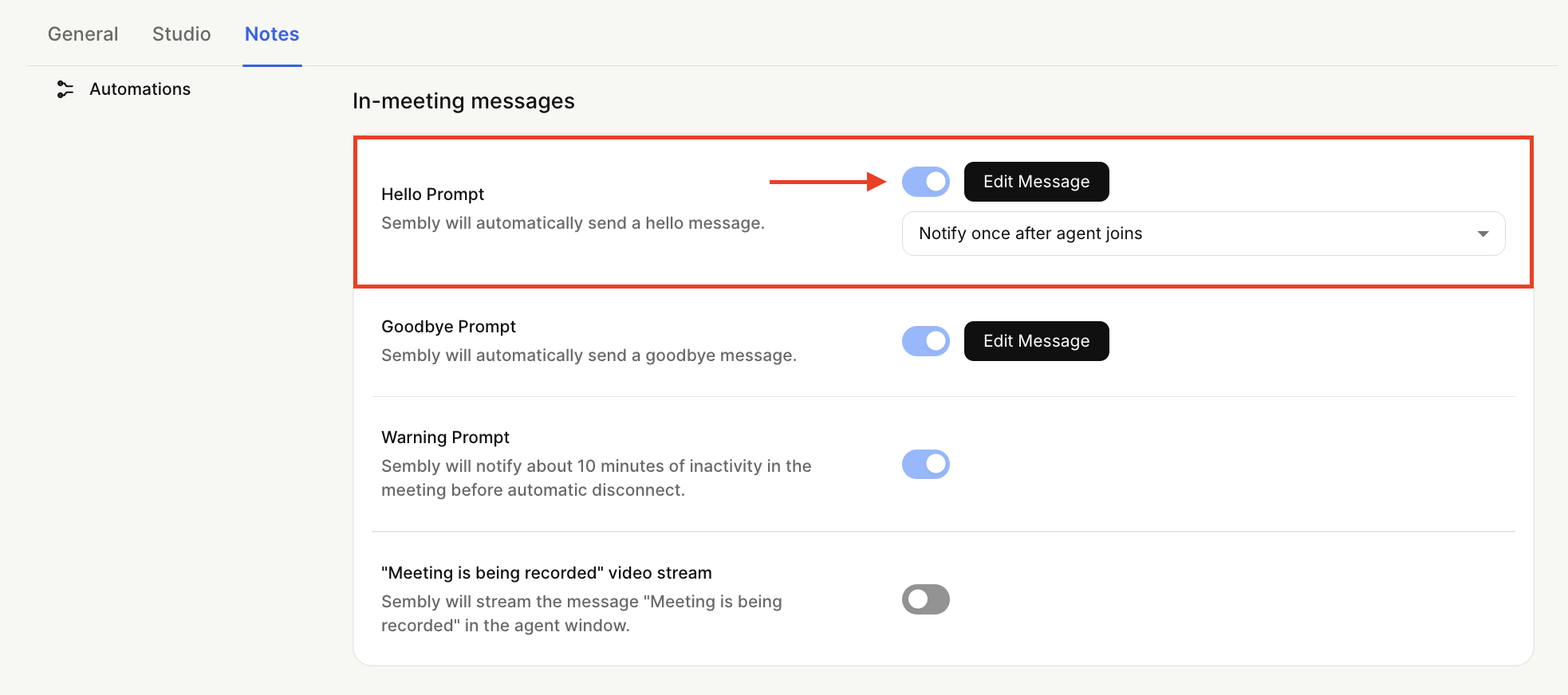
In the In-meeting messages block, use the toggle next to Hello Prompt to switch the setting on or off.
To change the message sent in the meeting chat,
Click the gear icon on the bottom-left next to your avatar, select Settings → Notes → Agent in the Workspace section in the menu on the left side.
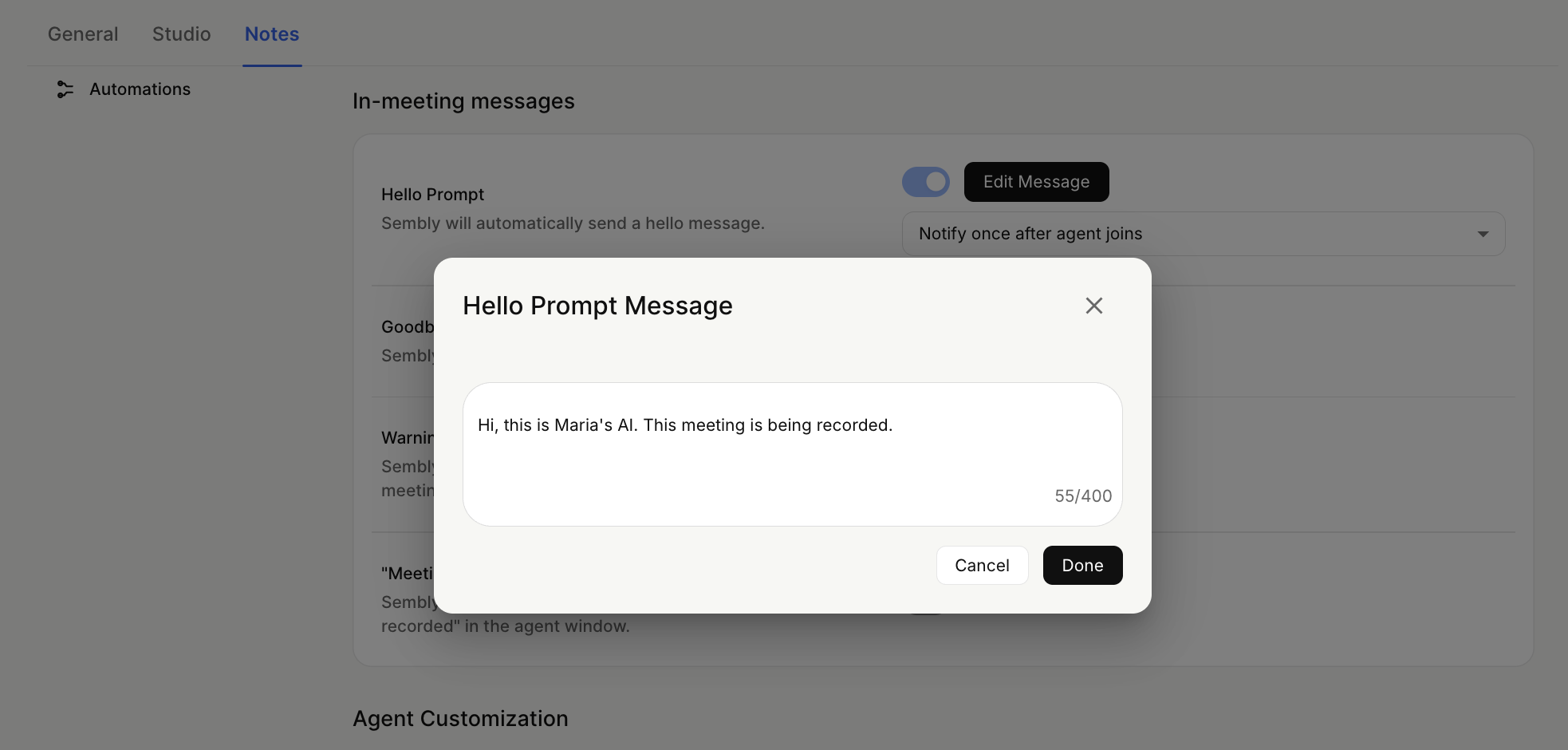
In the In-meeting messages block, next to Hello Prompt, click Edit Message.
Type in the message in a pop-up and hit Done.
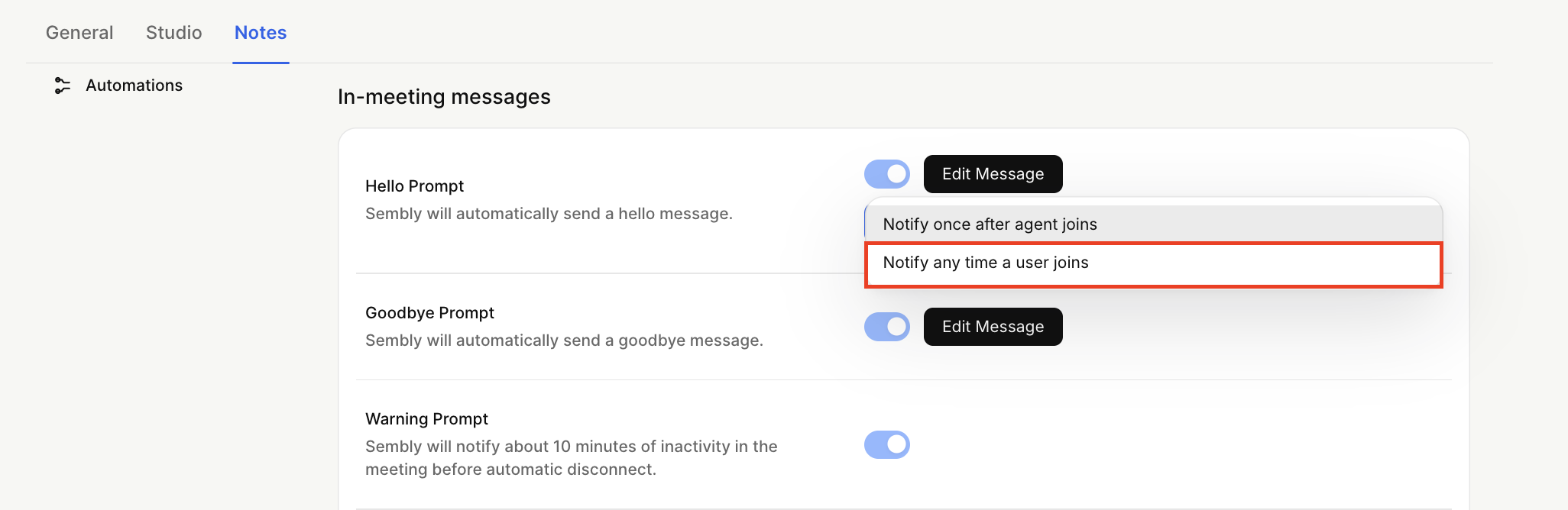
To activate the Hello Prompt after each attendee joins the call, click the setting in the Hello Prompt section and select Notify any time a user joins.
When the agent leaves the call, it is notified in the meeting chat so that attendees know it is no longer recorded. If you would like to disable this message, follow the steps below.
Click the gear icon on the bottom-left next to your avatar, select Settings → Notes → Agent in the Workspace section in the menu on the left side.
In the In-meeting messages block, use the toggle next to Goodbye Prompt to switch the setting on or off.
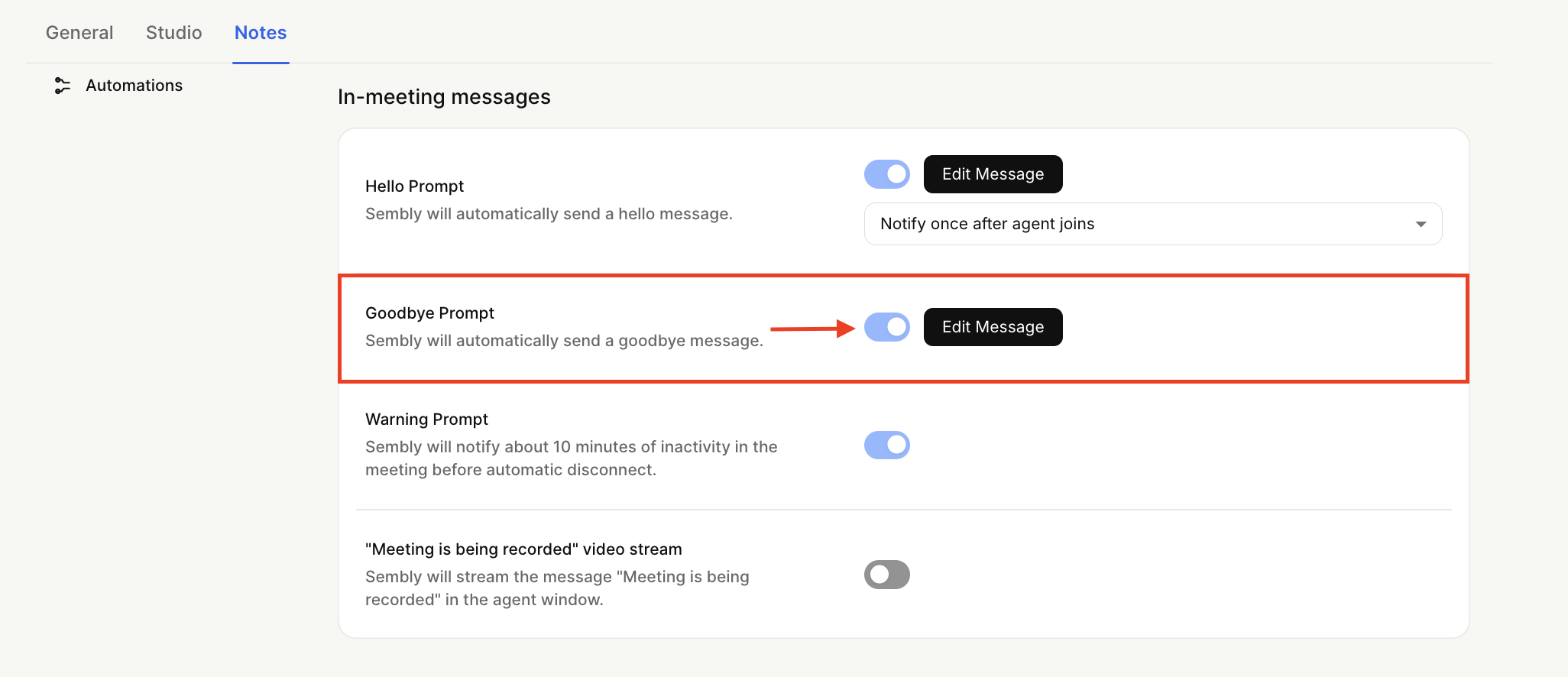
To change the goodbye message,
Click the gear icon on the bottom-left next to your avatar, select Settings → Notes → Agent in the Workspace section in the menu on the left side.
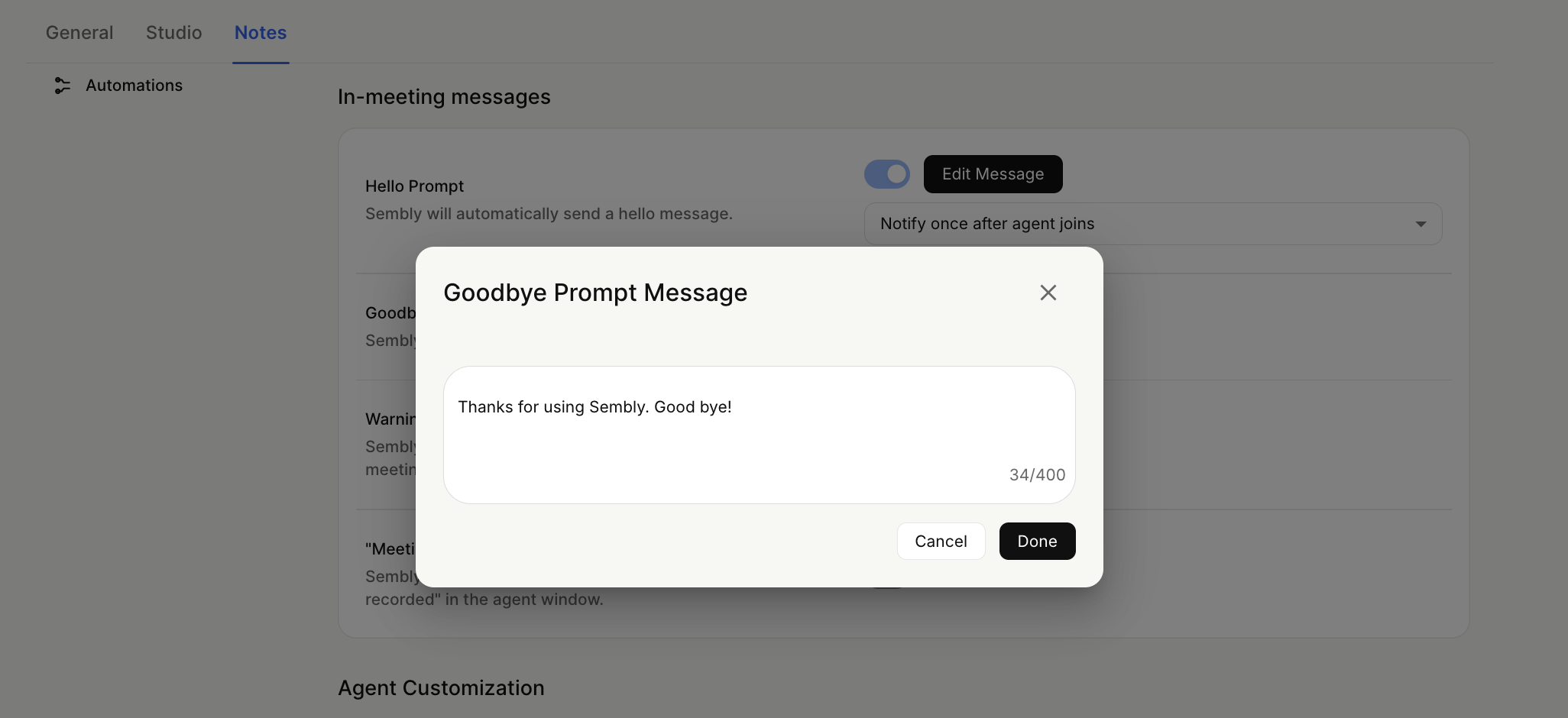
In the In-meeting messages block, next to Goodbye Prompt, click Edit Message.
Type the message in a pop-up and hit Done.
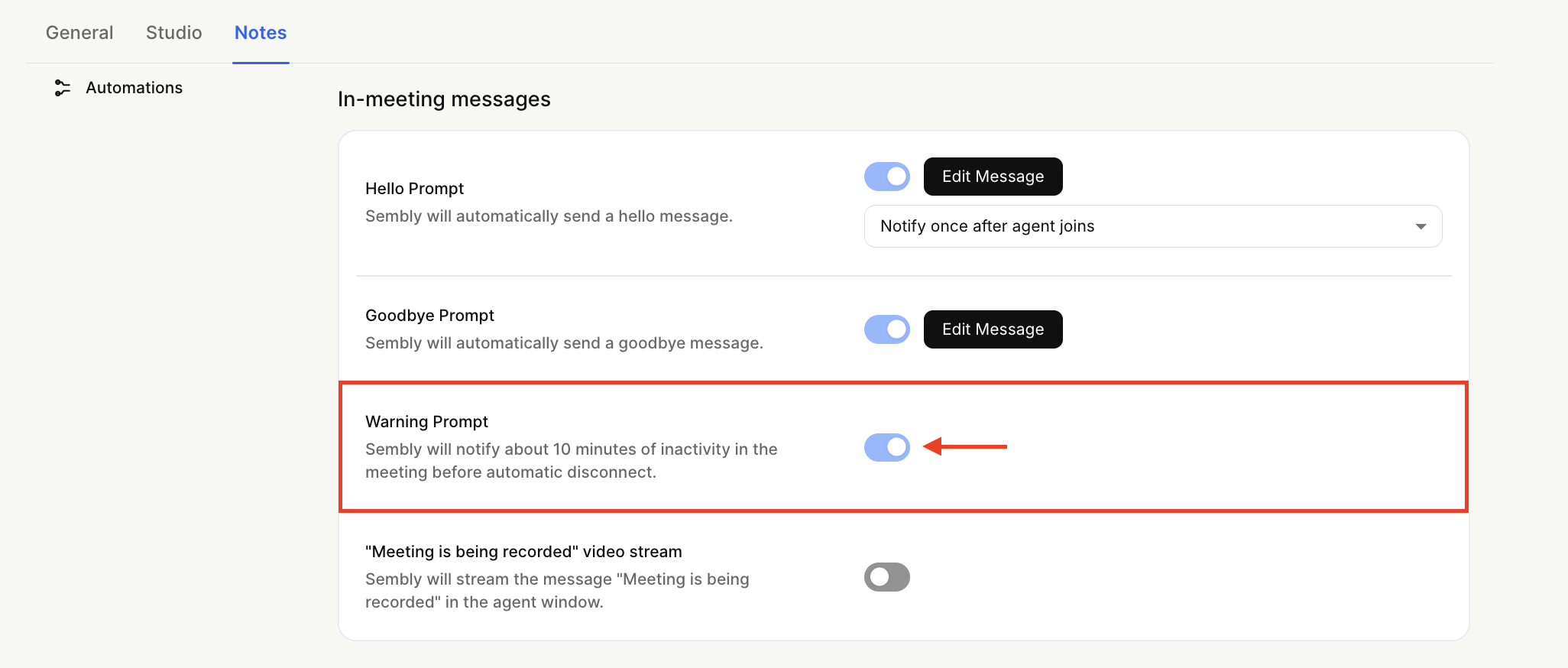
Sembly agent sends a friendly reminder when it can't hear everyone on the call. This usually happens when everyone has been on mute for more than 8 minutes or if there's something blocking the agent from hearing your voice. If the silence continues, the agent will disconnect in 2 minutes. Once you turn off the warning message, you won't get notified when the agent leaves the call.
To turn off the Warning Prompt,
Click the gear icon on the bottom left next to your avatar and select Settings
Select Agent in the context menu on the left
Scroll down to In-meeting messages
Switch off the toggle next to the Warning prompt.
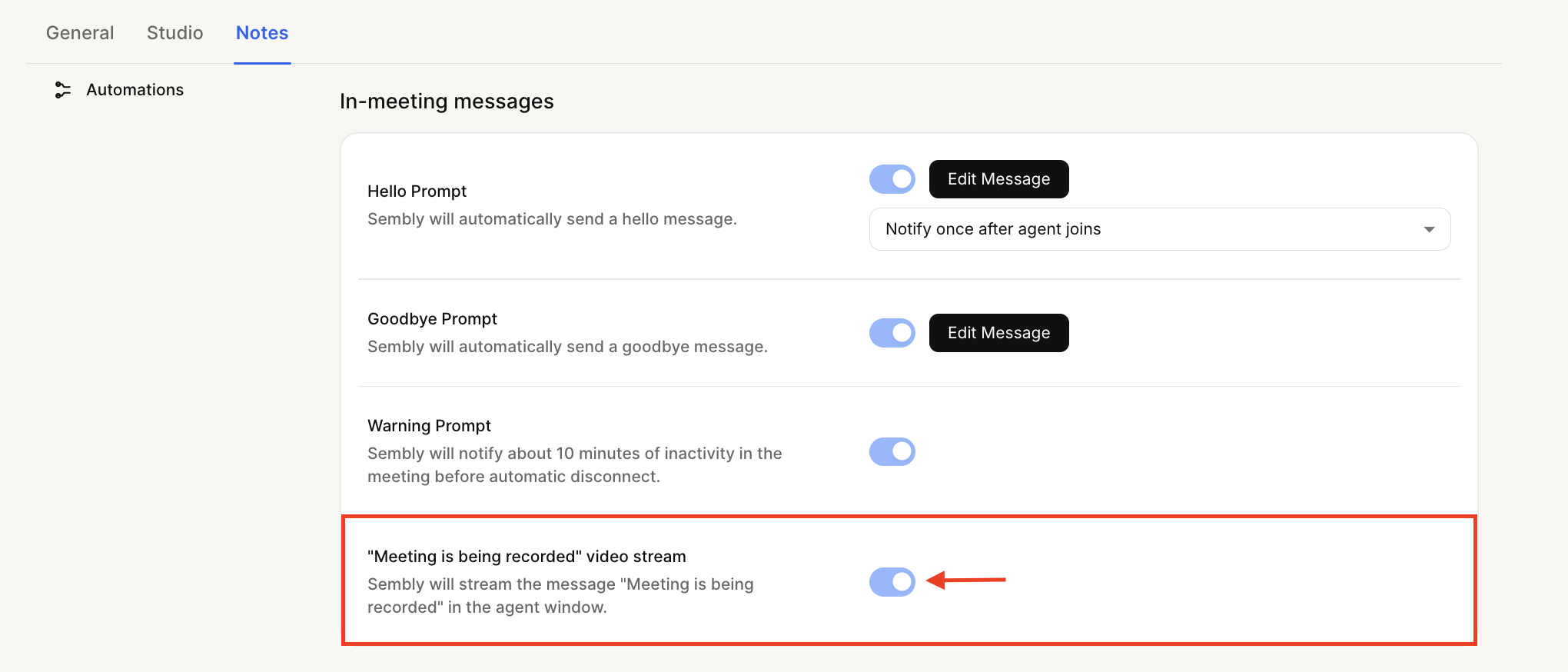
You can activate an animated avatar for Sembly Agent that includes the message Meeting is being recorded.
Click the gear icon on the bottom left next to your avatar and select Settings
Select Agent in the context menu on the left
Scroll down to In-meeting messages
Switch off the toggle next to the “Meeting is being recorded" video stream.