Once you have enabled Sembly MCP access and created an MCP token, you can easily add the Sembly MCP server to the Cursor IDE.
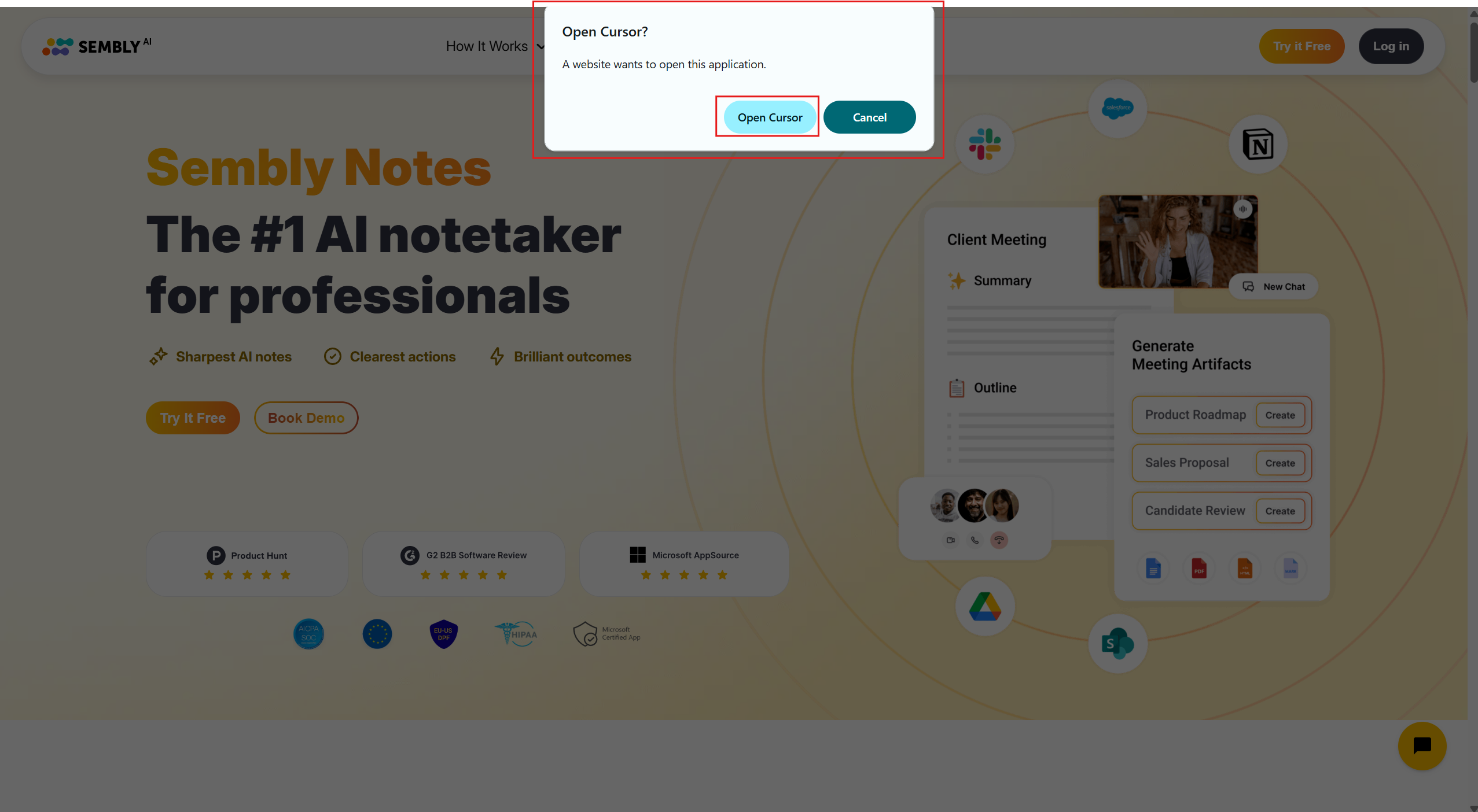
Follow the install link:
If your account data resides in the United States 🇺🇸

cursor://anysphere.cursor-deeplink/mcp/install?name=SemblyAI&config=eyJ0eXBlIjogInN0cmVhbWFibGUtaHR0cCIsICJ1cmwiOiAiaHR0cHM6Ly9tY3Auc2VtYmx5LmFpL21jcCIsICJub3RlIjogIkZvciBTdHJlYW1hYmxlIEhUVFAgY29ubmVjdGlvbnMsIGFkZCB0aGlzIFVSTCBkaXJlY3RseSBpbiB5b3VyIE1DUCBDbGllbnQiLCAiaGVhZGVycyI6IHsiQXV0aG9yaXphdGlvbiI6ICJCZWFyZXIgPFlPVVIgTUNQIFRPS0VOPiJ9fQ==If your account data resides in the European Union 🇪🇺

cursor://anysphere.cursor-deeplink/mcp/install?name=SemblyAI&config=eyJ0eXBlIjogInN0cmVhbWFibGUtaHR0cCIsICJ1cmwiOiAiaHR0cHM6Ly9tY3AtZXUuc2VtYmx5LmFpL21jcCIsICJub3RlIjogIkZvciBTdHJlYW1hYmxlIEhUVFAgY29ubmVjdGlvbnMsIGFkZCB0aGlzIFVSTCBkaXJlY3RseSBpbiB5b3VyIE1DUCBDbGllbnQiLCAiaGVhZGVycyI6IHsiQXV0aG9yaXphdGlvbiI6ICJCZWFyZXIgPFlPVVIgTUNQIFRPS0VOPiJ9fQ==Allow the web browser to open the Cursor IDE
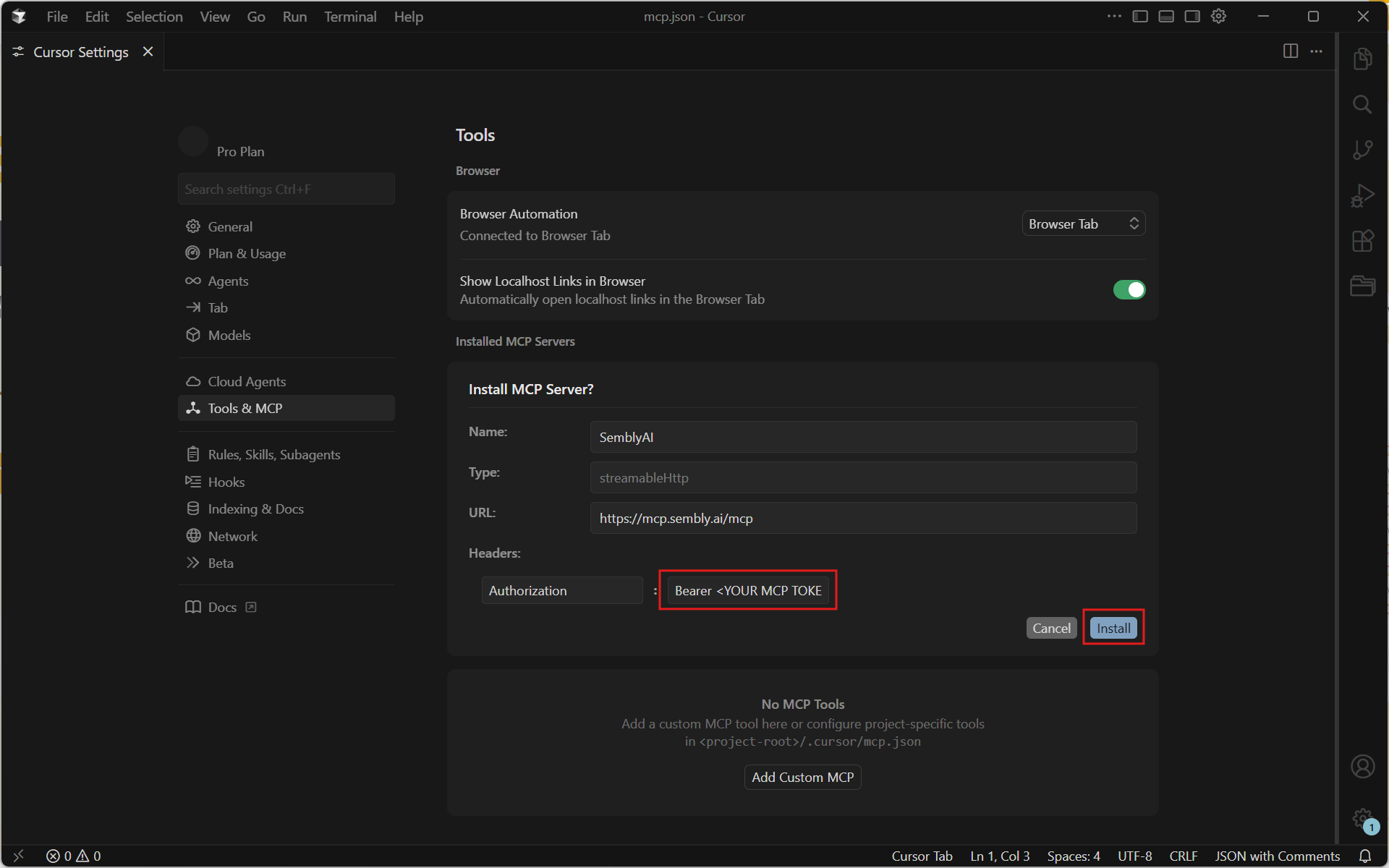
Cursor will show the MCP server configuration preview. In the “Headers” section under the “Authorization” key, replace the value part <Your MCP Token>with the token value created in the Sembly webapp.
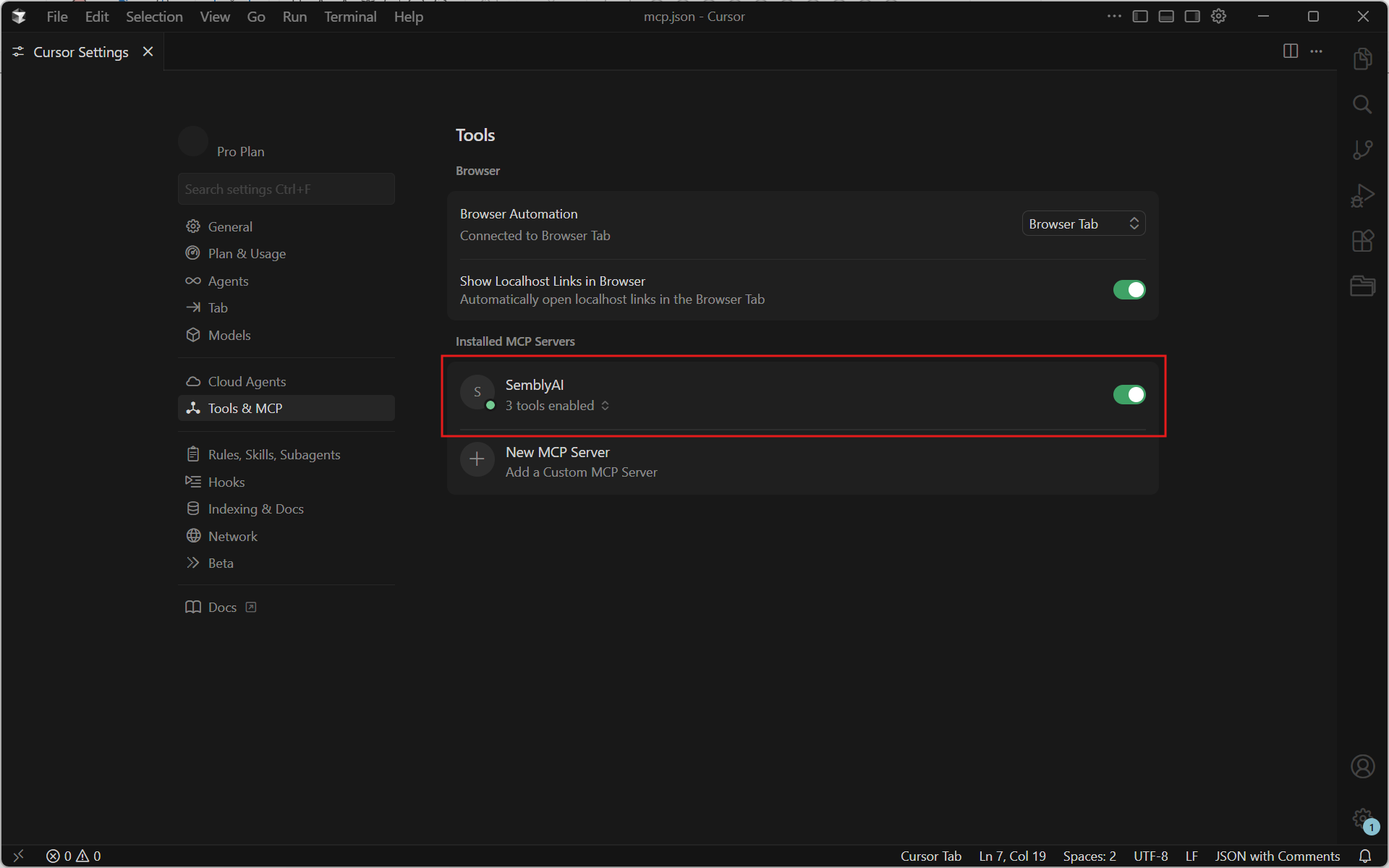
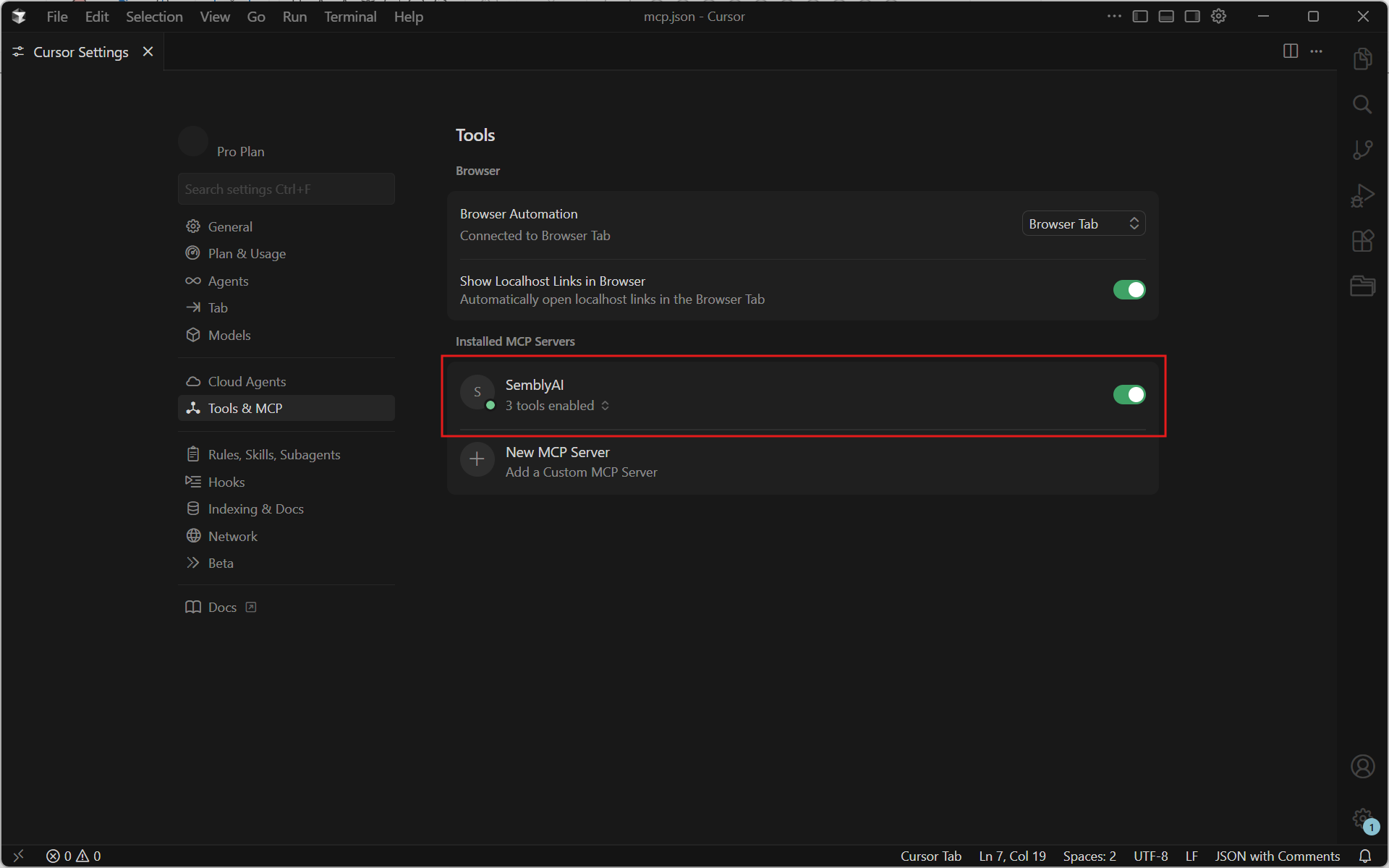
The Sembly MCP server will appear in the “Installed MCP Servers” list with tools enabled.
You can install the Cursor MCP server by manually modifying the JSON configuration.
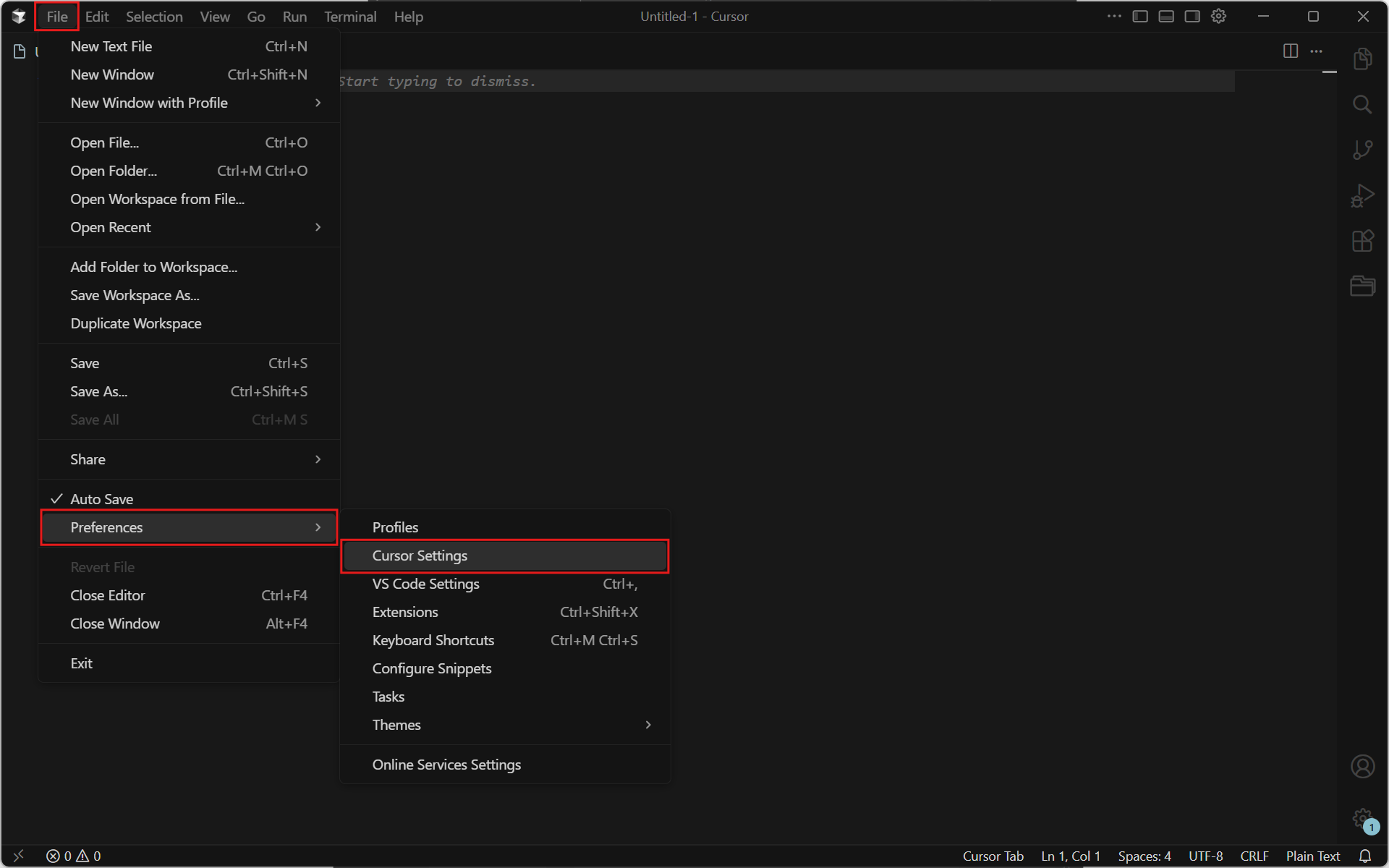
In Cursor IDE, open File → Preferences → Cursor Settings:
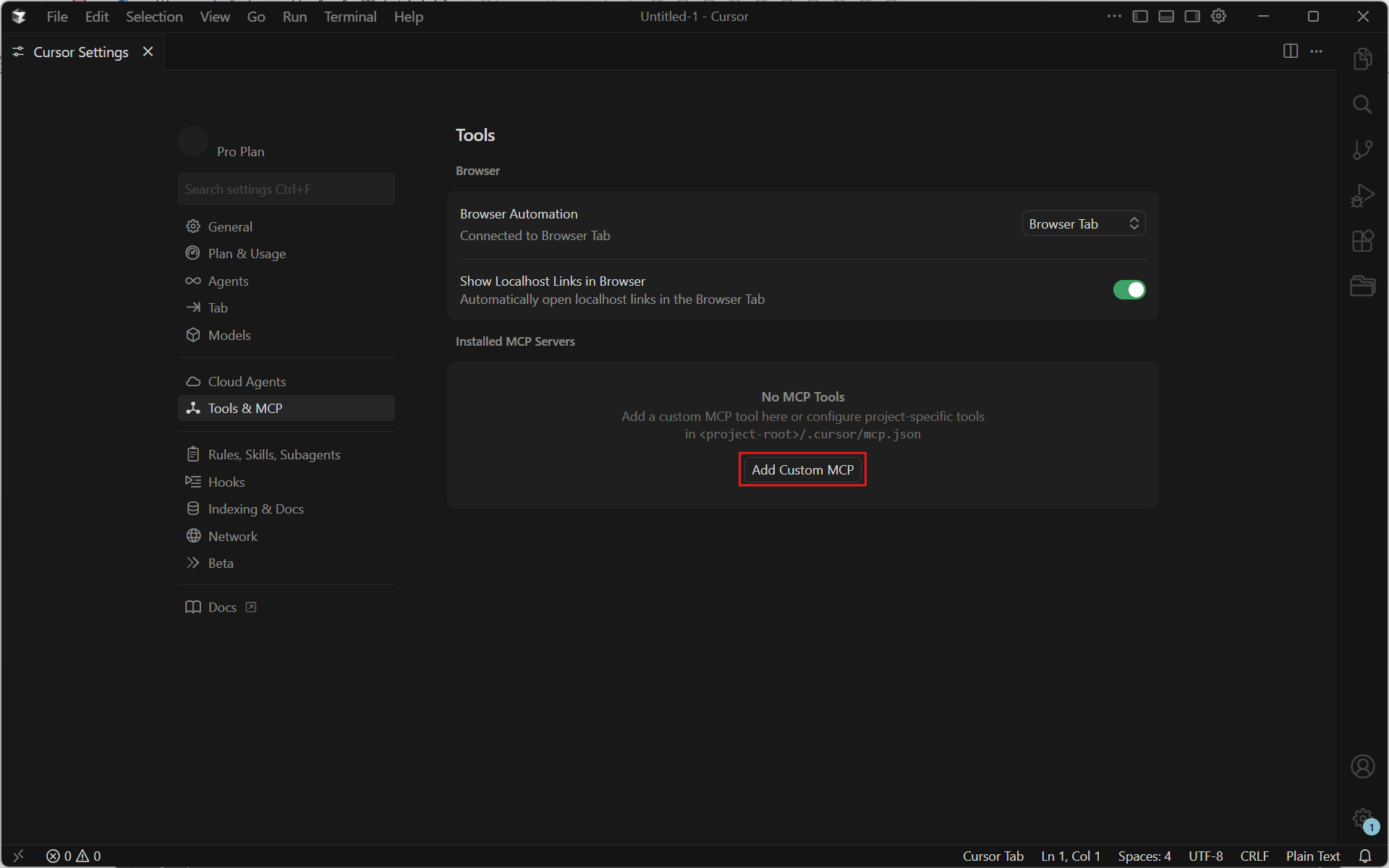
Switch to the “Tools & MCP” tab and click “Add Custom MCP”:
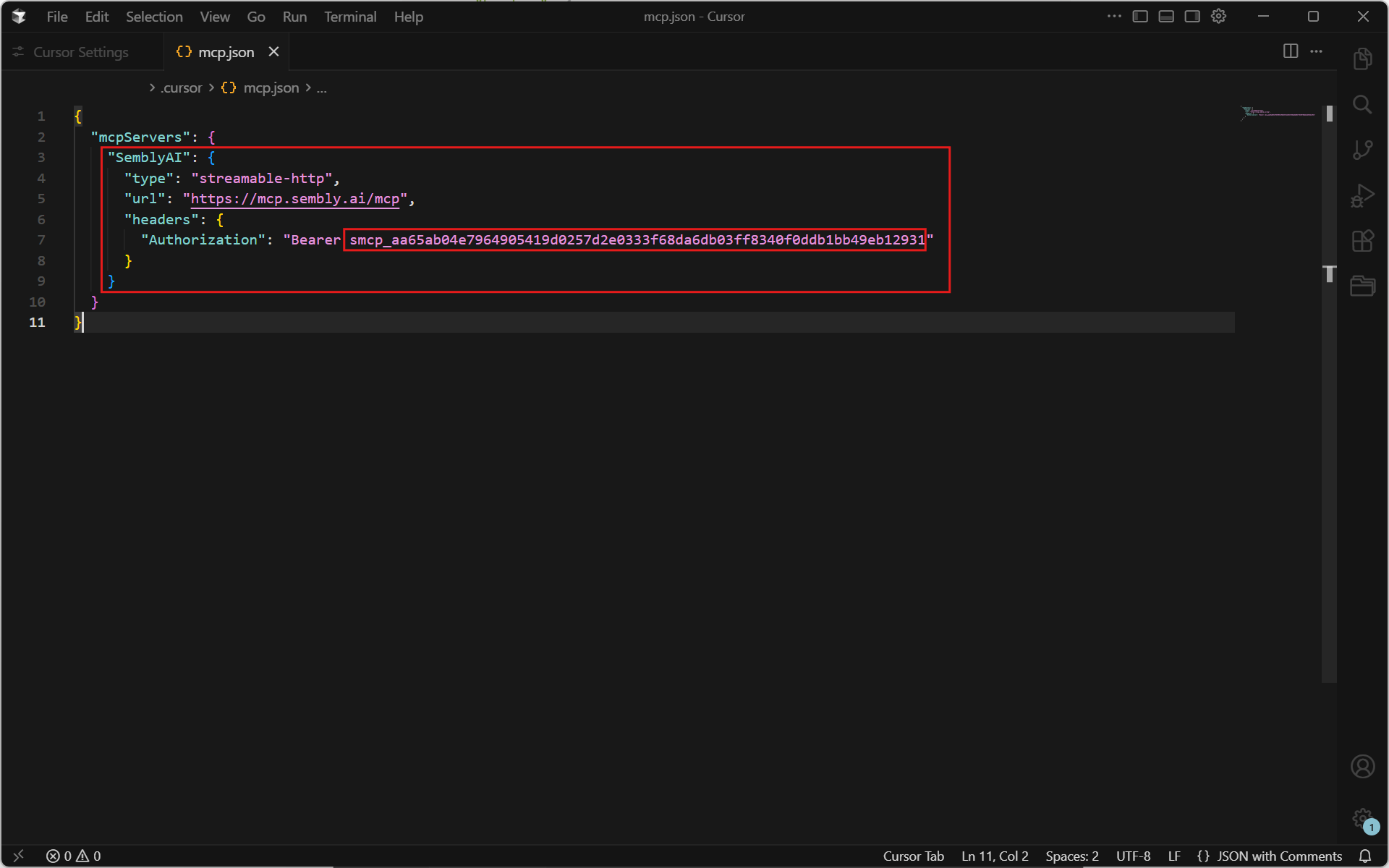
In the opened mcp.json configuration file, add entry for Sembly MCP Server, replacing TOKEN_VALUE with token value created in Sembly web app:
If your account data resides in the United States
  "mcpServers": {
    ...

    "SemblyAI": {
      "type": "streamable-http",
      "url": "https://mcp.sembly.ai/mcp",
      "headers": {
        "Authorization": "Bearer TOKEN_VALUE"
      }
    }

    ...
  }
If your account data resides in the European Union
  "mcpServers": {
    ...

    "SemblyAI": {
      "type": "streamable-http",
      "url": "https://mcp-eu.sembly.ai/mcp",
      "headers": {
        "Authorization": "Bearer TOKEN_VALUE"
      }
    }

    ...
  }
Save the file and switch back to “Cursor Settings”. Sembly MCP server appears in the “Installed MCP Servers” list:
Sembly MCP server stuck in “Loading tools” state
Sometimes during MCP server installation or after Cursor IDE restart, the server may get stuck in “Loading tools” state:
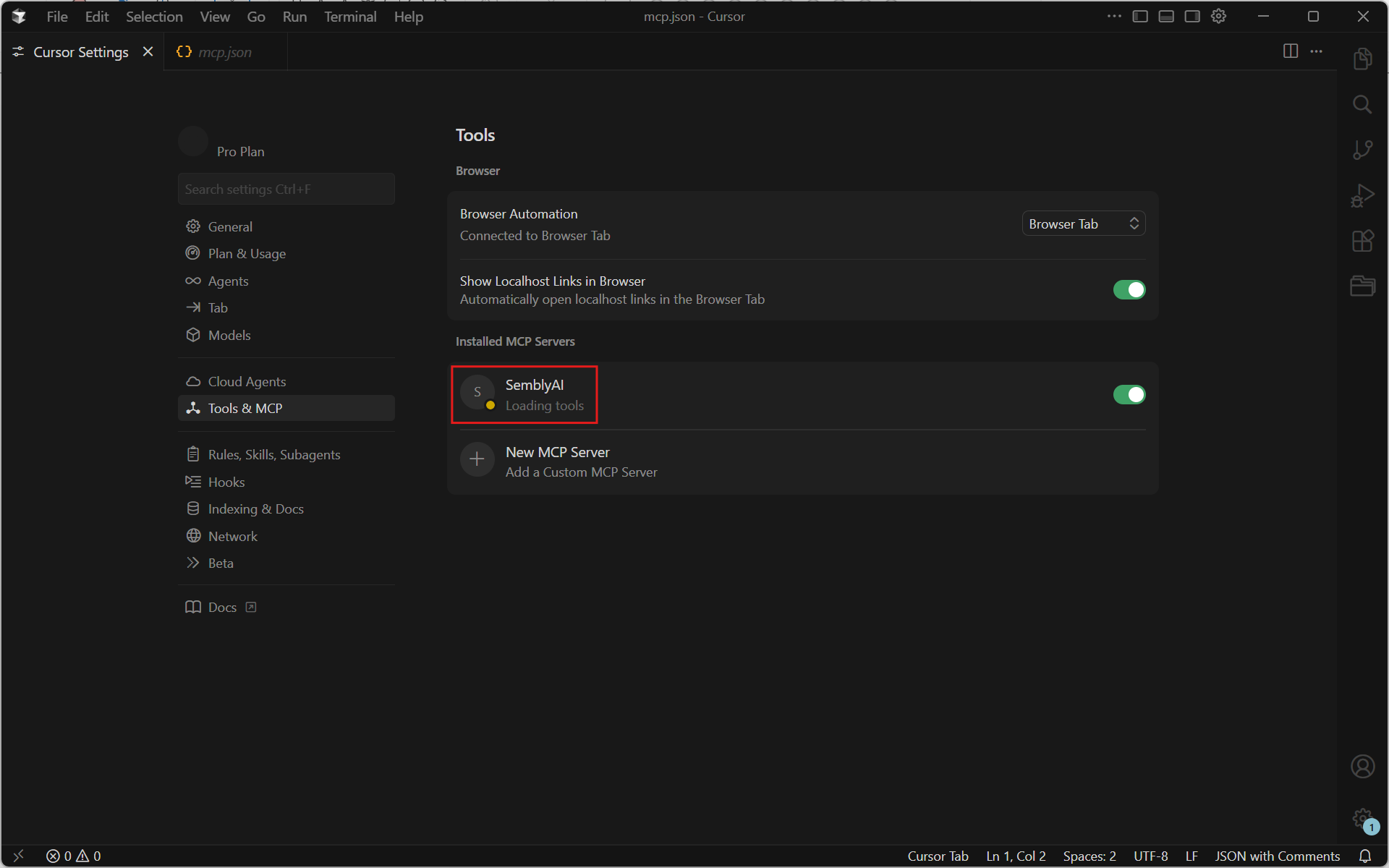
Solution: Disable the server via the toggle switch, wait a few seconds, and enable it again to force Cursor to reconnect. If the issue persists, please contact our Sembly AI Support Team.
With the Sembly MCP server installed, you can cross-reference your team discussions with your codebase, recall spoken details, and trace decisions without leaving your IDE.
You can get grounded answers based on your Sembly meetings in the context of the codebase, for example:
According to Alex’s update today, why was @post_processor.py producing an IndexError?
Remind me of yesterday’s design call, what error text should the endpoint return when a user didn’t provide their role?
Dan said there was some issue @component.ts, what was it?
List my relevant tasks related to refactoring in this repository.
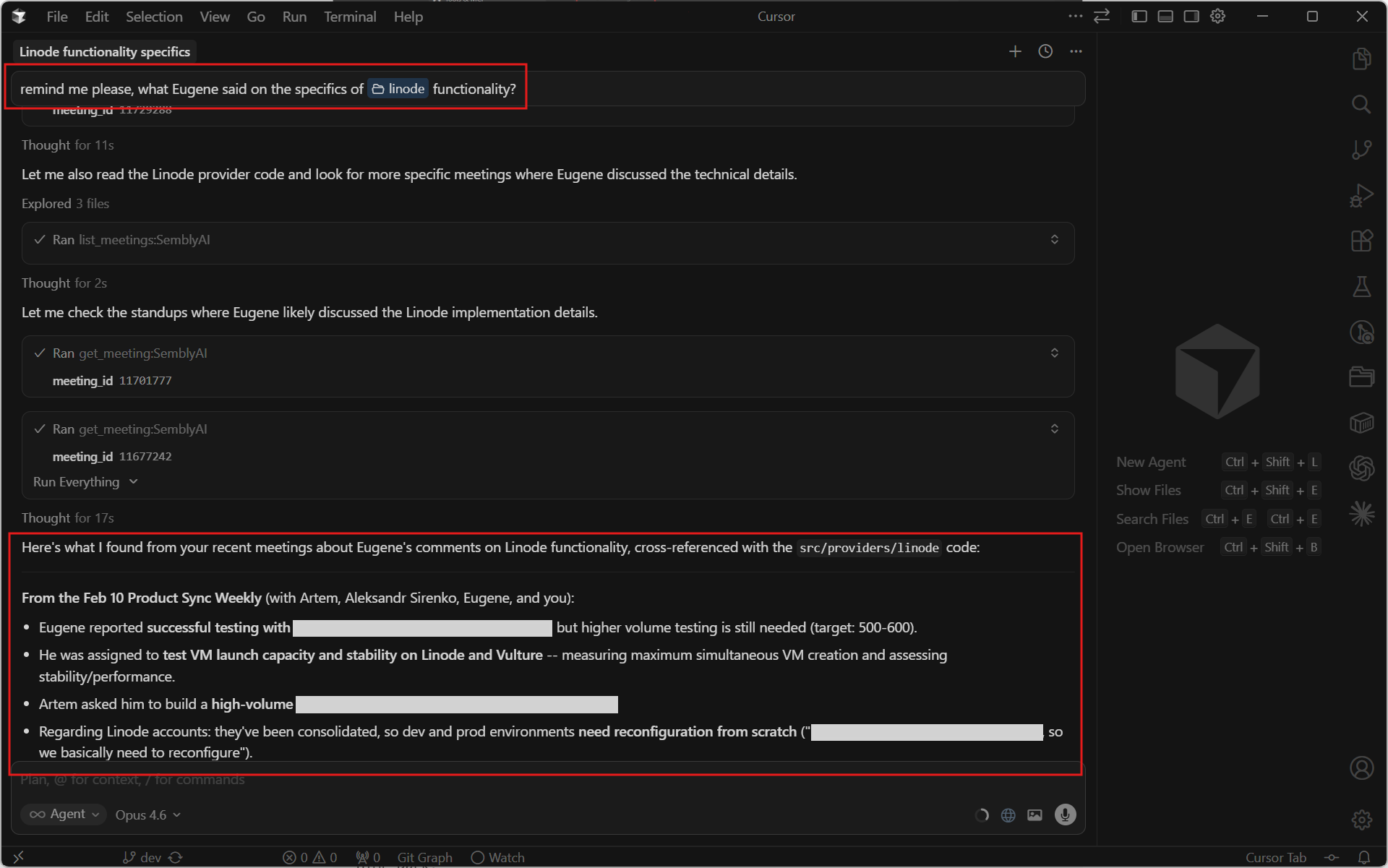
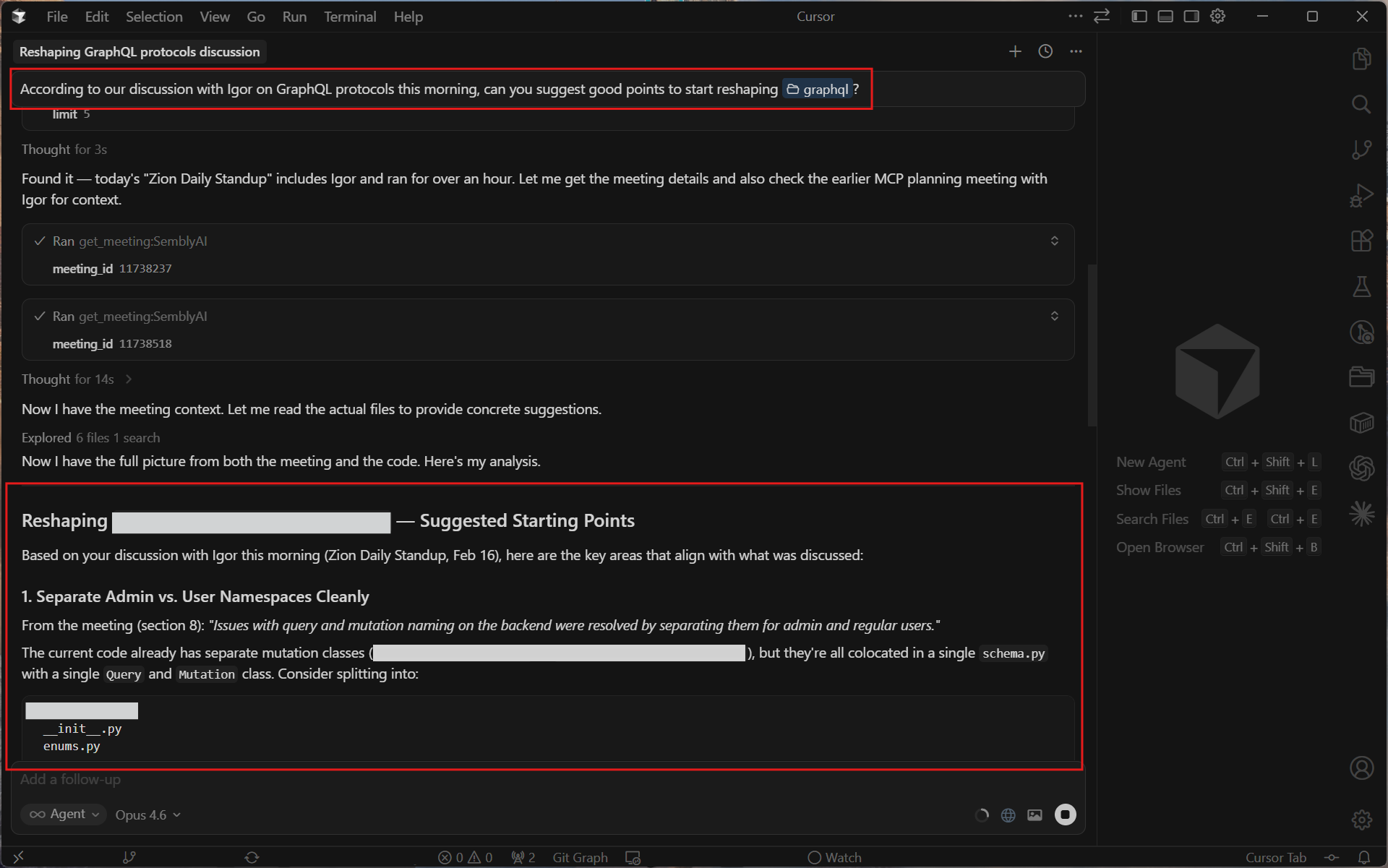
Here are a few real examples of how the Sembly development team uses Sembly MCP:
Recalling details about the existing solution
Incorporating meeting discussions into code solutions
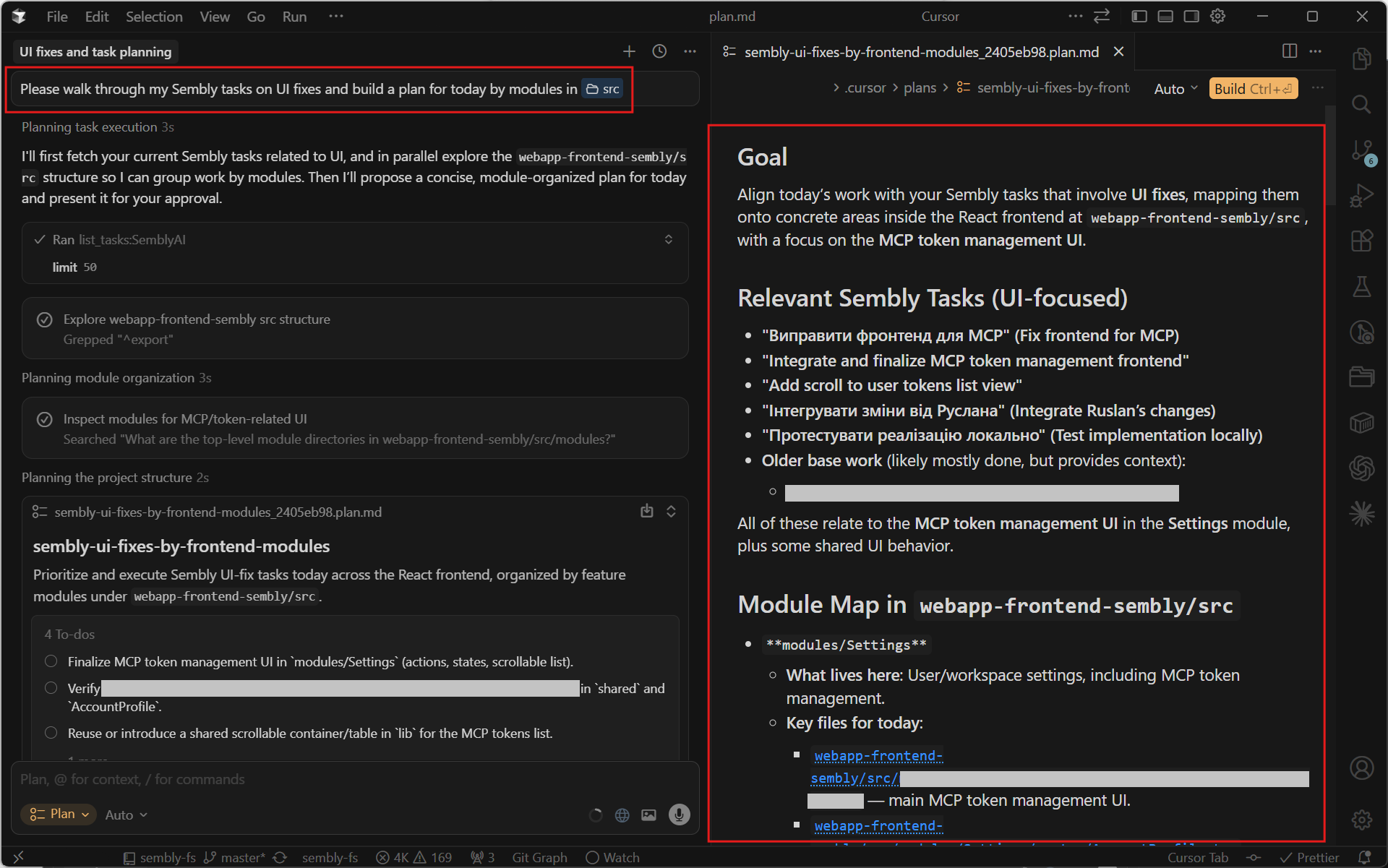
Planning development based on tasks from Sembly meetings